set KIA SOUL 2021 Navigation System Quick Reference Guide
[x] Cancel search | Manufacturer: KIA, Model Year: 2021, Model line: SOUL, Model: KIA SOUL 2021Pages: 211, PDF Size: 6.67 MB
Page 112 of 211
6-10
Dialing from the contacts
You can use contacts from the connected mobile device on the
system.
When you connect your mobile device with the system via
Bluetooth, contacts from the device are downloaded to the
system, and you can choose to call them from the system screen.
The system has a built-in microphone and speaker that make
using mobile phones safe and easy.
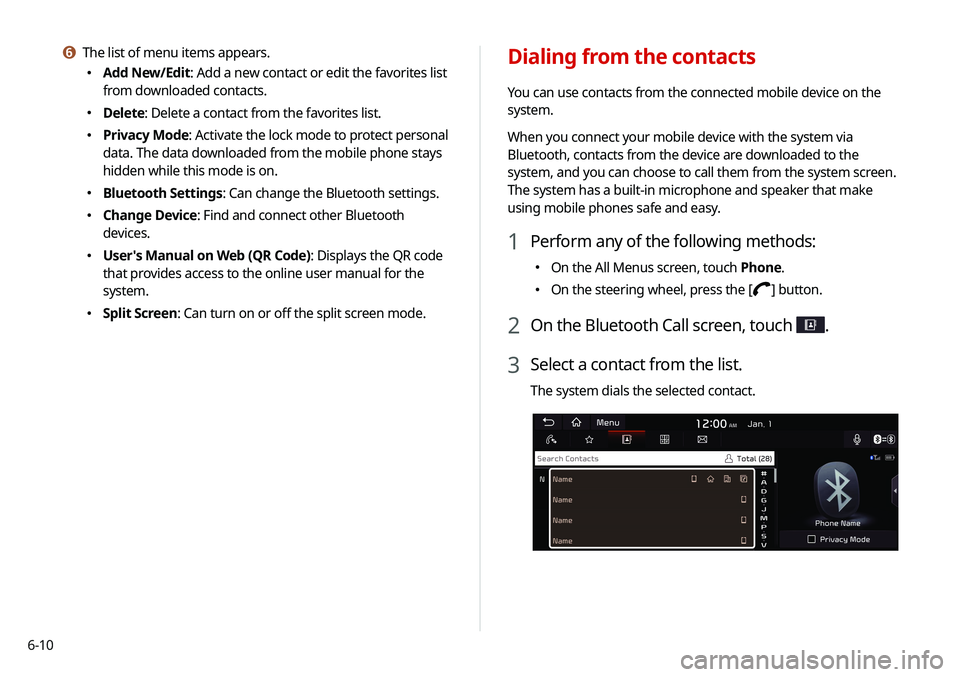
1 Perform any of the following methods:
\225On the All Menus screen, touch Phone.
\225On the steering wheel, press the [] button.
2 On the Bluetooth Call screen, touch .
3 Select a contact from the list.
The system dials the selected contact.
f The list of menu items appears.
\225
Add New/Edit: Add a new contact or edit the favorites list
from downloaded contacts.
\225Delete: Delete a contact from the favorites list.
\225Privacy Mode: Activate the lock mode to protect personal
data. The data downloaded from the mobile phone stays
hidden while this mode is on.
\225Bluetooth Settings: Can change the Bluetooth settings.
\225Change Device: Find and connect other Bluetooth
devices.
\225User's Manual on Web (QR Code): Displays the QR code
that provides access to the online user manual for the
system.
\225Split Screen: Can turn on or off the split screen mode.
Page 113 of 211
6-11
0000
A
When another mobile phone is connected, the screen does
not display the contacts downloaded from the previous
phone, but they are kept in the system until the phone is
deleted from the list.
0000
A
Learn more about receiving calls while using a Bluetooth
connection.
> See “ Accepting an incoming call over Bluetooth.”
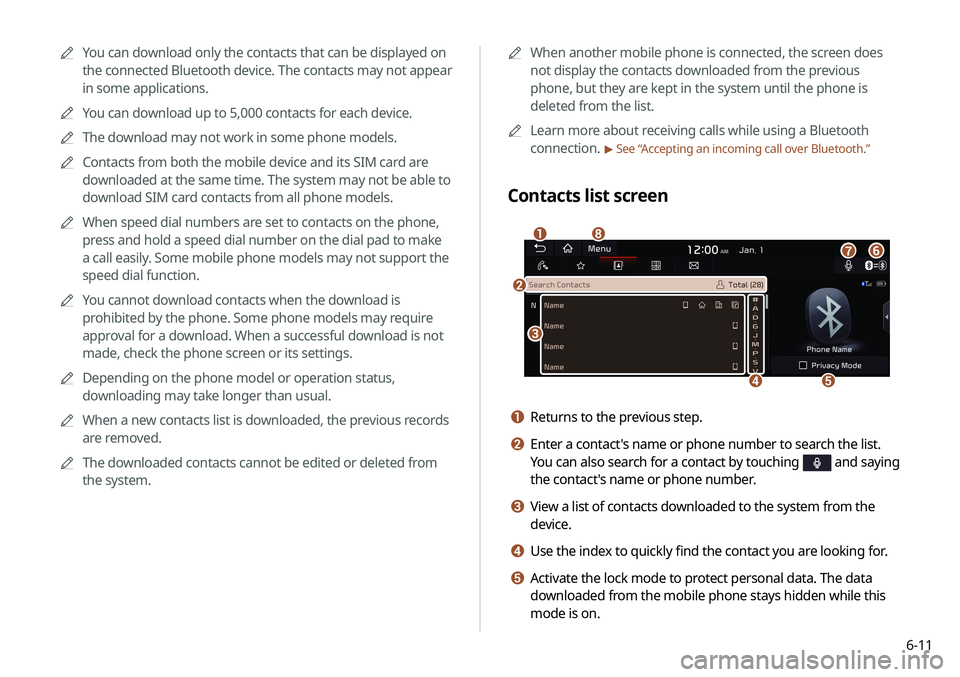
Contacts list screen
\037
\036
\035
\034
\033
\032
\031
\030
a Returns to the previous step.
b Enter a contact's name or phone number to search the list.
You can also search for a contact by touching
and saying
the contact's name or phone number.
c View a list of contacts downloaded to the system from the
device.
d Use the index to quickly find the contact you are looking for.
e Activate the lock mode to protect personal data. The data
downloaded from the mobile phone stays hidden while this
mode is on.
0000
A
You can download only the contacts that can be displayed on
the connected Bluetooth device. The contacts may not appear
in some applications.
0000
A
You can download up to 5,000 contacts for each device.
0000
A
The download may not work in some phone models.
0000
A
Contacts from both the mobile device and its SIM card are
downloaded at the same time. The system may not be able to
download SIM card contacts from all phone models.
0000
A
When speed dial numbers are set to contacts on the phone,
press and hold a speed dial number on the dial pad to make
a call easily. Some mobile phone models may not support the
speed dial function.
0000
A
You cannot download contacts when the download is
prohibited by the phone. Some phone models may require
approval for a download. When a successful download is not
made, check the phone screen or its settings.
0000
A
Depending on the phone model or operation status,
downloading may take longer than usual.
0000
A
When a new contacts list is downloaded, the previous records
are removed.
0000
A
The downloaded contacts cannot be edited or deleted from
the system.
Page 114 of 211
6-12
Using the dial pad
Enter a phone number using the dial pad to make a call.
When you connect your mobile device to the system via
Bluetooth, you can enter and dial a phone number from the
system screen, without interacting with the device. The system
has a built-in microphone and speaker that make using mobile
phones safe and easy.
\335Warning
Do not manually dial a call while driving. Distraction by the use
of a mobile phone may cause you not to recognize traffic flow
around and not to cope with unexpected situations. As a result, a
traffic accident may occur.
1 Perform any of the following methods:
\225On the All Menus screen, touch Phone.
\225On the steering wheel, press the [] button.
2 On the Bluetooth Call screen, touch .
f Find and connect other Bluetooth devices.
g Make a phone call using voice recognition. > See “Dialing with
voice recognition.”
h The list of menu items appears.
\225 Download: Download the list of contacts from the
connected mobile device.
\225Search: Search contacts by entering a name or a phone
number.
\225Privacy Mode: Activate the lock mode to protect personal
data. The data downloaded from the mobile phone stays
hidden while this mode is on.
\225Bluetooth Settings: Can change the Bluetooth settings.
\225Change Device: Find and connect other Bluetooth
devices.
\225User's Manual on Web (QR Code): Displays the QR code
that provides access to the online user manual for the
system.
\225Split Screen: Can turn on or off the split screen mode.
Page 115 of 211
6-13
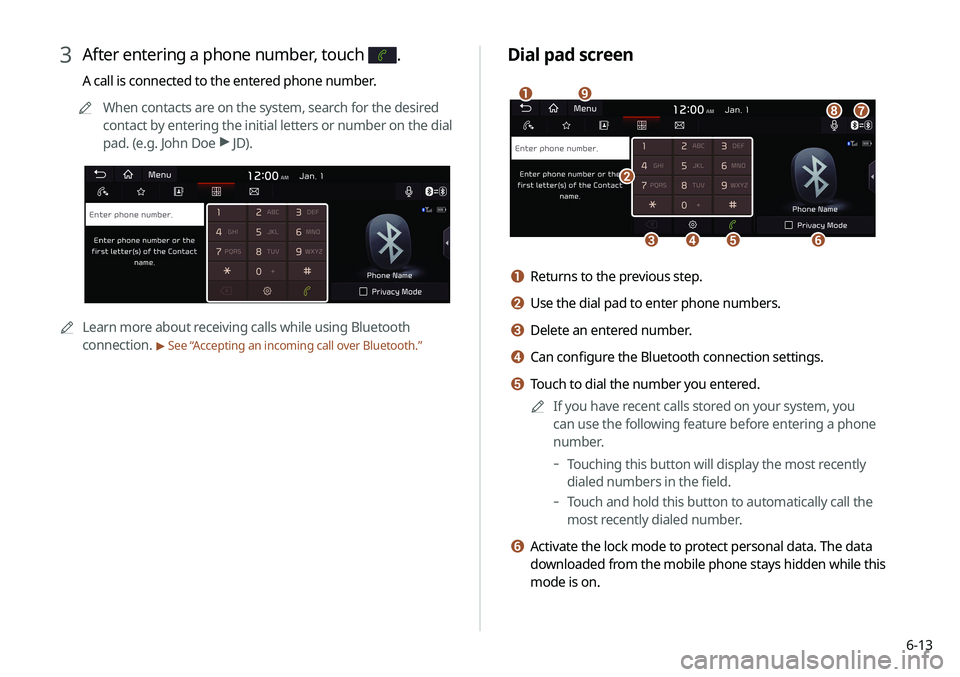
Dial pad screen
\037
\036\035\034
\033
\032
\031
\030
\027
a Returns to the previous step.
b Use the dial pad to enter phone numbers.
c Delete an entered number.
d Can configure the Bluetooth connection settings.
e Touch to dial the number you entered.0000
A
If you have recent calls stored on your system, you
can use the following feature before entering a phone
number.
-Touching this button will display the most recently
dialed numbers in the field.
-Touch and hold this button to automatically call the
most recently dialed number.
f Activate the lock mode to protect personal data. The data
downloaded from the mobile phone stays hidden while this
mode is on.
3 After entering a phone number, touch .
A call is connected to the entered phone number.
0000
A
When contacts are on the system, search for the desired
contact by entering the initial letters or number on the dial
pad. (e.g. John Doe >
JD).
0000A Learn more about receiving calls while using Bluetooth
connection.
> See “ Accepting an incoming call over Bluetooth.”
Page 116 of 211
6-14
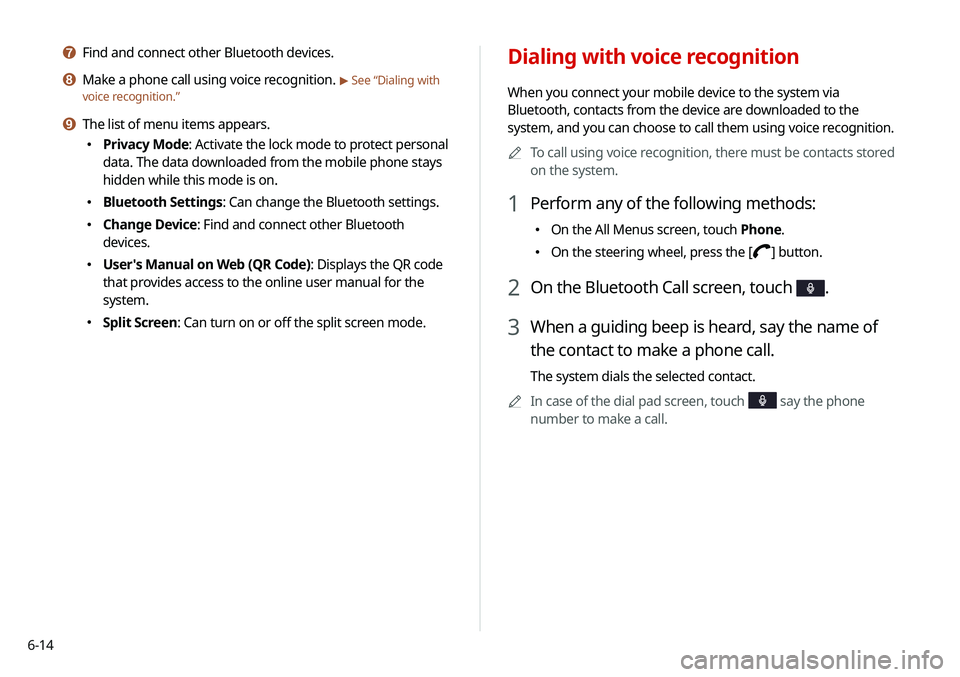
Dialing with voice recognition
When you connect your mobile device to the system via
Bluetooth, contacts from the device are downloaded to the
system, and you can choose to call them using voice recognition.0000
A
To call using voice recognition, there must be contacts stored
on the system.
1 Perform any of the following methods:
\225On the All Menus screen, touch Phone.
\225On the steering wheel, press the [] button.
2 On the Bluetooth Call screen, touch .
3 When a guiding beep is heard, say the name of
the contact to make a phone call.
The system dials the selected contact.
0000
A
In case of the dial pad screen, touch
say the phone
number to make a call.
g Find and connect other Bluetooth devices.
h Make a phone call using voice recognition. > See “Dialing with
voice recognition.”
i The list of menu items appears.
\225 Privacy Mode: Activate the lock mode to protect personal
data. The data downloaded from the mobile phone stays
hidden while this mode is on.
\225Bluetooth Settings: Can change the Bluetooth settings.
\225Change Device: Find and connect other Bluetooth
devices.
\225User's Manual on Web (QR Code): Displays the QR code
that provides access to the online user manual for the
system.
\225Split Screen: Can turn on or off the split screen mode.
Page 118 of 211
6-16
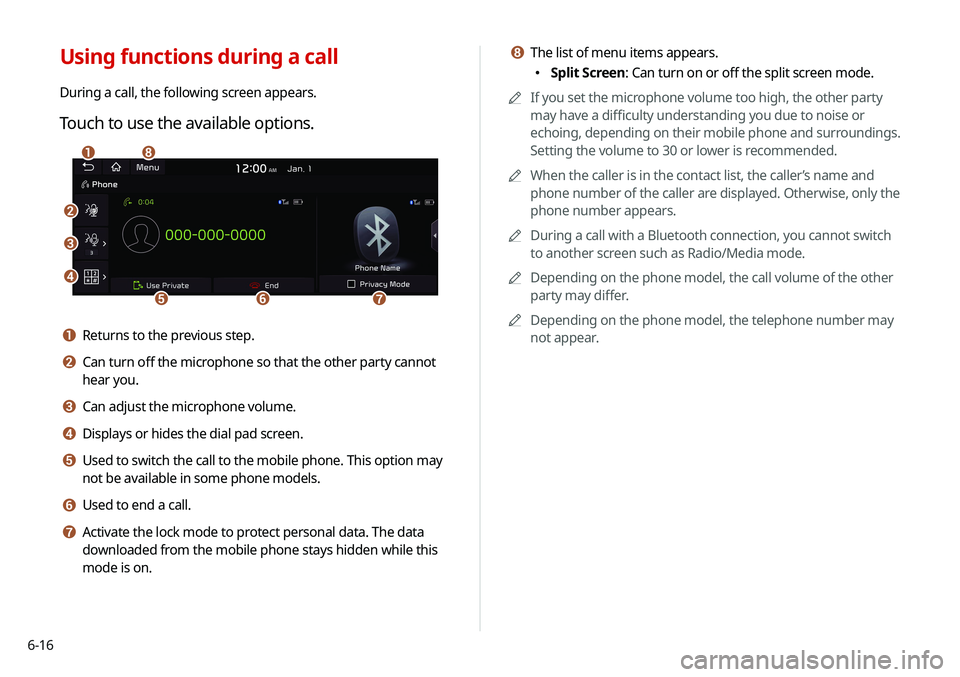
h The list of menu items appears.
\225Split Screen: Can turn on or off the split screen mode.
0000
A
If you set the microphone volume too high, the other party
may have a difficulty understanding you due to noise or
echoing, depending on their mobile phone and surroundings.
Setting the volume to 30 or lower is recommended.
0000
A
When the caller is in the contact list, the caller’s name and
phone number of the caller are displayed. Otherwise, only the
phone number appears.
0000
A
During a call with a Bluetooth connection, you cannot switch
to another screen such as Radio/Media mode.
0000
A
Depending on the phone model, the call volume of the other
party may differ.
0000
A
Depending on the phone model, the telephone number may
not appear.Using functions during a call
During a call, the following screen appears.
Touch to use the available options.
\037
\036
\035
\034\033
\032\031
\030
a Returns to the previous step.
b Can turn off the microphone so that the other party cannot
hear you.
c Can adjust the microphone volume.
d Displays or hides the dial pad screen.
e Used to switch the call to the mobile phone. This option may
not be available in some phone models.
f Used to end a call.
g Activate the lock mode to protect personal data. The data
downloaded from the mobile phone stays hidden while this
mode is on.
Page 120 of 211
6-18
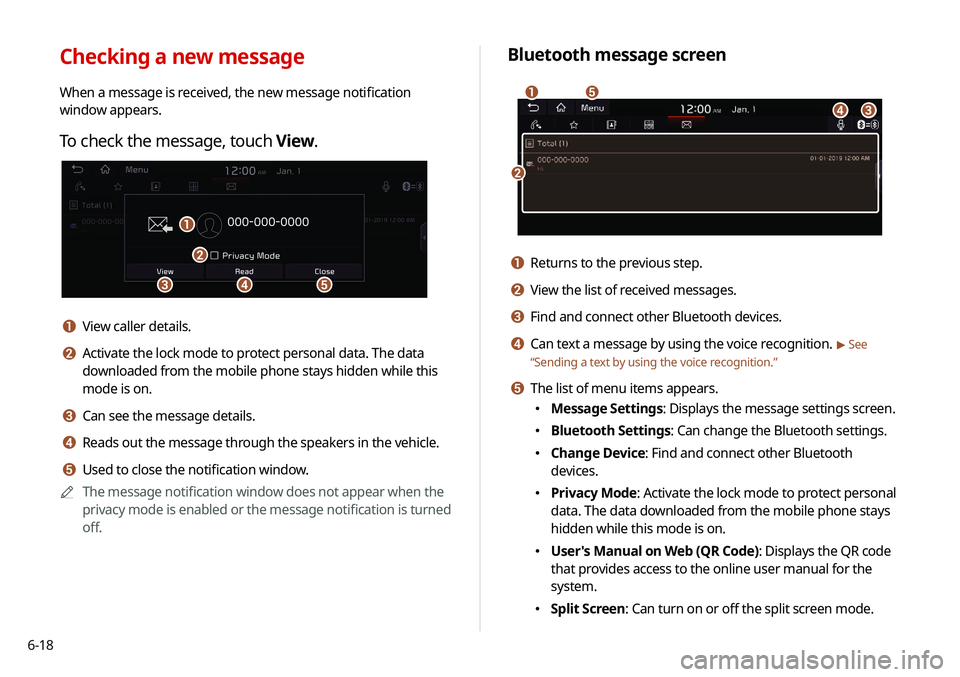
Bluetooth message screen
\037
\036
\035
\034
\033
a Returns to the previous step.
b View the list of received messages.
c Find and connect other Bluetooth devices.
d Can text a message by using the voice recognition. > See
“ Sending a text by using the voice recognition.”
e The list of menu items appears.
\225
Message Settings: Displays the message settings screen.
\225Bluetooth Settings: Can change the Bluetooth settings.
\225Change Device: Find and connect other Bluetooth
devices.
\225Privacy Mode: Activate the lock mode to protect personal
data. The data downloaded from the mobile phone stays
hidden while this mode is on.
\225User's Manual on Web (QR Code): Displays the QR code
that provides access to the online user manual for the
system.
\225Split Screen: Can turn on or off the split screen mode.
Checking a new message
When a message is received, the new message notification
window appears.
To check the message, touch View.
\037\036
\035
\034
\033
a View caller details.
b Activate the lock mode to protect personal data. The data
downloaded from the mobile phone stays hidden while this
mode is on.
c Can see the message details.
d Reads out the message through the speakers in the vehicle.
e Used to close the notification window.
0000
A
The message notification window does not appear when the
privacy mode is enabled or the message notification is turned
off.
Page 121 of 211
6-19
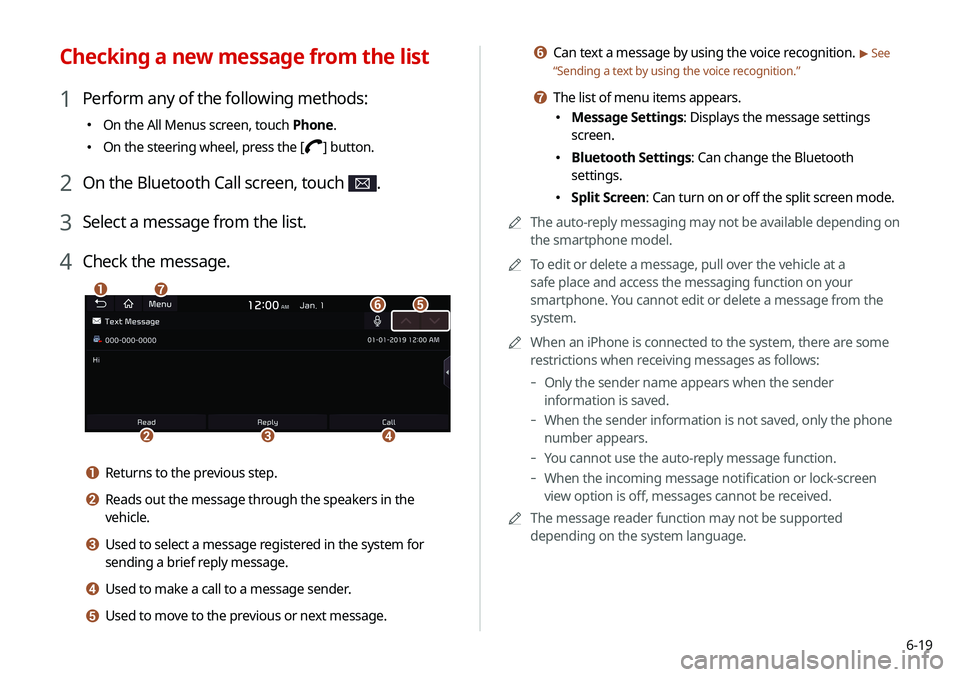
f Can text a message by using the voice recognition. > See
“ Sending a text by using the voice recognition.”
g The list of menu items appears.
\225
Message Settings: Displays the message settings
screen.
\225Bluetooth Settings: Can change the Bluetooth
settings.
\225Split Screen: Can turn on or off the split screen mode.
0000
A
The auto-reply messaging may not be available depending on
the smartphone model.
0000
A
To edit or delete a message, pull over the vehicle at a
safe place and access the messaging function on your
smartphone. You cannot edit or delete a message from the
system.
0000
A
When an iPhone is connected to the system, there are some
restrictions when receiving messages as follows:
-Only the sender name appears when the sender
information is saved.
-When the sender information is not saved, only the phone
number appears.
-You cannot use the auto-reply message function.
-When the incoming message notification or lock-screen
view option is off, messages cannot be received.
0000
A
The message reader function may not be supported
depending on the system language.
Checking a new message from the list
1 Perform any of the following methods:
\225On the All Menus screen, touch Phone.
\225On the steering wheel, press the [] button.
2 On the Bluetooth Call screen, touch .
3 Select a message from the list.
4 Check the message.
\037
\036\035\034
\033\032
\031
a Returns to the previous step.
b Reads out the message through the speakers in the
vehicle.
c Used to select a message registered in the system for
sending a brief reply message.
d Used to make a call to a message sender.
e Used to move to the previous or next message.
Page 130 of 211
7-8
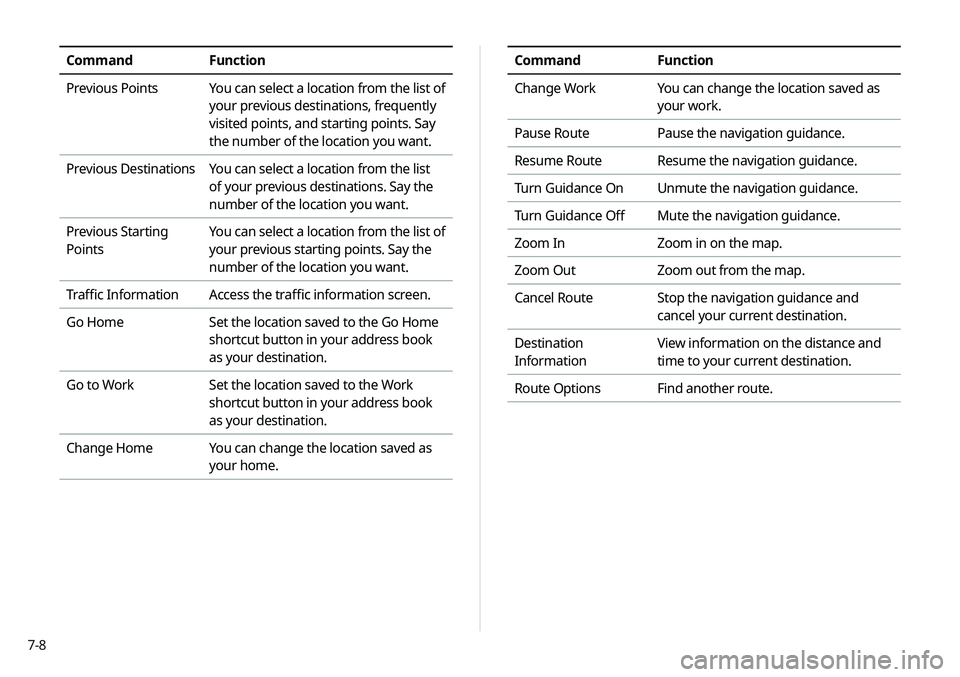
CommandFunction
Change Work You can change the location saved as
your work.
Pause Route Pause the navigation guidance.
Resume Route Resume the navigation guidance.
Turn Guidance On Unmute the navigation guidance.
Turn Guidance Off Mute the navigation guidance.
Zoom In Zoom in on the map.
Zoom Out Zoom out from the map.
Cancel Route Stop the navigation guidance and
cancel your current destination.
Destination
Information View information on the distance and
time to your current destination.
Route Options Find another route.CommandFunction
Previous Points You can select a location from the list of
your previous destinations, frequently
visited points, and starting points. Say
the number of the location you want.
Previous Destinations You can select a location from the list
of your previous destinations. Say the
number of the location you want.
Previous Starting
Points You can select a location from the list of
your previous starting points. Say the
number of the location you want.
Traffic Information Access the traffic information screen.
Go Home Set the location saved to the Go Home
shortcut button in your address book
as your destination.
Go to Work Set the location saved to the Work
shortcut button in your address book
as your destination.
Change Home You can change the location saved as
your home.
Page 131 of 211
7-9
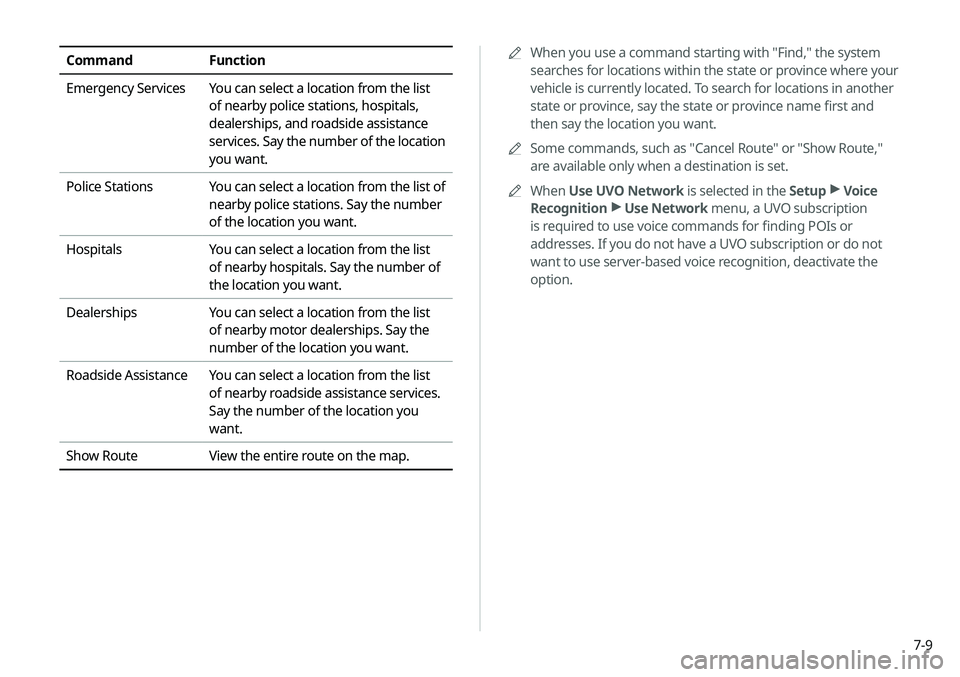
CommandFunction
Emergency Services You can select a location from the list
of nearby police stations, hospitals,
dealerships, and roadside assistance
services. Say the number of the location
you want.
Police Stations You can select a location from the list of
nearby police stations. Say the number
of the location you want.
Hospitals You can select a location from the list
of nearby hospitals. Say the number of
the location you want.
Dealerships You can select a location from the list
of nearby motor dealerships. Say the
number of the location you want.
Roadside Assistance You can select a location from the list
of nearby roadside assistance services.
Say the number of the location you
want.
Show Route View the entire route on the map. 0000
A
When you use a command starting with "Find," the system
searches for locations within the state or province where your
vehicle is currently located. To search for locations in another
state or province, say the state or province name first and
then say the location you want.
0000
A
Some commands, such as "Cancel Route " or "Show Route,"
are available only when a destination is set.
0000
A
When Use UVO Network is selected in the Setup >
Voice
Recognition >
Use Network menu, a UVO subscription
is required to use voice commands for finding POIs or
addresses. If you do not have a UVO subscription or do not
want to use server-based voice recognition, deactivate the
option.