set KIA SOUL 2021 Navigation System Quick Reference Guide
[x] Cancel search | Manufacturer: KIA, Model Year: 2021, Model line: SOUL, Model: KIA SOUL 2021Pages: 211, PDF Size: 6.67 MB
Page 147 of 211

8-3
3 Enter your phone number or email address, and
then touch Submit.
0000
A
When you have a registered account and verification code,
touch I already have a code.
4 Enter the verification code you received from
MyUVO.com and then touch Submit.
0000
A
Now activation starts. While the activation is in progress,
the system buttons are locked.
Subscribing to the service
You must activate the service to use it on the system. An account
with MyUVO.com is required to activate the service. When you do
not have an account, create a new account to activate the service.
When you already have an account, enter the verification code
you received from MyUVO.com.
\334Caution
Do NOT turn off the vehicle when the service setting is in
progress. It may cause system malfunction.
1 Park your vehicle in a safe place.
0000
A
You cannot enter information for service activation while
your vehicle is moving.
2 On the All Menus screen, touch UVO >
UVO
Settings >
Activate UVO.
Page 151 of 211

8-7
Using the received location information
You can view points of interest (POIs) received from the UVO
website and the UVO application and set one of them as the
destination.
1 On the All Menus screen, touch UVO >
My POIs.
2 From the list of received locations, select a place
name.
3 See the diagnosis results and perform a required
function, as follows:
\225
To schedule a maintenance service at a preferred Kia
dealership or the nearest one, touch Schedule Service.
\225To call the UVO center for roadside assistance, touch
Roadside Assist.
0000A A diagnosis result provided by this service is only an estimated
result based on the signals from your vehicle. Visit a Kia
Motors dealership for a detailed diagnosis.
0000
A
When a critical diagnostics issue is detected on your
vehicle, an automatic diagnosis starts when a warning light
illuminates on the instrument cluster. You are notified of the
diagnosis result.
0000
A
Your preferred dealership must be registered on MyUVO.com
for you to schedule a maintenance service with it.
Page 153 of 211

8-9
Configuring the UVO settings
You can subscribe to the UVO service or see the modem
information.0000
A
For more information:
> see “Configuring the UVO settings.”
Using Voice Local Search
With UVO, you can search for locations from the online map
database by using voice commands.
If you did not update the map or system or you cannot find your
destination in the navigation, you can use the latest information
from the online server to search for locations and receive
guidance.
1 Press the [] button on the vehicle.
Voice recognition starts with voice guidance.
2 After the voice guidance ends and you hear a
beep, say the POI name or Address.
0000
A
Depending on the system language, voice recognition
may not be supported.
Page 155 of 211

Settings
Configuring the device connection settingsConfiguring the advanced system settings Configuring the sound settings
Configuring the voice recognition settings Configuring the navigation settingsConfiguring the UVO settings
Configuring the general system settings Configuring the display settingsConfiguring the media settings
Updating the system software and map
09
Page 156 of 211

9-20000
A
For more information on how to use the Bluetooth functions:
> see “Connecting a Bluetooth device.”
0000
A
Some setting options appear when a smartphone is
connected to the system.
0000
A
To edit or delete a message, pull over the vehicle at a
safe place and access the messaging function on your
smartphone. You cannot edit or delete a message from the
system.
0000
A
When an iPhone is connected to the system, there are some
restrictions when receiving messages as follows:
-Only the sender name appears when the sender
information is saved.
-Only the phone number appears when the sender
information is not saved.
-You cannot use the auto-reply message function.
-When the incoming message notification or lock-screen
view option is off, messages cannot be received.
0000
A
The message reader function may not be supported
depending on the system language.
Bluetooth Connections
You can register or delete a Bluetooth device from the system
and connect or disconnect a registered device.
0000
A
You can add one Bluetooth hands-free kit or up to two
Bluetooth audio devices.
Configuring the device
connection settings
You can manage Bluetooth devices or configure their operation
settings. You can also activate the phone projection so that you
can control the smartphone applications on the system screen
after connecting the smartphone to the system.
1 On the All Menus screen, touch Setup >
Device
Connections.
The device connection settings screen appears.
2 Configure the settings required:
Bluetooth
You can register or delete a Bluetooth device for the system and
connect or disconnect a registered device. You can also configure
operation settings such as notifications, messages, and other
settings for Bluetooth devices.
Page 157 of 211

9-3
Android Auto
You can activate the Android Auto function to pair your Android
smartphone with the system.
Apple CarPlay
You can activate the Apple CarPlay function to pair your iPhone
with the system.
Auto Connection Priority
Set Bluetooth connection priority for devices to automatically
connect them when starting the vehicle.
Bluetooth Voice Prompts
Set whether to hear voice prompts for events related to Bluetooth
connections.
Message Settings
\225Message Notification: Sets to receive message notifications.
\225Predefined Messages : Can edit message templates for replies.
0000
A
This option may not be available in some phone models.
Bluetooth System Info
You can see and edit the Bluetooth information of the system.
Privacy Mode
Enable or disable Privacy Mode.
Hide data including contacts and call history from showing up on
the system screen to protect privacy.
Reset
You can delete all registered Bluetooth devices and initialize
Bluetooth settings. All data for Bluetooth devices are also deleted.
Page 158 of 211
![KIA SOUL 2021 Navigation System Quick Reference Guide 9-4
TUNE Knob Function
You can change the [TUNE/FILE] knob’s function on the map.
Changes Stations, Tracks, etc., in the Audio
System
You can search music or adjust the radio frequency by using the](/img/2/55175/w960_55175-157.png "KIA SOUL 2021 Navigation System Quick Reference Guide 9-4
TUNE Knob Function
You can change the [TUNE/FILE] knob’s function on the map.
Changes Stations, Tracks, etc., in the Audio
System
You can search music or adjust the radio frequency by using the")
9-4
TUNE Knob Function
You can change the [TUNE/FILE] knob’s function on the map.
Changes Stations, Tracks, etc., in the Audio
System
You can search music or adjust the radio frequency by using the
[TUNE/ FILE] knob on the map.
Zooms In/Out on the Map
You can zoom in or out the map by using the [TUNE/ FILE] knob
on the map.
Configuring the advanced
system settings
You can configure the settings for notification and button actions.
1 On the All Menus screen, touch Setup >
Advanced.
The advanced settings screen appears.
2 Configure the settings required:
Return to Map: Set Time
You can set the system to automatically display the map screen
after a specified period of time when switched to the Radio/Media
mode screen while using the navigation.
0000
A
This function works while driving once a destination has been
set.
0000
A
This feature is not available on the phone projection screen.
Page 159 of 211
![KIA SOUL 2021 Navigation System Quick Reference Guide 9-5
Custom Button ☆
You can set the frequently used functions by pressing the
custom button [
] on the control panel. Set the frequently used
functions as custom buttons to access them easily.
000](/img/2/55175/w960_55175-158.png "KIA SOUL 2021 Navigation System Quick Reference Guide 9-5
Custom Button ☆
You can set the frequently used functions by pressing the
custom button [
] on the control panel. Set the frequently used
functions as custom buttons to access them easily.
000")
9-5
Custom Button ☆
You can set the frequently used functions by pressing the
custom button [
] on the control panel. Set the frequently used
functions as custom buttons to access them easily.
0000
A
When you touch the custom button [
] after setting the
Favorites, the corresponding screen appears.
Steering Wheel MODE Button
You can select the media mode to run when the [ MODE] button
on the steering wheel is pressed.
0000
A
You can add AM or Phone Projection function on each
MODE button to perform easily.
Home Screen
You can change the Home screen configuration and layout.
Edit Home Widgets
You can edit the types and arrangement of home widgets.
0000
A
For more information:
> see “ Editing widgets on the Home screen .”
Edit Home Icons
You can edit the arrangement of home icons.
0000
A
For more information:
> see “Editing icons on the Home screen.”
Page 160 of 211
9-6
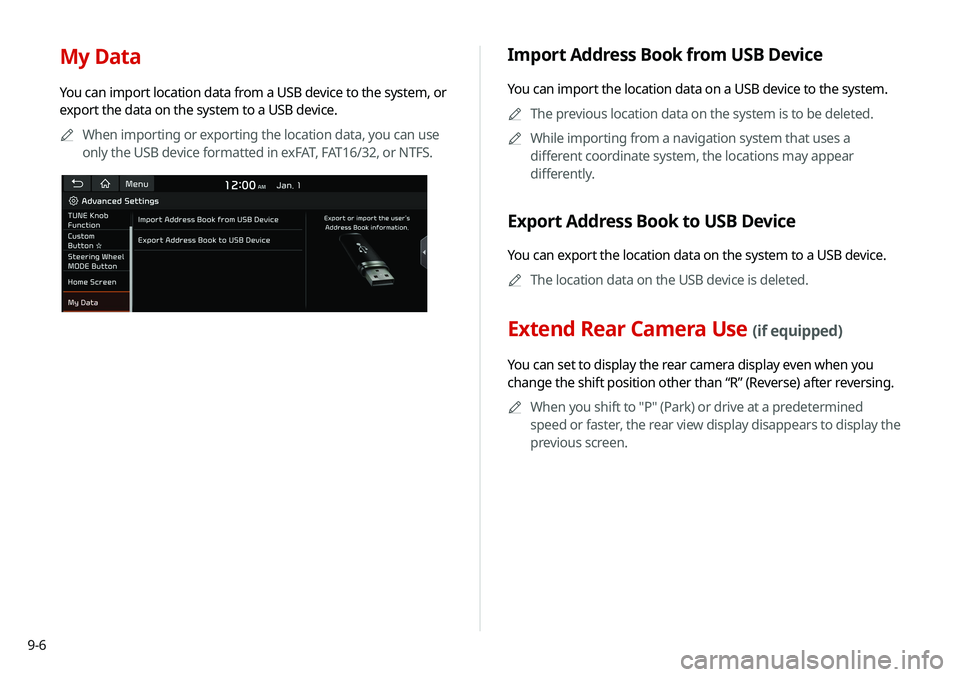
My Data
You can import location data from a USB device to the system, or
export the data on the system to a USB device.0000
A
When importing or exporting the location data, you can use
only the USB device formatted in exFAT, FAT16/32, or NTFS.
Import Address Book from USB Device
You can import the location data on a USB device to the system.
0000
A
The previous location data on the system is to be deleted.
0000
A
While importing from a navigation system that uses a
different coordinate system, the locations may appear
differently.
Export Address Book to USB Device
You can export the location data on the system to a USB device.
0000
A
The location data on the USB device is deleted.
Extend Rear Camera Use (if equipped)
You can set to display the rear camera display even when you
change the shift position other than “R” (Reverse) after reversing.
0000
A
When you shift to "P" (Park) or drive at a predetermined
speed or faster, the rear view display disappears to display the
previous screen.
Page 161 of 211
9-7
Configuring the sound settings
You can change the sound settings such as speaker volume and
sound effects.0000
A
Available settings may differ depending on the vehicle model
and specifications.
0000
A
Some functions may not be available depending on the
infotainment system and amplifier specifications on the
vehicle.
1 On the All Menus screen, touch Setup >
Sound.
The sound settings screen appears.
2 Configure the settings required:
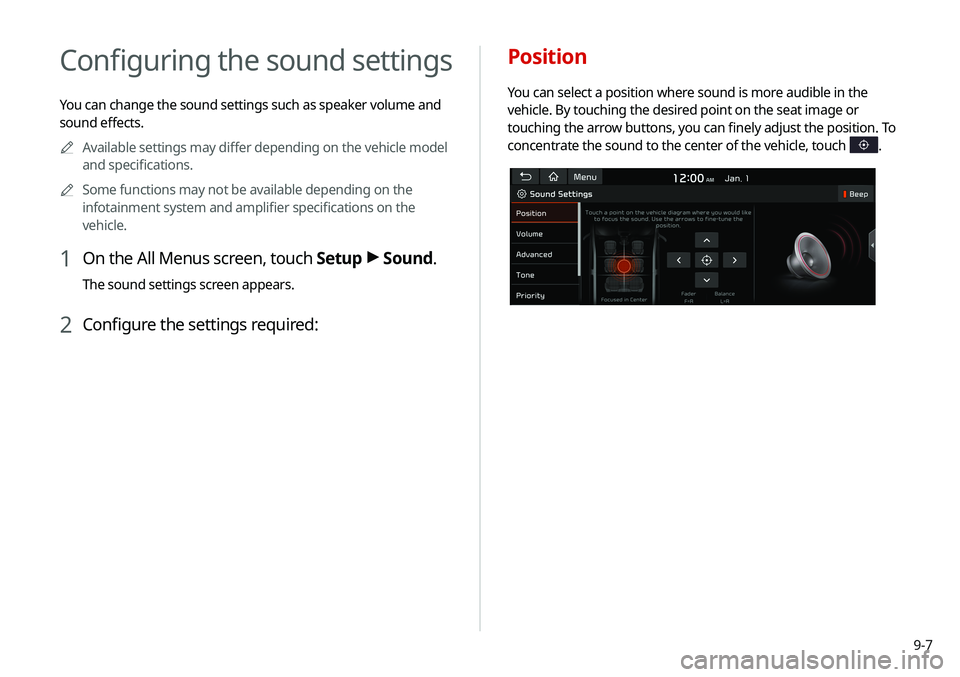
Position
You can select a position where sound is more audible in the
vehicle. By touching the desired point on the seat image or
touching the arrow buttons, you can finely adjust the position. To
concentrate the sound to the center of the vehicle, touch
.