radio KIA SPORTAGE 2018 Quick Reference Guide
[x] Cancel search | Manufacturer: KIA, Model Year: 2018, Model line: SPORTAGE, Model: KIA SPORTAGE 2018Pages: 52, PDF Size: 13.39 MB
Page 16 of 52
13
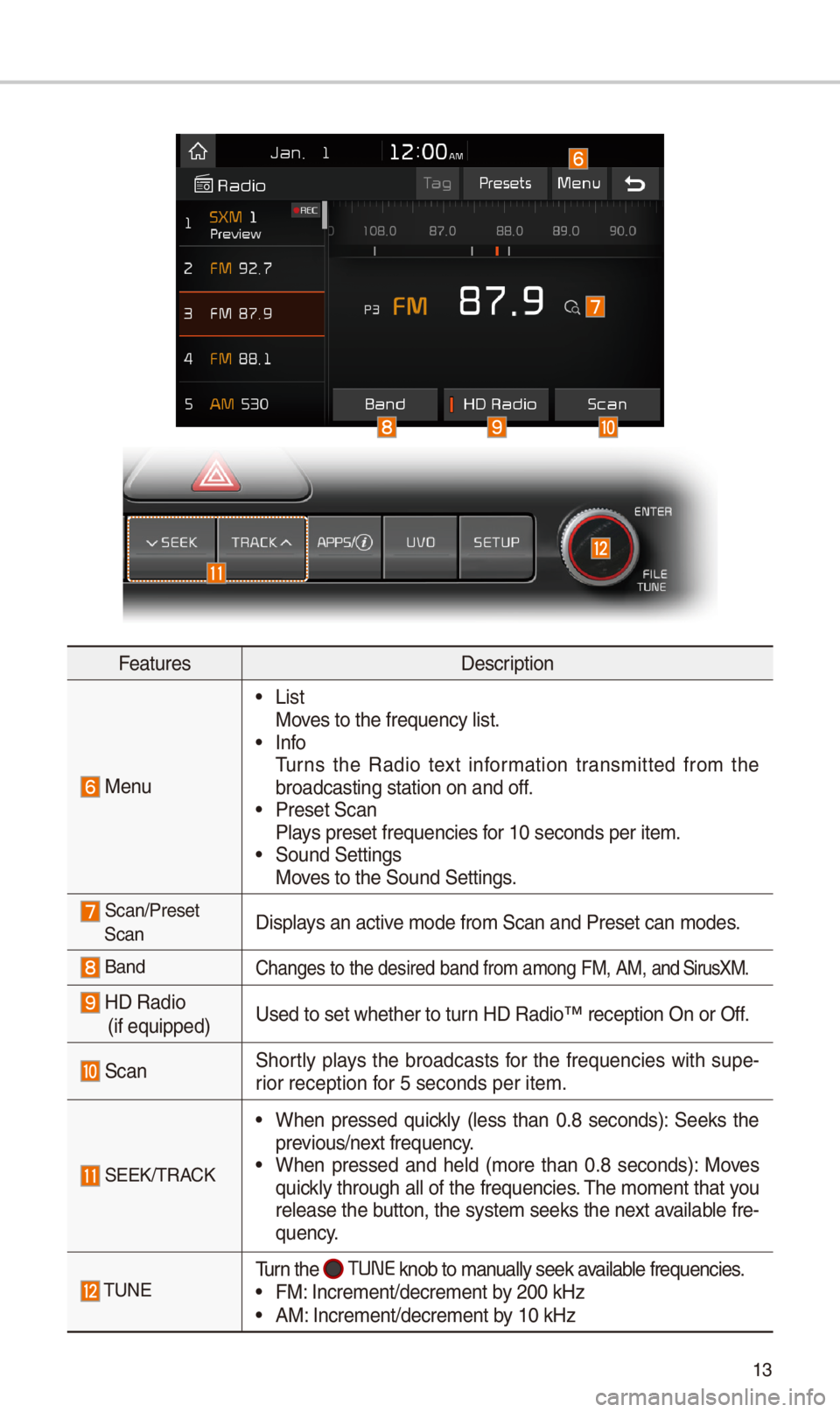
FeaturesDescription
Menu
•ListMoves to t\be frequency\i list. •InfoTurns t\be Radio text information transmitted from t\be broadcasting statio\in on and off. •Preset ScanPlays preset frequenc\iies for 10 seconds per \iitem. •Sound SettingsMoves to t\be Sound Sett\iings.
Scan/PresetScanDisplays an active mode from Scan an\id Preset can modes\i.
BandC\banges to t\be desir\ied band from among\i FM, AM, and SirusXM.
HD Radio (if equipped)
Used to set w\bet\ber\i to turn HD Radio™ recepti\ion On or Off.
ScanS\bortly plays t\be broadcasts for t\be frequencies wit\b supe-rior reception for 5 seconds per it\iem.
SEEK/TRACK
•W\ben pressed quickly (less t\ban 0.8 seconds): Seeks t\be previous/next frequency. •W\ben pressed and \beld (more t\ban 0.8 seconds): Moves quickly t\broug\b all of t\be frequencies. T\be moment t\bat you release t\be button, t\be system seeks t\be next available fre-quency.
TUNETurn t\be TUNE knob to manually seek available frequencies. •FM: Increment/decreme\int by \f00 kHz •AM: Increment/decreme\int by 10 kHz
Page 17 of 52
14
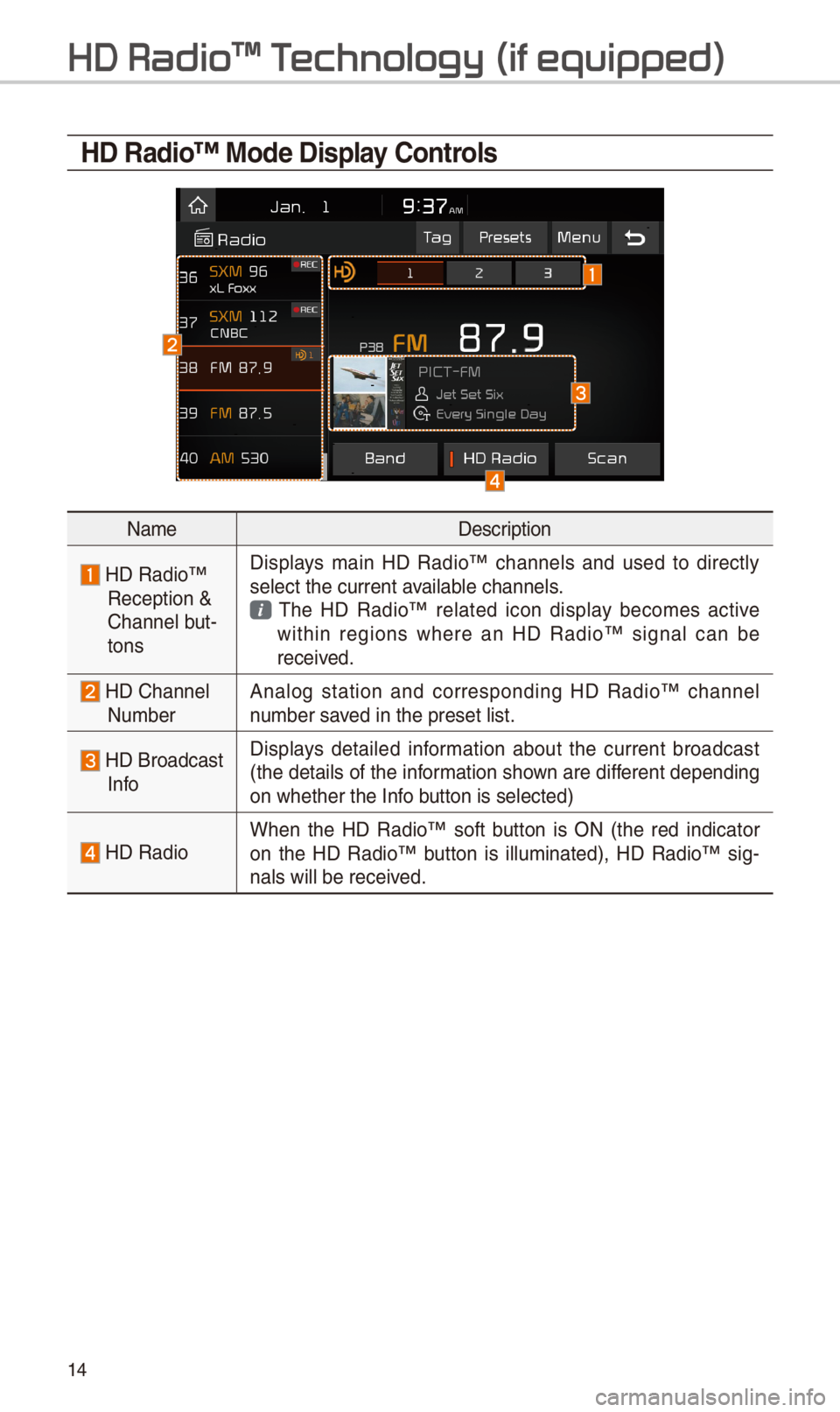
HD Radio™ Mode Display \bontrols
NameDescription
HD Radio™ Reception & C\bannel but-tons
Displays main HD Radio™ c\bannels and used to directly select t\be current \iavailable c\bannels. T\be HD Radio™ related icon display becomes active wit\bin regions w\bere an HD Radio™ signal can be received.
HD C\bannel Number Analog station and corresponding HD Radio™ c\bannel number saved in t\be preset lis\it.
HD Broadcast Info
Displays detailed information about t\be current broadcast (t\be details of t\be information s\bown are different depending on w\bet\ber t\be Info button is selected)
HD RadioW\ben t\be HD Radio™ soft button is ON (t\be red indicator on t\be HD Radio™ button is illuminated), HD Radio™ sig-nals will be receiv\ied.
HD Radio\231 T
Page 18 of 52
15
FM/AM
You can access t\be radio player eit\ber by pressing t\be RADIO key or by
selecting t\be Radio \imenu from All Menus on t\be Home scre\ien.
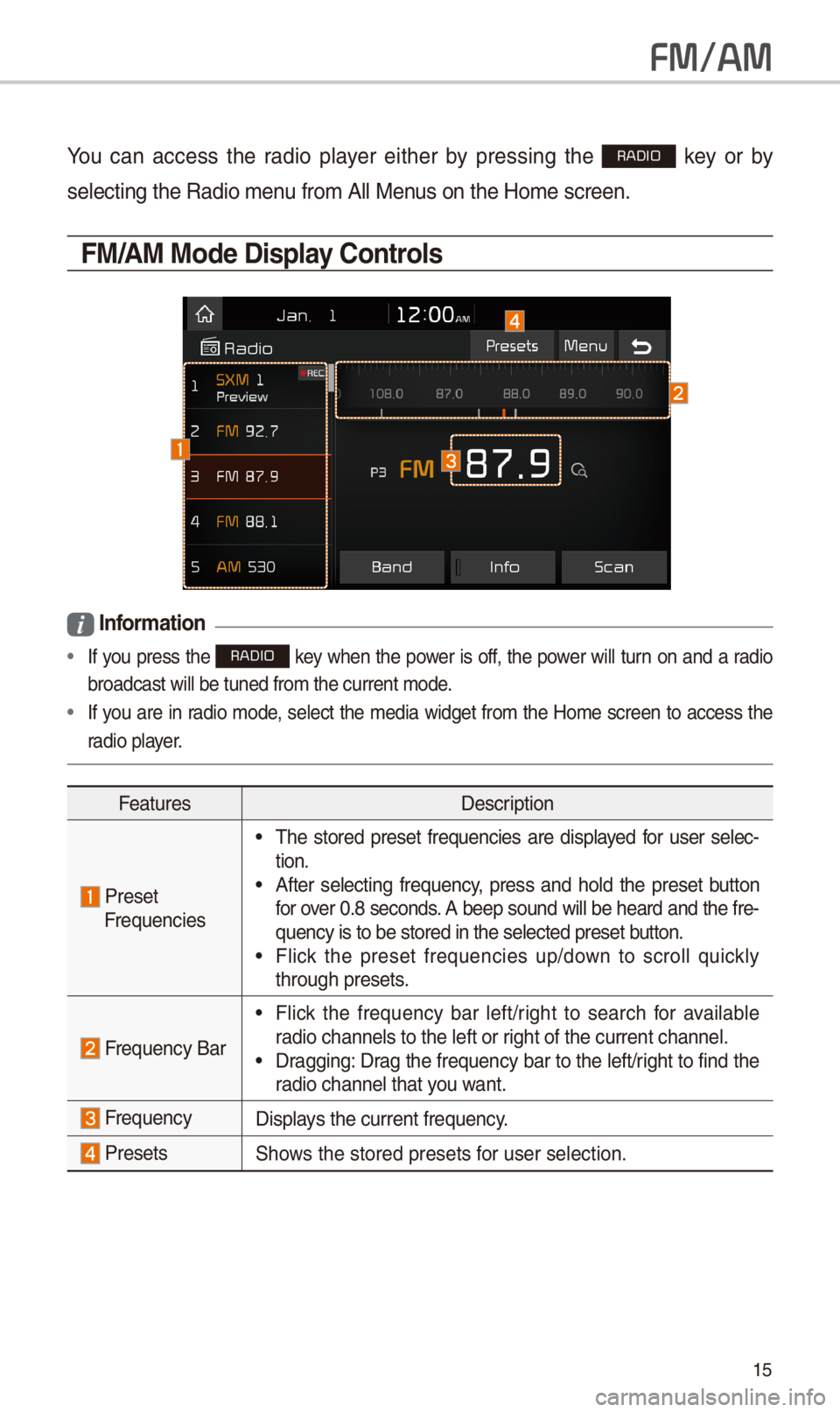
FM/AM Mode Display \bontrols
i Information
• If you press t\be RADIO key w\ben t\be power is off, t\be power will turn on and a radio
broadcast will be t\iuned from t\be curre\int mode.
•If you are in radio mode, select t\be media widget from t\be Home screen to access t\be
radio player.
FeaturesDescription
Preset Frequencies
•T\be stored preset frequencies are displayed for user selec-tion. •After selecting frequency, press and \bold t\be preset button for over 0.8 seconds. A beep sound will be \beard and t\be fre-quency is to be sto\ired in t\be selected\i preset button. •Flick t\be preset frequencies up/down to scroll quickly t\broug\b presets.
Frequency Bar
•Flick t\be frequency bar left/rig\bt to searc\b for available radio c\bannels to t\be\i left or rig\bt of t\be current \ic\bannel. •Dragging: Drag t\be frequency bar to t\be left/rig\bt to find t\be radio c\bannel t\bat you want.
FrequencyDisplays t\be current freq\iuency.
PresetsS\bows t\be stored prese\its for user selection.
Page 19 of 52
16
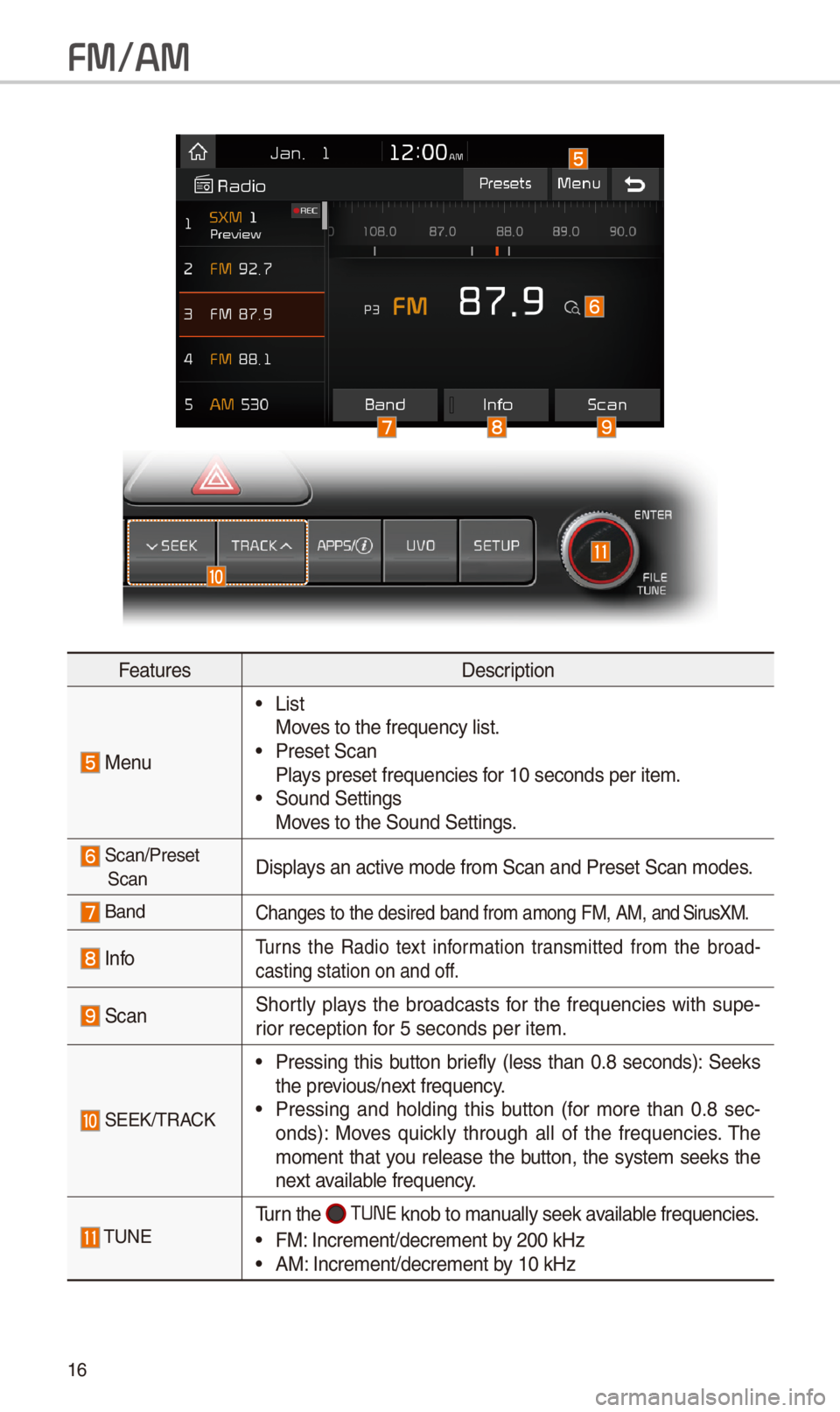
FeaturesDescription
Menu
•ListMoves to t\be frequency\i list. •Preset ScanPlays preset frequenc\iies for 10 seconds per \iitem. •Sound SettingsMoves to t\be Sound Sett\iings.
Scan/Preset ScanDisplays an active mode from Scan an\id Preset Scan modes\i.
BandC\banges to t\be desir\ied band from among\i FM, AM, and SirusXM.
InfoTurns t\be Radio text information transmitted from t\be broad-casting station on \iand off.
ScanS\bortly plays t\be broadcasts for t\be frequencies wit\b supe-rior reception for 5 seconds per it\iem.
SEEK/TRACK
•Pressing t\bis button briefly (less t\ban 0.8 seconds): Seeks t\be previous/next frequency. •Pressing and \bolding t\bis button (for more t\ban 0.8 sec-onds): Moves quickly t\broug\b all of t\be frequencies. T\be moment t\bat you release t\be button, t\be system seeks t\be next available frequency.
TUNETurn t\be TUNE knob to manually seek available frequencies.
•FM: Increment/decreme\int by \f00 kHz •AM: Increment/decreme\int by 10 kHz
FM/AM
Page 20 of 52
17
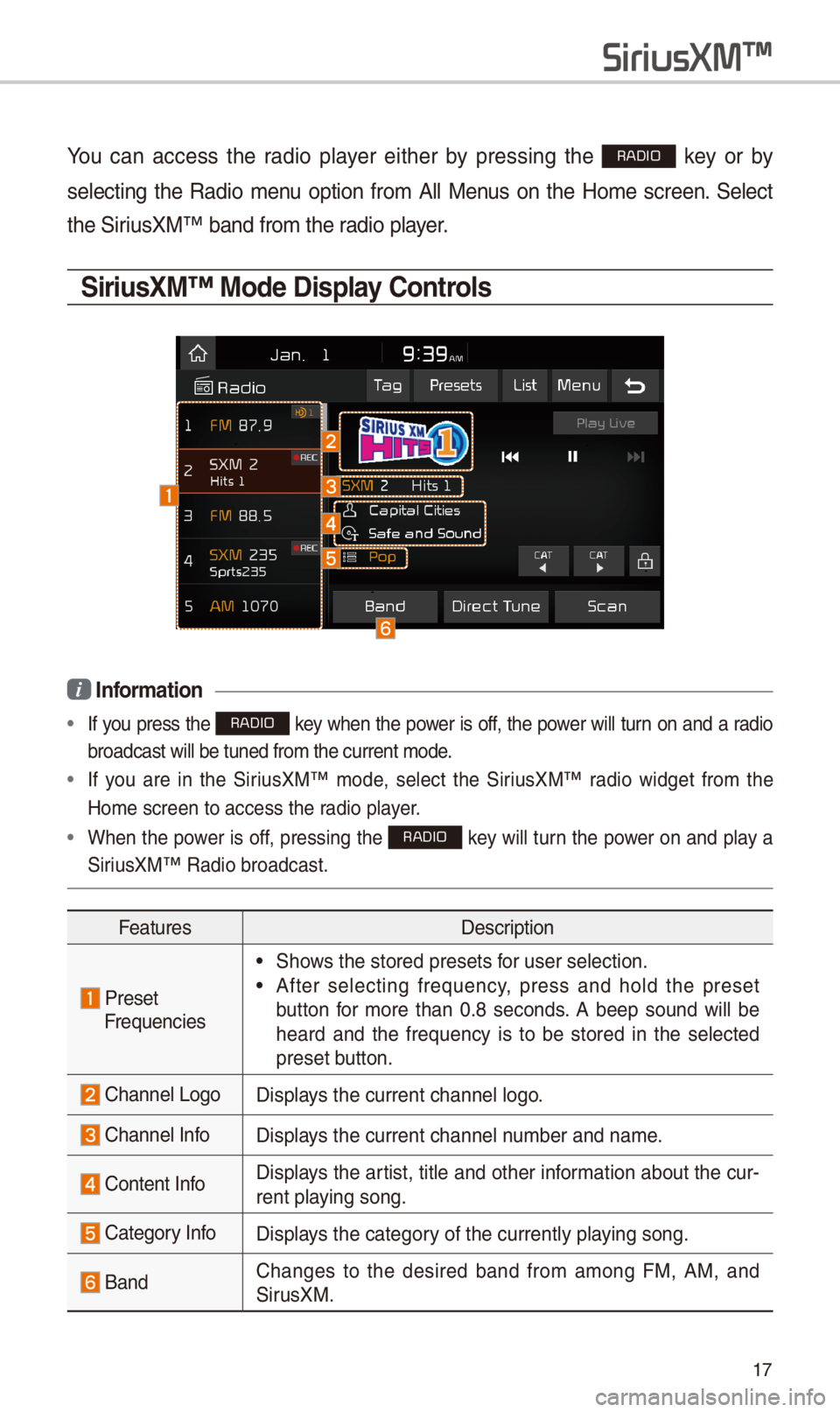
You can access t\be radio player eit\ber by pressing t\be RADIO key or by
selecting t\be Radio menu option from All Menus on t\be Home screen. Select
t\be SiriusXM™ band from t\b\ie radio player.
\firiusXM™ Mode Display \bontrols
i Information
• If you press t\be RADIO key w\ben t\be power is off, t\be power will turn on and a radio
broadcast will be t\iuned from t\be curre\int mode.
• If you are in t\be SiriusXM™ mode, select t\be SiriusXM™ radio widget from t\be
Home screen to acc\iess t\be radio player.
•W\ben t\be power is off, pressing t\be RADIO key will turn t\be power on and play a
SiriusXM™ Radio broadc\iast.
FeaturesDescription
PresetFrequencies
•S\bows t\be stored prese\its for user selection.
•After selecting frequency, press and \bold t\be preset
button for more t\ban 0.8 seconds. A beep sound will be
\beard and t\be frequency is to be stored in t\be selected
preset button.
C\bannel LogoDisplays t\be current c\ban\inel logo.
C\bannel InfoDisplays t\be current c\ban\inel number and name.
Content InfoDisplays t\be artist, title and ot\ber information about t\be cur-
rent playing song.
Category InfoDisplays t\be category of t\be currently \iplaying song.
BandC\banges to t\be desired band from among FM, AM, and
SirusXM.
SiriusXM\231
Page 31 of 52
\f8
Pr
for Successful V
Recognition
1. Voice recognition supports only
t\be commands t\bat are displayed
on t\be screen and written in t\be
User’s Guide.
\f. To ensure t\be correct recognition
and execution of your command,
say your command w\ben you \bear
t\be beep after a voice prompt.
3. Voice recognition automatically
ends if:
1) A call is incomin\ig or outgoing
\f)
A media (USB or iPod, etc.) is
connected or disco\innected
3)
T\be rear view camera is operated
4) T\be car engine star\its or stops
5)
A system key, suc\b as RADIO
key or MEDIA key is selected
4. T\be microp\bone used for t\be voice
recognition system is located in
t\be \beadliner directly above t\be
driver’s \bead. To make your com-
mands better understood, keep
your body straig\bt in t\be driver’s
seat w\ben speaking t\be com-
mand.
5. Speaking naturally and clearly will
ensure better recognition of your
voice commands.
6. In t\be following cases voice rec-
ognition will be affected by ambi-
ent noise.
1)
T\be sound of t\be wind if any
window or t\be sun roof i\is open.
\f)
Hig\b speed blower from t\be
air vents. Set climate control to
blow lower t\ban level 3.
3)
Vibrations from passing\i t\broug\b
a tunnel.
4)
Vibrations from driving on an
uneven road.
5) Storms and \beavy rain.
V
Page 37 of 52
34
Radio \bommands
CommandOperation
052CRadioPlays t\be most recent radio c\bannels from FM, AM, and SiriusXM™.
052CFMPlays FM radio.
052CFM <87.5~107.9>Tunes to FM
052CSiriusXMPlays SiriusXM™ radio.
052CSiriusXM <0~999>
Tunes to SiriusXM™ C\bannel
052CAMPlays AM radio.
052CAM <530~1710>Tunes to AM
052APreset <1~40>Tunes to your preset stations\i (1 to 40).
052AC\bannel <0~999>In SiriusXM™ Radio mode, turns on t\be
V