clock Lancia Voyager 2012 Owner handbook (in English)
[x] Cancel search | Manufacturer: LANCIA, Model Year: 2012, Model line: Voyager, Model: Lancia Voyager 2012Pages: 344, PDF Size: 3.95 MB
Page 127 of 344
To change the brightness of the in-
strument panel lights, rotate the dim-
mer control up or down.
AUTOMATIC HEADLIGHTS
(for versions/markets,
where provided)
This system automatically turns your
headlights on or off based on ambient
light levels. To turn the system on,
turn the headlight switch to the ex-
treme counterclockwise position
aligning the indicator with AUTO on
the headlight switch. When the sys-
tem is on, the Headlight Time Delay
feature is also on. This means your
headlights will stay on for up to
90 seconds after you turn the ignition
switch OFF. To turn the Automatic
System off, turn the headlight switch
clockwise to the O (Off) position.
NOTE:
The engine must be running before
the headlights will come on in the
Automatic mode.HEADLIGHTS ON WITH
WIPERS (for versions/
markets, where provided)
When your headlights are in the Au-
tomatic mode and the engine is run-
ning, the headlights will automati-
cally turn on when the wiper system is
also turned on. Headlights on when
windshield wipers are on may be
found on vehicles equipped with an
automatic headlight system. Refer to
“Electronic Vehicle Information Cen-
ter (EVIC)/Customer-Programmable
Features” in “Understanding Your In-
strument Panel” for further informa-
tion.
HEADLIGHT DELAY (for
versions/markets, where
provided)
This feature provides the safety of
headlight illumination for up to
90 seconds after exiting your vehicle.
To activate the delay feature, turn
OFF the ignition switch while the
headlights are still on. Then turn off
the headlights within 45 seconds. The
90 second delay interval begins when
headlight switch is turned off. If theheadlights or parking lights are
turned back on or the ignition switch
is turned ON, the delay will be can-
celled.
When exiting the vehicle the driver
can choose to have the headlights re-
main on for 30, 60, or 90 seconds or
not remain on. To change the timer
setting, see your authorized dealer.
The headlight delay time is program-
mable on vehicles equipped with an
EVIC. Refer to “Electronic Vehicle In-
formation Center (EVIC)/Customer-
Programmable Features” in “Under-
standing Your Instrument Panel” for
further information.
If the headlights are turned off before
the ignition, they will turn off in the
normal manner.
NOTE:
The headlights must be turned off
within 45 seconds of turning the
ignition OFF to activate this fea-
ture.
121
Page 129 of 344

TURN SIGNALS
Move the multifunction lever up or
down and the arrows on each side of
the instrument cluster flash to show
proper operation of the front and rear
turn signal lights.
NOTE:
If either light remains on and does
not flash, or there is a very fast
flash rate, check for a defective
outside light bulb. If an indicator
fails to light when the lever is
moved, it would suggest that the
indicator bulb is defective.
Lane Change Assist
Tap the lever up or down once, with-
out moving beyond the detent, and
the turn signal (right or left) will flash
three times then automatically turn
off.
Turn Signal Warning
If the vehicle electronics sense that the
vehicle has traveled at over 29 km/h
for approximately 1.6 km with the
turn signals on, a chime will sound to
alert the driver.HIGH/LOW BEAM SWITCH
When the headlights are turned on,
pushing the multifunction lever to-
ward the instrument panel will switch
from low beams to high beams. Pull-
ing back to the neutral position re-
turns the headlights to the low beam
operation.
FLASH-TO-PASS
You can signal another vehicle with
your headlights by lightly pulling the
multifunction lever toward you. This
will turn on the high beam headlights
until the lever is released.
SMARTBEAM™ (for
versions/markets, where
provided)
The SmartBeam™ system provides
increased forward lighting at night by
automating high beam control
through the use of a digital camera
mounted on the inside rearview mir-
ror. This camera detects vehicle spe-
cific light and automatically switches
from high beams to low beams until
the approaching vehicle is out of view.To Activate
1. Select “Automatic High Beams —
ON” through the EVIC. Refer to
“Electronic Vehicle Information Cen-
ter (EVIC)/Customer-Programmable
Features” in “Understanding Your In-
strument Panel” for further informa-
tion.
2. Rotate the headlight switch coun-
terclockwise to the AUTO (A) posi-
tion.
3. Push the multifunction lever away
from you to switch the headlights to
the high beam position. Refer to
“Multifunction Lever” in this section
for further information.
NOTE:
This system will not activate until
the vehicle is at, or above, 40 km/h.
To Deactivate
Perform either of the following steps
to deactivate the SmartBeam™ sys-
tem.
1. Select “Automatic High Beams —
OFF” through the EVIC. Refer to
“Electronic Vehicle Information Cen-
ter (EVIC)/Customer-Programmable
123
Page 130 of 344
Features” in “Understanding Your In-
strument Panel” for further informa-
tion.
2. Pull the multifunction lever to-
ward you to switch the headlights
from the high beam to the low beam
position.
3.
Rotate the headlight switch clock-
wise from the AUTO (A) to the on po-
sition.
NOTE:
Broken, muddy or obstructed
headlights and taillights of ve-
hicles in the field of view will cause
headlights to remain on longer
(closer to the vehicle). Also, dirt,
film and other obstructions on the
windshield or camera lens will
cause the system to function im-
properly.
HEADLIGHT LEVELING
SYSTEM (for versions/
markets, where provided)
Your vehicle may be
equipped with a headlight
leveling system. This sys-
tem allows the driver to
maintain proper headlight beam posi- tion with the road surface regardless
of vehicle load. The control switch is
located on the instrument panel next
to the dimmer control.
To operate, rotate the control switch
until the appropriate number, which
corresponds to the load listed on the
chart, aligns with the indicator line on
the switch.
0 Driver only, or driver and
front passenger.
1 Driver only, or driver and
front passenger.
2 All seating positions occu-
pied, plus an evenly dis-
tributed load in the luggage
compartment. The total
weight of passengers and
load does not exceed the
maximum load capacity of
the vehicle.
Driver, plus an evenly dis-
tributed load in the luggage
compartment. The total
weight of the driver and
load does not exceed the
maximum load capacity of
the vehicle.
Calculations based on a passenger
weight of 75 kg. WINDSHIELD WIPERS
AND WASHERS
The wipers and washers are operated
by a switch within the multifunction
lever. Rotate the end of the multifunc-
tion lever to select the desired wiper
speed.
NOTE:
Always remove any buildup of
snow that prevents the windshield
wiper blades from returning to the
off position. If the windshield
wiper switch is turned off and the
blades cannot return to the off po-
sition, damage to the wiper motor
may occur.
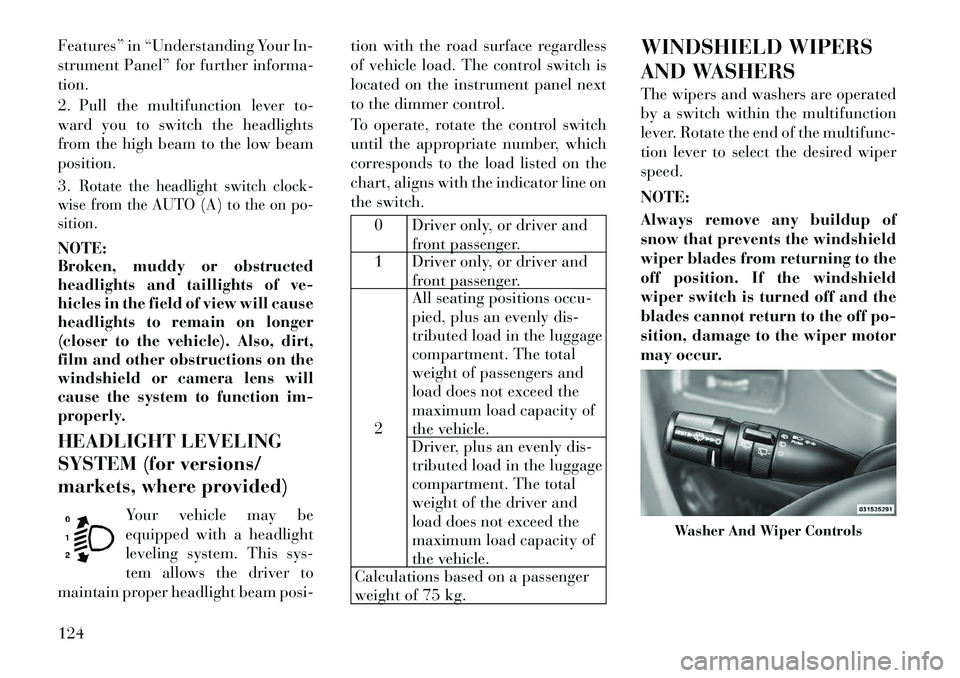
Washer And Wiper Controls
124
Page 167 of 344

INSTRUMENT PANEL FEATURES1 — Air Vents5 — Analog Clock9 — DVD (for versions/
markets, where provided) 13 — Ignition Switch
2 — Instrument Cluster 6 — Upper Glove
Compartment10 — Storage Bin
14 — Hood Release
3 — Shift Lever 7 — Lower Glove
Compartment11 — Cup Holders
15 — Dimmer Switch
4 — Radio 8 — Climate Controls 12 — Switch Bank 16 — Headlight Switch
161
Page 195 of 344
used to control the iPod® or external
USB device and display data:
Use the TUNE control knob to se-lect the next or previous track.
Turning it clockwise (forward)
by one click, while playing a
track, skips to the next track or
press the VR button and say
"Next Track".
Turning it counterclockwise (backward) by one click, will
jump to the previous track in the
list or press the VR button and
say "Previous Track"
Jump backward in the current track by pressing and holding the
<< RW button. Holding the <<
RW button long enough will
jump to the beginning of the cur-
rent track.
Jump forward in the current track by pressing and holding the FF>>
button.
A single press backward << RWor
forward FF>> will jump backward
or forward respectively, for five sec-
onds. Use the <<
SEEKandSEEK >>
buttons to jump to the previous or
next track. Pressing the SEEK>>
button during play mode will jump
to the next track in the list, or press
the VR button and say "Next or
Previous Track".
While a track is playing, press the INFO button to see the associated
metadata (artist, track title, album,
etc.) for that track. Pressing the
INFO button again jumps to the
next screen of data for that track.
Once all screens have been viewed,
the last INFObutton press will go
back to the play mode screen on the
radio.
Pressing the REPEATbutton will
change the audio device mode to
repeat the current playing track or
press the VR button and say "Re-
peat ON" or "Repeat Off".
Press the SCANbutton to use
iPod®/USB/MP3 device scan
mode, which will play the first
10 seconds of each track in the cur-
rent list and then forward to the
next song. To stop SCAN mode and start playing the desired track,
when it is playing the track, press
the
SCAN button again. During
Scan mode, pressing the << SEEK
and SEEK >> buttons will select
the previous and next tracks.
RND button (available on sales
code RES radio only): Pressing this
button toggles between Shuffle ON
and Shuffle OFF modes for the
iPod® or external USB device, or
press the VR button and say
"Shuffle ON" or "Shuffle Off". If
the RND icon is showing on the
radio display, then the shuffle mode
is ON.
List Or Browse Mode
During Play mode, pressing any of the
buttons described below, will bring up
List mode. List mode enables scroll-
ing through the list of menus and
tracks on the audio device.
TUNE control knob: The TUNE
control knob functions in a similar
manner as the scroll wheel on the
audio device or external USB de-
vice.
189
Page 196 of 344
Turning it clockwise (forward)and counterclockwise (back-
ward) scrolls through the lists,
displaying the track detail on the
radio display. Once the track to
be played is highlighted on the
radio display, press the TUNE
control knob to select and start
playing the track. Turning the
TUNE control knob fast will
scroll through the list faster. Dur-
ing fast scroll, a slight delay in
updating the information on the
radio display may be noticeable.
During all List modes, the iPod® displays all lists in “wrap-
around” mode. So if the track is
at the bottom of the list, just turn
the wheel backward (counter-
clockwise) to get to the track
faster.
In List mode, the radio PRESET
buttons are used as shortcuts to
the following lists on the iPod®
or external USB device.
Preset 1 – Playlists
Preset 2 – Artists
Preset 3 – Albums Preset 4 – Genres
Preset 5 – Audiobooks
Preset 6 – Podcasts
Pressing a PRESET button will display the current list on the top
line and the first item in that list
on the second line.
To exit List mode without select- ing a track, press the same PRE-
SET button again to go back to
Play mode.
LIST button: The LISTbutton will
display the top level menu of the
iPod® or external USB device.
Turn the TUNEcontrol knob to list
the top-menu item to be selected
and press the TUNEcontrol knob.
This will display the next sub-menu
list item on the audio device, then
follow the same steps to go to the
desired track in that list. Not all
iPod® or external USB device sub-
menu levels are available on this
system.
MUSIC TYPE button: TheMUSIC
TYPE button is another shortcut
button to the genre listing on your
audio device.
CAUTION!
Leaving the iPod® or external USB device (or any supported de-
vice) anywhere in the vehicle in
extreme heat or cold can alter the
operation or damage the device.
Follow the device manufacturer’s
guidelines.
Placing items on the iPod® or ex-
ternal USB device, or connections
to the iPod® or external USB de-
vice in the vehicle, can cause dam-
age to the device and/or to the
connectors.WARNING!
Do not plug in or remove the iPod®
or external USB device while driv-
ing. Failure to follow this warning
could result in an accident.
190
Page 207 of 344
priority over the VES™ or all radio
modes (FM, AM, and SAT). The
VES™ has the ability to switch tuner
(AM/FM), SEEK, SCAN, TUNE, and
recall presets in radio modes as long
as it is not in shared mode.
When in shared disc mode both the
radio and the VES™ have control of
the video functions. The VES™ has
the ability to control the following
video modes:
1. CD: Ability to Fast Forward, Re-
wind, Scan, and Track Up/Down.
2. CD Changer (in radio): Ability to
Disk Up/Down and program all listed
CD controls (Fast Forward, Rewind,
Scan, and Track Up/Down).
The VES™ can even control radio
modes or video modes while the radio
is turned off. The VES™ can access
the radio modes or disc modes by
navigating to those modes on the
VES™ and activating a radio mode or
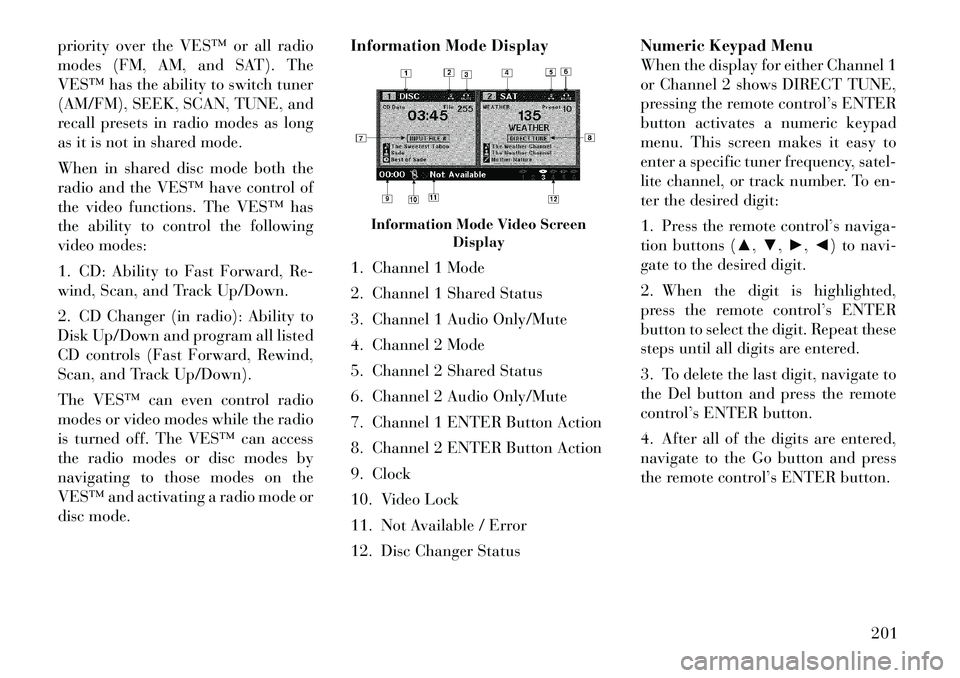
disc mode.Information Mode Display
1. Channel 1 Mode
2. Channel 1 Shared Status
3. Channel 1 Audio Only/Mute
4. Channel 2 Mode
5. Channel 2 Shared Status
6. Channel 2 Audio Only/Mute
7. Channel 1 ENTER Button Action
8. Channel 2 ENTER Button Action
9. Clock
10. Video Lock
11. Not Available / Error
12. Disc Changer StatusNumeric Keypad Menu
When the display for either Channel 1
or Channel 2 shows DIRECT TUNE,
pressing the remote control’s ENTER
button activates a numeric keypad
menu. This screen makes it easy to
enter a specific tuner frequency, satel-
lite channel, or track number. To en-
ter the desired digit:
1. Press the remote control’s naviga-
tion buttons (▲,
▼,►,◄) to navi-
gate to the desired digit.
2. When the digit is highlighted,
press the remote control’s ENTER
button to select the digit. Repeat these
steps until all digits are entered.
3. To delete the last digit, navigate to
the Del button and press the remote
control’s ENTER button.
4. After all of the digits are entered,
navigate to the Go button and press
the remote control’s ENTER button.
Information Mode Video Screen Display
201
Page 213 of 344
value for the current digit, and then
press the remote control’s Right
cursor button to select the next
digit. Repeat this digit selection se-
quence for all four digits.
After the four-digit password is en- tered, press the remote control’s
ENTER button. If the password is
correct, the Rating Level menu is
displayed.
Using the remote control’s Up and Down cursor buttons, select the
new rating level, and then press the
remote control’s ENTER button to
accept the change.
Product Agreement
This product incorporates copyright
protection technology that is pro-
tected by U.S. patents and other intel-
lectual property rights. Use of this
copyright protection technology must
be authorized by Macrovision, and is
intended for home or other limited
viewing uses otherwise authorized by
Macrovision. Reverse engineering or
disassembly is prohibited. Dolby® Digital and MLP Loss-
less Manufactured under license
from Dolby Laboratories. "Dolby",
"MLP Lossless", and the double-D
symbol are trademarks of Dolby
Laboratories. Confidential unpub-
lished works. Copyright 1992-1997
Dolby Laboratories. All right re-
served.
General Information
This system complies with Part 15 of
the FCC Operation is subject to the
following two conditions:
1. This device may not cause harmful
interference.
2. This device must accept any inter-
ference received, including interfer-
ence that may cause undesired opera-
tion. STEERING WHEEL
AUDIO CONTROLS (for
versions/markets, where
provided)
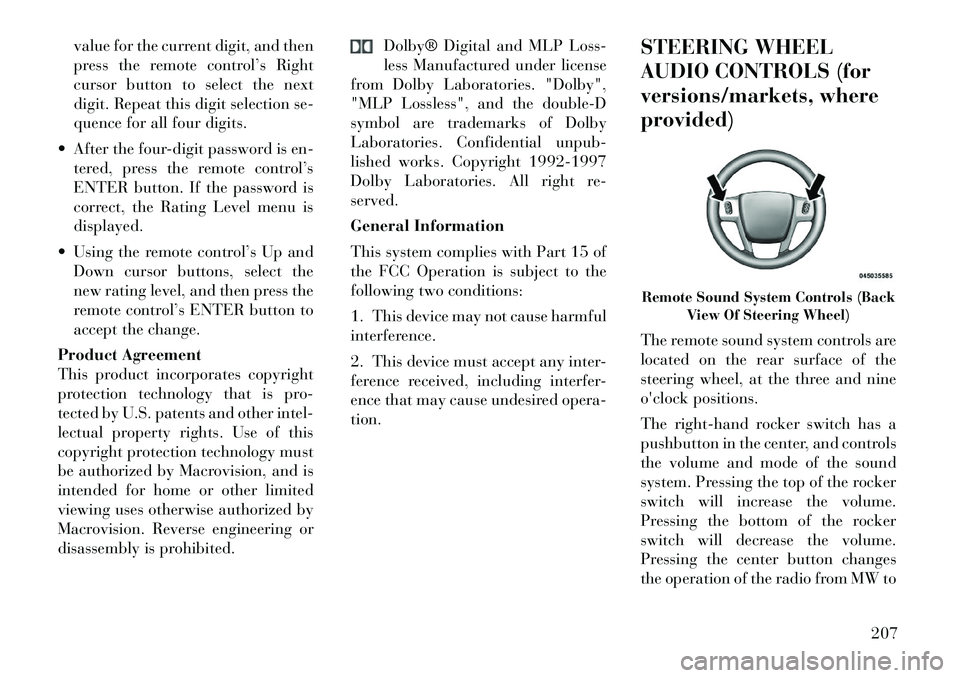
The remote sound system controls are
located on the rear surface of the
steering wheel, at the three and nine
o'clock positions.
The
right-hand rocker switch has a
pushbutton in the center, and controls
the volume and mode of the sound
system. Pressing the top of the rocker
switch will increase the volume.
Pressing the bottom of the rocker
switch will decrease the volume.
Pressing the center button changes
the operation of the radio from MW to
Remote Sound System Controls (Back View Of Steering Wheel)
207
Page 219 of 344

control knob counterclockwise for
cold air, and clockwise for heated air.
When rear controls are locked by the
front system, the lock symbol on the
temperature knob is illuminated, and
the rear overhead adjustments are in-
operable.
Rear Mode Control
Headliner ModeAir comes from the outlets in the
headliner. Each of these outlets
can be individually adjusted to
direct the flow of air. Moving the air
vanes of the outlets to one side will
shut off the airflow.
Bi-Level Mode
Air comes from both the head-
liner outlets and the floor out-
lets.
NOTE:
In many temperature positions,
the Bi-Level mode is designed to
provide cooler air out of the head-
liner outlets and warmer air from
the floor outlets. Floor Mode
Air comes from the floor outlets.
AUTOMATIC
TEMPERATURE CONTROL
(ATC) (for versions/markets,
where provided)
Front Three-Zone ATC allows both driver and front passenger seat oc-
cupant, and rear seat occupants to
select individual comfort settings.
When occupants in the vehicle se- lect the AUTO mode operation, a
comfort temperature can be set by
using the temperature up and down
buttons, and the auto blower op-
eration will be set automatically.
The system can be controlled manually, if desired.
SYNC feature links the controls for all three zones, allowing one com-
fort setting (driver setting) for the
cabin, if desired. The Three-Zone ATC system auto-
matically maintains the interior com-
fort level desired by the driver and all
passengers. The system automatically
adjusts the air temperature, the air-
flow volume, amount of outside air
recirculation and the airflow direc-
tion. This maintains a comfortable
temperature, even under changing
conditions.
1. Air Conditioning (A/C) Button
Press and release to change the cur-
rent Air Conditioning (A/C) setting,
the indicator illuminates when A/C is
ON. Performing this function will
cause the ATC to switch into manual
mode.
Front ATC Panel
213
Page 222 of 344

3. When the system is set up for your
comfort level, it is not necessary to
change the settings. You will experi-
ence the greatest efficiency by simply
allowing the system to function auto-
matically.
NOTE:
It is not necessary to move thetemperature settings for cold or
hot vehicles. The system auto-
matically adjusts the tempera-
ture, mode and fan speed to pro-
vide comfort as quickly as
possible.
The temperature can be dis- played in English or Metric units
by selecting the “Display Units
of Measure in” customer-
programmable feature. Refer to
the “Electronic Vehicle Informa-
tion Center (EVIC) — Customer-
Programmable Features” in this
Section.
To provide you with maximum com-
fort in the automatic mode, during
cold start-ups, the blower fan will re-
main on low until the engine warms
up. The fan will engage immediately if the Defrost mode is selected, or by
changing the front blower knob set-
ting
Manual Operation
This system offers a full complement
of manual override features. The
AUTO symbol in the front ATC dis-
play will be turned off when the sys-
tem is being used in the manual mode.
NOTE:
Each of these features operate in-
dependently from each other. If
any one feature is controlled
manually, the temperature doors
will continue to operate automati-
cally.
There are seven
fixed blower
speeds. Use the
outer dial control
to regulate the
amount of air
forced through
the system in any mode you select.
The blower speed increases as you
move the control clockwise and
decreases when you move the con-
trol counter-clockwise. The blower fan speed can be set to any
fixed speed by adjusting the blower
control outer dial. The fan will now
operate at a fixed speed until addi-
tional speeds are selected. This allows
the front occupants to control the vol-
ume of air circulated in the vehicle
and cancel the Auto mode.
The operator can also select the direc-
tion of the airflow by selecting one of
the following positions.
Panel Mode
Air is directed through the outlets
in the instrument panel. These
outlets can be adjusted for direc-
tion, and turned on or off to control
airflow.
NOTE:
For maximum airflow to the rear,
the center instrument panel out-
lets can be directed toward the
rear seat passengers.216