set Lexus ES350 2016 Quick Guide /
[x] Cancel search | Manufacturer: LEXUS, Model Year: 2016, Model line: ES350, Model: Lexus ES350 2016Pages: 112, PDF Size: 2.11 MB
Page 43 of 112

43
ES350_QG_OM33B82U_(U)
nCanceling and resuming the speed control
Pulling the lever toward you can-
cels the speed control.
The speed setting is also canceled
when the brake pedal is depressed.
Pushing the lever up resumes the
cruise control and returns vehicle
speed to the set speed.
However, cruise control does not
resume when the vehicle speed is
approximately 25 mph (40 km/h) or
less.
nSelecting constant speed control mode
With the cruise control off, press
and hold the “ON/OFF” button for
1.5 seconds or more.
Immediately after the “ON/OFF”
button is pressed, the radar cruise
control indicator will come on.
Afterwards, it switches to the
cruise control indicator.
Switching to constant speed con-
trol mode is only possible when
operating the lever with the cruise
control off.
Accelerate or decelerate, with
accelerator pedal operation, to the
desired vehicle speed (above
approximately 30 mph [50 km/h])
and push the lever down to set the
speed. Cruise control “SET” indicator
will come on.
The vehicle speed at the moment
the lever is released becomes the
set speed.
1
2
1
2
Page 46 of 112

46
ES350_QG_OM33B82U_(U)
BSM (Blind Spot Monitor) (if equipped)
BSM main switch
Pressing the switch turns the system on or off. When the switch is set to on, the
switch’s indicator illuminates. Common switch for Blind Spot Monitor function
and Rear Cross Traffic Alert function.
Outside rear view mirror indicator
Blind Spot Monitor function:
When a vehicle is detected in the blind spot, the outside rear view mirror indi-
cator comes on while the tu rn signal lever is not operated and the outside rear
view mirror indicator fl ashes while the turn signal lever is operated.
Rear Cross Traffic Alert function:
When a vehicle approaching from the ri ght or left rear of the vehicle is
detected, the outside rear view mirror indicators flash.
Rear Cross Traffic Alert function buzzer (Rear Cross Traffic Alert function
only)
When a vehicle approaching from the ri ght or left rear of the vehicle is
detected, a buzzer sounds from behind the rear seat.
The Blind Spot Monitor is a system that has 2 functions;
l The Blind Spot Monitor function Assists the driver in making th e decision when changing lanes
l The Rear Cross Traffic Alert function Assists the driver when backing up
These functions use same sensors.
1
2
3
Page 48 of 112
48
ES350_QG_OM33B82U_(U)
Tire Pressure Warning System
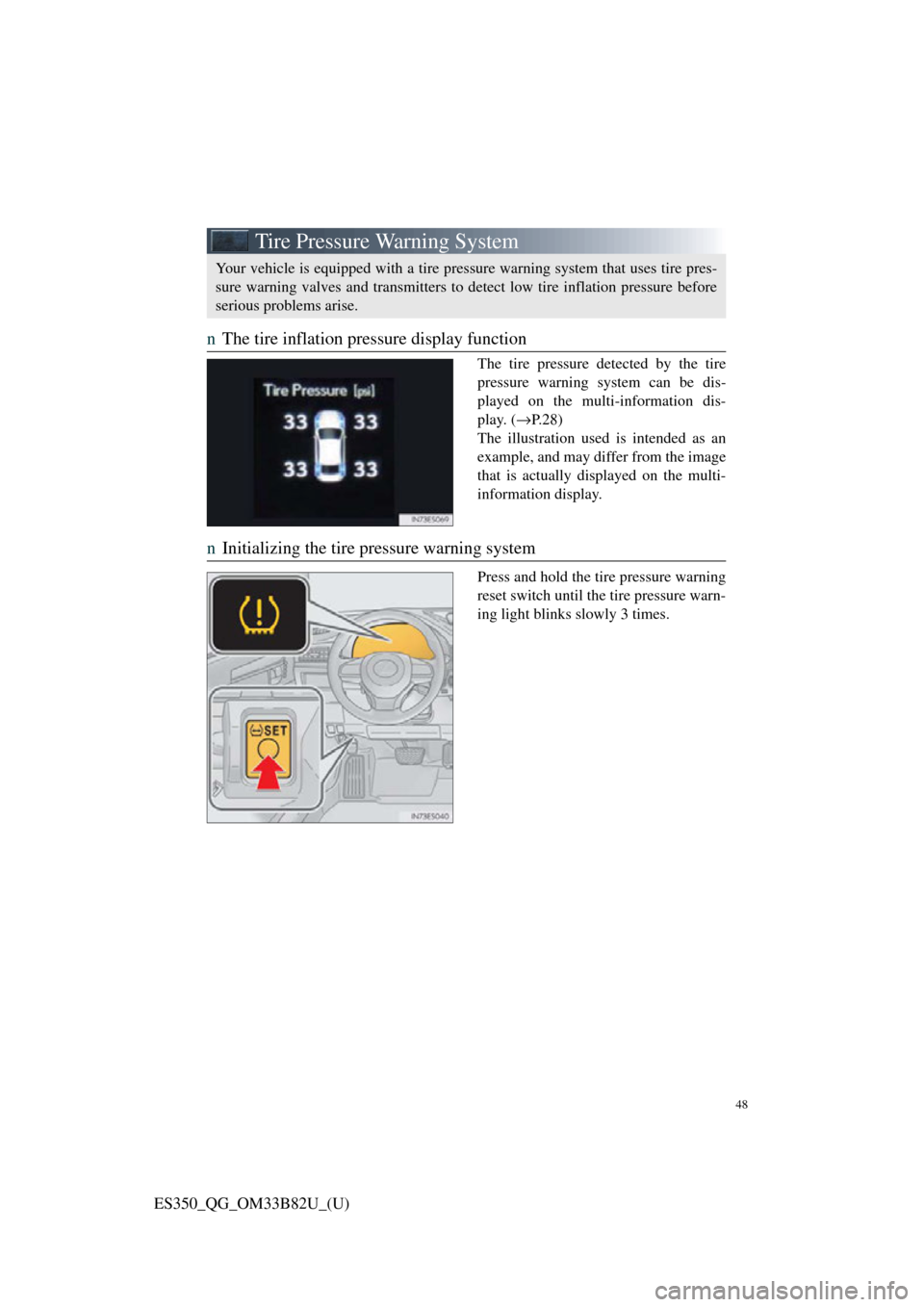
nThe tire inflation pressure display function
The tire pressure detected by the tire
pressure warning system can be dis-
played on the multi-information dis-
play. ( →P. 2 8 )
The illustration used is intended as an
example, and may differ from the image
that is actually displayed on the multi-
information display.
n Initializing the tire pressure warning system
Press and hold the tire pressure warning
reset switch until the tire pressure warn-
ing light blinks slowly 3 times.
Your vehicle is equipped with a tire pressure warning system that uses tire pres-
sure warning valves and transmitters to detect low tire inflation pressure before
serious problems arise.
Page 50 of 112

49
ES350_QG_OM33B82U_(U)
nMenu
Press the “MENU” button on the
Remote Touch to display the “Menu”
screen.
“Climate” ( →P.78)
“Nav” ( →P.52)
“LEXUS App Suite”
“Info”
“Radio” ( →P.65)
“Media” ( →P.63)
“Phone” ( →P.58)
“Setup”
“Display”
n Home
Three-way split screen
Press the “HOME” button on the
Remote Touch to display the home
screen.
The home screen can display multiple
information screens, such as the naviga-
tion system screen, audio system screen
and fuel consumption screen, simulta-
neously. When a screen is selected, the
selected screen is switched to a full-
screen display.
Displays the condition of the
Bluetooth
® connection
Select to change the display items/
area and the home screen layout.
Two-way split screen
1
2
3
4
5
6
7
8
9
1
2
Page 51 of 112
50
ES350_QG_OM33B82U_(U)
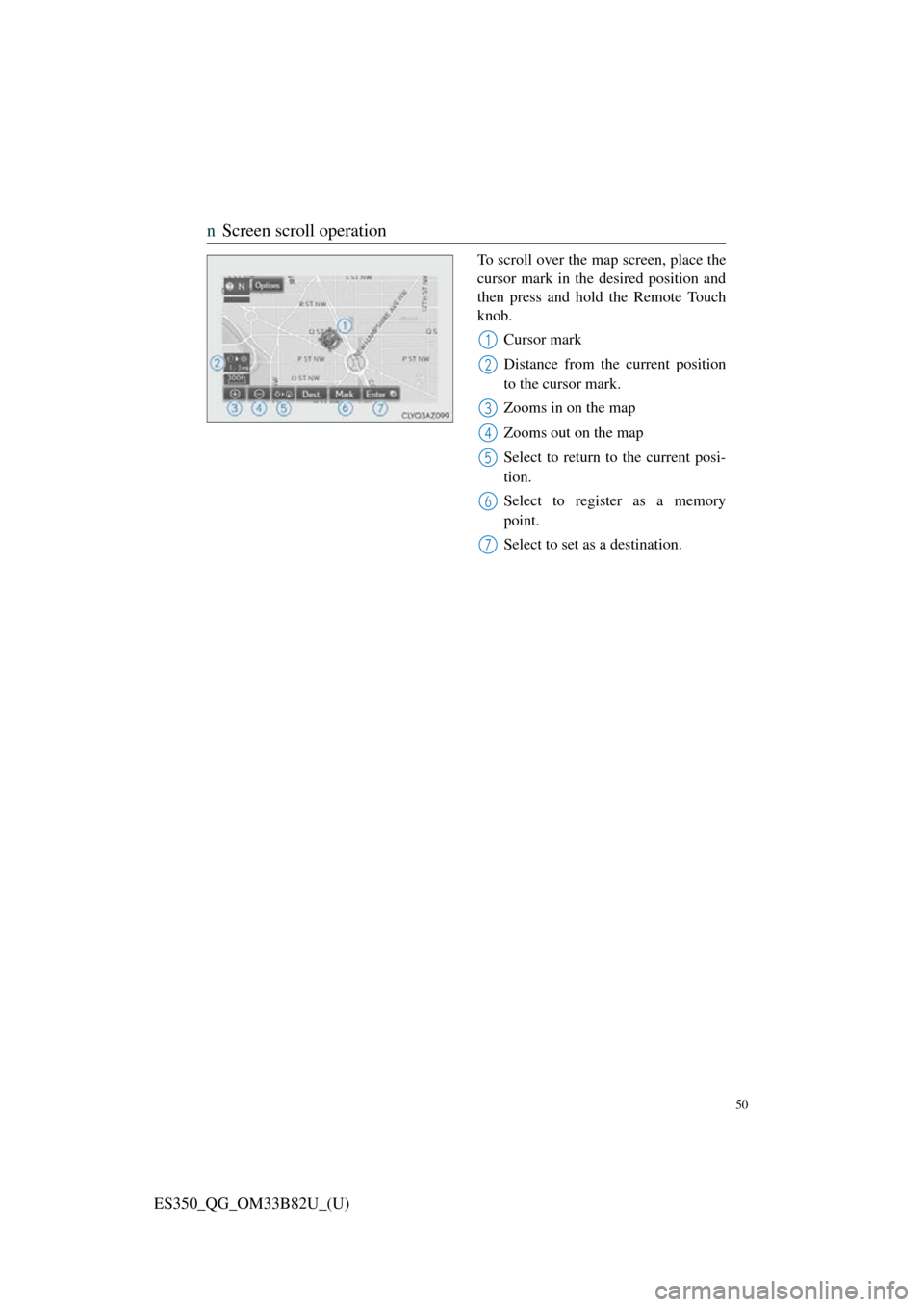
nScreen scroll operation
To scroll over the map screen, place the
cursor mark in the desired position and
then press and hold the Remote Touch
knob.
Cursor mark
Distance from the current position
to the cursor mark.
Zooms in on the map
Zooms out on the map
Select to return to the current posi-
tion.
Select to register as a memory
point.
Select to set as a destination.
1
2
3
4
5
6
7
Page 52 of 112

51
ES350_QG_OM33B82U_(U)
nSetting a route
While route guidance is operating, you can change the route using the following
method.
Select “Options”.
Select “Edit Route”.
Select the item to be set.Set route preferences
Set detours
Change route type
Start from adjacent road
1
2
3
1
2
3
4
Some functions are unavailable while th e vehicle is in motion. Refer to the
“NAVIGATION SYSTEM OWNER’S MANUAL”.
Page 53 of 112

52
ES350_QG_OM33B82U_(U)
Navigation System (if equipped)
nRegister home
Press the “MENU” button on the
Remote Touch.
Please refer to P.48 for the
Remote Touch operation.
Select “Setup”.
Select “Navigation”.
Select “Home”.
Select “Set Home Location”.
Select “Address”.
Select “City”.
Enter a city name and select “OK”.
Select the screen button of the
desired city name from the dis-
played list.
For security reasons, use a point
close to your home instead of your
actual home address.
Enter a street name and select
“OK”.31
2
3
44
55
6
77
8
9
10
Page 61 of 112
60
ES350_QG_OM33B82U_(U)
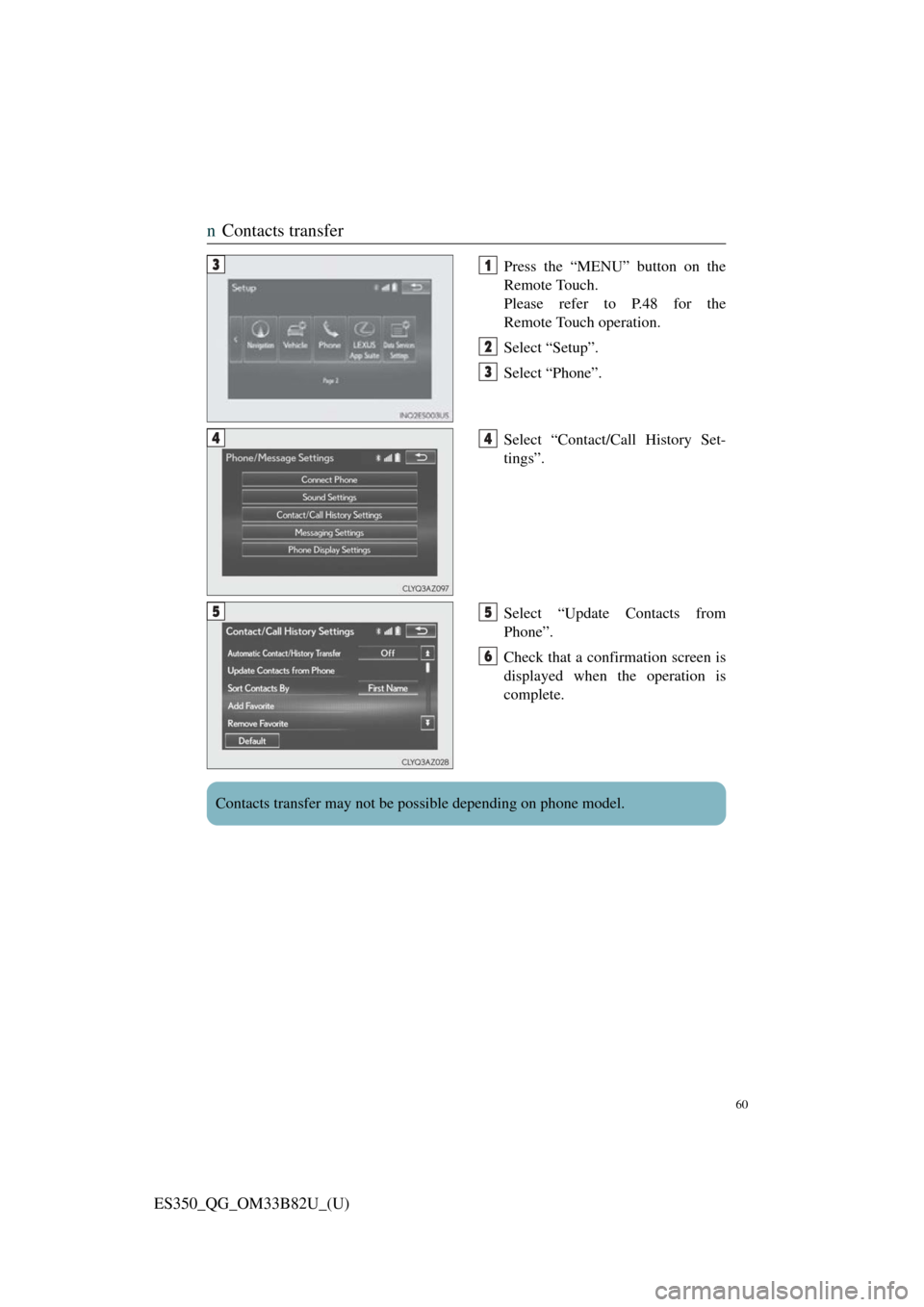
nContacts transfer
Press the “MENU” button on the
Remote Touch.
Please refer to P.48 for the
Remote Touch operation.
Select “Setup”.
Select “Phone”.
Select “Contact/Call History Set-
tings”.
Select “Update Contacts from
Phone”.
Check that a confirmation screen is
displayed when the operation is
complete.31
2
3
44
55
6
Contacts transfer may not be possible depending on phone model.
Page 62 of 112
61
ES350_QG_OM33B82U_(U)
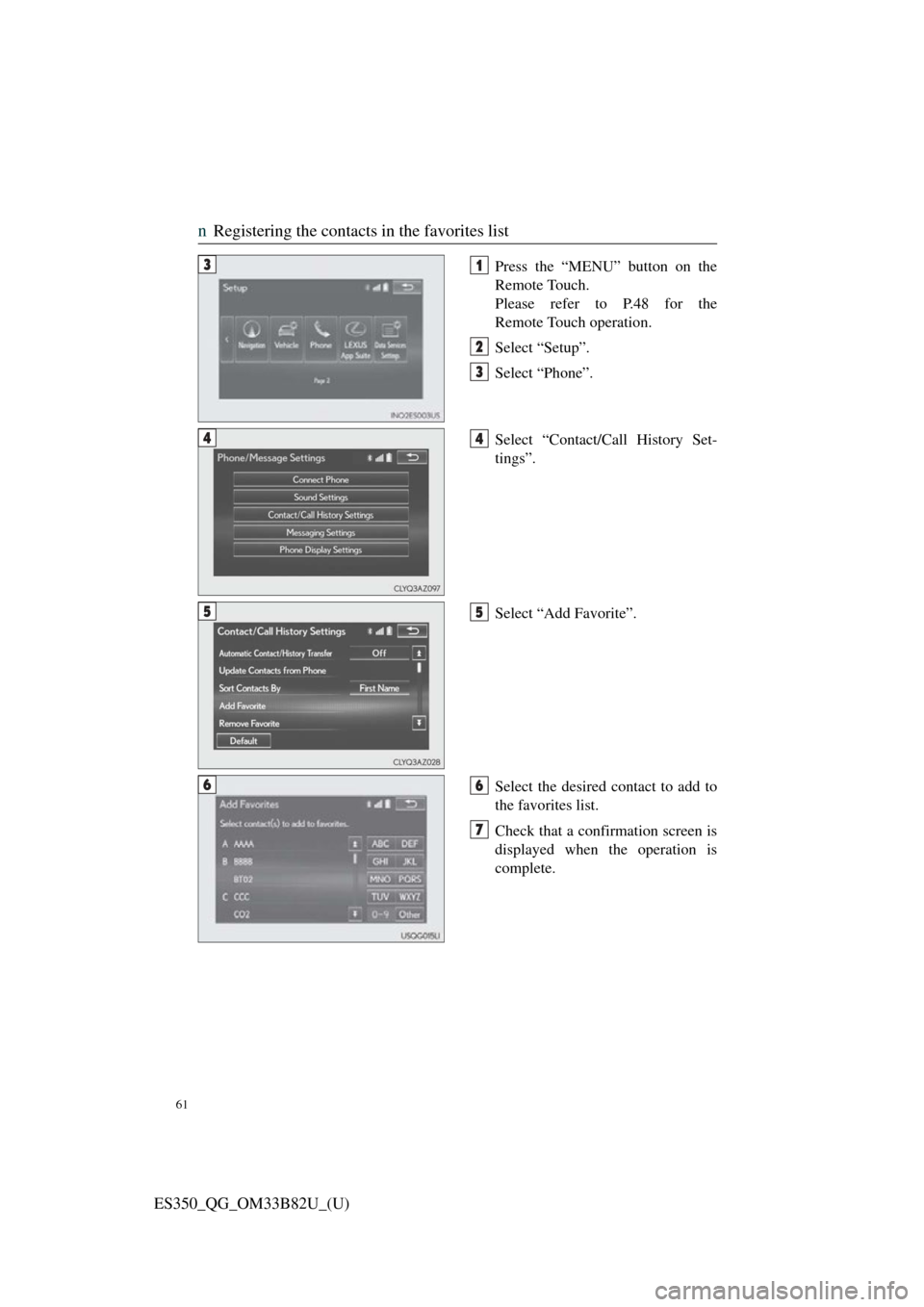
nRegistering the contacts in the favorites list
Press the “MENU” button on the
Remote Touch.
Please refer to P.48 for the
Remote Touch operation.
Select “Setup”.
Select “Phone”.
Select “Contact/Call History Set-
tings”.
Select “Add Favorite”.
Select the desired contact to add to
the favorites list.
Check that a confirmation screen is
displayed when the operation is
complete.31
2
3
44
55
66
7
Page 66 of 112
65
ES350_QG_OM33B82U_(U)
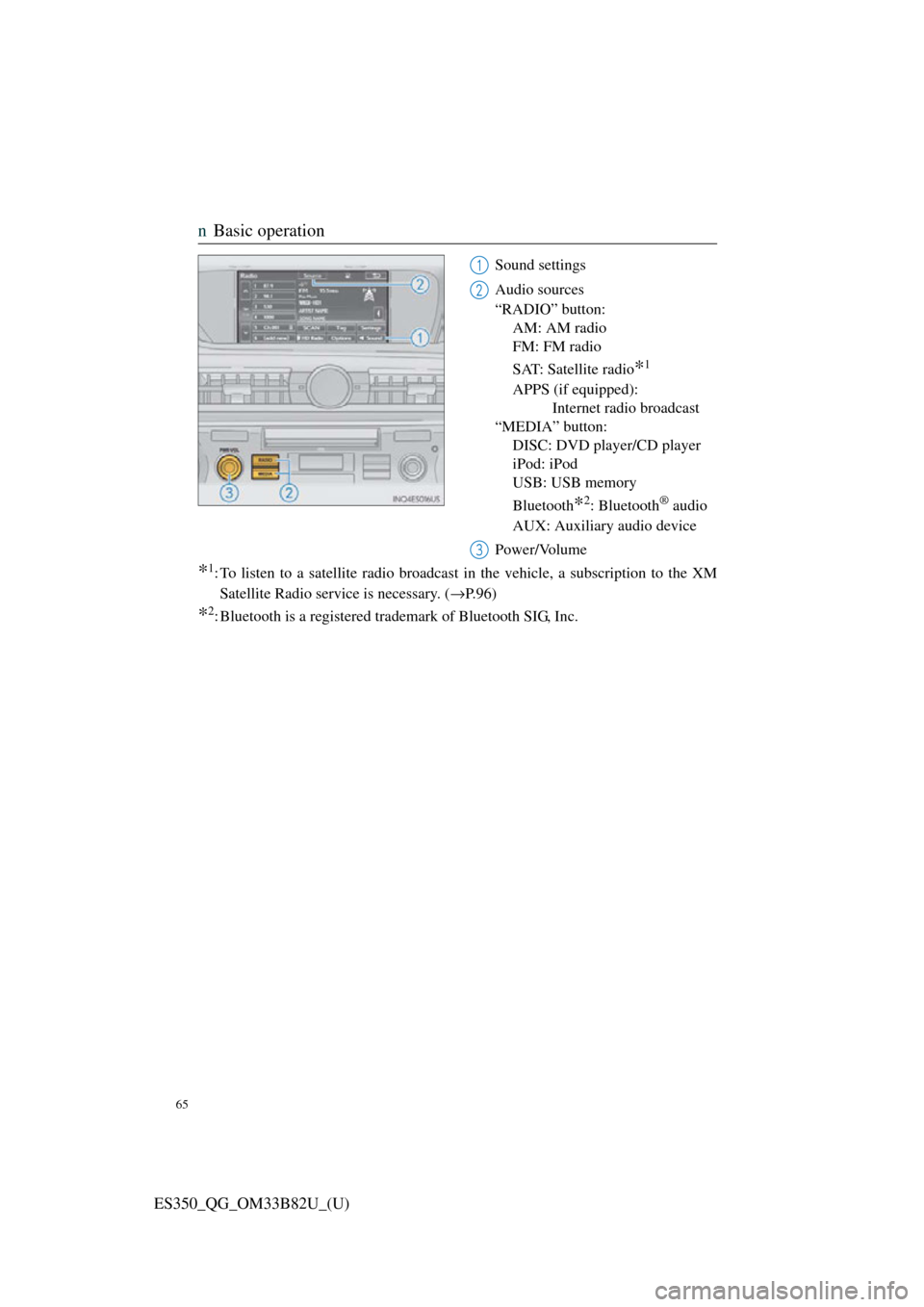
nBasic operation
Sound settings
Audio sources
“RADIO” button:
AM: AM radio
FM: FM radio
SAT: Satellite radio
*1
APPS (if equipped): Internet radio broadcast
“MEDIA” button: DISC: DVD player/CD player
iPod: iPod
USB: USB memory
Bluetooth
*2: Bluetooth® audio
AUX: Auxiliary audio device
Power/Volume
*1: To listen to a satellite radio broadcast in the vehicle, a subscription to the XM Satellite Radio service is necessary. ( →P.96)
*2: Bluetooth is a registered tr ademark of Bluetooth SIG, Inc.
1
2
3