AUTO Lexus GS250 2012 Owner's Manual
[x] Cancel search | Manufacturer: LEXUS, Model Year: 2012, Model line: GS250, Model: Lexus GS250 2012Pages: 914, PDF Size: 53.04 MB
Page 592 of 914
5775-4. Using the hands-free phone system (for cellular phone)
5
Interior features
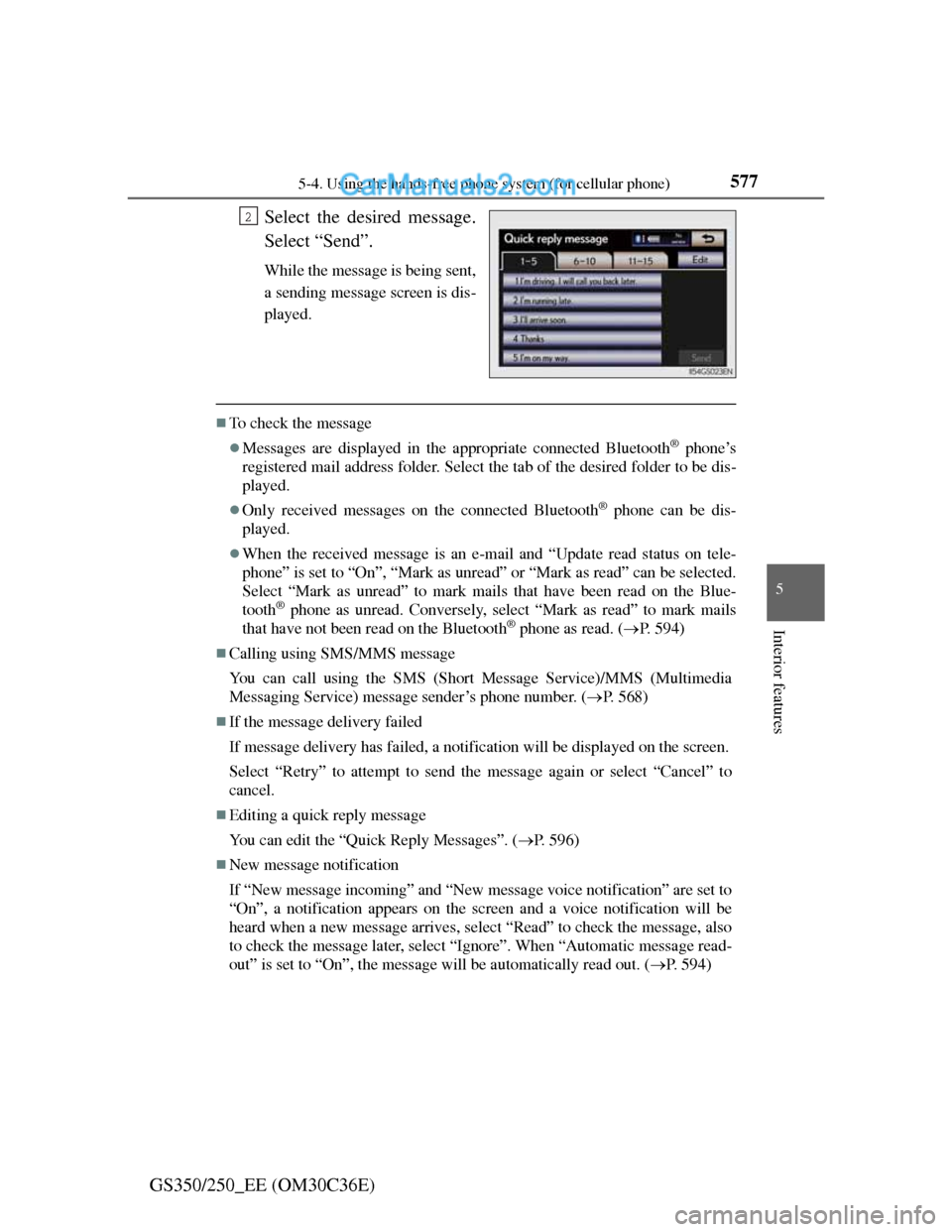
GS350/250_EE (OM30C36E)Select the desired message.
Select “Send”.
While the message is being sent,
a sending message screen is dis-
played.
To check the message
Messages are displayed in the appropriate connected Bluetooth® phone’s
registered mail address folder. Select the tab of the desired folder to be dis-
played.
Only received messages on the connected Bluetooth® phone can be dis-
played.
When the received message is an e-mail and “Update read status on tele-
phone” is set to “On”, “Mark as unread” or “Mark as read” can be selected.
Select “Mark as unread” to mark mails that have been read on the Blue-
tooth
® phone as unread. Conversely, select “Mark as read” to mark mails
that have not been read on the Bluetooth® phone as read. (P. 594)
Calling using SMS/MMS message
You can call using the SMS (Short Message Service)/MMS (Multimedia
Messaging Service) message sender’s phone number. (P. 568)
If the message delivery failed
If message delivery has failed, a notification will be displayed on the screen.
Select “Retry” to attempt to send the message again or select “Cancel” to
cancel.
Editing a quick reply message
You can edit the “Quick Reply Messages”. (P. 596)
New message notification
If “New message incoming” and “New message voice notification” are set to
“On”, a notification appears on the screen and a voice notification will be
heard when a new message arrives, select “Read” to check the message, also
to check the message later, select “Ignore”. When “Automatic message read-
out” is set to “On”, the message will be automatically read out. (P. 594)
2
Page 595 of 914
5805-4. Using the hands-free phone system (for cellular phone)
GS350/250_EE (OM30C36E)
Setting the ring tone
Display the “Telephone settings” screen. (P. 578)
Select “Sound settings” on the “Telephone settings” screen.
Select “Ring tone” on the “Sound settings” screen.
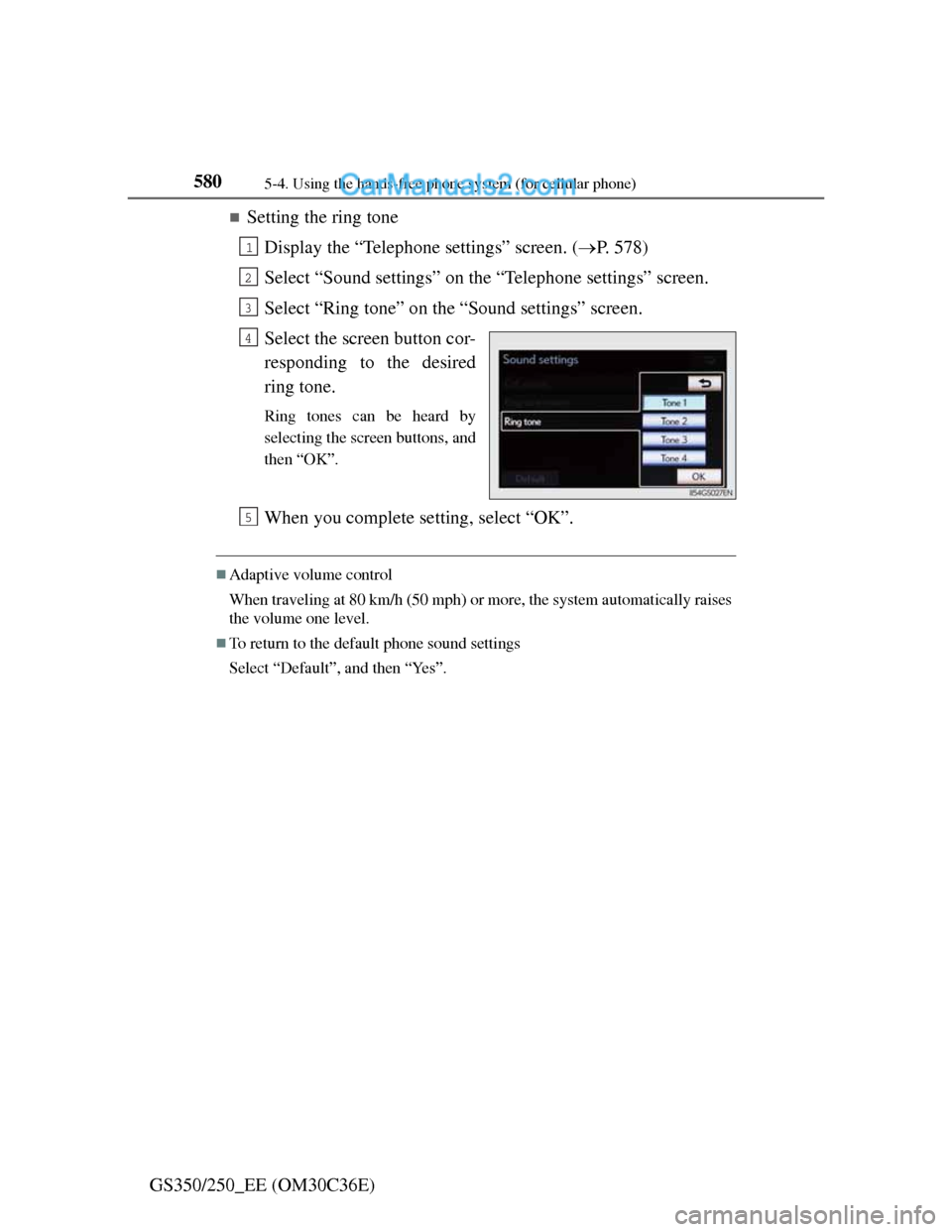
Select the screen button cor-
responding to the desired
ring tone.
Ring tones can be heard by
selecting the screen buttons, and
then “OK”.
When you complete setting, select “OK”.
Adaptive volume control
When traveling at 80 km/h (50 mph) or more, the system automatically raises
the volume one level.
To return to the default phone sound settings
Select “Default”, and then “Yes”.
1
2
3
4
5
Page 598 of 914
5835-4. Using the hands-free phone system (for cellular phone)
5
Interior features
GS350/250_EE (OM30C36E)
PBAP compatible models automatic data transfer setting
Display the “Phonebook settings” screen. (P. 581)
Select “Manage contacts” on the “Phonebook settings” screen.
Select “Transfer contacts.” on the “Contacts” screen.
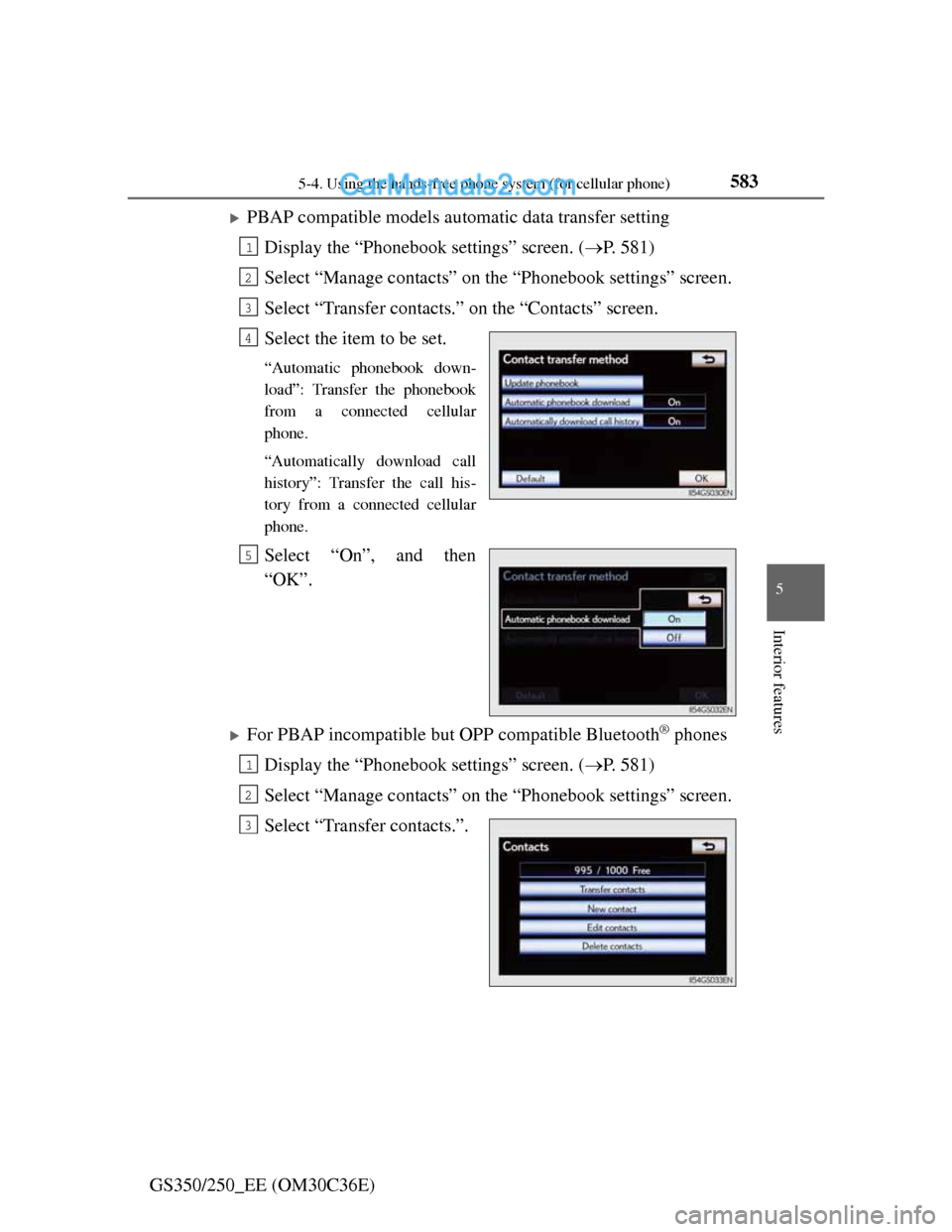
Select the item to be set.
“Automatic phonebook down-
load”: Transfer the phonebook
from a connected cellular
phone.
“Automatically download call
history”: Transfer the call his-
tory from a connected cellular
phone.
Select “On”, and then
“OK”.
For PBAP incompatible but OPP compatible Bluetooth® phones
Display the “Phonebook settings” screen. (P. 581)
Select “Manage contacts” on the “Phonebook settings” screen.
Select “Transfer contacts.”.
1
2
3
4
5
1
2
3
Page 602 of 914
5875-4. Using the hands-free phone system (for cellular phone)
5
Interior features
GS350/250_EE (OM30C36E)
Phonebook data
Phonebook data is managed for every registered phone. When another phone
is connecting, you cannot read the registered data.
When selling or disposing of the vehicle, delete all your data on the system.
For PBAP compatible phones, delete the phonebook data after setting “Auto-
matic phonebook download” to “Off”. (P. 583)
Setting the phonebook in a different way (To display the “Contacts” screen)
Display the “Telephone” screen. (P. 556)
Select “Contacts” on the “Telephone” screen.
Select “Options” on the “Contacts” screen.
Select “Manage contacts” on the “Contacts” screen.
When another Bluetooth® device is connected during transferring a phone-
book
For PBAP compatible Bluetooth® phones
If another Bluetooth® device is connected when transferring phonebook
data, depending on the phone, the connected Bluetooth® device may need
to be disconnected.
For PBAP incompatible but OPP compatible Bluetooth® phones
When another Bluetooth® device is connected, a confirmation message will
be displayed. If you want to disconnect it, select “Yes”.
Transferring the phone number data in a different way
Display the “Telephone” screen. (P. 556)
Select “Contacts” on the “Telephone” screen.
Select “Transfer” on the “Contacts” screen.
The “Transfer contacts.” screen is displayed. The following operations are
performed in the same manner as when they are performed from the
“Setup” screen.
Editing the phonebook data in a different way
From “Contact” screen
Display the “Telephone” screen. (P. 556)
Select “Contacts” on the “Telephone” screen.
Choose the desired data from the list.
Select “Options” on the “Contact data” screen.
Select “Edit contact” on the “Contact data” screen.
1
2
3
4
1
2
3
4
1
2
3
4
5
Page 607 of 914
5925-4. Using the hands-free phone system (for cellular phone)
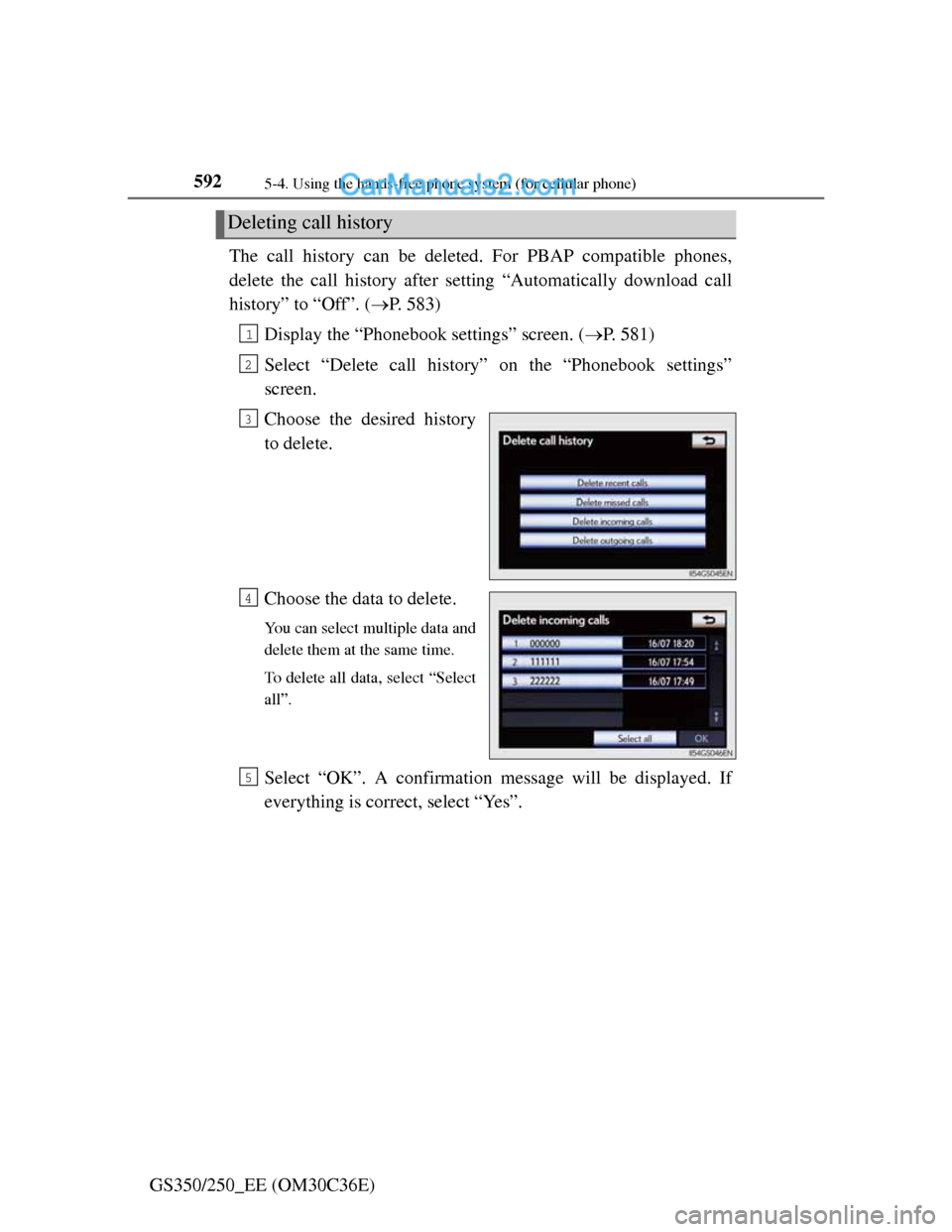
GS350/250_EE (OM30C36E)The call history can be deleted. For PBAP compatible phones,
delete the call history after setting “Automatically download call
history” to “Off”. (P. 583)
Display the “Phonebook settings” screen. (P. 581)
Select “Delete call history” on the “Phonebook settings”
screen.
Choose the desired history
to delete.
Choose the data to delete.
You can select multiple data and
delete them at the same time.
To delete all data, select “Select
all”.
Select “OK”. A confirmation message will be displayed. If
everything is correct, select “Yes”.
Deleting call history
1
2
3
4
5
Page 609 of 914
5945-4. Using the hands-free phone system (for cellular phone)
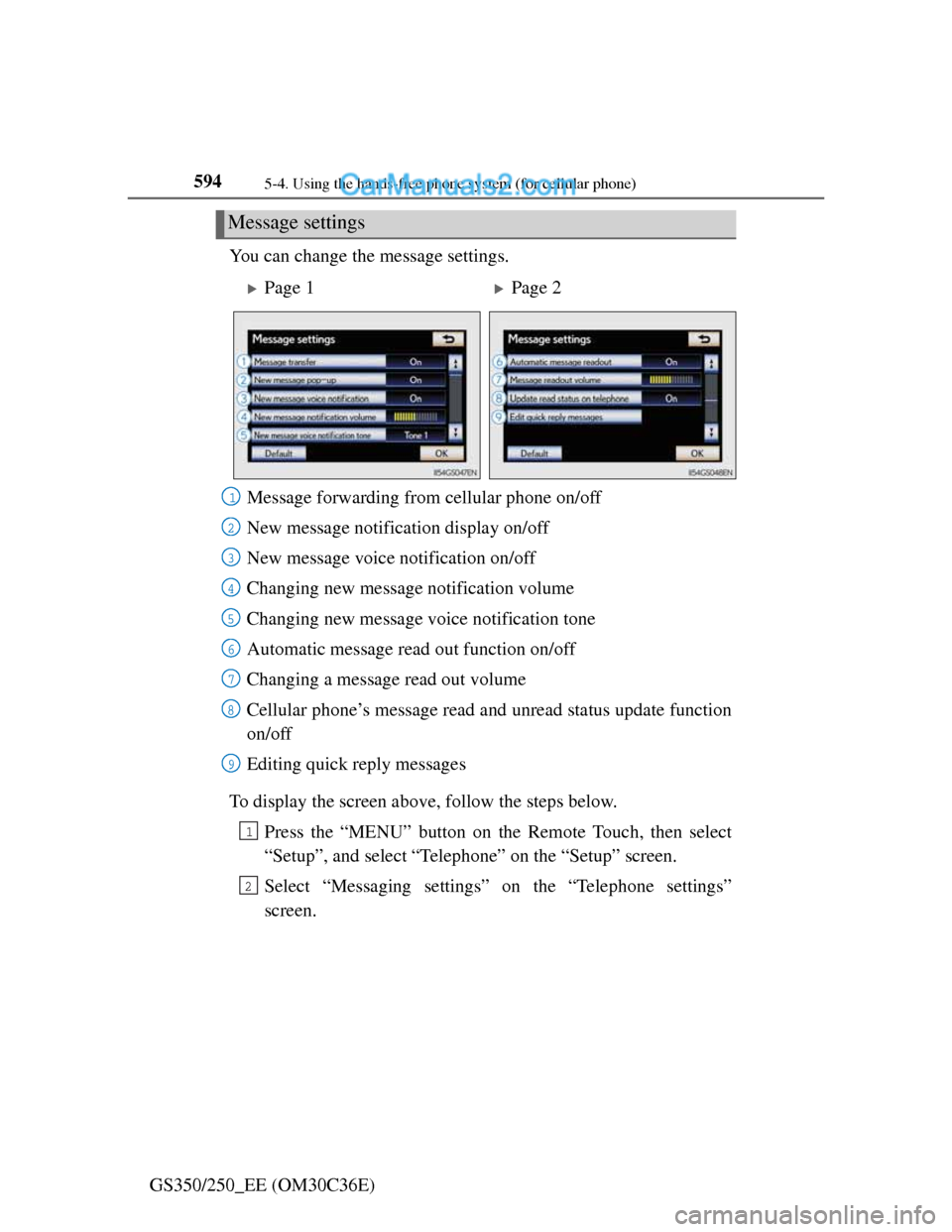
GS350/250_EE (OM30C36E)You can change the message settings.
To display the screen above, follow the steps below.
Press the “MENU” button on the Remote Touch, then select
“Setup”, and select “Telephone” on the “Setup” screen.
Select “Messaging settings” on the “Telephone settings”
screen.
Message settings
Page 1Page 2
Message forwarding from cellular phone on/off
New message notification display on/off
New message voice notification on/off
Changing new message notification volume
Changing new message voice notification tone
Automatic message read out function on/off
Changing a message read out volume
Cellular phone’s message read and unread status update function
on/off
Editing quick reply messages
1
2
3
4
5
6
7
8
9
1
2
Page 612 of 914
5975-4. Using the hands-free phone system (for cellular phone)
5
Interior features
GS350/250_EE (OM30C36E)
To display the “Message settings” screen in a different way
Display the “Telephone” screen. (P. 556)
Select “Messages” on the “Telephone” screen.
Select “Options” on the “Messages” screen.
Editing the quick reply messages in a different way
Display the desired message on “Messages” screen. (P. 576)
Select “Reply” on the desired message screen.
Select “Edit” on the “Quick reply messages”.
Select the screen button corresponding to the desired message.
When you complete editing, select “OK” and then on the “Edit Quick
Replay Message” screen.
Adaptive volume control
When traveling at 80 km/h (50 mph) or more, the system automatically raises
the volume.
To return to the default message settings
Select “Default”, and then “Yes”.
1
2
3
1
2
3
4
5
Page 626 of 914
6115-4. Using the hands-free phone system (for cellular phone)
5
Interior features
GS350/250_EE (OM30C36E)
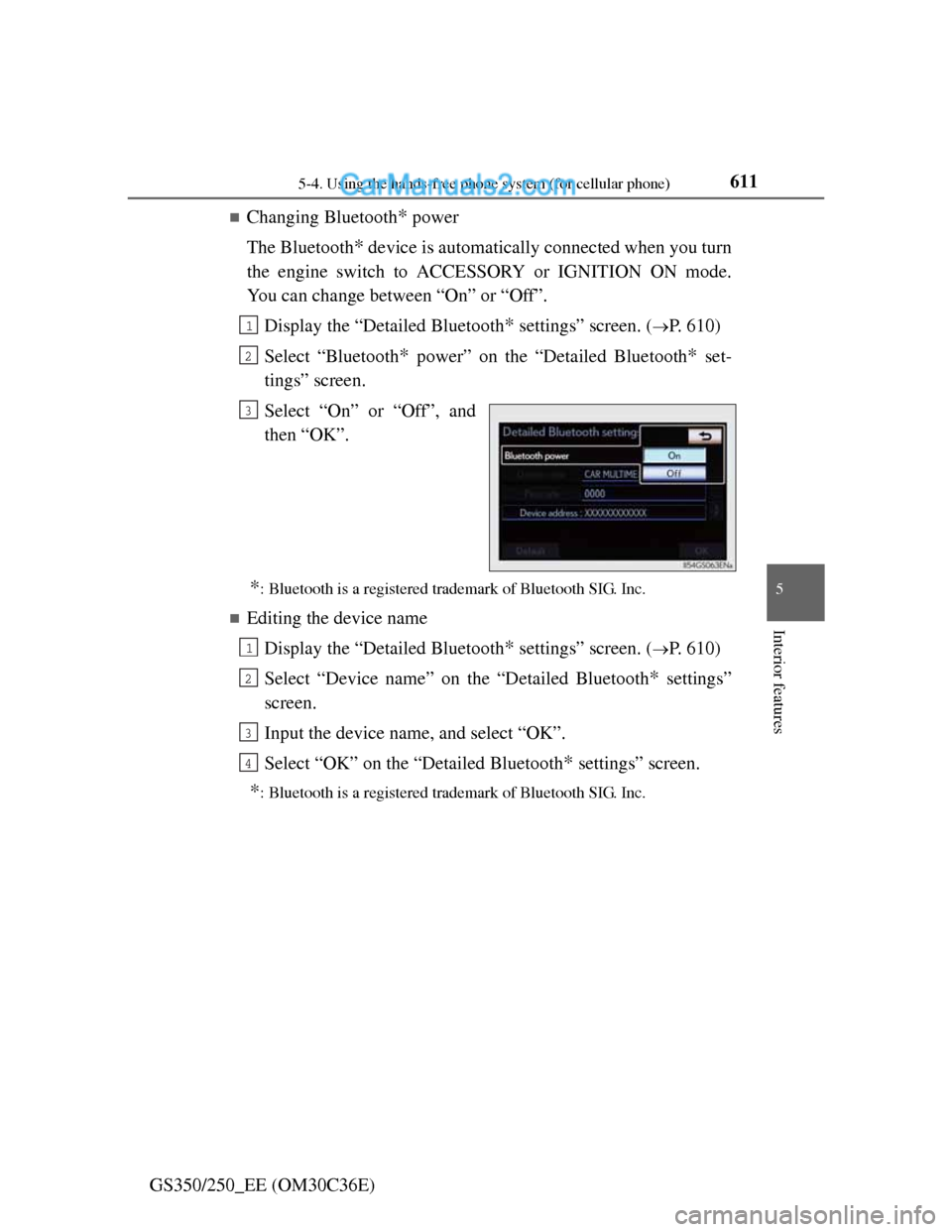
Changing Bluetooth* power
The Bluetooth
* device is automatically connected when you turn
the engine switch to ACCESSORY or IGNITION ON mode.
You can change between “On” or “Off”.
Display the “Detailed Bluetooth
* settings” screen. (P. 610)
Select “Bluetooth
* power” on the “Detailed Bluetooth* set-
tings” screen.
Select “On” or “Off”, and
then “OK”.
*: Bluetooth is a registered trademark of Bluetooth SIG. Inc.
Editing the device name
Display the “Detailed Bluetooth
* settings” screen. (P. 610)
Select “Device name” on the “Detailed Bluetooth
* settings”
screen.
Input the device name, and select “OK”.
Select “OK” on the “Detailed Bluetooth
* settings” screen.
*: Bluetooth is a registered trademark of Bluetooth SIG. Inc.
1
2
3
1
2
3
4
Page 631 of 914
6135-5. Using the interior lights
5
Interior features
GS350/250_EE (OM30C36E)
Illuminated entry system
The lights automatically turn on/off according to engine switch mode, the
presence of the electronic key, whether the doors are locked/unlocked, and
whether the doors are opened/closed.
To prevent battery discharge
If the interior lights remain on when the engine switch is turned off, the lights
will go off automatically after 20 minutes.
Customization
Setting (e.g. the time elapsed before lights turn off) can be changed.
(Customizable features: P. 855)
NOTICE
To prevent battery discharge
Do not leave the lights on longer than necessary when the engine is not run-
ning.
Page 647 of 914
629
5 5-7. Other interior features
Interior features
GS350/250_EE (OM30C36E)
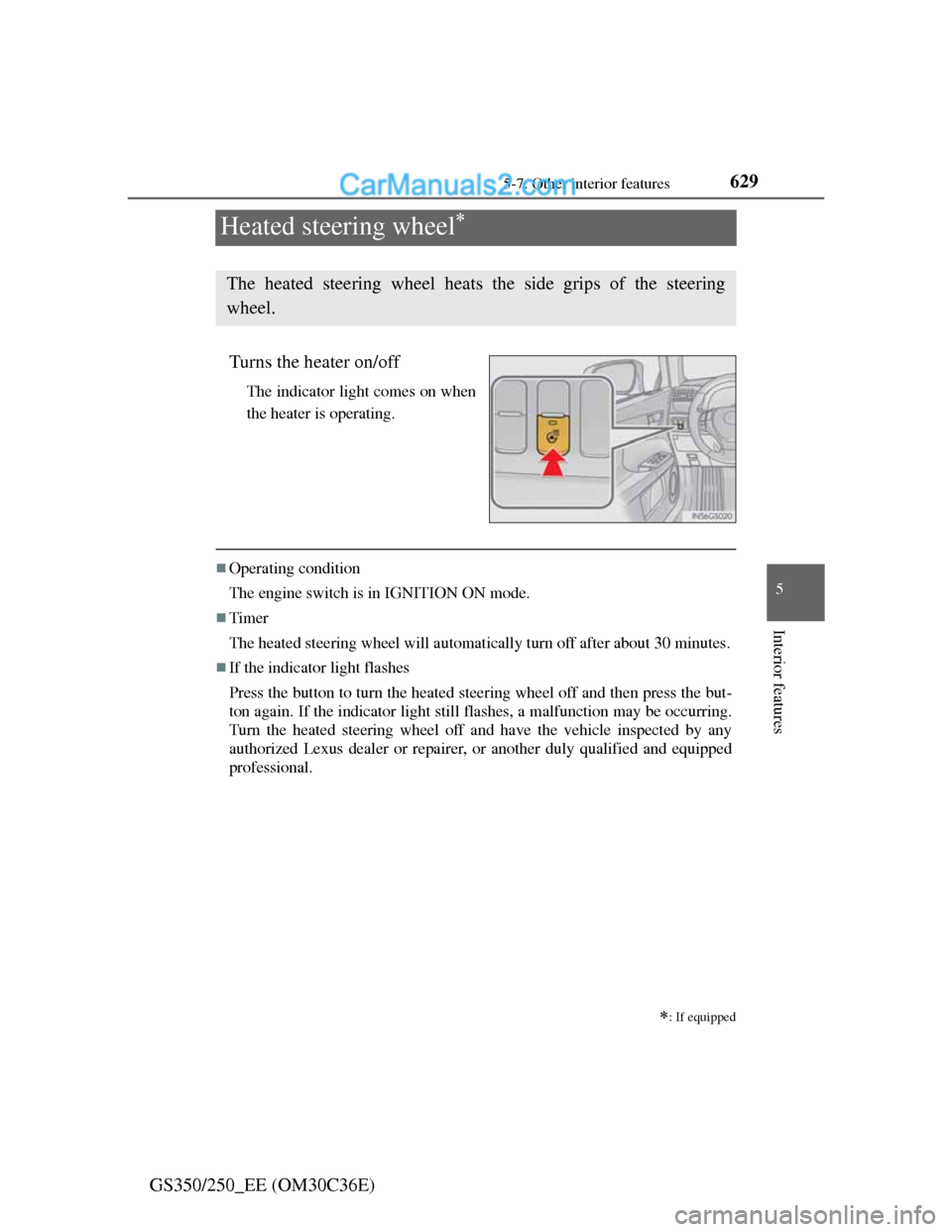
Heated steering wheel
Turns the heater on/off
The indicator light comes on when
the heater is operating.
Operating condition
The engine switch is in IGNITION ON mode.
Timer
The heated steering wheel will automatically turn off after about 30 minutes.
If the indicator light flashes
Press the button to turn the heated steering wheel off and then press the but-
ton again. If the indicator light still flashes, a malfunction may be occurring.
Turn the heated steering wheel off and have the vehicle inspected by any
authorized Lexus dealer or repairer, or another duly qualified and equipped
professional.
: If equipped
The heated steering wheel heats the side grips of the steering
wheel.