remote touch Lexus GS250 2012 Workshop Manual
[x] Cancel search | Manufacturer: LEXUS, Model Year: 2012, Model line: GS250, Model: Lexus GS250 2012Pages: 914, PDF Size: 53.04 MB
Page 417 of 914
4075-1. Remote Touch screen
5
Interior features
GS350/250_EE (OM30C36E)
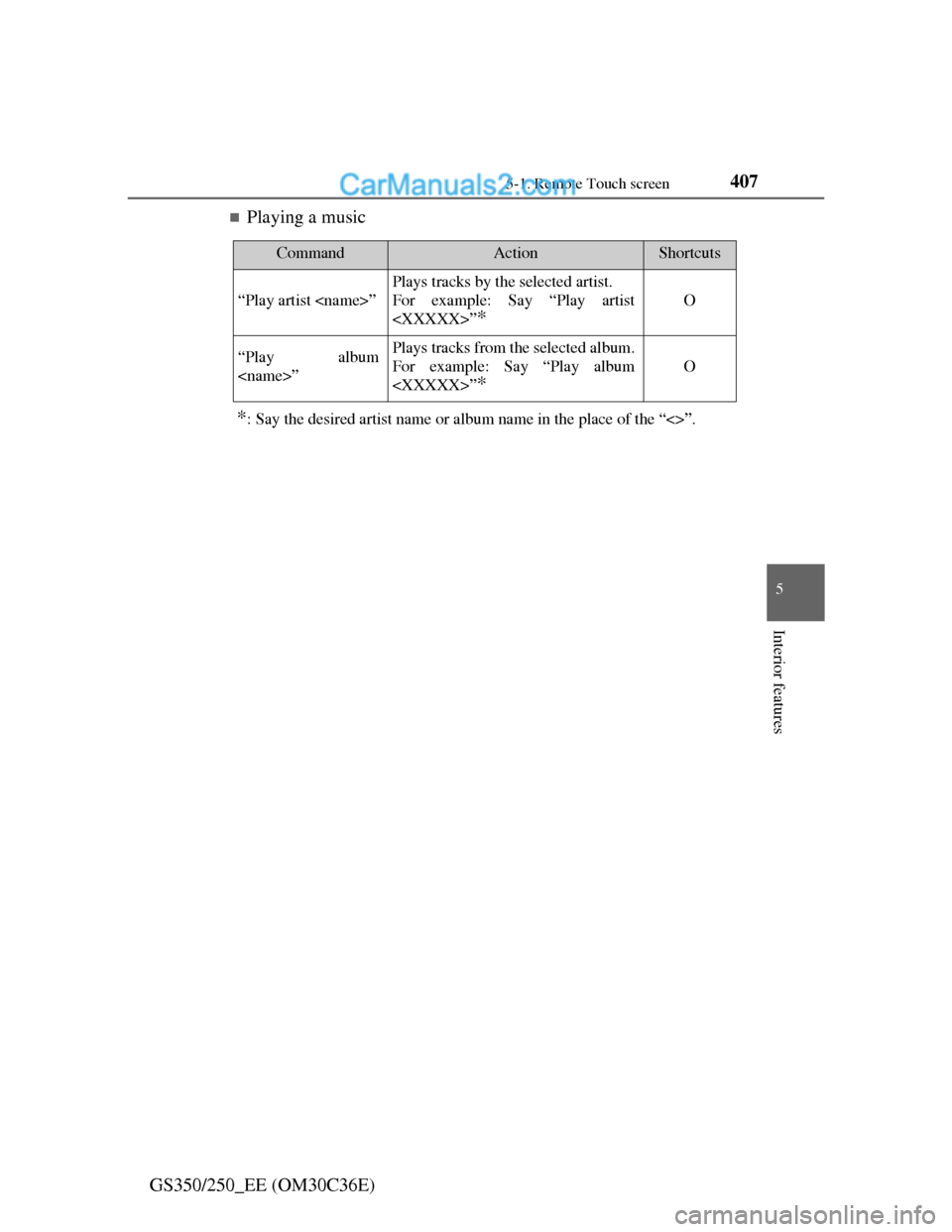
Playing a music
*: Say the desired artist name or album name in the place of the “<>”.
CommandActionShortcuts
“Play artist
Plays tracks by the selected artist.
For example: Say “Play artist
*
O
“Play album
For example: Say “Play album
*
O
Page 418 of 914
4085-1. Remote Touch screen
GS350/250_EE (OM30C36E)
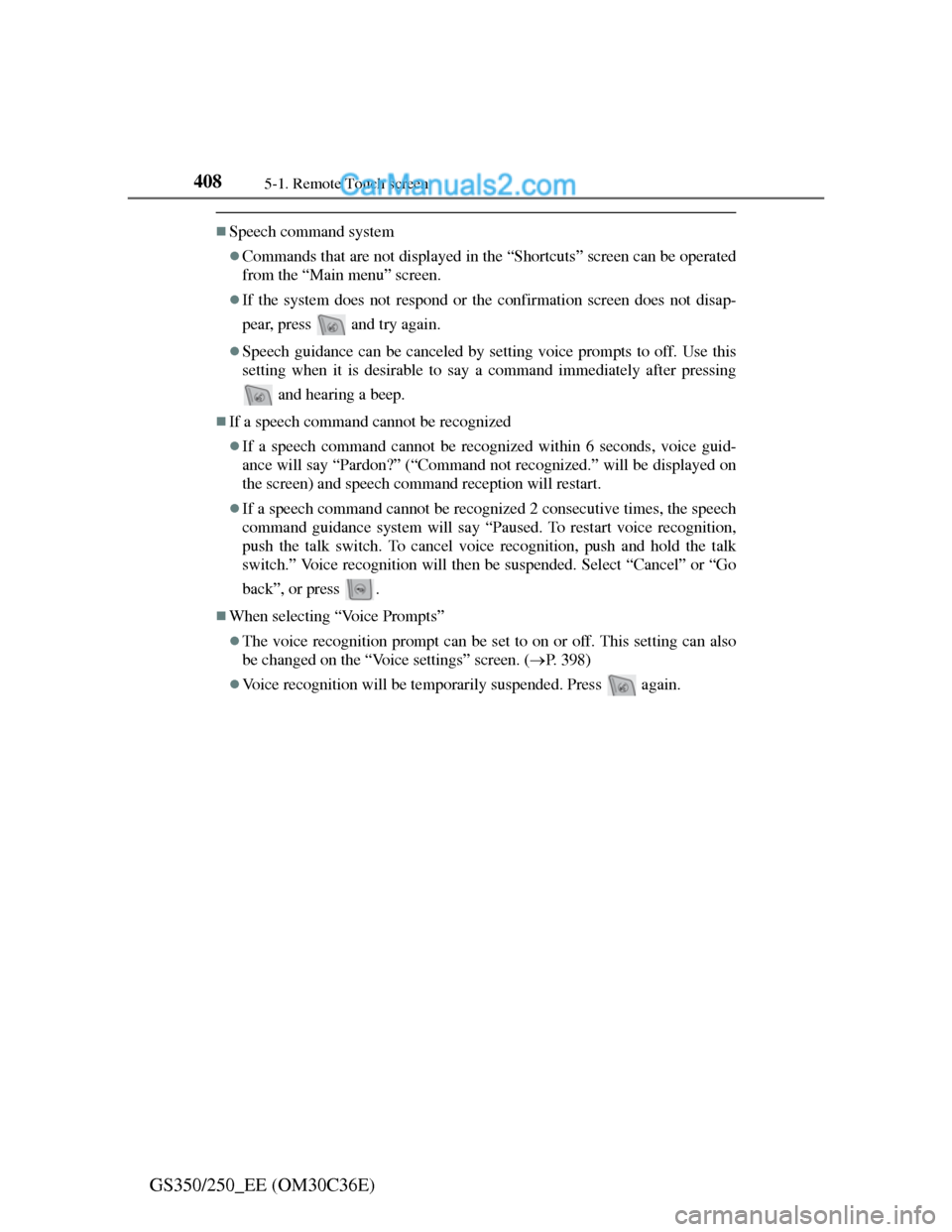
Speech command system
Commands that are not displayed in the “Shortcuts” screen can be operated
from the “Main menu” screen.
If the system does not respond or the confirmation screen does not disap-
pear, press and try again.
Speech guidance can be canceled by setting voice prompts to off. Use this
setting when it is desirable to say a command immediately after pressing
and hearing a beep.
If a speech command cannot be recognized
If a speech command cannot be recognized within 6 seconds, voice guid-
ance will say “Pardon?” (“Command not recognized.” will be displayed on
the screen) and speech command reception will restart.
If a speech command cannot be recognized 2 consecutive times, the speech
command guidance system will say “Paused. To restart voice recognition,
push the talk switch. To cancel voice recognition, push and hold the talk
switch.” Voice recognition will then be suspended. Select “Cancel” or “Go
back”, or press .
When selecting “Voice Prompts”
The voice recognition prompt can be set to on or off. This setting can also
be changed on the “Voice settings” screen. (P. 398)
Voice recognition will be temporarily suspended. Press again.
Page 419 of 914
4095-1. Remote Touch screen
5
Interior features
GS350/250_EE (OM30C36E)
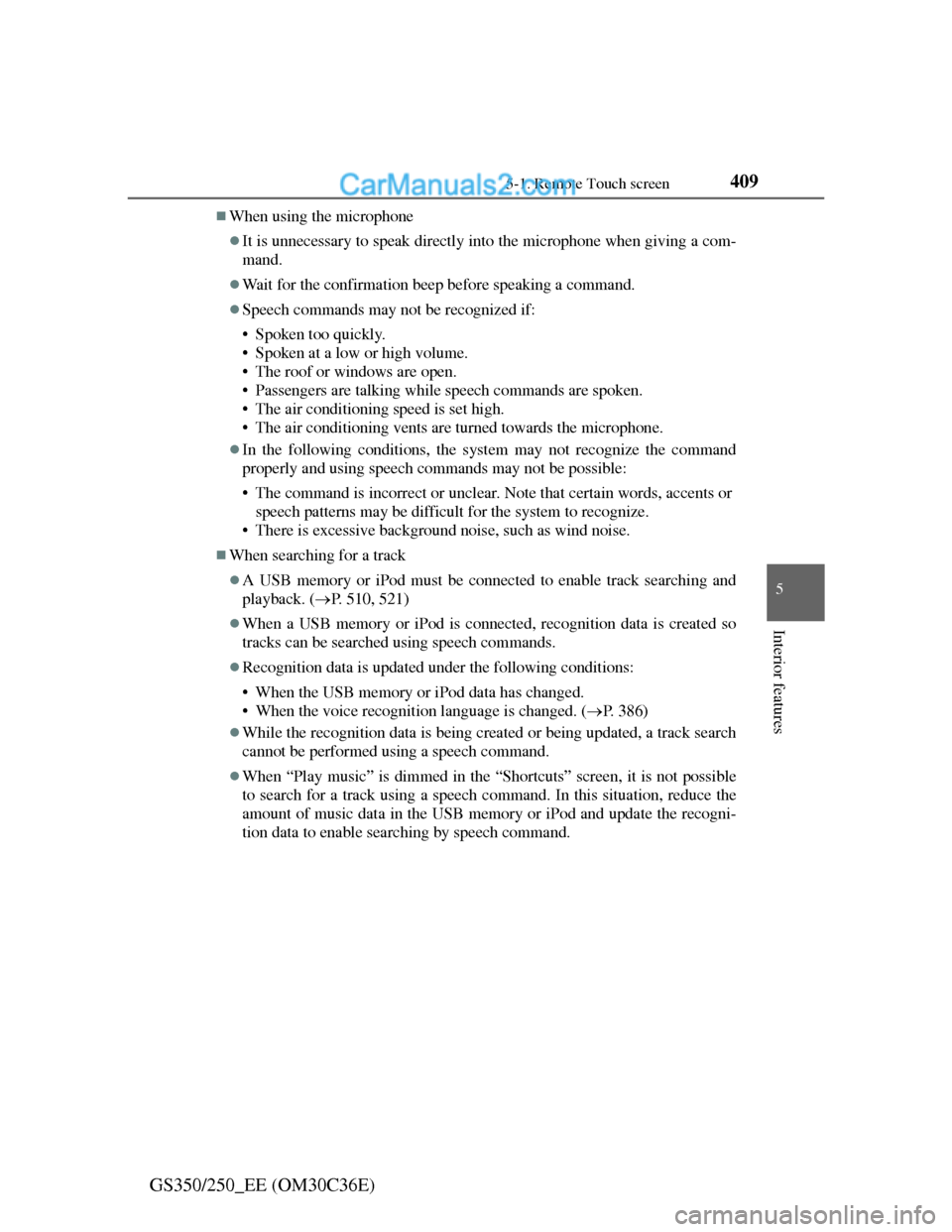
When using the microphone
It is unnecessary to speak directly into the microphone when giving a com-
mand.
Wait for the confirmation beep before speaking a command.
Speech commands may not be recognized if:
• Spoken too quickly.
• Spoken at a low or high volume.
• The roof or windows are open.
• Passengers are talking while speech commands are spoken.
• The air conditioning speed is set high.
• The air conditioning vents are turned towards the microphone.
In the following conditions, the system may not recognize the command
properly and using speech commands may not be possible:
• The command is incorrect or unclear. Note that certain words, accents or
speech patterns may be difficult for the system to recognize.
• There is excessive background noise, such as wind noise.
When searching for a track
A USB memory or iPod must be connected to enable track searching and
playback. (P. 510, 521)
When a USB memory or iPod is connected, recognition data is created so
tracks can be searched using speech commands.
Recognition data is updated under the following conditions:
• When the USB memory or iPod data has changed.
• When the voice recognition language is changed. (P. 386)
While the recognition data is being created or being updated, a track search
cannot be performed using a speech command.
When “Play music” is dimmed in the “Shortcuts” screen, it is not possible
to search for a track using a speech command. In this situation, reduce the
amount of music data in the USB memory or iPod and update the recogni-
tion data to enable searching by speech command.
Page 420 of 914
409
5 5-2. Using the air conditioning system and defogger
Interior features
GS350/250_EE (OM30C36E)
Front automatic air conditioning system
Air outlets and fan speed are automatically adjusted according to
the temperature setting.
Vehicles with a 12.3-inch display: The air conditioning system can
be displayed and operated on the “Side Display”. For details, refer
to the “Navigation System Owner’s Manual”.
Press the “MENU” button on the Remote Touch, then select “Cli-
mate” to display the air conditioning operation screen.
The illustrations below are for left-hand drive vehicles.
The button positions and shapes will differ for right-hand drive
vehicles.
Also, the display and button positions will differ depending on the
type of the system.
Page 442 of 914
431
5 5-2. Using the air conditioning system and defogger
Interior features
GS350/250_EE (OM30C36E)
Windshield wiper de-icer
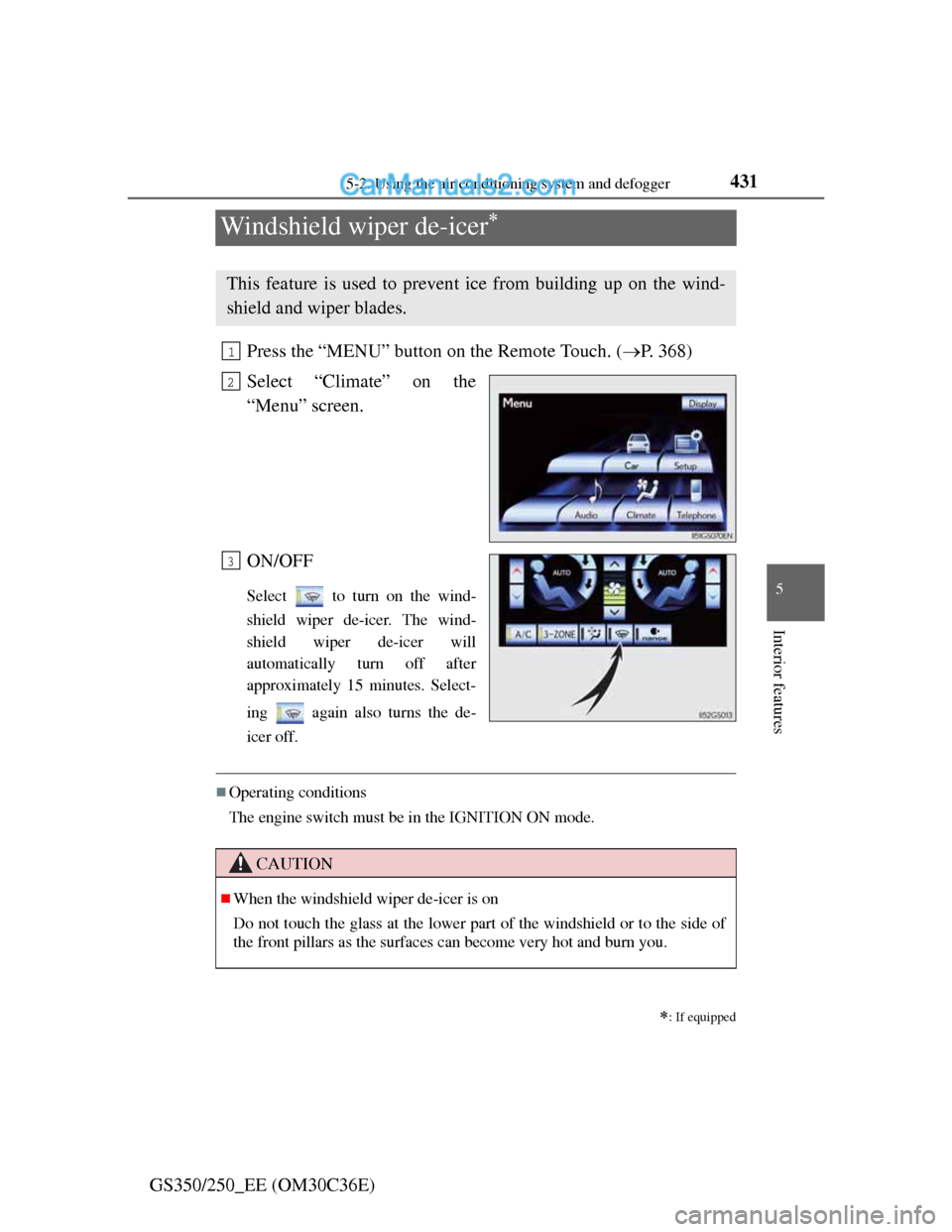
Press the “MENU” button on the Remote Touch. (P. 368)
Select “Climate” on the
“Menu” screen.
ON/OFF
Select to turn on the wind-
shield wiper de-icer. The wind-
shield wiper de-icer will
automatically turn off after
approximately 15 minutes. Select-
ing again also turns the de-
icer off.
Operating conditions
The engine switch must be in the IGNITION ON mode.
: If equipped
This feature is used to prevent ice from building up on the wind-
shield and wiper blades.
1
2
3
CAUTION
When the windshield wiper de-icer is on
Do not touch the glass at the lower part of the windshield or to the side of
the front pillars as the surfaces can become very hot and burn you.
Page 443 of 914
4325-3. Using the audio system
GS350/250_EE (OM30C36E)
Audio system type
CD and DVD player with AM/FM radio
Vehicles with a 12.3-inch display: The audio functions can be dis-
played and operated on the “Side Display”. For details, refer to the
“Navigation System Owner’s Manual”.
The illustration below is for left-hand drive vehicles with a 8-inch
display.
The button positions and shapes will differ for right-hand drive
vehicles.
Also, the display and button positions will differ depending on the
type of the system.
Using the instrument panel
Press the “RADIO” or “MEDIA” button to display the audio
control screen.
Using the Remote Touch
Press the “MENU” button on the Remote Touch, select
“Audio” and select each tab to display the audio control screen.
Page 446 of 914
4355-3. Using the audio system
5
Interior features
GS350/250_EE (OM30C36E)
Using cellular phones
Interference may be heard through the audio system’s speakers if a cellular
phone is being used inside or close to the vehicle while the audio system is
operating.
When using the Remote Touch screen
Dimmed screen buttons cannot be operated.
Ta b
Select or , located either side of the screen tabs, to display tabs from
the previous or next page.
About Dolby
Manufactured under license from Dolby Laboratories. Dolby and the double-
D symbol are trademarks of Dolby Laboratories.
CAUTION
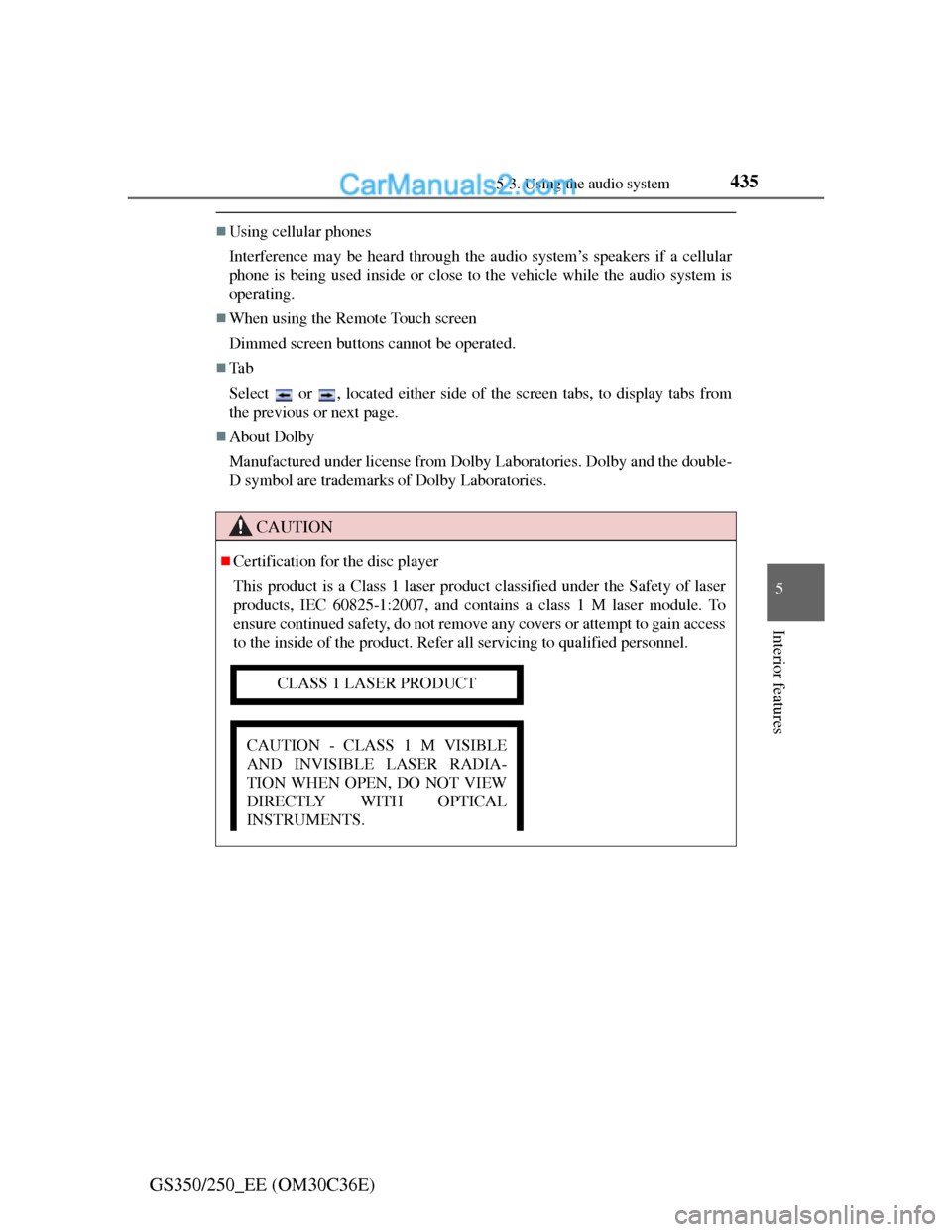
Certification for the disc player
This product is a Class 1 laser product classified under the Safety of laser
products, IEC 60825-1:2007, and contains a class 1 M laser module. To
ensure continued safety, do not remove any covers or attempt to gain access
to the inside of the product. Refer all servicing to qualified personnel.
CLASS 1 LASER PRODUCT
CAUTION - CLASS 1 M VISIBLE
AND INVISIBLE LASER RADIA-
TION WHEN OPEN, DO NOT VIEW
DIRECTLY WITH OPTICAL
INSTRUMENTS.
Page 472 of 914
4615-3. Using the audio system
5
Interior features
GS350/250_EE (OM30C36E)Detailed radio settings can be programmed.
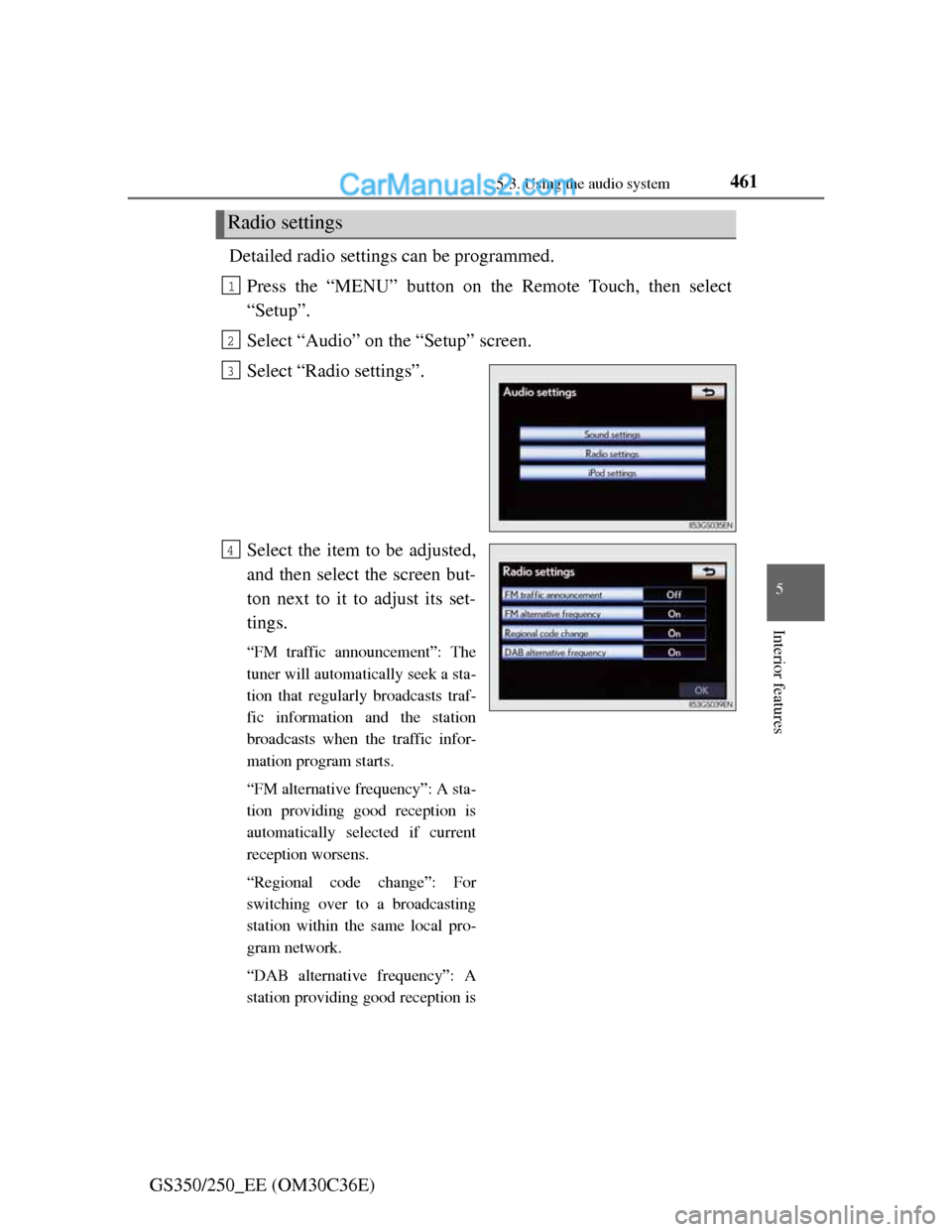
Press the “MENU” button on the Remote Touch, then select
“Setup”.
Select “Audio” on the “Setup” screen.
Select “Radio settings”.
Select the item to be adjusted,
and then select the screen but-
ton next to it to adjust its set-
tings.
“FM traffic announcement”: The
tuner will automatically seek a sta-
tion that regularly broadcasts traf-
fic information and the station
broadcasts when the traffic infor-
mation program starts.
“FM alternative frequency”: A sta-
tion providing good reception is
automatically selected if current
reception worsens.
“Regional code change”: For
switching over to a broadcasting
station within the same local pro-
gram network.
“DAB alternative frequency”: A
station providing good reception is
Radio settings
1
2
3
4
Page 535 of 914
5245-3. Using the audio system
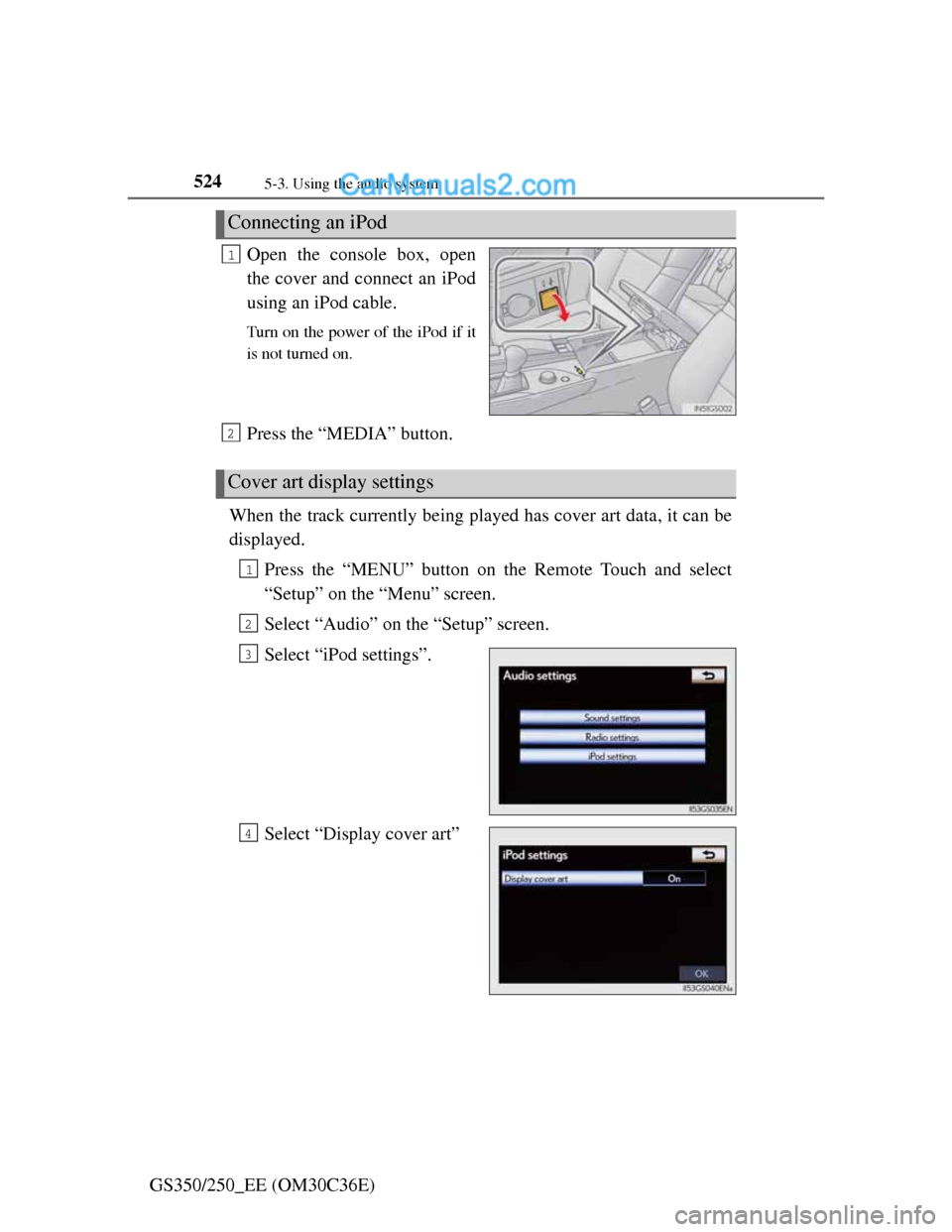
GS350/250_EE (OM30C36E)Open the console box, open
the cover and connect an iPod
using an iPod cable.
Turn on the power of the iPod if it
is not turned on.
Press the “MEDIA” button.
When the track currently being played has cover art data, it can be
displayed.
Press the “MENU” button on the Remote Touch and select
“Setup” on the “Menu” screen.
Select “Audio” on the “Setup” screen.
Select “iPod settings”.
Select “Display cover art”
Connecting an iPod
1
Cover art display settings
2
1
2
3
4
Page 544 of 914
533
5 5-3. Using the audio system
Interior features
GS350/250_EE (OM30C36E)
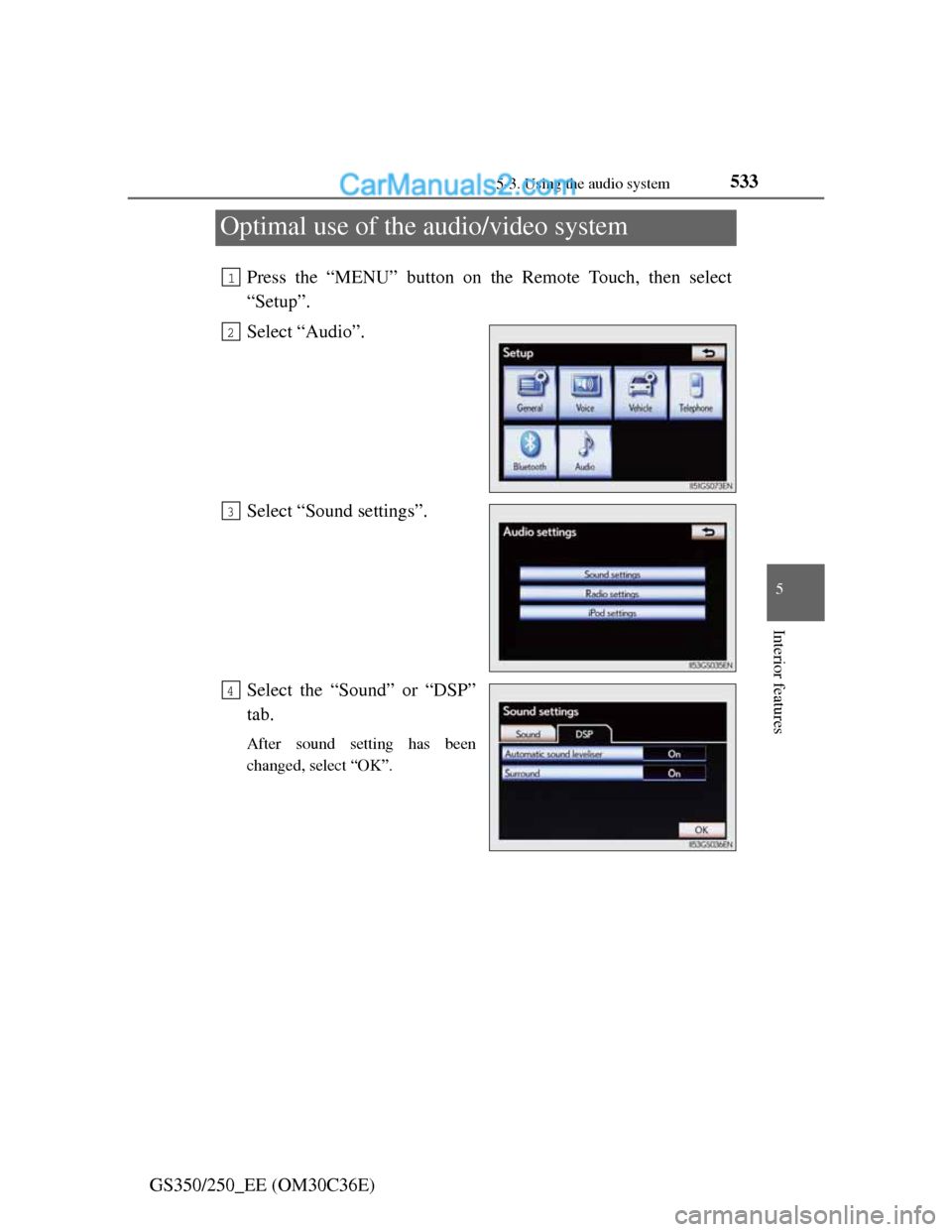
Optimal use of the audio/video system
Press the “MENU” button on the Remote Touch, then select
“Setup”.
Select “Audio”.
Select “Sound settings”.
Select the “Sound” or “DSP”
tab.
After sound setting has been
changed, select “OK”.
1
2
3
4