light Lexus GS350 2016 Service Manual
[x] Cancel search | Manufacturer: LEXUS, Model Year: 2016, Model line: GS350, Model: Lexus GS350 2016Pages: 624, PDF Size: 15.29 MB
Page 104 of 624
104
GS350_200t_GS F_OM_OM30E86U_(U)2. Instrument cluster
■Tire inflation pressure
Displays inflation pressure of each tire.
The inflation pressure of the compact
spare tire will not be displayed.
■LKA (Lane-Keeping Assist) vehicle sway warning (if equipped)
P. 2 4 9
■Display off
A blank screen is displayed
*1: Displayed when the item is set in “Drive In fo 1”, “Drive Info 2” or “Drive Info 3”.
( P. 5 6 9 )
*2: The function can be reset by pressing th e of the meter control switches for longer
than 1 second when the item to reset is displayed.
If there is more than one item that can be reset, the item selection screen will appear.
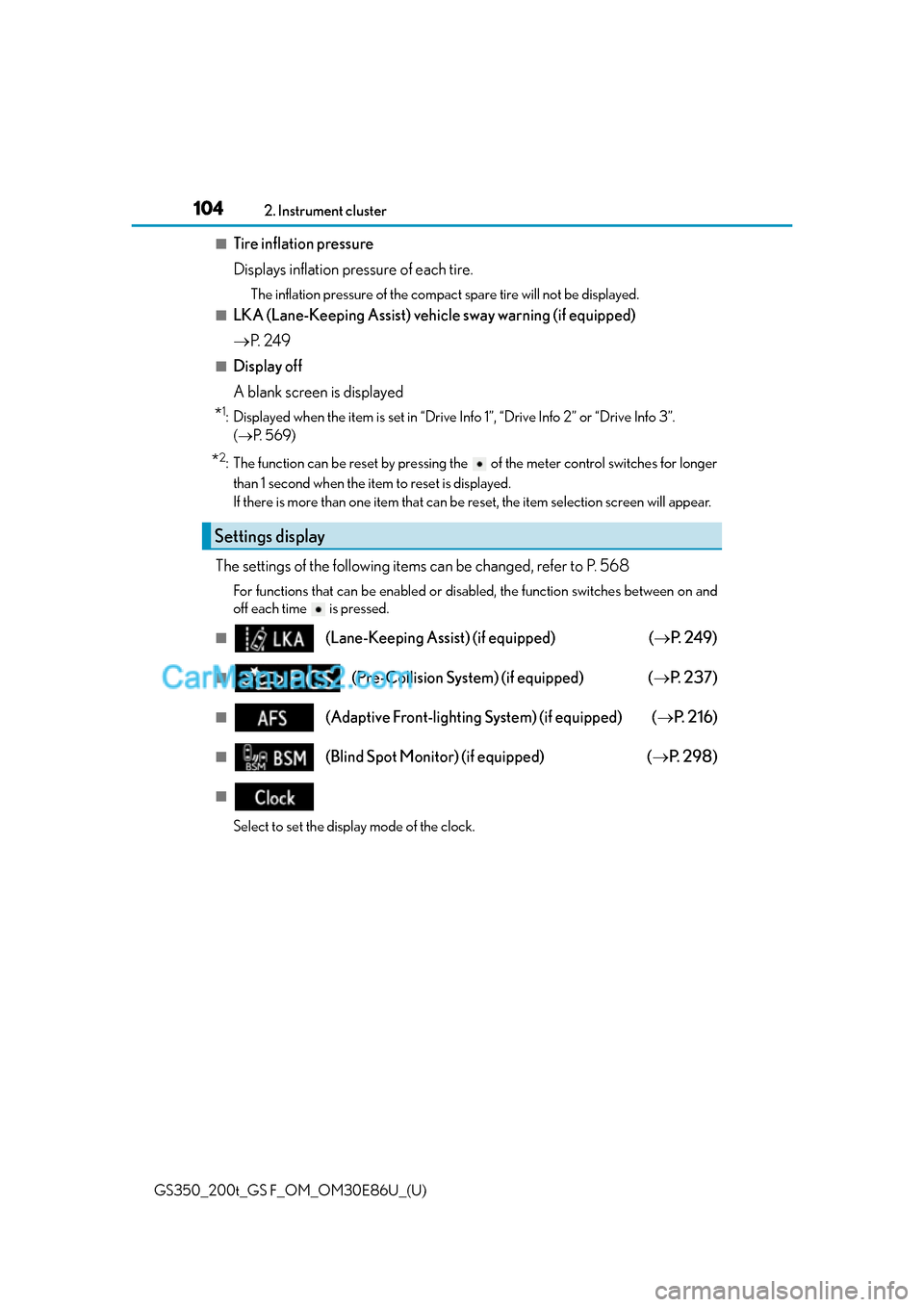
The settings of the following items can be changed, refer to P. 568
For functions that can be enabled or disabled, the function switches between on and
off each time is pressed.
■(Lane-Keeping Assist) (if equipped) ( P. 2 4 9 )
■(Pre-Collision System) (if equipped) ( P. 2 3 7 )
■(Adaptive Front-lighting System) (if equipped) ( P. 2 1 6 )
■(Blind Spot Monitor) (if equipped) ( P. 2 9 8 )
■
Select to set the display mode of the clock.
Settings display
Page 105 of 624
GS350_200t_GS F_OM_OM30E86U_(U)
1052. Instrument cluster
2
Instrument cluster
■●
Scheduled Maintenance (P. 3 8 6 )
●Oil Maintenance ( P. 4 0 4 )
●TPMS (Tire pressure warning system) ( P. 4 1 5 )
■
●
Language
Select to change the la nguage on the display.
●Units
Select to change the unit of measure.
●Eco Driving Indicator Light
Select to activate/deactivate the Eco Driving Indicator Light.
● switch
Displays a procedure to register a desired screen to .
You can register 1 screen as a shortcut , which can be displayed by pressing .
●Drive information 1 /2 /3
Select to select up to 2 items that will be displayed on a Drive information screen,
up to 3 Drive information screens can be set.
●Pop-up display
Select to set the following pop-up displa ys, which may appear in some situations,
on/off. • Route guidance of the navigation system-linked display (if equipped)
• Incoming call display of the hands-free phone system
• Instrument panel brightne ss adjustment display
●Accent color (except F SPORT models)
Select to change the accent colors on the screen, such as the cursor color.
●Needle (F SPORT models)
Select to change the needle color for the tachometer.
●Rev indicator (F SPORT models)
Select to set the rev indicator on/off.
When set to on, proceed to set the engine speed at which the rev indicator will be
displayed.
Selectable engine speed range:
GS350: 2000 rpm to 6800 rpm
GS200t: 2000 rpm to 6100 rpm
●Rev peak (F SPORT models)
Select to set the rev peak on/off.
●Default settings
Registered or changed meter settings will be deleted or returned to their default
setting.
Page 116 of 624
116
GS350_200t_GS F_OM_OM30E86U_(U)2. Instrument cluster
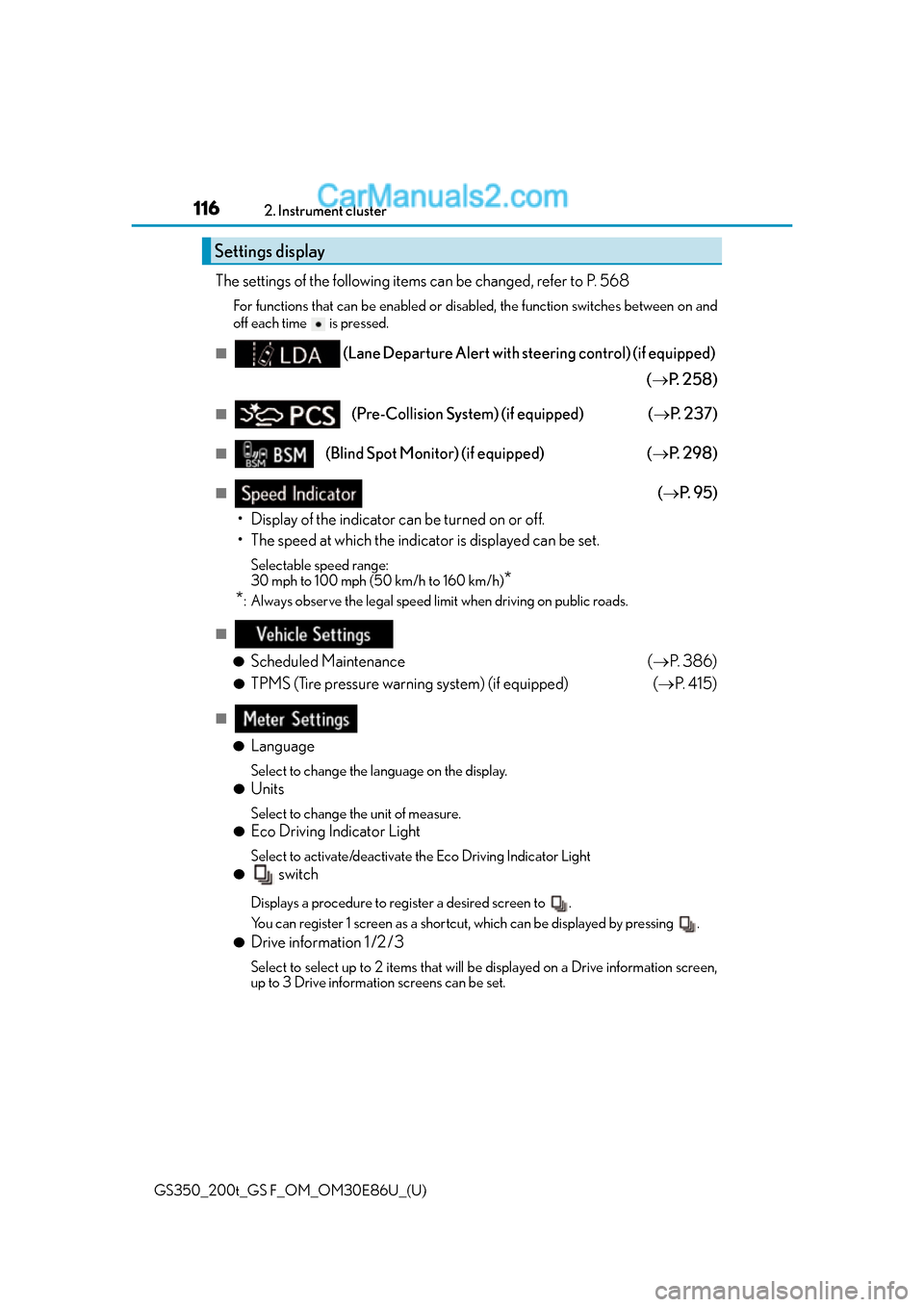
The settings of the following items can be changed, refer to P. 568
For functions that can be enabled or disabled, the function switches between on and
off each time is pressed.
■(Lane Departure Alert with steering control) (if equipped)
( P. 2 5 8 )
■(Pre-Collision System) (if equipped) ( P. 2 3 7 )
■(Blind Spot Monitor) (if equipped) ( P. 2 9 8 )
■( P. 9 5 )
• Display of the indicator can be turned on or off.
• The speed at which the indicator is displayed can be set.
Selectable speed range:
30 mph to 100 mph (50 km/h to 160 km/h)
*
*
: Always observe the legal speed limit when driving on public roads.
■
●
Scheduled Maintenance (P. 3 8 6 )
●TPMS (Tire pressure warning system) (if equipped) ( P. 4 1 5 )
■
●
Language
Select to change the la nguage on the display.
●Units
Select to change the unit of measure.
●Eco Driving Indicator Light
Select to activate/deactivate the Eco Driving Indicator Light
● switch
Displays a procedure to register a desired screen to .
You can register 1 screen as a shortcut , which can be displayed by pressing .
●Drive information 1 /2 /3
Select to select up to 2 items that will be displayed on a Drive information screen,
up to 3 Drive information screens can be set.
Settings display
Page 128 of 624
128
GS350_200t_GS F_OM_OM30E86U_(U)2. Instrument cluster
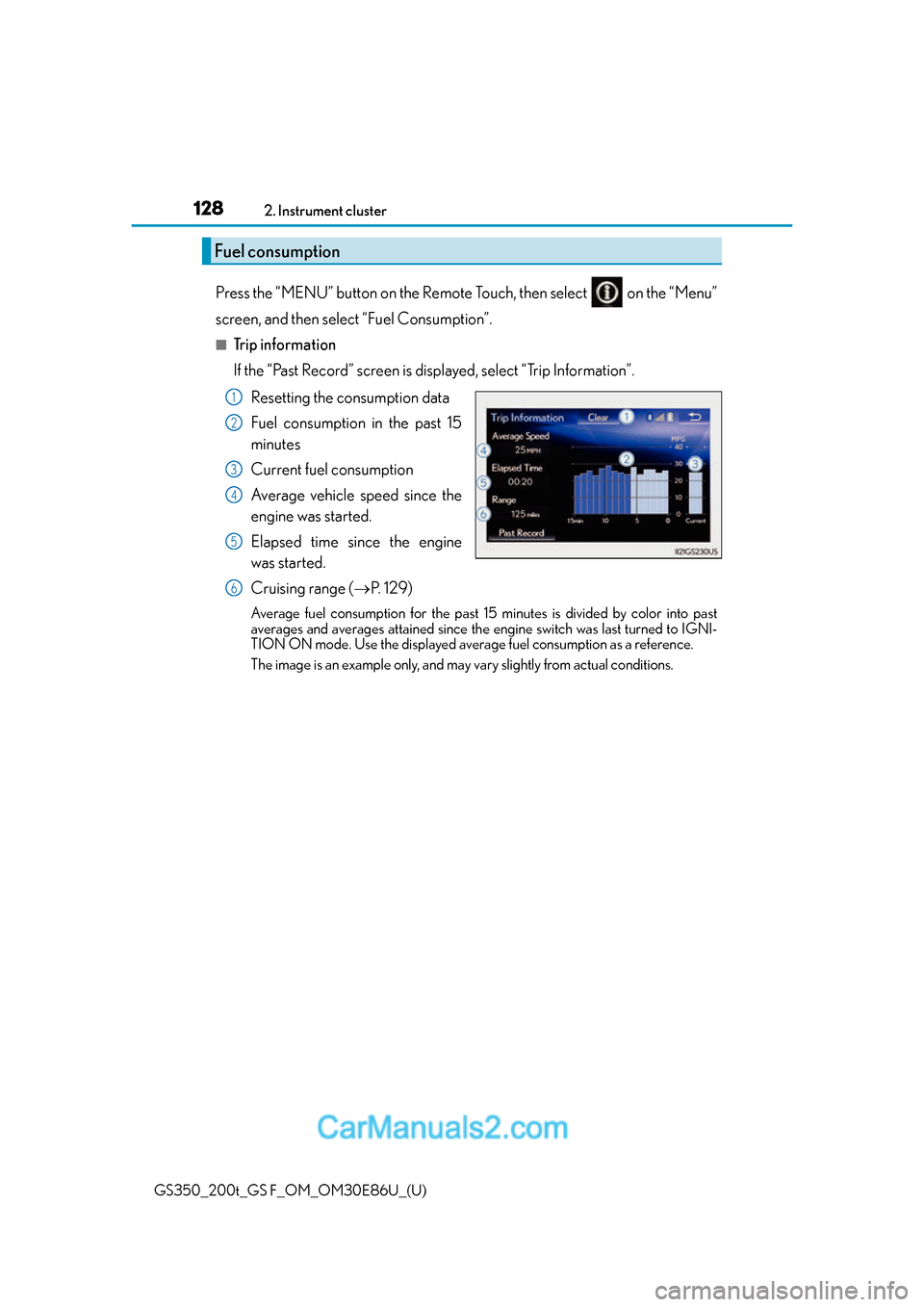
Press the “MENU” button on the Remote Touch, then select on the “Menu”
screen, and then select “Fuel Consumption”.
■Trip information
If the “Past Record” screen is displayed, select “Trip Information”.
Resetting the consumption data
Fuel consumption in the past 15
minutes
Current fuel consumption
Average vehicle speed since the
engine was started.
Elapsed time since the engine
was started.
Cruising range ( P. 1 2 9 )
Average fuel consumption for the past 15 minutes is divided by color into past
averages and averages attained since the engine switch was last turned to IGNI-
TION ON mode. Use the displayed average fuel consumption as a reference.
The image is an example only, and may vary slightly from actual conditions.
Fuel consumption
1
2
3
4
5
6
Page 129 of 624
GS350_200t_GS F_OM_OM30E86U_(U)
1292. Instrument cluster
2
Instrument cluster
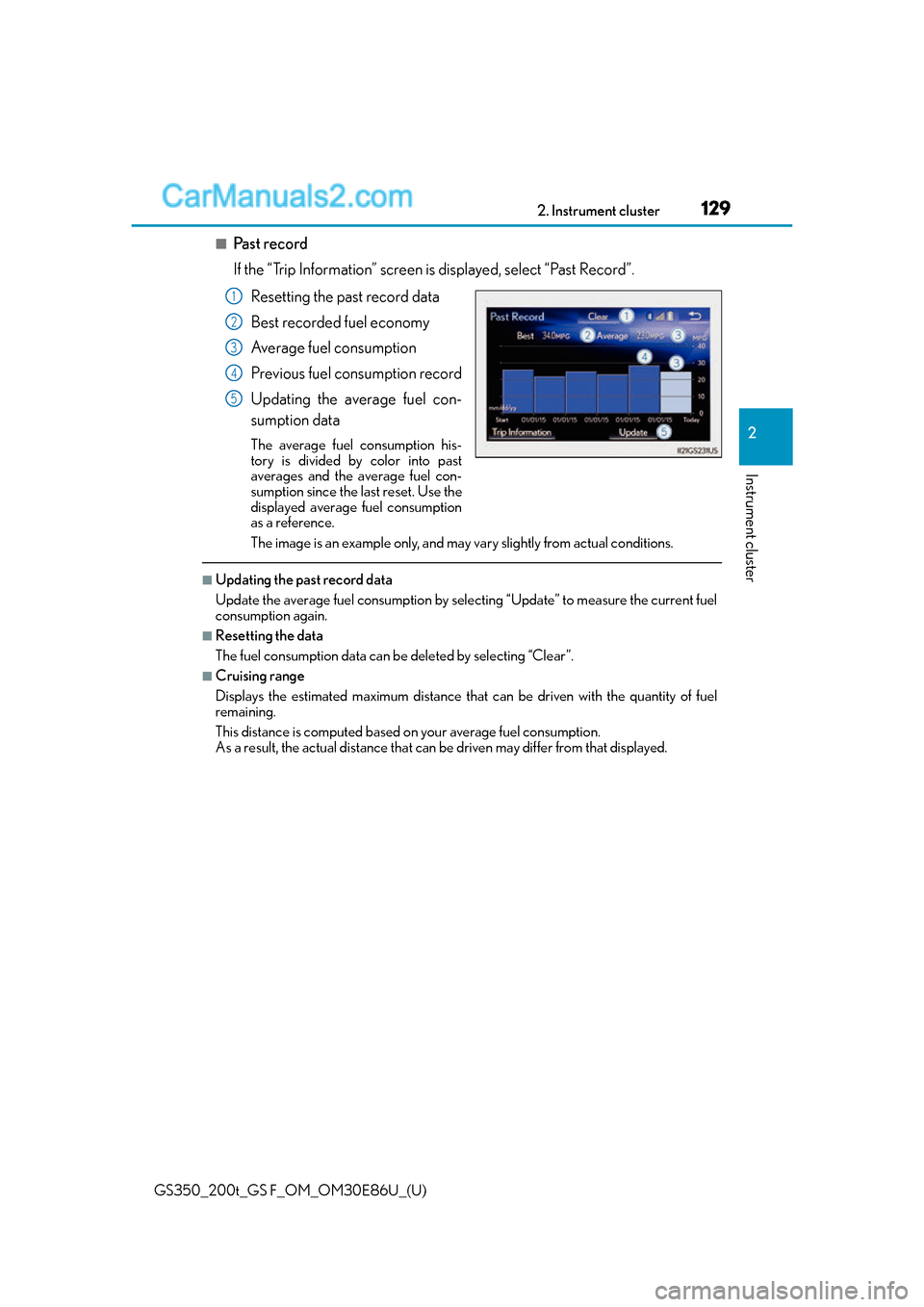
■Past record
If the “Trip Information” screen is displayed, select “Past Record”.
Resetting the past record data
Best recorded fuel economy
Average fuel consumption
Previous fuel consumption record
Updating the average fuel con-
sumption data
The average fuel consumption his-
tory is divided by color into past
averages and the average fuel con-
sumption since the last reset. Use the
displayed average fuel consumption
as a reference.
The image is an example only, and may vary slightly from actual conditions.
■Updating the past record data
Update the average fuel consumption by selecting “Update” to measure the current fuel
consumption again.
■Resetting the data
The fuel consumption data can be deleted by selecting “Clear”.
■Cruising range
Displays the estimated maximum distance that can be driven with the quantity of fuel
remaining.
This distance is computed based on your average fuel consumption.
As a result, the actual distance that can be driven may differ from that displayed.
1
2
3
4
5
Page 130 of 624
130
GS350_200t_GS F_OM_OM30E86U_(U)2. Instrument cluster
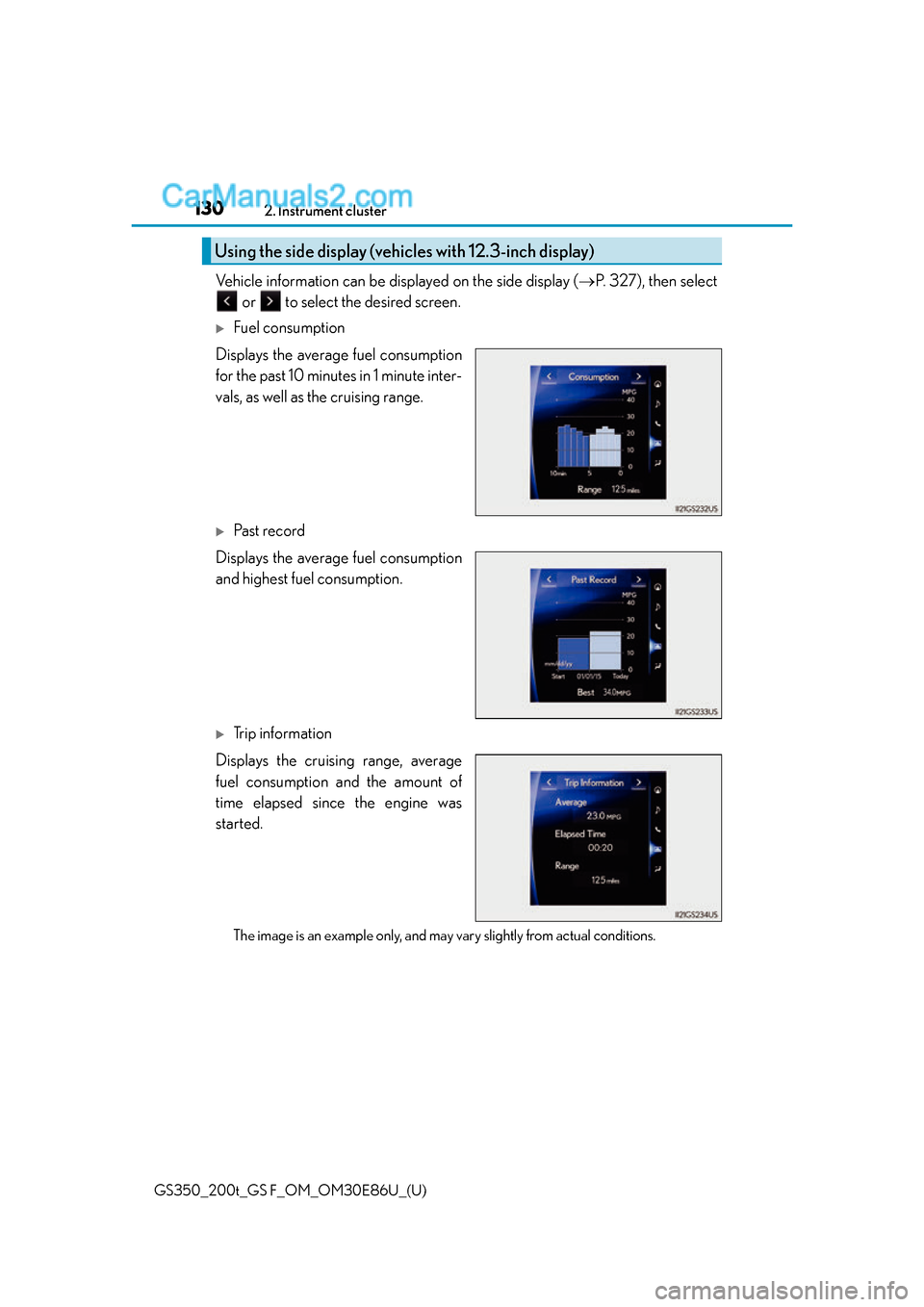
Vehicle information can be displayed on the side display (
P. 3 2 7 ) , t h e n s e l e c t
or to select the desired screen.
Fuel consumption
Displays the average fuel consumption
for the past 10 minutes in 1 minute inter-
vals, as well as the cruising range.
Past record
Displays the average fuel consumption
and highest fuel consumption.
Trip information
Displays the cruising range, average
fuel consumption and the amount of
time elapsed since the engine was
started.
The image is an example only, and may vary slightly from actual conditions.
Using the side display (vehicles with 12.3-inch display)
Page 134 of 624
134
GS350_200t_GS F_OM_OM30E86U_(U)3-1. Key information
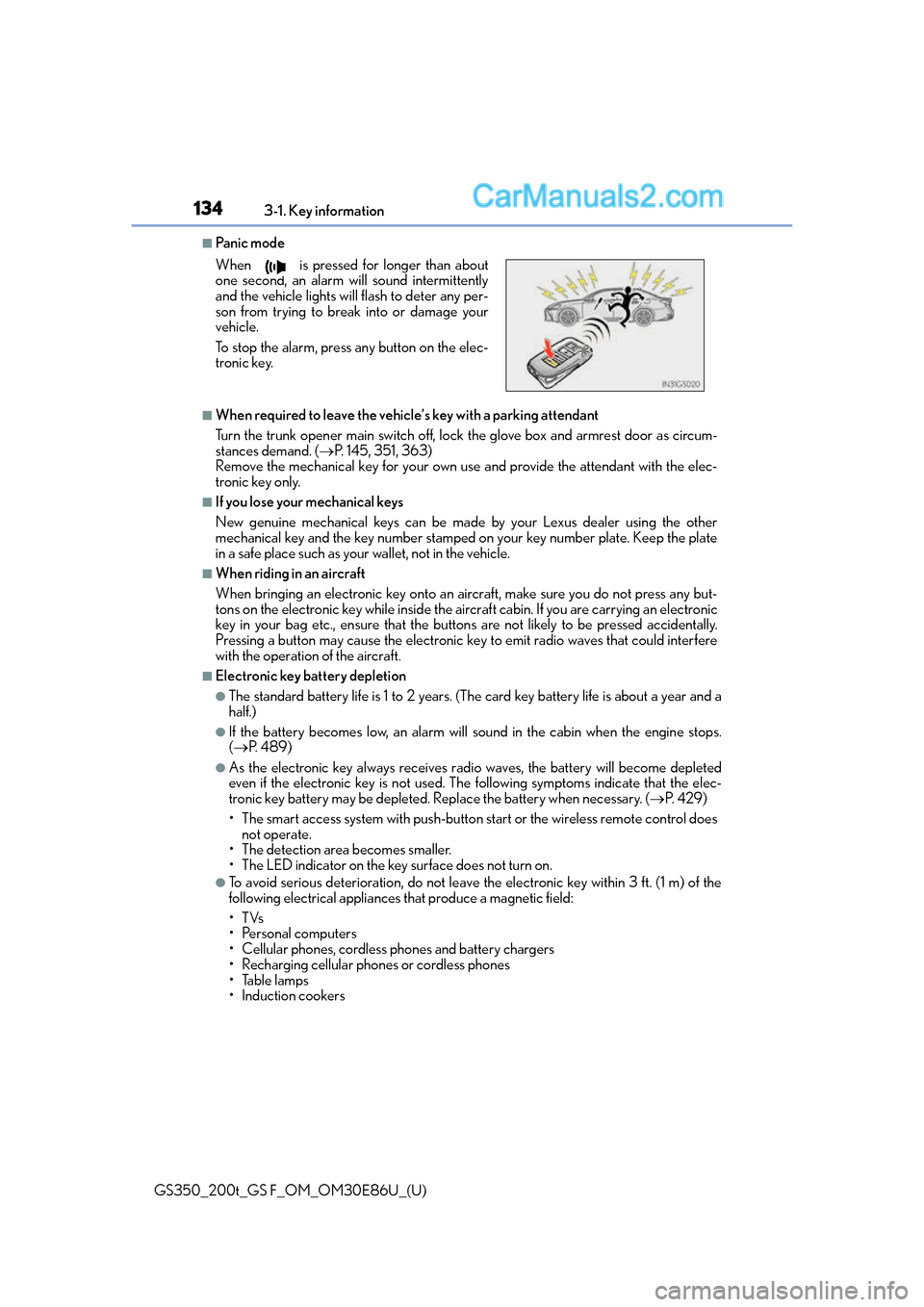
■Panic mode
■When required to leave the vehicle’s key with a parking attendant
Turn the trunk opener main switch off, lock the glove box and armrest door as circum-
stances demand. (
P. 145, 351, 363)
Remove the mechanical key for your own use and provide the attendant with the elec-
tronic key only.
■If you lose your mechanical keys
New genuine mechanical keys can be made by your Lexus dealer using the other
mechanical key and the key number stamped on your key number plate. Keep the plate
in a safe place such as your wallet, not in the vehicle.
■When riding in an aircraft
When bringing an electronic key onto an aircraft, make sure you do not press any but-
tons on the electronic key while inside the airc raft cabin. If you are carrying an electronic
key in your bag etc., ensure that the buttons are not likely to be pressed accidentally.
Pressing a button may cause the electronic key to emit radio waves that could interfere
with the operation of the aircraft.
■Electronic key battery depletion
●The standard battery life is 1 to 2 years. (The card key battery life is about a year and a
half.)
●If the battery becomes low, an alarm will sound in the cabin when the engine stops.
( P. 4 8 9 )
●As the electronic key always receives ra dio waves, the battery will become depleted
even if the electronic key is not used. The following symptoms indicate that the elec-
tronic key battery may be depleted. Replace the battery when necessary. ( P. 4 2 9 )
• The smart access system with push-button start or the wireless remote control does
not operate.
• The detection area becomes smaller.
• The LED indicator on the key surface does not turn on.
●To avoid serious deterioration, do not leave the electronic key within 3 ft. (1 m) of the
following electrical appliances that produce a magnetic field:
•TVs
• Personal computers
• Cellular phones, cordless phones and battery chargers
• Recharging cellular phones or cordless phones
• Table lamps
• Induction cookers
When is pressed for longer than about
one second, an alarm will sound intermittently
and the vehicle lights will flash to deter any per-
son from trying to break into or damage your
vehicle.
To stop the alarm, press any button on the elec-
tronic key.
Page 136 of 624
136
GS350_200t_GS F_OM_OM30E86U_(U)3-1. Key information
NOTICE
■Handling the card key
●Do not apply excess force when inserting th
e mechanical key into the card key. Doing
so may damage the card key.
●If the battery or card key terminals get wet, the battery may corrode.
If the key is dropped into water, or if drin king water etc. is spilled on the key, immedi-
ately remove the battery cover and wipe the battery and terminals. (To remove the
battery cover, lightly grasp and pull it.) If the battery is corroded, have your Lexus
dealer replace the battery.
●Do not crush the battery cover or use a screwdriver to remove the battery cover.
Forcibly removing the battery cover may bend or damage the key.
●If the battery cover is frequently removed, the battery cover may become loose.
●When installing the battery, make sure to check the direction of the battery.
Installing the battery in the wrong direction may cause the battery to deplete rapidly.
●The surface of the card key may be damaged, or its coating may peel off in the follow-
ing situations:
• The card key is carried together with hard objects, such as coins and keys.
• The card key is scraped with a sharp object , such as the tip of a mechanical pencil.
• The surface of the card key is wiped with thinner or benzene.
Page 138 of 624
138
GS350_200t_GS F_OM_OM30E86U_(U)3-2. Opening, closing and
locking the doors and trunk
■Operation signals
A buzzer sounds and the emergency flashers flash to indicate that the doors have been
locked/unlocked. (Locked: once; Unlocked: twice)
■Security feature
If a door is not opened within approximately 60 seconds after the vehicle is unlocked, the
security feature automatically locks the vehicle again.
■Welcome light illumination control
The side marker, parking, tail and license plat e lights automatically turn on at night when
the doors are unlocked using the entry functi on or wireless remote control if the light
switch is in the “AUTO” position.
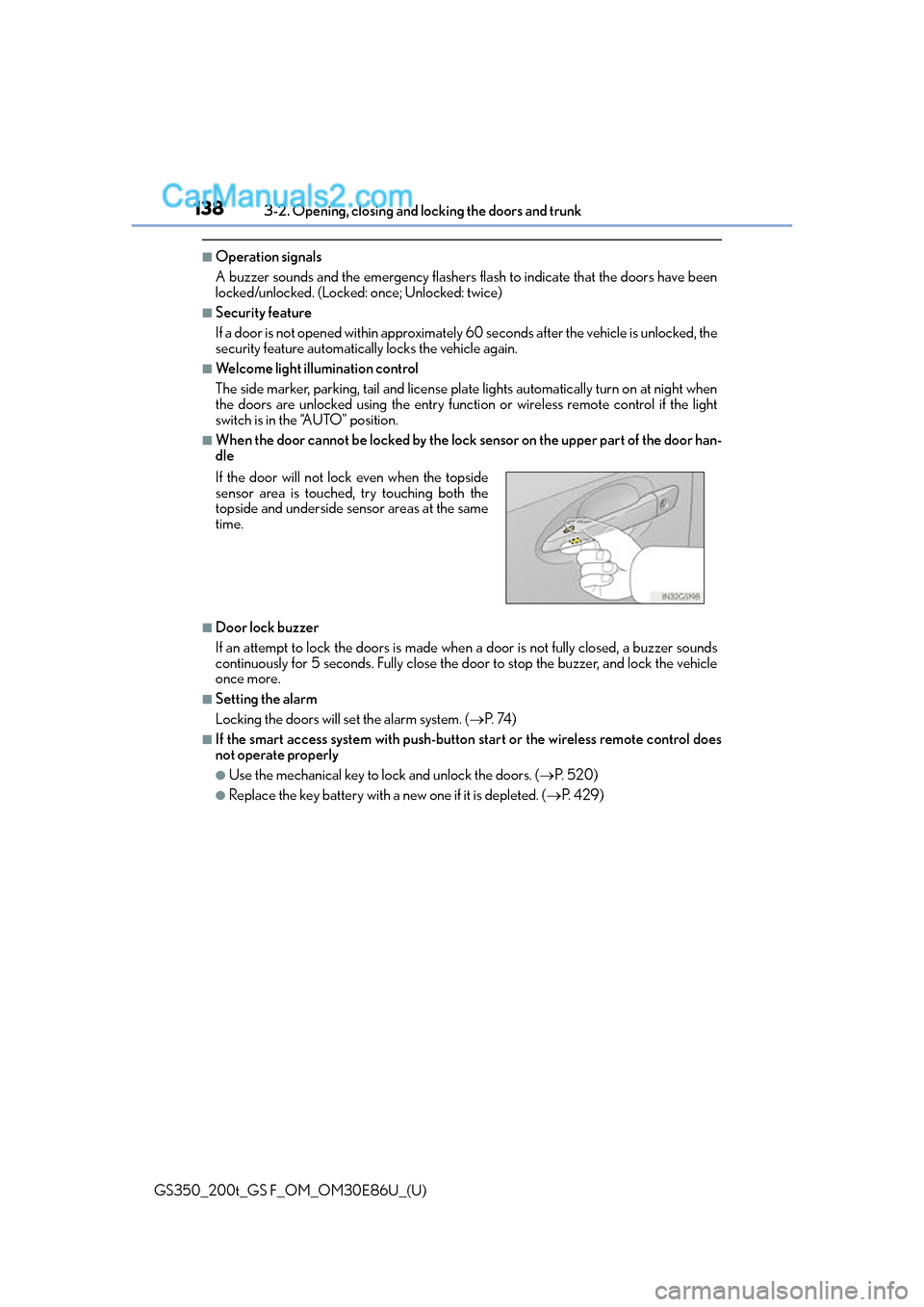
■When the door cannot be locked by the lock sensor on the upper part of the door han-
dle
■Door lock buzzer
If an attempt to lock the doors is made when a door is not fully closed, a buzzer sounds
continuously for 5 seconds. Fully close the door to stop the buzzer, and lock the vehicle
once more.
■Setting the alarm
Locking the doors will set the alarm system. ( P. 74 )
■If the smart access system with push-butto n start or the wireless remote control does
not operate properly
●Use the mechanical key to lock and unlock the doors. ( P. 5 2 0 )
●Replace the key battery with a new one if it is depleted. ( P. 4 2 9 )
If the door will not lock even when the topside
sensor area is touched, try touching both the
topside and underside sensor areas at the same
time.
Page 141 of 624
GS350_200t_GS F_OM_OM30E86U_(U)
1413-2. Opening, closing and locking the doors and trunk
3
Operation of each component
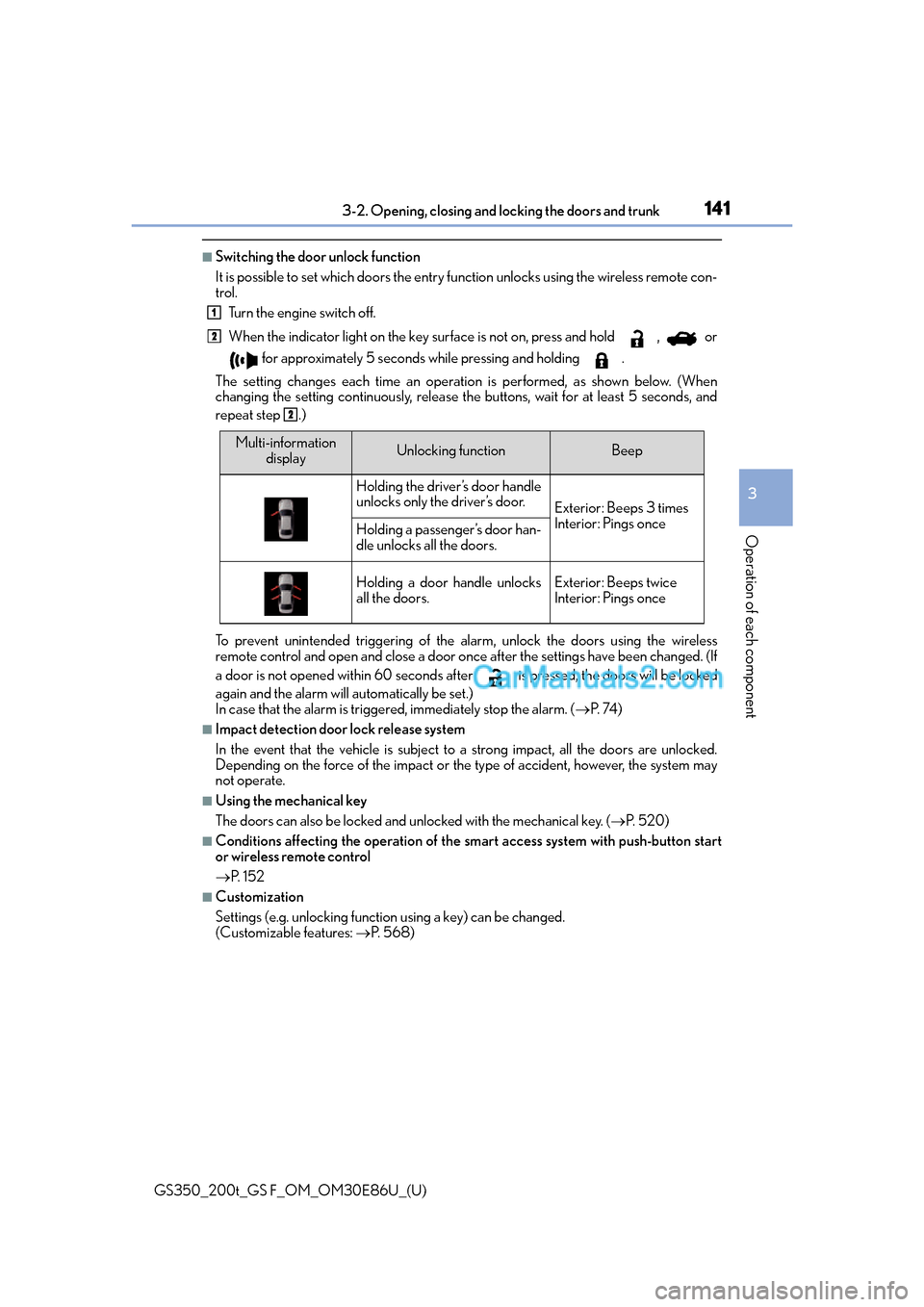
■Switching the door unlock function
It is possible to set which doors the entry fu nction unlocks using the wireless remote con-
trol.
Turn the engine switch off.
When the indicator light on the key su rface is not on, press and hold , or
for approximately 5 seconds while pressing and holding .
The setting changes each time an operatio n is performed, as shown below. (When
changing the setting continuously, release the buttons, wait for at least 5 seconds, and
repeat step .)
To prevent unintended triggering of the alarm, unlock the doors using the wireless
remote control and open and close a door once after the settings have been changed. (If
a door is not opened within 60 seconds af ter is pressed, the doors will be locked
again and the alarm will automatically be set.)
In case that the alarm is triggered, immediately stop the alarm. ( P. 74 )
■Impact detection door lock release system
In the event that the vehicle is subject to a strong impact, all the doors are unlocked.
Depending on the force of the impact or the type of accident, however, the system may
not operate.
■Using the mechanical key
The doors can also be locked and unlocked with the mechanical key. ( P. 5 2 0 )
■Conditions affecting the operation of the sm art access system with push-button start
or wireless remote control
P. 1 5 2
■Customization
Settings (e.g. unlocking function using a key) can be changed.
(Customizable features: P. 5 6 8 )
1
2
2
Multi-information
displayUnlocking functionBeep
Holding the driver’s door handle
unlocks only the driver’s door.
Exterior: Beeps 3 times
Interior: Pings once
Holding a passenger’s door han-
dle unlocks all the doors.
Holding a door handle unlocks
all the doors.Exterior: Beeps twice
Interior: Pings once