stop start Lexus GX470 2008 Navigation Manual
[x] Cancel search | Manufacturer: LEXUS, Model Year: 2008, Model line: GX470, Model: Lexus GX470 2008Pages: 312, PDF Size: 4.02 MB
Page 56 of 312
DESTINATION SEARCH
55
D
Deleting previous points
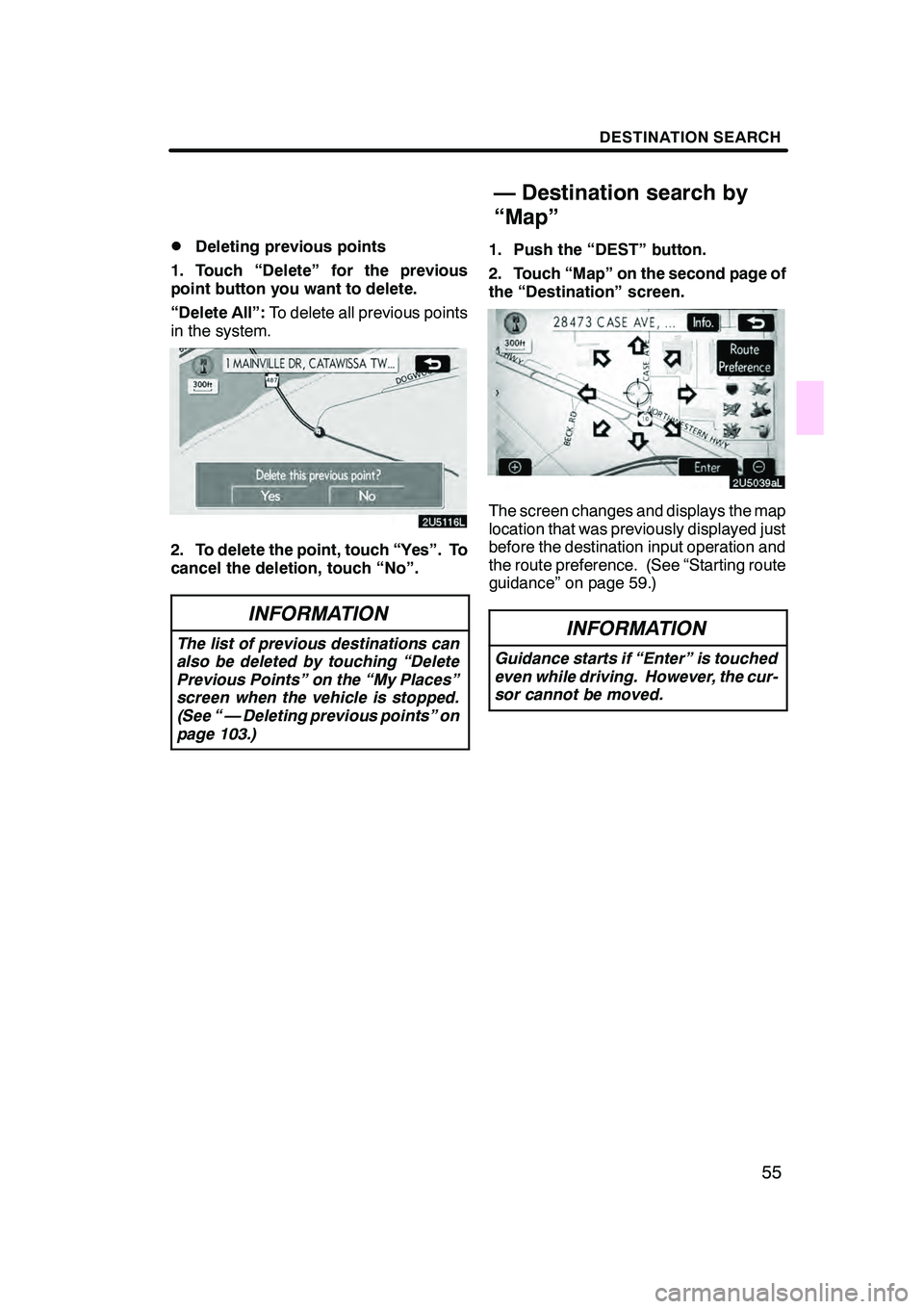
1. Touch “Delete” for the previous
point button you want to delete.
“Delete All”: To delete all previous points
in the system.
2. To delete the point, touch “Yes”. To
cancel the deletion, touch “No”.
INFORMATION
The list of previous destinations can
also be deleted by touching “Delete
Previous Points” on the “My Places”
screen when the vehicle is stopped.
(See “ — Deleting previous points” on
page 103.)
1. Push the “DEST” button.
2. Touch “Map” on the second page of
the “Destination” screen.
The screen changes and displays the map
location that was previously displayed just
before the destination input operation and
the route preference. (See “Starting route
guidance” on page 59.)
INFORMATION
Guidance starts if “Enter” is touched
even while driving. However, the cur-
sor cannot be moved.
GX470_Navi_U (OM60D58U) 07/06/16
— Destination search by
“Map”
Page 60 of 312
DESTINATION SEARCH
59
5. If more than one destination is set,
touch “OK” after deleting the destina-
tions.
The system searches for the guidance
route again, and displays the entire route.
INFORMATION
Set destinations can also be deleted
by touching “Route”. (See “ — Delet-
ing destinations”on page 71.)
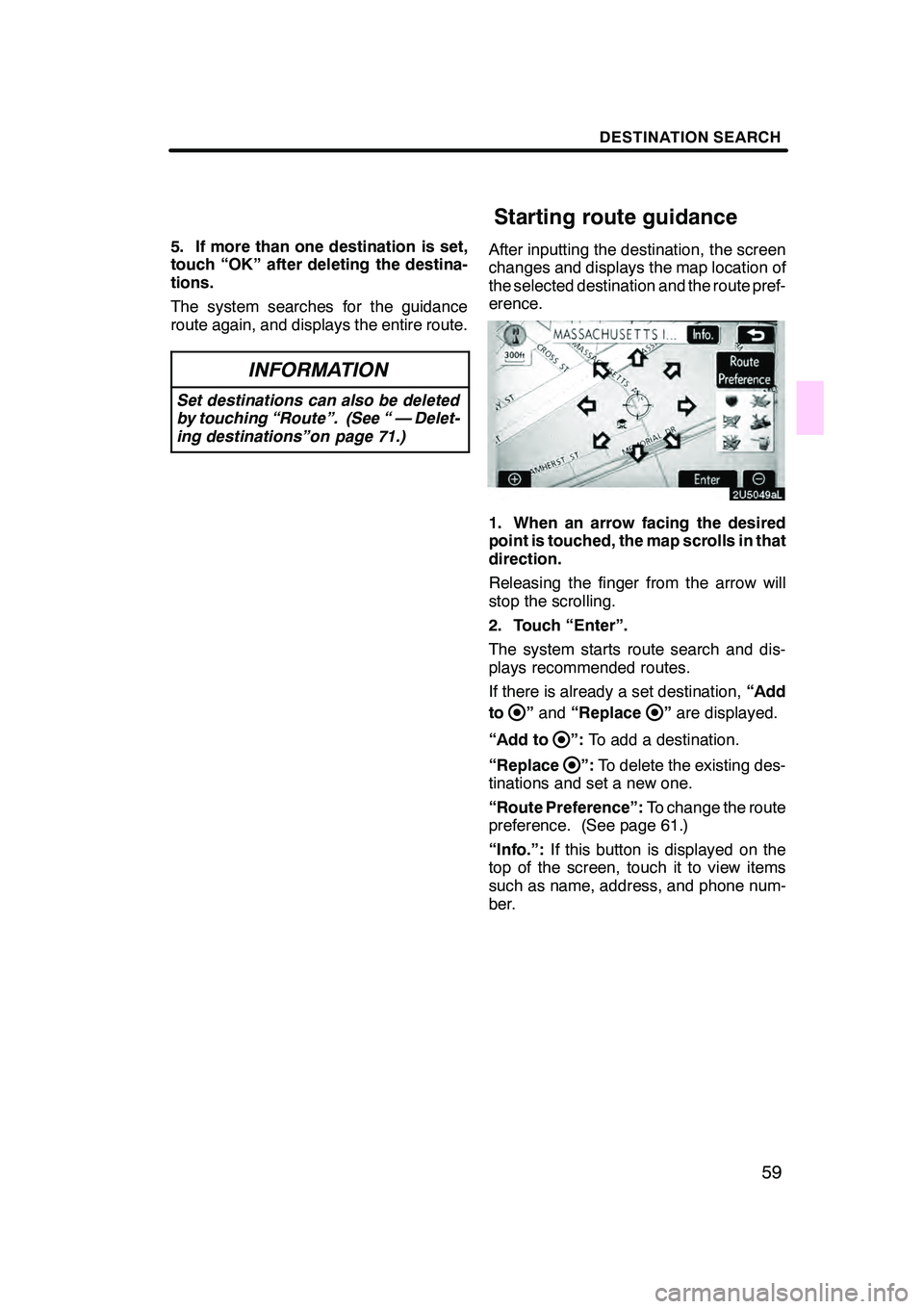
After inputting the destination, the screen
changes and displays the map location of
the selected destination and the route pref-
erence.
1. When an arrow facing the desired
point is touched, the map scrolls in that
direction.
Releasing the finger from the arrow will
stop the scrolling.
2. Touch “Enter”.
The system starts route search and dis-
plays recommended routes.
If there is already a set destination,“Add
to
” and “Replace”are displayed.
“Add to
”: To add a destination.
“Replace
”: To delete the existing des-
tinations and set a new one.
“Route Preference”: To change the route
preference. (See page 61.)
“Info.”: If this button is displayed on the
top of the screen, touch it to view items
such as name, address, and phone num-
ber.
GX470_Navi_U (OM60D58U) 07/06/16
Starting route guidance
Page 81 of 312

ROUTE GUIDANCE
80
:To indicate the next destination.
:To preview the route to the next
destination.
:To preview the route to the next
destination in fast −forward mode.
: To stop the preview.
:To review the route to the previous
destination or starting point.
:To review the route to the previous
destination or starting point in
fast− forward mode.
:To indicate the previous destina-
tion or starting point. It is possible to store the traveled route up
to 124 miles (200 km) and retrace the route
on the display.
INFORMATION
This feature is available on the map
with more detailed map scale than 30
mile (50 km).
Touch “Map View”.
GX470_Navi_U (OM60D58U) 07/06/16
— Route trace
Page 82 of 312

ROUTE GUIDANCE
81
“Record”:To start recording the route
trace.
“Stop”: To stop recording the route trace.
If you touch “Stop”to display the following
screen.
Touching “Yes”stops recording and the
route trace remains displayed on the
screen.
Touching “No”stops recording and the
route trace is erased.
GX470_Navi_U (OM60D58U) 07/06/16
Page 205 of 312

AUDIO/VIDEO SYSTEM
204
D
Playing a cassette tape
When you insert a cassette tape, the ex-
posed tape should face to the right.
The player will automatically start when
you insert a cassette tape. At this time,
“TAPE” appears on the display.
If a metal or chrome equivalent cassette
tape is put in the cassette player, the player
will automatically recognize it and “MTL”
appears on the display.
To stop or eject the cassette tape, push
the
button.
If a cassette is already in the slot, push
the “TAPE” button.
Dolby
rNoise Reduction* feature: If you
are listening to a tape that was recorded
with Dolby rB Noise Reduction, touch
“
”. The “” touch −screen button will
be highlighted. Touch “
” again to turn
off Dolby rB NR.
The Dolby NR mode reduces tape noise by
about 10 dB. For best sound reproduction,
play your tapes with these buttons on or off
according to the mode used for recording
the tape.
* Dolby noise reduction manufactured un-
der license from Dolby Laboratories Li-
censing Corporation. “DOLBY” and the
double −D symbol
are trademarks of
Dolby Laboratories Licensing Corpora-
tion.
GX470_Navi_U (OM60D58U) 07/06/16
— Cassette tape player
operation
Page 221 of 312
AUDIO/VIDEO SYSTEM
220
“RAND”:Use it for automatic and random
selection of the folder or the disc which you
are currently listening to.
Playing the files in one folder in random
order —
While the disc is playing, touch
“RAND” briefly.
“RAND” appears on the screen. The sys-
tem selects a file in the folder you are cur-
rently listening to. To cancel it, touch
“RAND” once again.
Playing the files in all the folders on one
disc in random order —
While the disc is playing, touch
“RAND” and hold it until the
“FLD·RAND” appears on the screen.
The system selects a file in all the folders.
To cancel it, touch “RAND”once again.
When a file is skipped or the system is in-
operative, touch “RAND”to reset.
If a MP3/WMA disc with text data is in-
serted, the title of the folder and file will be
displayed. Up to 29 letters can be dis-
played. (f) Operating a DVD disc
NOTE:
The playback condition of some
DVD discs may be determined by a DVD
software producer. This DVD changer
plays a disc as the software producer in-
tended. So some functions may not work
properly. Be sure to read the instruction
manual for the DVD disc separately pro-
vided. For the detailed information about
DVD video discs, see “(g) DVD player and
DVD video disc information” on page 235.
DPrecautions on DVD video disc
When recording with a DVD video, DVD
audio or video CD, audio tracks may not
record in some cases while the menu is
displayed. As audio will not play in this
case, verify that the video tracks are play-
ing and then activate playback.
When playback of a disc is completed:
DIf an audio CD or MP3/WMA disc is
playing, the first track or file starts.
DIf a DVD video, DVD audio or video CD
is playing, playback will stop or the
menu screen will be displayed.
The title/chapter number and playback
time display may not appear while playing
back certain DVD video discs.
CAUTION
Conversational speech on some
DVDs is recorded at a low volume to
emphasize the impact of sound ef-
fects. If you adjust the volume as-
suming that the conversations repre-
sent the maximum volume level that
the DVD will play, you may be startled
by louder sound effects or when you
change to a different audio source.
The louder sounds may have a signif-
icant impact on the human body or
pose a driving hazard. Keep this in
mind when you adjust the volume.
GX470_Navi_U (OM60D58U) 07/06/16
Page 224 of 312
AUDIO/VIDEO SYSTEM
223
D
Description of DVD controls
TOP PAGE OF DVD VIDEO CONTROLS
“Menu” and “Top Menu”: If you touch ei-
ther button, the menu screen for DVD vid-
eo appears. (For the operation, see the
manual that come with the DVD video disc
provided separately.)
: The menu control key appears on
the screen. (See page 224.)
: Touching this will pause the video
screen.
: Touching this will fast reverse.
: Touching this will stop the DVD
video disc.
: Touching this will resume normal
play after stop or pause.
: Touch this button to fast forward
during the playback. During pause, touch
this button briefly to advance frame by
frame, or touch and hold it to play slowly.
SECOND PAGE OF DVD VIDEO
CONTROLS
“Setup”: The initial setup screen appears.
(See page 229.)
“Search”: The title search screen ap-
pears. (See page 224.)
“Return”: Touching this will display the
predetermined scene and start playing
from there.
“AUDIO”: The audio changing screen ap-
pears. (See page 227.)
“Subtitle”: The subtitle changing screen
appears. (See page 227.)
“Angle”: The angle selection screen ap-
pears. (See page 228.) TOP PAGE OF DVD AUDIO CONTROLS
“Top Menu”:
If you touch this button, the
menu screen for DVD audio appears. (For
operation, refer to the DVD audio disc
manual that is provided separately.)
“AUDIO”: The audio changing screen ap-
pears. (See page 228.)
: The menu control key appears on
the screen. (See page 224.)
: Touch this button to pause the
disc.
: Touching this will fast reverse.
:Touching this will stop the disc.
:Touching this will resume normal
play after stop or pause.
: Touch this button to fast forward
during the playback. During pause, touch
this button briefly to advance frame by
frame, or touch and hold it to play slowly.
SECOND PAGE OF DVD AUDIO
CONTROLS
“Setup”: The initial setup screen ap-
pears. (See page 229.)
“Select Number”: The track or number
search screen appears. (See page 225.)
“Search”: The group search screen ap-
pears. (See page 225.)
“Return”: Touching this will display the
predetermined scene and start playing
from there.
“Prev. Still”: Touch this button to reverse
the still pictures. (See page 226.)
“Next Still”: Touch this button to forward
the still pictures. (See page 226.)
“Subtitle”: The subtitle changing screen
appears. (See page 227.)
“Angle”: The angle selection screen ap-
pears. (See page 228.)
GX470_Navi_U (OM60D58U) 07/06/16
Page 247 of 312
AUDIO/VIDEO SYSTEM
246
“RAND”:Use it for automatic and random
selection of the folder which you are cur-
rently listening to or of all the folders.
Playing the files in one folder in random
order —
Touch “RAND” briefly.
“RAND” appears on the screen. The sys-
tem selects a file in the folder you are cur-
rently listening to. To cancel it, touch
“RAND” once again.
Playing the files in all the folders in ran-
dom order —
Touch “RAND” and hold it until the
beep sounds.
“FLD.RAND” appears on the screen. The
system selects a file in the folders of all the
trays which are set and plays it. To cancel
it, touch “RAND” once again.
When a file is skipped or the system is in-
operative, touch “RAND”to reset. (f) Operating a DVD video disc
NOTE: The playback condition of some
DVD video discs may be determined by
a DVD video software producer. This
DVD player plays a disc as the software
producer intended. So some functions
may not work properly. Be sure to read
the instruction manual for the DVD vid-
eo disc separately provided. For the
detailed information about DVD video
discs, see “(h) DVD player and DVD vid-
eo disc information”.
DPrecautions on DVD video disc
When recording with a DVD video or video
CD, audio tracks may not record in some
cases while the menu is displayed. As au-
dio will not play in this case, verify that the
video tracks are playing and then activate
playback.
When playback of a disc is completed:
DIf an audio CD or MP3 disc is playing,
the first track or file starts.
DIf a DVD video or video CD is playing,
playback will stop or the menu screen
will be displayed.
The title/chapter number and playback
time display may not appear while playing
back certain DVD video discs.
CAUTION
Conversational speech on some
DVDs is recorded at a low volume to
emphasize the impact of sound ef-
fects. If you adjust the volume as-
suming that the conversations repre-
sent the maximum volume level that
the DVD will play, you may be startled
by louder sound effects or when you
change to a different audio source.
The louder sounds may have a signif-
icant impact on the human body or
pose a driving hazard. Keep this in
mind when you adjust the volume.
GX470_Navi_U (OM60D58U) 07/06/16
Page 249 of 312

AUDIO/VIDEO SYSTEM
248
D
Displaying DVD controls
If you touch a part of the screen, where
controls are not located while watching
video, DVD controls will appear.
“>Page2”:
Touching this will display on
the second page of DVD controls.
“
“Hide Buttons”: Touching this will turn off
the controls from the screen.
If “
” appears on the screen when you
touch a control, the operation relevant to
the control is not permitted.
DDescription of DVD controls
TOP PAGE OF DVD VIDEO CONTROLS
“Menu” and “Top Menu”: If you touch
any of the above controls, the menu
screen for DVD video appears. (For the
operation, see the manual that come with
the DVD video disc provided separately.)
: The menu control key appears on
the screen. (See page 249.)
: Touching this will pause the video
screen. When you touch this again, the
video screen advances frame by frame.
AA :Touching this will fast reverse during
playback.
J :Touching this will stop the video screen.
" :Touching this will pause during play-
back and resume normal play during
pause or slow forward.
"" :Touching this will fast forward during
playback and forward slowly during pause.
SECOND PAGE OF DVD VIDEO CON-
TROLS
“Setup”: The initial set up screen ap-
pears. (See page 252.)
“Search”: The title search screen ap-
pears. (See page 249.)
“Return”: Touching this will display the
predetermined scene and start playing
from there.
“AUDIO”: The audio changing screen ap-
pears. (See page 250.)
“Subtitle”: The subtitle changing screen
appears. (See page 250.)
“Angle”: The angle selection screen ap-
pears. (See page 250.)
GX470_Navi_U (OM60D58U) 07/06/16
Page 262 of 312
AUDIO/VIDEO SYSTEM
261
1Volume control switch
Push “+”side to increase the volume. The
volume continues to increase while the
switch is being pressed.
Push “−”side to decrease the volume.
The volume continues to decrease while
the switch is being pressed.
2“”“” switches (Seek, search
track)
Radio
To select a preset station:
Quickly push and release the “
”or “”
switch. Do this again to select the next pre-
set station.
To seek a station:
Push and hold the “
”or “”switch until
you hear a beep. Do this again to find the
next station. If you push either the “
”or
“” switch in seek mode, the seek mode
will cancel.
Cassette tape player
To skip to a different track in either direc-
tion:
Quickly push and release the “
”or “”
switch. “FF 1” or “REW 1” will appear on
the display.
Next, push the “
”or “”switch until the
track you want to listen to is set. If you
push the switch ten times, the skip function
will turn off. (You can skip up to nine tracks
at a time.)
When counting the number of the tracks
you want to rewind, remember to count the
current track as well. For example, if you
want to rewind to a song that is two before
the song you are listening to, push the “
”
button three times.
If you push the switch further than you
wanted to, push the other side of the
switch. The track number will be increased
or reduced. The track number you select is not valid if
it is higher than the number of the tracks re-
maining on the current side of the cassette.
DWhen the tape reaches to the begin-
ning, the player will automatically start
playing that side.
DAfter the tape reaches to the end, the
player will automatically reverse and
start playing the other side.
There must be at least 3 seconds of blank
space between tracks for the switch to
work correctly. In addition, the feature may
not work well with some spoken, live, or
classical recordings.
To fast −forward or rewind:
Push and hold the “
”switch to fast −for-
ward a cassette tape. “FF” will appear on
the display. Push and hold the “
”switch
to rewind a tape. “REW” will appear on the
display.
To stop the tape while it is fast −forwarding,
push the “
”switch . To stop the tape
while it is rewinding, push the “”switch.
If a tape rewinds completely, the cassette
tape player will stop and then play that
same side. If a tape fast− forwards com-
pletely, the cassette will play the other side
of the tape using the auto −reverse feature.
DVD changer, or DVD player
Use this button to skip up or down to a dif-
ferent track, file or chapter in either direc-
tion.
To select a desired track, file or chapter:
Quickly push and release the “
”or “”
switch until the track, file or chapter you
want to play is set. If you want to return to
the beginning of the current track, file or
chapter, push the “
”switch once, quick-
ly.
To select a desired disc:
Push and hold the “
”or “”switch until
you hear a beep to change to the next or
the previous disc. Repeat this operation
until you reach the disc you want to listen
to.
GX470_Navi_U (OM60D80U) 08/01/11