display Lexus IS300h 2017 Owner's Manual
[x] Cancel search | Manufacturer: LEXUS, Model Year: 2017, Model line: IS300h, Model: Lexus IS300h 2017Pages: 692, PDF Size: 163.7 MB
Page 457 of 692
4575-12. Other function
5
Lexus Display Audio system
IS300h_EE(OM53D89E)
You can register desired contacts to enable the speech command system. Up to
50 contacts per phone can be registered.
Go to “Voice tags”: “MENU” button “Setup” “Telephone” “Contact/
call history settings” “Voice tag” “New” or “Edit”
Select the desired contact.
Move the controller to the left and then select “REC”.
Say the registered voice tag.
To play the registered voice, select “Play”.
■Deleting a voice tag
Display the “Voice tags” screen.
Select “Delete” and then the desired contact.
Move the controller to the left and then select “Delete”.
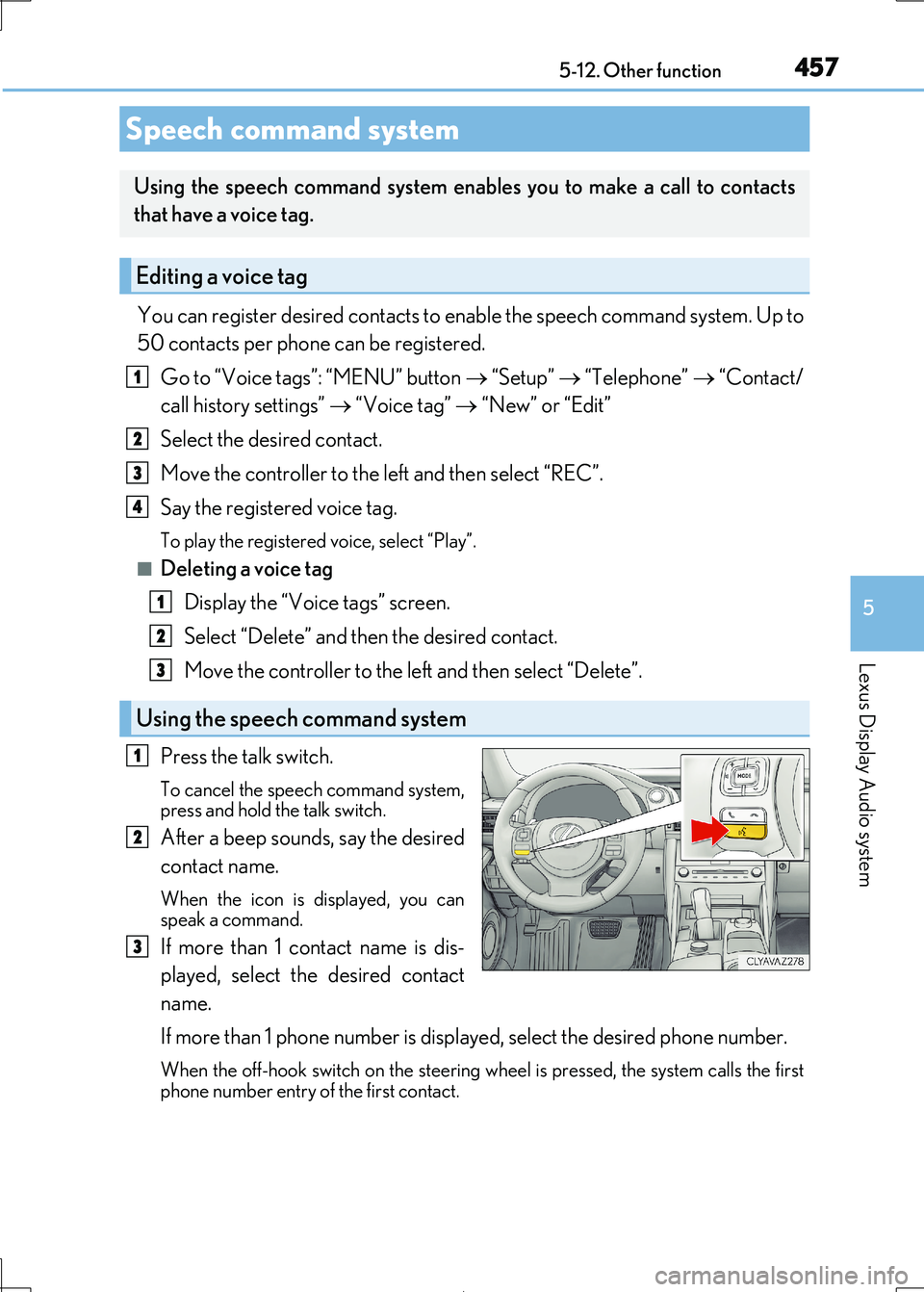
Press the talk switch.
To cancel the speech command system, press and hold the talk switch.
After a beep sounds, say the desired
contact name.
When the icon is displayed, you can
speak a command.
If more than 1 contact name is dis-
played, select the desired contact
name.
If more than 1 phone number is displayed, select the desired phone number.
When the off-hook switch on the steering wheel is pressed, the system calls the first
phone number entry of the first contact.
Speech command system
Using the speech command system enables you to make a call to contacts
that have a voice tag.
Editing a voice tag
Using the speech command system
1
2
3
4
1
2
3
1
2
3
Page 459 of 692
459
6Interior features
IS300h_EE(OM53D89E)
6-1. Basic operation of
the Remote Touch
screen
Remote Touch .............................460
10.3-inch display ........................ 464
6-2. Using the air conditioning
system
Automatic air conditioning
system .......................................... 466
Heated steering wheel/
seat heaters/
seat ventilator s ......................... 479
6-3. Using the interior lights
Interior lights list........................... 481
• Interior lights ..........................482
• Personal lights .......................482
6-4. Using the storage features
List of storage features ............484
• Glove box .............................. 485
• Console box.......................... 485
•Cup holders/
Bottle holders ........................486
Trunk features............................. 488
6-5. Using the other interior
features
Other interior features ............. 491
• Sun visors ................................. 491
• Vanity mirrors ........................ 491
• Clock ......................................... 491
• Power outlet........................... 492
• Armrest.................................... 493
• Rear sunshade ...................... 493
• Assist grips ............................. 495
• Coat hooks ............................. 495
ERA-GLONASS ...................... 496
Page 460 of 692
460
IS300h_EE(OM53D89E)
6-1. Basic operation of the Remote Touch screen
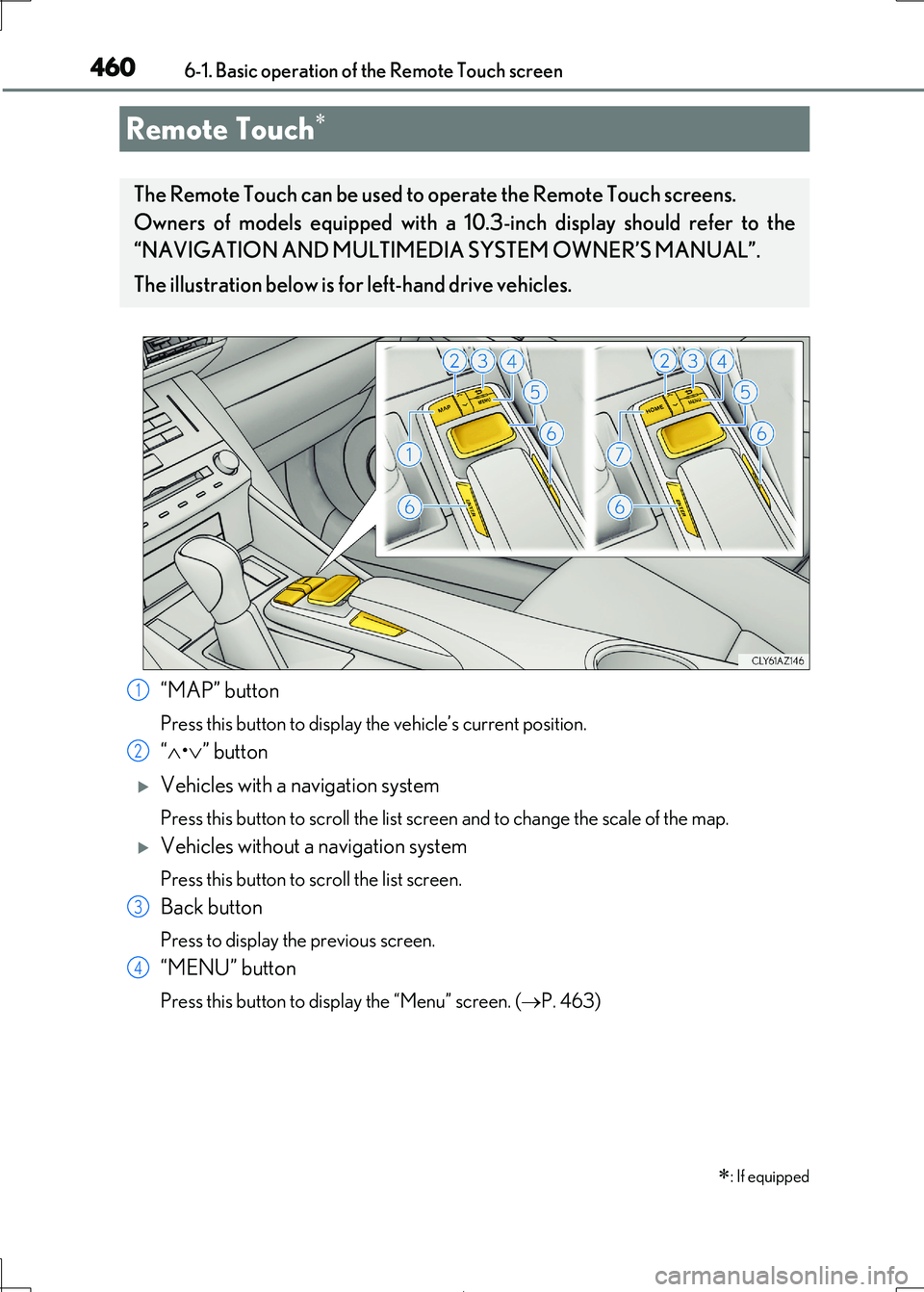
“MAP” button
Press this button to display the vehicle’s current position.
“•” button
Vehicles with a navigation system
Press this button to scroll the list screen and to change the scale of the map.
Vehicles without a navigation system
Press this button to scroll the list screen.
Back button
Press to display the previous screen.
“MENU” button
Press this button to display the “Menu” screen. (P. 463)
Remote Touch
: If equipped
The Remote Touch can be used to operate the Remote Touch screens.
Owners of models equipped with a 10 .3-inch display should refer to the
“NAVIGATION AND MULTIMEDIA SYSTEM OWNER’S MANUAL”.
The illustration below is for left-hand drive vehicles.
1
2
3
4
Page 461 of 692
4616-1. Basic operation of the Remote Touch screen
6
Interior features
IS300h_EE(OM53D89E)
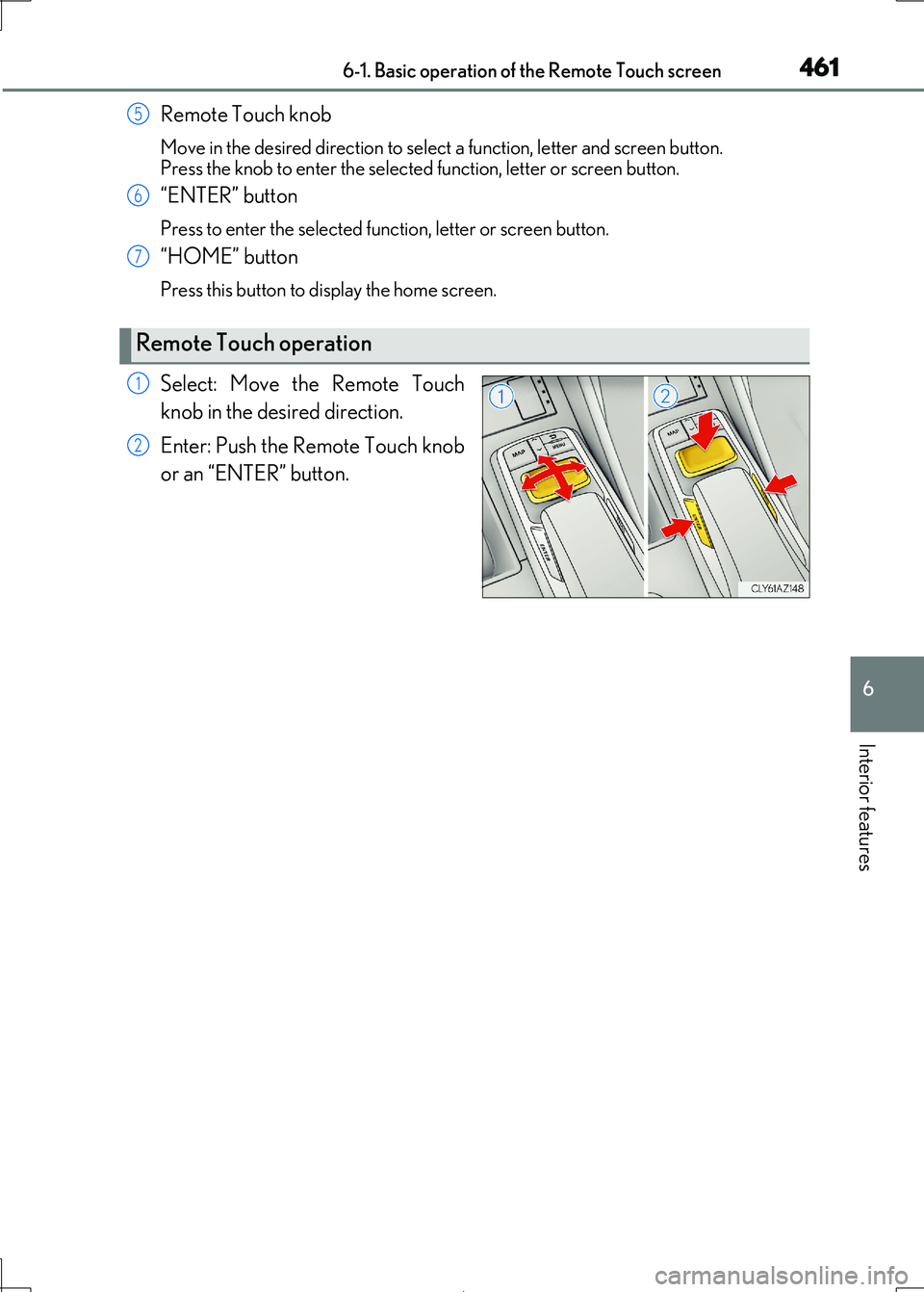
Remote Touch knob
Move in the desired direction to select a function, letter and screen button.
Press the knob to enter the selected function, letter or screen button.
“ENTER” button
Press to enter the selected func tion, letter or screen button.
“HOME” button
Press this button to display the home screen.
Select: Move the Remote Touch
knob in the desired direction.
Enter: Push the Remote Touch knob
or an “ENTER” button.
Remote Touch operation
5
6
7
1
2
Page 462 of 692
4626-1. Basic operation of the Remote Touch screen
IS300h_EE(OM53D89E)
■Screen display during low temperatures
When the ambient temperature is extremely low, screen response may be delayed even
if the Remote Touch is operated.
WARNING
■When using the Remote Touch
●Do not allow fingers, fingernails or hair to become caught in the Remote Touch as this may cause an injury.
●Be careful when selecting the Remote Touch in extreme temperatures as it may
become very hot or cold due to the temperature inside the vehicle.
NOTICE
■To prevent damage to the Remote Touch
●Do not allow the Remote Touch to come into contact with food, liquid, stickers or lit cigarettes as doing so may cause it to change color, emit a strange odor or stop func-
tioning.
●Do not subject the Remote Touch to excessive pressure or strong impact as the knob
may bend or break off.
●Do not allow coins, contact lenses or ot her such items to become caught in the
Remote Touch as this may cause it to stop functioning.
●Items of clothing may rip if they beco me caught on the Remote Touch knob.
●If your hand or any object is on the Remote Touch knob when the power switch is in
ACCESSORY mode, the Remote Touch knob may not operate properly.
Page 463 of 692
4636-1. Basic operation of the Remote Touch screen
6
Interior features
IS300h_EE(OM53D89E)
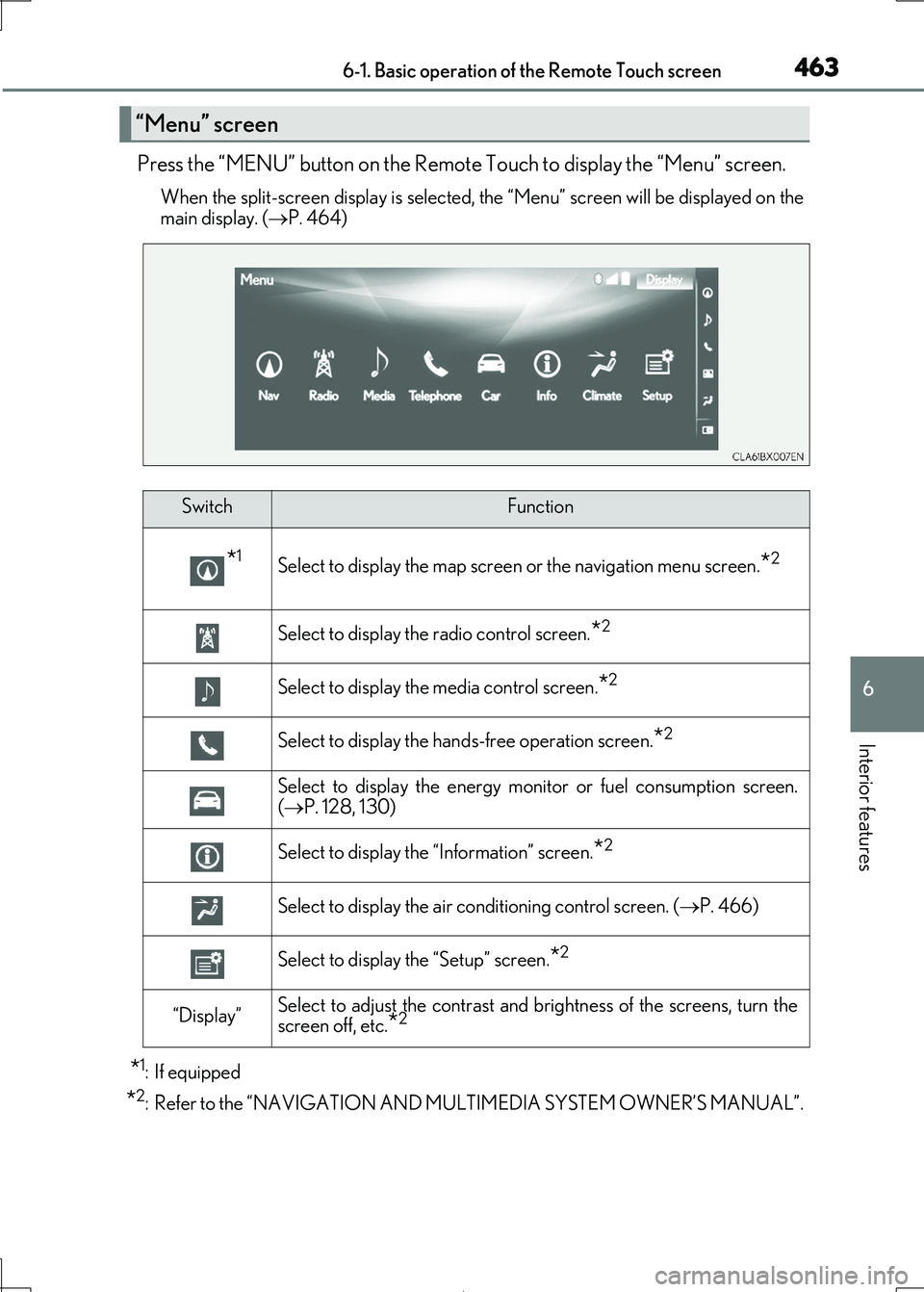
Press the “MENU” button on the Remote Touch to display the “Menu” screen.
When the split-screen display is selected, the “Menu” screen will be displayed on the
main display. ( P. 464)
*1: If equipped
*2: Refer to the “NAVIGATION AND MULTIMEDIA SYSTEM OWNER’S MANUAL”.
“Menu” screen
SwitchFunction
*1Select to display the map screen or the navigation menu screen.*2
Select to display the radio control screen.*2
Select to display the media control screen.*2
Select to display the hands-free operation screen.*2
Select to display the energy monitor or fuel consumption screen.
( P. 128, 130)
Select to display the “Information” screen.*2
Select to display the air conditioning control screen. (P. 466)
Select to display the “Setup” screen.*2
“Display”Select to adjust the contrast and brightness of the screens, turn the screen off, etc.*2
Page 464 of 692
4646-1. Basic operation of the Remote Touch screen
IS300h_EE(OM53D89E)
■Full screen display
The following functions can be displayed full screen:
• Initial screen
• “Menu” screen ( P. 463)
• Map screen*
•Audio screen*
• Energy monitor or fuel consumption screen ( P. 127)
• Air conditioning control screen ( P. 466)
*: Refer to the “NAVIGATION AND MULTIMEDIA SYSTEM OWNER’S MAN-
UAL”.
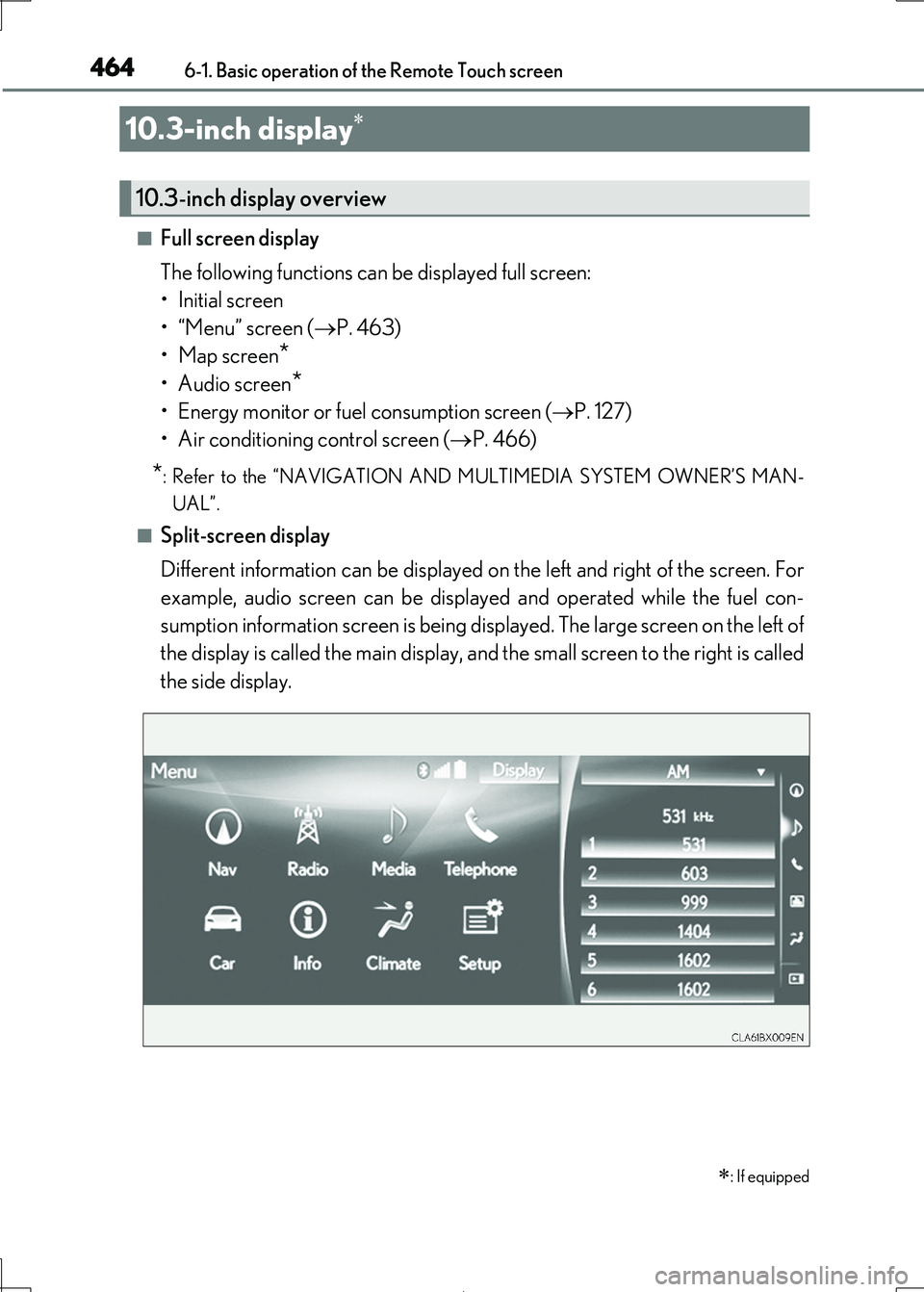
■Split-screen display
Different information can be displayed on the left and right of the screen. For
example, audio screen can be displa yed and operated while the fuel con-
sumption information screen is being disp layed. The large screen on the left of
the display is called the main display, and the small screen to the right is called
the side display.
10.3-inch display
: If equipped
10.3-inch display overview
Page 465 of 692
4656-1. Basic operation of the Remote Touch screen
6
Interior features
IS300h_EE(OM53D89E)
■Selecting the operation screen
When selecting the main display, move the Remote Touch knob to the left.
When selecting the side display, move the Remote Touch knob to the right.
■ Main display
For details about the functions and operat ion of the main display, refer to the
respective section and “NAVIGATION AND MULTIMEDIA SYSTEM
OWNER’S MANUAL”.
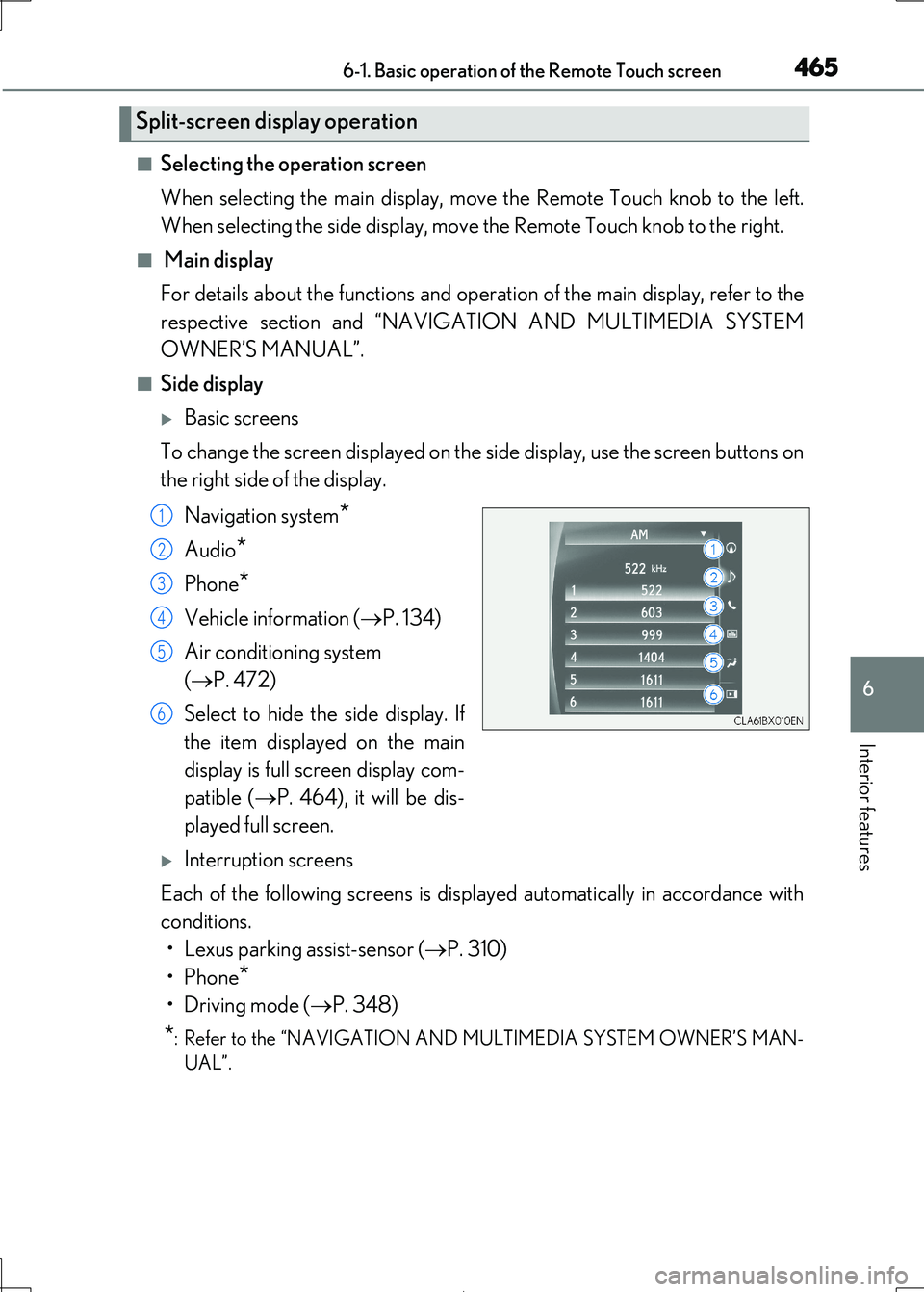
■Side display
Basic screens
To change the screen displayed on the side display, use the screen buttons on
the right side of the display.
Navigation system*
Audio*
Phone*
Vehicle information ( P. 134)
Air conditioning system
( P. 472)
Select to hide the side display. If
the item displayed on the main
display is full screen display com-
patible ( P. 464), it will be dis-
played full screen.
Interruption screens
Each of the following screens is displayed automatically in accordance with
conditions.
• Lexus parking assist-sensor ( P. 310)
•Phone*
•Driving mode ( P. 348)
*: Refer to the “NAVIGATION AND MULTIMEDIA SYSTEM OWNER’S MAN-
UAL”.
Split-screen display operation
1
2
3
4
5
6
Page 466 of 692
466
IS300h_EE(OM53D89E)
6-2. Using the air conditioning system
Automatic air conditioning system
Air outlets and fan speed are automati cally adjusted according to the tem-
perature setting.
Vehicles with a Lexus Disp lay Audio system: Press the “MENU” button on the
Lexus Display Audio controller, then sele ct “Climate” to display the air condi-
tioning operation screen.
For details on the Lexus Display Audio controller, refer to “Lexus Display
Audio controller” on P. 370.
Vehicles with a 10.3-inch display: Pr ess the “MENU” button on the Remote
Touch, then select to display the ai r conditioning control screen. The air
conditioning system can be displayed and operated on the side display.
( P. 465)
The illustrations below are f or left-hand drive vehicles.
The button positions and shapes will differ for right-hand drive vehicles.
Also, the display and button positions will differ depending on the type of the
system.
Page 468 of 692
4686-2. Using the air conditioning system
IS300h_EE(OM53D89E)
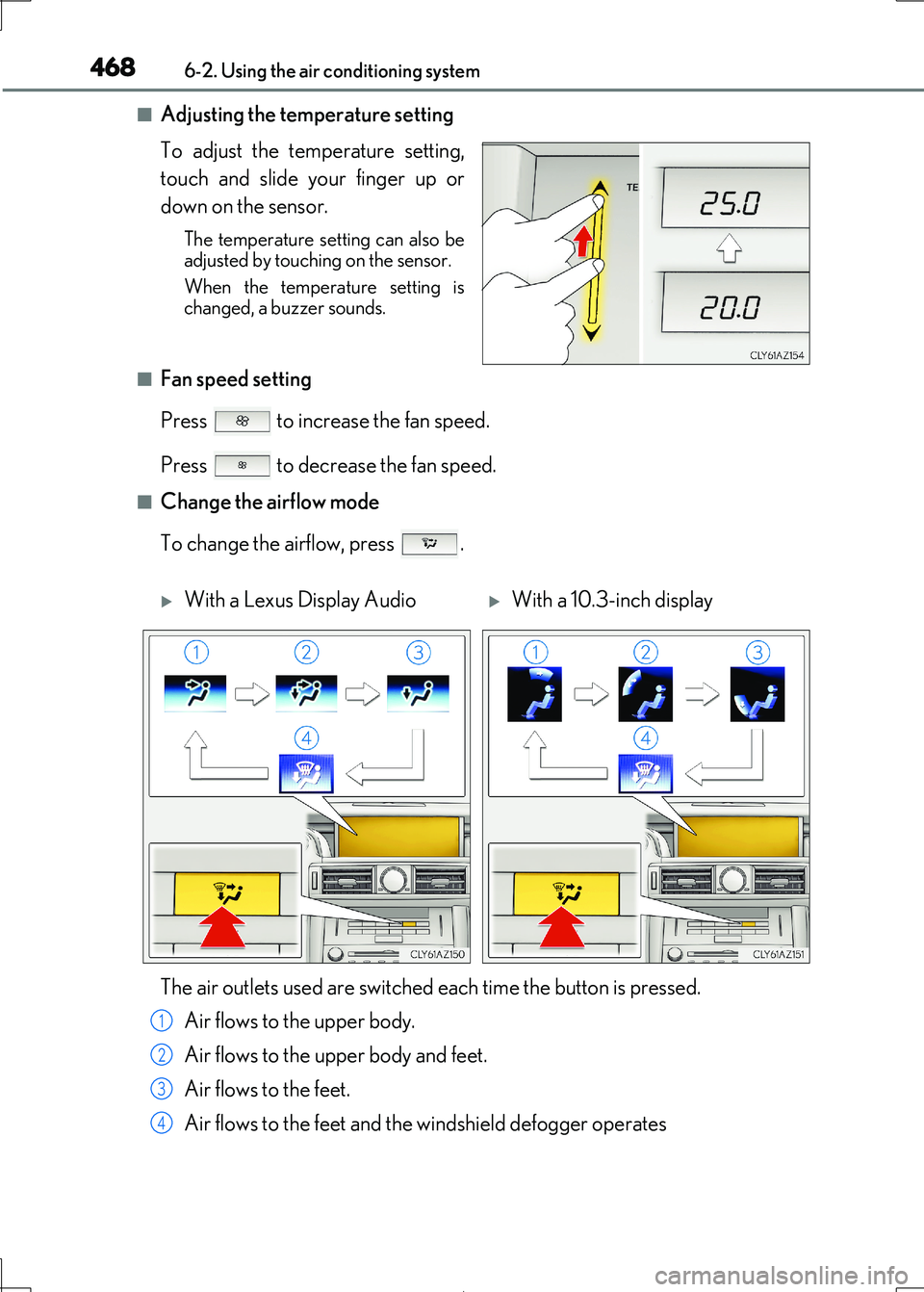
■Adjusting the temperature setting
To adjust the temperature setting,
touch and slide your finger up or
down on the sensor.
The temperature setting can also be adjusted by touching on the sensor.
When the temperature setting is
changed, a buzzer sounds.
■Fan speed setting
Press to increase the fan speed.
Press to decrease the fan speed.
■Change the airflow mode
To change the airflow, press .
With a Lexus Display AudioWith a 10.3-inch display
The air outlets used are switched each time the button is pressed.
Air flows to the upper body.
Air flows to the upper body and feet.
Air flows to the feet.
Air flows to the feet and the windshield defogger operates
1
2
3
4