ECO mode Lexus IS300h 2017 Service Manual
[x] Cancel search | Manufacturer: LEXUS, Model Year: 2017, Model line: IS300h, Model: Lexus IS300h 2017Pages: 692, PDF Size: 163.7 MB
Page 359 of 692
3594-6. Driving tips
4
Driving
IS300h_EE(OM53D89E)
◆Delays
Repeated acceleration and deceleration, as well as long waits at traffic lights,
will lead to bad fuel economy. Check tr affic reports before leaving and avoid
delays as much as possible. When drivin g in a traffic jam, gently release the
brake pedal to allow the vehicle to move forward slightly while avoiding over-
use of the accelerator pedal. Doing so can help control excessive gasoline
consumption.
◆Highway driving
Control and maintain the vehicle at a co nstant speed. Before stopping at a toll
booth or similar, allow plenty of ti me to release the accelerator and gently
apply the brakes. A greater amount of electrical energy can be regenerated
when slowing down.
◆Air conditioning
Use the air conditioning only when necessary. Doing so can help reduce
excessive gasoline consumption.
In summer: When the ambient temperature is high, use the recirculated air
mode. Doing so will help to reduce the burden on the air conditioning system
and reduce fuel consumption as well.
In winter: Because the gasoline engine will not automatically cut out until it
and the interior of the vehicle are warm , it will consume fuel. Also, fuel con-
sumption can be improved by av oiding overuse of the heater.
◆Checking tire inflation pressure
Make sure to check the tire inflation pr essure frequently. Improper tire infla-
tion pressure can caus e poor fuel economy.
Also, as snow tires can cause large amou nts of friction, their use on dry roads
can lead to poor fuel economy. Use ti res that are appropriate for the season.
◆Luggage
Carrying heavy luggage will lead to poor fuel economy. Avoid carrying
unnecessary luggage. Installing a large roof rack will also cause poor fuel
economy.
Page 395 of 692
3955-4. Using the radio
5
Lexus Display Audio system
IS300h_EE(OM53D89E)
■Manual tuning (manual screen)
Turn the “TUNE•SCROLL” knob or turn the controller.
■Station list (preset or station list screen)
Select the desired station by pressi ng the “<” or “>” button, turn the
“TUNE•SCROLL” knob, or turnin g and pressing the controller.
Radio stations can be preset.
Search for desired stations.
Turn the controller to sele ct one of the stations and then press the controller
until you hear a beep while on the preset selection screen.
The broadcast you are currently listening to can be re-listened to at any time.
Move the controller to the righ t and then select “Time shift”.
Turn the “TUNE•SCROLL” knob to set the desired offset.
An offset playback time can also be set on the menu screen. (P. 391)
To cancel the time shift operation while in time shift mode, move the controller to the
left and select “Time shift off” . If the time shift display is left showing “-0’ 00”” for 6
seconds without any operation, the ti me shift operation will be canceled.
■Reception sensitivity
●Maintaining perfect radio reception at all times is difficult due to the continually chang- ing position of the antenna, di fferences in signal strength and surrounding objects, such
as trains, transmitters, etc.
●The radio antenna is mounted inside the rear window. To maintain clear radio reception, do not attach metallic window tinting or other metallic objects to the antenna wire
mounted inside the rear window.
■Traffic announcement operation
When traffic announcement is set to on, “TP” will appear on the screen and the radio will
begin seeking a TP station. If the radio seek s out a TP station, a pop-up massage is dis-
played. To listen the program, select “Continue”. When the program ends, the initial
operation will resume.
Setting station presets (preset screen)
Time shift operation (DAB) (if equipped)
1
2
1
2
Page 403 of 692
4035-6. Using an external device
5
Lexus Display Audio system
IS300h_EE(OM53D89E)
■About iPod
●“Made for iPod” and “Made for iPhone” mean that an electronic accessory has been designed to connect specifically to an iPod , or iPhone, respectively, and has been certi-
fied by the developer to meet Apple performance standards.
●Apple is not responsible for the operation of this device or its compliance with safety and regulatory standards. Please note that the use of this accessory with iPod or iPhone
may affect wireless performance.
●iPhone, iPod, iPod classic, iPod nano and iP od touch are trademarks of Apple Inc., reg- istered in the U.S. and other countries.
■iPod cover art
●Depending on the iPod and songs in the iPod, iPod cover art may be displayed.
●This function can be changed to on/off. (P. 390)
●It may take time to display iPod cover art, and the iPod may not be operated while the
cover art display is in process.
■iPod functions
●When an iPod is connected and the audio sour ce is changed to iPod mode, the iPod will
resume play from the same poin t in which it was last used.
●Depending on the iPod that is connected to the system, certain functions may not be
available. If a function is unavailable due to a malfunction (as opposed to a system spec-
ification), disconnecting the device and reconnecting it may resolve the problem.
●Depending on the iPod, while connected to the system, the iPod cannot be operated
with its own controls. It is necessary to us e the controls of the vehicle’s audio system
instead.
●When the battery level of an iPod is very low, the iPod may not operate. If so, charge the
iPod before use.
●Compatible models ( P. 405)
Page 404 of 692
4045-6. Using an external device
IS300h_EE(OM53D89E)
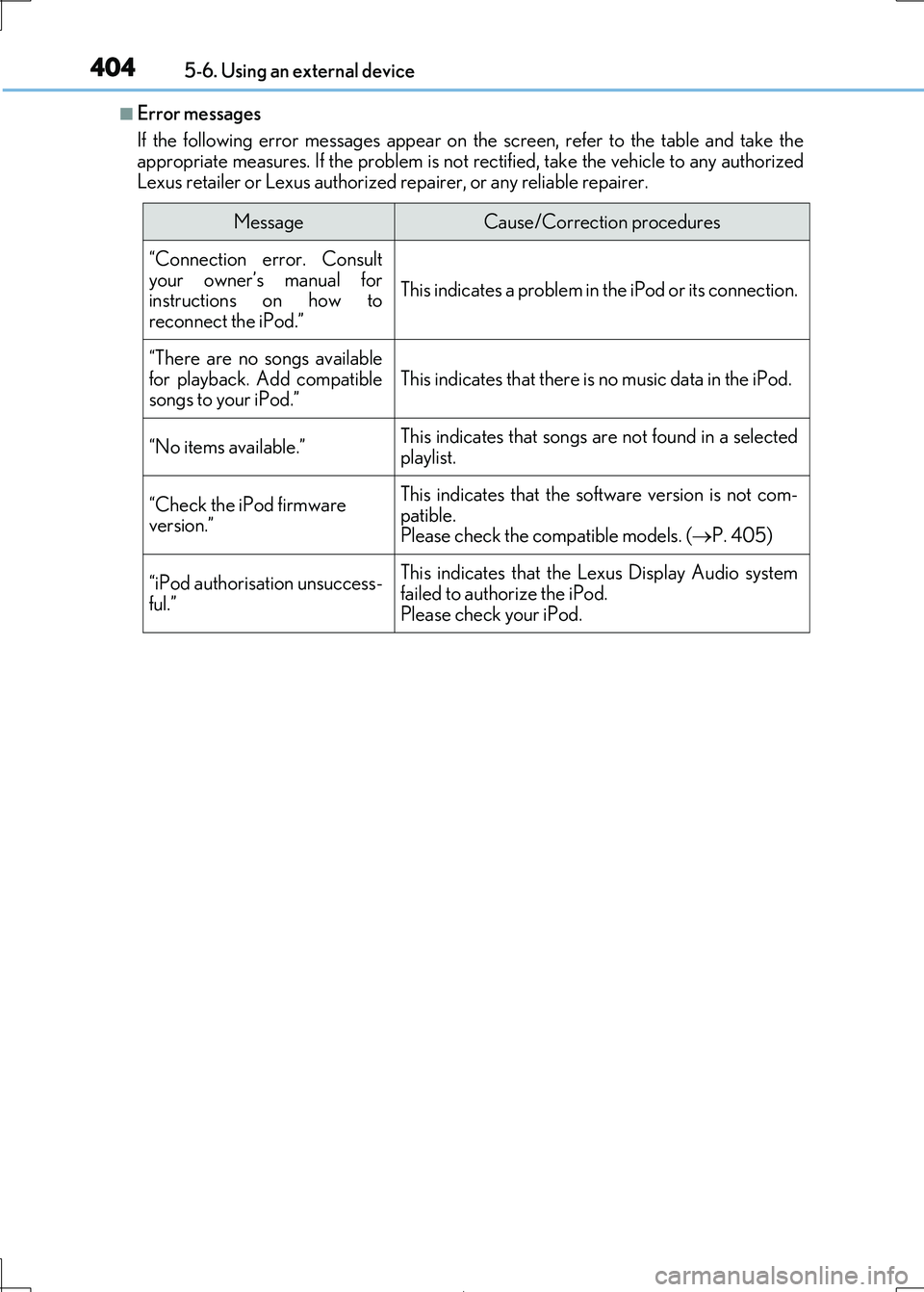
■Error messages
If the following error message s appear on the screen, refer to the table and take the appropriate measures. If the pr oblem is not rectified, take the vehicle to any authorized
Lexus retailer or Lexus authorized re pairer, or any reliable repairer.
MessageCause/Correction procedures
“Connection error. Consult
your owner’s manual for instructions on how to
reconnect the iPod.”
This indicates a problem in the iPod or its connection.
“There are no songs available
for playback. Add compatible songs to your iPod.”This indicates that there is no music data in the iPod.
“No items available.”This indicates that songs are not found in a selected
playlist.
“Check the iPod firmware
version.”
This indicates that the so ftware version is not com-
patible. Please check the compatible models. ( P. 405)
“iPod authorisation unsuccess- ful.”
This indicates that the Lexus Display Audio system
failed to authorize the iPod.
Please check your iPod.
Page 405 of 692

4055-6. Using an external device
5
Lexus Display Audio system
IS300h_EE(OM53D89E)
■iPod problems
To resolve most problems encountered when using your iPod, disconnect your iPod from the vehicle iPod connection and reset it. For in structions on how to reset your iPod, refer
to your iPod Owner’s Manual.
■Compatible models
The following iPod®, iPod nano®, iPod classic®, iPod touch® and iPhone® devices can
be used with this system.
●Made for
• iPod touch (5th generation)*
• iPod touch (4th generation)
• iPod touch (3rd generation) • iPod touch (2nd generation)
• iPod touch (1st generation)
• iPod classic • iPod with video
• iPod nano (7th generation)*
• iPod nano (6th generation) • iPod nano (5th generation)
• iPod nano (4th generation)
• iPod nano (3rd generation) • iPod nano (1st generation)
•iPhone 5s*
•iPhone 5c*•iPhone 5*
•iPhone 4S
•iPhone 4
•iPhone 3GS •iPhone 3G
•iPhone
*: iPod video not supported
Depending on differences between models or software versions, etc., some models might be incompatible with this system.
NOTICE
■To prevent damage to th e iPod or its terminals
●Depending on the size and shape of the iPod that is connected to the system, the con-
sole box may not close fully. In this case, do not forcibly close the console box as this
may damage the iPod or the terminal, etc.
●Do not leave the iPod in the vehicle. The temperature inside the vehicle may become
high.
●Do not push down on or apply unnecessary pressure to the iPod while it is connected.
●Do not insert foreign objects into the port.
Page 407 of 692
4075-6. Using an external device
5
Lexus Display Audio system
IS300h_EE(OM53D89E)
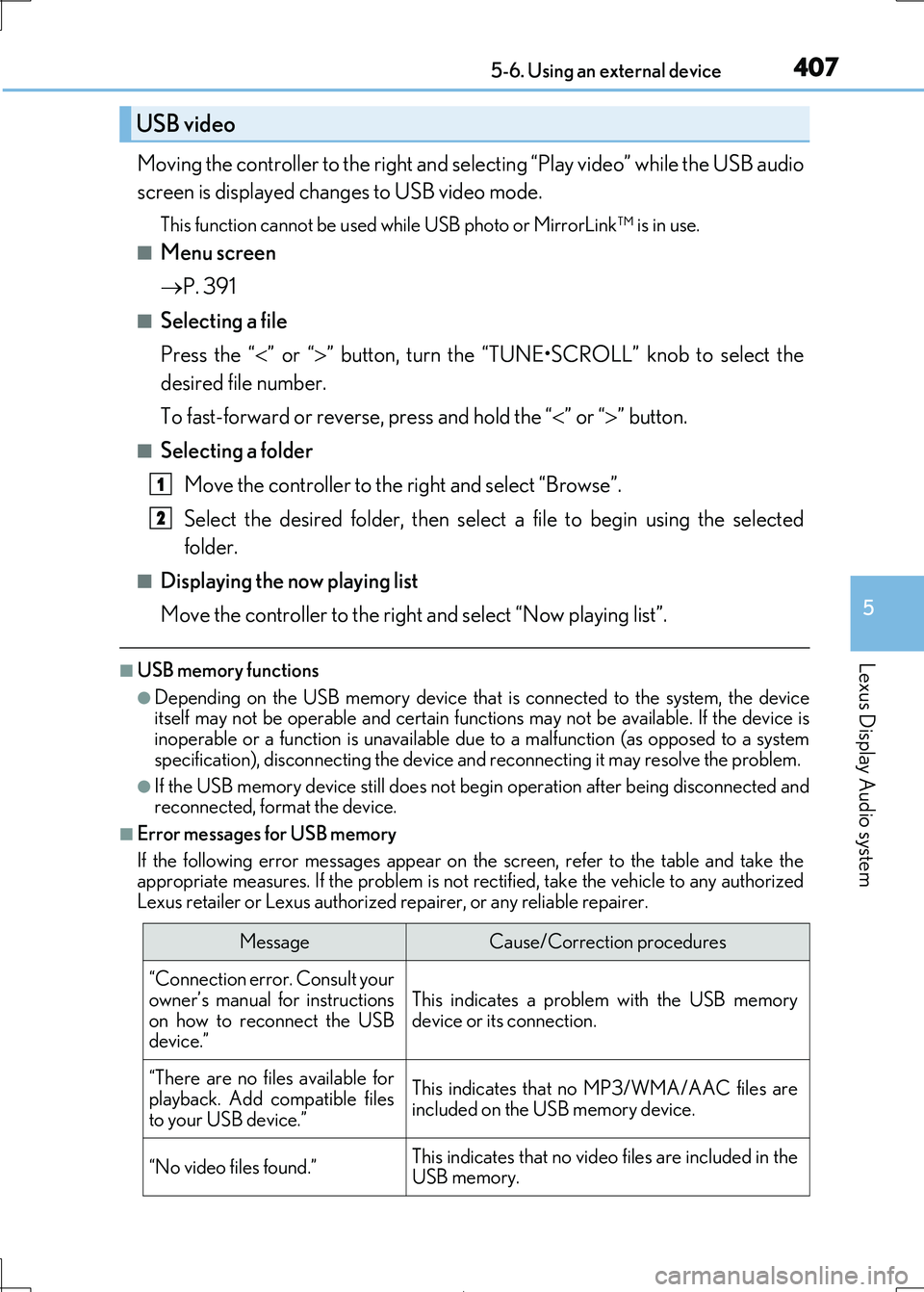
Moving the controller to the right and selecting “Play video” while the USB audio
screen is displayed changes to USB video mode.
This function cannot be used while USB photo or MirrorLink™ is in use.
■Menu screen
P. 391
■Selecting a file
Press the “ ” or “” button, turn the “TUNE•SCROLL” knob to select the
desired file number.
To fast-forward or reverse, press and hold the “ ” or “” button.
■Selecting a folder
Move the controller to the right and select “Browse”.
Select the desired folder , then select a file to begin using the selected
folder.
■Displaying the now playing list
Move the controller to the righ t and select “Now playing list”.
■USB memory functions
●Depending on the USB memory device that is connected to the system, the device
itself may not be operable and certain functions may not be available. If the device is inoperable or a function is unavailable du e to a malfunction (as opposed to a system
specification), disconnecting the device an d reconnecting it may resolve the problem.
●If the USB memory device still does not begin operation after being disconnected and reconnected, format the device.
■Error messages for USB memory
If the following error message s appear on the screen, refer to the table and take the appropriate measures. If the pr oblem is not rectified, take the vehicle to any authorized
Lexus retailer or Lexus authorized re pairer, or any reliable repairer.
USB video
MessageCause/Correction procedures
“Connection error. Consult your
owner’s manual for instructions
on how to reconnect the USB device.”
This indicates a problem with the USB memory
device or its connection.
“There are no files available for
playback. Add compatible files
to your USB device.”
This indicates that no MP3/WMA/AAC files are included on the USB memory device.
“No video files found.”This indicates that no video files are included in theUSB memory.
1
2
Page 409 of 692
4095-6. Using an external device
5
Lexus Display Audio system
IS300h_EE(OM53D89E)
●AAC file compatibility
• Compatible standards MPEG4/AAC-LC
• Compatible sampling frequencies
11.025/12/16/22.05/24/32/44.1/48 (kHz) • Compatible bit rates
16-320 (kbps)
• Compatible channel modes: 1 ch and 2 ch
●MP4, WMV and AVI files
The following resolutions can be used: 128x96, 160x120, 176x144 (QCIF), 320x240 (QVGA), 352x240 (SIF),
352x288 (CIF), 640x480 (VGA), 720x480 (NTSC), 720x576 (PAL)
●File names
The only files that can be recognized as MP3/WMA/AAC and played are those with
the extension .mp3, .wma or .m4a.
●ID3, WMA and AAC tags
ID3 tags can be added to MP3 files, making it possible to record the track title, artist
name, etc.
The system is compatible with ID3 Ver. 1.0, 1.1, and Ver. 2.2, 2.3 ID3 tags. (The number of characters is based on ID3 Ver. 1.0 and 1.1.)
WMA tags can be added to WMA files, making it possible to record the track title and
artist name in the same way as with ID3 tags.
AAC tags can be added to AAC files, making it possible to record the track title and
artist name in the same way as with ID3 tags.
●MP3, WMA and AAC playback
• When a device containing MP3, WMA or AA C files is connected, all files in the USB memory device are checked. Once t he file check is finished, the first MP3,
WMA or AAC file is played. To make the f ile check finish more quickly, we recom-
mend that you do not include any files other than MP3, WMA or AAC files or cre- ate any unnecessary folders.
• When a USB memory device is connected and the audio source is changed to USB
memory mode, the USB memory device will start playing the first file in the first folder. If the same device is removed an d reconnected (and the contents have not
been changed), the USB memory device w ill resume play from the same point in
which it was last used.
●Extensions
If the file extensions .mp3 , .wma and .m4a are used for files other than MP3, WMA and AAC files, they will be skipped (not played).
●Playback
• To play MP3 files with steady sound quality, we recommend a fixed bit rate of at least 128 kbps and a sampling frequency of 44.1 kHz.
• There is a wide variety of freeware an d other encoding software for MP3, WMA
and AAC files on the market, and depending on the status of the encoding and the file format, poor sound quality or noise at the start of playback may result. In some
cases, playback may not be possible at all.
• Microsoft, Windows, and Windows Media ar e the registered trademarks of Micro- soft Corporation in the U. S.A. and other countries.
Page 417 of 692
4175-7. Connecting Bluetooth®
5
Lexus Display Audio system
IS300h_EE(OM53D89E)
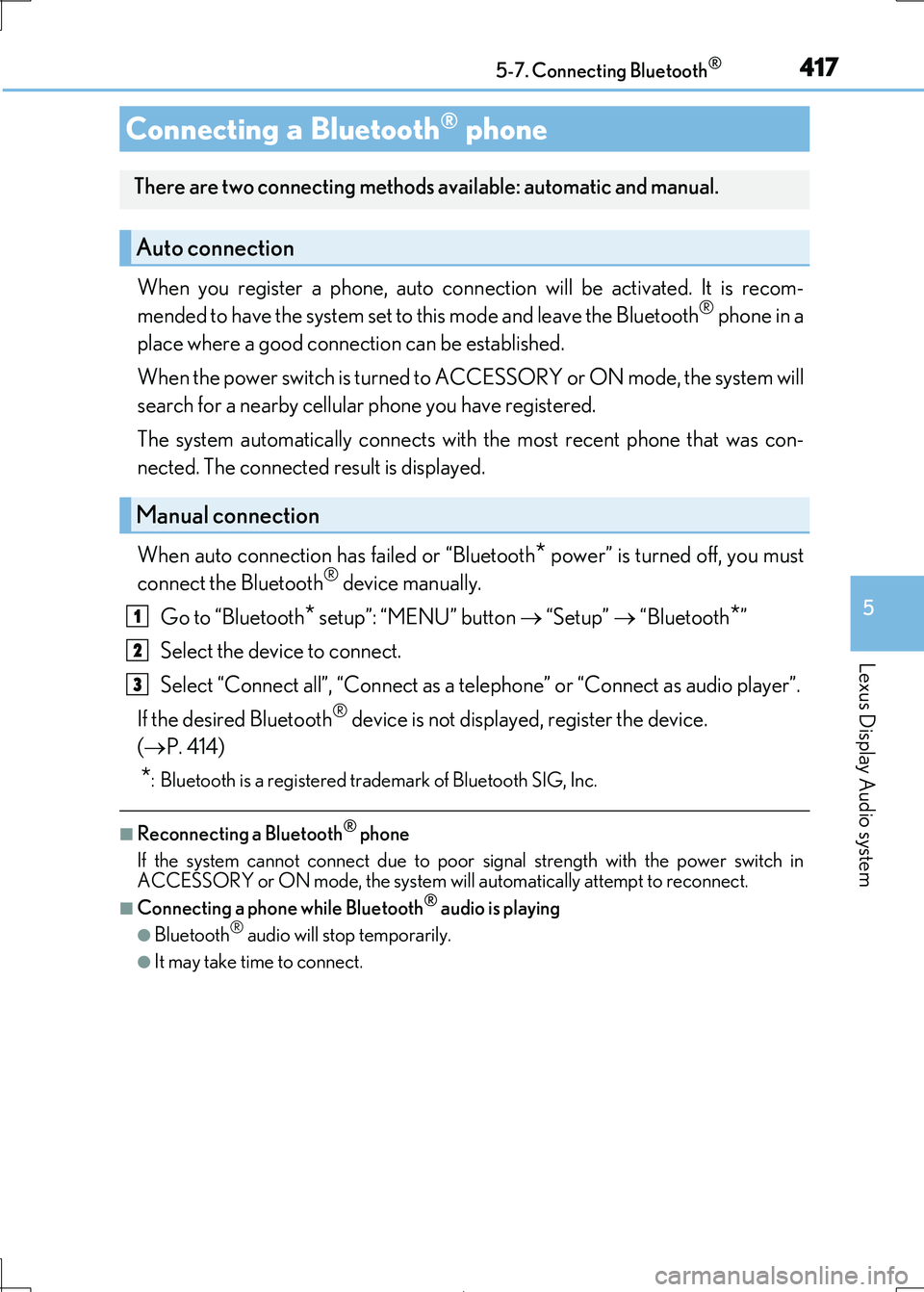
When you register a phone, auto connection will be activated. It is recom-
mended to have the system set to this mode and leave the Bluetooth® phone in a
place where a good connection can be established.
When the power switch is turned to ACCESSORY or ON mode, the system will
search for a nearby cellular phone you have registered.
The system automatically connects with the most recent phone that was con-
nected. The connected result is displayed.
When auto connection has failed or “Bluetooth* power” is turned off, you must
connect the Bluetooth® device manually.
Go to “Bluetooth* setup”: “MENU” button “Setup” “Bluetooth*”
Select the device to connect.
Select “Connect all”, “Connect as a te lephone” or “Connect as audio player”.
If the desired Bluetooth® device is not displayed, register the device.
( P. 414)
*: Bluetooth is a registered trademark of Bluetooth SIG, Inc.
■Reconnecting a Bluetooth® phone
If the system cannot connect due to poor signal strength with the power switch in ACCESSORY or ON mode, the system wi ll automatically attempt to reconnect.
■Connecting a phone while Bluetooth® audio is playing
●Bluetooth® audio will stop temporarily.
●It may take time to connect.
Connecting a Bluetooth® phone
There are two connecting methods available: automatic and manual.
Auto connection
Manual connection
1
2
3
Page 420 of 692
420
IS300h_EE(OM53D89E)
5-8. Bluetooth® Audio
When a Bluetooth® device cannot be connected, check the connection status
on the “Bluetooth* audio” screen. If the device is not connected, either register
or reconnect the device. ( P. 414, 416)
*: Bluetooth is a registered trademark of Bluetooth SIG, Inc.
Pressing the “MEDIA” button displays the Bluetooth® audio top screen from any
screen of the selected source.
■Menu screen
P. 391
■Selecting a song
Press the “ ” or “” button or turn the “TUNE•SCROLL” knob to select the
desired song number.
To fast-forward or rewi nd, press and hold the “” or “” button.
■Selecting a play mode
Move the controller to the ri ght and then select “Browse”.
Select the desired play mode, and then select a song to begin using the
selected play mode.
■Displaying the now playing list
Move the controller to the right an d then select “Now playing list”.
Listening to Bluetooth® Audio
The Bluetooth® audio system enables the user to enjoy music played on a por-
table player from the vehicle spea kers via wireless communication.
Bluetooth® audio top screen
1
2
Page 444 of 692
4445-11. Bluetooth®
IS300h_EE(OM53D89E)
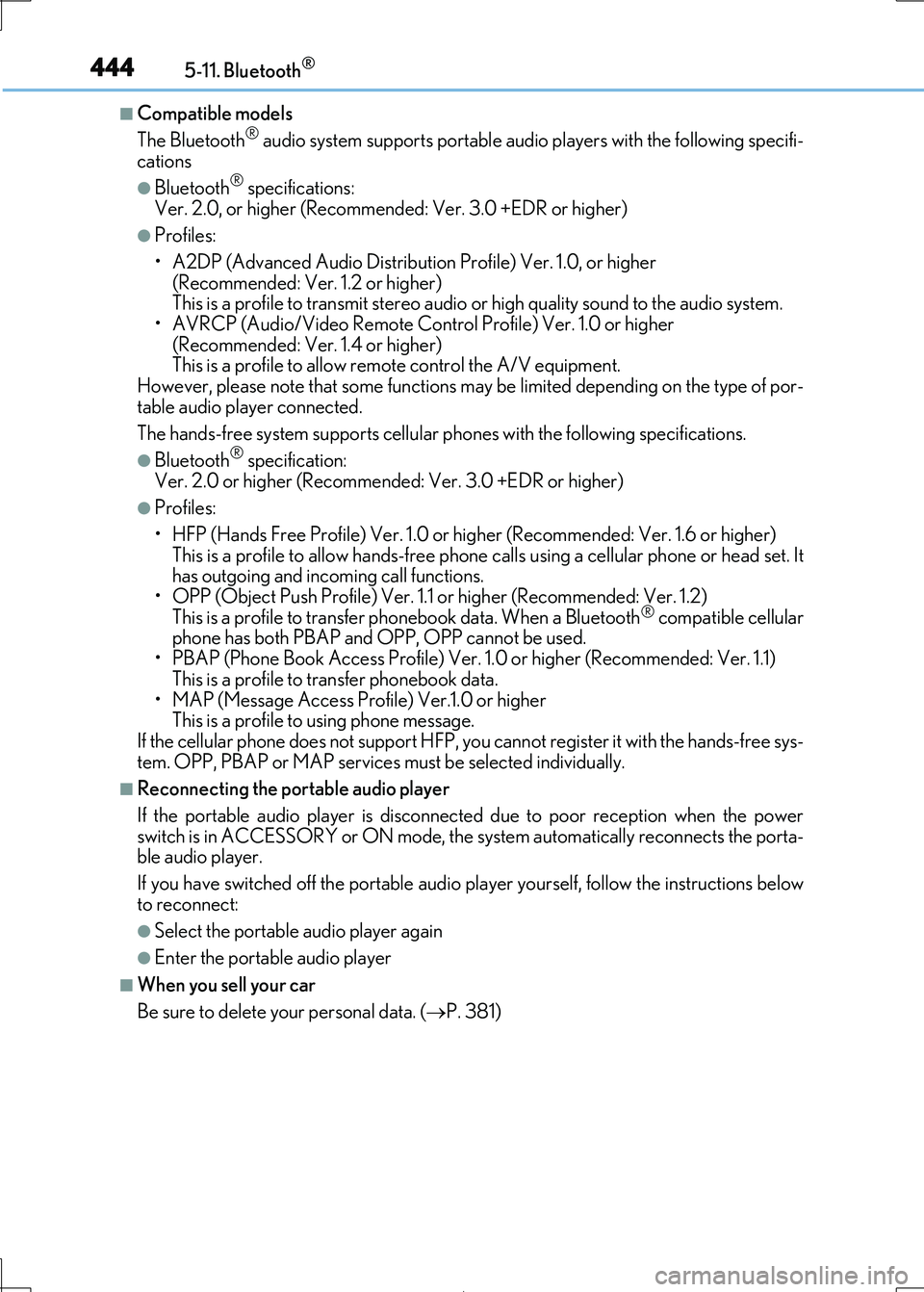
■Compatible models
The Bluetooth® audio system supports portable audi o players with the following specifi- cations
●Bluetooth® specifications:
Ver. 2.0, or higher (Recommend ed: Ver. 3.0 +EDR or higher)
●Profiles:
• A2DP (Advanced Audio Distribution Profile) Ver. 1.0, or higher
(Recommended: Ver. 1.2 or higher) This is a profile to transmit stereo audio or high quality sound to the audio system.
• AVRCP (Audio/Video Remote Cont rol Profile) Ver. 1.0 or higher
(Recommended: Ver. 1.4 or higher) This is a profile to allow remote control the A/V equipment.
However, please note that some functions may be limited depending on the type of por-
table audio player connected.
The hands-free system supports cellular ph ones with the following specifications.
●Bluetooth® specification:
Ver. 2.0 or higher (Recommended : Ver. 3.0 +EDR or higher)
●Profiles:
• HFP (Hands Free Profile) Ver. 1.0 or hi gher (Recommended: Ver. 1.6 or higher)
This is a profile to allow hands-free phone calls using a cellular phone or head set. It has outgoing and incoming call functions.
• OPP (Object Push Profile) Ver. 1.1 or higher (Recommended: Ver. 1.2)
This is a profile to transfer phonebook data. When a Bluetooth® compatible cellular phone has both PBAP and OPP, OPP cannot be used.
• PBAP (Phone Book Access Profile) Ver. 1. 0 or higher (Recommended: Ver. 1.1)
This is a profile to transfer phonebook data.
• MAP (Message Access Profile) Ver.1.0 or higher This is a profile to using phone message.
If the cellular phone does not support HFP, yo u cannot register it with the hands-free sys-
tem. OPP, PBAP or MAP services must be selected individually.
■Reconnecting the portable audio player
If the portable audio player is disconnected due to poor reception when the power
switch is in ACCESSORY or ON mode, the system automatically reconnects the porta- ble audio player.
If you have switched off the portable audio pl ayer yourself, follow the instructions below
to reconnect:
●Select the portable audio player again
●Enter the portable audio player
■When you sell your car
Be sure to delete your personal data. ( P. 381)