light LEXUS LX570 2015 Owners Manual
[x] Cancel search | Manufacturer: LEXUS, Model Year: 2015, Model line: LX570, Model: LEXUS LX570 2015Pages: 960, PDF Size: 11.33 MB
Page 407 of 960

4073-1. Using the touch screen
3
Interior features
LX570_OM_OM60L96U_(U) Touch “<” or “>” to select the desired function (“Contrast” or
“Brightness”) and then touch th e desired screen button to adjust
contrast and brightness.
After adjusting the screen, touch “OK”. “-” “+”
“Contrast” Weaker Stronger
“Brightness” Darker Brighter■
When using the touch screen ●
If the screen is cold, the display may be dark, or the system may seem to be
operating slightly slower than normal. ●
To operate the touch screen, press touc h screen buttons properly with finger
pad. ●
When dew condensation occu rs inside the touch screen , it is sometimes diffi-
cult to operate the display properly. In such case, please leave the screen
untouched and do not operate the touch screen until dew condensation disap-
pears. ●
When the screen is viewed through po larized sunglasses, a rainbow pattern
may appear on the screen due to optical characteristics of the screen. If this is
disturbing, please operate the scre en without polarized sunglasses. ●
Dimmed screen buttons cannot be operated. STEP 3
STEP 4
Page 408 of 960

4083-1. Using the touch screen
LX570_OM_OM60L96U_(U) ■
Changing between day mode and night mode
In the following conditions, the displays condition is not changed to night mode
even if the headlight switch is turned on:
• The instrument panel light control switch is turned fully to the right.
• The vehicle is in a bright area, such as outside in direct sunlight. ■
To turn off the display
The display goes off when “Screen Off” is touched. To turn the screen back on,
press any button. The sele cted screen appears.
NOTICE■
To avoid damaging the touch screen ●
To prevent damaging the screen, lightly touch the screen buttons with your fin-
ger. ●
Do not operate or rub the screen with a ballpoint pen, a mechanical pencil, finger
nail, a pointy and/or hard object because this will damage the screen. ●
Do not use objects other than yo ur finger to touch the screen.●
Wipe off fingerprints using a glass cleaning cloth. Do not use chemical cleaners
to clean the screen, as they may damage the touch screen. To display the screen in day mode, even with
the headlight switch on, touch “Day Mode”
for brightness and contrast control.
If the screen is set to day mode with the
headlight switch turned on, this condition is
memorized even with the engine turned
off.
Page 415 of 960

4153-1. Using the touch screen
3
Interior features
LX570_OM_OM60L96U_(U) ■ Clock settings
Used for changing time zones, the on/off sett ings of daylight saving
time and automatic adjustment of the clock.
Touch “Clock” on the “General Settings” screen.
Touch the items to be set.
Time zone
Daylight saving time
Automatic adjustment of the
clock
Manual clock setting
Touch “Save”.
● Time zone
A time zone can be selected and GMT can be set.
Touch “Time Zone”.STEP 1
STEP 2
STEP 3
STEP 1
Page 416 of 960
4163-1. Using the touch screen
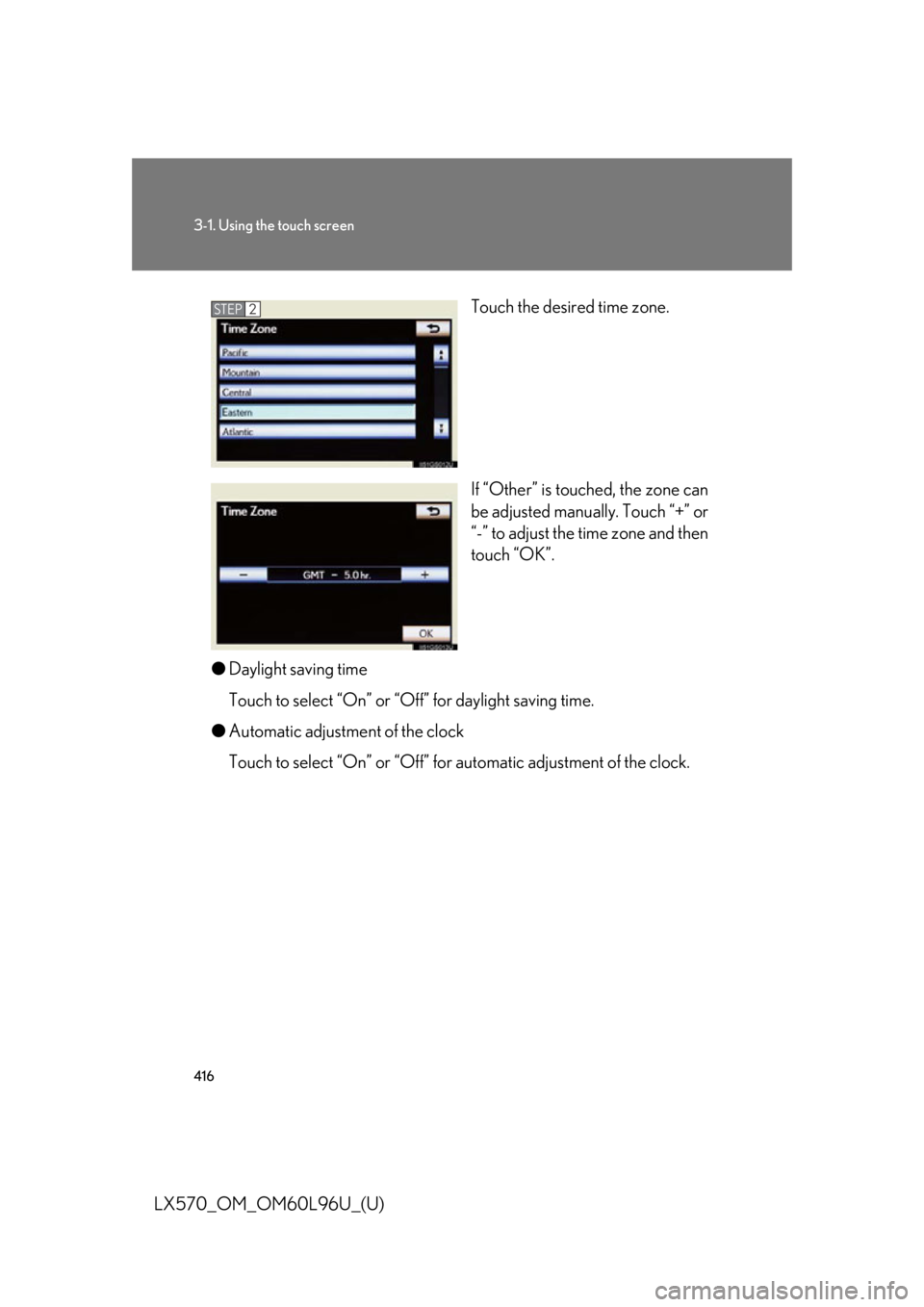
LX570_OM_OM60L96U_(U) Touch the desired time zone.
If “Other” is touche d, the zone can
be adjusted manually. Touch “+” or
“-” to adjust the time zone and then
touch “OK”.
● Daylight saving time
Touch to select “On” or “Off” for daylight saving time.
● Automatic adjustment of the clock
Touch to select “On” or “Off” for automatic adjustment of the clock. STEP 2
Page 430 of 960
4303-1. Using the touch screen
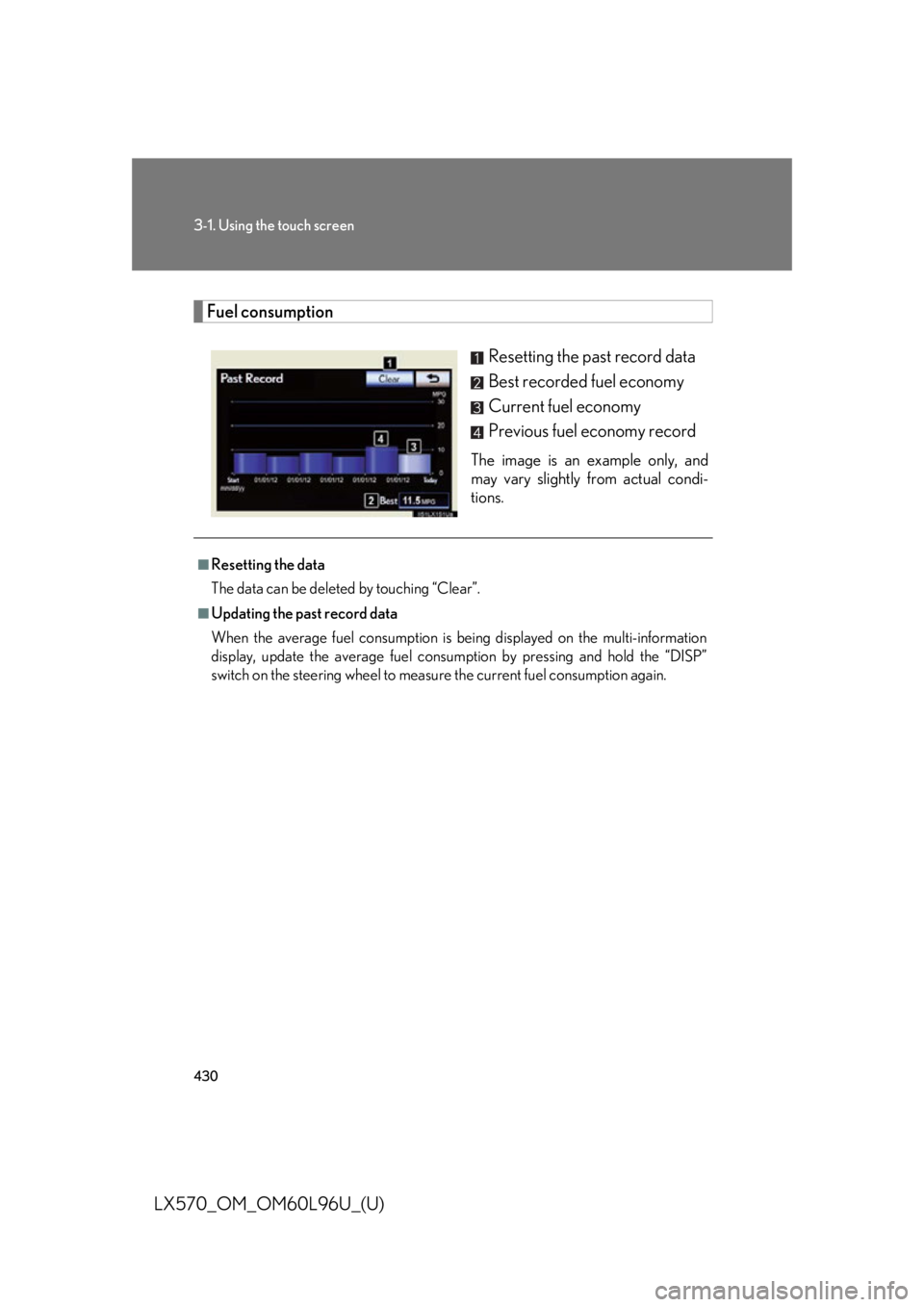
LX570_OM_OM60L96U_(U) Fuel consumption
Resetting the past record data
Best recorded fuel economy
Current fuel economy
Previous fuel economy record The image is an example only, and
may vary slightly from actual condi-
tions.■
Resetting the data
The data can be deleted by touching “Clear”. ■
Updating the past record data
When the average fuel consumption is being displayed on the multi-information
display, update the average fuel consum ption by pressing and hold the “DISP”
switch on the steering wheel to measure the current fuel consumption again.
Page 522 of 960
5223-3. Using the audio system
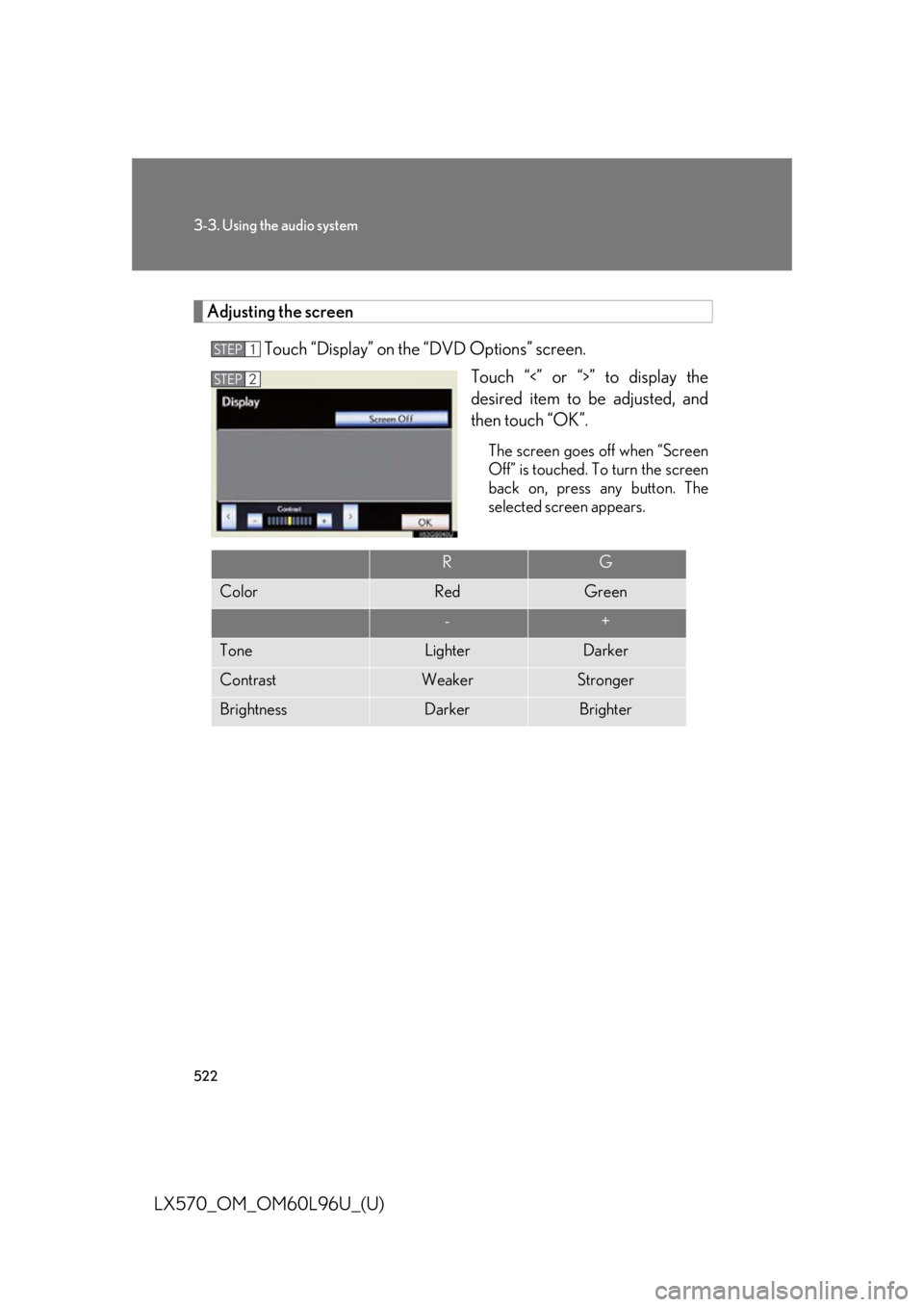
LX570_OM_OM60L96U_(U) Adjusting the screen
Touch “Display” on the “DVD Options” screen.
Touch “<” or “>” to display the
desired item to be adjusted, and
then touch “OK”. The screen goes off when “Screen
Off” is touched. To turn the screen
back on, press any button. The
selected screen appears.STEP 1
STEP 2
R G
Color Red Green
- +
Tone Lighter Darker
Contrast Weaker Stronger
Brightness Darker Brighter
Page 540 of 960
5403-3. Using the audio system
LX570_OM_OM60L96U_(U) NOTICE■
Player precautions
Failure to follow the precautions below ma y result in damage to the discs or the
player itself. ●
Do not insert anything other than discs into the disc slot. ●
Do not apply oil to the player. ●
Store discs away from direct sunlight. ●
Never try to disassemble any part of the player.
Page 549 of 960
5493-3. Using the audio system
3
Interior features
LX570_OM_OM60L96U_(U) ■
If you touch
The display returns to the previous screen. ■
Connecting Bluetooth ®
audio player●
Touching “Connect Portable Player” on the “Bluetooth*” screen also connects
a Bluetooth ®
audio player. ( P. 681)●
When none of the selectable portable players have been registered, a screen
confirming registration is displayed. The registrati on method is the same as
phone registration. ( P. 674)●
When the currently connected portable pl ayer is selected, a screen confirming
the selected player’s disconnection is displayed. ( P. 676)●
If connection fails once, a changing conn ection method confirmation screen is
displayed. If connection fails 2 or more times, a message will be displayed.
When this message is displayed, try again.
*: Bluetooth is a re gistered trademark of Bluetooth SIG, Inc.■
When using the Bluetooth ®
audio system●
In the following conditions, the system may not function.
• The portable player is turned off
• The portable player is not connected
• The portable player battery is low ●
There may be a delay if phone connection is carried out during Bluetooth ®
audio play. ●
Depending on the type of portable player that is connected to the system, oper-
ation may differ slightly and certain functions may not be available.■
Bluetooth ®
antenna
The antenna is built into the audio unit. If th e portable player is behind the seat or in
the glove box or console box, or is touching or covered by metal objects, connec-
tion status may deteriorate. ■
Battery charge/signal status
This display may not correspond exactly wi th the portable play er, and this system
does not have a charging function.
Page 583 of 960

5833-4. Using the rear se at entertainment system
3
Interior features
LX570_OM_OM60L96U_(U) Touch the “Rear” tab on the
screen.
Touch the desired button. The se lected button indicator is high-
lighted. “POWER”: Turns the rear screen on or off.
“Rear System Lock”: Locks the system so passengers in the rear seats
cannot operate the rear entertainment system.
“Speaker Output”: Enables the front speakers to output the front audio
system’s audio source.STEP 2
■
The rear seat entertainment system can be used when
The “ENGINE START STOP” switch is in ACCESSORY or IGNITION ON
mode. ■
When appears on the screen
It indicates that the selected icon cannot be used at this time. STEP 3
Page 586 of 960
5863-4. Using the rear seat entertainment system
LX570_OM_OM60L96U_(U) NOTICE■
Cleaning the display
Wipe the display with a dry soft cloth.
If the screen is wiped with a rough cloth, the surface of the screen may be
scratched. ■
To prevent damage to the controller ●
Keep the remote control away from dire ct sunlight, high temperature and high
humidity. ●
Do not drop or knock the cont roller against hard objects.●
Do not sit on or place heavy objects on the controller.■
DVD player
Never try to disassemble or oil any part of the DVD player. Do not insert anything
other than a disc into the slot. ■
For normal operation after replacing the battery
Observe the following precau tions to prevent accidents.●
Always work with dry hands.
Moisture may cause the battery to rust. ●
Do not touch or move any other components inside the controller. ●
Do not bend either of the battery terminals.