change time LEXUS RX350 2016 Owner's Manual
[x] Cancel search | Manufacturer: LEXUS, Model Year: 2016, Model line: RX350, Model: LEXUS RX350 2016Pages: 748, PDF Size: 12.36 MB
Page 307 of 748
3074-5. Using the driving support systems
4
Driving
RX350_U_OM48E90U To change the set speed, operate the lever until the desired set speed is dis-
played.
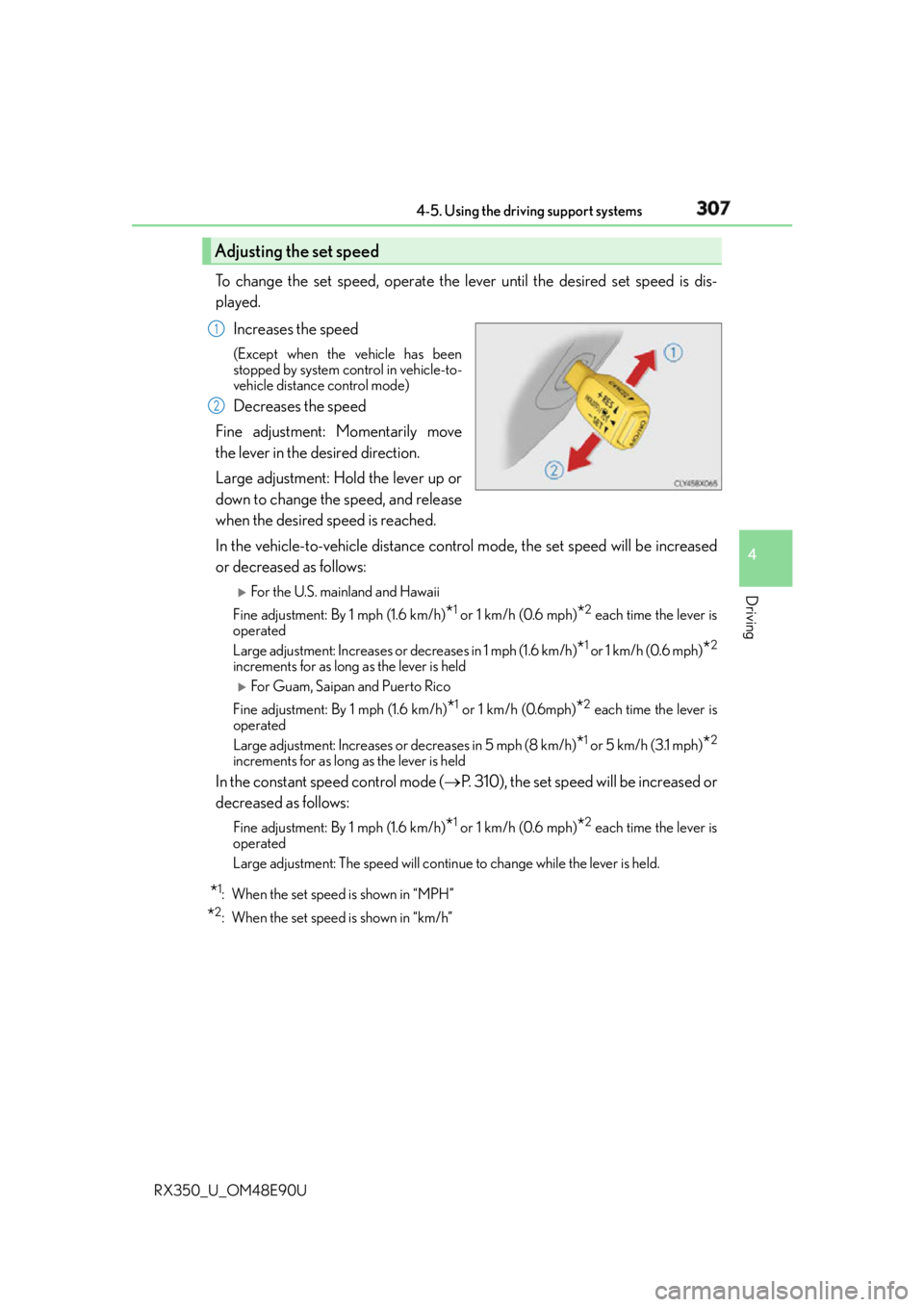
Increases the speed (Except when the vehicle has been
stopped by system control in vehicle-to-
vehicle distance control mode)
Decreases the speed
Fine adjustment: Momentarily move
the lever in the desired direction.
Large adjustment: Hold the lever up or
down to change the speed, and release
when the desired speed is reached.
In the vehicle-to-vehicle distance control mode, the set speed will be increased
or decreased as follows:
For the U.S. main land and Hawaii
Fine adjustment: By 1 mph (1.6 km/h)
* 1
or 1 km/h (0.6 mph)
* 2
each time the lever is
operated
Large adjustment: Increases or decreases in 1 mph (1.6 km/h)
* 1
or 1 km/h (0.6 mph)
* 2
increments for as long as the lever is held
For Guam, Saipan and Puerto Rico
Fine adjustment: By 1 mph (1.6 km/h)
* 1
or 1 km/h (0.6mph)
* 2
each time the lever is
operated
Large adjustment: Increases or decreases in 5 mph (8 km/h)
* 1
or 5 km/h (3.1 mph)
* 2
increments for as long as the lever is held
In the constant speed control mode ( P. 310), the set speed will be increased or
decreased as follows: Fine adjustment: By 1 mph (1.6 km/h)
* 1
or 1 km/h (0.6 mph)
* 2
each time the lever is
operated
Large adjustment: The speed will continue to change while the lever is held.
* 1
: When the set speed is shown in “MPH”
* 2
: When the set speed is shown in “km/h”Adjusting the set speed 1
2
Page 317 of 748
3174-5. Using the driving support systems
4
Driving
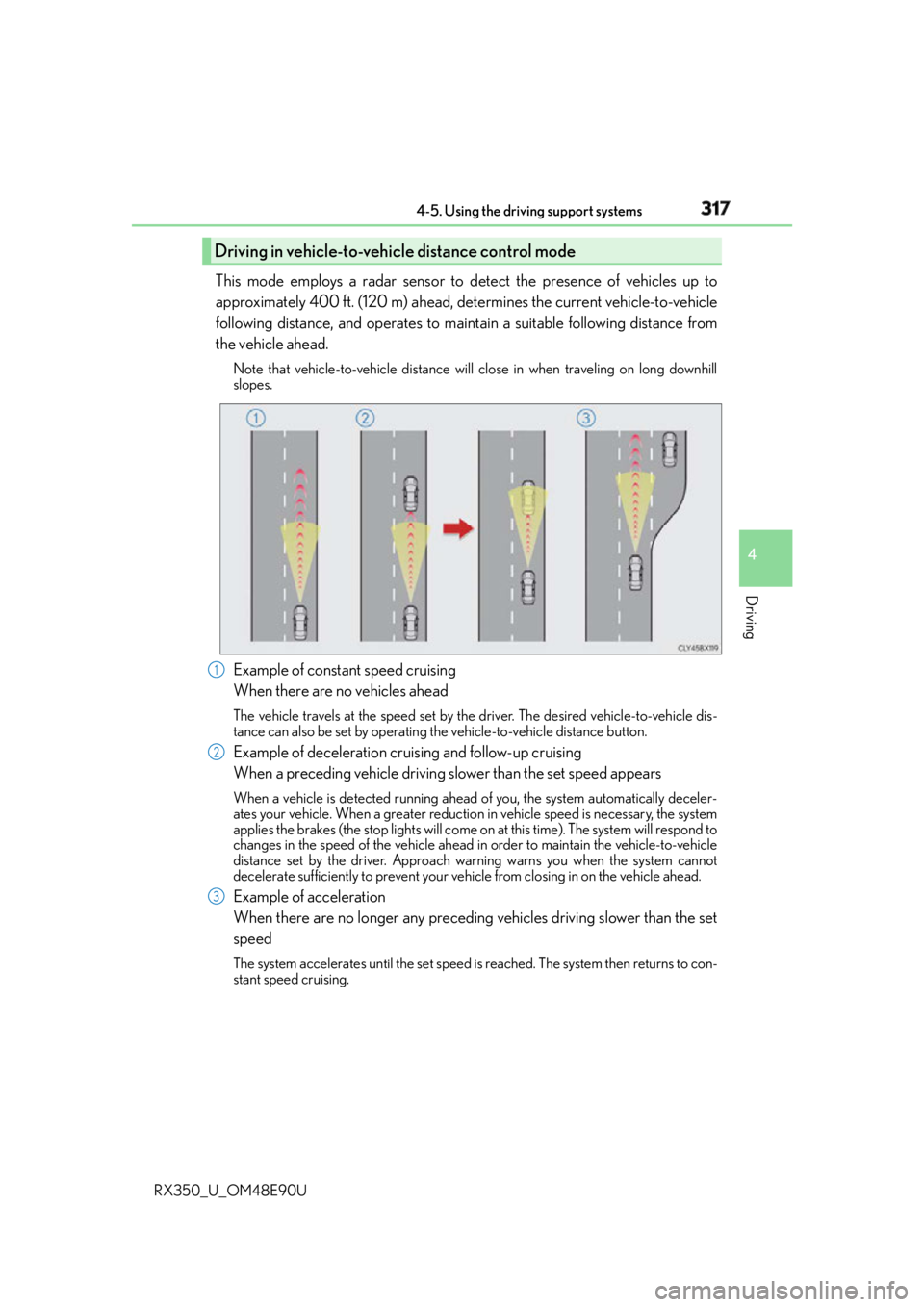
RX350_U_OM48E90U This mode employs a radar sensor to detect the presence of vehicles up to
approximately 400 ft. (120 m) ahead, determines the current vehicle-to-vehicle
following distance, and operates to main tain a suitable following distance from
the vehicle ahead. Note that vehicle-to-vehicle distance will close in when traveling on long downhill
slopes.
Example of constant speed cruising
When there are no vehicles ahead The vehicle travels at the speed set by the driver. The desired vehicle-to-vehicle dis-
tance can also be set by operating th e vehicle-to-vehicle distance button.
Example of deceleration cruising and follow-up cruising
When a preceding vehicle driving slower than the set speed appears When a vehicle is detected running ahead of you, the system automatically deceler-
ates your vehicle. When a greater reduction in vehicle speed is necessary, the system
applies the brakes (the stop lights will come on at this time). The system will respond to
changes in the speed of the vehicle ahead in order to maintain the vehicle-to-vehicle
distance set by the driver. Approach wa rning warns you when the system cannot
decelerate sufficiently to prevent your ve hicle from closing in on the vehicle ahead.
Example of acceleration
When there are no longer any preceding vehicles driving slower than the set
speed The system accelerates until the set speed is reached. The system then returns to con-
stant speed cruising.Driving in vehicle-to-vehicle distance control mode
1
2
3
Page 319 of 748
3194-5. Using the driving support systems
4
Driving
RX350_U_OM48E90U To change the set speed, operate the lever until the desired set speed is dis-
played.
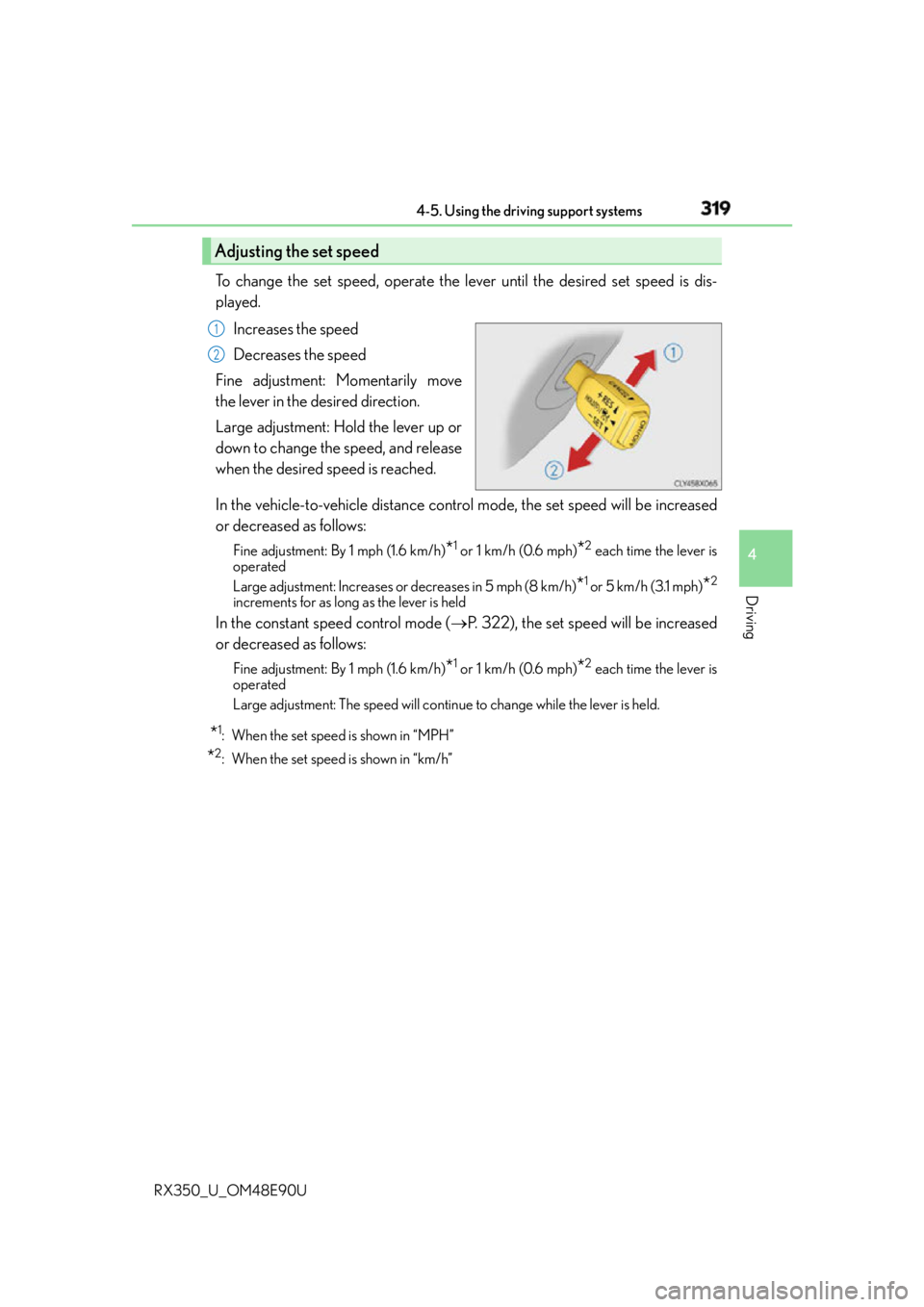
Increases the speed
Decreases the speed
Fine adjustment: Momentarily move
the lever in the desired direction.
Large adjustment: Hold the lever up or
down to change the speed, and release
when the desired speed is reached.
In the vehicle-to-vehicle distance control mode, the set speed will be increased
or decreased as follows: Fine adjustment: By 1 mph (1.6 km/h)
* 1
or 1 km/h (0.6 mph)
* 2
each time the lever is
operated
Large adjustment: Increases or decreases in 5 mph (8 km/h)
* 1
or 5 km/h (3.1 mph)
* 2
increments for as long as the lever is held
In the constant speed control mode ( P. 322), the set speed will be increased
or decreased as follows: Fine adjustment: By 1 mph (1.6 km/h)
* 1
or 1 km/h (0.6 mph)
* 2
each time the lever is
operated
Large adjustment: The speed will continue to change while the lever is held.
* 1
: When the set speed is shown in “MPH”
* 2
: When the set speed is shown in “km/h”Adjusting the set speed 1
2
Page 327 of 748
3274-5. Using the driving support systems
4
Driving
RX350_U_OM48E90U To change the set speed, operate the lever until the desired set speed is obtained.
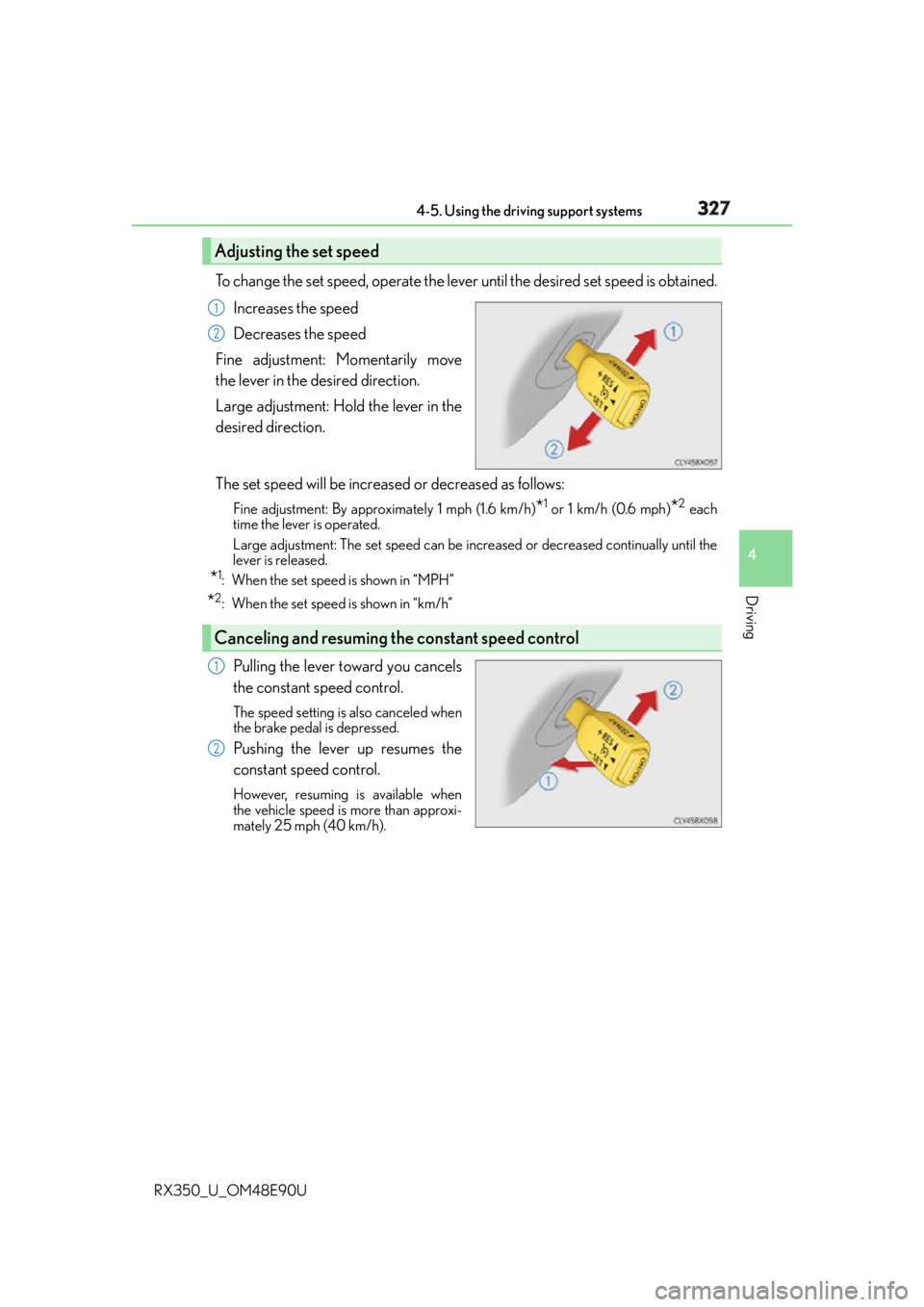
Increases the speed
Decreases the speed
Fine adjustment: Momentarily move
the lever in the desired direction.
Large adjustment: Hold the lever in the
desired direction.
The set speed will be increase d or decreased as follows:Fine adjustment: By approximately 1 mph (1.6 km/h)
* 1
or 1 km/h (0.6 mph)
* 2
each
time the lever is operated.
Large adjustment: The set speed can be incr eased or decreased co ntinually until the
lever is released.
* 1
: When the set speed is shown in “MPH”
* 2
: When the set speed is shown in “km/h”
Pulling the lever toward you cancels
the constant speed control. The speed setting is also canceled when
the brake pedal is depressed.
Pushing the lever up resumes the
constant speed control. However, resuming is available when
the vehicle speed is more than approxi-
mately 25 mph (40 km/h).Adjusting the set speed 1
2
Canceling and resuming the constant speed control 1
2
Page 370 of 748
370 4-5. Using the driving support systems
RX350_U_OM48E90U
Vehicles with Adaptive Variable Suspension System
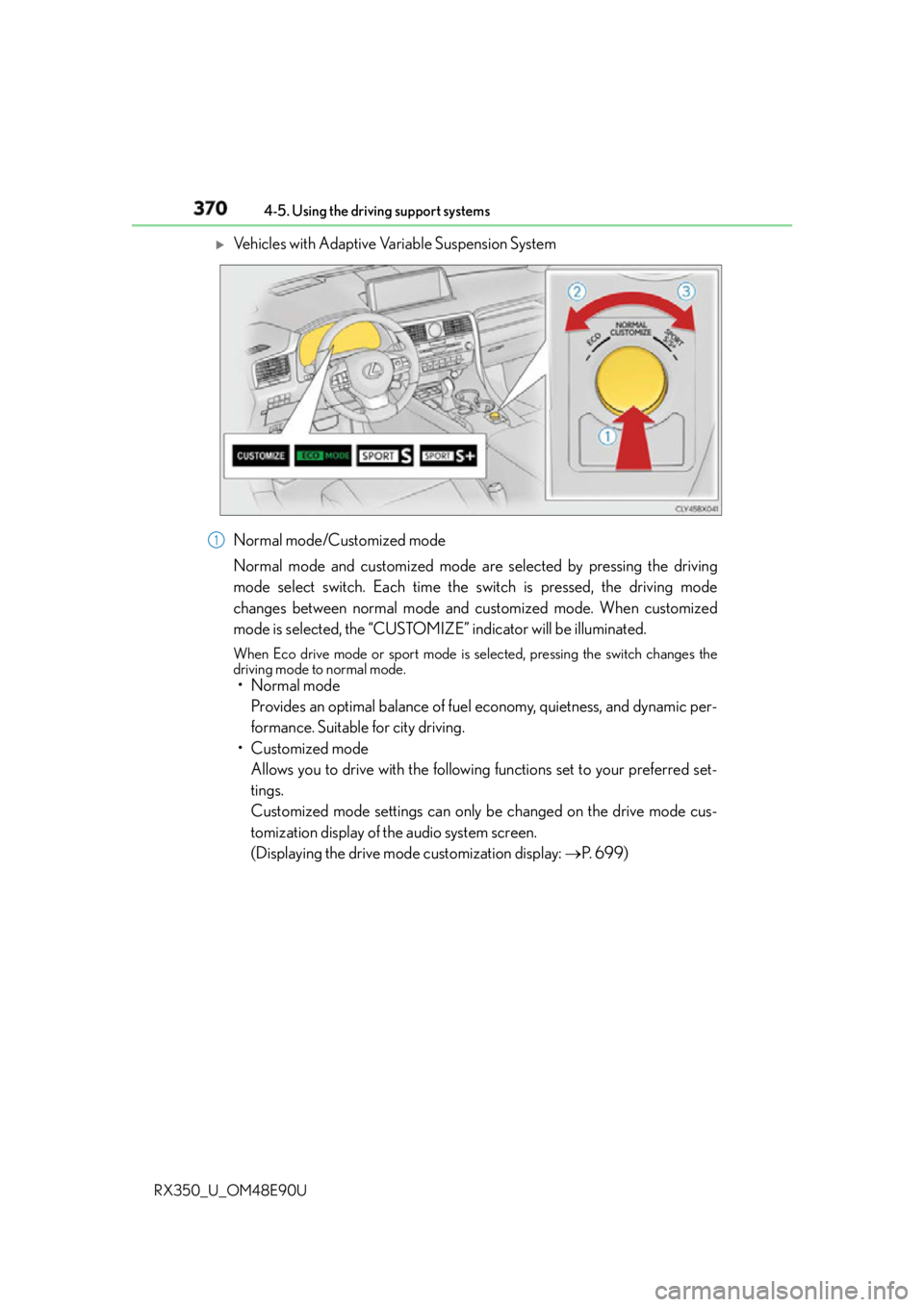
Normal mode/Customized mode
Normal mode and customized mode are selected by pressing the driving
mode select switch. Each time the switch is pressed, the driving mode
changes between normal mode and customized mode. When customized
mode is selected, the “CUSTOMIZE” indicator will be illuminated. When Eco drive mode or sport mode is se lected, pressing the switch changes the
driving mode to normal mode.
• Normal mode
Provides an optimal balance of fuel economy, quietness, and dynamic per-
formance. Suitable for city driving.
• Customized mode
Allows you to drive with the following functions set to your preferred set-
tings.
Customized mode settings can only be changed on the drive mode cus-
tomization display of the audio system screen.
(Displaying the drive mode customization display: P. 6 9 9 )1
Page 408 of 748
408
RX350_U_OM48E90U 5-3. Using the audio system
Press the “AUDIO” button to display the “Source” screen. If the “Source” screen is not displayed, press the button again.
Select the desired audio source. The audio source can be selected by pressing the “RADIO” or “MEDIA” button.
Press the “MODE” switch when the audio system is turned on. The audio source
changes each time the “MODE” switch is pressed. ■
Rearranging the list
The listing order of the sour ce list can be rearranged.
Move the controller to the left while on the “Source” screen.
Select “Audio Source Select”.
Select an item you wish to move and th en select where to move the item to.Selecting the audio source Switching between audio sources, such as the radio and CD, is explained in
this section.
Changing audio source
Using the steering wheel switches to change audio sources 1
2
1
2
3
Page 420 of 748

420 5-4. Using the radio
RX350_U_OM48E90U ■
XM Radio Services — Descriptions ●
Radio and Entertainment
XM offers more than 170 satellite radio channels of commercial-free music and pre-
mier sports, news, talk, and entertainment. XM is broadcast via satellites to millions of
listeners across the continental United States . XM subscribers listen to XM on satellite
radio receivers for the car, home, and port able use. More information about XM is
available online at www.siriusxm.com
(U.S.A.) or www.siriusxm.ca (Canada).●
Satellite tuner
The tuner supports only Audio Services (M usic and Talk) and the accompanying Text
Information of XM ®
Satellite Radio.■
XM Radio Services — Subscription Instructions
For XM Services requiring a subscription (s uch as XM Radio), the following paragraph
shall be included.
Required XM Radio monthly subscriptions sold separately after tr ial period. Subscrip-
tion fee is consumer only. All fees and prog ramming subject to change. Subscriptions are
subject to the Customer Agreement available at www.siriusxm.com
(U.S.A.) or
www.siriusxm.ca (Canada) XM service only availa ble in the 48 contiguous United
States and 10 Canadian provinces. © 2011 Sirius XM Radio Inc. Sirius, XM and all
related marks and logos are trademarks of Sirius XM Radio Inc. All other marks, channel
names and logos are the property of their respective owners.
For more information, program schedules, and to subscribe or extend subscription after
complimentary trial period; more information is available at:
U.S.A. Customers:
Visit w w w.siriusxm.com or call 1-877-447-0011
Canadian Customers:
Visit w w w.siriusxm.ca or call 1-877-438-9677●
Radio ID
You will need the radio ID when activating XM service or reporting a problem. If
“Ch000” is selected using the “TUNE•SCRO LL” knob, the ID code, which is 8 alpha-
numeric characters, will be displayed. If anot her channel is selected , the ID code will no
longer be displayed. The channel (000) alte rnates between displaying the radio ID and
the specific radio code. ■
XM Radio Services — Legal Disclaimers and Warnings ●
Fees and Taxes — Subscription fee, taxes, on e time activation fee, and other fees may
apply. Subscription fee is consumer only. All fees and programming subject to change.
Subscriptions subject to Customer Agreement available at www.siriusxm.com (U.S.A.)
or www.siriusxm.ca (Canada) XM service only available in the 48 contiguous United
States and Canada
* .
* : Canada — some deterioration of service may occur in extreme northern latitudes.
This is beyond the control of XM Satellite Radio.
Explicit Language Notice — Channels with frequent explicit la nguage are indicated
with an “XL” preceding the channel name. Channel blocking is available for XM Satel-
lite Radio receivers by notifying XM at;
U.S.A. Customers:
Visit www.siriusxm.com or calling 1-877-447-0011
Canadian Customers:
Visit www.siriusxm.ca or calling 1-877-438-9677
Page 421 of 748
4215-4. Using the radio
5
Lexus Display Audio system
RX350_U_OM48E90U It is prohibited to copy, decompile, disassemble, reverse engineer, hack, manipulate, or
otherwise make available any technology or software incorporated in receivers compat-
ible with the XM Satellite Ra dio System or that support the XM website, the Online Ser-
vice or any of its content. Furthermore, the AMBE ®
voice compression software
included in this product is protected by intellectual property rights including patent
rights, copyrights, and trade secrets of Digital Voice Systems, Inc.
Note: this applies to XM receivers only and not XM Ready devices. ■
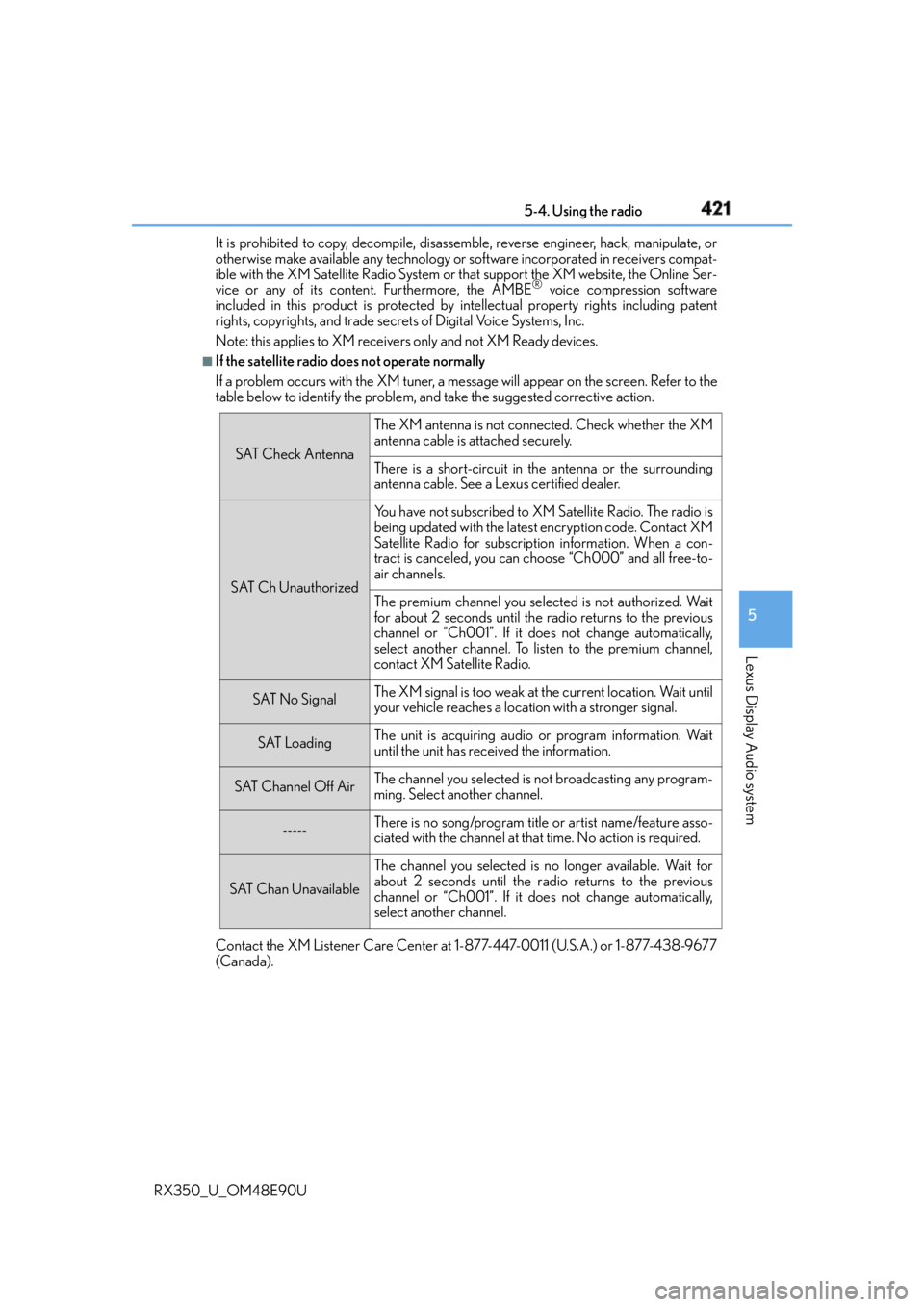
If the satellite radio does not operate normally
If a problem occurs with the XM tuner, a me ssage will appear on the screen. Refer to the
table below to identify the problem, and take the suggested corrective action.
Contact the XM Listener Care Center at 1-877-447-0011 (U.S.A.) or 1-877-438-9677
(Canada). SAT Check Antenna The XM antenna is not connected. Check whether the XM
antenna cable is attached securely.
There is a short-circuit in the antenna or the surrounding
antenna cable. See a Lexus certified dealer.
SAT Ch Unauthorized Yo u h a v e n o t s u b s c r i b e d t o X M Satellite Radio. The radio is
being updated with the latest encryption code. Contact XM
Satellite Radio for subscription information. When a con-
tract is canceled, you can choose “Ch000” and all free-to-
air channels.
The premium channel you select ed is not authorized. Wait
for about 2 seconds until the radio returns to the previous
channel or “Ch001”. If it does not change automatically,
select another channel. To listen to the premium channel,
contact XM Satellite Radio.
SAT No Signal The XM signal is too weak at the current location. Wait until
your vehicle reaches a location with a stronger signal.
SAT Loading The unit is acquiring audio or program information. Wait
until the unit has received the information.
SAT Channel Off Air The channel you selected is not broadcasting any program-
ming. Select another channel.
----- There is no song/program title or artist name/feature asso-
ciated with the channel at that time. No action is required.
SAT Chan Unavailable The channel you selected is no longer available. Wait for
about 2 seconds until the radio returns to the previous
channel or “Ch001”. If it does not change automatically,
select another channel.
Page 430 of 748
430 5-6. Using an external device
RX350_U_OM48E90U ●
“Made for iPod” and “Made for iPhone” mean that an electronic accessory has been
designed to connect specifically to an iPod , or iPhone, respectively, and has been certi-
fied by the developer to meet Apple performance standards. ●
Apple is not responsible for the operation of this device or its compliance with safety
and regulatory standards. Please note that th e use of this accessory with iPod or iPhone
may affect wireless performance. ●
iPhone, iPod, iPod classic, iPod nano and iPod touch are trademarks of Apple Inc., reg-
istered in the U.S. and other countries. ■
iPod cover art ●
Depending on the iPod and songs in the iPod, iPod cover art may be displayed.●
This function can be changed to on/off. ( P. 4 1 2 )●
It may take time to display iPod cover art, and the iPod may not be operated while the
cover art display is in process. ■
iPod functions ●
When an iPod is connected and the audio sour ce is changed to iPod mode, the iPod will
resume play from the same poin t in which it was last used.●
Depending on the iPod that is connected to the system, certain functions may not be
available. If a function is un available due to a malfunction (as opposed to a system spec-
ification), disconnecting the device and reconnecting it may resolve the problem.●
Depending on the iPod, while connected to the system, the iPod cannot be operated
with its own controls. It is necessary to us e the controls of the vehicle’s audio system
instead. ●
When the battery level of an iPod is very low, the iPod may not operate. If so, charge the
iPod before use. ●
Compatible models ( P. 4 3 2 )■
iPod problems
To resolve most problems encountered when using your iPod, disconnect your iPod from
the vehicle iPod connection and reset it. For in structions on how to reset your iPod, refer
to your iPod Owner’s Manual.
Page 457 of 748
4575-9. Bluetooth ®
Phone
5
Lexus Display Audio system
RX350_U_OM48E90U
Phone number containing a “w” symbol
When the “w” symbol is dialed in an outgoing call, you need to go to the
“Release Tones” screen to dial the following digits. Move the controller to the
left and then select “Release Tones”.
Select “Handset Mode” to change from a hands-free call to a cellular phone call
or vice versa.
Press the on-hook switch on the steering wheel or select .
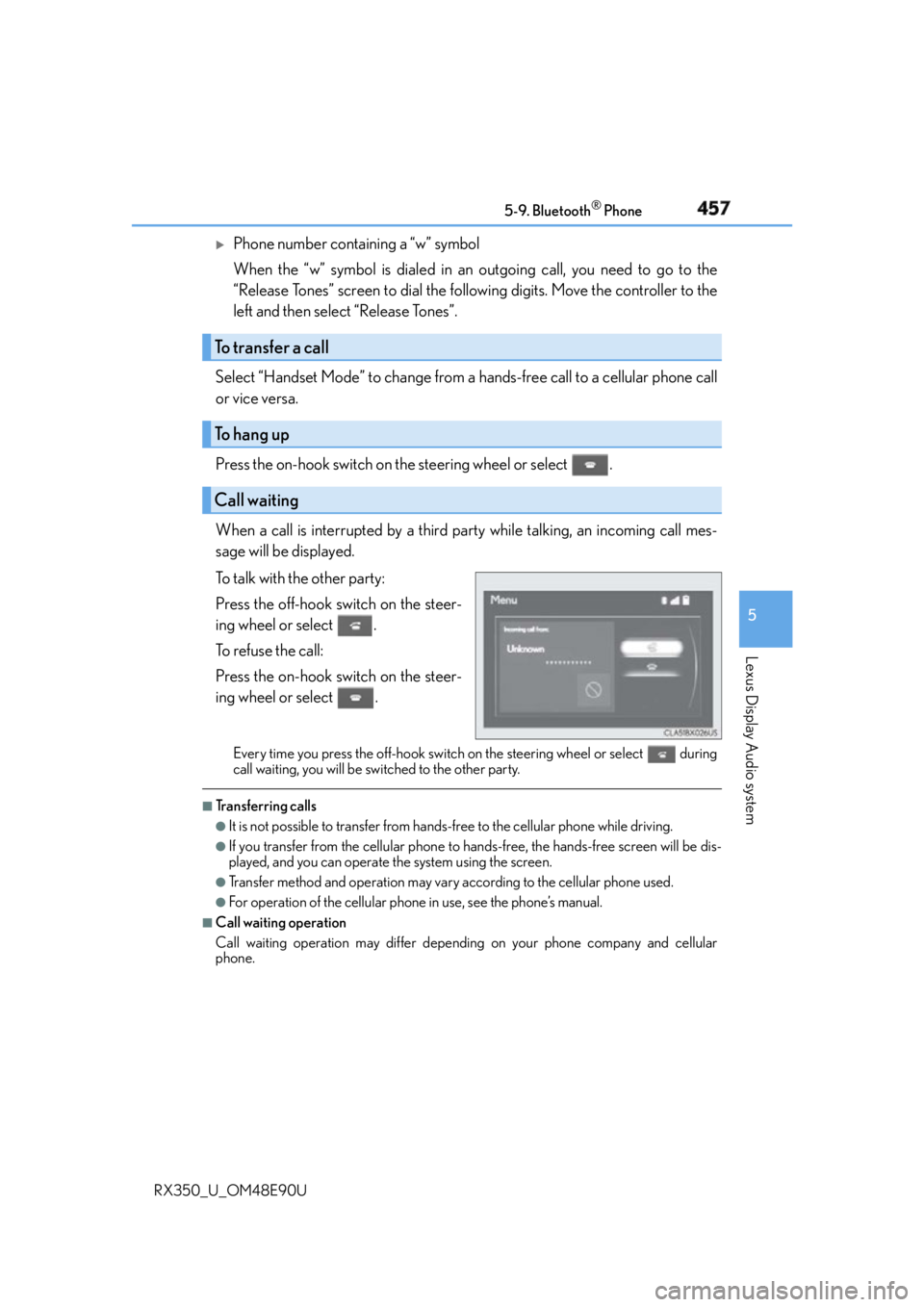
When a call is interrupted by a third party while talking, an incoming call mes-
sage will be displayed.
To talk with the other party:
Press the off-hook switch on the steer-
ing wheel or select .
To refuse the call:
Press the on-hook switch on the steer-
ing wheel or select . Every time you press the off-hook switch on the steering wheel or select during
call waiting, you will be switched to the other party. ■
Transferring calls ●
It is not possible to transfer from hand s-free to the cellular phone while driving.●
If you transfer from the cellular phone to ha nds-free, the hands-free screen will be dis-
played, and you can operate the system using the screen. ●
Transfer method and operation may vary according to the cellular phone used. ●
For operation of the cellular phone in use, see the phone’s manual. ■
Call waiting operation
Call waiting operation may differ depend ing on your phone company and cellular
phone.To transfer a call
To hang up
Call waiting