reset LINCOLN AVIATOR 2023 Service Manual
[x] Cancel search | Manufacturer: LINCOLN, Model Year: 2023, Model line: AVIATOR, Model: LINCOLN AVIATOR 2023Pages: 681, PDF Size: 9.33 MB
Page 419 of 681
6. Remove the battery securing clamp.
7. Remove the battery.
8. To install, reverse the removal procedure.
Note:Before reconnecting the battery, make
sure the ignition remains switched off.
Note:Make sure to fully tighten the battery
cables.
If you disconnect or replace the vehicle
battery, you must reset the following
features:
• Window bounce-back. See Power
Windows (page 121).
• Clock Settings.
• Pre-set radio stations.
Battery Disposal
E107998
Make sure that you dispose of old
batteries in an environmentally
friendly way. Seek advice from
your local authority about recycling old
batteries.
ADJUSTING THE HEADLAMPS
Vertical Aim Adjustment
If your vehicle has been involved in a crash,
have the aim of the headlamp beam checked
by an authorized dealer.
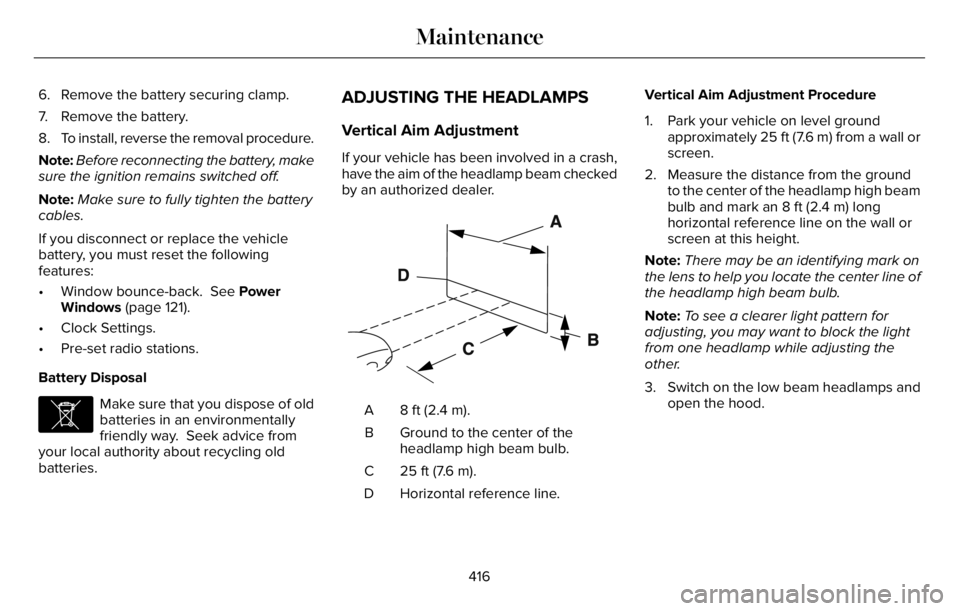
E142592
8 ft (2.4 m). A
Ground to the center of the
headlamp high beam bulb. B
25 ft (7.6 m). C
Horizontal reference line. DVertical Aim Adjustment Procedure
1. Park your vehicle on level ground
approximately 25 ft (7.6 m) from a wall or
screen.
2. Measure the distance from the ground
to the center of the headlamp high beam
bulb and mark an 8 ft (2.4 m) long
horizontal reference line on the wall or
screen at this height.
Note:There may be an identifying mark on
the lens to help you locate the center line of
the headlamp high beam bulb.
Note:To see a clearer light pattern for
adjusting, you may want to block the light
from one headlamp while adjusting the
other.
3. Switch on the low beam headlamps and
open the hood.
416
Maintenance
Page 431 of 681
Body
• Wash your vehicle thoroughly to remove
dirt, grease, oil, tar or mud from exterior
surfaces, rear-wheel housing and the
underside of front fenders.
• Periodically wash your vehicle if it is
stored in exposed locations.
• Touch-up exposed or primed metal to
prevent rust.
• Cover chrome and stainless steel parts
with a thick coat of auto wax to prevent
discoloration. Re-wax as necessary when
you wash your vehicle.
• Lubricate all hood, door and luggage
compartment hinges and latches with a
light grade oil.
• Cover interior trim to prevent fading.
• Keep all rubber parts free from oil and
solvents.
Engine
• Change the engine oil and filter prior to
storage because used engine oil contains
contaminates which may cause engine
damage.
• Start the engine every 15 days for a
minimum of 15 minutes. Run at fast idle
with the climate controls set to defrost
until the engine reaches normal
operating temperature.
• With your foot on the brake, shift through
all the gears while the engine is running.
• We recommend that you change the
engine oil before you use your vehicle
again.
Fuel system
• Fill the fuel tank with high-quality fuel
until the first automatic shutoff of the fuel
pump nozzle.
Cooling system
• Protect against freezing temperatures.
• When removing your vehicle from
storage, check coolant fluid level.
Confirm that there are no cooling system
leaks and that fluid is at the
recommended level.
Disconnecting Your 12 Volt Battery
• Check and recharge as necessary. Keep
connections clean.
• If storing your vehicle for more than 30
days without recharging the battery, we
recommend that you disconnect the
battery cables to maintain battery charge
for quick starting.
Note:It is necessary to reset memory
features if you disconnect the battery cables.
428
Vehicle Care
Page 447 of 681
Tire Rotation
WARNING: If the tire label shows
different tire pressures for the front
and rear tires and the vehicle has a
tire pressure monitoring system, then
you need to update the settings for
the system sensors. Always perform
the system reset procedure after tire
rotation. If you do not reset the system,
it may not provide a low tire pressure
warning when necessary.
Note:If your tires show uneven wear,
ask an authorized dealer to check for
and correct any wheel misalignment,
tire imbalance or mechanical problem
involved before tire rotation.Note:Your vehicle may be equipped
with a dissimilar spare wheel and tire
assembly. A dissimilar spare wheel and
tire assembly is defined as a spare
wheel and tire assembly that is different
in brand, size or appearance from the
road tires and wheels. If you have a
dissimilar spare wheel and tire
assembly, it is intended for temporary
use only and should not be used in a
tire rotation.
Note:After having your tires rotated,
inflation pressure must be checked and
adjusted to the vehicle requirements.
Rotating your tires at the recommended
interval will help your tires wear more
evenly, providing better tire performance
and longer tire life. Sometimes irregular
tire wear can be corrected by rotating
the tires. See Scheduled Maintenance
(page 579).
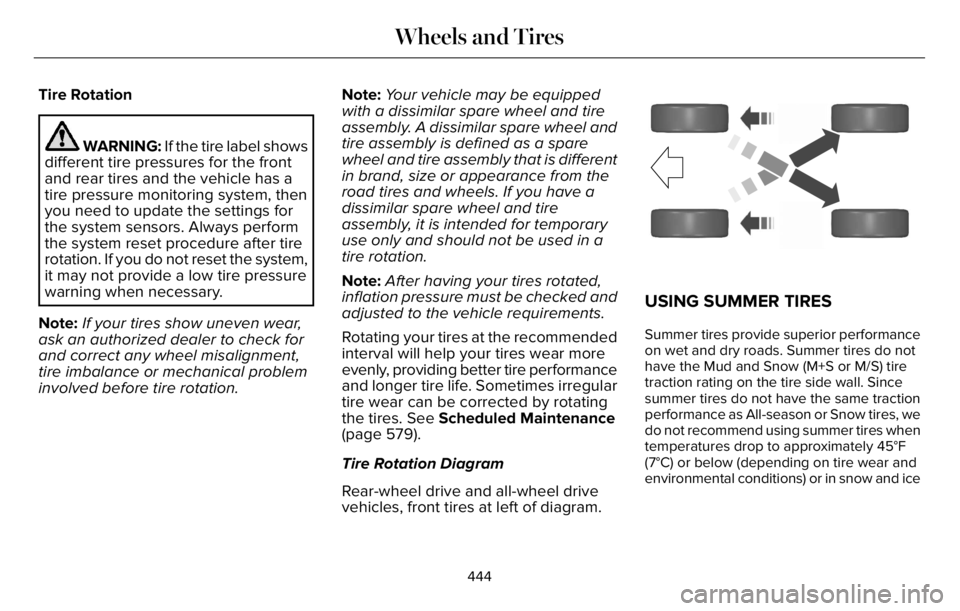
Tire Rotation Diagram
Rear-wheel drive and all-wheel drive
vehicles, front tires at left of diagram.
E142548
USING SUMMER TIRES
Summer tires provide superior performance
on wet and dry roads. Summer tires do not
have the Mud and Snow (M+S or M/S) tire
traction rating on the tire side wall. Since
summer tires do not have the same traction
performance as All-season or Snow tires, we
do not recommend using summer tires when
temperatures drop to approximately 45°F
(7°C) or below (depending on tire wear and
environmental conditions) or in snow and ice
444
Wheels and Tires
Page 497 of 681
CREATING A VEHICLE WI-FI
HOTSPOT
You can create a Wi-Fi hotspot in your
vehicle and allow devices to connect to it for
access to the Internet.
E280315
Select the settings option on the
feature bar.
1. Press Lincoln Connect.
2. Press Vehicle Hotspot.
Note:The vehicle hotspot default setting is
on.
3. Press Settings.
4. Press Wi-Fi visibility.
Note:The Wi-Fi Visibility default setting is
on.
Finding the Wi-Fi Hotspot Name and
Password
E280315
Select the settings option on the
feature bar.
1. Press Lincoln Connect.2. Press Vehicle Hotspot.
3. Press Settings.
Note:The SSID is the hotspot name.
4. Press View Password.
Connecting a Device to the Wi-Fi
Hotspot
1. On your device, switch Wi-Fi on and
select the hotspot from the list of
available Wi-Fi networks.
2. When prompted, enter the password.
Purchasing a Data Plan
1. Connect a device to the hotspot.
Note:The vehicle network carrier’s portal
opens on your device.
2. If the portal does not open on your
device, open a website and it redirects
to the vehicle network carrier’s portal.
Note:Secure websites do not redirect.
3. Follow the instructions on the carrier
portal to purchase a plan.Note:If you have an active plan, the system
does not redirect to the vehicle network
carrier’s portal when you connect a device.
Visit the vehicle network carrier’s website to
purchase more data.
Note:If data usage information is available
in the vehicle hotspot menu, it is
approximate.
Note:If you carry out a master reset, the
system does not remove your vehicle from
your vehicle network carrier’s account. To
remove your vehicle from the account,
contact your vehicle network carrier.
Note:The vehicle network carrier provides
Vehicle Hotspot services, subject to your
vehicle network carrier agreement, coverage
and availability.
CHANGING THE VEHICLE WI-FI
HOTSPOT NAME OR PASSWORD
E280315
Select the settings option on the
feature bar.
1. Press Lincoln Connect.
494
Vehicle Wi-Fi Hotspot
Page 501 of 681
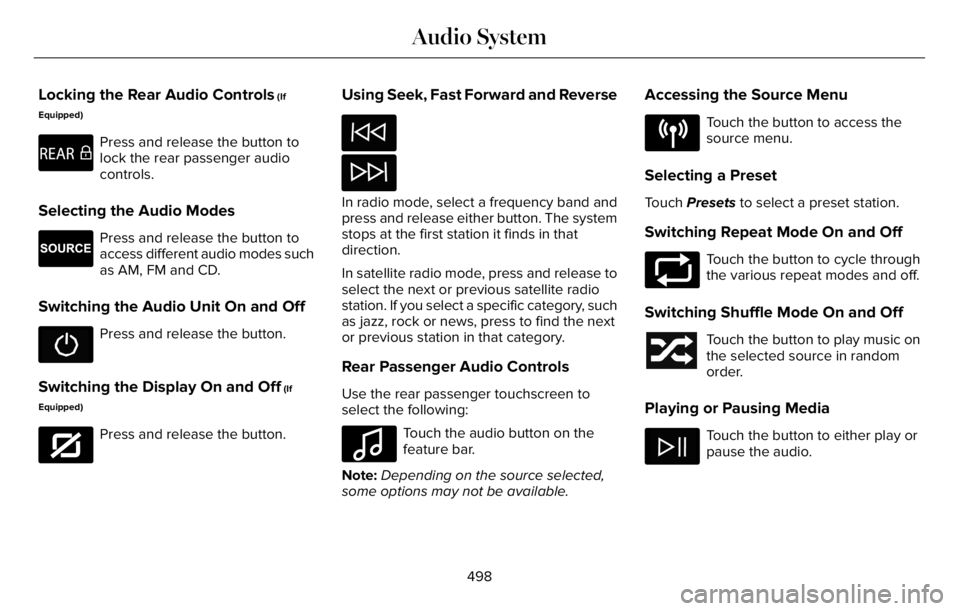
Locking the Rear Audio Controls (If
Equipped)
E270448
Press and release the button to
lock the rear passenger audio
controls.
Selecting the Audio Modes
E265276
Press and release the button to
access different audio modes such
as AM, FM and CD.
Switching the Audio Unit On and Off
Press and release the button.
Switching the Display On and Off (If
Equipped)
E272035
Press and release the button.
Using Seek, Fast Forward and Reverse
In radio mode, select a frequency band and
press and release either button. The system
stops at the first station it finds in that
direction.
In satellite radio mode, press and release to
select the next or previous satellite radio
station. If you select a specific category, such
as jazz, rock or news, press to find the next
or previous station in that category.
Rear Passenger Audio Controls
Use the rear passenger touchscreen to
select the following:
E100027
Touch the audio button on the
feature bar.
Note:Depending on the source selected,
some options may not be available.
Accessing the Source Menu
E287123
Touch the button to access the
source menu.
Selecting a Preset
Touch Presets to select a preset station.
Switching Repeat Mode On and Off
E287125
Touch the button to cycle through
the various repeat modes and off.
Switching Shuffle Mode On and Off
Touch the button to play music on
the selected source in random
order.
Playing or Pausing Media
Touch the button to either play or
pause the audio.
498
Audio System
Page 502 of 681
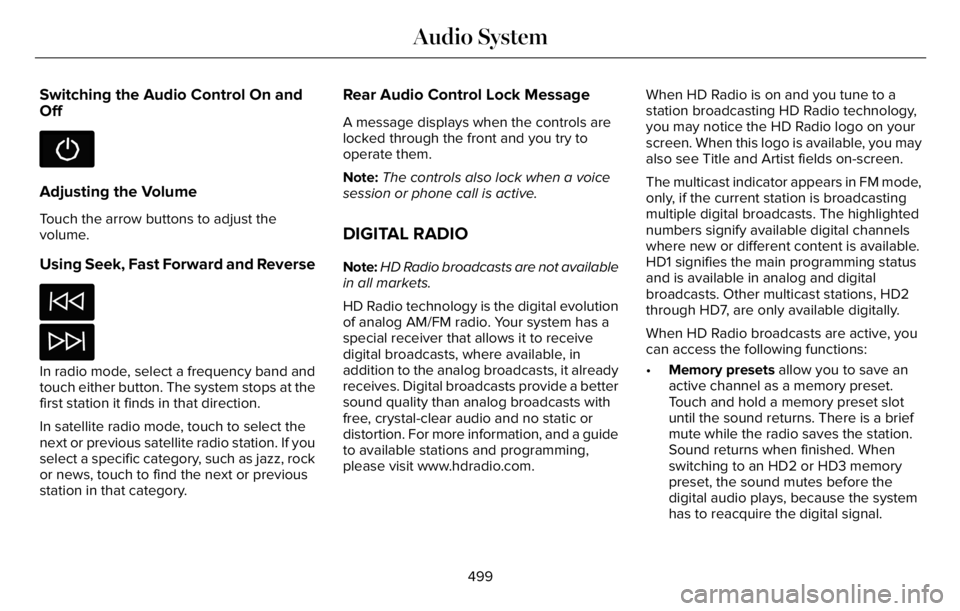
Switching the Audio Control On and
Off
Adjusting the Volume
Touch the arrow buttons to adjust the
volume.
Using Seek, Fast Forward and Reverse
In radio mode, select a frequency band and
touch either button. The system stops at the
first station it finds in that direction.
In satellite radio mode, touch to select the
next or previous satellite radio station. If you
select a specific category, such as jazz, rock
or news, touch to find the next or previous
station in that category.
Rear Audio Control Lock Message
A message displays when the controls are
locked through the front and you try to
operate them.
Note:The controls also lock when a voice
session or phone call is active.
DIGITAL RADIO
Note:HD Radio broadcasts are not available
in all markets.
HD Radio technology is the digital evolution
of analog AM/FM radio. Your system has a
special receiver that allows it to receive
digital broadcasts, where available, in
addition to the analog broadcasts, it already
receives. Digital broadcasts provide a better
sound quality than analog broadcasts with
free, crystal-clear audio and no static or
distortion. For more information, and a guide
to available stations and programming,
please visit www.hdradio.com.When HD Radio is on and you tune to a
station broadcasting HD Radio technology,
you may notice the HD Radio logo on your
screen. When this logo is available, you may
also see Title and Artist fields on-screen.
The multicast indicator appears in FM mode,
only, if the current station is broadcasting
multiple digital broadcasts. The highlighted
numbers signify available digital channels
where new or different content is available.
HD1 signifies the main programming status
and is available in analog and digital
broadcasts. Other multicast stations, HD2
through HD7, are only available digitally.
When HD Radio broadcasts are active, you
can access the following functions:
•Memory presets allow you to save an
active channel as a memory preset.
Touch and hold a memory preset slot
until the sound returns. There is a brief
mute while the radio saves the station.
Sound returns when finished. When
switching to an HD2 or HD3 memory
preset, the sound mutes before the
digital audio plays, because the system
has to reacquire the digital signal.
499
Audio System
Page 504 of 681
In order to provide the best possible
experience, use the contact form to report
any station issues found while listening to a
station broadcasting with HD Radiotechnology. Independent entities own and
operate each station. These stations are
responsible for the accuracy of all audio
streams and data fields.
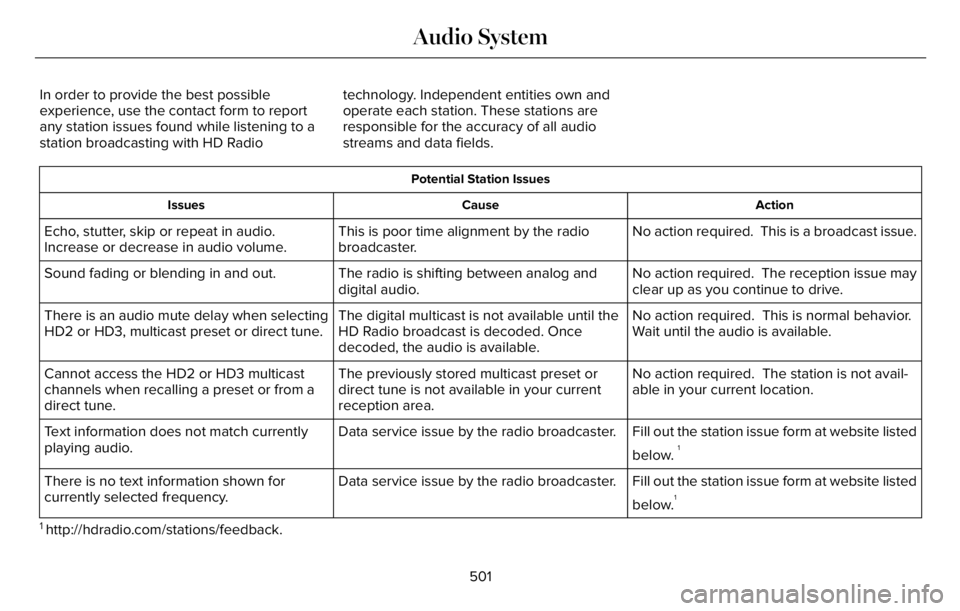
Potential Station Issues
Action Cause Issues
No action required. This is a broadcast issue. This is poor time alignment by the radio
broadcaster. Echo, stutter, skip or repeat in audio.
Increase or decrease in audio volume.
No action required. The reception issue may
clear up as you continue to drive. The radio is shifting between analog and
digital audio. Sound fading or blending in and out.
No action required. This is normal behavior.
Wait until the audio is available. The digital multicast is not available until the
HD Radio broadcast is decoded. Once
decoded, the audio is available. There is an audio mute delay when selecting
HD2 or HD3, multicast preset or direct tune.
No action required. The station is not avail-
able in your current location. The previously stored multicast preset or
direct tune is not available in your current
reception area. Cannot access the HD2 or HD3 multicast
channels when recalling a preset or from a
direct tune.
Fill out the station issue form at website listed
below.
1Data service issue by the radio broadcaster. Text information does not match currently
playing audio.
Fill out the station issue form at website listed
below.
1Data service issue by the radio broadcaster. There is no text information shown for
currently selected frequency.
1 http://hdradio.com/stations/feedback.
501
Audio System
Page 507 of 681
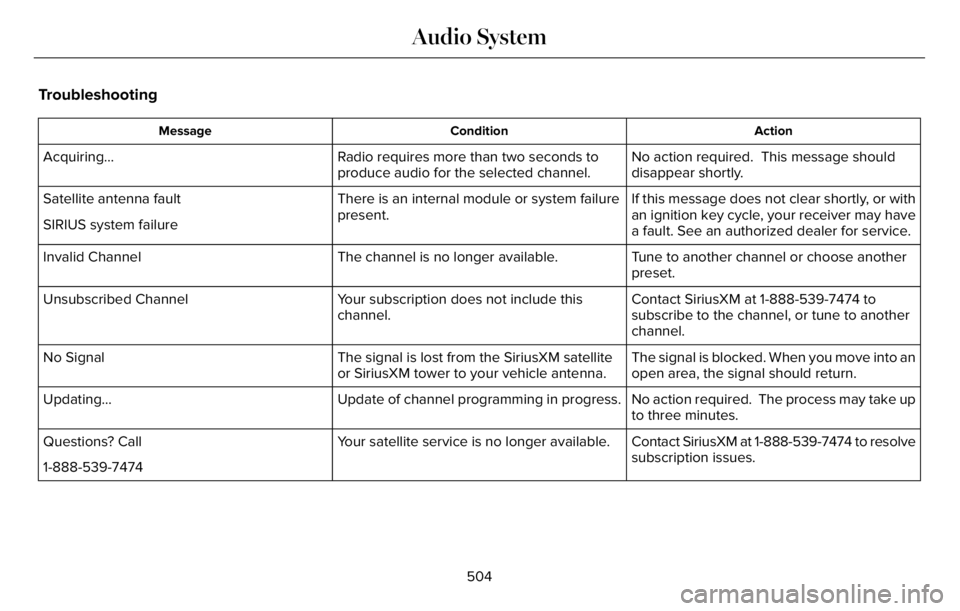
Troubleshooting
Action Condition Message
No action required. This message should
disappear shortly. Radio requires more than two seconds to
produce audio for the selected channel. Acquiring…
If this message does not clear shortly, or with
an ignition key cycle, your receiver may have
a fault. See an authorized dealer for service. There is an internal module or system failure
present. Satellite antenna fault
SIRIUS system failure
Tune to another channel or choose another
preset. The channel is no longer available. Invalid Channel
Contact SiriusXM at 1-888-539-7474 to
subscribe to the channel, or tune to another
channel. Your subscription does not include this
channel. Unsubscribed Channel
The signal is blocked. When you move into an
open area, the signal should return. The signal is lost from the SiriusXM satellite
or SiriusXM tower to your vehicle antenna. No Signal
No action required. The process may take up
to three minutes. Update of channel programming in progress. Updating…
Contact SiriusXM at 1-888-539-7474 to resolve
subscription issues. Your satellite service is no longer available. Questions? Call
1-888-539-7474
504
Audio System
Page 524 of 681
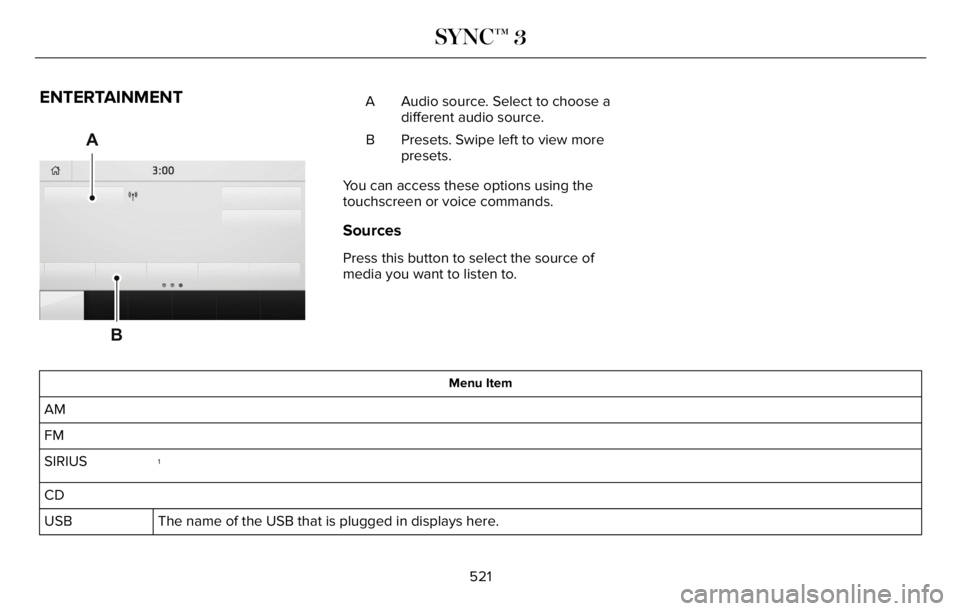
ENTERTAINMENT
A
B93 9E293491
Audio source. Select to choose a
different audio source. A
Presets. Swipe left to view more
presets. B
You can access these options using the
touchscreen or voice commands.
Sources
Press this button to select the source of
media you want to listen to.
Menu Item
AM
FM
1SIRIUS
CD
The name of the USB that is plugged in displays here. USB
521
SYNC™ 3
Page 525 of 681
Menu Item
Bluetooth Stereo
If you have SYNC 3 compatible apps on your connected smart phone, they display here as individual source selections. Apps
1 This feature may not be available in all markets and requires an active subscription.
AM/FM Radio
Tuning a Station
You can use the tune or seek controls on the
radio bezel to select a station.
To tune a station using the touchscreen,
select:
Menu Item
Direct Tune
A pop up appears, allowing you to type in
the frequency of a station. You can only enter
a valid station for the source you are
currently listening to.
You can press the backspace button to
delete the previously entered number.Once you have entered the station's call
numbers, you can select:
Action and Descrip-
tion Menu Item
Press to begin
playing the station
you have entered. Enter
Press to exit without
changing the station. Cancel
Presets
To set a new preset, tune to the station and
then press and hold one of the memory
preset buttons. The audio mutes briefly while
the system saves the station and then
returns.You may be able to add additional preset
pages using the settings option on the
feature bar.
SiriusXM® Satellite Radio (If Activated)
Note: This feature may not be available in
all markets and requires an active
subscription.
E234451
522
SYNC™ 3