reset LINCOLN AVIATOR 2023 Workshop Manual
[x] Cancel search | Manufacturer: LINCOLN, Model Year: 2023, Model line: AVIATOR, Model: LINCOLN AVIATOR 2023Pages: 681, PDF Size: 9.33 MB
Page 527 of 681
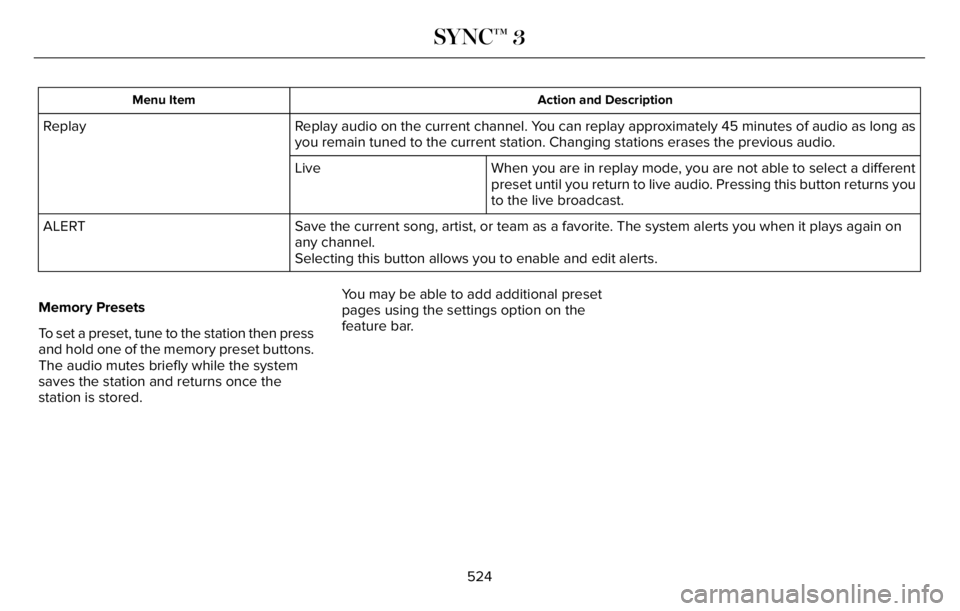
Action and Description Menu Item
Replay audio on the current channel. You can replay approximately 45 minutes of audio as long as
you remain tuned to the current station. Changing stations erases the previous audio. Replay
When you are in replay mode, you are not able to select a different
preset until you return to live audio. Pressing this button returns you
to the live broadcast. Live
Save the current song, artist, or team as a favorite. The system alerts you when it plays again on
any channel. ALERT
Selecting this button allows you to enable and edit alerts.
Memory Presets
To set a preset, tune to the station then press
and hold one of the memory preset buttons.
The audio mutes briefly while the system
saves the station and returns once the
station is stored.You may be able to add additional preset
pages using the settings option on the
feature bar.
524
SYNC™ 3
Page 528 of 681
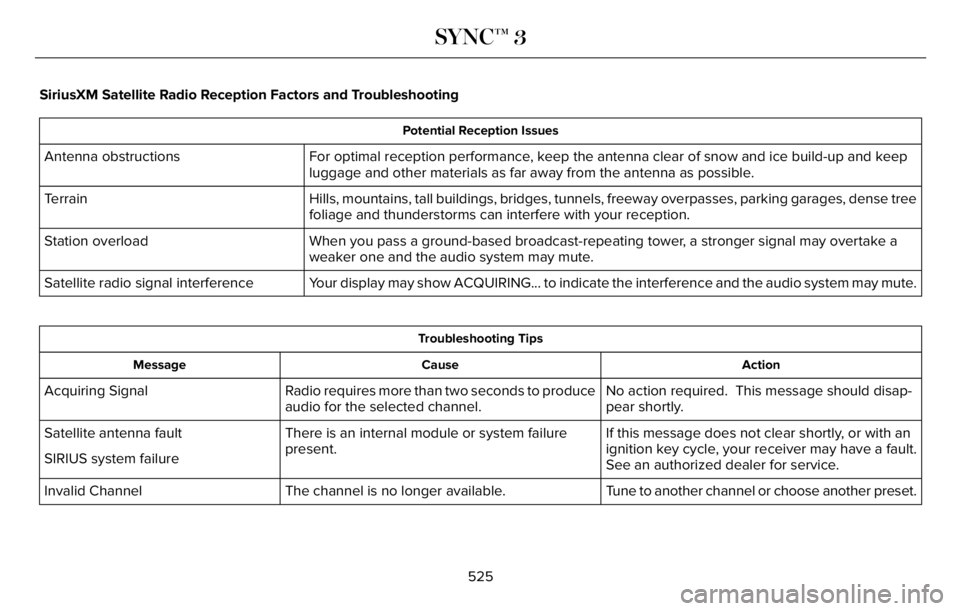
SiriusXM Satellite Radio Reception Factors and Troubleshooting
Potential Reception Issues
For optimal reception performance, keep the antenna clear of snow and ice build-up and keep
luggage and other materials as far away from the antenna as possible. Antenna obstructions
Hills, mountains, tall buildings, bridges, tunnels, freeway overpasses, parking garages, dense tree
foliage and thunderstorms can interfere with your reception. Terrain
When you pass a ground-based broadcast-repeating tower, a stronger signal may overtake a
weaker one and the audio system may mute. Station overload
Your display may show ACQUIRING... to indicate the interference and the audio system may mute. Satellite radio signal interference
Troubleshooting Tips
Action Cause Message
No action required. This message should disap-
pear shortly. Radio requires more than two seconds to produce
audio for the selected channel. Acquiring Signal
If this message does not clear shortly, or with an
ignition key cycle, your receiver may have a fault.
See an authorized dealer for service. There is an internal module or system failure
present. Satellite antenna fault
SIRIUS system failure
Tune to another channel or choose another preset. The channel is no longer available. Invalid Channel
525
SYNC™ 3
Page 531 of 681
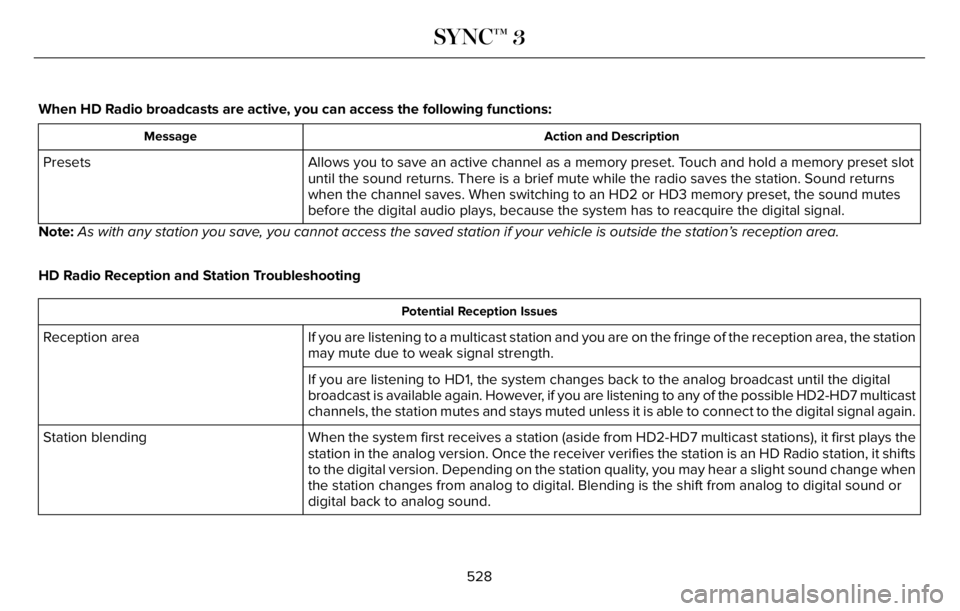
When HD Radio broadcasts are active, you can access the following functions:
Action and Description Message
Allows you to save an active channel as a memory preset. Touch and hold a memory preset slot
until the sound returns. There is a brief mute while the radio saves the station. Sound returns
when the channel saves. When switching to an HD2 or HD3 memory preset, the sound mutes
before the digital audio plays, because the system has to reacquire the digital signal. Presets
Note:As with any station you save, you cannot access the saved station if your vehicle is outside the station’s reception area.
HD Radio Reception and Station Troubleshooting
Potential Reception Issues
If you are listening to a multicast station and you are on the fringe of the reception area, the station
may mute due to weak signal strength. Reception area
If you are listening to HD1, the system changes back to the analog broadcast until the digital
broadcast is available again. However, if you are listening to any of the possible HD2-HD7 multicast
channels, the station mutes and stays muted unless it is able to connect to the digital signal again.
When the system first receives a station (aside from HD2-HD7 multicast stations), it first plays the
station in the analog version. Once the receiver verifies the station is an HD Radio station, it shifts
to the digital version. Depending on the station quality, you may hear a slight sound change when
the station changes from analog to digital. Blending is the shift from analog to digital sound or
digital back to analog sound. Station blending
528
SYNC™ 3
Page 532 of 681
In order to provide the best possible
experience, use the contact form to report
any station issues found while listening to a
station broadcasting with HD Radiotechnology. Independent entities own and
operate each station. These stations are
responsible for ensuring all audio streams
and data fields are accurate.
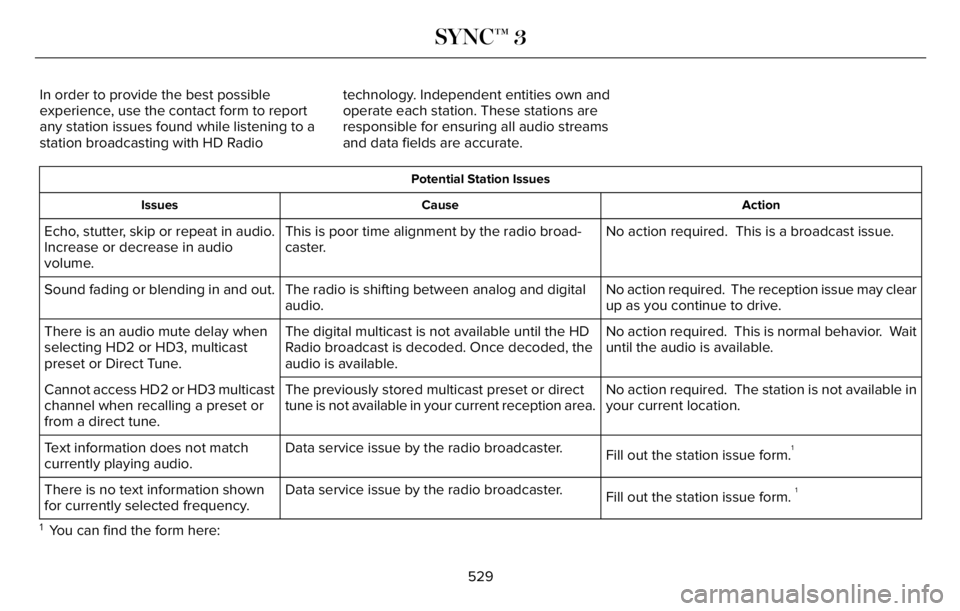
Potential Station Issues
Action Cause Issues
No action required. This is a broadcast issue. This is poor time alignment by the radio broad-
caster. Echo, stutter, skip or repeat in audio.
Increase or decrease in audio
volume.
No action required. The reception issue may clear
up as you continue to drive. The radio is shifting between analog and digital
audio. Sound fading or blending in and out.
No action required. This is normal behavior. Wait
until the audio is available. The digital multicast is not available until the HD
Radio broadcast is decoded. Once decoded, the
audio is available. There is an audio mute delay when
selecting HD2 or HD3, multicast
preset or Direct Tune.
No action required. The station is not available in
your current location. The previously stored multicast preset or direct
tune is not available in your current reception area. Cannot access HD2 or HD3 multicast
channel when recalling a preset or
from a direct tune.
Fill out the station issue form.
1Data service issue by the radio broadcaster. Text information does not match
currently playing audio.
Fill out the station issue form.
1Data service issue by the radio broadcaster. There is no text information shown
for currently selected frequency.
1 You can find the form here:
529
SYNC™ 3
Page 559 of 681
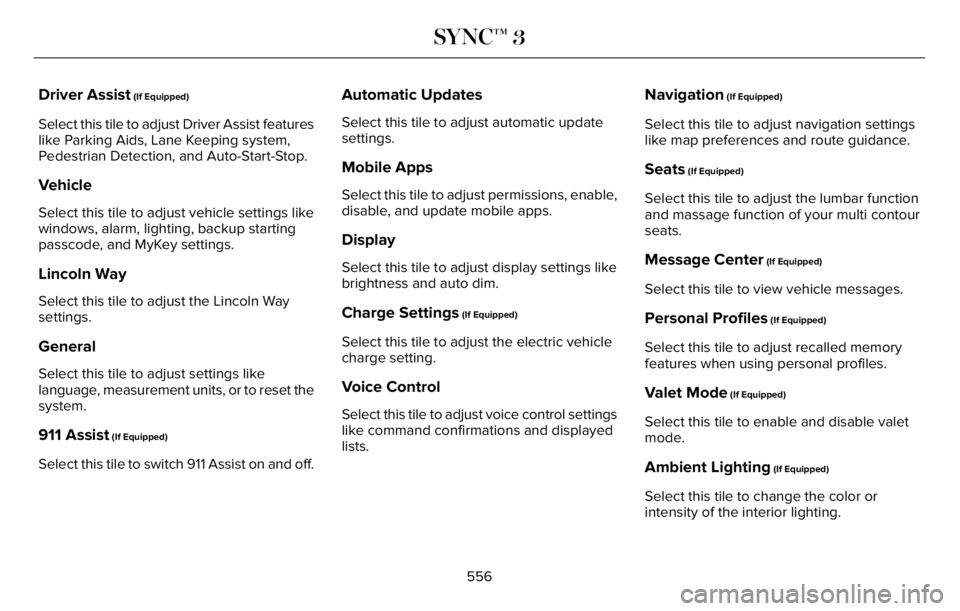
Driver Assist (If Equipped)
Select this tile to adjust Driver Assist features
like Parking Aids, Lane Keeping system,
Pedestrian Detection, and Auto-Start-Stop.
Vehicle
Select this tile to adjust vehicle settings like
windows, alarm, lighting, backup starting
passcode, and MyKey settings.
Lincoln Way
Select this tile to adjust the Lincoln Way
settings.
General
Select this tile to adjust settings like
language, measurement units, or to reset the
system.
911 Assist (If Equipped)
Select this tile to switch 911 Assist on and off.
Automatic Updates
Select this tile to adjust automatic update
settings.
Mobile Apps
Select this tile to adjust permissions, enable,
disable, and update mobile apps.
Display
Select this tile to adjust display settings like
brightness and auto dim.
Charge Settings (If Equipped)
Select this tile to adjust the electric vehicle
charge setting.
Voice Control
Select this tile to adjust voice control settings
like command confirmations and displayed
lists.
Navigation (If Equipped)
Select this tile to adjust navigation settings
like map preferences and route guidance.
Seats (If Equipped)
Select this tile to adjust the lumbar function
and massage function of your multi contour
seats.
Message Center (If Equipped)
Select this tile to view vehicle messages.
Personal Profiles (If Equipped)
Select this tile to adjust recalled memory
features when using personal profiles.
Valet Mode (If Equipped)
Select this tile to enable and disable valet
mode.
Ambient Lighting (If Equipped)
Select this tile to change the color or
intensity of the interior lighting.
556
SYNC™ 3
Page 562 of 681
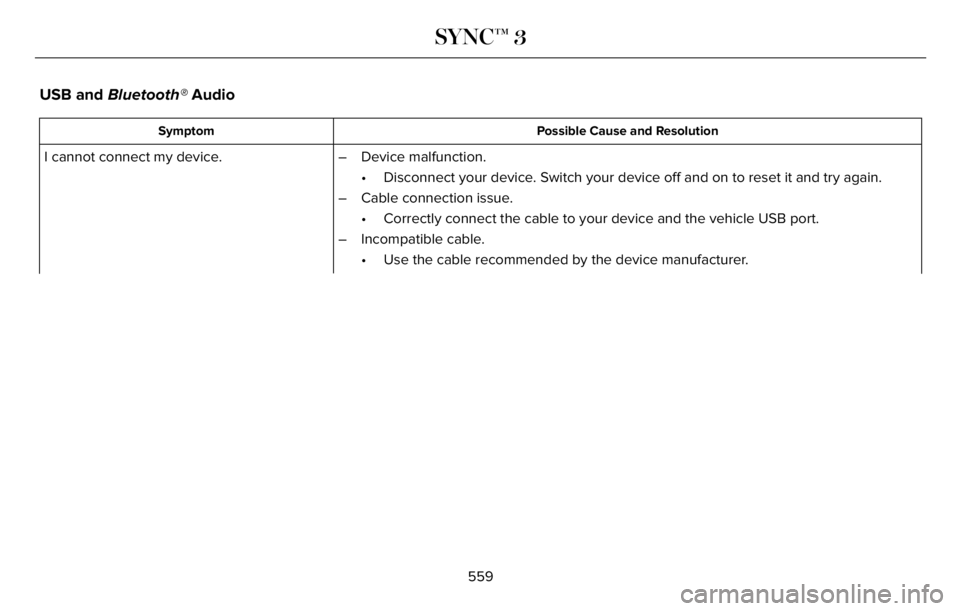
USB and Bluetooth® Audio
Possible Cause and Resolution Symptom
I cannot connect my device. – Device malfunction.
• Disconnect your device. Switch your device off and on to reset it and try again.
– Cable connection issue.
• Correctly connect the cable to your device and the vehicle USB port.
– Incompatible cable.
• Use the cable recommended by the device manufacturer.
559
SYNC™ 3
Page 565 of 681
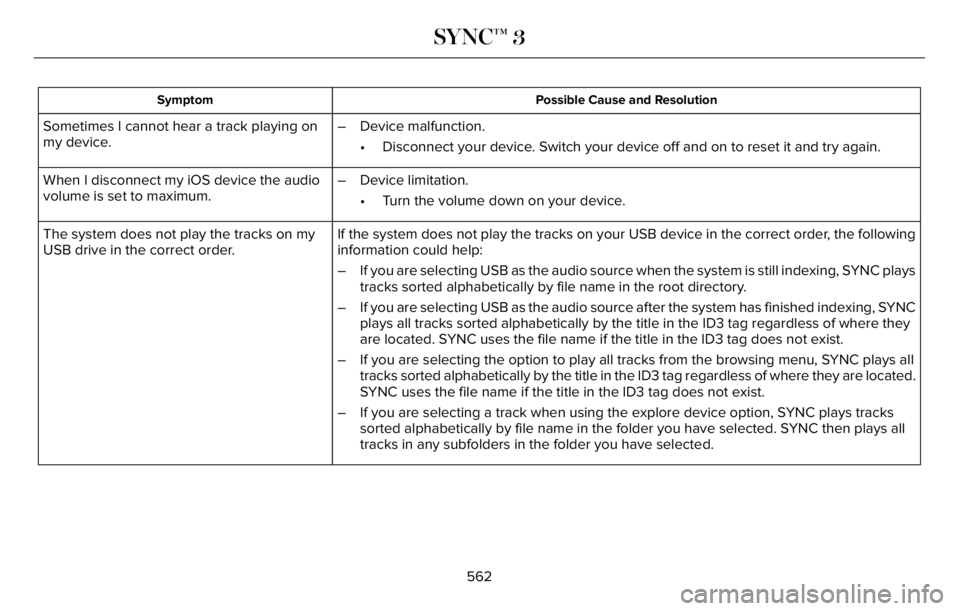
Possible Cause and Resolution Symptom
Sometimes I cannot hear a track playing on
my device.– Device malfunction.
• Disconnect your device. Switch your device off and on to reset it and try again.
When I disconnect my iOS device the audio
volume is set to maximum.– Device limitation.
• Turn the volume down on your device.
If the system does not play the tracks on your USB device in the correct order, the following
information could help: The system does not play the tracks on my
USB drive in the correct order.
– If you are selecting USB as the audio source when the system is still indexing, SYNC plays
tracks sorted alphabetically by file name in the root directory.
– If you are selecting USB as the audio source after the system has finished indexing, SYNC
plays all tracks sorted alphabetically by the title in the ID3 tag regardless of where they
are located. SYNC uses the file name if the title in the ID3 tag does not exist.
– If you are selecting the option to play all tracks from the browsing menu, SYNC plays all
tracks sorted alphabetically by the title in the ID3 tag regardless of where they are located.
SYNC uses the file name if the title in the ID3 tag does not exist.
– If you are selecting a track when using the explore device option, SYNC plays tracks
sorted alphabetically by file name in the folder you have selected. SYNC then plays all
tracks in any subfolders in the folder you have selected.
562
SYNC™ 3
Page 567 of 681
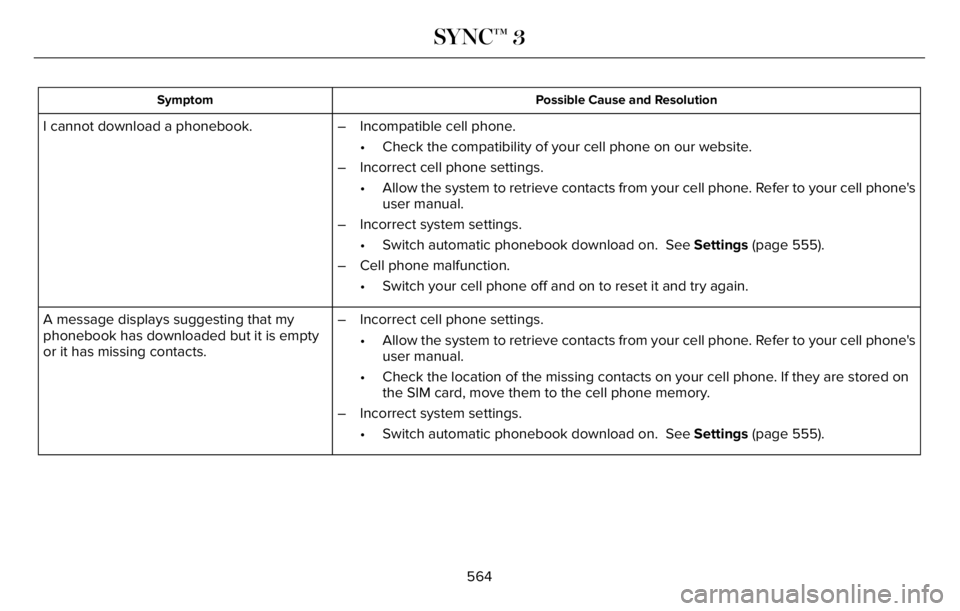
Possible Cause and Resolution Symptom
I cannot download a phonebook. – Incompatible cell phone.
• Check the compatibility of your cell phone on our website.
– Incorrect cell phone settings.
• Allow the system to retrieve contacts from your cell phone. Refer to your cell phone's
user manual.
– Incorrect system settings.
• Switch automatic phonebook download on. See Settings (page 555).
– Cell phone malfunction.
• Switch your cell phone off and on to reset it and try again.
– Incorrect cell phone settings.
• Allow the system to retrieve contacts from your cell phone. Refer to your cell phone's
user manual.
• Check the location of the missing contacts on your cell phone. If they are stored on
the SIM card, move them to the cell phone memory.
– Incorrect system settings.
• Switch automatic phonebook download on. See Settings (page 555). A message displays suggesting that my
phonebook has downloaded but it is empty
or it has missing contacts.
564
SYNC™ 3
Page 568 of 681
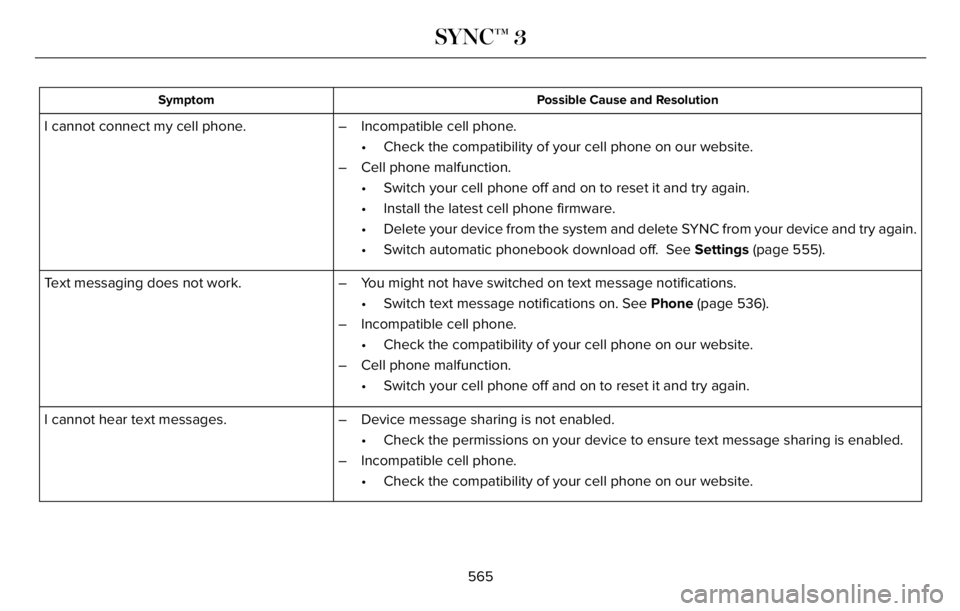
Possible Cause and Resolution Symptom
– Incompatible cell phone.
• Check the compatibility of your cell phone on our website.
– Cell phone malfunction.
• Switch your cell phone off and on to reset it and try again.
• Install the latest cell phone firmware.
• Delete your device from the system and delete SYNC from your device and try again.
• Switch automatic phonebook download off. See Settings (page 555). I cannot connect my cell phone.
Text messaging does not work. – You might not have switched on text message notifications.
• Switch text message notifications on. See Phone (page 536).
– Incompatible cell phone.
• Check the compatibility of your cell phone on our website.
– Cell phone malfunction.
• Switch your cell phone off and on to reset it and try again.
– Device message sharing is not enabled.
• Check the permissions on your device to ensure text message sharing is enabled.
– Incompatible cell phone.
• Check the compatibility of your cell phone on our website. I cannot hear text messages.
565
SYNC™ 3
Page 575 of 681
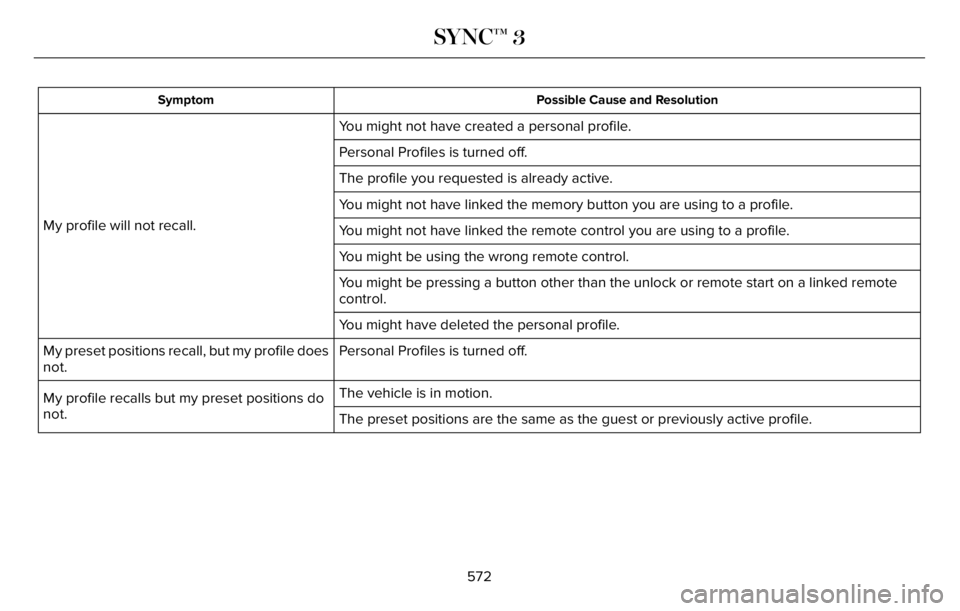
Possible Cause and Resolution Symptom
You might not have created a personal profile.
My profile will not recall.Personal Profiles is turned off.
The profile you requested is already active.
You might not have linked the memory button you are using to a profile.
You might not have linked the remote control you are using to a profile.
You might be using the wrong remote control.
You might be pressing a button other than the unlock or remote start on a linked remote
control.
You might have deleted the personal profile.
Personal Profiles is turned off. My preset positions recall, but my profile does
not.
The vehicle is in motion.
My profile recalls but my preset positions do
not.
The preset positions are the same as the guest or previously active profile.
572
SYNC™ 3