lock LINCOLN CORSAIR 2020 Owners Manual
[x] Cancel search | Manufacturer: LINCOLN, Model Year: 2020, Model line: CORSAIR, Model: LINCOLN CORSAIR 2020Pages: 591, PDF Size: 6 MB
Page 412 of 591
Materials
Specification
Name
WSS-M6C65-A2
Motorcraft® DOT 4 LV High Performance Motor Vehicle Brake Fluid (U.S.)
Motorcraft® DOT 4 LV High Performance Motor Vehicle Brake Fluid / Liquide de
frein automobile haute performance DOT 4 LV Motorcraft® (Canada)
PM-20 (U.S. & Canada)
Note: We recommend using DOT 4 Low
Viscosity (LV) High Performance Brake Fluid
or equivalent meeting WSS-M6C65-A2. Use
of any fluid other than the recommended
fluid may cause reduced brake performance
and not meet our performance standards.
Keep brake fluid clean and dry.
Contamination with dirt, water, petroleum
products or other materials may result in
brake system damage and possible failure. Locks
Materials Specification
Name
-
Motorcraft® Penetrating and Lock Lubricant (U.S.)
Motorcraft® Penetrating Fluid / Liquide dégrippant Motorcraft® (Canada)
XL-1 (U.S.)
CXC-51-A (Canada)
409
Corsair (CTF) Canada/United States of America, enUSA, Edition date: 201906, Second-Printing Capacities and Specifications
Page 417 of 591
CONNECTING THE VEHICLE TO A
MOBILE NETWORK
What Is the Modem
The modem allows you to connect your
vehicle to the Internet to use when you are
on the road.
If you enable the modem using the Lincoln
Way app, you can access the following
services:
•
Locating and remotely starting, locking
and unlocking your vehicle. See the
information in the Lincoln Way app.
• Automatic system updates. Note:
We may need to update operating
system software on your vehicle to keep
connected services updated without prior
notice to you.
Enabling the Modem Using The Lincoln
Way
1. Open the Lincoln Way app on your device and log in.
2. Select your vehicle.
3. Select the option for vehicle details.
4. Select the option to activate your vehicle.
5. Switch the ignition on. 6. Make sure that the name on the screen
matches the name shown in your Lincoln
Way account.
7. Confirm the association of your vehicle with your Lincoln Way account.
Enabling the Modem Using the
Touchscreen Select the settings option on the
feature bar.
1. Select Lincoln Connect .
2. Select
Connectivity Settings.
3. Switch connectivity features on.
414
Corsair (CTF) Canada/United States of America, enUSA, Edition date: 201906, Second-Printing Network ConnectivityE280315
Page 430 of 591

Troubleshooting
Action
Condition
Message
No action required. This message should
disappear shortly.
Radio requires more than two seconds to
produce audio for the selected channel.
Acquiring…
If this message does not clear shortly, or with
an ignition key cycle, your receiver may have
a fault. See an authorized dealer for service.
There is an internal module or system failure
present.
Satellite antenna fault
SIRIUS system failure
Tune to another channel or choose another
preset.
The channel is no longer available.
Invalid Channel
Contact SiriusXM at 1-888-539-7474 to
subscribe to the channel, or tune to another
channel.
Your subscription does not include this
channel.
Unsubscribed Channel
The signal is blocked. When you move into an
open area, the signal should return.
The signal is lost from the SiriusXM satellite
or SiriusXM tower to your vehicle antenna.
No Signal
No action required. The process may take up
to three minutes.
Update of channel programming in progress.
Updating…
Contact SiriusXM at 1-888-539-7474 to resolve
subscription issues.
Your satellite service is no longer available.
Questions? Call
1-888-539-7474
427
Corsair (CTF) Canada/United States of America, enUSA, Edition date: 201906, Second-Printing Audio System
Page 431 of 591
Action
Condition
Message
Use the channel guide to turn off the Lock or
Skip function on that station.
All the channels in the selected category are
either skipped or locked.
None found
Check Channel Guide
No action required.
SiriusXM has updated the channels available
for your vehicle.
Subscription Updated
USB PORT WARNING: Driving while distracted
can result in loss of vehicle control, crash
and injury. We strongly recommend that
you use extreme caution when using any
device that may take your focus off the
road. Your primary responsibility is the safe
operation of your vehicle. We recommend
against the use of any hand-held device
while driving and encourage the use of
voice-operated systems when possible.
Make sure you are aware of all applicable
local laws that may affect the use of
electronic devices while driving. USB A USB C
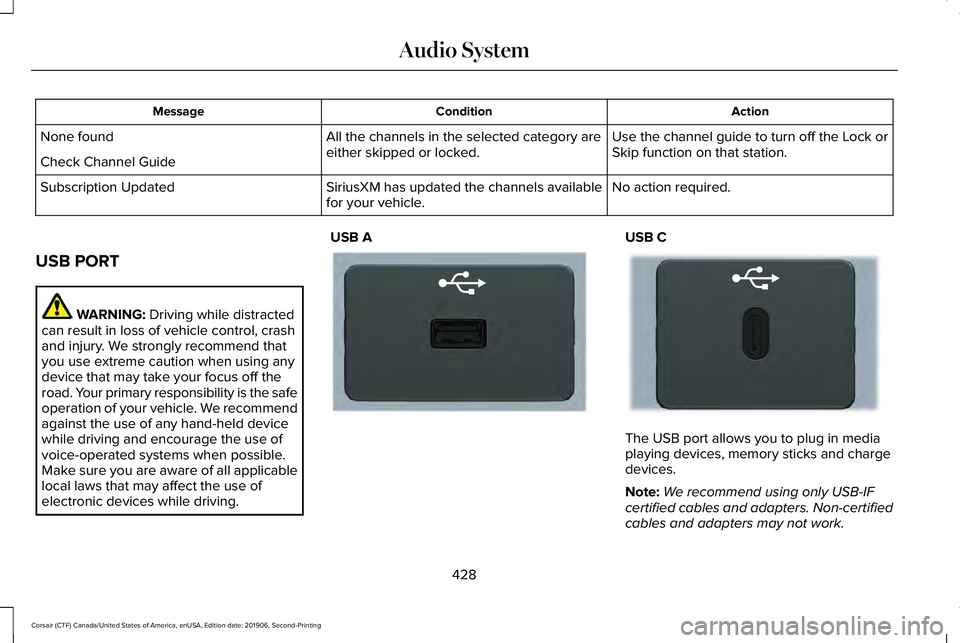
The USB port allows you to plug in media
playing devices, memory sticks and charge
devices.
Note:
We recommend using only USB-IF
certified cables and adapters. Non-certified
cables and adapters may not work.
428
Corsair (CTF) Canada/United States of America, enUSA, Edition date: 201906, Second-Printing Audio SystemE201595 E301114
Page 433 of 591
GENERAL INFORMATION
WARNING: Driving while distracted
can result in loss of vehicle control, crash
and injury. We strongly recommend that
you use extreme caution when using any
device that may take your focus off the
road. Your primary responsibility is the safe
operation of your vehicle. We recommend
against the use of any hand-held device
while driving and encourage the use of
voice-operated systems when possible.
Make sure you are aware of all applicable
local laws that may affect the use of
electronic devices while driving.
About SYNC
The system allows you to interact with the
entertainment, information and
communication systems on your vehicle
using voice commands and a touchscreen.
The system provides easy interaction with
audio, phone, navigation, mobile apps and
settings. Note:
You can switch the system on and use
it for up to an hour without switching the
ignition on.
Note: You can use the system after you
switch the ignition off for up to 10 minutes or
until you open a door.
Note: For your safety, some features are
speed-dependent. Their use is limited to
when your vehicle speed is less than 3 mph
(5 km/h)
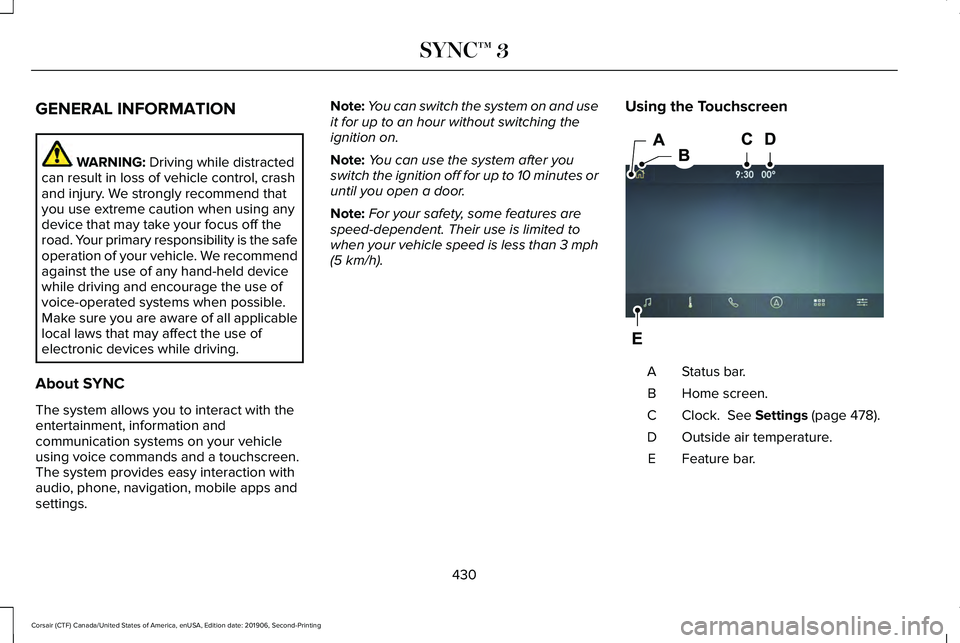
. Using the Touchscreen Status bar.
A
Home screen.
B
Clock.
See Settings (page 478).
C
Outside air temperature.
D
Feature bar.
E
430
Corsair (CTF) Canada/United States of America, enUSA, Edition date: 201906, Second-Printing SYNC™ 3E297844
Page 452 of 591
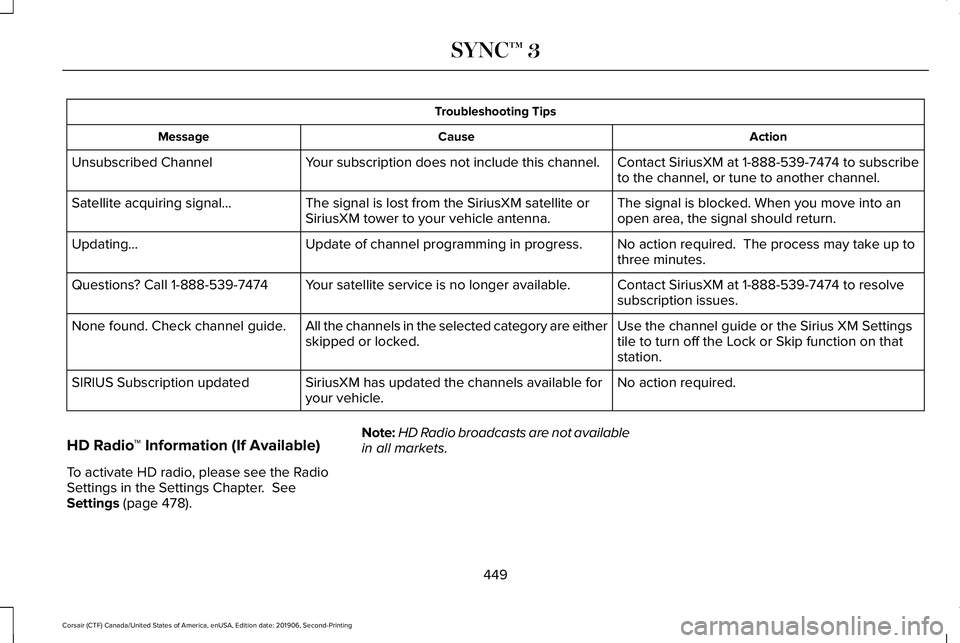
Troubleshooting Tips
Action
Cause
Message
Contact SiriusXM at 1-888-539-7474 to subscribe
to the channel, or tune to another channel.
Your subscription does not include this channel.
Unsubscribed Channel
The signal is blocked. When you move into an
open area, the signal should return.
The signal is lost from the SiriusXM satellite or
SiriusXM tower to your vehicle antenna.
Satellite acquiring signal…
No action required. The process may take up to
three minutes.
Update of channel programming in progress.
Updating…
Contact SiriusXM at 1-888-539-7474 to resolve
subscription issues.
Your satellite service is no longer available.
Questions? Call 1-888-539-7474
Use the channel guide or the Sirius XM Settings
tile to turn off the Lock or Skip function on that
station.
All the channels in the selected category are either
skipped or locked.
None found. Check channel guide.
No action required.
SiriusXM has updated the channels available for
your vehicle.
SIRIUS Subscription updated
HD Radio ™ Information (If Available)
To activate HD radio, please see the Radio
Settings in the Settings Chapter. See
Settings (page 478). Note:
HD Radio broadcasts are not available
in all markets.
449
Corsair (CTF) Canada/United States of America, enUSA, Edition date: 201906, Second-Printing SYNC™ 3
Page 462 of 591
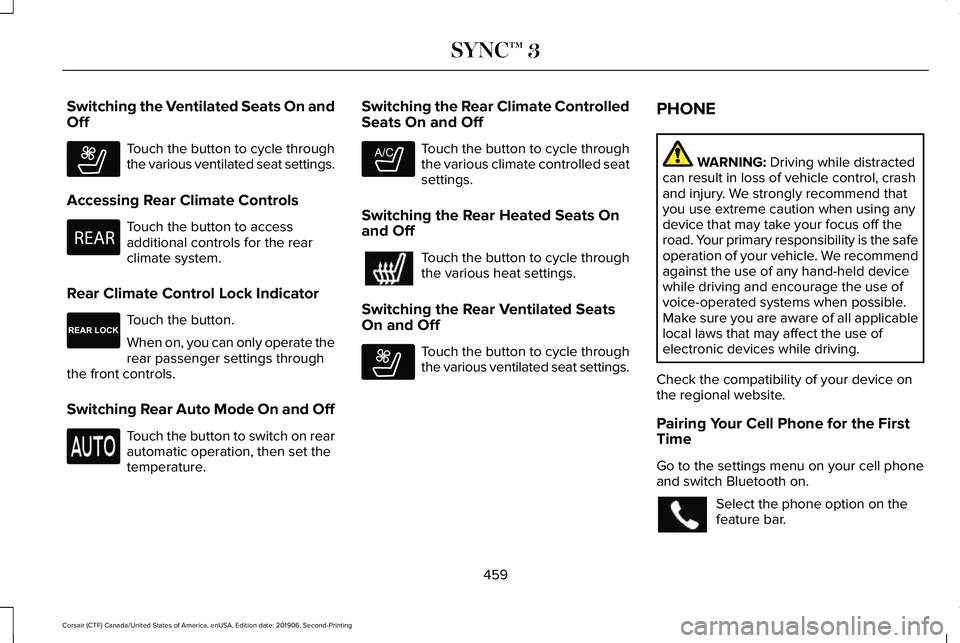
Switching the Ventilated Seats On and
Off
Touch the button to cycle through
the various ventilated seat settings.
Accessing Rear Climate Controls Touch the button to access
additional controls for the rear
climate system.
Rear Climate Control Lock Indicator Touch the button.
When on, you can only operate the
rear passenger settings through
the front controls.
Switching Rear Auto Mode On and Off Touch the button to switch on rear
automatic operation, then set the
temperature. Switching the Rear Climate Controlled
Seats On and Off Touch the button to cycle through
the various climate controlled seat
settings.
Switching the Rear Heated Seats On
and Off Touch the button to cycle through
the various heat settings.
Switching the Rear Ventilated Seats
On and Off Touch the button to cycle through
the various ventilated seat settings.PHONE WARNING: Driving while distracted
can result in loss of vehicle control, crash
and injury. We strongly recommend that
you use extreme caution when using any
device that may take your focus off the
road. Your primary responsibility is the safe
operation of your vehicle. We recommend
against the use of any hand-held device
while driving and encourage the use of
voice-operated systems when possible.
Make sure you are aware of all applicable
local laws that may affect the use of
electronic devices while driving.
Check the compatibility of your device on
the regional website.
Pairing Your Cell Phone for the First
Time
Go to the settings menu on your cell phone
and switch Bluetooth on. Select the phone option on the
feature bar.
459
Corsair (CTF) Canada/United States of America, enUSA, Edition date: 201906, Second-Printing SYNC™ 3E268558 E270447 E265289 E265282 E268558
Page 478 of 591
7. On the Select preferred WEEKDAY or
WEEKEND Charge Times screen, use the
circular 24 hour clock to select your
charging time windows. You can select
up to two time windows by pressing and
dragging across the hour buttons. When
you have selected your preferred times
then press Next to return to the Preferred
Charge Times screen. Repeat for
WEEKEND or WEEKDAY as desired.
Once you are done setting preferred
charge times, press Save.
Note: Selecting all or none of the 24 hours
results in any time of day given equal priority
for charging.
8. Your saved location now shows on the Charge Times screen. Select Done to
return to the main charge settings screen.
Whenever your vehicle is at a saved
charging location, the charge settings
screen displays the location name, and
the charging times are based on your
Charge Time settings for that location
plus the next Departure Time. Note:
Reaching your max charge level by
your next Departure Time is always the
priority. When Charge Times are set,
charging outside your preferred charging
time windows could be necessary in order
to finish by your next Departure Time.
Departure Time Settings
1. Select Charge Preferences on the Charge Settings screen.
2. Select Departure Time Setup on the Edit
Charge Preferences screen.
3. Two time settings show for each day of the week on the Departure Times
schedule screen. Select any one.
4. On the Departure Time settings screen, set your desired departure time, cabin
temperature and days of the week to
repeat. Press Save.
5. Your settings are now shown on the Departure Times schedule screen. Press
Back two times to return to the main
charge settings screen. The next
departure time and cabin temperature
setting display. Note:
Cabin conditioning can perform
differently depending on if you plug in with
the included convenience cord or a higher
power charging station. The power available
for conditioning is limited to the charging
station power available.
Note: Your vehicle may not always reach
the set cabin temperature due to charging
and ambient temperature conditions. This is
normal operation
APPS
The system allows you interact with select
mobile apps while keeping your eyes on the
road. Voice commands, your steering wheel
buttons, or a quick tap on your touchscreen
give you advanced control of compatible
mobile apps. You can also stream your
favorite music or podcasts, share your time
of arrival with friends, and keep connected
safely.
475
Corsair (CTF) Canada/United States of America, enUSA, Edition date: 201906, Second-Printing SYNC™ 3
Page 479 of 591
When you start an app through the system
for the first time, you could be asked to grant
certain permissions. You can review and
change the permissions that you have
granted at any time when your vehicle is not
moving. We recommend that you check your
data plan before using your apps through
the system. Using them could result in
additional charges. We also recommend that
you check the app provider's terms and
conditions and privacy policy before using
their app. Make sure that you have an active
account for apps that you want to use
through the system. Some apps will work
with no setup. Others require you to
configure some personal settings before you
can use them.
Note:
For more information about available
apps, visit catalog.ford.com.
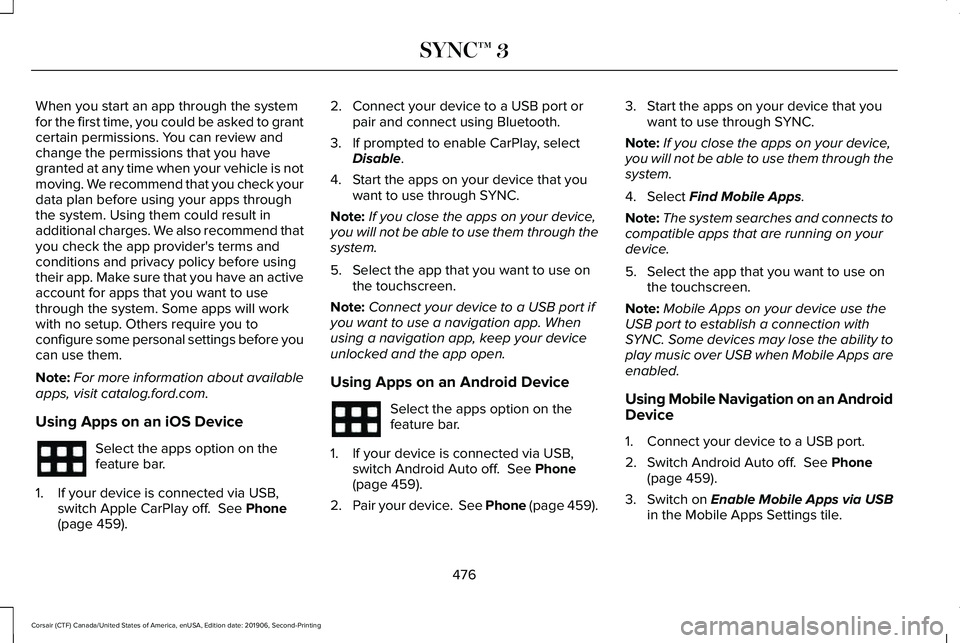
Using Apps on an iOS Device Select the apps option on the
feature bar.
1. If your device is connected via USB, switch Apple CarPlay off. See Phone
(page 459). 2. Connect your device to a USB port or
pair and connect using Bluetooth.
3. If prompted to enable CarPlay, select Disable
.
4. Start the apps on your device that you want to use through SYNC.
Note: If you close the apps on your device,
you will not be able to use them through the
system.
5. Select the app that you want to use on the touchscreen.
Note: Connect your device to a USB port if
you want to use a navigation app. When
using a navigation app, keep your device
unlocked and the app open.
Using Apps on an Android Device Select the apps option on the
feature bar.
1. If your device is connected via USB, switch Android Auto off.
See Phone
(page 459).
2. Pair your device. See Phone (page 459). 3. Start the apps on your device that you
want to use through SYNC.
Note: If you close the apps on your device,
you will not be able to use them through the
system.
4. Select
Find Mobile Apps.
Note: The system searches and connects to
compatible apps that are running on your
device.
5. Select the app that you want to use on the touchscreen.
Note: Mobile Apps on your device use the
USB port to establish a connection with
SYNC. Some devices may lose the ability to
play music over USB when Mobile Apps are
enabled.
Using Mobile Navigation on an Android
Device
1. Connect your device to a USB port.
2. Switch Android Auto off.
See Phone
(page 459).
3. Switch on
Enable Mobile Apps via USB
in the Mobile Apps Settings tile.
476
Corsair (CTF) Canada/United States of America, enUSA, Edition date: 201906, Second-Printing SYNC™ 3
Page 480 of 591
4.
Select the apps option on the feature bar.
5. Select the navigation app that you want to use on the touchscreen.
Note: When using a navigation app, keep
your device unlocked and the app open.
SiriusXM Traffic and Travel Link (If
Equipped) WARNING:
Driving while distracted
can result in loss of vehicle control, crash
and injury. We strongly recommend that
you use extreme caution when using any
device that may take your focus off the
road. Your primary responsibility is the safe operation of your vehicle. We recommend
against the use of any hand-held device
while driving and encourage the use of
voice-operated systems when possible.
Make sure you are aware of all applicable
local laws that may affect the use of
electronic devices while driving.
Note: SiriusXM Traffic and Travel Link may
not be available in all markets.
Note: In order to use SiriusXM Traffic and
Travel Link, your vehicle must have
navigation.
Note: A paid subscription is required to
access and use these features. Go to
www.siriusxm.com/travellink for more
information. Note:
Visit www.siriusxm.com/traffic and click
on Coverage map and details for a complete
listing of all traffic areas covered by SiriusXM
Traffic and Travel Link.
Note: Neither Sirius nor Ford is responsible
for any errors or inaccuracies in the SiriusXM
Traffic and Travel Link services or its use in
vehicles.
When you subscribe to SiriusXM Traffic and
Travel Link, it can help you locate the best
gas prices, find movie listings, get current
traffic alerts, view the current weather map,
get accurate ski conditions and see scores
to current sports games. Action and Description
Menu Item
Touch these buttons to identify traffic incidents on your route, near your vehicle ’s current location
or near any of your favorite places, if programmed.
Traffic on Route
Traffic Nearby
Touch this button to view fuel prices at stations close to your vehicle ’s location or on an active
navigation route.
Fuel Prices
477
Corsair (CTF) Canada/United States of America, enUSA, Edition date: 201906, Second-Printing SYNC™ 3