display LINCOLN CORSAIR 2021 Owners Manual
[x] Cancel search | Manufacturer: LINCOLN, Model Year: 2021, Model line: CORSAIR, Model: LINCOLN CORSAIR 2021Pages: 638, PDF Size: 5.7 MB
Page 519 of 638
For restaurants, cityseeker can provide
information such as star rating, average cost,
review, handicap access, hours of operation,
and website address.
For hotels, cityseeker can provide
information such as star rating, price
category, review, check-in and checkout
times, hotel service icons and website
address. Hotel service icons include:
•
Restaurant
• Business center
• Handicap facilities
• Laundry
• Refrigerator
• 24 hour room service
• Fitness center
• Internet access
• Pool
• Wi-Fi
Attractions include nearby landmarks,
amusement parks, historic buildings and
more. cityseeker can provide information
such as star rating, reviews, hour of operation
and admission price. SiriusXM Traffic and Travel Link (If
Equipped)
SiriusXM Traffic and Travel Link is available
on vehicles equipped with navigation and
only in select markets. You must activate and
subscribe to receive SiriusXM Traffic and
Travel Link information. It helps you locate
the best gas prices, find movie listings, get
current traffic alerts, view the weather map,
get accurate ski conditions and see current
sports scores.
The system calculates a reasonable efficient
route based on available speed limits, traffic,
and road conditions. You may know a local
short cut that is more efficient at a given time
than the route provided by SYNC 3, but you
should expect a slight difference in minutes
or miles with the SYNC 3 route. Michelin Travel Guide (If Equipped)
The Michelin travel guide is a service which
provides additional information about certain
places of interest, for example restaurants,
hotels and tourist sites. Points of interest that
have Michelin travel guide information
display a button to show you more
information. Push the button to see the
additional information. If you have paired
your phone with the system, you can press
the phone button to directly establish a call
with the selected point of interest.
Navigation Map Accuracy and Updates
HERE is the digital map provider for the
navigation application. If you find map data
errors, you may report them directly to HERE
by going to www.here.com. HERE evaluates
all reported map errors and responds with
the result of their investigation by e-mail.
516
Corsair (CTF) Canada/United States of America, enUSA, Edition date: 202007, First-Printing SYNC™ 3
Page 522 of 638
Departure Times
Setting Departure Times allows you to
control charging schedules and have the
vehicle cabin heated or cooled while
plugged in, so your vehicle is ready to drive
when you are. By setting a departure time
your vehicle can use your charge time
settings to minimize your electricity costs but
still prioritize finishing charging before your
scheduled departure. A calendar view allows
you to program two departure times per day
for each day of the week.
Note:
You can also set up and use these
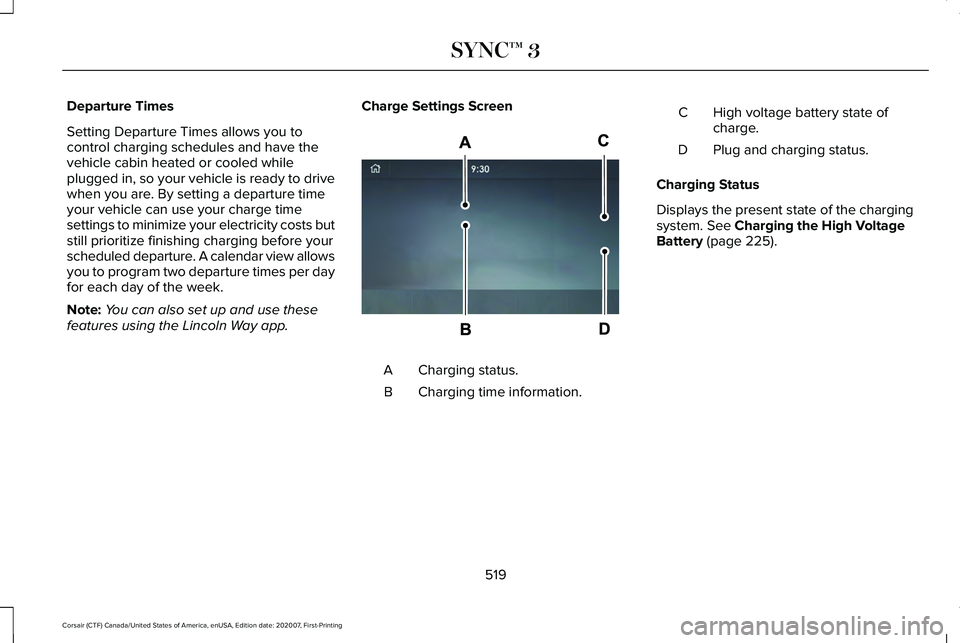
features using the Lincoln Way app. Charge Settings Screen Charging status.
A
Charging time information.
B High voltage battery state of
charge.
C
Plug and charging status.
D
Charging Status
Displays the present state of the charging
system. See Charging the High Voltage
Battery (page 225).
519
Corsair (CTF) Canada/United States of America, enUSA, Edition date: 202007, First-Printing SYNC™ 3E304455
Page 523 of 638
Description and Action
Charging Status
Your vehicle is unplugged and starts charging when plugged in.
Will charge when plugged in.
Your vehicle is unplugged at a saved location with Charge Times is
enabled. Charging is scheduled to start at the time displayed based
on your charge time settings. You must plug in prior to the start time shown for the vehicle to begin charging at that time.
Will wait for preferred charge time.
Your vehicle is plugged in at a saved location with Charge Times
enabled. Charging starts at the time displayed, which is based on your Charge Times settings.
Waiting for preferred charge time.
Your vehicle is plugged in and using power to charge the high voltagebattery or run electrical systems.
Charging.
Your vehicle is finished charging.
Charged.
Your vehicle is plugged in and there is a fault within the vehicle
charging system. Unplug and plug back in. If the fault is still present,\
contact your dealer.
Vehicle charge fault.
Your vehicle is plugged in and a fault is detected with the charge
station or charging cord. Check the charging cord and the charge station or electrical supply.
Charge station fault.
520
Corsair (CTF) Canada/United States of America, enUSA, Edition date: 202007, First-Printing SYNC™ 3
Page 524 of 638
Description and Action
Charging Status
A charging coupler is plugged into the vehicle but there is noconnection with a charging power source.
Charge station not detected.
Your vehicle is plugged in but cannot communicate with the chargingstation. Contact the station provider.
Incompatible charge station.
Your vehicle is plugged in and charging is paused at the chargestation.
Charge station paused.
Charging Time Information
Displays estimates of how long your vehicle
takes to fully charge when plugged into a
high or low power charger.
• High power estimate: The minimum time
to a 100% charge using a high power
charger.
• Low power estimate: The longest time to
a 100% charge using a low power
charger.
When charging, the start and estimated end
time displays. When your vehicle is not
plugged in and at a location with Charge
Times enabled, the start and end times
display based on known charging power. Note:
Charging durations and end times are
only estimates. Certain conditions may result
in longer charging times. See Charging the
High Voltage Battery (page 225).
High Voltage Battery State of Charge
Displays the remaining charge percentage
with 100% representing the total amount of
energy you can get from an external charge.
Plug and Charging Status
Displays the plug and charging status icons. Not plugged in. Plugged in and not currently
charging.
Plugged in and charging.
Plugged in and waiting to charge
based on charge time settings.
Charge Preferences
Touch the button to access Charge Time and
Departure Time settings. Additional
information and settings are displayed on
the charge settings screen once Charge
Time or Departure Times are set up.
521
Corsair (CTF) Canada/United States of America, enUSA, Edition date: 202007, First-Printing SYNC™ 3E304458 E304459 E304460 E304461
Page 525 of 638
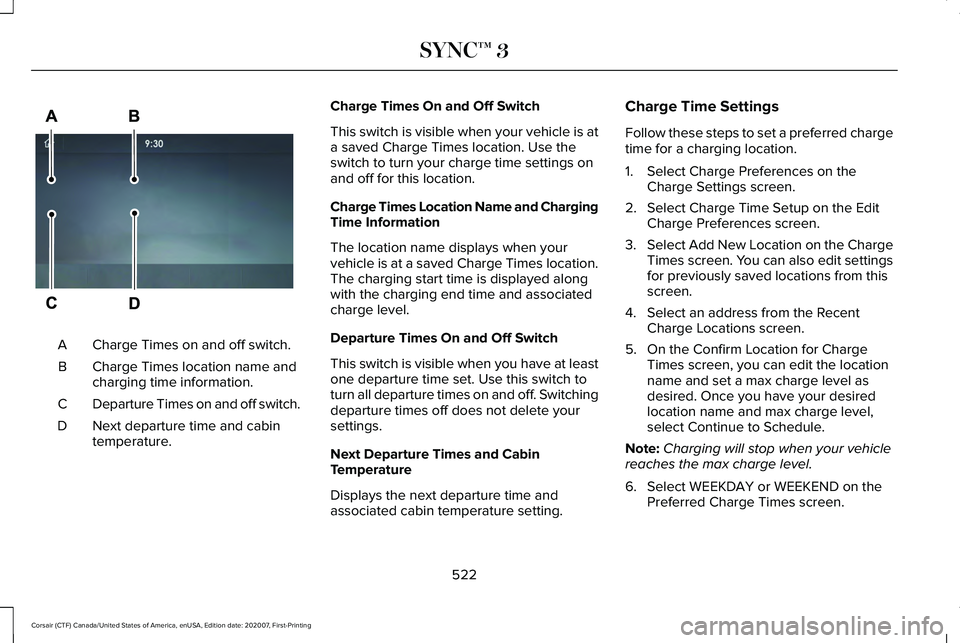
Charge Times on and off switch.
A
Charge Times location name and
charging time information.
B
Departure Times on and off switch.
C
Next departure time and cabin
temperature.
D Charge Times On and Off Switch
This switch is visible when your vehicle is at
a saved Charge Times location. Use the
switch to turn your charge time settings on
and off for this location.
Charge Times Location Name and Charging
Time Information
The location name displays when your
vehicle is at a saved Charge Times location.
The charging start time is displayed along
with the charging end time and associated
charge level.
Departure Times On and Off Switch
This switch is visible when you have at least
one departure time set. Use this switch to
turn all departure times on and off. Switching
departure times off does not delete your
settings.
Next Departure Times and Cabin
Temperature
Displays the next departure time and
associated cabin temperature setting. Charge Time Settings
Follow these steps to set a preferred charge
time for a charging location.
1. Select Charge Preferences on the
Charge Settings screen.
2. Select Charge Time Setup on the Edit Charge Preferences screen.
3. Select Add New Location on the Charge
Times screen. You can also edit settings
for previously saved locations from this
screen.
4. Select an address from the Recent Charge Locations screen.
5. On the Confirm Location for Charge Times screen, you can edit the location
name and set a max charge level as
desired. Once you have your desired
location name and max charge level,
select Continue to Schedule.
Note: Charging will stop when your vehicle
reaches the max charge level.
6. Select WEEKDAY or WEEKEND on the Preferred Charge Times screen.
522
Corsair (CTF) Canada/United States of America, enUSA, Edition date: 202007, First-Printing SYNC™ 3E304454
Page 526 of 638
7. On the Select preferred WEEKDAY or
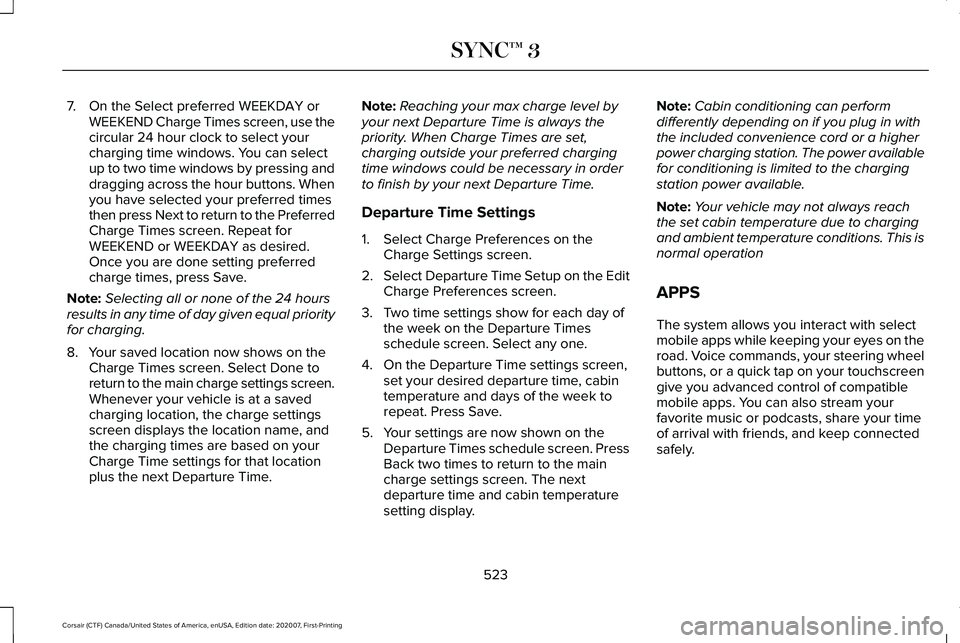
WEEKEND Charge Times screen, use the
circular 24 hour clock to select your
charging time windows. You can select
up to two time windows by pressing and
dragging across the hour buttons. When
you have selected your preferred times
then press Next to return to the Preferred
Charge Times screen. Repeat for
WEEKEND or WEEKDAY as desired.
Once you are done setting preferred
charge times, press Save.
Note: Selecting all or none of the 24 hours
results in any time of day given equal priority
for charging.
8. Your saved location now shows on the Charge Times screen. Select Done to
return to the main charge settings screen.
Whenever your vehicle is at a saved
charging location, the charge settings
screen displays the location name, and
the charging times are based on your
Charge Time settings for that location
plus the next Departure Time. Note:
Reaching your max charge level by
your next Departure Time is always the
priority. When Charge Times are set,
charging outside your preferred charging
time windows could be necessary in order
to finish by your next Departure Time.
Departure Time Settings
1. Select Charge Preferences on the Charge Settings screen.
2. Select Departure Time Setup on the Edit
Charge Preferences screen.
3. Two time settings show for each day of the week on the Departure Times
schedule screen. Select any one.
4. On the Departure Time settings screen, set your desired departure time, cabin
temperature and days of the week to
repeat. Press Save.
5. Your settings are now shown on the Departure Times schedule screen. Press
Back two times to return to the main
charge settings screen. The next
departure time and cabin temperature
setting display. Note:
Cabin conditioning can perform
differently depending on if you plug in with
the included convenience cord or a higher
power charging station. The power available
for conditioning is limited to the charging
station power available.
Note: Your vehicle may not always reach
the set cabin temperature due to charging
and ambient temperature conditions. This is
normal operation
APPS
The system allows you interact with select
mobile apps while keeping your eyes on the
road. Voice commands, your steering wheel
buttons, or a quick tap on your touchscreen
give you advanced control of compatible
mobile apps. You can also stream your
favorite music or podcasts, share your time
of arrival with friends, and keep connected
safely.
523
Corsair (CTF) Canada/United States of America, enUSA, Edition date: 202007, First-Printing SYNC™ 3
Page 530 of 638
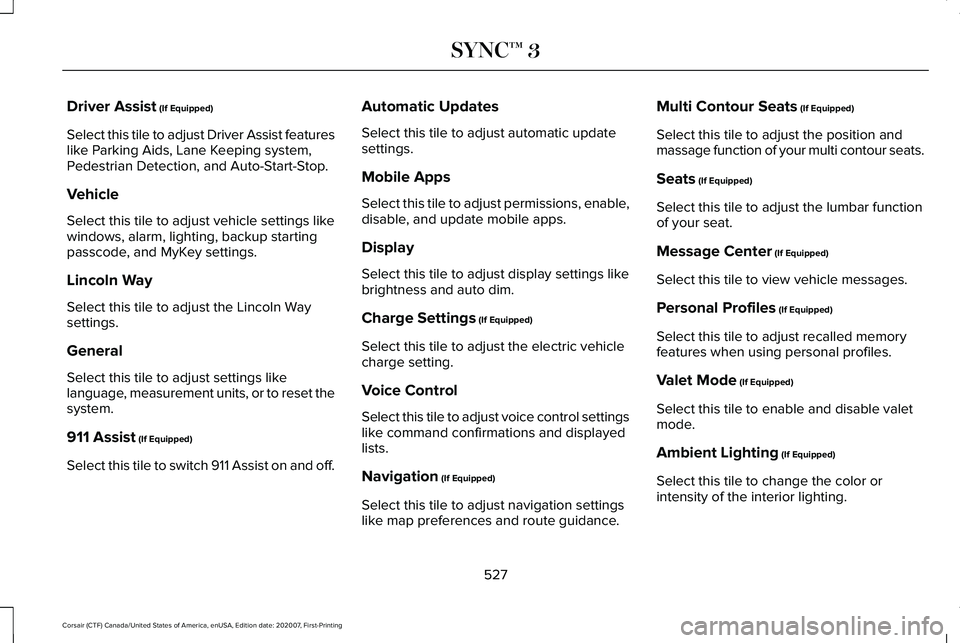
Driver Assist (If Equipped)
Select this tile to adjust Driver Assist features
like Parking Aids, Lane Keeping system,
Pedestrian Detection, and Auto-Start-Stop.
Vehicle
Select this tile to adjust vehicle settings like
windows, alarm, lighting, backup starting
passcode, and MyKey settings.
Lincoln Way
Select this tile to adjust the Lincoln Way
settings.
General
Select this tile to adjust settings like
language, measurement units, or to reset the
system.
911 Assist
(If Equipped)
Select this tile to switch 911 Assist on and off. Automatic Updates
Select this tile to adjust automatic update
settings.
Mobile Apps
Select this tile to adjust permissions, enable,
disable, and update mobile apps.
Display
Select this tile to adjust display settings like
brightness and auto dim.
Charge Settings
(If Equipped)
Select this tile to adjust the electric vehicle
charge setting.
Voice Control
Select this tile to adjust voice control settings
like command confirmations and displayed
lists.
Navigation
(If Equipped)
Select this tile to adjust navigation settings
like map preferences and route guidance. Multi Contour Seats
(If Equipped)
Select this tile to adjust the position and
massage function of your multi contour seats.
Seats
(If Equipped)
Select this tile to adjust the lumbar function
of your seat.
Message Center
(If Equipped)
Select this tile to view vehicle messages.
Personal Profiles
(If Equipped)
Select this tile to adjust recalled memory
features when using personal profiles.
Valet Mode
(If Equipped)
Select this tile to enable and disable valet
mode.
Ambient Lighting
(If Equipped)
Select this tile to change the color or
intensity of the interior lighting.
527
Corsair (CTF) Canada/United States of America, enUSA, Edition date: 202007, First-Printing SYNC™ 3
Page 538 of 638
Possible Cause and Resolution
Symptom
–Incorrect system settings.
•Switch automatic phonebook download on. See Settings (page 526).
– Cell phone malfunction.
•Switch your cell phone off, reset it and try again.
– Incorrect cell phone settings.
•Allow the system to retrieve contacts from your cell phone. Refer to your cell phone's
user manual.
• Check the location of the missing contacts on your cell phone. If they are stored on
the SIM card, move them to the cell phone memory.
– Incorrect system settings.
•Switch automatic phonebook download on.
See Settings (page 526).
A message displays suggesting that my
phonebook has downloaded but it is empty
or it has missing contacts.
535
Corsair (CTF) Canada/United States of America, enUSA, Edition date: 202007, First-Printing SYNC™ 3
Page 554 of 638
Your vehicle has an Intelligent Oil-Life
Monitor system, a message appears in the
information display at the proper oil change
interval. This interval may be up to one year
or 10,000 mi (16,000 km), hybrid vehicles
may exceed 10,000 mi (16,000 km).
When the oil change message appears in
the information display, it is time for an oil
change. Make sure you perform the oil
change within two weeks or 500 mi (800 km)
of the message appearing. Make sure you
reset the Intelligent Oil-Life Monitor after
each oil change. See Oil Change Indicator
Reset
(page 371).
If your information display resets prematurely
or becomes inoperative, you should perform
the oil change interval at six months or
5,000 mi (8,000 km)
from your last oil
change. Never exceed one year or 10,000 mi
(16,000 km)
between oil change intervals, Your vehicle is very sophisticated and built
with multiple, complex, performance systems.
Every manufacturer develops these systems
using different specifications and
performance features. That is why it is
important to rely upon your dealership to
properly diagnose and repair your vehicle.
We have recommended maintenance
intervals for various parts and component
systems based upon engineering testing.
We rely upon this testing to determine the
most appropriate mileage for replacement
of oils and fluids to protect your vehicle at
the lowest overall cost to you and
recommends against maintenance schedules
that deviate from the scheduled maintenance
information.
We strongly recommend the use of only
genuine Ford, Motorcraft or Ford-authorized
re-manufactured replacement parts
engineered for your vehicle. Additives and Chemicals
This owner's manual and the our Workshop
Manual list the recommended additives and
chemicals for your vehicle. We do not
recommend using chemicals or additives not
approved by us as part of your vehicle
’s
normal maintenance. Please consult your
warranty information.
Oils, Fluids and Flushing
In many cases, fluid discoloration is a normal
operating characteristic and, by itself, does
not necessarily indicate a concern or that the
fluid needs to be changed. However, a
qualified expert, such as the factory-trained
technicians at your dealership, should
inspect discolored fluids that also show signs
of overheating or foreign material
contamination immediately.
551
Corsair (CTF) Canada/United States of America, enUSA, Edition date: 202007, First-Printing Scheduled Maintenance
Page 555 of 638
Make sure to change your vehicle
’s oils and
fluids at the specified intervals or in
conjunction with a repair. Flushing is a viable
way to change fluid for many vehicle
sub-systems during scheduled maintenance. It is critical that systems are flushed only with
new fluid that is the same as that required
to fill and operate the system or using a
Ford-approved flushing chemical.
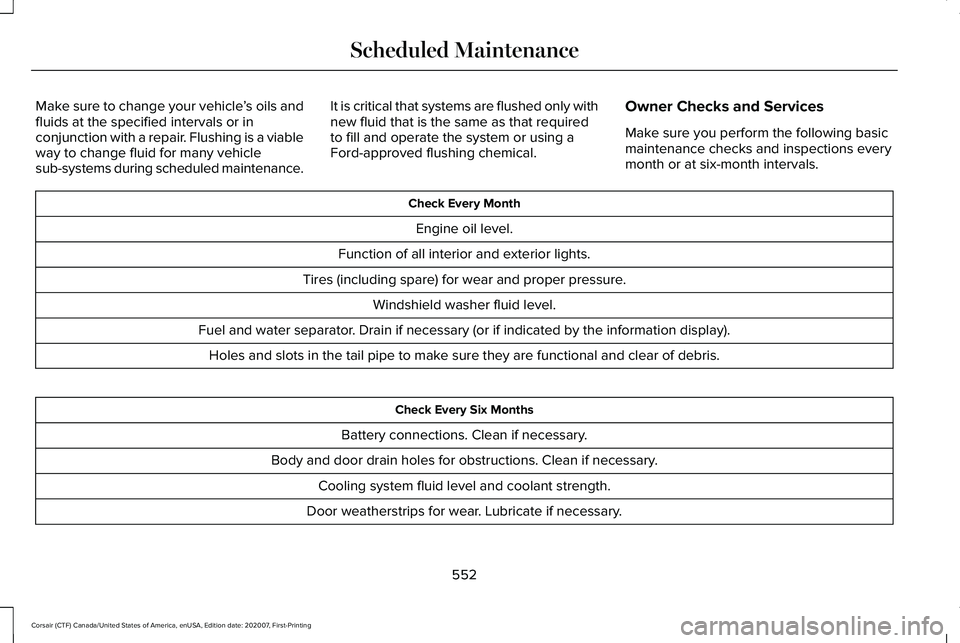
Owner Checks and Services
Make sure you perform the following basic
maintenance checks and inspections every
month or at six-month intervals. Check Every Month
Engine oil level.
Function of all interior and exterior lights.
Tires (including spare) for wear and proper pressure. Windshield washer fluid level.
Fuel and water separator. Drain if necessary (or if indicated by the information display). Holes and slots in the tail pipe to make sure they are functional and clear of debris. Check Every Six Months
Battery connections. Clean if necessary.
Body and door drain holes for obstructions. Clean if necessary. Cooling system fluid level and coolant strength.
Door weatherstrips for wear. Lubricate if necessary.
552
Corsair (CTF) Canada/United States of America, enUSA, Edition date: 202007, First-Printing Scheduled Maintenance