information screen LINCOLN MKC 2017 User Guide
[x] Cancel search | Manufacturer: LINCOLN, Model Year: 2017, Model line: MKC, Model: LINCOLN MKC 2017Pages: 538, PDF Size: 4.8 MB
Page 382 of 538
of electronically or verbally disclosing to 911
operators your vehicle location or other
details about your vehicle or crash to assist
911 operators to provide the most appropriate
emergency services. If you do not want to
disclose this information, do not switch the
feature on.
Safety Information
WARNING
Driving while distracted can result in
loss of vehicle control, crash and injury.
We strongly recommend that you use
extreme caution when using any device that
may take your focus off the road. Your
primary responsibility is the safe operation
of your vehicle. We recommend against the
use of any hand-held device while driving
and encourage the use of voice-operated
systems when possible. Make sure you are
aware of all applicable local laws that may
affect the use of electronic devices while
driving. •
Do not attempt to service or repair the
system. Have an authorized dealer check
your vehicle.
• Do not operate playing devices if the
power cords or cables are broken, split
or damaged. Place cords and cables out
of the way, so they do not interfere with
the operation of pedals, seats,
compartments or safe driving abilities.
• Do not leave playing devices in your
vehicle during extreme conditions as it
could cause them damage. See your
device's user guide for further
information.
• For your safety, some SYNC 3 functions
are speed-dependent. Their use is limited
to when your vehicle is traveling at
speeds under 3 mph (5 km/h). Make sure
that you review your device's manual
before using it with SYNC 3. Speed-restricted Features
Some features of this system may be too
difficult to use while your vehicle is moving
so they are restricted from use unless your
vehicle is stationary.
•
Screens crowded with information, such
as Point of Interest reviews and ratings,
SiriusXM Traffic and Travel Link sports
scores, movie times or ski conditions.
• Any action that requires you to use a
keyboard is restricted, such as entering
a navigation destination or editing
information.
• All lists are limited so the user can view
fewer entries (such as phone contacts or
recent phone call entries).
See the following chart for more specific
examples.
379
MKC (TME) Canada/United States of America, enUSA, Edition date: 01/2016, First Printing SYNC™ 3
Page 386 of 538
download continues where it left off at the
next Wi-Fi connected opportunity. Upon
activation of an update, a banner displays
on the touchscreen indicating the system
update. Select the icon to see more detail.
This icon displays for two ignition cycles.
To switch this feature off:
Menu Item
Settings
General In this menu selection, you
can change the selection for
automatic updates to OFF.
Automatic
System
Updates
Support
The SYNC support team is available to help
you with any questions you are not able to
answer on your own.
Monday-Saturday, 8:30am-8:00pm EST. United States: 1-800-521-4140.
Canada: 1-800-387-9333.
Times are subject to change due to holidays.
Privacy Information
When you connect a cellular phone to SYNC
3, the system creates a profile within your
vehicle that links to that cellular phone. This
profile helps in offering you more cellular
features and operating more efficiently.
Among other things, this profile may contain
data about your cellular phone book, text
messages (read and unread), and call history,
including history of calls when your cell
phone was not connected to the system. In
addition, if you connect a media device, the
system creates and retains an index of
supported media content. The system also
records a short diagnostic log of
approximately 10 minutes of all recent system
activity. The log profile and other system data
may be used to improve the system and help
diagnose any problems that may occur.The cellular profile, media device index, and
diagnostic log remain in your vehicle unless
you delete them and are generally accessible
only in your vehicle when the cellular phone
or media player is connected.
If you no longer plan to use the system or
your vehicle, we recommend you perform a
Master Reset to erase all stored information.
You can find more information about the
Master Reset in General Settings. See
Settings (page 434). System data cannot be
accessed without special equipment and
access to your vehicle's SYNC 3 module. The
Lincoln Motor Company does not access the
system data for any purpose other than as
described absent consent, a court order, or
where required by law enforcement, other
government authorities, or other third parties
acting with lawful authority. Other parties
may seek to access the information
independently of The Lincoln Motor
Company.
383
MKC (TME) Canada/United States of America, enUSA, Edition date: 01/2016, First Printing SYNC™ 3
Page 388 of 538

Home screen display
Tile
Item
Shows the active media source.
Audio
A
If your vehicle does not have navigation, this space contains the compas\
s.
The name of the connected phone appears on the screen. The status of the\
phone features also
appear. This includes signal strength, battery charge, 911 assist setting state (On or Off ), text messaging
and roaming.
Phone
B
This map displays your current location or current route in real time.
*
Navigation
C
When you have navigation active, you also see the next turn and the length of time and distance to
your destination.
If your vehicle does not have navigation, this space contains the audio \
information.
* If equipped.
You can touch any of the feature displays to
access that feature.
Anytime you select the home button, the
system returns you to this screen. USING VOICE RECOGNITION
The SYNC 3 system allows you to use voice
commands, to control features like audio and
climate controls. By using voice commands,
you can keep your hands on the wheel and
your eyes on the road.
You can access each feature controlled by
SYNC 3 through a variety of commands. To activate the SYNC 3 voice
commands push the voice button
on the steering wheel and wait for
the prompt.
___ is a dynamic listing, meaning that it can
be the name of anything, such as artist, the
name of contact or number. The context and
the description of the command tell you what
to say for this dynamic option.
There are some commands that work for
every feature, these commands are:
385
MKC (TME) Canada/United States of America, enUSA, Edition date: 01/2016, First Printing SYNC™ 3E142599
Page 406 of 538
HD Radio technology is the digital evolution
of analog AM/FM radio. Your system has a
special receiver that allows it to receive
digital broadcasts (where available) in
addition to the analog broadcasts, it already
receives. Digital broadcasts provide a better
sound quality than analog broadcasts with
free, crystal-clear audio and no static or
distortion. For more information, and a guide
to available stations and programming,
please visit:
Website
www.hdradio.com
When HD Radio is on and you tune to a
station broadcasting HD Radio technology,
you may notice the following indicators on
your screen: The HD logo is grey when acquiring a digital
station, and then changes to orange when
digital audio is playing. When this logo is
available, you may also see Title and Artist
fields on-screen.
The multicast indicator appears in FM mode
(only) if the current station is broadcasting
multiple digital broadcasts. The highlighted
numbers signify available digital channels
where new or different content is available.
HD1 signifies the main programming status
and is available in analog and digital
broadcasts. Other multicast stations (HD2
through HD7) are only available digitally.
Note:
There is also an additional feature for
stations that have more than 1 HD multicast
(For example, HD1 or HD2). The HD logo and
Radio text appears as a button. Pressing this
button allows you cycle through all of the
HD stations on that specific frequency. For
example, if you are on 101.1 and it has HD1,
HD2, HD3, pressing the button repeatedly
causes the radio to cycle through the HD
stations in a cyclic increasing order.
403
MKC (TME) Canada/United States of America, enUSA, Edition date: 01/2016, First Printing SYNC™ 3E142616
Page 409 of 538
HD Radio Technology manufactured under
license from iBiquity Digital Corp. U.S. and
foreign patents. HD Radio and the HD and
HD Radio logos are proprietary trademarks
of iBiquity Digital Corp. Ford Motor Company
and iBiquity Digital Corp. are not responsible
for the content sent using HD Radio
technology. Content may be changed, added
or deleted at any time at the station owner's
discretion.
* You can find the form here: Website
http://www.ibiquity.com/automotive/
report_radio_station_experiences
CD (If equipped)
Once you select this option, the system
returns you to the main audio screen. The current audio information appears on
the screen.
The following buttons are also available: Function
Button
You can use the browse button to select a track.
Browse
Select this button and a small number one displays to indicate the track\
is set to repeat.
Repeat
For MP3 CDs, this button allows you to toggle through repeat off, repeat one track (a small number
one displays), and repeat current folder (a small folder displays).
Select the shuffle symbol to have the audio on the disk play in random o\
rder.
Shuffle
You can use the forward, reverse, pause or
play buttons to control the audio playback.
406
MKC (TME) Canada/United States of America, enUSA, Edition date: 01/2016, First Printing SYNC™ 3
Page 412 of 538
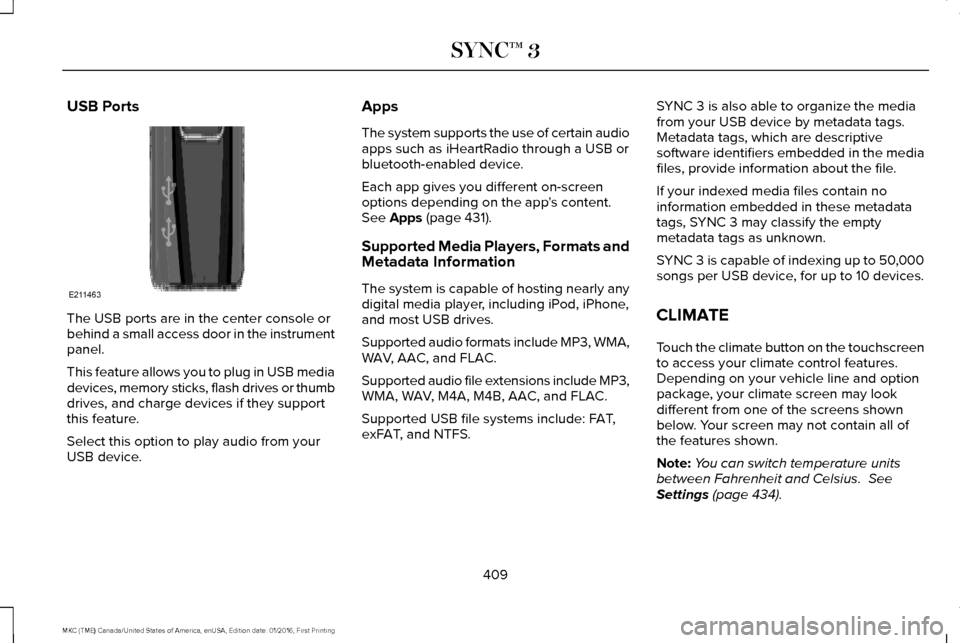
USB Ports
The USB ports are in the center console or
behind a small access door in the instrument
panel.
This feature allows you to plug in USB media
devices, memory sticks, flash drives or thumb
drives, and charge devices if they support
this feature.
Select this option to play audio from your
USB device. Apps
The system supports the use of certain audio
apps such as iHeartRadio through a USB or
bluetooth-enabled device.
Each app gives you different on-screen
options depending on the app's content.
See Apps (page 431).
Supported Media Players, Formats and
Metadata Information
The system is capable of hosting nearly any
digital media player, including iPod, iPhone,
and most USB drives.
Supported audio formats include MP3, WMA,
WAV, AAC, and FLAC.
Supported audio file extensions include MP3,
WMA, WAV, M4A, M4B, AAC, and FLAC.
Supported USB file systems include: FAT,
exFAT, and NTFS. SYNC 3 is also able to organize the media
from your USB device by metadata tags.
Metadata tags, which are descriptive
software identifiers embedded in the media
files, provide information about the file.
If your indexed media files contain no
information embedded in these metadata
tags, SYNC 3 may classify the empty
metadata tags as unknown.
SYNC 3 is capable of indexing up to 50,000
songs per USB device, for up to 10 devices.
CLIMATE
Touch the climate button on the touchscreen
to access your climate control features.
Depending on your vehicle line and option
package, your climate screen may look
different from one of the screens shown
below. Your screen may not contain all of
the features shown.
Note:
You can switch temperature units
between Fahrenheit and Celsius.
See
Settings (page 434).
409
MKC (TME) Canada/United States of America, enUSA, Edition date: 01/2016, First Printing SYNC™ 3E211463
Page 416 of 538
PHONE
WARNING
Driving while distracted can result in
loss of vehicle control, crash and injury.
We strongly recommend that you use
extreme caution when using any device that
may take your focus off the road. Your
primary responsibility is the safe operation
of your vehicle. We recommend against the
use of any hand-held device while driving
and encourage the use of voice-operated
systems when possible. Make sure you are
aware of all applicable local laws that may
affect the use of electronic devices while
driving. Hands-free calling is one of the main features
of the system. Once you pair your cell phone,
you can access many options using the
touchscreen or voice commands. While the
system supports a variety of features, many
are dependent on your cell phone
’s
functionality. Pairing Your Cell Phone for the First
Time
Pair your Bluetooth-enabled phone with the
system before using the functions in
hands-free mode.
Switch on Bluetooth on your device to begin
pairing. See your phone
’s manual if
necessary.
To add a phone, select: Menu Item
Add Phone
1. Follow the on-screen instructions.
2. A prompt alerts you to search for the system on your phone.
3. Select your vehicle's make and model as
it displays on your phone.
4. Confirm that the six-digit number appearing on your phone matches the
six-digit number on the touchscreen.
5. The touchscreen indicates when the pairing is successful. 6. Your phone may prompt you to give the
system permission to access information.
To check your phone ’s compatibility, see
your phone ’s manual or visit the website.
Alternatively, to add a phone, select: Menu Item
Add Phone
Then select:
Discover Other Bluetooth Devices
1. Follow the on-screen instructions.
2. A prompt alerts you to search for the system on your phone.
3. Select your phone's name when it appears on the touchscreen.
4. Confirm that the six-digit number appearing on your phone matches the
six-digit number on the touchscreen.
5. The touchscreen indicates when the pairing is successful.
413
MKC (TME) Canada/United States of America, enUSA, Edition date: 01/2016, First Printing SYNC™ 3
Page 421 of 538
To call a number in your contacts, select:
Action and Description
Menu Item
You can then select the
name of the contact you
want to call. Any numbers
stored for that contact
display along with any
stored contact photos. You
can then select the number
that you want to call. The
system begins the call.
Contacts
To call a number from your recent calls,
select: Action and Description
Menu Item
You can then select an entry
that you want to call. The
system begins the call.
Recent Call
List
To call a number that is not stored in your
phone, select: Action and Description
Menu Item Action and Description
Menu Item
Select the digits of the
number you wish to call.
Phone
Keypad
The system begins the call.
Call
Pressing the backspace button deletes the
last digit you typed.
Receiving Calls
During an incoming call, an audible tone
sounds. Caller information appears in the
display if it is available.
To accept the call, select: Menu Item
Accept
Note: You can also accept the call by
pressing the phone button on the steering
wheel. To reject the call, select: Menu Item
Reject
Note: You can also reject the call by
pressing the phone button on the steering
wheel.
Ignore the call by doing nothing. SYNC 3
logs it as a missed call.
During a Phone Call
During a phone call, the contacts name and
number display on the screen along with the
call duration.
The phone status items are also visible:
• Signal Strength.
• Battery.
• 911 Assist (United States and Canada
Only). See Settings (page 434).
You can select any of the following during
an active phone call:
418
MKC (TME) Canada/United States of America, enUSA, Edition date: 01/2016, First Printing SYNC™ 3
Page 424 of 538
Map Mode
Map mode shows advanced viewing
comprised of 2D city maps, 3D landmarks
and 3D city models (when available). 2D city
maps show detailed outlines of buildings,
visible land use, landscape features, and
detailed railroad infrastructure for the most
essential cities around the globe.
3D landmarks appear as clear, visible objects
that are typically recognizable and have a
certain tourism value.
3D city models are complete 3D models of
entire city areas including navigable roads,
parks, rivers and rendered buildings. 3D
landmarks and city models appear in 3D map
mode only. Coverage of these varies and
improves with updated map releases.
Select the zoom in icon to see a
closer view of the map.
Select the zoom out icon to see a
farther away view of the map. You can adjust the view in preset increments.
You can also pinch to zoom in or out of the
map.
The information bar tells you the names of
streets, cities or landmarks as you hover over
them with the crosshair curser.
You can change your view of the map by
tapping on the location indicator icon on the
right hand side of the screen. You can
choose from the following options:
Heading up (2D map) This always
shows the direction of forward
travel to be upward on the screen.
This view is available for map
scales up to
3 mi (5 km). North up (2D map)
always shows
the northern direction to be
upward on the screen. 3D map mode
provides an
elevated perspective of the map.
Adjust this viewing angle and
rotate the map 180 degrees by
touching the map twice, and then dragging
your finger along the shaded bar with arrows
at the bottom of the map. Re-center the map by pressing this
icon whenever you scroll the map
away from your vehicle
’s current
location. Points of Interest (POI) grouping
icon:
You can choose up to three
POI icons to display on the map. If
the chosen POIs are located close
together or are at the same location a box is
used to display a single category icon
instead of repeating the same icon, in order
to reduce clutter. When you select the box
on the map, a pop-up appears indicating how
many POIs are in this location. Select the pop
up to see a list of the available POIs. You can
scroll through and select POIs from this list.
If your vehicle is low on charge or fuel,
station icons automatically display on the
map.
If you have subscribed to SiriusXM Traffic
and Travel Link (where available), traffic flow
will be indicated on the map by green (clear),
yellow (slowing), and red (stopped) road
highlights. Traffic flow is indicated where the
information is available and varies across the
US.
421
MKC (TME) Canada/United States of America, enUSA, Edition date: 01/2016, First Printing SYNC™ 3E207752 E207753 E207750 E207749 E207748 E207751 E207754
Page 430 of 538

Action and Description
Menu Item
SYNC 3 may not always announce vehicle arrival at the exact point of your\
destination and you may have to
cancel a route manually.
Navigation Menu
In map mode and during active navigation
you can access the navigation menu. During active navigation, touch the bottom
of the screen to view the menu and other
buttons.
To access the Navigation menu, press: Button
Menu
You can then select: A full screen map displays during navigation.
Full Map
Screen View
Highway exit information displays on the right hand side of the screen d\
uring navigation.
Highway Exit Info
Points of interest icons display for restaurants, hotels, fuel stations a\
nd ATMs when they
are present at the exit. You can select the POI icons to receive a listing of specific locations.
You can select the POI location as a waypoint or destination if desired.
Only available during an active route. Displays all of the turns on the current route.
Turn List
You can choose to avoid any road on the turn list by selecting the road f\
rom the list. A
screen then appears and you can press:
427
MKC (TME) Canada/United States of America, enUSA, Edition date: 01/2016, First Printing SYNC™ 3