information screen LINCOLN MKC 2017 Owner's Manual
[x] Cancel search | Manufacturer: LINCOLN, Model Year: 2017, Model line: MKC, Model: LINCOLN MKC 2017Pages: 538, PDF Size: 4.8 MB
Page 433 of 538
cityseeker (If Equipped)
Note: cityseeker point of interest (POI)
information is limited to approximately 1110
cities (1049 in the United States, 36 in
Canada and 15 in Mexico). cityseeker, when available, is a service that
provides more information about certain
points of interest such as restaurants, hotels
and attractions.
When you have selected a point of interest,
the location and information appear, such as
address, phone number and a star rating.
Press
More Information to see a photo, a
review, a list of services and facilities, the
average room or meal price and the web
address. This screen displays the point of
interest icons. For restaurants, cityseeker can provide
information such as star rating, average cost,
review, handicap access, hours of operation,
and website address.
For hotels, cityseeker can provide
information such as star rating, price
category, review, check-in and checkout
times, hotel service icons and website
address. Hotel service icons include:
•
Restaurant
• Business center
• Handicap facilities
• Laundry
• Refrigerator
• 24 hour room service
• Fitness center
• Internet access
• Pool
• Wi-Fi
Attractions include nearby landmarks,
amusement parks, historic buildings and
more. cityseeker can provide information
such as star rating, reviews, hour of operation
and admission price. SiriusXM Traffic and Travel Link
SiriusXM Traffic and Travel Link is available
on vehicles equipped with navigation and
only in select markets. You must activate and
subscribe to receive SiriusXM Traffic and
Travel Link information. It helps you locate
the best gas prices, find movie listings, get
current traffic alerts, view the weather map,
get accurate ski conditions and see current
sports scores.
See Apps (page 431).
The system calculates a reasonable efficient
route based on available speed limits, traffic,
and road conditions. You may know a local
short cut that is more efficient at a given time
than the route provided by SYNC 3, but you
should expect a slight difference in minutes
or miles with the SYNC 3 route.
Navigation Map Updates
Annual navigation map updates are available
for purchase through your dealership, by
calling 1-866-462-8837 in the United States
and Canada or 01-800-557-5539 in Mexico.
You can also visit:
430
MKC (TME) Canada/United States of America, enUSA, Edition date: 01/2016, First Printing SYNC™ 3E225487
Page 434 of 538
Website
www.navigation.com/sync
You need to specify the make and model of
your vehicle to determine if there is an
update available.
HERE is the digital map provider for the
navigation application. If you find map data
errors, you may report them directly to HERE
by going to www.here.com/mapcreator.
HERE evaluates all reported map errors and
responds with the result of their investigation
by e-mail.
Map coverage includes the USA (including
Puerto Rico and the US Virgin Islands),
Canada and Mexico. APPS
The system enables voice, steering wheel,
and touch screen control of SYNC 3 AppLink
enabled smartphone apps. Once an app is
running through AppLink, you can control
main features of the app through voice
commands and steering wheel controls.
Note:
Available AppLink enabled apps will
vary by market.
Note: You must pair and connect your
smartphone via Bluetooth to SYNC 3 to
access AppLink.
Note: iPhone users need to connect the
phone to the USB port.
Note: For information on available apps,
supported smartphone devices and
troubleshooting tips please visit: Websites
owner.lincoln.com
www.syncmyride.ca Websites
www.syncmaroute.ca
Note: Make sure you have an active account
for the app that you have downloaded. Some
apps will work automatically with no setup.
Other apps will want you to configure your
personal settings and personalize your
experience by creating stations or favorites.
We recommend you do this at home or
outside of your vehicle.
Note: We encourage you to review the
smartphone app ’s terms of service and
privacy policies because Ford is not
responsible for your app or its use of data
Note: In order to use an app with SYNC 3,
the App needs to be running in the
background of your phone. If you shut down
the app on your phone, it shuts down the
app on SYNC 3 as well.
Note: If a SYNC 3 AppLink compatible app
is not shown in the Apps Domain, make sure
the required app is running on the mobile
device.
431
MKC (TME) Canada/United States of America, enUSA, Edition date: 01/2016, First Printing SYNC™ 3
Page 437 of 538
Action and Description
Menu Item
Touch this button to view the nearby weather, current weather, or the five-day forecast for the
chosen area.
Weather
Select to see the weather map, which can show storms,
radar information, charts and winds.
Map
Select to choose from a listing of weather locations.
Area
Touch this button to view scores and schedules from a variety of sports. \
You can also save up to
10 favorite teams for easier access. The score automatically refreshes w\
hen a game is in progress.
Sports Info
Touch this button to view ski conditions for a specific area.
Ski Conditions
SETTINGS
Under this menu, you can access and adjust
the settings for many of the system features.
To access additional settings, swipe the
screen left or right. Sound
Pressing this button allows you to adjust the
following:
434
MKC (TME) Canada/United States of America, enUSA, Edition date: 01/2016, First Printing SYNC™ 3
Page 441 of 538
Phone
Pair your Bluetooth-enabled phone with the
system before using the functions in
hands-free mode.
Switch on Bluetooth on your device to begin
pairing. See your phone
’s manual if
necessary.
To add a phone, select: Menu Item
Add Phone
1. Follow the on-screen instructions.
2. A prompt alerts you to search for the system on your phone.
3. Select your vehicle's make and model as
it displays on your phone.
4. Confirm that the six-digit number appearing on your phone matches the
six-digit number on the touchscreen. 5. The touchscreen indicates when the
pairing is successful.
6. Your phone may prompt you to give the system permission to access information.
To check your phone ’s compatibility, see
your phone ’s manual or visit the website.
Alternatively, to add a phone, select: Menu Item
Add Phone
Then select:
Discover Other Bluetooth Devices
1. Follow the on-screen instructions.
2. A prompt alerts you to search for the system on your phone.
3. Select your phone's name when it appears on the touchscreen.
4. Confirm that the six-digit number appearing on your phone matches the
six-digit number on the touchscreen. 5. The touchscreen indicates when the
pairing is successful.
6. Your phone may prompt you to give the system permission to access information.
To check your phone ’s compatibility, see
your phone ’s manual or visit the website.
Other features, such as text messaging using
Bluetooth and automatic phonebook
download, are phone-dependent features.
Once you have paired a device you can
adjust the following options.
To check your phone ’s compatibility, see
your phone ’s manual or visit the website: Website
owner.lincoln.com
www.syncmyride.ca
www.syncmaroute.ca
Once you have paired a device you can
adjust the following options.
438
MKC (TME) Canada/United States of America, enUSA, Edition date: 01/2016, First Printing SYNC™ 3
Page 442 of 538

Action and Description
Menu Item
View Devices
You can then select: You can add a Bluetooth-enabled device by following the steps in the prev\
ious table.
Add a Bluetooth Device
You can select a phone by touching the name of the phone on the screen. Y\
ou then have the following options:
Depending on the status of the device, you can select either of these options to interact with the selected
device.
Connect
Disconnect
Allows you to see phone and device information.
Device Information
Allows you to select this device to be your preferred device.
Make Primary
Removes the selected device from the system.
Delete Action and Description
Menu Item
Manage Contacts
You can then select: Enable this option to have SYNC 3 periodically re-download your phonebook to keep your contact list up to
date.
Automatic Contact Download
On/Off
Choose how you would like the system to display your contacts. You can choose:
Sort By:
439
MKC (TME) Canada/United States of America, enUSA, Edition date: 01/2016, First Printing SYNC™ 3
Page 452 of 538
Ambient Lighting (If Equipped)
Tap a color once to active ambient lighting.
This sets the color to the highest intensity.
You can drag the colors up and down to
increase or decrease the intensity.
To switch ambient lighting off, press the
active color once or drag the active color all
the way down to zero intensity. Vehicle
Note:
You vehicle may not have all of these
features.
You can select the following features to
update their settings. Door Keypad Code
Select this button to add or erase a personal
door keypad code. To add or erase a
personal code, you first need to enter the
five-digit factory set code. You can find this
code on the owner's wallet card in the glove
box or from your authorized dealer.
Camera Settings
To make adjustments using the touchscreen, select: Action and Description
Message
Camera Settings
Then select from the following: You can enable or disable this option using the slider.
Rear Camera Delay
You can find more information on the rear-view camera system in the parki\
ng aids chapter of your owner manual.
449
MKC (TME) Canada/United States of America, enUSA, Edition date: 01/2016, First Printing SYNC™ 3
Page 459 of 538
USB and Bluetooth Stereo issues
Possible solution
Possible cause
Issue
Make sure your device is unlocked before connecting it to SYNC 3.
The device has a lock screen enabled.
Make sure you are not leaving the device in your vehicle during very
hot or cold temperatures.
This is a device limitation.
SYNC 3 does not recog-
nize my device when I start
my vehicle.
Make sure you connect the device to SYNC 3 and that you have
started the media player on your device.
This is a device-dependent feature.
Bluetooth audio does not
stream. The device is not connected.
Make sure that all song details are populated.
Your music files may not contain the
correct artist, song title, album or genre
information.
SYNC 3 does not recog-
nize music that is on my
device. Try replacing the corrupt file with a new version.
The file may be corrupted.
Some devices require you to change the USB settings from mass
storage to media transfer protocol class.
The song may have copyright protection
that does not allow it to play.
Convert the file to a supported format. See Entertainment (page 396).
The file format is not supported by SYNC
3.
Perform a master reset. See Settings (page 434).
The device needs to be re-indexed.
Make sure your device is unlocked before connecting it to SYNC 3.
The device has a lock screen enabled.
456
MKC (TME) Canada/United States of America, enUSA, Edition date: 01/2016, First Printing SYNC™ 3
Page 469 of 538
General
Possible solution
Possible cause
Issue
SYNC 3 only supports four languages in a single module for text
display, voice control and voice prompts. The country where you
bought your vehicle dictates the four languages based on the most
popular languages spoken. If the selected language is not available,
SYNC 3 remains in the current active language.
SYNC 3 does not support the currently
selected language for the instrument
cluster and information and entertainment
display.
The language selected for
the instrument cluster and
information and entertain-
ment display does not
match the SYNC 3
language (phone, USB,
Bluetooth audio, voice
control and voice prompts).
SYNC 3 offers several new voice control features for a wide range of
languages. Dialing a contact name directly from the phonebook
without pre-recording (for example, “call John Smith
”) or selecting a
track, artist, album, genre or playlist directly from your media player
(for example, "play artist Madonna"). SYNC 3 System Reset
The system has a System Reset feature that can be performed if the function of a SYNC 3 feature is lost. This reset is intended to restore
functionality and will not erase any information previously stored in th\
e system (such as paired devices, phonebook, call history , text
messages, or user settings). To perform a System Reset, press and hold the Seek Up (>>) button while pressing and holdin\
g the Radio Power
button. After approximately 5 seconds the screen will go black. Allow 1-2 minutes for the s\
ystem reset to complete. You may then resume
using the SYNC 3 system.
466
MKC (TME) Canada/United States of America, enUSA, Edition date: 01/2016, First Printing SYNC™ 3
Page 511 of 538
EXPORT RESTRICTIONS: You acknowledge
that the SOFTWARE is subject to U.S. and
European Union export jurisdiction. You
agree to comply with all applicable
international and national laws that apply to
the SOFTWARE, including the U.S. Export
Administration Regulations, as well as
end-user, end-use and destination
restrictions issued by U.S. and other
governments.
TRADEMARKS: This EULA does not grant
you any rights in connection with any
trademarks or service marks of FORD
MOTOR COMPANY, its affiliates, and third
party software and service providers.
PRODUCT SUPPORT: Please refer to FORD
MOTOR COMPANY instructions provided in
the documentation for the DEVICES product
support, such as the vehicle owner guide.
Should you have any questions concerning
this EULA, or if you desire to contact FORD
MOTOR COMPANY for any other reason,
please refer to the address provided in the
documentation for the DEVICES. No Liability for Certain Damages:
EXCEPT
AS PROHIBITED BY LAW, FORD MOTOR
COMPANY, ANY THIRD PARTY SOFTWARE
OR SERVICES SUPPLIERS, AND THEIR
AFFILIATES SHALL HAVE NO LIABILITY FOR
ANY INDIRECT, SPECIAL, CONSEQUENTIAL
OR INCIDENTAL DAMAGES ARISING FROM
OR IN CONNECTION WITH THE USE OR
PERFORMANCE OF THE SOFTWARE. THIS
LIMITATION SHALL APPLY EVEN IF ANY
REMEDY FAILS OF ITS ESSENTIAL
PURPOSE. THERE ARE NO WARRANTIES
OTHER THAN THOSE THAT MAY BE
EXPRESSLY PROVIDED FOR YOUR NEW
VEHICLE.
SYNC® Automotive Important Safety
Information Read and follow instructions:
• Before using your SYNC® system, read
and follow all instructions and safety
information provided in this end user
manual ("Owner Guide".) Not following
precautions found in the Owner Guide
can lead to an accident or other serious
injuries. General Operation
•
Voice Command Control
: Certain
functions within the SYNC® system may
be accomplished using voice commands.
Using voice commands while driving
helps you to operate the system without
removing your hands from the wheel or
eyes from the road.
• Prolonged Views of Screen:
Do not
access any function requiring a
prolonged view of the screen while you
are driving. Pull over in a safe and legal
manner before attempting to access a
function of the system requiring
prolonged attention.
• Volume Setting: Do not raise the volume
excessively. Keep the volume at a level
where you can still hear outside traffic
and emergency signals while driving.
Driving while unable to hear these
sounds could cause an accident.
508
MKC (TME) Canada/United States of America, enUSA, Edition date: 01/2016, First Printing Appendices
Page 532 of 538
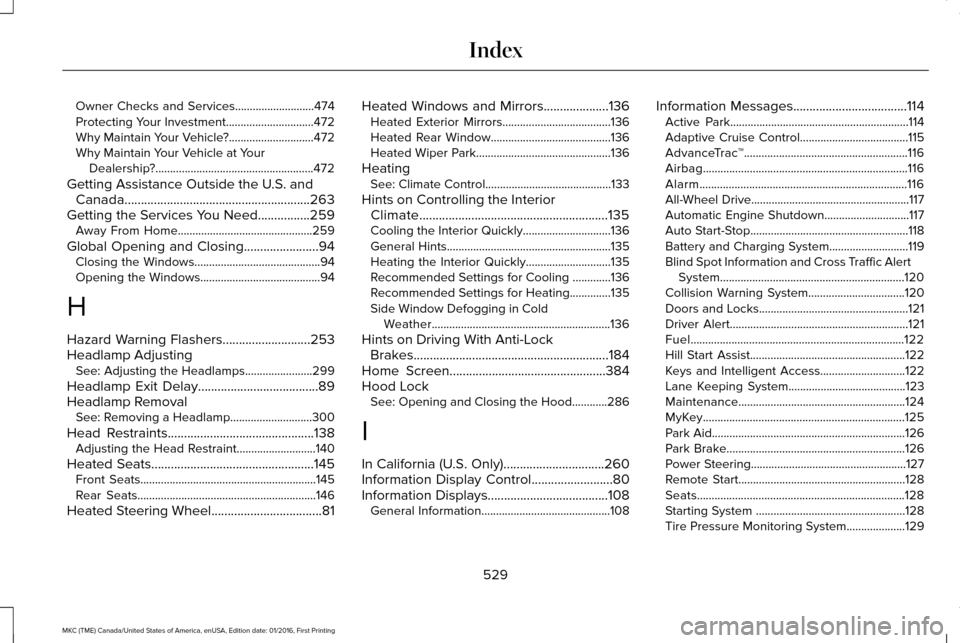
Owner Checks and Services...........................474
Protecting Your Investment..............................472
Why Maintain Your Vehicle?.............................472
Why Maintain Your Vehicle at Your
Dealership?......................................................472
Getting Assistance Outside the U.S. and Canada.........................................................263
Getting the Services You Need................259 Away From Home..............................................259
Global Opening and Closing.......................94 Closing the Windows...........................................94
Opening the Windows.........................................94
H
Hazard Warning Flashers...........................253
Headlamp Adjusting See: Adjusting the Headlamps.......................
299
Headlamp Exit Delay.....................................89
Headlamp Removal See: Removing a Headlamp............................300
Head Restraints
.............................................138
Adjusting the Head Restraint...........................140
Heated Seats..................................................145 Front Seats............................................................145
Rear Seats.............................................................146
Heated Steering Wheel..................................81 Heated Windows and Mirrors....................136
Heated Exterior Mirrors.....................................
136
Heated Rear Window.........................................136
Heated Wiper Park..............................................136
Heating See: Climate Control...........................................133
Hints on Controlling the Interior Climate..........................................................135
Cooling the Interior Quickly..............................136
General Hints........................................................135
Heating the Interior Quickly.............................135
Recommended Settings for Cooling .............136
Recommended Settings for Heating..............135
Side Window Defogging in Cold Weather.............................................................136
Hints on Driving With Anti-Lock Brakes............................................................184
Home Screen
................................................384
Hood Lock See: Opening and Closing the Hood............286
I
In California (U.S. Only)...............................260
Information Display Control
.........................80
Information Displays.....................................108 General Information............................................108 Information Messages
...................................114
Active Park.............................................................114
Adaptive Cruise Control.....................................115
AdvanceTrac ™........................................................116
Airbag......................................................................116
Alarm.......................................................................116
All-Wheel Drive......................................................117
Automatic Engine Shutdown.............................117
Auto Start-Stop......................................................118
Battery and Charging System...........................119
Blind Spot Information and Cross Traffic Alert System...............................................................120
Collision Warning System.................................120
Doors and Locks...................................................121
Driver Alert.............................................................121
Fuel........................................................................\
.122
Hill Start Assist.....................................................122
Keys and Intelligent Access.............................
122
Lane Keeping System........................................123
Maintenance.........................................................124
MyKey.....................................................................125
Park Aid..................................................................126
Park Brake.............................................................126
Power Steering.....................................................127
Remote Start.........................................................128
Seats.......................................................................128
Starting System ...................................................128
Tire Pressure Monitoring System....................
129
529
MKC (TME) Canada/United States of America, enUSA, Edition date: 01/2016, First Printing Index