service LINCOLN MKC 2017 Repair Manual
[x] Cancel search | Manufacturer: LINCOLN, Model Year: 2017, Model line: MKC, Model: LINCOLN MKC 2017Pages: 538, PDF Size: 4.8 MB
Page 381 of 538
To make sure that 911 Assist works correctly:
•
SYNC must be powered and working
properly at the time of the incident and
throughout feature activation and use.
• The 911 Assist feature must be set on
before the incident.
• You must pair and connect a
Bluetooth-enabled and compatible cell
phone to SYNC.
• A connected Bluetooth-enabled phone
must have the ability to make and
maintain an outgoing call at the time of
the incident.
• A connected Bluetooth-enabled phone
must have adequate network coverage,
battery power and signal strength.
• The vehicle must have battery power and
be located in the U.S., Canada or in a
territory in which 911 is the emergency
number. In the Event of a Crash
Not all crashes will deploy an airbag or
activate the fuel pump shut-off (the triggers
for 911 Assist). If a connected cell phone
sustains damage or loses its connection to
SYNC during a crash, SYNC will search for
and try to connect to a previously paired cell
phone; SYNC will then attempt to call the
emergency services.
Before making the call:
•
SYNC provides a short window of time
(about 10 seconds) to cancel the call. If
you fail to cancel the call, SYNC attempts
to dial 911.
• SYNC says the following, or a similar
message: "SYNC will attempt to call 911,
to cancel the call, press Cancel on your
screen or press and hold the phone
button on your steering wheel." If you do not cancel the call, and SYNC
makes a successful call, a pre-recorded
message plays for the 911 operator, and then
the occupant(s) in your vehicle is able to talk
with the operator. Be prepared to provide
your name, phone number and location
immediately, because not all 911 systems are
capable of receiving this information
electronically.
911 Assist May Not Work If
•
Your cellular phone or 911 Assist
hardware sustains damage in a crash.
• The vehicle's battery or the SYNC system
has no power.
• The phone(s) thrown from your vehicle
are the ones paired and connected to
the system.
911 Assist Privacy Notice
When you switch on 911 Assist, it may
disclose to emergency services that your
vehicle has been in a crash involving the
deployment of an airbag or activation of the
fuel pump shut-off. Certain versions or
updates to 911 Assist may also be capable
378
MKC (TME) Canada/United States of America, enUSA, Edition date: 01/2016, First Printing SYNC™ 3
Page 382 of 538
of electronically or verbally disclosing to 911
operators your vehicle location or other
details about your vehicle or crash to assist
911 operators to provide the most appropriate
emergency services. If you do not want to
disclose this information, do not switch the
feature on.
Safety Information
WARNING
Driving while distracted can result in
loss of vehicle control, crash and injury.
We strongly recommend that you use
extreme caution when using any device that
may take your focus off the road. Your
primary responsibility is the safe operation
of your vehicle. We recommend against the
use of any hand-held device while driving
and encourage the use of voice-operated
systems when possible. Make sure you are
aware of all applicable local laws that may
affect the use of electronic devices while
driving. •
Do not attempt to service or repair the
system. Have an authorized dealer check
your vehicle.
• Do not operate playing devices if the
power cords or cables are broken, split
or damaged. Place cords and cables out
of the way, so they do not interfere with
the operation of pedals, seats,
compartments or safe driving abilities.
• Do not leave playing devices in your
vehicle during extreme conditions as it
could cause them damage. See your
device's user guide for further
information.
• For your safety, some SYNC 3 functions
are speed-dependent. Their use is limited
to when your vehicle is traveling at
speeds under 3 mph (5 km/h). Make sure
that you review your device's manual
before using it with SYNC 3. Speed-restricted Features
Some features of this system may be too
difficult to use while your vehicle is moving
so they are restricted from use unless your
vehicle is stationary.
•
Screens crowded with information, such
as Point of Interest reviews and ratings,
SiriusXM Traffic and Travel Link sports
scores, movie times or ski conditions.
• Any action that requires you to use a
keyboard is restricted, such as entering
a navigation destination or editing
information.
• All lists are limited so the user can view
fewer entries (such as phone contacts or
recent phone call entries).
See the following chart for more specific
examples.
379
MKC (TME) Canada/United States of America, enUSA, Edition date: 01/2016, First Printing SYNC™ 3
Page 384 of 538
•
Essential for keeping up with the latest
software and connected features.
• Access to customer support for any
questions you may have.
• Maintain account permissions.
Visit the website to sign up and register. Website
owner.lincoln.com
www.syncmyride.ca
www.syncmaroute.ca
MyLincoln Mobile ™ with Embedded
Modem (If Equipped)
Connect to your vehicle using the MyLincoln
Mobile app on your smartphone. The
embedded modem in your vehicle
communicates with the app and allows you
to start, lock, unlock and locate your vehicle
remotely. The app also connects you with
other vehicle resources like a parking locator,
roadside assistance, dealer locations and
Lincoln Support. MyLincoln Mobile is supported by Android and iPhone and it is
available through the App Store and Google
Play. The MyLincoln mobile app is available
through a free download. Services included
for four years. Text and data rates apply to
usage.
Updating Your System
You can choose to download the update
onto a USB drive or use Wi-Fi to deliver
automatic updates.
USB Updates
To use the USB update you need to log into
your owner account and visit the SYNC
software update page.
Website
owner.lincoln.com
www.syncmyride.ca
www.syncmaroute.ca
The website notifies you if an update is
available. You can then select to download
the update. You will need an empty USB drive. Please
check the website for minimum
requirements. Once you have inserted the
USB drive into your computer, choose to start
the download. Follow the instructions
provided to download the files to the USB
drive.
The installation of most files occurs in the
background, and does not interrupt your use
of the system. Navigation updates cannot be
installed in the background, because the files
are too large.
To install the update in your vehicle, remove
anything that is plugged in the USB ports on
the media hub and plug in the USB drive
containing the update. When the USB drive
is plugged in, the installation should begin
immediately. After a successful installation,
the update is available the next time the
vehicle is started.
381
MKC (TME) Canada/United States of America, enUSA, Edition date: 01/2016, First Printing SYNC™ 3
Page 401 of 538
AM/FM Radio
Tuning a Station
You can use the tune or seek controls on the
radio bezel to select a station.
To tune a station using the touchscreen,
select:
Menu item
Direct Tune
A pop up appears, allowing you to type in
the frequency of a station. You can only enter
a valid station for the source you are
currently listening to.
You can press the backspace button to
delete the previously entered number. Once you have entered the station's call
numbers, you can select: Action and description
Menu item
Press to begin
playing the station
you have entered.
Enter
Press to exit without
changing the station.
Cancel
Presets
To set a new preset, tune to the station and
then press and hold one of the memory
preset buttons. The audio mutes briefly while
the system saves the station and then
returns.
There are two preset banks available for AM
and three banks for FM. To access additional
presets, tap the preset button. The indicator
on the preset button shows which bank of
presets you are currently viewing. SIRIUS® Satellite Radio (If Activated)
Note:
This feature may not be available in
all markets and requires an active
subscription. SIRIUS satellite radio is a subscription-based
satellite radio service that broadcasts a
variety of music, sports, news, weather, traffic
and entertainment programming. Your
factory-installed SIRIUS satellite radio system
includes hardware and a limited subscription
term that begins on the date of sale or lease
of your vehicle. See an authorized dealer for
availability.
398
MKC (TME) Canada/United States of America, enUSA, Edition date: 01/2016, First Printing SYNC™ 3E142593
Page 402 of 538
For more information on extended
subscription terms (a service fee is required),
the online media player and a list of SIRIUS
satellite radio channels, and other features,
please visit www.siriusxm.com in the United
States, www.siriusxm.ca in Canada, or call
SIRIUS at 1-888-539-7474.
Note:
SIRIUS reserves the unrestricted right
to change, rearrange, add or delete
programming. This includes canceling,
moving or adding particular channels, and
its prices, at any time, with or without notice
to you. Ford Motor Company shall not be
responsible for any such programming
changes. Note:
This receiver includes the eCos
real-time operating system. eCos is
published under the eCos License.
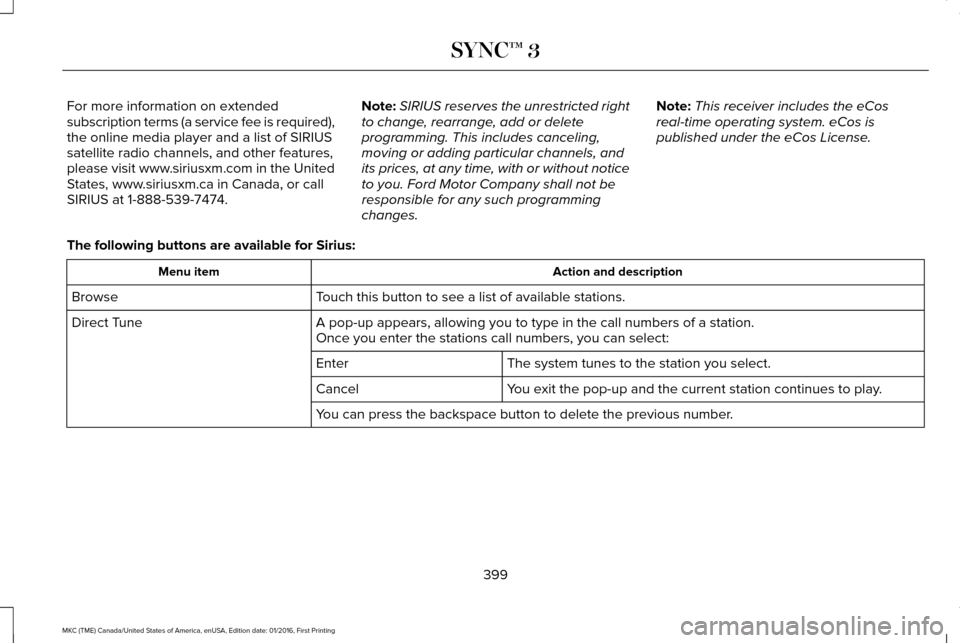
The following buttons are available for Sirius: Action and description
Menu item
Touch this button to see a list of available stations.
Browse
A pop-up appears, allowing you to type in the call numbers of a station.\
Direct Tune
Once you enter the stations call numbers, you can select:
The system tunes to the station you select.
Enter
You exit the pop-up and the current station continues to play.
Cancel
You can press the backspace button to delete the previous number.
399
MKC (TME) Canada/United States of America, enUSA, Edition date: 01/2016, First Printing SYNC™ 3
Page 404 of 538
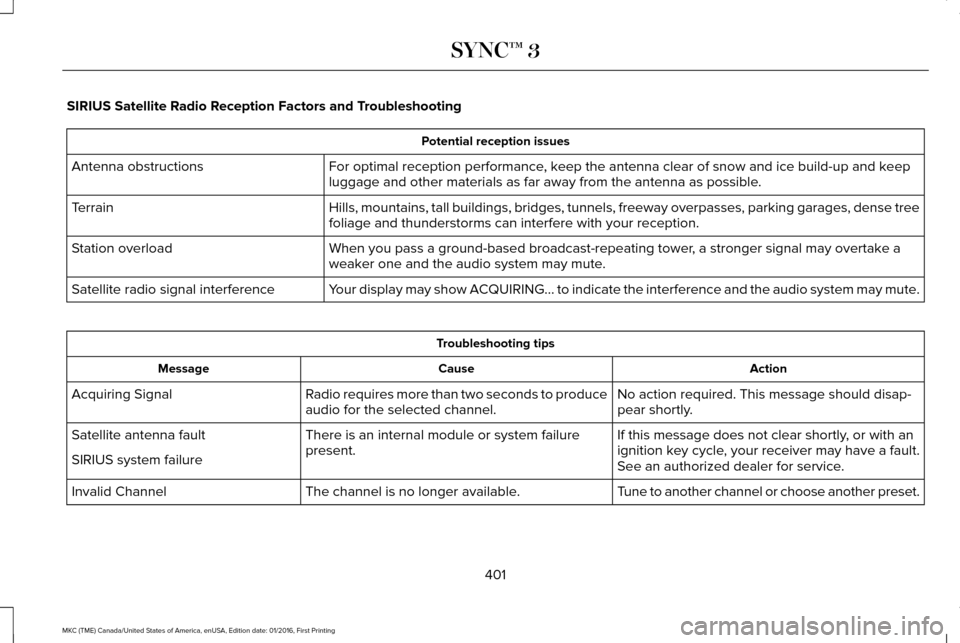
SIRIUS Satellite Radio Reception Factors and Troubleshooting
Potential reception issues
For optimal reception performance, keep the antenna clear of snow and ice build-up and keep
luggage and other materials as far away from the antenna as possible.
Antenna obstructions
Hills, mountains, tall buildings, bridges, tunnels, freeway overpasses, \
parking garages, dense tree
foliage and thunderstorms can interfere with your reception.
Terrain
When you pass a ground-based broadcast-repeating tower, a stronger signal may overtake a
weaker one and the audio system may mute.
Station overload
Your display may show ACQUIRING... to indicate the interference and the a\
udio system may mute.
Satellite radio signal interference Troubleshooting tips
Action
Cause
Message
No action required. This message should disap-
pear shortly.
Radio requires more than two seconds to produce
audio for the selected channel.
Acquiring Signal
If this message does not clear shortly, or with an
ignition key cycle, your receiver may have a fault.
See an authorized dealer for service.
There is an internal module or system failure
present.
Satellite antenna fault
SIRIUS system failure
Tune to another channel or choose another preset.
The channel is no longer available.
Invalid Channel
401
MKC (TME) Canada/United States of America, enUSA, Edition date: 01/2016, First Printing SYNC™ 3
Page 405 of 538
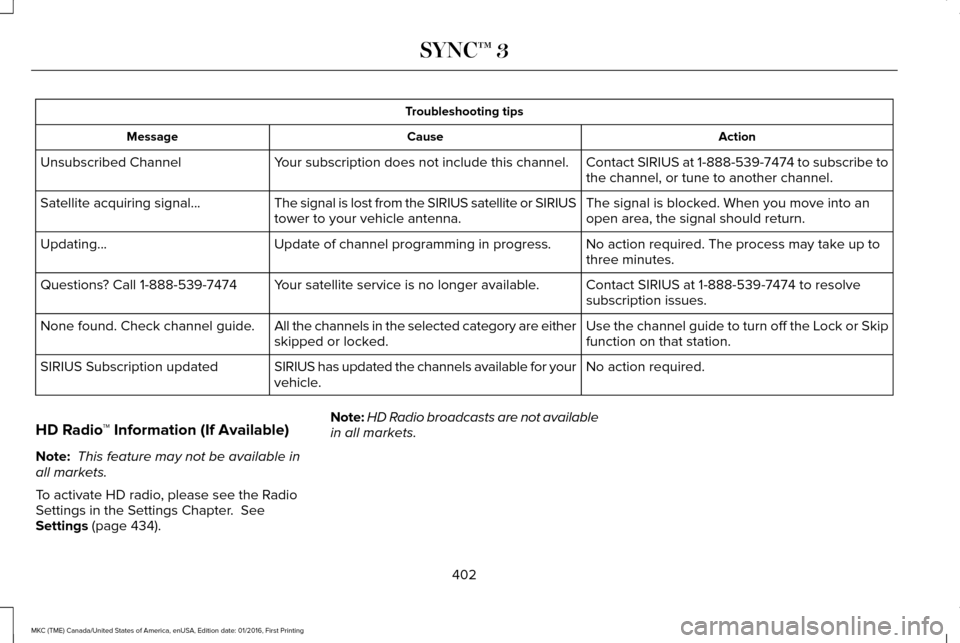
Troubleshooting tips
Action
Cause
Message
Contact SIRIUS at 1-888-539-7474 to subscribe to
the channel, or tune to another channel.
Your subscription does not include this channel.
Unsubscribed Channel
The signal is blocked. When you move into an
open area, the signal should return.
The signal is lost from the SIRIUS satellite or SIRIUS
tower to your vehicle antenna.
Satellite acquiring signal\b
No action required. The process may take up to
three minutes.
Update of channel programming in progress.
Updating\b
Contact SIRIUS at 1-888-539-7474 to resolve
subscription issues.
Your satellite service is no longer available.
Questions? Call 1-888-539-7474
Use the channel guide to turn off the Lock or Skip
function on that station.
All the channels in the selected category are either
skipped or locked.
None found. Check channel guide.
No action required.
SIRIUS has updated the channels available for your
vehicle.
SIRIUS Subscription updated
HD Radio ™ Information (If Available)
Note: This feature may not be available in
all markets.
To activate HD radio, please see the Radio
Settings in the Settings Chapter. See
Settings (page 434). Note:
HD Radio broadcasts are not available
in all markets.
402
MKC (TME) Canada/United States of America, enUSA, Edition date: 01/2016, First Printing SYNC™ 3
Page 408 of 538
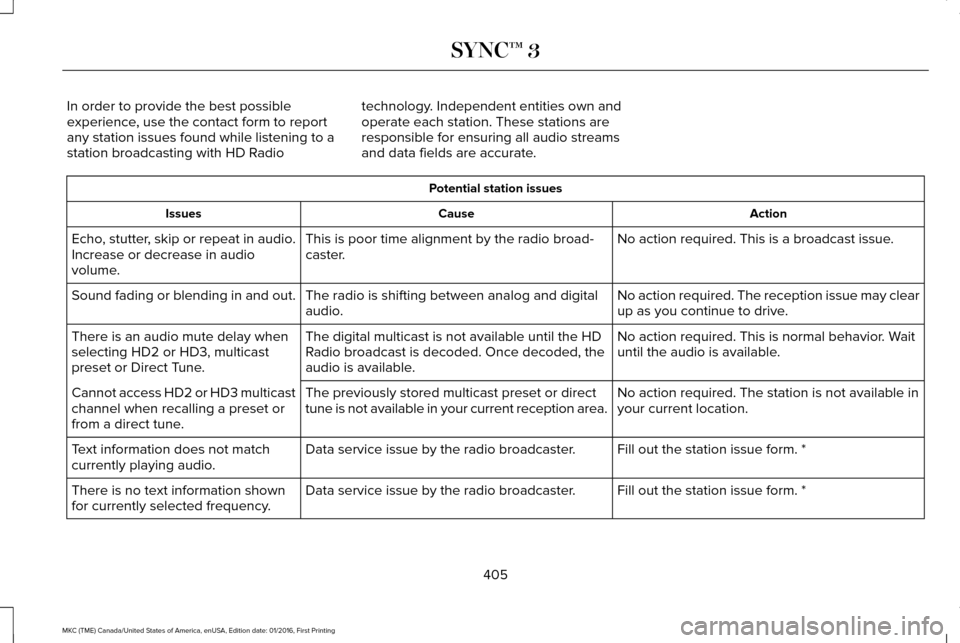
In order to provide the best possible
experience, use the contact form to report
any station issues found while listening to a
station broadcasting with HD Radio
technology. Independent entities own and
operate each station. These stations are
responsible for ensuring all audio streams
and data fields are accurate. Potential station issues
Action
Cause
Issues
No action required. This is a broadcast issue.
This is poor time alignment by the radio broad-
caster.
Echo, stutter, skip or repeat in audio.
Increase or decrease in audio
volume.
No action required. The reception issue may clear
up as you continue to drive.
The radio is shifting between analog and digital
audio.
Sound fading or blending in and out.
No action required. This is normal behavior. Wait
until the audio is available.
The digital multicast is not available until the HD
Radio broadcast is decoded. Once decoded, the
audio is available.
There is an audio mute delay when
selecting HD2 or HD3, multicast
preset or Direct Tune.
No action required. The station is not available in
your current location.
The previously stored multicast preset or direct
tune is not available in your current reception area.
Cannot access HD2 or HD3 multicast
channel when recalling a preset or
from a direct tune.
Fill out the station issue form. *
Data service issue by the radio broadcaster.
Text information does not match
currently playing audio.
Fill out the station issue form. *
Data service issue by the radio broadcaster.
There is no text information shown
for currently selected frequency.
405
MKC (TME) Canada/United States of America, enUSA, Edition date: 01/2016, First Printing SYNC™ 3
Page 419 of 538

Action and Description
Menu Item
Item
You can place a call by selecting an entry from this list.
You can also sort the calls by selecting the drop down menu at the top of\
the screen. You can choose: Missed
Outgoing
Incoming
All
All of your contacts from your phone display in alphabetical order.
Contacts
B
Selecting this button allows you to choose a
specific letter to view.
A-Z Jump
Displays the name of your phone and takes you to the phone settings options.
Phone Settings
C
From this menu, you can pair subsequent devices, set ring tones and aler\
ts. See Settings (page 434).
Displays all recent text messages.
Text Messages
D
Use this keypad to dial in a phone number.
Phone Keypad
E
Use the backspace button to delete numbers.
Press this button to begin a call.
Call
Touch this button to send all calls directly to your voicemail. New text \
message notifications are not
displayed on the screen and all ringtones and alerts are set to silent.
Do Not Disturb
F
Users with phones having voice services may
see a button to access the feature. For
example, iPhone users see a Siri button. A
press and hold of the voice button on the
steering wheel also accesses this feature. 416
MKC (TME) Canada/United States of America, enUSA, Edition date: 01/2016, First Printing SYNC™ 3
Page 433 of 538
cityseeker (If Equipped)
Note: cityseeker point of interest (POI)
information is limited to approximately 1110
cities (1049 in the United States, 36 in
Canada and 15 in Mexico). cityseeker, when available, is a service that
provides more information about certain
points of interest such as restaurants, hotels
and attractions.
When you have selected a point of interest,
the location and information appear, such as
address, phone number and a star rating.
Press
More Information to see a photo, a
review, a list of services and facilities, the
average room or meal price and the web
address. This screen displays the point of
interest icons. For restaurants, cityseeker can provide
information such as star rating, average cost,
review, handicap access, hours of operation,
and website address.
For hotels, cityseeker can provide
information such as star rating, price
category, review, check-in and checkout
times, hotel service icons and website
address. Hotel service icons include:
•
Restaurant
• Business center
• Handicap facilities
• Laundry
• Refrigerator
• 24 hour room service
• Fitness center
• Internet access
• Pool
• Wi-Fi
Attractions include nearby landmarks,
amusement parks, historic buildings and
more. cityseeker can provide information
such as star rating, reviews, hour of operation
and admission price. SiriusXM Traffic and Travel Link
SiriusXM Traffic and Travel Link is available
on vehicles equipped with navigation and
only in select markets. You must activate and
subscribe to receive SiriusXM Traffic and
Travel Link information. It helps you locate
the best gas prices, find movie listings, get
current traffic alerts, view the weather map,
get accurate ski conditions and see current
sports scores.
See Apps (page 431).
The system calculates a reasonable efficient
route based on available speed limits, traffic,
and road conditions. You may know a local
short cut that is more efficient at a given time
than the route provided by SYNC 3, but you
should expect a slight difference in minutes
or miles with the SYNC 3 route.
Navigation Map Updates
Annual navigation map updates are available
for purchase through your dealership, by
calling 1-866-462-8837 in the United States
and Canada or 01-800-557-5539 in Mexico.
You can also visit:
430
MKC (TME) Canada/United States of America, enUSA, Edition date: 01/2016, First Printing SYNC™ 3E225487