ECU LINCOLN MKC 2019 Owner's Guide
[x] Cancel search | Manufacturer: LINCOLN, Model Year: 2019, Model line: MKC, Model: LINCOLN MKC 2019Pages: 581, PDF Size: 5.41 MB
Page 304 of 581
4. On the wall or screen, you will observea flat zone of high intensity light locatedat the top of the right hand portion of thebeam pattern. If the top edge of the highintensity light zone is not at the horizontalreference line, you will need to adjust theheadlamp.
5. Locate the vertical adjuster on eachheadlamp. Turn the adjuster eitherclockwise or counterclockwise in orderto aim the headlamp.
6.Close the hood and switch off the lamps.
Horizontal Aim Adjustment
Horizontal aim is not required for this vehicleand is non-adjustable.
REMOVING A HEADLAMP
To gain access to the headlamp securingbolts and to remove the headlamp assembly,you must first remove the front fascia andfront bumper assemblies. We recommendyou see an authorized dealer.
CHANGING A BULB
WARNING: Switch all of the lamps andthe ignition off. Failure to follow this warningcould result in serious personal injury.
WARNING: Bulbs can become hot. Letthe bulb cool down before removing it.Failure to do so could result in personalinjury.
Install in the reverse order unless otherwisestated.
301
MKC (TME) Canada/United States of America, enUSA, Edition date: 201802, Second-Printing
MaintenanceE142465 E171165
Page 335 of 581
•Use 10 mm cables or chains only on frontaxle with 235/50R18 tires.
•Not all S-class snow chains or cablesmeet these restrictions. Chains of thissize restriction will include a tensioningdevice.
•The snow chains or cables must bemounted in pairs on the front axle.
•Do not use chains or cables on235/45R19, 245/45R19 and 255/40R20tires.
•Install cables securely, verifying that thecables do not touch any wiring, brakelines or fuel lines.
•When driving with tire cables do notexceed 30 mph (48 km/h) or themaximum speed recommended by thechain manufacturer, whichever is less.
•Drive cautiously. If you hear the cablesrub or bang against the vehicle, stop andretighten them. If this does not work,remove the cables to prevent vehicledamage.
•Remove the cables when they are nolonger needed. Do not use cables on dryroads.
If you have any questions regarding snowchains or cables, please contact yourauthorized dealer.
TIRE PRESSURE MONITORING
SYSTEM
WARNING: The tire pressuremonitoring system is not a substitute formanually checking tire pressures. You shouldperiodically check tire pressures using apressure gauge. Failure to correctly maintaintire pressures could increase the risk of tirefailure, loss of control, vehicle rollover andpersonal injury.
Note: You should only use tire sealants inroadside emergencies as they may causedamage to the tire pressure monitoringsystem sensor.
Note: If the tire pressure monitoring systemsensor becomes damaged, it may notfunction.
Each tire, including the spare (ifprovided), should be checkedmonthly when cold and inflated tothe inflation pressure recommended by thevehicle manufacturer on the vehicle placardor tire inflation pressure label. (If your vehiclehas tires of a different size than the sizeindicated on the vehicle placard or tireinflation pressure label, you shoulddetermine the proper tire inflation pressurefor those tires).
As an added safety feature, your vehicle hasbeen equipped with a Tire PressureMonitoring System (TPMS) that illuminates alow tire pressure telltale when one or moreof your tires is significantly under-inflated.Accordingly, when the low tire pressuretelltale illuminates, you should stop andcheck your tires as soon as possible, andinflate them to the proper pressure. Drivingon a significantly under-inflated tire causesthe tire to overheat and can lead to tirefailure. Under-inflation also reduces fuelefficiency and tire tread life, and may affectthe vehicle’s handling and stopping ability.
332
MKC (TME) Canada/United States of America, enUSA, Edition date: 201802, Second-Printing
Wheels and Tires
Page 342 of 581
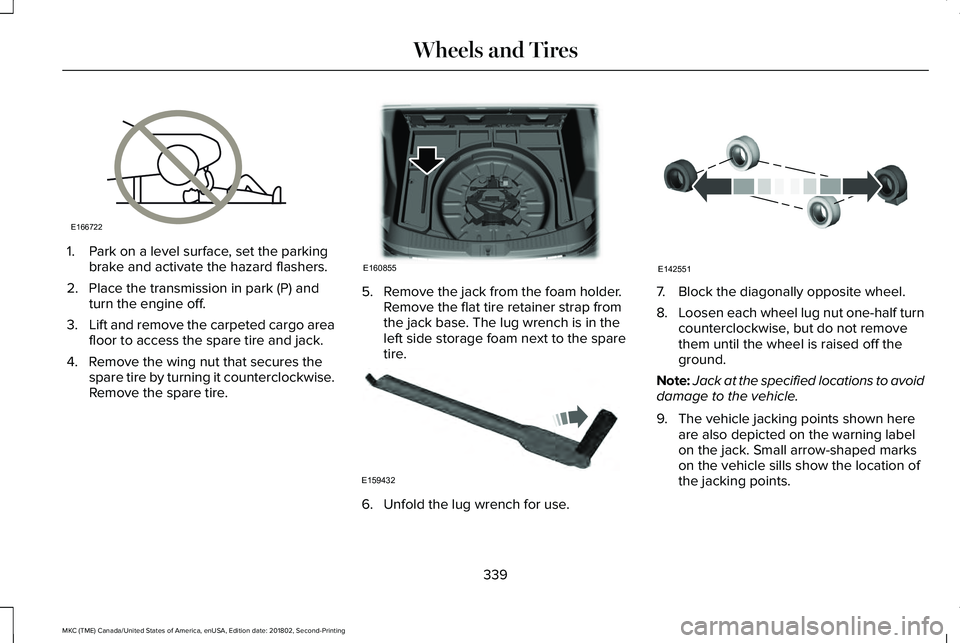
1. Park on a level surface, set the parkingbrake and activate the hazard flashers.
2. Place the transmission in park (P) andturn the engine off.
3.Lift and remove the carpeted cargo areafloor to access the spare tire and jack.
4. Remove the wing nut that secures thespare tire by turning it counterclockwise.Remove the spare tire.
5. Remove the jack from the foam holder.Remove the flat tire retainer strap fromthe jack base. The lug wrench is in theleft side storage foam next to the sparetire.
6. Unfold the lug wrench for use.
7. Block the diagonally opposite wheel.
8.Loosen each wheel lug nut one-half turncounterclockwise, but do not removethem until the wheel is raised off theground.
Note:Jack at the specified locations to avoiddamage to the vehicle.
9. The vehicle jacking points shown hereare also depicted on the warning labelon the jack. Small arrow-shaped markson the vehicle sills show the location ofthe jacking points.
339
MKC (TME) Canada/United States of America, enUSA, Edition date: 201802, Second-Printing
Wheels and TiresE166722 E160855 E159432 E142551
Page 343 of 581
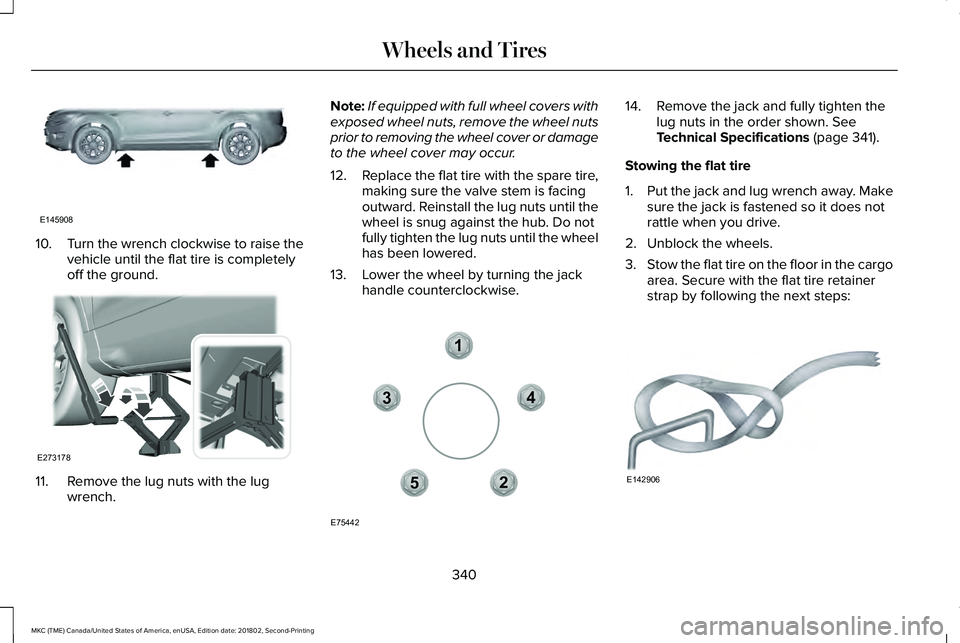
10.Turn the wrench clockwise to raise thevehicle until the flat tire is completelyoff the ground.
11. Remove the lug nuts with the lugwrench.
Note:If equipped with full wheel covers withexposed wheel nuts, remove the wheel nutsprior to removing the wheel cover or damageto the wheel cover may occur.
12.Replace the flat tire with the spare tire,making sure the valve stem is facingoutward. Reinstall the lug nuts until thewheel is snug against the hub. Do notfully tighten the lug nuts until the wheelhas been lowered.
13. Lower the wheel by turning the jackhandle counterclockwise.
14. Remove the jack and fully tighten thelug nuts in the order shown. SeeTechnical Specifications (page 341).
Stowing the flat tire
1.Put the jack and lug wrench away. Makesure the jack is fastened so it does notrattle when you drive.
2. Unblock the wheels.
3.Stow the flat tire on the floor in the cargoarea. Secure with the flat tire retainerstrap by following the next steps:
340
MKC (TME) Canada/United States of America, enUSA, Edition date: 201802, Second-Printing
Wheels and TiresE145908 E273178 12
3
4
5
E75442 E142906
Page 344 of 581
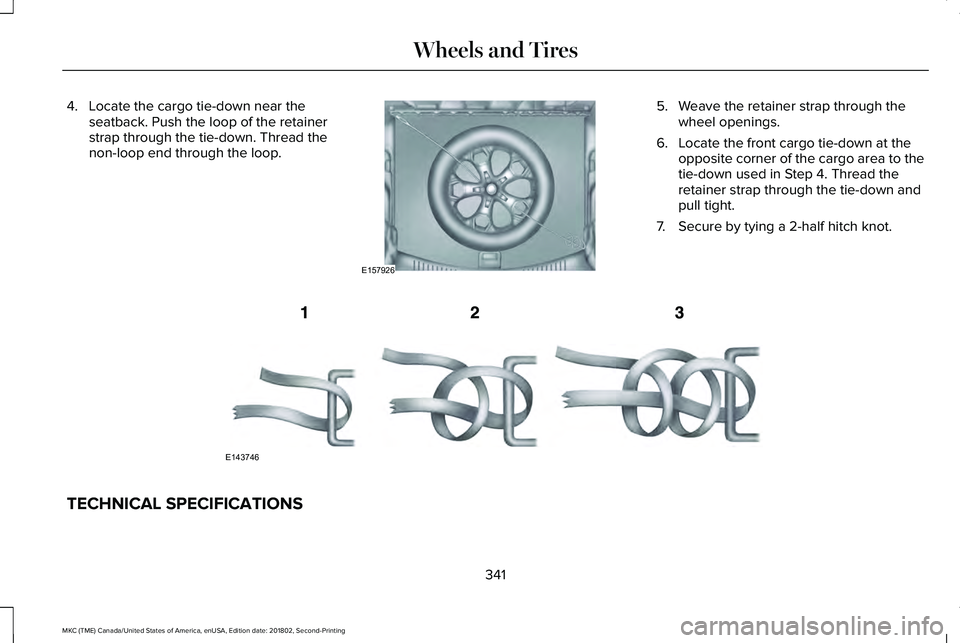
4. Locate the cargo tie-down near theseatback. Push the loop of the retainerstrap through the tie-down. Thread thenon-loop end through the loop.
5. Weave the retainer strap through thewheel openings.
6. Locate the front cargo tie-down at theopposite corner of the cargo area to thetie-down used in Step 4. Thread theretainer strap through the tie-down andpull tight.
7. Secure by tying a 2-half hitch knot.
TECHNICAL SPECIFICATIONS
341
MKC (TME) Canada/United States of America, enUSA, Edition date: 201802, Second-Printing
Wheels and TiresE157926 E143746
Page 345 of 581

Wheel Lug Nut Torque Specifications
WARNING: When you install a wheel, always remove any corrosion, dirt or foreign materials present on the mounting surfaces of thewheel or the surface of the wheel hub, brake drum or brake disc that contacts the wheel. Make sure to secure any fasteners that attach therotor to the hub so they do not interfere with the mounting surfaces of the wheel. Installing wheels without correct metal-to-metal contact atthe wheel mounting surfaces can cause the wheel nuts to loosen and the wheel to come off while your vehicle is in motion, resulting in lossof vehicle control, personal injury or death.
Ib-ft (Nm)*Bolt size
100 (135)M12 x 1.5
*Torque specifications are for nut and bolt threads free of oil, dirt and rust. Use only Ford recommended replacement fasteners.
Retighten the lug nuts to the specified torque within 100 miles (160 kilometers) after any wheel disturbance (such as tire rotation, changing aflat tire, wheel removal).
342
MKC (TME) Canada/United States of America, enUSA, Edition date: 201802, Second-Printing
Wheels and Tires
Page 391 of 581
•DISP: Switch the display on or off. Youcan also touch the screen to switch thedisplay back on.
•Temperature, fan and climate controlbuttons: Control the temperature, fanspeed or settings of the climate controlsystem. See Climate Control (page 132).
911 Assist
WARNING: Unless the 911 Assistsetting is set on before a crash, the systemwill not dial for help which could delayresponse time, potentially increasing the riskof serious injury or death after a crash.
WARNING: Do not wait for 911 Assistto make an emergency call if you can do ityourself. Dial emergency servicesimmediately to avoid delayed response timewhich could increase the risk of serious injuryor death after a crash. If you do not hear 911Assist within five seconds of the crash, thesystem or phone may be damaged ornon-functional.
WARNING: Always place your phonein a secure location in your vehicle so it doesnot become a projectile or get damaged ina crash. Failure to do so may cause seriousinjury to someone or damage the phonewhich could prevent 911 Assist from workingproperly.
Note:The SYNC 911 Assist feature must beset on before the incident.
Note:The SYNC 911 Assist feature onlyoperates in the U.S., Canada or in a territoryin which 911 is the emergency number.
Note:Before setting this feature on, makesure that you read the 911 Assist PrivacyNotice later in this section for importantinformation.
Note:If any user sets 911 Assist to on or off,that setting applies for all paired phones. If911 Assist is switched off and the phone isconnected to SYNC, an icon displays on thestatus bar.
Note:Every phone operates differently.While SYNC 911 Assist works with mostcellular phones, some may have troubleusing this feature.
If a crash deploys an airbag (excluding kneeairbags and rear inflatable safety belts [ifequipped]) or activates the fuel pumpshut-off, your SYNC-equipped vehicle maybe able to contact emergency services bydialing 911 through a paired and connectedBluetooth-enabled phone. You can learnmore about the 911 Assist feature, by visiting:
Website
www.owner.lincoln.comwww.syncmyride.cawww.syncmaroute.ca
For important information about airbagdeployment and the fuel pump shut-offplease see the Supplementary Restrains andRoadside Emergencies sections of yourowner manual.
To switch 911 Assist on and off please viewthe settings information. See Settings (page445).
388
MKC (TME) Canada/United States of America, enUSA, Edition date: 201802, Second-Printing
SYNC™ 3
Page 396 of 581
To connect your system to Wi-Fi, select:
Menu Item
Settings
Wi-Fi
You can then select your Wi-Fi network. You may haveto enter the security code ifthe network is secured. Thesystem confirms when it hasconnected to the network.
Available Wi-Fi Networks
You must also give the system permissionto update automatically. Upon vehicledelivery, the System asks you if you wouldlike to use the automatic update feature. Ifyou agree to automatic updates, you canpress OK to confirm. If this selection doesnot appear upon vehicle delivery you canaccess it through the General Settings. SeeSettings (page 445). You can also perform amaster reset. See SYNC™ 3 Troubleshooting(page 465).
If you would like to switch this feature onlater, select:
Menu Item
Settings
General
From this menu, you canenable automatic updates.If you have not done soalready, the system promptsyou to set up a Wi-Ficonnection when youenable this feature.
AutomaticSystemUpdates
When Wi-Fi and automatic updates areenabled, your system checks for softwareupdates periodically. If a new version isavailable, it downloads at that time. Softwaredownloads can take place for up to 30minutes after you have switched your vehicleoff. The updates do not interrupt the normaluse of your SYNC 3 system. If a downloaddoes not complete for any reason, the
download continues where it left off at thenext Wi-Fi connected opportunity. Uponactivation of an update, a banner displayson the touchscreen indicating the systemupdate. Select the icon to see more detail.This icon displays for two ignition cycles.
To switch this feature off:
Menu Item
Settings
General
In this menu selection, youcan change the selection forautomatic updates to OFF.
AutomaticSystemUpdates
Support
The SYNC support team is available to helpyou with any questions you are not able toanswer on your own.
Monday-Saturday, 8:30am-8:00pm EST.
United States: 1-800-521-4140.
Canada: 1-800-387-9333.
Times are subject to change due to holidays.
393
MKC (TME) Canada/United States of America, enUSA, Edition date: 201802, Second-Printing
SYNC™ 3
Page 412 of 581
Menu Item
Bluetooth Stereo
If you have SYNC 3 compatible apps on your connected smart phone, they display here as individual source selections.Apps
1 This feature may not be available in all markets and requires an active subscription.
AM/FM Radio
Tuning a Station
You can use the tune or seek controls on theradio bezel to select a station.
To tune a station using the touchscreen,select:
Menu Item
Direct Tune
A pop up appears, allowing you to type inthe frequency of a station. You can only entera valid station for the source you arecurrently listening to.
You can press the backspace button todelete the previously entered number.
Once you have entered the station's callnumbers, you can select:
Action and Descrip-tionMenu Item
Press to beginplaying the stationyou have entered.
Enter
Press to exit withoutchanging the station.Cancel
Presets
To set a new preset, tune to the station andthen press and hold one of the memorypreset buttons. The audio mutes briefly whilethe system saves the station and thenreturns.
There are two preset banks available for AMand three banks for FM. To access additionalpresets, tap the preset button. The indicatoron the preset button shows which bank ofpresets you are currently viewing.
SiriusXM® Satellite Radio (If Activated)
Note: This feature may not be available inall markets and requires an activesubscription.
409
MKC (TME) Canada/United States of America, enUSA, Edition date: 201802, Second-Printing
SYNC™ 3E234451
Page 414 of 581
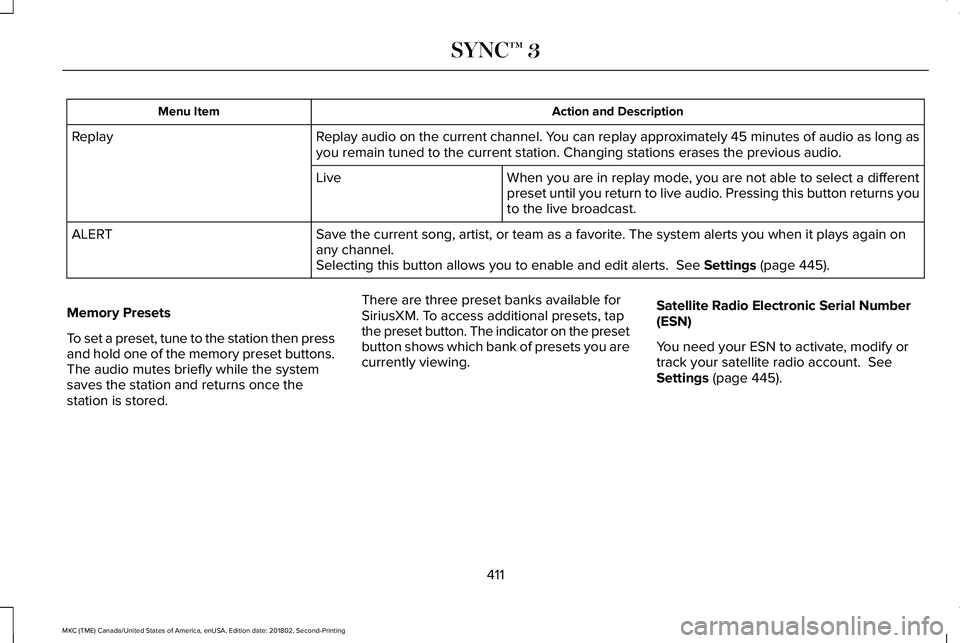
Action and DescriptionMenu Item
Replay audio on the current channel. You can replay approximately 45 minutes of audio as long asyou remain tuned to the current station. Changing stations erases the previous audio.Replay
When you are in replay mode, you are not able to select a differentpreset until you return to live audio. Pressing this button returns youto the live broadcast.
Live
Save the current song, artist, or team as a favorite. The system alerts you when it plays again onany channel.ALERT
Selecting this button allows you to enable and edit alerts. See Settings (page 445).
Memory Presets
To set a preset, tune to the station then pressand hold one of the memory preset buttons.The audio mutes briefly while the systemsaves the station and returns once thestation is stored.
There are three preset banks available forSiriusXM. To access additional presets, tapthe preset button. The indicator on the presetbutton shows which bank of presets you arecurrently viewing.
Satellite Radio Electronic Serial Number(ESN)
You need your ESN to activate, modify ortrack your satellite radio account. SeeSettings (page 445).
411
MKC (TME) Canada/United States of America, enUSA, Edition date: 201802, Second-Printing
SYNC™ 3