ECO mode LINCOLN MKZ 2014 Owner's Manual
[x] Cancel search | Manufacturer: LINCOLN, Model Year: 2014, Model line: MKZ, Model: LINCOLN MKZ 2014Pages: 468, PDF Size: 4.49 MB
Page 176 of 468
USING ALL-WHEEL DRIVE
All-wheel drive uses all four wheels
to power the vehicle. This increases
traction, enabling you to drive over
terrain and road conditions that a
conventional two-wheel drive vehicle
cannot. The AWD system is active all
the time and requires no input from
the operator.
Note:Your AWD vehicle is not
intended for off-road use. The AWD
feature gives your vehicle some limited
off-road capabilities in which driving
surfaces are relatively level,
obstruction-free and otherwise similar
to normal on-road driving conditions.
Operating your vehicle under other than
those conditions could subject the
vehicle to excessive stress which might
result in damage which is not covered
under your warranty.
Note: A warning message will be
displayed in the information display
when an AWD system fault is present
See Information Messages (page 106).
An AWD system fault will cause the
AWD system to default to front-wheel
drive only mode. When this warning
message is displayed, have your vehicle
serviced at an authorized dealer Note:
A warning message will be
displayed in the information display if
the AWD system has overheated See
Information Messages (page 106).
This condition may occur if the vehicle
was operated in extreme conditions
with excessive wheel slip, such as deep
sand. To resume normal AWD function
as soon as possible, stop the vehicle in
a safe location and stop the engine for
at least 10 minutes. After the engine
has been restarted and the AWD
system has adequately cooled, the
warning message will turn off and
normal AWD function will return.
Do not use a spare tire of a different
size other than the tire provided. If the
mini-spare tire is installed, the AWD
system may disable automatically
and enter front-wheel drive only mode
to protect driveline components. This
condition will be indicated by a
warning in the information display
See Information Messages (page
106). If there is a warning message in
the information display from using the
spare tire, this indicator should turn
off after reinstalling the repaired or
replaced normal road tire and cycling
the ignition off and on. It is
recommended to reinstall the repaired
or replaced road tire as soon as
possible. Major dissimilar tire sizes
between the front and rear axles
could cause the AWD system to stop
functioning and default to front-wheel
drive or damage the AWD system.
173
All-Wheel Drive (If Equipped)
Page 211 of 468

E131358
The current assessment of your
alertness is within a typical range.
E131359
The current assessment of your
alertness indicates that you should
rest as soon as safely possible.
The status bar will travel from left to
right as the calculated alertness level
decreases. As the rest icon is
approached the color turns from
green to yellow to red.
• Green - No rest required.
• Yellow - First warning is active.
• Red - Second warning is active.
Note:If you have recently received a
warning; you should consider resting,
even if the current assessment is with
the typical range.
Note: The alertness level will be
shown in grey for a short time if the
camera sensor cannot track the road
lane markings or if the vehicle speed
drops below approximately 40 mph
(64 km/h), after which the system
display will inform the driver that the
system is unavailable. Resetting the System
You can reset the system by either:
• Switching the ignition off and on.
• Stopping the vehicle and then
opening and closing the driver’s
door.
LANE KEEPING SYSTEM (IF
EQUIPPED)
WARNING
The system is designed to aid the
driver. It is not intended to
replace the driver’s attention and
judgment. The driver is still
responsible to drive with due care and
attention.
Note: The system works above 40
mph (64 km/h).
Note: The system works as long as one
lane marking can be detected by the
camera.
Note: If the camera is blocked or if the
windshield is damaged, the system
may not function.
Note: When Aid mode is on and the
system detects no driver steering
activity for a short continuous period
of time, the system alerts the driver to
put their hands on the steering wheel.
The system may detect a light
grip/touch on the steering wheel as
hands off driving.
208
Driving Aids
Page 216 of 468
BLIND SPOT MONITOR
Blind Spot Information System
(BLIS®) with Cross Traffic
Alert
(If Equipped)
WARNING
To help avoid injuries, NEVER use
the BLIS as a replacement for
using the interior and exterior mirrors
and looking over your shoulder before
changing lanes. BLIS is not a
replacement for careful driving and
only an assist.
A
A
E124788
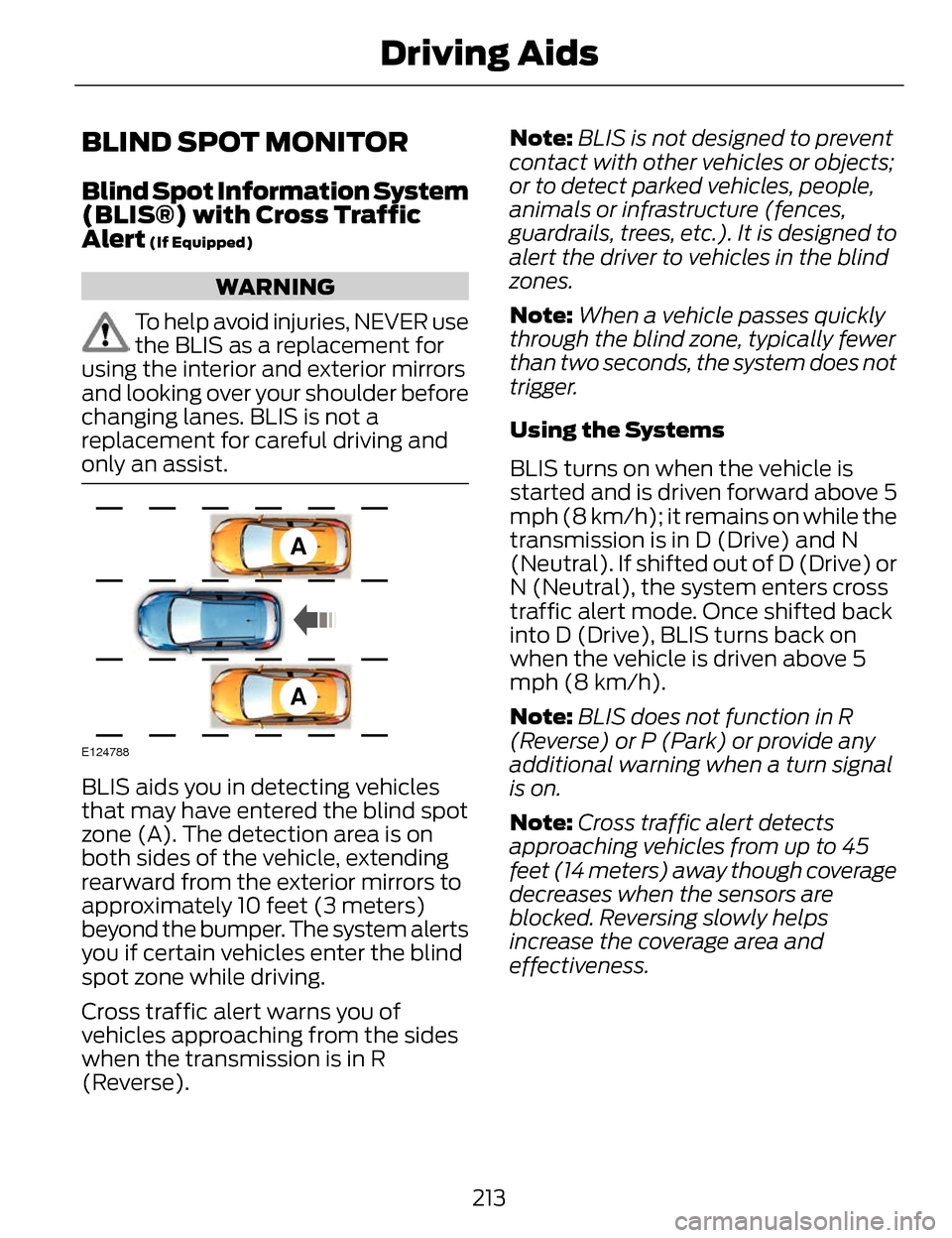
BLIS aids you in detecting vehicles
that may have entered the blind spot
zone (A). The detection area is on
both sides of the vehicle, extending
rearward from the exterior mirrors to
approximately 10 feet (3 meters)
beyond the bumper. The system alerts
you if certain vehicles enter the blind
spot zone while driving.
Cross traffic alert warns you of
vehicles approaching from the sides
when the transmission is in R
(Reverse). Note:
BLIS is not designed to prevent
contact with other vehicles or objects;
or to detect parked vehicles, people,
animals or infrastructure (fences,
guardrails, trees, etc.). It is designed to
alert the driver to vehicles in the blind
zones.
Note: When a vehicle passes quickly
through the blind zone, typically fewer
than two seconds, the system does not
trigger.
Using the Systems
BLIS turns on when the vehicle is
started and is driven forward above 5
mph (8 km/h); it remains on while the
transmission is in D (Drive) and N
(Neutral). If shifted out of D (Drive) or
N (Neutral), the system enters cross
traffic alert mode. Once shifted back
into D (Drive), BLIS turns back on
when the vehicle is driven above 5
mph (8 km/h).
Note: BLIS does not function in R
(Reverse) or P (Park) or provide any
additional warning when a turn signal
is on.
Note: Cross traffic alert detects
approaching vehicles from up to 45
feet (14 meters) away though coverage
decreases when the sensors are
blocked. Reversing slowly helps
increase the coverage area and
effectiveness.
213
Driving Aids
Page 241 of 468
Vehicles Equipped with a 2.0L
Engine
Front-wheel drive (FWD) vehicles
CANNOT be flat-towed (all wheels
on the ground) as vehicle or
transmission damage may occur. You
must place the front wheels on a
two-wheel tow dolly. If you are using
a tow dolly, follow the instructions
specified by the equipment provider.
All-wheel drive (AWD) vehicles
CANNOT be flat-towed (all wheels
on the ground), as vehicle or
transmission damage may occur. It is
recommended to tow your vehicle
with all four (4) wheels off the ground
such as when using a car-hauling
trailer. Otherwise, you cannot tow your
vehicle.
Vehicles Equipped with a 3.7L
Engine
You can tow your vehicle with all four
wheels on the ground using the
Neutral Tow feature, or with all four
wheels off the ground using a vehicle
transport trailer. If you are using a
vehicle transport trailer, follow the
instruction specified by the equipment
provider.
If you tow your vehicle with all four
wheels on the ground:
• Tow only in the forward direction.
• Release the parking brake.
Neutral Tow
Enter Neutral Tow mode by doing the
following:1. Put the ignition in accessory mode
by pressing the engine START
button without pressing the brake
pedal.
2. Select Neutral Tow under the Vehicle Settings menu in the
information display. See General
Information (page 101).
3. Press and hold the OK button to start the neutral tow process.
4. Press the brake pedal and select N on the push-button
transmission.
5. Turn the ignition off by pressing the engine START button without
pressing the brake pedal.
If the process is completes
successfully:
• the N on the push-button transmission blinks slowly
• Neutral Tow Engaged turn
ignition off for towing appears
in the information display.
Note: If the parking brake is applied,
Neutral Tow remove park brake for
towing appears in the information
display.
Note: Do not exceed 65 mph (105
km/h).
Note: Start the engine and allow it to
run for five minutes at the beginning of
each day and every six hours (or fewer).
Shut the engine off and verify that
Neutral tow engaged appears in the
display before continuing to tow.
238
Towing
Page 243 of 468
BREAKING-IN
You need to break in new tires for
approximately 300 miles (480
kilometers). During this time, your
vehicle may exhibit some unusual
driving characteristics.
Avoid driving too fast during the first
1000 miles (1600 kilometers). Vary
your speed frequently and change up
through the gears early. Do not labor
the engine.
Do not tow during the first 1000 miles
(1600 kilometers).
ECONOMICAL DRIVING
Fuel economy is affected by several
things such as how you drive, the
conditions you drive under and how
you maintain your vehicle.
There are some things to keep in mind
that may improve your fuel economy:
• Accelerate and slow down in asmooth, moderate fashion.
• Drive at steady speeds.
• Anticipate stops; slowing down may eliminate the need to stop.
• Combine errands and minimize stop-and-go driving.
• When running errands, go tothe furthest destination first
and then work your way back
home.
• Close the windows for high-speed driving. • Drive at reasonable speeds.
(Traveling at 65 mph/105 kph uses
about 15% less fuel than traveling
at 75 mph/121 kph).
• Keep the tires properly inflated and use only the recommended size.
• Use the recommended engine oil.
• Perform all regularly scheduled maintenance.
There are also some things you may
want to avoid doing because they
reduce your fuel economy:
• Avoid sudden or hard accelerations.
• Avoid revving the engine before turning off the car.
• Avoid long idle periods.
• Do not warm up your vehicle on cold mornings.
• Reduce the use of air conditioning and heat.
• Avoid using speed control in hilly terrain.
• Do not rest your foot on the brake pedal while driving.
• Avoid carrying unnecessary weight (approximately 1 mpg [0.4
kilometers/liter] is lost for every
400 lbs [180 kilograms] of weight
carried).
• Avoid adding particular accessories to your vehicle (e.g.
bug deflectors, rollbars/light bars,
running boards, ski racks).
• Avoid driving with the wheels out of alignment.
240
Driving Hints
Page 247 of 468
If you need to arrange roadside
assistance for yourself, Ford Motor
Company will reimburse a reasonable
amount for towing to the nearest
dealership within 35 miles (56 km).
To obtain reimbursement information,
U.S. Lincoln vehicle customers call
1-800-521-4140. Customers will be
asked to submit their original receipts.
Vehicles Sold In Canada :
Getting Roadside Assistance
Canadian customers who require
roadside assistance, call
1-800-665-2006.
Vehicles Sold In Canada : Using
Roadside Assistance
Complete the roadside assistance
identification card and place it in your
wallet for quick reference. In Canada,
the card is found in the Warranty
Guide in the glove box.
Canadian Roadside coverage and
benefits may differ from the U.S.
coverage. Please refer to your
Warranty Guide or visit our website at
www.ford.ca for information on
Canadian services and benefits.
Canadian customers who need to
obtain roadside information, call
1-800-665-2006 or visit our website
at www.ford.ca.
HAZARD WARNING
FLASHERS
Note:If used when the vehicle is not
running, the battery will lose charge.
There may be insufficient power to
restart your vehicle.
The hazard warning button
is located on the instrument
panel. Use it when your
vehicle is creating a safety hazard for
other motorists.
• Press the button to turn on the hazard warning function, and the
front and rear direction indicators
will flash.
• Press the button again to turn them off.
FUEL SHUTOFF
WARNING
Failure to inspect and, if
necessary, repair fuel leaks after
a collision may increase the risk of fire
and serious injury. Ford Motor
Company recommends that the fuel
system be inspected by an authorized
dealer after any collision.
In the event of a moderate to severe
collision, this vehicle is equipped with
a fuel pump shut-off feature that
stops the flow of fuel to the engine.
Not every impact will cause a shut-off.
Should your vehicle shut off after a
collision, you may restart your vehicle
by doing the following:
244
Roadside Emergencies
Page 249 of 468
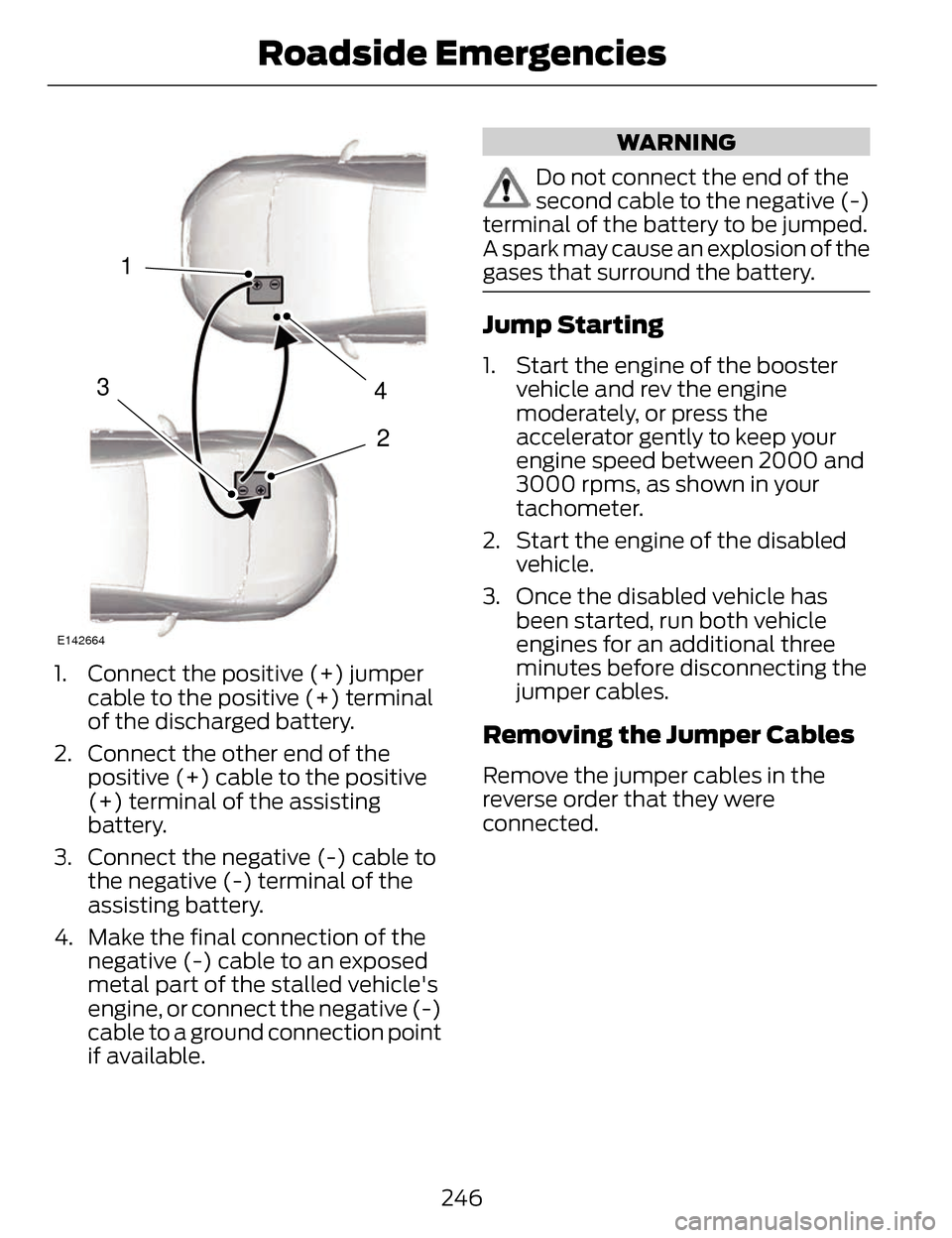
4
2
1
3
E142664
1. Connect the positive (+) jumpercable to the positive (+) terminal
of the discharged battery.
2. Connect the other end of the positive (+) cable to the positive
(+) terminal of the assisting
battery.
3. Connect the negative (-) cable to the negative (-) terminal of the
assisting battery.
4. Make the final connection of the negative (-) cable to an exposed
metal part of the stalled vehicle's
engine, or connect the negative (-)
cable to a ground connection point
if available.
WARNING
Do not connect the end of the
second cable to the negative (-)
terminal of the battery to be jumped.
A spark may cause an explosion of the
gases that surround the battery.
Jump Starting
1. Start the engine of the booster vehicle and rev the engine
moderately, or press the
accelerator gently to keep your
engine speed between 2000 and
3000 rpms, as shown in your
tachometer.
2. Start the engine of the disabled vehicle.
3. Once the disabled vehicle has been started, run both vehicle
engines for an additional three
minutes before disconnecting the
jumper cables.
Removing the Jumper Cables
Remove the jumper cables in the
reverse order that they were
connected.
246
Roadside Emergencies
Page 348 of 468
• Eject: Eject a CD from theentertainment system.
• SOURCE: Touch the word
repeatedly to see all available
media modes. The screen does not
change, but you see the media
change in the lower left status bar.
• SOUND: Touch the word to
access the Sound menu where you
can adjust settings such as: Bass,
Treble, Midrange, Balance and
Fade, DSP (Digital Signal
Processing), THX Deep Note
Demo, Occupancy Mode and
Speed Compensated Volume.
(Your vehicle may not have all of
these sound options.)
• Hazard flasher: Switch the hazard flashers off and on.
Cleaning the Touchscreen
Display
Use a clean, soft cloth such as one
used for cleaning glasses. If dirt or
fingerprints are still visible, apply a
small amount of alcohol to the cloth.
Do not pour or spray alcohol onto the
display. Do not use detergent or any
type of solvent to clean the display.
Support
The SYNC support team is available
to help you with any questions you are
not able to answer on your own.
Monday-Saturday, 8:30am-9:00pm
EST.
Sunday, 10:30am-7:30pm EST.
In the United States, call:
1-800-392-3673. In Canada, call: 1-800-565-3673.
Times are subject to change due to
holidays.
Safety
Information
WARNING
Driving while distracted can
result in loss of vehicle control,
crash and injury. We strongly
recommend that you use extreme
caution when using any device that
may take your focus off the road. Your
primary responsibility is the safe
operation of your vehicle. We
recommend against the use of any
hand-held device while driving and
encourage the use of voice-operated
systems when possible. Make sure you
are aware of all applicable local laws
that may affect the use of electronic
devices while driving.
• Do not attempt to service or repair the system. See an authorized
dealer.
• Do not operate playing devices if the power cords or cables are
broken, split or damaged. Place
cords and cables out of the way,
so they do not interfere with the
operation of pedals, seats,
compartments or safe driving
abilities.
345
MyLincoln Touch™
Page 352 of 468
• Press the left or right arrows tomake adjustments within the
chosen mode.
• Press OK to confirm your selection.
Note: If your vehicle is not equipped
with Navigation, Compass appears in
the display instead of Navigation. If you
press the right arrow to go into the
Compass menu, you can see the
compass graphic. The compass
displays the direction in which the
vehicle is traveling, not true direction
(for example, if the vehicle is traveling
west, the middle of the compass
graphic displays west; north displays
to the left of west though its true
direction is to the right of west).
Using Voice Recognition
This system helps you control many
features using voice commands. This
allows you to keep your hands on the
wheel and focus on what is in front of
you. The system provides feedback
through audible tones, prompts,
questions and spoken confirmations
depending on the situation and the
chosen level of interaction (voice
settings).
The system also asks short questions
(confirmation prompts) when it is not
sure of your request or when there are
multiple possible responses to your
request.
When using voice commands, words
and icons may appear in the lower left
status bar indicating the status of the
voice session (such as Listening,
Success, Failed, Paused or Try Again). How to Use Voice Commands with
Your System
E142599
Press the voice icon. After the
tone, speak your command
clearly.
These commands can be said at any
time during a voice session
"Cancel"
"Exit"
"Go back"
"List of commands" "Main menu""Next page"
"Previous page"
"What can I say?" "Help"
What Can I Say?
To access the available voice
commands for the current session, do
one of the following:
• During a voice session, press the help icon (?) in the lower left
status bar of the screen.
• Say, "What can I say?" for an on-screen listing of the possible
voice commands associated with
your current voice session.
• Press the voice icon. After the tone, say, "Help" for an audible list of
possible voice commands.
349
MyLincoln Touch™
Page 356 of 468
From this screen, you can also make
other adjustments such as 12-hour or
24-hour mode, activate GPS time
synchronization and have the system
automatically update new time zones.
You can also turn the outside air
temperature display off and on. It
appears at the top center of the
touchscreen, next to the time and
date.
The system automatically saves any
updates you make to the settings.
Display
You can adjust the touchscreen
display through the touchscreen or by
pressing the voice button on your
steering wheel controls and when
prompted, say, "Display settings".
E142607
Press the Settings icon >
Display, to access and make
adjustments using the
touchscreen.
• Brightness allows you to make
the screen display brighter or
dimmer.
• Auto DIM, when set to On, lets
you use the Auto Dim Manual
Offset feature.
• Mode allows you to set the screen
to a certain brightness or have the
system automatically change
based on the outside light level, or
turn the display off.
• If you select AUTO or NIGHT,
you have the options of turning
the display's Auto Dim feature
on or off and changing the Auto
Dim Manual Offset feature. •
Auto Dim Manual Offset allows
you to adjust screen dimming as
the outside lighting conditions
change from day to night.
• Edit Wallpaper
• You can have your touchscreen
display the default photo or
upload your own.
Uploading Photos for Your Home
Screen Wallpaper
Note: You cannot load photos directly
from your camera. You must access
the photos either from your USB mass
storage device or from an SD card.
Note: Photographs with extremely
large dimensions (such as 2048 x
1536) may not be compatible and
appear as a blank (black) image on the
display.
Your system allows you to upload and
view up to 32 photos.
E142607
To access, press the Settings
icon > Display > Edit
Wallpaper, and then follow
the system prompts to upload your
photographs.
Only the photograph(s), which meets
the following conditions, display:
• Compatible file formats are as follows: .jpg, .gif, .png, .bmp
• Each file must be 1.5 MB or less.
• Recommended dimensions: 800 x 384
353
MyLincoln Touch™