radio LINCOLN MKZ 2014 Owner's Manual
[x] Cancel search | Manufacturer: LINCOLN, Model Year: 2014, Model line: MKZ, Model: LINCOLN MKZ 2014Pages: 468, PDF Size: 4.49 MB
Page 366 of 468
Help
View your vehicle's current location, if your vehicle
is equipped with navigation. If your vehicle is not
equipped with navigation, you do not see this
button.
Where Am I?
Touchscreen system serial number
System Information
Your vehicle identification number (VIN)
Touchscreen system software version
Navigation system version
Map database version
Sirius satellite radio ESN
Gracenote Database Information and Library version
View the licenses for any software and applications
installed on your system.
Software Licenses
Certain features are not accessible when your
vehicle is moving.
Driving Restrictions
Turn on and turn off the 911 Assist feature. See
Information (page 392).
911 Assist
In Case of Emergency (ICE) Quick Dial: allows
you to save up to two numbers as ICE contacts for
quick access if there is an emergency. Select Edit
to access your phonebook and then select the
desired contacts. The numbers then appear as
options on this screen for the ICE 1 and ICE 2 buttons.
The ICE contacts you select appear at the end of
the 911 Assist call process.
View categorized lists of voice commands.
Voice Command List
To access Help using the voice
commands, press the voice button,
then, after the tone, say "Help". The
system provides allowable voice
commands for the current mode.
363
MyLincoln Touch™
Page 367 of 468
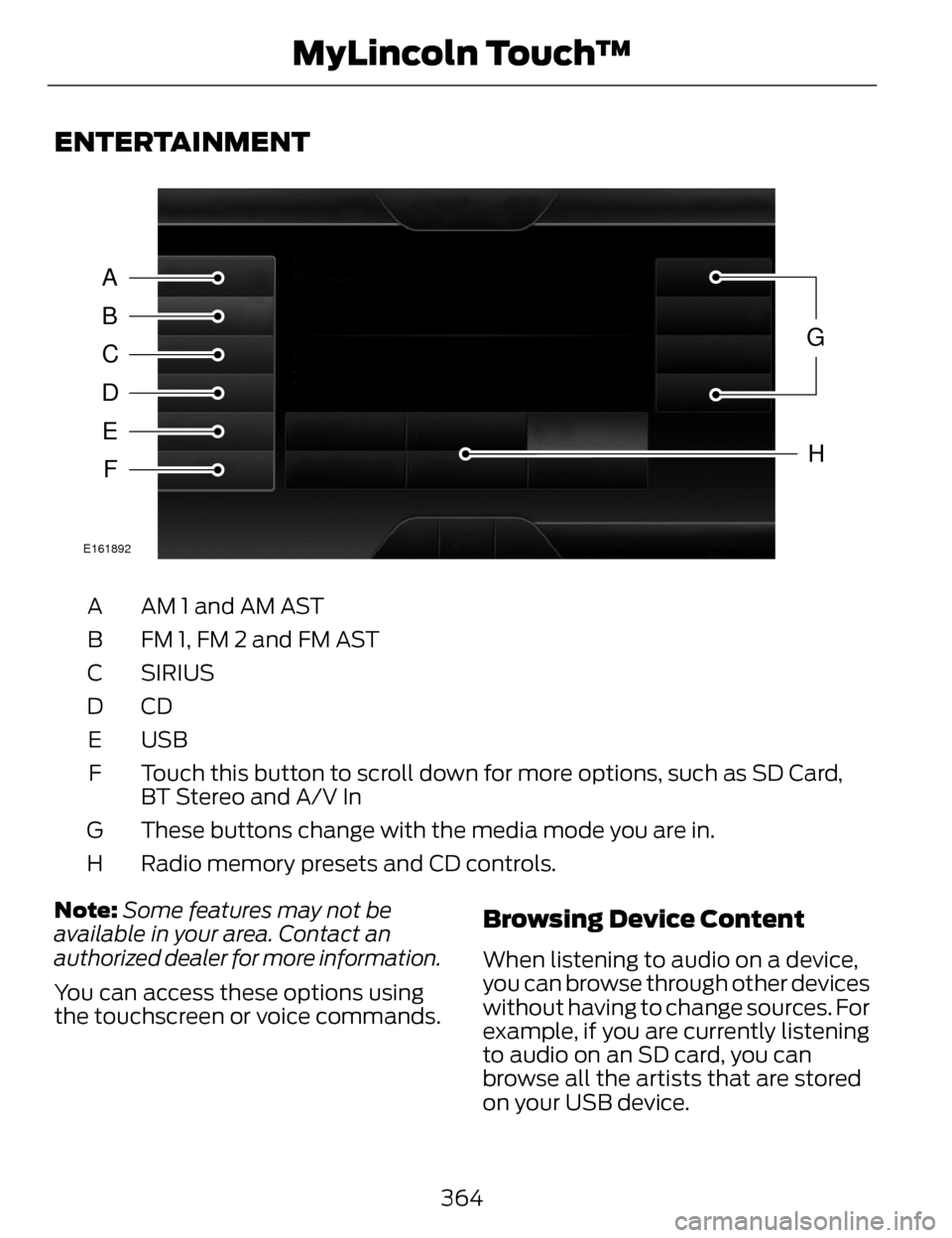
ENTERTAINMENT
A
B
C
D
E
F
G
H
E161892
AM 1 and AM AST
A
FM 1, FM 2 and FM AST
B
SIRIUS
C
CDD
USB
E
Touch this button to scroll down for more options, such as SD Card,
BT Stereo and A/V In
F
These buttons change with the media mode you are in.
G
Radio memory presets and CD controls.
H
Note: Some features may not be
available in your area. Contact an
authorized dealer for more information.
You can access these options using
the touchscreen or voice commands.
Browsing Device Content
When listening to audio on a device,
you can browse through other devices
without having to change sources. For
example, if you are currently listening
to audio on an SD card, you can
browse all the artists that are stored
on your USB device.
364
MyLincoln Touch™
Page 368 of 468
E142599
Press the voice icon on the
steering wheel. When
prompted, you can say:
"BROWSE" within devices
"Browse"*
"Browse
"Browse
"Browse SD card"
"Browse Sirius channel guide"
**
"Browse USB" "Help"
* If you only say, "Browse", you can
then say any commands in the
following chart.
**This command is only usable if you
have an active subscription to Sirius
satellite radio.
"BROWSE"
"
"
"SD card"**
"Sirius Channel Guide"*
"BROWSE"
"USB"**
"Help"
* This command is only usable if you
have an active subscription to Sirius
satellite radio.
** For more commands in SD card or
USB mode, see the "SD Card and USB
Port" section of this chapter.
Your voice system allows you to
change audio sources with a simple
voice command. For example, if you
are listening to music on a USB device,
then want to switch to a satellite radio
channel, simply press the voice button
on the steering wheel controls and say
the name of the Sirius station (such
as, "the Highway"). The following
voice commands are available at the
top level of the voice session no
matter which current audio source you
are listening to (such as a USB device
or Sirius satellite radio).
Note: This is only available when your
MyFord Touch system language is set
to North American English.
Sample commands
"<87.7-107.9>"
"<530-1710>"
"
*
"AM <530-1710>"
"FM <87.7-107.9>"
365
MyLincoln Touch™
Page 369 of 468
![LINCOLN MKZ 2014 Owners Manual Sample commands
"Play [album] <name>"**
"Play [artist] <name>"**
"Play [genre] <name>"**
"Play [playlist] <name>"**
"Play [song] <name>"**
"Play <name>"
"Play <name (song or album)> by <artist name>"](/img/15/6982/w960_6982-368.png "LINCOLN MKZ 2014 Owners Manual Sample commands
\"Play [album] <name>\"**
\"Play [artist] <name>\"**
\"Play [genre] <name>\"**
\"Play [playlist] <name>\"**
\"Play [song] <name>\"**
\"Play <name>\"
\"Play <name (song or album)> by <artist name>\"")
Sample commands
"Play [album]
"Play [artist]
"Play [genre]
"Play [playlist]
"Play [song]
"Play
"Play
"Sirius <0-223>"
*
"Sports games"*
*
This command is only usable if you
have an active subscription to Sirius
satellite radio.
** The commands that have [ ] around
the word means that the word is
optional. For example, if you say, "Play
Metallica", this is the same as the
voice command, "Play [artist]
AM/FM Radio
E142611
Touch the AM or FM tab to
listen to the radio.
To change between AM and FM
presets, just touch the AM or FM tab. Memory Presets
Save a station by pressing and holding
one of the memory preset areas.
There is a brief mute while the radio
saves the station. Sound returns when
finished.
HD Radio
Touch this button to turn HD Radio
on. The light on the button illuminates
when the feature is on. HD Radio
allows you to receive radio broadcasts
digitally, where available, providing
free, crystal-clear sound. See HD
Radio information later in this chapter.
Scan
Touch this button to go to the next
strong AM or FM radio station. The
light on the button illuminates when
the feature is on.
Options
Sound Settings
Touch this button to adjust settings
for:
•Bass
• Midrange
• Treble
• Balance and Fade
• THX Deep Note Demo
• DSP (Digital Signal processing)
• Occupancy Mode
• Speed Compensated Volume.
Note:
Your vehicle may not have all
these sound settings.
366
MyLincoln Touch™
Page 370 of 468
Set PTY for Seek/Scan
This allows you to select a category
of music you would like to search for.
You can then choose to either seek or
scan for the stations playing that
category.
RDS Text Display
This allows you to view the
information broadcast by FM stations.
AST
AST (Autostore) allows you to have
the system automatically store the
six strongest stations in your current
location.
TAG Button
This feature is available when HD
Radio is on, and allows you to tag a
song to download later. When you
select On,TA G appears on-screen
when HD Radio is active. You can
touch TA G to save the information of
the song that is playing. When you
plug in your portable music player, the
information transfers, if supported by
your device. When you are connected
to iTunes®, the tags appear to remind
you of the songs you would like to
download. See HD Radio information
later in this chapter.
Direct Tune
Touch this button to enter the desired
station number manually. Touch
Enter when you are done. HD Radio™ Information (If
Available)
Note:
HD Radio broadcasts are not
available in all markets.
HD Radio technology is the digital
evolution of analog AM/FM radio. Your
system has a special receiver that
allows it to receive digital broadcasts
(where available) in addition to the
analog broadcasts, it already receives.
Digital broadcasts provide a better
sound quality than analog broadcasts
with free, crystal-clear audio and no
static or distortion. For more
information, and a guide to available
stations and programming, please
visit www.hdradio.com.
When HD Radio is on and you tune to
a station broadcasting HD Radio
technology, you may notice the
following indicators on your screen:
E142616
The HD Radio logo blinks when
acquiring a digital station and stays
solid when digital audio is playing.
When this logo is available, you may
also see Title and Artist fields
on-screen.
367
MyLincoln Touch™
Page 371 of 468
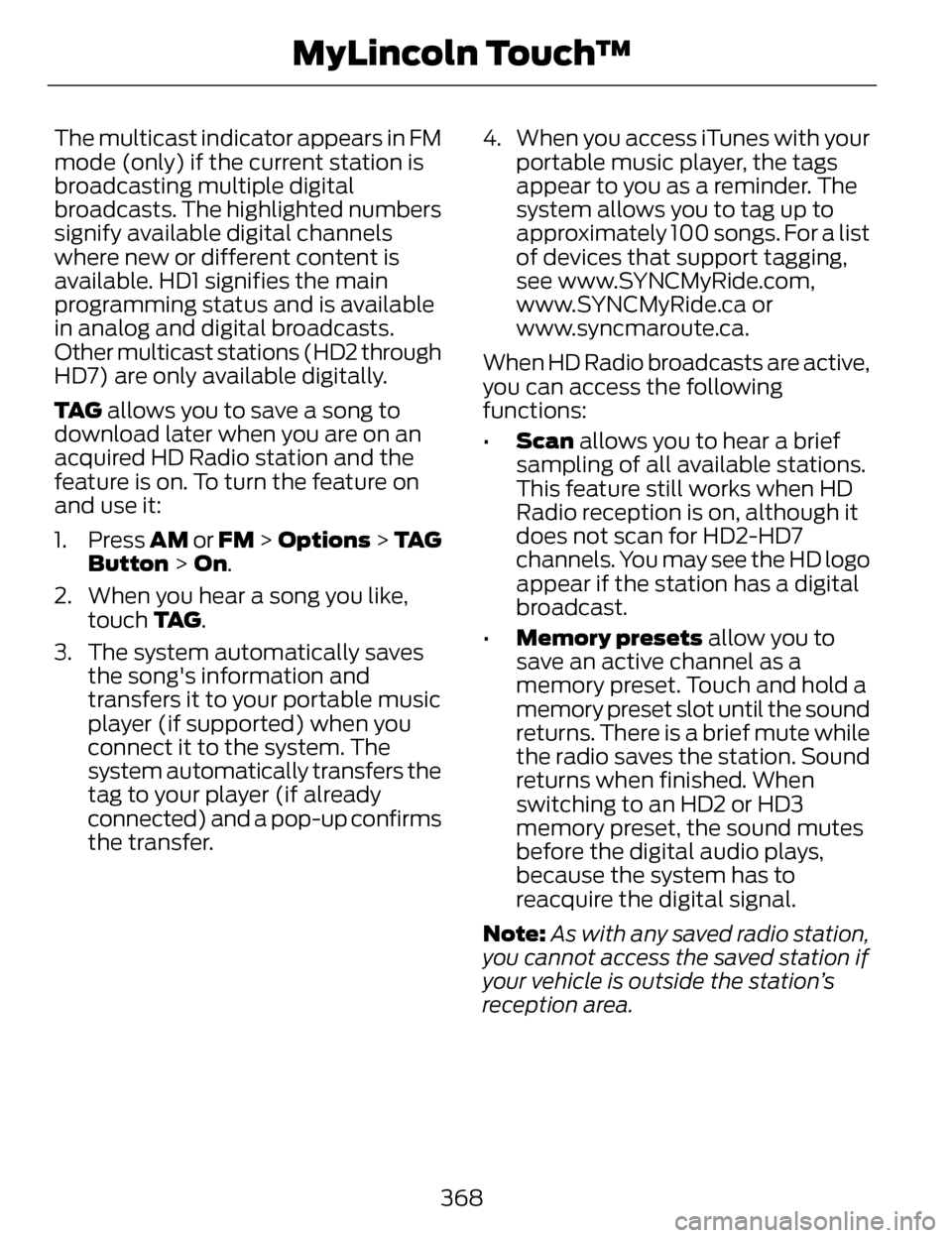
The multicast indicator appears in FM
mode (only) if the current station is
broadcasting multiple digital
broadcasts. The highlighted numbers
signify available digital channels
where new or different content is
available. HD1 signifies the main
programming status and is available
in analog and digital broadcasts.
Other multicast stations (HD2 through
HD7) are only available digitally.
TA G allows you to save a song to
download later when you are on an
acquired HD Radio station and the
feature is on. To turn the feature on
and use it:
1. Press AM or FM > Options > TA G
Button > On.
2. When you hear a song you like, touch TA G .
3. The system automatically saves the song's information and
transfers it to your portable music
player (if supported) when you
connect it to the system. The
system automatically transfers the
tag to your player (if already
connected) and a pop-up confirms
the transfer. 4. When you access iTunes with your
portable music player, the tags
appear to you as a reminder. The
system allows you to tag up to
approximately 100 songs. For a list
of devices that support tagging,
see www.SYNCMyRide.com,
www.SYNCMyRide.ca or
www.syncmaroute.ca.
When HD Radio broadcasts are active,
you can access the following
functions:
• Scan allows you to hear a brief
sampling of all available stations.
This feature still works when HD
Radio reception is on, although it
does not scan for HD2-HD7
channels. You may see the HD logo
appear if the station has a digital
broadcast.
• Memory presets allow you to
save an active channel as a
memory preset. Touch and hold a
memory preset slot until the sound
returns. There is a brief mute while
the radio saves the station. Sound
returns when finished. When
switching to an HD2 or HD3
memory preset, the sound mutes
before the digital audio plays,
because the system has to
reacquire the digital signal.
Note: As with any saved radio station,
you cannot access the saved station if
your vehicle is outside the station’s
reception area.
368
MyLincoln Touch™
Page 372 of 468
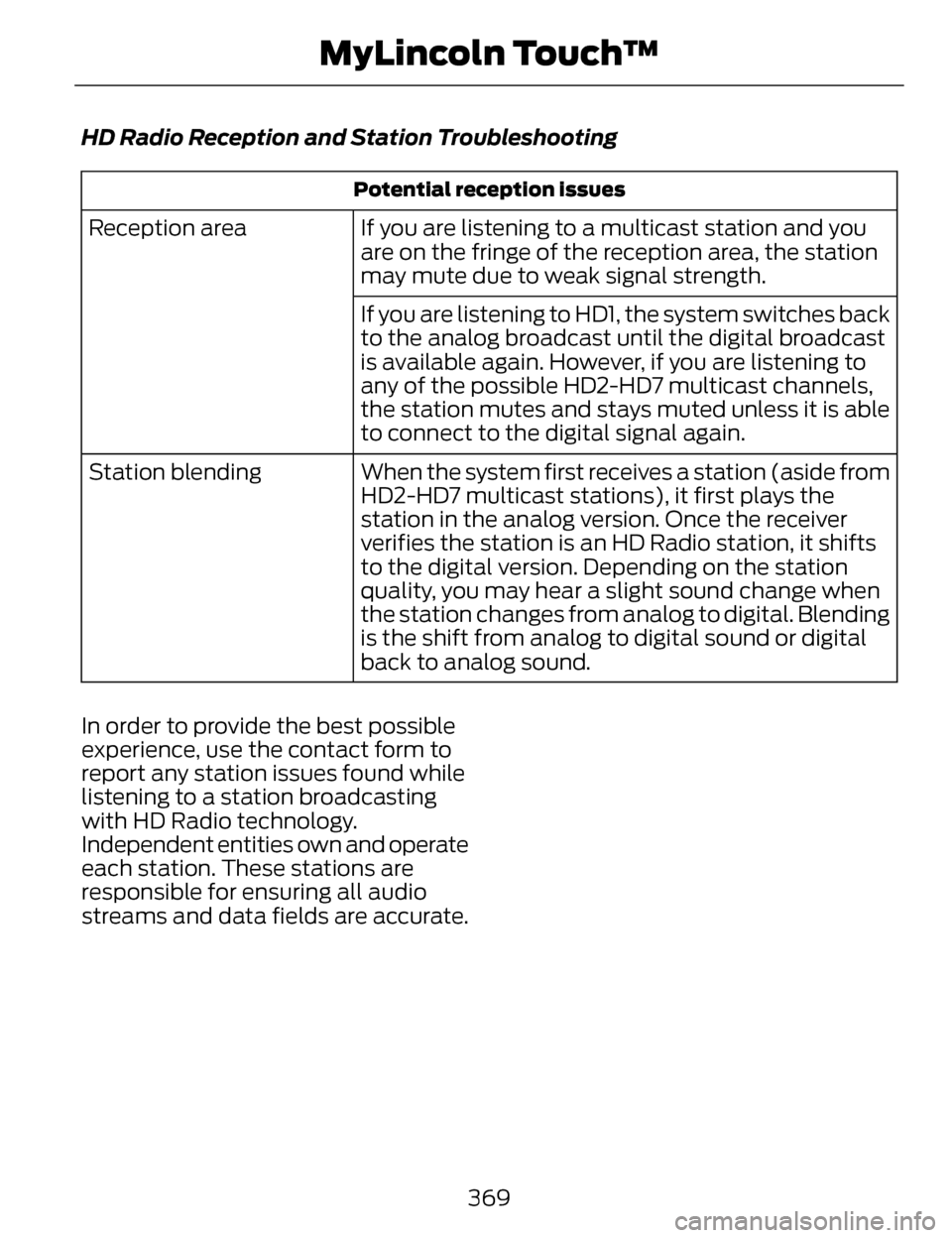
HD Radio Reception and Station Troubleshooting
Potential reception issues
If you are listening to a multicast station and you
are on the fringe of the reception area, the station
may mute due to weak signal strength.
Reception area
If you are listening to HD1, the system switches back
to the analog broadcast until the digital broadcast
is available again. However, if you are listening to
any of the possible HD2-HD7 multicast channels,
the station mutes and stays muted unless it is able
to connect to the digital signal again.
When the system first receives a station (aside from
HD2-HD7 multicast stations), it first plays the
station in the analog version. Once the receiver
verifies the station is an HD Radio station, it shifts
to the digital version. Depending on the station
quality, you may hear a slight sound change when
the station changes from analog to digital. Blending
is the shift from analog to digital sound or digital
back to analog sound.
Station blending
In order to provide the best possible
experience, use the contact form to
report any station issues found while
listening to a station broadcasting
with HD Radio technology.
Independent entities own and operate
each station. These stations are
responsible for ensuring all audio
streams and data fields are accurate.
369
MyLincoln Touch™
Page 373 of 468
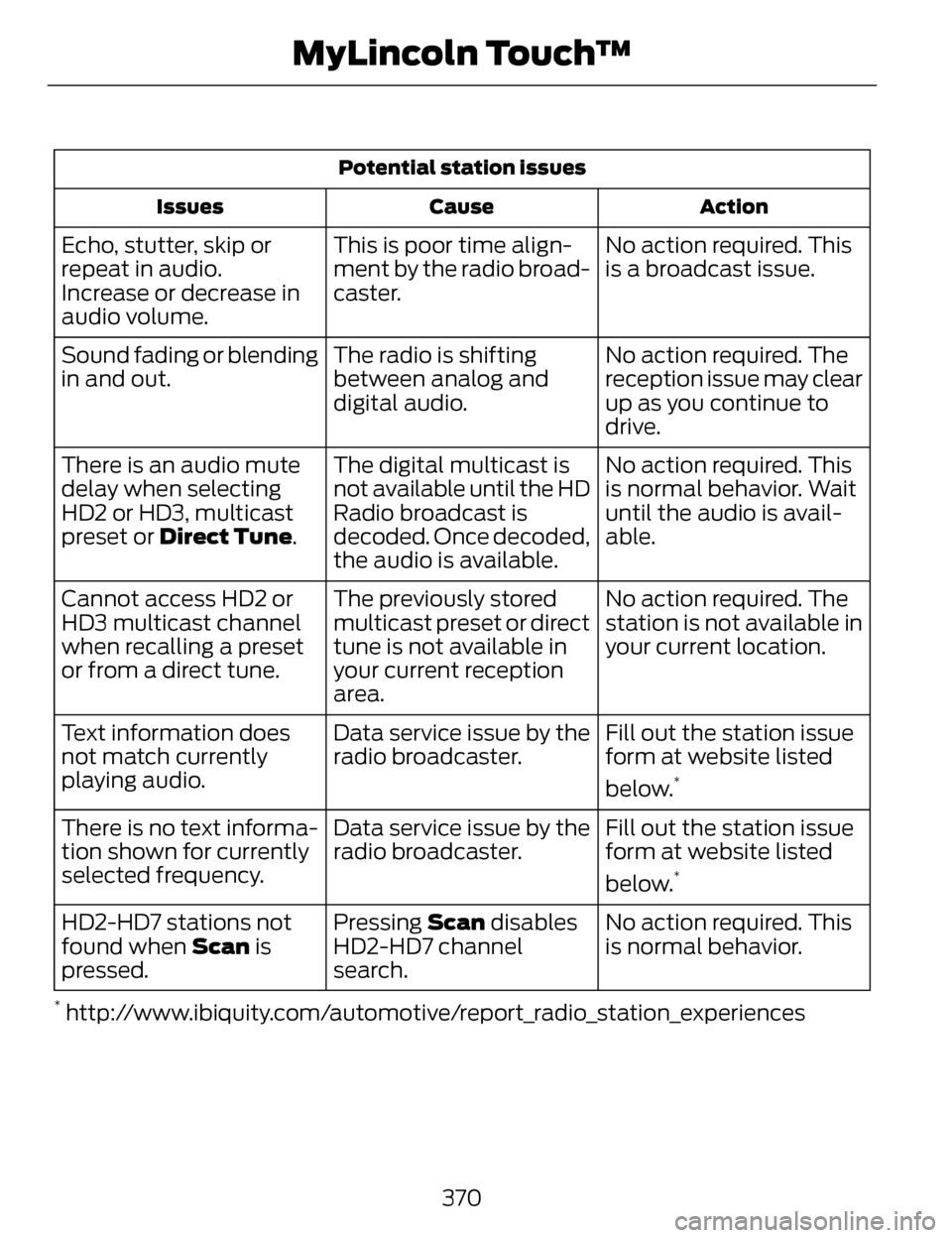
Potential station issuesAction
Cause
Issues
No action required. This
is a broadcast issue.
This is poor time align-
ment by the radio broad-
caster.
Echo, stutter, skip or
repeat in audio.
Increase or decrease in
audio volume.
No action required. The
reception issue may clear
up as you continue to
drive.
The radio is shifting
between analog and
digital audio.
Sound fading or blending
in and out.
No action required. This
is normal behavior. Wait
until the audio is avail-
able.
The digital multicast is
not available until the HD
Radio broadcast is
decoded. Once decoded,
the audio is available.
There is an audio mute
delay when selecting
HD2 or HD3, multicast
preset or Direct Tune.
No action required. The
station is not available in
your current location.
The previously stored
multicast preset or direct
tune is not available in
your current reception
area.
Cannot access HD2 or
HD3 multicast channel
when recalling a preset
or from a direct tune.
Fill out the station issue
form at website listed
below.
*
Data service issue by the
radio broadcaster.
Text information does
not match currently
playing audio.
Fill out the station issue
form at website listed
below.
*
Data service issue by the
radio broadcaster.
There is no text informa-
tion shown for currently
selected frequency.
No action required. This
is normal behavior.
Pressing Scan
disables
HD2-HD7 channel
search.
HD2-HD7 stations not
found when Scan
is
pressed.
* http://www.ibiquity.com/automotive/report_radio_station_experiences
370
MyLincoln Touch™
Page 374 of 468
HD Radio Technology manufactured
under license from iBiquity Digital
Corp. U.S. and foreign patents. HD
Radio and the HD and HD Radio logos
are proprietary trademarks of iBiquity
Digital Corp. Ford Motor Company and
iBiquity Digital Corp. are not
responsible for the content sent using
HD Radio technology. Content may
be changed, added or deleted at any
time at the station owner's discretion.
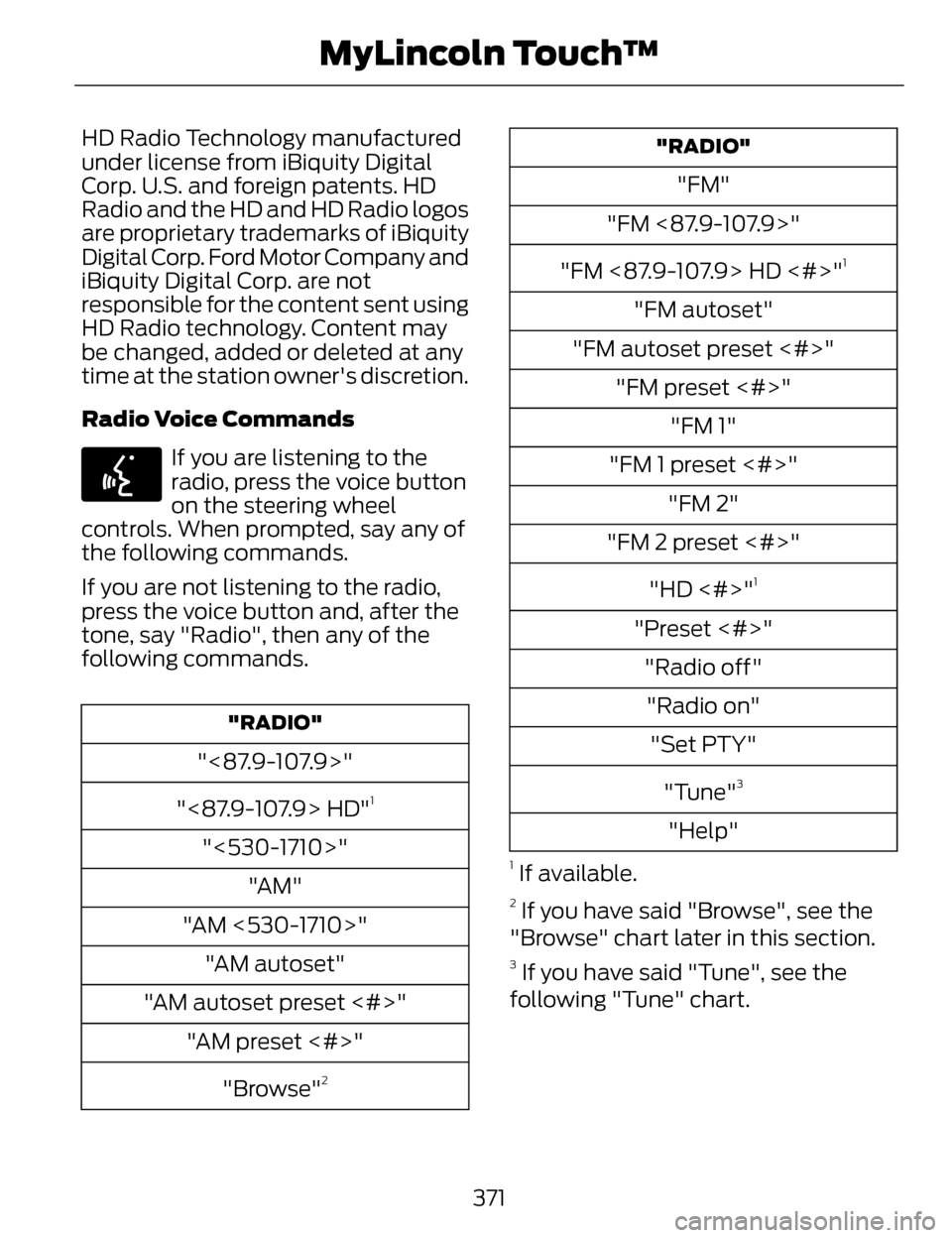
Radio Voice Commands
E142599
If you are listening to the
radio, press the voice button
on the steering wheel
controls. When prompted, say any of
the following commands.
If you are not listening to the radio,
press the voice button and, after the
tone, say "Radio", then any of the
following commands.
"RADIO"
"<87.9-107.9>"
"<87.9-107.9> HD"
1
"<530-1710>" "AM"
"AM <530-1710>" "AM autoset"
"AM autoset preset <#>" "AM preset <#>"
"Browse"
2
"RADIO"
"FM"
"FM <87.9-107.9>"
"FM <87.9-107.9> HD <#>"
1
"FM autoset"
"FM autoset preset <#>" "FM preset <#>" "FM 1"
"FM 1 preset <#>" "FM 2"
"FM 2 preset <#>"
"HD <#>"
1
"Preset <#>""Radio off""Radio on" "Set PTY"
"Tune"
3
"Help"
1 If available.
2 If you have said "Browse", see the
"Browse" chart later in this section.
3 If you have said "Tune", see the
following "Tune" chart.
371
MyLincoln Touch™
Page 375 of 468
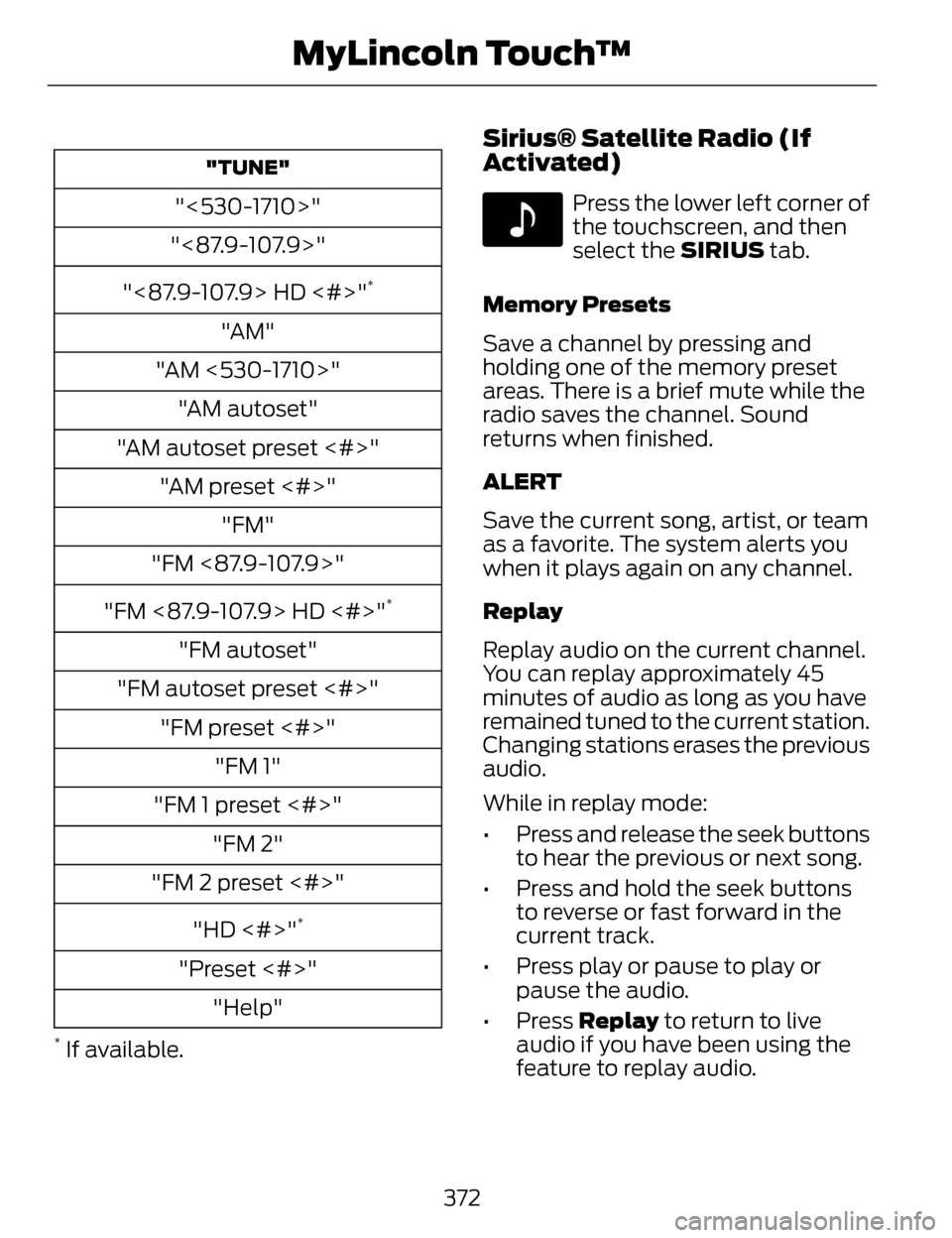
"TUNE"
"<530-1710>"
"<87.9-107.9>"
"<87.9-107.9> HD <#>"
*
"AM"
"AM <530-1710>" "AM autoset"
"AM autoset preset <#>" "AM preset <#>" "FM"
"FM <87.9-107.9>"
"FM <87.9-107.9> HD <#>"
*
"FM autoset"
"FM autoset preset <#>" "FM preset <#>" "FM 1"
"FM 1 preset <#>" "FM 2"
"FM 2 preset <#>"
"HD <#>"
*
"Preset <#>""Help"
* If available.
Sirius® Satellite Radio (If
Activated)
E142611
Press the lower left corner of
the touchscreen, and then
select the SIRIUS tab.
Memory Presets
Save a channel by pressing and
holding one of the memory preset
areas. There is a brief mute while the
radio saves the channel. Sound
returns when finished.
ALERT
Save the current song, artist, or team
as a favorite. The system alerts you
when it plays again on any channel.
Replay
Replay audio on the current channel.
You can replay approximately 45
minutes of audio as long as you have
remained tuned to the current station.
Changing stations erases the previous
audio.
While in replay mode:
• Press and release the seek buttons to hear the previous or next song.
• Press and hold the seek buttons to reverse or fast forward in the
current track.
• Press play or pause to play or pause the audio.
• Press Replay to return to live
audio if you have been using the
feature to replay audio.
372
MyLincoln Touch™