settings LINCOLN MKZ 2019 Owner's Guide
[x] Cancel search | Manufacturer: LINCOLN, Model Year: 2019, Model line: MKZ, Model: LINCOLN MKZ 2019Pages: 595, PDF Size: 4.95 MB
Page 224 of 595
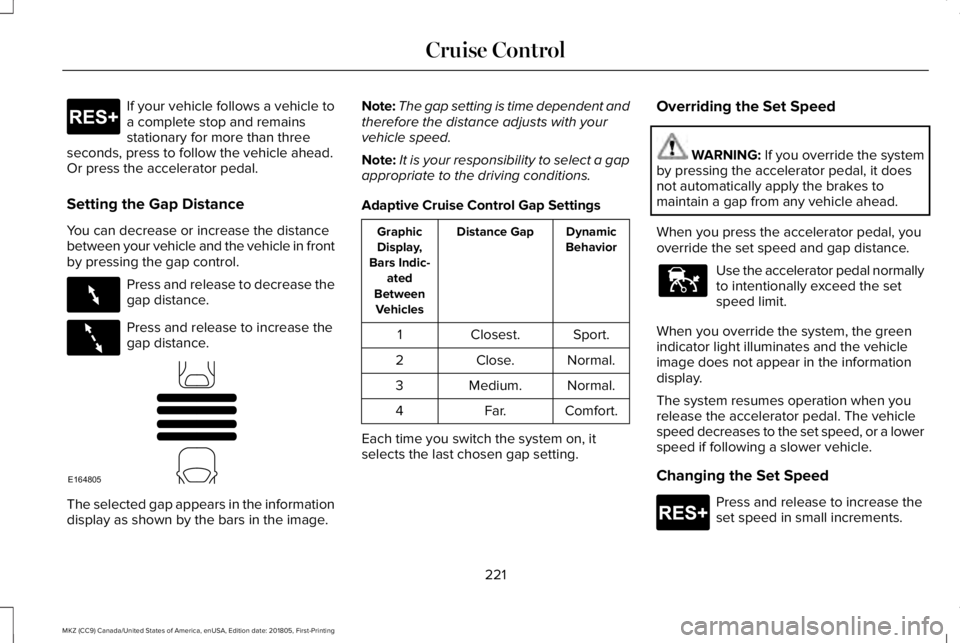
If your vehicle follows a vehicle toa complete stop and remainsstationary for more than threeseconds, press to follow the vehicle ahead.Or press the accelerator pedal.
Setting the Gap Distance
You can decrease or increase the distancebetween your vehicle and the vehicle in frontby pressing the gap control.
Press and release to decrease thegap distance.
Press and release to increase thegap distance.
The selected gap appears in the informationdisplay as shown by the bars in the image.
Note:The gap setting is time dependent andtherefore the distance adjusts with yourvehicle speed.
Note:It is your responsibility to select a gapappropriate to the driving conditions.
Adaptive Cruise Control Gap Settings
DynamicBehaviorDistance GapGraphicDisplay,Bars Indic-atedBetweenVehicles
Sport.Closest.1
Normal.Close.2
Normal.Medium.3
Comfort.Far.4
Each time you switch the system on, itselects the last chosen gap setting.
Overriding the Set Speed
WARNING: If you override the systemby pressing the accelerator pedal, it doesnot automatically apply the brakes tomaintain a gap from any vehicle ahead.
When you press the accelerator pedal, youoverride the set speed and gap distance.
Use the accelerator pedal normallyto intentionally exceed the setspeed limit.
When you override the system, the greenindicator light illuminates and the vehicleimage does not appear in the informationdisplay.
The system resumes operation when yourelease the accelerator pedal. The vehiclespeed decreases to the set speed, or a lowerspeed if following a slower vehicle.
Changing the Set Speed
Press and release to increase theset speed in small increments.
221
MKZ (CC9) Canada/United States of America, enUSA, Edition date: 201805, First-Printing
Cruise ControlE265299 E263697 E263696 E164805 E144529 E265299
Page 233 of 595
When you switch the system on and itdetects an unintentional drift out of your laneis likely to occur, the system notifies orassists you to stay in your lane through thesteering system and information display.Depending on the feature operation modeyou select, the system provides a warningby vibrating the steering wheel or a steeringassistance by gently counter steering yourvehicle back into the lane.
Switching the System On and Off
Note:The system on or off setting is storeduntil it is manually changed, unless a MyKey™is detected. If the system detects a MyKey™,it defaults to on and the mode is set to alert.
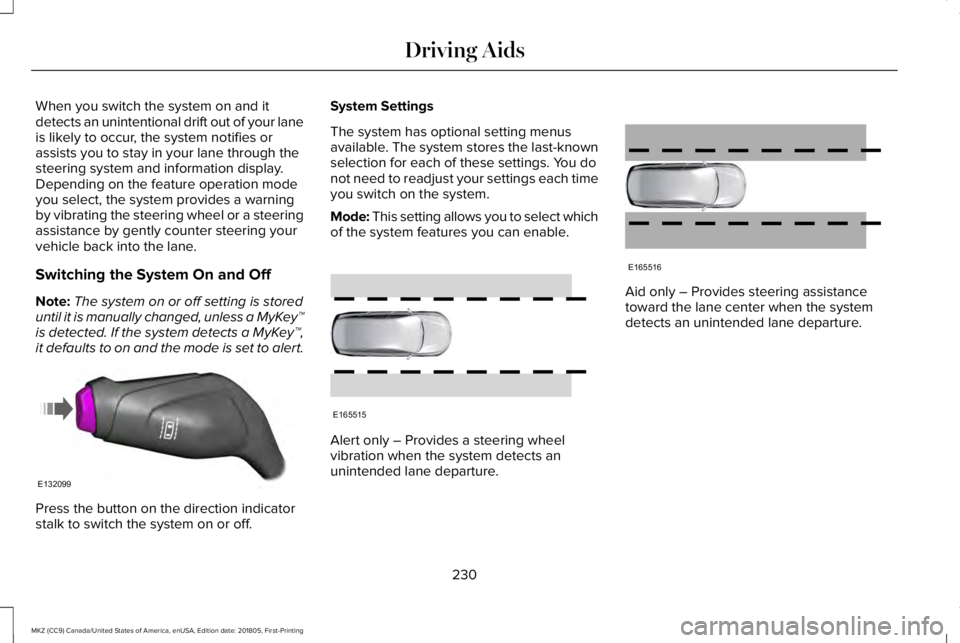
Press the button on the direction indicatorstalk to switch the system on or off.
System Settings
The system has optional setting menusavailable. The system stores the last-knownselection for each of these settings. You donot need to readjust your settings each timeyou switch on the system.
Mode: This setting allows you to select whichof the system features you can enable.
Alert only – Provides a steering wheelvibration when the system detects anunintended lane departure.
Aid only – Provides steering assistancetoward the lane center when the systemdetects an unintended lane departure.
230
MKZ (CC9) Canada/United States of America, enUSA, Edition date: 201805, First-Printing
Driving AidsE132099 E165515 E165516
Page 246 of 595
Note:Distance Indication and Alertdeactivates and the graphics do not displaywhen adaptive cruise control is active.
Time GapDistance GapGraphicsSensitivitySpeed
>0.9sec>82 ft (25 m)GreyNormal62 mph (100 km/h)
0.6sec — 0.9sec56–82 ft (17–25 m)YellowNormal62 mph (100 km/h)
<0.6sec<56 ft (17 m)RedNormal62 mph (100 km/h)
Adjusting the Pre-Collision AssistSettings
You can adjust the following settings byusing the information display controls. SeeGeneral Information (page 110).
•You can change Alert and Distance Alertsensitivity to one of three possiblesettings.
•You can switch Distance Indication andAlert on or off.
•If required, you can switch Active Brakingon or off.
Note:Active braking automatically turns onevery time you switch the ignition on.
243
MKZ (CC9) Canada/United States of America, enUSA, Edition date: 201805, First-Printing
Driving Aids
Page 249 of 595
Note:If something hits the front end of yourvehicle or damage occurs, the radar sensingzone may change. This could cause missedor false vehicle detections. Contact anauthorized dealer to have the radar checkedfor proper coverage and operation.
Note:If your vehicle detects excessive heatat the camera or a potential misalignmentcondition, a message may display in theinformation display indicating temporarysensor unavailability. This messagedeactivates automatically when operationalconditions return to normal. For example,when the ambient temperature around thesensor decreases or the sensorautomatically recalibrates successfully.
DRIVE CONTROL (If Equipped)
Lincoln Drive Control
Lincoln Drive Control delivers the Lincolndriving experience through a suite ofsophisticated electronic vehicle systems.These systems continuously monitor yourdriving inputs and the road conditions tooptimize ride comfort, steering, handling,
powertrain response and sound. You canpreset your preferences for these systemswithin the information display. Lincoln DriveControl will respond to your preferencesbased on what gear position you select. Thisprovides a single location to control multiplesystems performance settings.
Lincoln Drive Control consists of thefollowing systems:
•Adaptive suspension dynamically adjuststhe shock absorbers stiffness in real timeto match the road surface and driverinputs. This system continuously monitorsyour vehicle’s motion, suspensionposition, load, speed, road conditionsand steering to adjust the suspensiondamping for optimal vehicle control.
•Electronically power-assisted steeringadjusts steering effort and feel based onyour vehicle speed and your inputs.
•Active noise control utilizes your vehicleelectronics to enhance the acousticexperience.
•Electronic stability control and tractioncontrol maintain your vehicle control inadverse conditions or high performancedriving.
•Electronic throttle control enhances thepowertrain response to your inputs.
Using Lincoln Drive Control
You can configure which of the drive controlmodes are active when your vehicle is indrive (D) or sport (S). The configurationremains active until modified from the mainmenu on the information display.
246
MKZ (CC9) Canada/United States of America, enUSA, Edition date: 201805, First-Printing
Driving Aids
Page 250 of 595
These systems have a range of modes whichyou can choose from in order to customizeyour ideal driving experience:
•Comfort – Provides a more relaxeddriving experience, maximizing comfort.Your steering effort decreases and thesuspension movement is more fluid.Comfort mode is ideal when you desireenhanced traveling comfort.
•Normal – Delivers a balancedcombination of comfortable, controlledride and confident handling. This modeprovides an engaging drive experienceand a direct connection to the roadwithout sacrificing any of the composuredemanded from a luxury vehicle.
•Sport – Provides a sportier drivingexperience. The suspension stiffens, withan emphasis on handling and control.The engine responds more directly toyour inputs and takes on a more powerfultone. Sport mode is ideal for use duringmore spirited driving.
You can change your vehicle's Drive Controlsettings from the menu on the displayscreen. See General Information (page 110).
Note:Not all settings may be available.
Note:Lincoln Drive Control has diagnosticchecks that continuously monitor the systemto ensure proper operation. Certain types ofsystem errors gray out the mode selectionswithin the information display, preventingyou from changing states when the gearposition is changed. Other types of errorsproduce a temporary message in theinformation display. See InformationMessages (page 116). If either conditionpersists for multiple key cycles, see anauthorized dealer.
247
MKZ (CC9) Canada/United States of America, enUSA, Edition date: 201805, First-Printing
Driving Aids
Page 307 of 595
From the main menu scroll to:
Action and descriptionMessage
Press the right arrow button,then from this menu scroll tothe following message.
Settings
Press the right arrow button,then from this menu scroll tothe following message.
Vehicle
Press the right arrow button,then from this menu scroll tothe following message.
Oil Life
Press and hold the OK buttonuntil the instrument clusterdisplays the followingmessage.
Hold OK toReset
Reset Successful
When the oil change indicatorresets the instrument clusterdisplays 100%.
Remaining Life
{00}%
Action and descriptionMessage
If the instrument clusterdisplays one of the followingmessages, repeat theprocess.
Not Reset
Reset Cancelled
ENGINE COOLANT CHECK
WARNING: Do not remove the coolantreservoir cap when the cooling system is hot.Wait 10 minutes for the cooling system tocool down. Cover the coolant reservoir capwith a thick cloth to prevent the possibilityof scalding and slowly remove the cap.Failure to follow this instruction could resultin personal injury.
WARNING: Do not put coolant in thewindshield washer reservoir. If sprayed onthe windshield, coolant could make it difficultto see through the windshield.
WARNING: To reduce the risk ofpersonal injury, make sure the engine is coolbefore unscrewing the coolant pressure reliefcap. The cooling system is under pressure.Steam and hot liquid can come out forcefullywhen you loosen the cap slightly.
WARNING: Do not add coolant furtherthan the MAX mark.
When the engine is cold, check theconcentration and level of the coolant at theintervals listed in the scheduled maintenanceinformation. See Scheduled Maintenance(page 504).
Note:Make sure that the coolant level isbetween the MIN and the MAX marks onthe coolant reservoir.
Note: Coolant expands when it is hot. Thelevel may extend beyond the MAX mark.
304
MKZ (CC9) Canada/United States of America, enUSA, Edition date: 201805, First-Printing
Maintenance
Page 318 of 595
Because your vehicle’s engine iselectronically-controlled by a computer,some engine control settings are maintainedby power from the battery. Some enginecomputer settings, like the idle trim and fueltrim strategy, optimize the driveability andperformance of the engine. The clock andradio station presets are also maintained inmemory by power from the low-voltagebattery. These settings are erased when atechnician disconnects and connects thelow-voltage battery.
To restore the settings, do the following:
Note:Until you switch the ignition to the onposition, you will receive a message in yourinformation display stating that your vehicleis not in park.
1. Apply the parking brake.
2. Shift into park (P) or neutral (N).
3. Switch off all accessories.
4. Press the brake pedal and start yourvehicle.
5. Run the engine until it reaches normaloperating temperature. While the engineis warming up, complete the following:Reset the clock. See Audio Unit (page391). Reset the power windowsbounce-back feature. See PowerWindows (page 95). Reset the radiostation presets. See Audio Unit (page391).
6. Allow the engine to idle for at least oneminute.
7.Drive the vehicle at least 10 mi (16 km) tocompletely relearn the idle trim and fueltrim strategy.
Note:If you do not allow the engine torelearn the idle and fuel trim strategy, theidle quality of your vehicle may be adverselyaffected until the engine computereventually relearns the idle trim and fuel trimstrategy.
Note:Certain features may not operate ifthe battery monitor system is not reset witha scan tool following a jump start or batteryreplacement. Normal electrical accessoryoperation should resume after your vehicleis left undisturbed for 8 hours.
Make sure that you dispose of old batteriesin an environmentally friendly way. Seekadvice from your local authority aboutrecycling old batteries.
If storing your vehicle for more than 30 dayswithout recharging the battery, werecommend that you disconnect the batterycables to maintain battery charge for quickstarting.
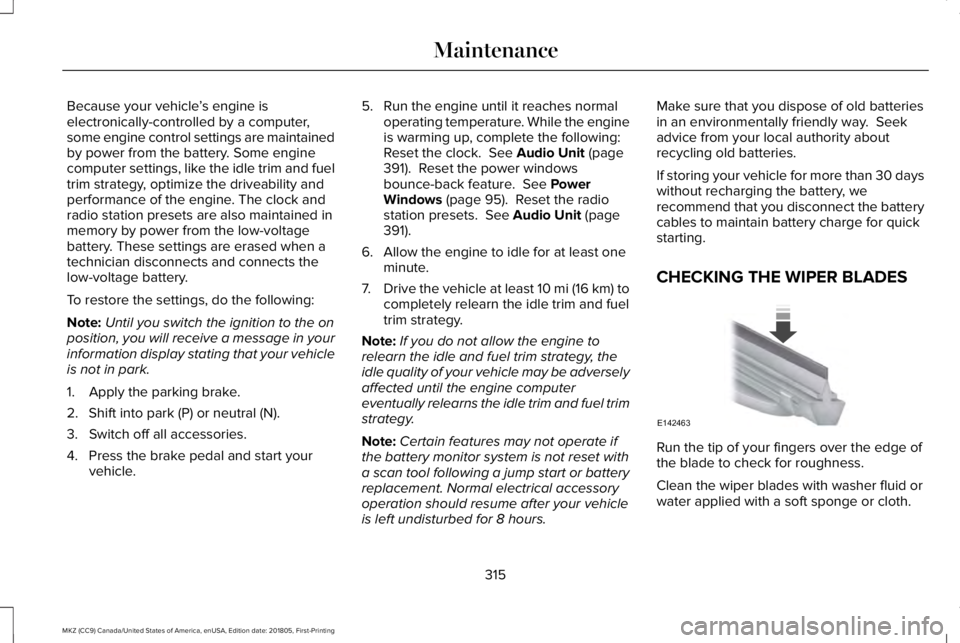
CHECKING THE WIPER BLADES
Run the tip of your fingers over the edge ofthe blade to check for roughness.
Clean the wiper blades with washer fluid orwater applied with a soft sponge or cloth.
315
MKZ (CC9) Canada/United States of America, enUSA, Edition date: 201805, First-Printing
MaintenanceE142463
Page 399 of 595
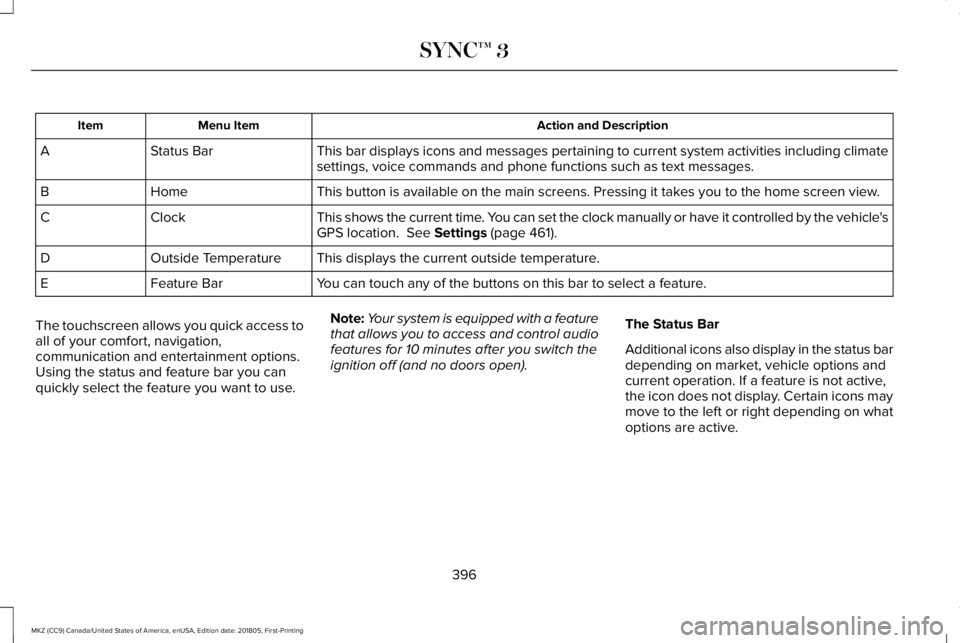
Action and DescriptionMenu ItemItem
This bar displays icons and messages pertaining to current system activities including climatesettings, voice commands and phone functions such as text messages.Status BarA
This button is available on the main screens. Pressing it takes you to the home screen view.HomeB
This shows the current time. You can set the clock manually or have it controlled by the vehicle'sGPS location. See Settings (page 461).ClockC
This displays the current outside temperature.Outside TemperatureD
You can touch any of the buttons on this bar to select a feature.Feature BarE
The touchscreen allows you quick access toall of your comfort, navigation,communication and entertainment options.Using the status and feature bar you canquickly select the feature you want to use.
Note:Your system is equipped with a featurethat allows you to access and control audiofeatures for 10 minutes after you switch theignition off (and no doors open).
The Status Bar
Additional icons also display in the status bardepending on market, vehicle options andcurrent operation. If a feature is not active,the icon does not display. Certain icons maymove to the left or right depending on whatoptions are active.
396
MKZ (CC9) Canada/United States of America, enUSA, Edition date: 201805, First-Printing
SYNC™ 3
Page 403 of 595
FunctionsFeature Bar Item
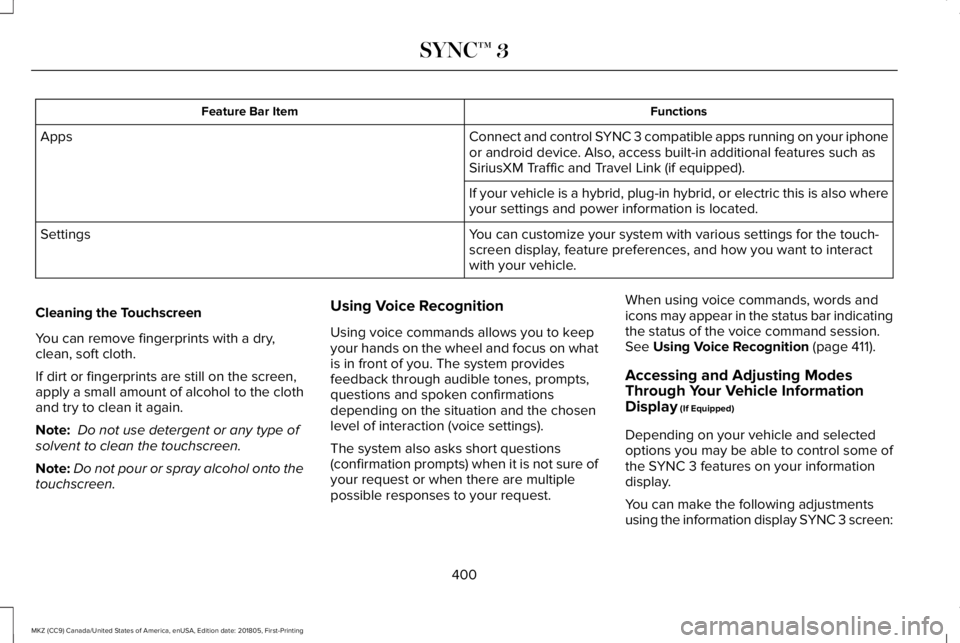
Connect and control SYNC 3 compatible apps running on your iphoneor android device. Also, access built-in additional features such asSiriusXM Traffic and Travel Link (if equipped).
Apps
If your vehicle is a hybrid, plug-in hybrid, or electric this is also whereyour settings and power information is located.
You can customize your system with various settings for the touch-screen display, feature preferences, and how you want to interactwith your vehicle.
Settings
Cleaning the Touchscreen
You can remove fingerprints with a dry,clean, soft cloth.
If dirt or fingerprints are still on the screen,apply a small amount of alcohol to the clothand try to clean it again.
Note: Do not use detergent or any type ofsolvent to clean the touchscreen.
Note:Do not pour or spray alcohol onto thetouchscreen.
Using Voice Recognition
Using voice commands allows you to keepyour hands on the wheel and focus on whatis in front of you. The system providesfeedback through audible tones, prompts,questions and spoken confirmationsdepending on the situation and the chosenlevel of interaction (voice settings).
The system also asks short questions(confirmation prompts) when it is not sure ofyour request or when there are multiplepossible responses to your request.
When using voice commands, words andicons may appear in the status bar indicatingthe status of the voice command session.See Using Voice Recognition (page 411).
Accessing and Adjusting ModesThrough Your Vehicle InformationDisplay (If Equipped)
Depending on your vehicle and selectedoptions you may be able to control some ofthe SYNC 3 features on your informationdisplay.
You can make the following adjustmentsusing the information display SYNC 3 screen:
400
MKZ (CC9) Canada/United States of America, enUSA, Edition date: 201805, First-Printing
SYNC™ 3
Page 405 of 595
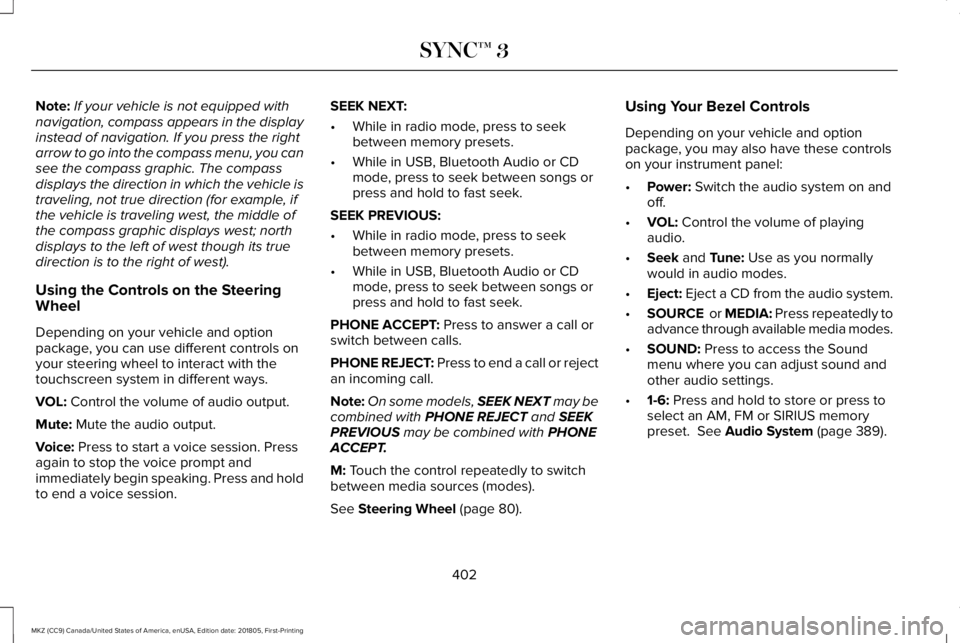
Note:If your vehicle is not equipped withnavigation, compass appears in the displayinstead of navigation. If you press the rightarrow to go into the compass menu, you cansee the compass graphic. The compassdisplays the direction in which the vehicle istraveling, not true direction (for example, ifthe vehicle is traveling west, the middle ofthe compass graphic displays west; northdisplays to the left of west though its truedirection is to the right of west).
Using the Controls on the SteeringWheel
Depending on your vehicle and optionpackage, you can use different controls onyour steering wheel to interact with thetouchscreen system in different ways.
VOL: Control the volume of audio output.
Mute: Mute the audio output.
Voice: Press to start a voice session. Pressagain to stop the voice prompt andimmediately begin speaking. Press and holdto end a voice session.
SEEK NEXT:
•While in radio mode, press to seekbetween memory presets.
•While in USB, Bluetooth Audio or CDmode, press to seek between songs orpress and hold to fast seek.
SEEK PREVIOUS:
•While in radio mode, press to seekbetween memory presets.
•While in USB, Bluetooth Audio or CDmode, press to seek between songs orpress and hold to fast seek.
PHONE ACCEPT: Press to answer a call orswitch between calls.
PHONE REJECT: Press to end a call or rejectan incoming call.
Note:On some models, SEEK NEXT may becombined with PHONE REJECT and SEEKPREVIOUS may be combined with PHONEACCEPT.
M: Touch the control repeatedly to switchbetween media sources (modes).
See Steering Wheel (page 80).
Using Your Bezel Controls
Depending on your vehicle and optionpackage, you may also have these controlson your instrument panel:
•Power: Switch the audio system on andoff.
•VOL: Control the volume of playingaudio.
•Seek and Tune: Use as you normallywould in audio modes.
•Eject: Eject a CD from the audio system.
•SOURCE or MEDIA: Press repeatedly toadvance through available media modes.
•SOUND: Press to access the Soundmenu where you can adjust sound andother audio settings.
•1-6: Press and hold to store or press toselect an AM, FM or SIRIUS memorypreset. See Audio System (page 389).
402
MKZ (CC9) Canada/United States of America, enUSA, Edition date: 201805, First-Printing
SYNC™ 3