steering wheel LINCOLN MKZ HYBRID 2013 Owner's Guide
[x] Cancel search | Manufacturer: LINCOLN, Model Year: 2013, Model line: MKZ HYBRID, Model: LINCOLN MKZ HYBRID 2013Pages: 475, PDF Size: 3.89 MB
Page 234 of 475
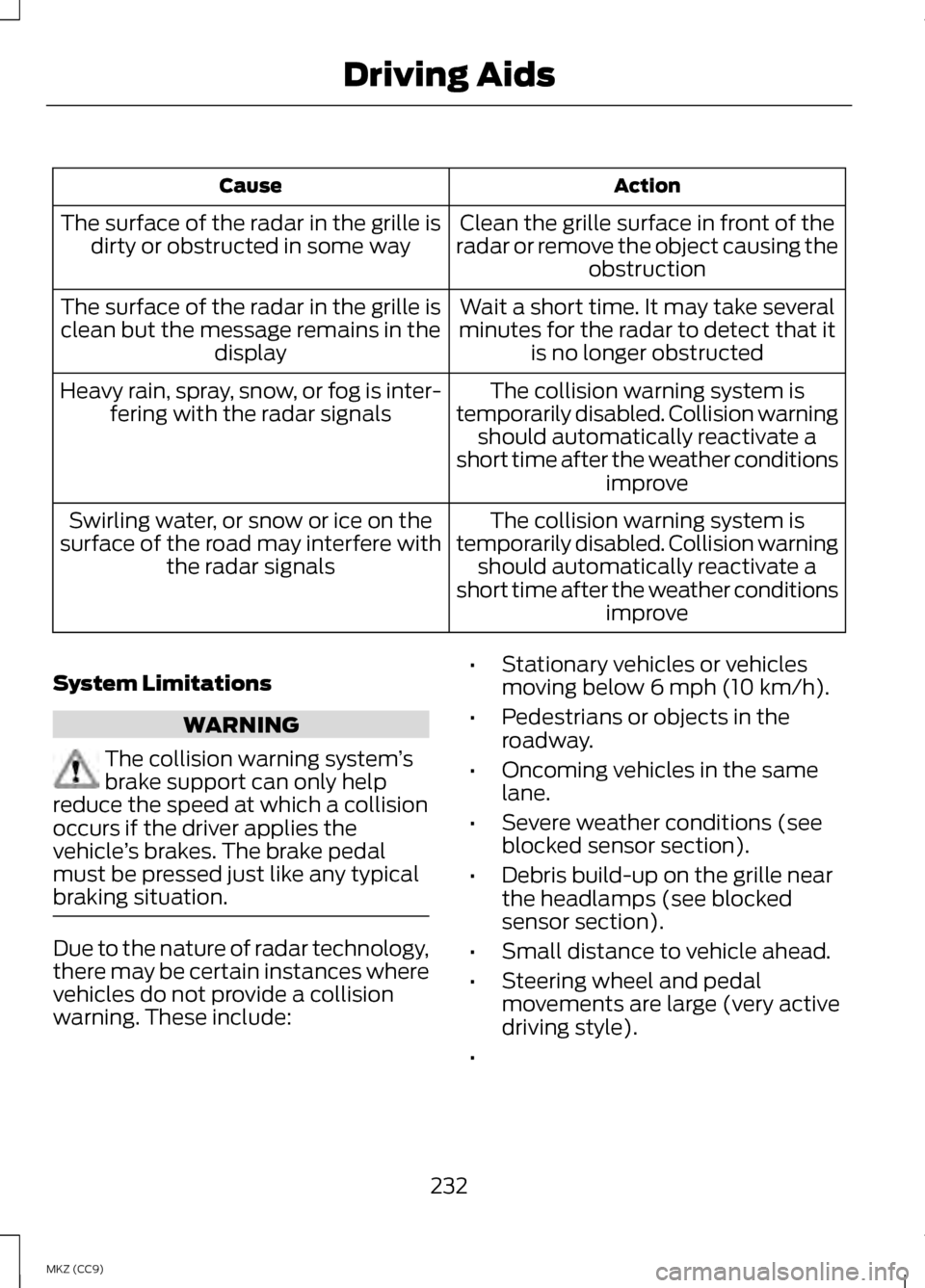
Action
Cause
Clean the grille surface in front of the
radar or remove the object causing the obstruction
The surface of the radar in the grille is
dirty or obstructed in some way
Wait a short time. It may take several
minutes for the radar to detect that it is no longer obstructed
The surface of the radar in the grille is
clean but the message remains in the display
The collision warning system is
temporarily disabled. Collision warning should automatically reactivate a
short time after the weather conditions improve
Heavy rain, spray, snow, or fog is inter-
fering with the radar signals
The collision warning system is
temporarily disabled. Collision warning should automatically reactivate a
short time after the weather conditions improve
Swirling water, or snow or ice on the
surface of the road may interfere with the radar signals
System Limitations WARNING
The collision warning system
’s
brake support can only help
reduce the speed at which a collision
occurs if the driver applies the
vehicle ’s brakes. The brake pedal
must be pressed just like any typical
braking situation. Due to the nature of radar technology,
there may be certain instances where
vehicles do not provide a collision
warning. These include: •
Stationary vehicles or vehicles
moving below 6 mph (10 km/h).
• Pedestrians or objects in the
roadway.
• Oncoming vehicles in the same
lane.
• Severe weather conditions (see
blocked sensor section).
• Debris build-up on the grille near
the headlamps (see blocked
sensor section).
• Small distance to vehicle ahead.
• Steering wheel and pedal
movements are large (very active
driving style).
•
232
MKZ (CC9) Driving Aids
Page 276 of 475
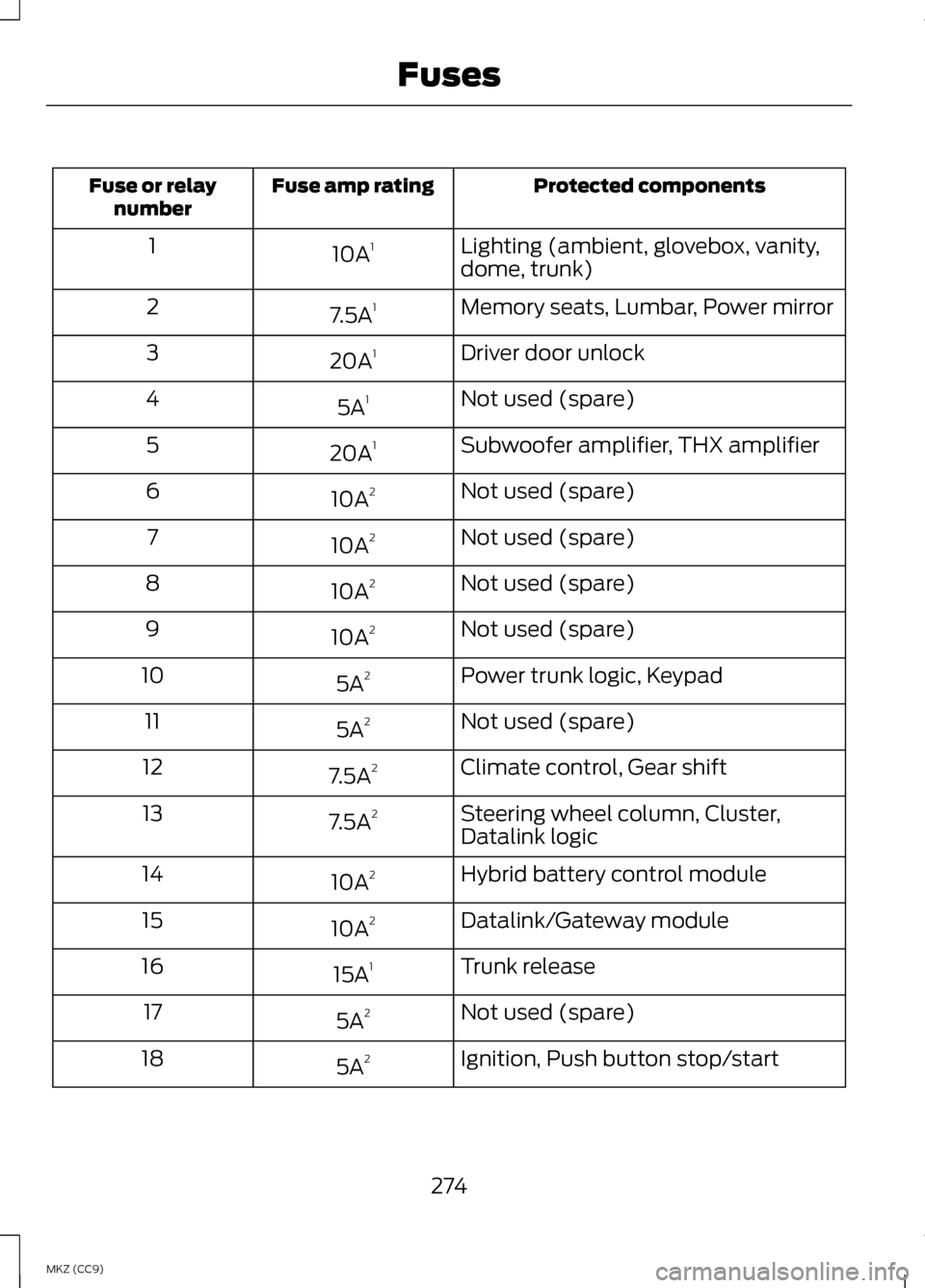
Protected components
Fuse amp rating
Fuse or relay
number
Lighting (ambient, glovebox, vanity,
dome, trunk)
10A
1
1
Memory seats, Lumbar, Power mirror
7.5A 1
2
Driver door unlock
20A 1
3
Not used (spare)
5A 1
4
Subwoofer amplifier, THX amplifier
20A 1
5
Not used (spare)
10A 2
6
Not used (spare)
10A 2
7
Not used (spare)
10A 2
8
Not used (spare)
10A 2
9
Power trunk logic, Keypad
5A 2
10
Not used (spare)
5A 2
11
Climate control, Gear shift
7.5A 2
12
Steering wheel column, Cluster,
Datalink logic
7.5A
2
13
Hybrid battery control module
10A 2
14
Datalink/Gateway module
10A 2
15
Trunk release
15A 1
16
Not used (spare)
5A 2
17
Ignition, Push button stop/start
5A 2
18
274
MKZ (CC9) Fuses
Page 278 of 475
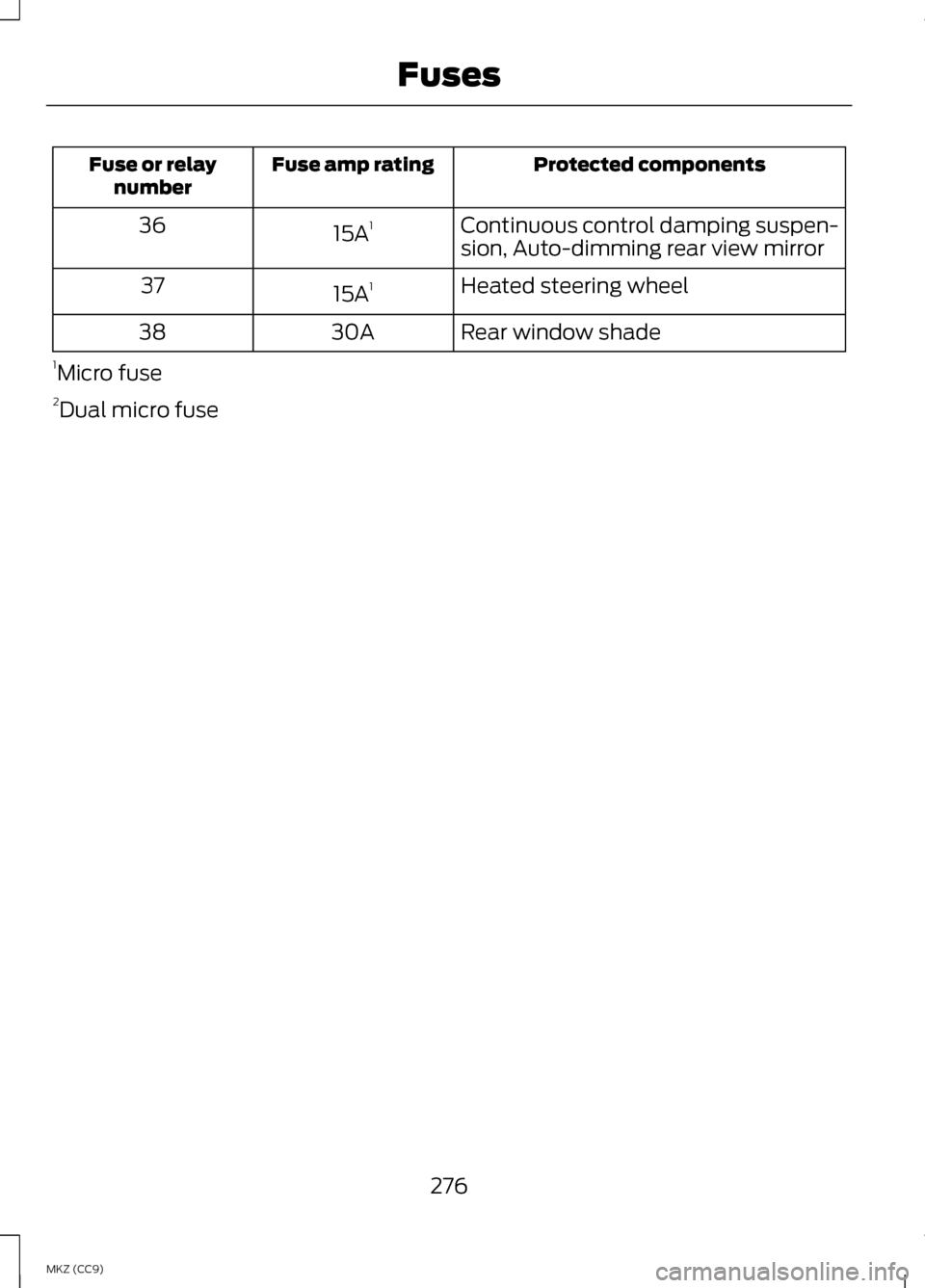
Protected components
Fuse amp rating
Fuse or relay
number
Continuous control damping suspen-
sion, Auto-dimming rear view mirror
15A
1
36
Heated steering wheel
15A 1
37
Rear window shade
30A
38
1 Micro fuse
2 Dual micro fuse
276
MKZ (CC9) Fuses
Page 300 of 475
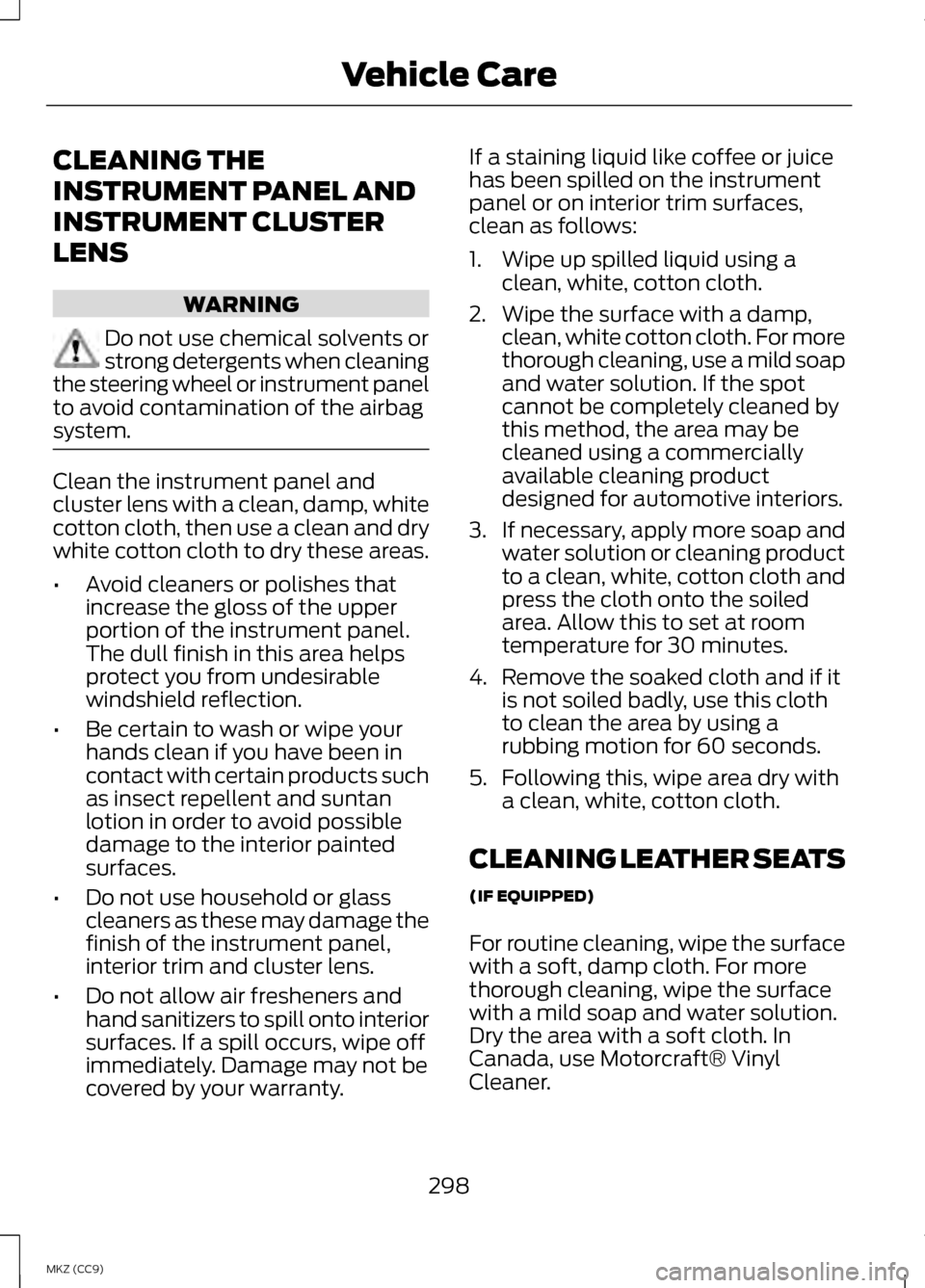
CLEANING THE
INSTRUMENT PANEL AND
INSTRUMENT CLUSTER
LENS
WARNING
Do not use chemical solvents or
strong detergents when cleaning
the steering wheel or instrument panel
to avoid contamination of the airbag
system. Clean the instrument panel and
cluster lens with a clean, damp, white
cotton cloth, then use a clean and dry
white cotton cloth to dry these areas.
•
Avoid cleaners or polishes that
increase the gloss of the upper
portion of the instrument panel.
The dull finish in this area helps
protect you from undesirable
windshield reflection.
• Be certain to wash or wipe your
hands clean if you have been in
contact with certain products such
as insect repellent and suntan
lotion in order to avoid possible
damage to the interior painted
surfaces.
• Do not use household or glass
cleaners as these may damage the
finish of the instrument panel,
interior trim and cluster lens.
• Do not allow air fresheners and
hand sanitizers to spill onto interior
surfaces. If a spill occurs, wipe off
immediately. Damage may not be
covered by your warranty. If a staining liquid like coffee or juice
has been spilled on the instrument
panel or on interior trim surfaces,
clean as follows:
1. Wipe up spilled liquid using a
clean, white, cotton cloth.
2. Wipe the surface with a damp, clean, white cotton cloth. For more
thorough cleaning, use a mild soap
and water solution. If the spot
cannot be completely cleaned by
this method, the area may be
cleaned using a commercially
available cleaning product
designed for automotive interiors.
3. If necessary, apply more soap and
water solution or cleaning product
to a clean, white, cotton cloth and
press the cloth onto the soiled
area. Allow this to set at room
temperature for 30 minutes.
4. Remove the soaked cloth and if it is not soiled badly, use this cloth
to clean the area by using a
rubbing motion for 60 seconds.
5. Following this, wipe area dry with a clean, white, cotton cloth.
CLEANING LEATHER SEATS
(IF EQUIPPED)
For routine cleaning, wipe the surface
with a soft, damp cloth. For more
thorough cleaning, wipe the surface
with a mild soap and water solution.
Dry the area with a soft cloth. In
Canada, use Motorcraft® Vinyl
Cleaner.
298
MKZ (CC9) Vehicle Care
Page 306 of 475
General Information
WARNING
Failure to follow these guidelines
could result in an increased risk
of loss of vehicle control, injury or
death. Note:
Do not use the kit if a tire has
become severely damaged by driving
the vehicle with a tire that has
insufficient air pressure. Only punctured
areas located within the tire tread can
be sealed with the kit.
Do not attempt to repair punctures
larger than 1.4 inch (6.4 millimeters)
or damage to the tire's sidewall. The
tire may not completely seal.
Loss of air pressure may adversely
affect tire performance. For this
reason:
Note: Do not drive the vehicle above
50 mph (80 km/h).
Note: Do not drive further than 120
miles (200 kilometers). Drive only to
the closest Ford Motor Company
authorized dealer or tire repair shop to
have your tire inspected.
• Drive carefully and avoid abrupt
steering maneuvers.
• Periodically monitor tire inflation
pressure in the affected tire; if the
tire is losing pressure, have the
vehicle towed.
• Read the information in the Tips
for Use of the Kit section to make
sure safe operation of the kit and
your vehicle. Tips for Use of the Kit
Read the following list of tips to
ensure safe operation of the kit:
•
Before operating the kit, make sure
your vehicle is safely off the road
and away from moving traffic. Turn
on the hazard lights.
• Always set the parking brake to
ensure the vehicle doesn't move
unexpectedly.
• Do not remove any foreign objects,
such as nails or screws, from the
tire.
• When using the kit, leave the
engine running (only if the vehicle
is outdoors or in a well-ventilated
area) so the compressor doesn't
drain the vehicle's battery.
• Do not allow the compressor to
operate continuously for more
than 15 minutes; this will help
prevent the compressor from
overheating.
• Never leave the kit unattended
when it is operating.
• Sealant compound contains latex.
Make sure that you use the
non-latex gloves provided to avoid
an allergic reaction.
• Keep the kit away from children.
• Only use the kit when the ambient
temperature is between -22°F
(–30°C) and 158°F (70°C).
304
MKZ (CC9) Wheels and Tires
Page 327 of 475
WARNINGS
may be found on either the Safety
Compliance Certification Label
(affixed to either the door hinge
pillar, door-latch post, or the door
edge that meets the door-latch
post, next to the driver's seating
position), or the Tire Label which
is located on the B-Pillar or edge
of the driver ’s door. If this
information is not found on these
labels then you should contact
your authorized dealer as soon as
possible. Use of any tire or wheel
not recommended by Ford can
affect the safety and performance
of your vehicle, which could result
in an increased risk of loss of
vehicle control, vehicle rollover,
personal injury and death.
Additionally the use of
non-recommended tires and
wheels could cause steering,
suspension, axle, transfer case or
power transfer unit failure. If you
have questions regarding tire
replacement, contact your
authorized dealer as soon as
possible. To reduce the risk of injury,
when mounting replacement
tires and wheels, you should not
exceed the maximum pressure
indicated on the sidewall of the
tire to set the beads without
additional precautions listed
below. If the beads do not seat at
the maximum pressure indicated,
re-lubricate and try again WARNINGS
When inflating the tire for
mounting pressures up to 20 psi
(1.38 bar) greater than the
maximum pressure on the tire
sidewall, the following
precautions must be taken to
protect the person mounting the
tire:
1. Make sure that you have the
correct tire and wheel size.
2. Lubricate the tire bead and
wheel bead seat area again.
3. Stand at a minimum of 12 feet
(3.66 meters) away from the
wheel and tire assembly.
4. Use both eye and ear
protection.
For a mounting pressure more
than 20 psi (1.38 bar) greater than
the maximum pressure, a Ford
dealer or other tire service
professional should do the
mounting.
Always inflate steel carcass tires
with a remote air fill with the
person inflating standing at a
minimum of 12 feet (3.66 meters)
away from the wheel and tire
assembly 325
MKZ (CC9) Wheels and Tires
Page 351 of 475
access the information independently
of Ford Motor Company and Ford of
Canada. For further privacy
information, see the sections on 911
Assist, Vehicle Health Report, and
Traffic, Directions and Information.
Accessing and Adjusting Modes Through Your Vehicle Information
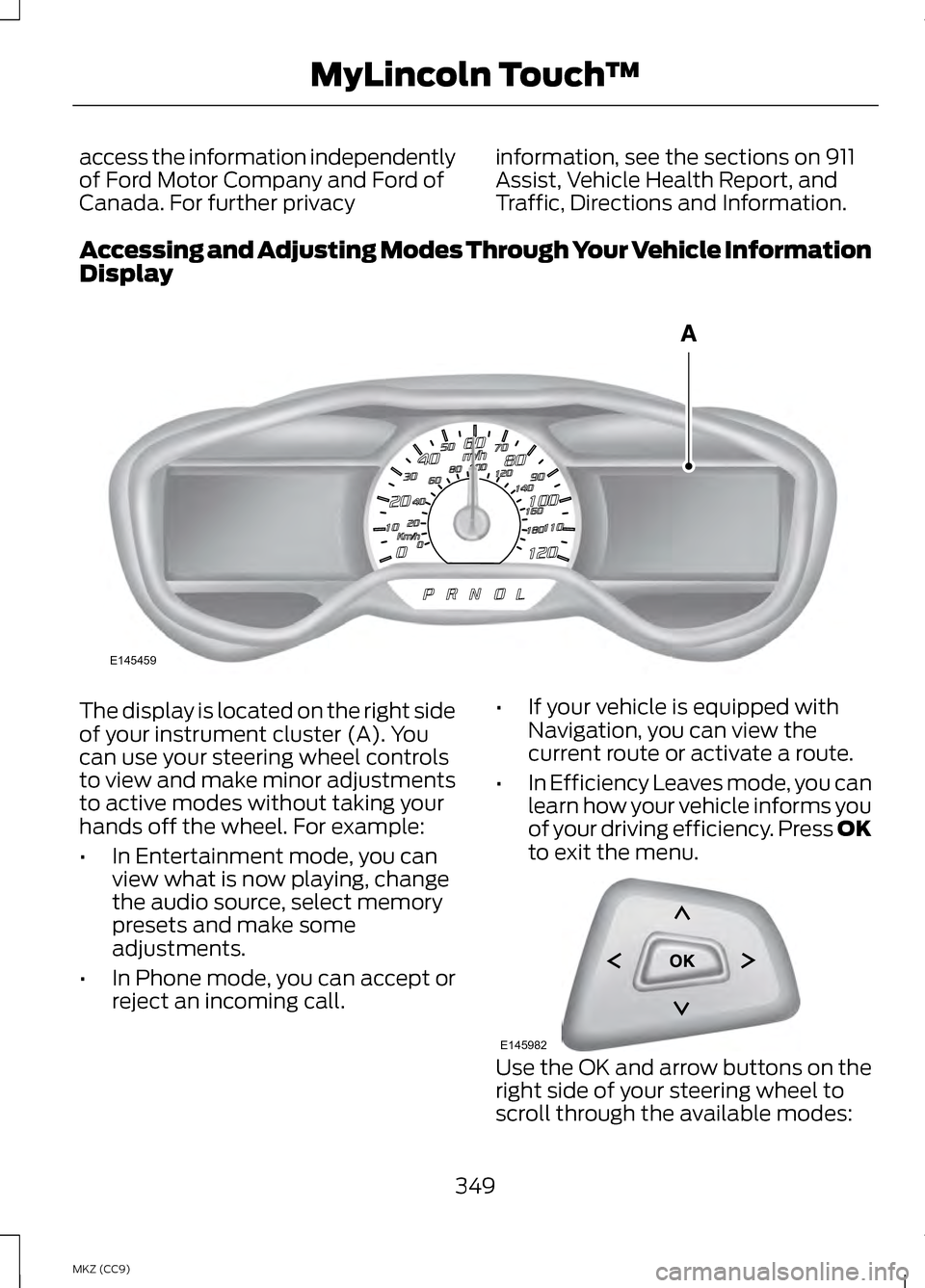
Display The display is located on the right side
of your instrument cluster (A). You
can use your steering wheel controls
to view and make minor adjustments
to active modes without taking your
hands off the wheel. For example:
•
In Entertainment mode, you can
view what is now playing, change
the audio source, select memory
presets and make some
adjustments.
• In Phone mode, you can accept or
reject an incoming call. •
If your vehicle is equipped with
Navigation, you can view the
current route or activate a route.
• In Efficiency Leaves mode, you can
learn how your vehicle informs you
of your driving efficiency. Press OK
to exit the menu. Use the OK and arrow buttons on the
right side of your steering wheel to
scroll through the available modes:
349
MKZ (CC9) MyLincoln Touch
™E145459 E145982
Page 353 of 475
These commands can be said at any
time during a voice session
"Next page"
"Previous page"
"What can I say?" "Help"
What Can I Say?
To access the available voice
commands for the current session, do
one of the following:
• During a voice session, press the
help icon (?) in the lower left
status bar of the screen.
• Say, "What can I say?" for an
on-screen listing of the possible
voice commands associated with
your current voice session.
• Press the voice icon. After the tone,
say, "Help" for an audible list of
possible voice commands.
Helpful Hints
• Make sure the interior of your
vehicle is as quiet as possible.
Wind noise from open windows
and road vibrations may prevent
the system from correctly
recognizing spoken commands.
• After pressing the voice icon, wait
until after the tone sounds and
Listening appears before saying a
command. Any command spoken
before this does not register with
the system. •
Speak naturally, without long
pauses between words.
• At any time, you can interrupt the
system while it is speaking by
pressing the voice icon.
Accessing a List of Available
Commands
• If you use the touchscreen, press
the Settings icon >
Help > Voice
Command List.
• If you use the steering wheel
control, press the voice icon. After
the tone, speak your command
clearly. Available voice commands
"Audio list of commands"
"Bluetooth audio list of commands" "Browse list of commands""CD list of commands"
"Climate control list of commands" "List of commands"
"Navigation list of commands" *
"Phone list of commands" "Radio list of commands"
"SD card list of commands"
"Sirius satellite list of commands" **
"Travel link list of commands" *
"USB list of commands"
351
MKZ (CC9) MyLincoln Touch
™
Page 358 of 475
Under this menu, you can set
your clock, access and adjust
the display, sound and
vehicle settings as well as access
settings for specific modes or the help
feature.
Clock
Note: You cannot manually set the
date. Your vehicle ’s GPS does this for
you.
Note: If the battery has been
disconnected, your vehicle needs to
acquire a GPS signal to update the
clock. Once your vehicle acquires the
signal, it may take a few minutes for
the update to display the correct time. 1. Press the Settings icon > Clock.
2. Press
+ and - to adjust the time.
From this screen, you can also make
other adjustments such as 12-hour or
24-hour mode, activate GPS time
synchronization and have the system
automatically update new time zones.
You can also turn the outside air
temperature display off and on. It
appears at the top center of the
touchscreen, next to the time and
date.
The system automatically saves any
updates you make to the settings. Display
You can adjust the touchscreen
display through the touchscreen or by
pressing the voice button on your
steering wheel controls and when
prompted, say, "Display settings". Press the Settings icon >
Display, to access and make
adjustments using the
touchscreen.
• Brightness
allows you to make
the screen display brighter or
dimmer.
• Auto DIM
, when set to On, lets
you use the Auto Dim Manual
Offset feature.
• Mode
allows you to set the screen
to a certain brightness or have the
system automatically change
based on the outside light level, or
turn the display off.
• If you select
AUTO or NIGHT,
you have the options of turning
the display's Auto Dim feature
on or off and changing the Auto
Dim Manual Offset feature.
• Auto Dim Manual Offset
allows
you to adjust screen dimming as
the outside lighting conditions
change from day to night.
• Edit Wallpaper
•You can have your touchscreen
display the default photo or
upload your own.
356
MKZ (CC9) MyLincoln Touch
™E142607 E142607 E142607
Page 370 of 475
Press the voice icon on the
steering wheel. When
prompted, you can say:
"BROWSE" within devices
"Browse" *
"Browse
"Browse
"Browse SD card"
"Browse Sirius channel guide" **
"Browse USB" "Help"
* If you only say, "Browse", you can
then say any commands in the
following chart.
** This command is only usable if you
have an active subscription to Sirius
satellite radio. "BROWSE"
"
"
"SD card" **
"Sirius Channel Guide" * "BROWSE"
"USB" **
"Help"
* This command is only usable if you
have an active subscription to Sirius
satellite radio.
** For more commands in SD card or
USB mode, see the "SD Card and USB
Port" section of this chapter.
Your voice system allows you to
change audio sources with a simple
voice command. For example, if you
are listening to music on a USB device,
then want to switch to a satellite radio
channel, simply press the voice button
on the steering wheel controls and say
the name of the Sirius station (such
as, "the Highway"). The following
voice commands are available at the
top level of the voice session no
matter which current audio source you
are listening to (such as a USB device
or Sirius satellite radio).
Note: This is only available when your
MyFord Touch system language is set
to North American English. Sample commands
"<87.7-107.9>""<530-1710>"
"
"AM <530-1710>"
"FM <87.7-107.9>"
368
MKZ (CC9) MyLincoln Touch
™E142599