reset LINCOLN MKZ HYBRID 2016 Owner's Guide
[x] Cancel search | Manufacturer: LINCOLN, Model Year: 2016, Model line: MKZ HYBRID, Model: LINCOLN MKZ HYBRID 2016Pages: 543, PDF Size: 5.04 MB
Page 373 of 543
Privacy Information
When you connect a cell phone to SYNC,
the system creates a profile within your
vehicle that links to that cell phone. This
profile helps in offering you more cellular
features and operating more efficiently.
Among other things, this profile may contain
data about your cell phone book, text
messages (read and unread), and call history,
including history of calls when your cell
phone was not connected to the system. In
addition, if you connect a media device, the
system creates and retains an index of
supported media content. The system also
records a short development log of
approximately 10 minutes of all recent system
activity. The log profile and other system data
may be used to improve the system and help
diagnose any problems that may occur.
The cellular profile, media device index, and
development log remain in your vehicle
unless you delete them, and are generally
accessible only in your vehicle when your
cell phone or media player is connected. If
you no longer plan to use the system or your
vehicle, we recommend you carry out a
Master Reset to erase all stored information.System data cannot be accessed without
special equipment and access to your
vehicle's SYNC module. Ford Motor
Company and Ford of Canada do not access
the system data for any purpose other than
as described without consent, a court order,
or where required by law enforcement, other
government authorities, or other third parties
acting with lawful authority. Other parties
may seek to access the information
independently of Ford Motor Company and
Ford of Canada. For further privacy
information, see the sections on 911 Assist®,
Vehicle Health Report, and Traffic, Directions
and Information.
370
MKZ Hybrid (CC9) Hybrid Electric Vehicle (HEV), Canada/United States of America, enUSA, First Printing MyLincoln Touch™
Page 375 of 543
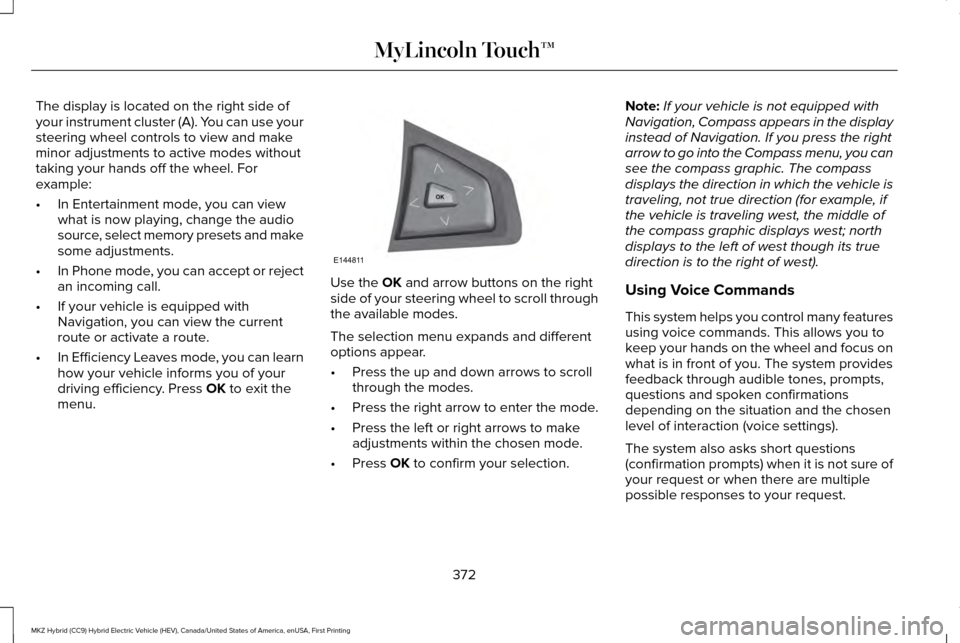
The display is located on the right side of
your instrument cluster (A). You can use your
steering wheel controls to view and make
minor adjustments to active modes without
taking your hands off the wheel. For
example:
•
In Entertainment mode, you can view
what is now playing, change the audio
source, select memory presets and make
some adjustments.
• In Phone mode, you can accept or reject
an incoming call.
• If your vehicle is equipped with
Navigation, you can view the current
route or activate a route.
• In Efficiency Leaves mode, you can learn
how your vehicle informs you of your
driving efficiency. Press OK to exit the
menu. Use the
OK and arrow buttons on the right
side of your steering wheel to scroll through
the available modes.
The selection menu expands and different
options appear.
• Press the up and down arrows to scroll
through the modes.
• Press the right arrow to enter the mode.
• Press the left or right arrows to make
adjustments within the chosen mode.
• Press
OK to confirm your selection. Note:
If your vehicle is not equipped with
Navigation, Compass appears in the display
instead of Navigation. If you press the right
arrow to go into the Compass menu, you can
see the compass graphic. The compass
displays the direction in which the vehicle is
traveling, not true direction (for example, if
the vehicle is traveling west, the middle of
the compass graphic displays west; north
displays to the left of west though its true
direction is to the right of west).
Using Voice Commands
This system helps you control many features
using voice commands. This allows you to
keep your hands on the wheel and focus on
what is in front of you. The system provides
feedback through audible tones, prompts,
questions and spoken confirmations
depending on the situation and the chosen
level of interaction (voice settings).
The system also asks short questions
(confirmation prompts) when it is not sure of
your request or when there are multiple
possible responses to your request.
372
MKZ Hybrid (CC9) Hybrid Electric Vehicle (HEV), Canada/United States of America, enUSA, First Printing MyLincoln Touch™E144811
Page 386 of 543
Enable Valet Mode
Valet mode allows you to lock the
system. No information is
accessible until the system is
unlocked with the correct PIN.
Note:
If the system locks, and you need to
reset the PIN, please contact the Customer
Relationship Center. United States: 1-800-521-4140
Canada: 1-800-387-9333
To make adjustments using the touchscreen, select: Action and Description
Menu Item
Press the settings icon.
Settings
Vehicle
Then enter a four digit PIN twice, as prompted.
Enable Valet Mode
After you press Continue the system locks until you enter the PIN again.\
Continue
Settings
Access and adjust system settings, voice
features, as well as phone, navigation and
wireless settings. System
383
MKZ Hybrid (CC9) Hybrid Electric Vehicle (HEV), Canada/United States of America, enUSA, First Printing MyLincoln Touch™E142607 E142607
Page 387 of 543
To make adjustments using the touchscreen, select:
Action and Description
Menu Item
Press the settings icon.
Settings
System
Then select from the following:
Select to have the touchscreen display in English, Spanish or French.
Language
Select to display units in kilometers or miles.
Distance
Select to display units in Celsius or Fahrenheit.
Temperature
Adjust the volume of voice prompts from the system.
System Prompt Volume
Select to have the system beep to confirm choices made through the touch\
screen.
Touch Screen Button Beep
Have the touchscreen keyboard display in QWERTY or ABC format.
Keyboard Layout
Install any downloaded applications or view the current software license\
s.
Install Applications
Select to restore factory defaults. This erases all personal settings an\
d personal data.
Master reset
Voice Control 384
MKZ Hybrid (CC9) Hybrid Electric Vehicle (HEV), Canada/United States of America, enUSA, First Printing MyLincoln Touch™E142607
Page 399 of 543

Menu Item and Description
Message
AM
A
FM
B
SIRIUS
C
CD
D
USB
E
Touch this button to scroll down for more options, for example SD Card an\
d USB
F
These buttons change with the media mode you are in.
G
Radio memory presets.
H
Note: Some features may not be available in your area. Contact an authorized d\
ealer for more information.
You can access these options using the
touchscreen or voice commands. AM/FM Radio The following controls are available
for AM/FM radio
396
MKZ Hybrid (CC9) Hybrid Electric Vehicle (HEV), Canada/United States of America, enUSA, First Printing MyLincoln Touch™E142611
Page 400 of 543
Action and Description
Item
Touch either tab to listen to the radio. To change between AM and FM presets, just touch the AM or FM
tab.
AM
FM
Save a station by pressing and holding one of the memory preset areas. T\
here is a brief mute while the
radio saves the station. Sound returns when finished.
Presets
Touch this button to turn HD Radio on. The light on the button illuminates when the feature is on. HD
Radio allows you to receive radio broadcasts digitally, where available, providing free, crystal-clear sound.
See HD Radio information later in this chapter.
HD Radio
Touch this button to go to the next strong AM or FM radio station. The li\
ght on the button illuminates
when the feature is on.
Scan
Touch this button to manually enter the desired station number. Touch
Enter when you are done.
Direct Tune
Options
You can make adjustments to the following options: Action and Description
Menu Item
Touch this button to adjust settings for:
Sound Settings
Bass
Midrange
397
MKZ Hybrid (CC9) Hybrid Electric Vehicle (HEV), Canada/United States of America, enUSA, First Printing MyLincoln Touch™
Page 404 of 543

When HD Radio broadcasts are active, you can access the following functions:
Action and Description
Menu Item
Allows you to hear a brief sampling of all available stations. This feat\
ure still works when HD Radio
reception is on, although it does not scan for HD2-HD7 channels. You may see the HD logo appear if the
station has a digital broadcast.
Scan
Allows you to save an active channel as a memory preset. Touch and hold a memory preset slot until the
sound returns. There is a brief mute while the radio saves the station. \
Sound returns when finished. When
switching to an HD2 or HD3 memory preset, the sound mutes before the dig\
ital audio plays, because
the system has to reacquire the digital signal.
Presets
Note: As with any saved radio station, you cannot access the saved station if \
your vehicle is outside the station’ s reception area.
401
MKZ Hybrid (CC9) Hybrid Electric Vehicle (HEV), Canada/United States of America, enUSA, First Printing MyLincoln Touch™
Page 406 of 543
Potential station issues
Action
Cause
Issues
No action required. This is a broadcast issue.
This is poor time alignment by the radio broad-
caster.
Echo, stutter, skip or repeat in audio.
Increase or decrease in audio
volume.
No action required. The reception issue may clear
up as you continue to drive.
The radio is shifting between analog and digital
audio.
Sound fading or blending in and out.
No action required. This is normal behavior. Wait
until the audio is available.
The digital multicast is not available until the HD
Radio broadcast is decoded. Once decoded, the
audio is available.
There is an audio mute delay when
selecting HD2 or HD3, multicast
preset or Direct Tune
No action required. The station is not available in
your current location.
The previously stored multicast preset or direct
tune is not available in your current reception area.
Cannot access HD2 or HD3 multicast
channel when recalling a preset or
from a direct tune.
Fill out the station issue form at http://
www.ibiquity.com/automotive/
report_radio_station_experiences
Data service issue by the radio broadcaster.
Text information does not match
currently playing audio.
Fill out the station issue form at http://
www.ibiquity.com/automotive/
report_radio_station_experiences
Data service issue by the radio broadcaster.
There is no text information shown
for currently selected frequency.
No action required. This is normal behavior.
This selection disables HD2-HD7 channel search.
HD2-HD7 stations not found when
you press
Scan
403
MKZ Hybrid (CC9) Hybrid Electric Vehicle (HEV), Canada/United States of America, enUSA, First Printing MyLincoln Touch™
Page 407 of 543
HD Radio Technology manufactured under
license from iBiquity Digital Corp. U.S. and
foreign patents. HD Radio and the HD and
HD Radio logos are proprietary trademarks
of iBiquity Digital Corp. Ford Motor Company
and iBiquity Digital Corp. are not responsible
for the content sent using HD Radio
technology. Content may be changed, added
or deleted at any time at the station owner's
discretion.Radio Voice CommandsPress the voice button and when prompted say:
Action and Description
Voice command
Radio
Then you can say a command similar to the following: Say a frequency or preset.
FM
Off
Help
SIRIUS® Satellite Radio (If Activated) 404
MKZ Hybrid (CC9) Hybrid Electric Vehicle (HEV), Canada/United States of America, enUSA, First Printing MyLincoln Touch™E142599 E142611
Page 408 of 543

To turn the feature on press the lower left corner of the touchscreen, an\
d then select:
Action and Description
Menu Item
SIRIUS
You can then select any of the following: Save a channel by pressing and holding one of the memory preset areas. T\
here is a brief mute while the
radio saves the channel. Sound returns when finished.
Presets
Save the current song, artist, or team as a favorite.
Alerts
If you are listening to music, you can save the song or artist, so the s\
ystem can alert you when they are
playing on a satellite radio channel. If you are listening to a sporting\
event, you can save your favorite
teams so the system can alert you when they are playing on a satellite r\
adio channel. You can also edit
alerts or turn alerts on or off.
When an alert appears on the screen, you can choose to tune to the chann\
el, cancel the alert or turn off
alerts.
Replay audio on the current channel. You can replay approximately 45 minutes of audio as long as you
have remained tuned to the current station. Changing stations erases the\
previous audio.
Replay
While in replay mode:
Press and release the seek buttons to hear the previous or next song.
Press and hold the seek buttons to reverse or fast forward in the curren\
t track.
Press play or pause to play or pause the audio.
Press the button again to return to live audio.
405
MKZ Hybrid (CC9) Hybrid Electric Vehicle (HEV), Canada/United States of America, enUSA, First Printing MyLincoln Touch™