reset LINCOLN MKZ HYBRID 2019 Owner's Guide
[x] Cancel search | Manufacturer: LINCOLN, Model Year: 2019, Model line: MKZ HYBRID, Model: LINCOLN MKZ HYBRID 2019Pages: 575, PDF Size: 4.77 MB
Page 313 of 575
Note:If you do not allow the engine torelearn the idle and fuel trim strategy, theidle quality of your vehicle may be adverselyaffected until the engine computereventually relearns the idle trim and fuel trimstrategy.
Note:Certain features may not operate ifthe battery monitor system is not reset witha scan tool following a jump start or batteryreplacement. Normal electrical accessoryoperation should resume after your vehicleis left undisturbed for 8 hours.
Make sure that you dispose of old batteriesin an environmentally friendly way. Seekadvice from your local authority aboutrecycling old batteries.
If storing your vehicle for more than 30 dayswithout recharging the battery, werecommend that you disconnect the batterycables to maintain battery charge for quickstarting.
CHECKING THE WIPER BLADES
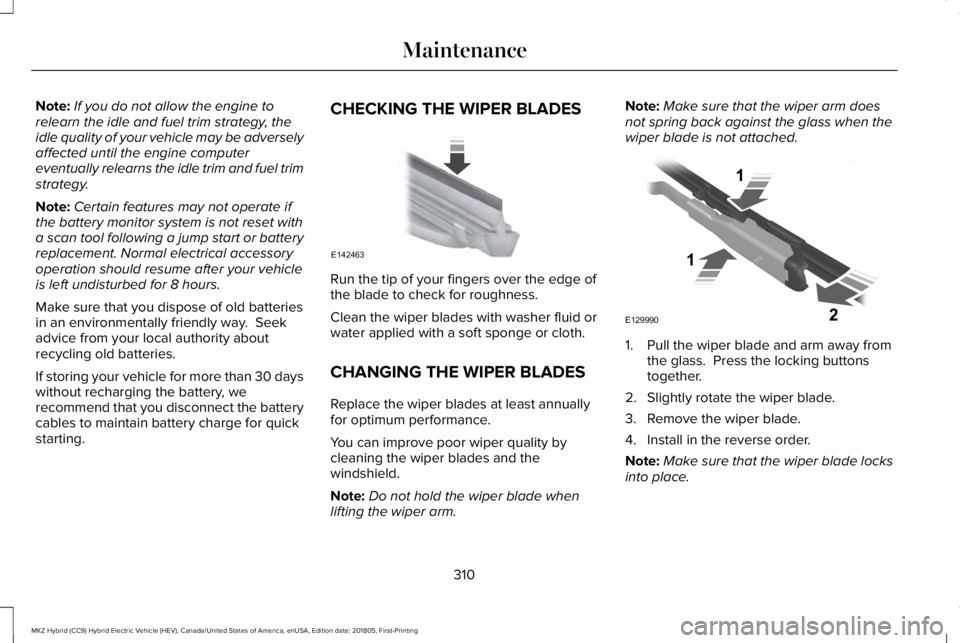
Run the tip of your fingers over the edge ofthe blade to check for roughness.
Clean the wiper blades with washer fluid orwater applied with a soft sponge or cloth.
CHANGING THE WIPER BLADES
Replace the wiper blades at least annuallyfor optimum performance.
You can improve poor wiper quality bycleaning the wiper blades and thewindshield.
Note:Do not hold the wiper blade whenlifting the wiper arm.
Note:Make sure that the wiper arm doesnot spring back against the glass when thewiper blade is not attached.
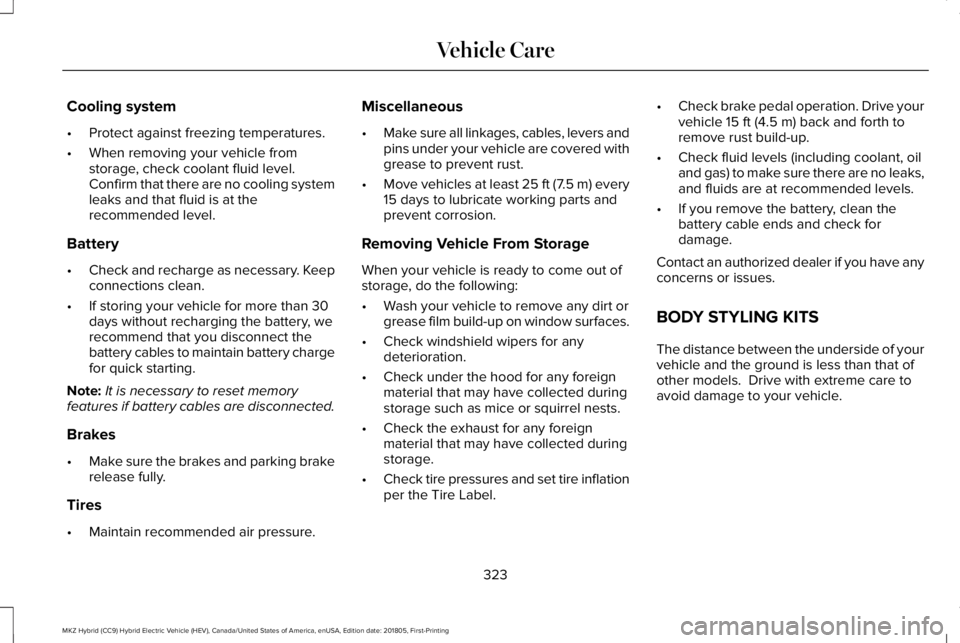
1. Pull the wiper blade and arm away fromthe glass. Press the locking buttonstogether.
2. Slightly rotate the wiper blade.
3. Remove the wiper blade.
4. Install in the reverse order.
Note:Make sure that the wiper blade locksinto place.
310
MKZ Hybrid (CC9) Hybrid Electric Vehicle (HEV), Canada/United States of America, enUSA, Edition date: 201805, First-Printing
MaintenanceE142463 E129990
1
1 2
Page 326 of 575
Cooling system
•Protect against freezing temperatures.
•When removing your vehicle fromstorage, check coolant fluid level.Confirm that there are no cooling systemleaks and that fluid is at therecommended level.
Battery
•Check and recharge as necessary. Keepconnections clean.
•If storing your vehicle for more than 30days without recharging the battery, werecommend that you disconnect thebattery cables to maintain battery chargefor quick starting.
Note:It is necessary to reset memoryfeatures if battery cables are disconnected.
Brakes
•Make sure the brakes and parking brakerelease fully.
Tires
•Maintain recommended air pressure.
Miscellaneous
•Make sure all linkages, cables, levers andpins under your vehicle are covered withgrease to prevent rust.
•Move vehicles at least 25 ft (7.5 m) every15 days to lubricate working parts andprevent corrosion.
Removing Vehicle From Storage
When your vehicle is ready to come out ofstorage, do the following:
•Wash your vehicle to remove any dirt orgrease film build-up on window surfaces.
•Check windshield wipers for anydeterioration.
•Check under the hood for any foreignmaterial that may have collected duringstorage such as mice or squirrel nests.
•Check the exhaust for any foreignmaterial that may have collected duringstorage.
•Check tire pressures and set tire inflationper the Tire Label.
•Check brake pedal operation. Drive yourvehicle 15 ft (4.5 m) back and forth toremove rust build-up.
•Check fluid levels (including coolant, oiland gas) to make sure there are no leaks,and fluids are at recommended levels.
•If you remove the battery, clean thebattery cable ends and check fordamage.
Contact an authorized dealer if you have anyconcerns or issues.
BODY STYLING KITS
The distance between the underside of yourvehicle and the ground is less than that ofother models. Drive with extreme care toavoid damage to your vehicle.
323
MKZ Hybrid (CC9) Hybrid Electric Vehicle (HEV), Canada/United States of America, enUSA, Edition date: 201805, First-Printing
Vehicle Care
Page 382 of 575
Note:If your vehicle is not equipped withnavigation, compass appears in the displayinstead of navigation. If you press the rightarrow to go into the compass menu, you cansee the compass graphic. The compassdisplays the direction in which the vehicle istraveling, not true direction (for example, ifthe vehicle is traveling west, the middle ofthe compass graphic displays west; northdisplays to the left of west though its truedirection is to the right of west).
Using the Controls on the SteeringWheel
Depending on your vehicle and optionpackage, you can use different controls onyour steering wheel to interact with thetouchscreen system in different ways.
VOL: Control the volume of audio output.
Mute: Mute the audio output.
Voice: Press to start a voice session. Pressagain to stop the voice prompt andimmediately begin speaking. Press and holdto end a voice session.
SEEK NEXT:
•While in radio mode, press to seekbetween memory presets.
•While in USB, Bluetooth Audio or CDmode, press to seek between songs orpress and hold to fast seek.
SEEK PREVIOUS:
•While in radio mode, press to seekbetween memory presets.
•While in USB, Bluetooth Audio or CDmode, press to seek between songs orpress and hold to fast seek.
PHONE ACCEPT: Press to answer a call orswitch between calls.
PHONE REJECT: Press to end a call or rejectan incoming call.
Note:On some models, SEEK NEXT may becombined with PHONE REJECT and SEEKPREVIOUS may be combined with PHONEACCEPT.
M: Touch the control repeatedly to switchbetween media sources (modes).
See Steering Wheel (page 80).
Using Your Bezel Controls
Depending on your vehicle and optionpackage, you may also have these controlson your instrument panel:
•Power: Switch the audio system on andoff.
•VOL: Control the volume of playingaudio.
•Seek and Tune: Use as you normallywould in audio modes.
•Eject: Eject a CD from the audio system.
•SOURCE or MEDIA: Press repeatedly toadvance through available media modes.
•SOUND: Press to access the Soundmenu where you can adjust sound andother audio settings.
•1-6: Press and hold to store or press toselect an AM, FM or SIRIUS memorypreset. See Audio System (page 366).
379
MKZ Hybrid (CC9) Hybrid Electric Vehicle (HEV), Canada/United States of America, enUSA, Edition date: 201805, First-Printing
SYNC™ 3
Page 388 of 575
To connect your system to Wi-Fi, select:
Menu Item
Settings
Wi-Fi
You can then select your Wi-Fi network. You may haveto enter the security code ifthe network is secured. Thesystem confirms when it hasconnected to the network.
Available Wi-Fi Networks
You must also give the system permissionto update automatically. Upon vehicledelivery, the System asks you if you wouldlike to use the automatic update feature. Ifyou agree to automatic updates, you canpress OK to confirm. If this selection doesnot appear upon vehicle delivery you canaccess it through the General Settings. SeeSettings (page 444). You can also perform amaster reset. See SYNC™ 3 Troubleshooting(page 463).
If you would like to switch this feature onlater, select:
Menu Item
Settings
General
From this menu, you canenable automatic updates.If you have not done soalready, the system promptsyou to set up a Wi-Ficonnection when youenable this feature.
AutomaticSystemUpdates
When Wi-Fi and automatic updates areenabled, your system checks for softwareupdates periodically. If a new version isavailable, it downloads at that time. Softwaredownloads can take place for up to 30minutes after you have switched your vehicleoff. The updates do not interrupt the normaluse of your SYNC 3 system. If a downloaddoes not complete for any reason, the
download continues where it left off at thenext Wi-Fi connected opportunity. Uponactivation of an update, a banner displayson the touchscreen indicating the systemupdate. Select the icon to see more detail.This icon displays for two ignition cycles.
To switch this feature off:
Menu Item
Settings
General
In this menu selection, youcan change the selection forautomatic updates to OFF.
AutomaticSystemUpdates
Customer Assistance
The SYNC support team is available to helpyou with any questions you are not able toanswer on your own.
Monday-Saturday, 8:30am-8:00pm EST.
United States: 1-800-521-4140.
Canada: 1-800-387-9333.
Mexico: 01-800-719-8466.
385
MKZ Hybrid (CC9) Hybrid Electric Vehicle (HEV), Canada/United States of America, enUSA, Edition date: 201805, First-Printing
SYNC™ 3
Page 389 of 575
Times are subject to change due to holidays.
Privacy Information
When you connect a cellular phone to SYNC3, the system creates a profile within yourvehicle that links to that cellular phone. Thisprofile helps in offering you more cellularfeatures and operating more efficiently.Among other things, this profile may containdata about your cellular phone book, textmessages (read and unread), and call history,including history of calls when your cellphone was not connected to the system. Inaddition, if you connect a media device, thesystem creates and retains an index of
supported media content. The system alsorecords a short diagnostic log ofapproximately 10 minutes of all recent systemactivity. The log profile and other system datamay be used to improve the system and helpdiagnose any problems that may occur.
The cellular profile, media device index, anddiagnostic log remain in your vehicle unlessyou delete them and are generally accessibleonly in your vehicle when the cellular phoneor media player is connected.
If you no longer plan to use the system oryour vehicle, we recommend you perform aMaster Reset to erase all stored information.You can find more information about theMaster Reset in General Settings. SeeSettings (page 444). System data cannot beaccessed without special equipment andaccess to your vehicle's SYNC 3 module. TheLincoln Motor Company does not access thesystem data for any purpose other than asdescribed absent consent, a court order, orwhere required by law enforcement, othergovernment authorities, or other third partiesacting with lawful authority. Other partiesmay seek to access the informationindependently of The Lincoln MotorCompany.
HOME SCREEN
386
MKZ Hybrid (CC9) Hybrid Electric Vehicle (HEV), Canada/United States of America, enUSA, Edition date: 201805, First-Printing
SYNC™ 3
Page 403 of 575
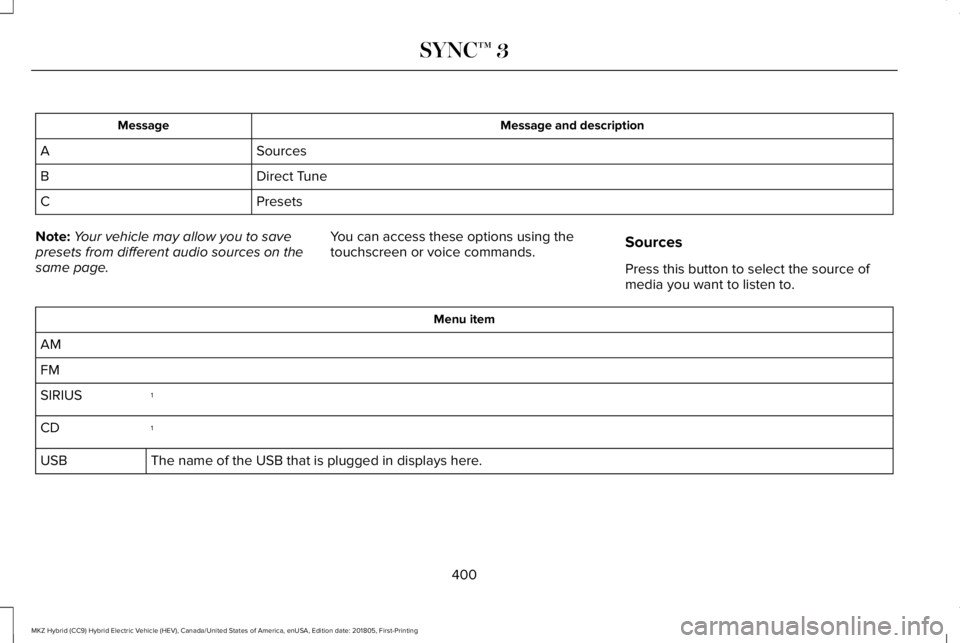
Message and descriptionMessage
SourcesA
Direct TuneB
PresetsC
Note:Your vehicle may allow you to savepresets from different audio sources on thesame page.
You can access these options using thetouchscreen or voice commands.Sources
Press this button to select the source ofmedia you want to listen to.
Menu item
AM
FM
1SIRIUS
1CD
The name of the USB that is plugged in displays here.USB
400
MKZ Hybrid (CC9) Hybrid Electric Vehicle (HEV), Canada/United States of America, enUSA, Edition date: 201805, First-Printing
SYNC™ 3
Page 404 of 575
Menu item
Bluetooth Stereo
If you have SYNC 3 compatible apps on your connected smart phone, they display here as individual source selections.Apps
1 This feature may not be available in all markets and requires an active subscription.
AM/FM Radio
Tuning a Station
You can use the tune or seek controls on theradio bezel to select a station.
To tune a station using the touchscreen,select:
Menu item
Direct Tune
A pop up appears, allowing you to type inthe frequency of a station. You can only entera valid station for the source you arecurrently listening to.
You can press the backspace button todelete the previously entered number.
Once you have entered the station's callnumbers, you can select:
Action and descriptionMenu item
Press to beginplaying the stationyou have entered.
Enter
Press to exit withoutchanging the station.Cancel
Presets
To set a new preset, tune to the station andthen press and hold one of the memorypreset buttons. The audio mutes briefly whilethe system saves the station and thenreturns.
There are two preset banks available for AMand three banks for FM. To access additionalpresets, tap the preset button. The indicatoron the preset button shows which bank ofpresets you are currently viewing.
SiriusXM® Satellite Radio (If Activated)
Note: This feature may not be available inall markets and requires an activesubscription.
401
MKZ Hybrid (CC9) Hybrid Electric Vehicle (HEV), Canada/United States of America, enUSA, Edition date: 201805, First-Printing
SYNC™ 3E234451
Page 406 of 575
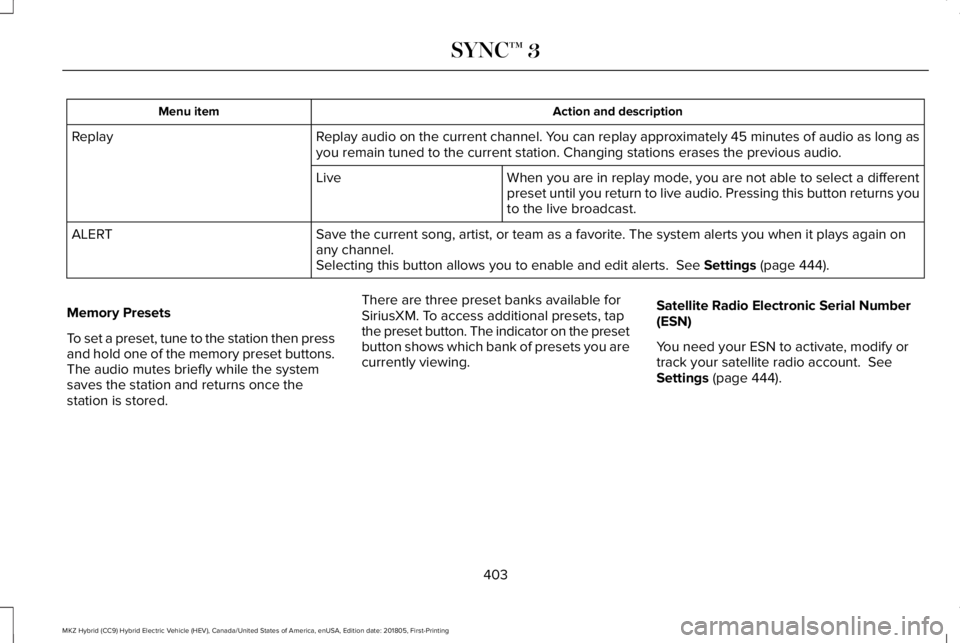
Action and descriptionMenu item
Replay audio on the current channel. You can replay approximately 45 minutes of audio as long asyou remain tuned to the current station. Changing stations erases the previous audio.Replay
When you are in replay mode, you are not able to select a differentpreset until you return to live audio. Pressing this button returns youto the live broadcast.
Live
Save the current song, artist, or team as a favorite. The system alerts you when it plays again onany channel.ALERT
Selecting this button allows you to enable and edit alerts. See Settings (page 444).
Memory Presets
To set a preset, tune to the station then pressand hold one of the memory preset buttons.The audio mutes briefly while the systemsaves the station and returns once thestation is stored.
There are three preset banks available forSiriusXM. To access additional presets, tapthe preset button. The indicator on the presetbutton shows which bank of presets you arecurrently viewing.
Satellite Radio Electronic Serial Number(ESN)
You need your ESN to activate, modify ortrack your satellite radio account. SeeSettings (page 444).
403
MKZ Hybrid (CC9) Hybrid Electric Vehicle (HEV), Canada/United States of America, enUSA, Edition date: 201805, First-Printing
SYNC™ 3
Page 407 of 575
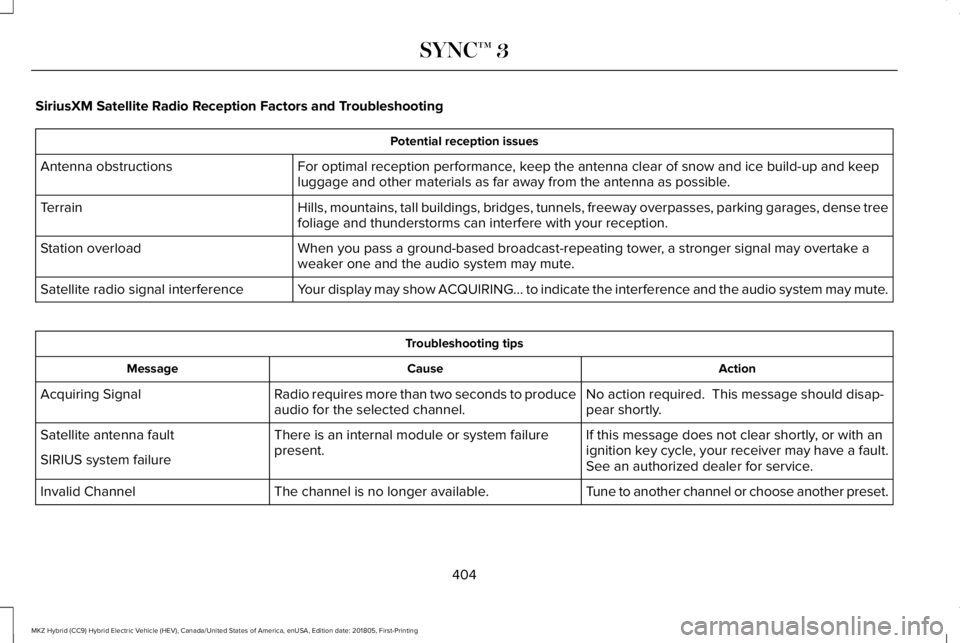
SiriusXM Satellite Radio Reception Factors and Troubleshooting
Potential reception issues
For optimal reception performance, keep the antenna clear of snow and ice build-up and keepluggage and other materials as far away from the antenna as possible.Antenna obstructions
Hills, mountains, tall buildings, bridges, tunnels, freeway overpasses, parking garages, dense treefoliage and thunderstorms can interfere with your reception.Terrain
When you pass a ground-based broadcast-repeating tower, a stronger signal may overtake aweaker one and the audio system may mute.Station overload
Your display may show ACQUIRING... to indicate the interference and the audio system may mute.Satellite radio signal interference
Troubleshooting tips
ActionCauseMessage
No action required. This message should disap-pear shortly.Radio requires more than two seconds to produceaudio for the selected channel.Acquiring Signal
If this message does not clear shortly, or with anignition key cycle, your receiver may have a fault.See an authorized dealer for service.
There is an internal module or system failurepresent.Satellite antenna fault
SIRIUS system failure
Tune to another channel or choose another preset.The channel is no longer available.Invalid Channel
404
MKZ Hybrid (CC9) Hybrid Electric Vehicle (HEV), Canada/United States of America, enUSA, Edition date: 201805, First-Printing
SYNC™ 3
Page 410 of 575
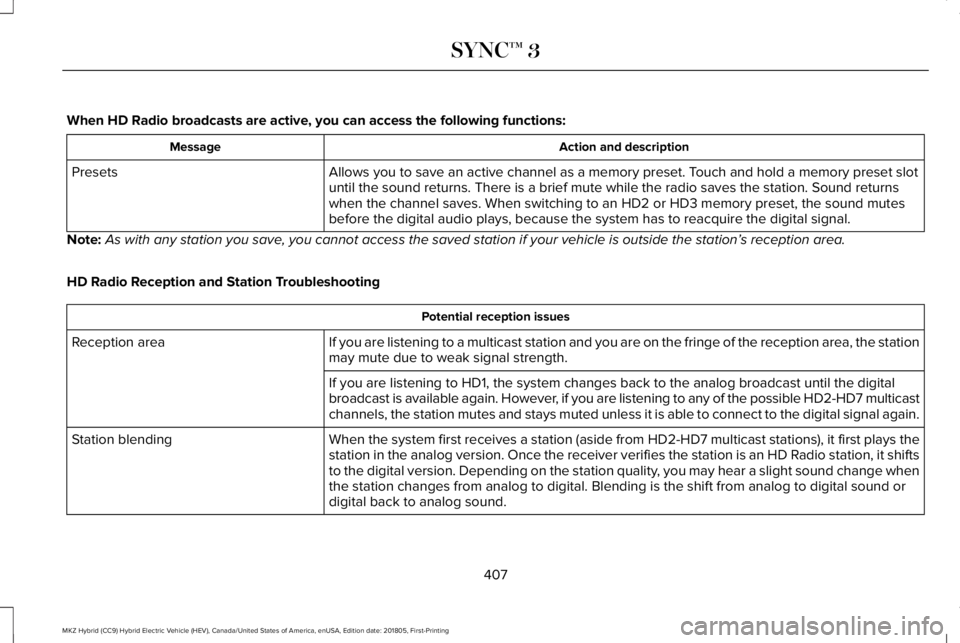
When HD Radio broadcasts are active, you can access the following functions:
Action and descriptionMessage
Allows you to save an active channel as a memory preset. Touch and hold a memory preset slotuntil the sound returns. There is a brief mute while the radio saves the station. Sound returnswhen the channel saves. When switching to an HD2 or HD3 memory preset, the sound mutesbefore the digital audio plays, because the system has to reacquire the digital signal.
Presets
Note:As with any station you save, you cannot access the saved station if your vehicle is outside the station’s reception area.
HD Radio Reception and Station Troubleshooting
Potential reception issues
If you are listening to a multicast station and you are on the fringe of the reception area, the stationmay mute due to weak signal strength.Reception area
If you are listening to HD1, the system changes back to the analog broadcast until the digitalbroadcast is available again. However, if you are listening to any of the possible HD2-HD7 multicastchannels, the station mutes and stays muted unless it is able to connect to the digital signal again.
When the system first receives a station (aside from HD2-HD7 multicast stations), it first plays thestation in the analog version. Once the receiver verifies the station is an HD Radio station, it shiftsto the digital version. Depending on the station quality, you may hear a slight sound change whenthe station changes from analog to digital. Blending is the shift from analog to digital sound ordigital back to analog sound.
Station blending
407
MKZ Hybrid (CC9) Hybrid Electric Vehicle (HEV), Canada/United States of America, enUSA, Edition date: 201805, First-Printing
SYNC™ 3