rear LINCOLN NAVIGATOR 2004 User Guide
[x] Cancel search | Manufacturer: LINCOLN, Model Year: 2004, Model line: NAVIGATOR, Model: LINCOLN NAVIGATOR 2004Pages: 368, PDF Size: 8.21 MB
Page 28 of 368
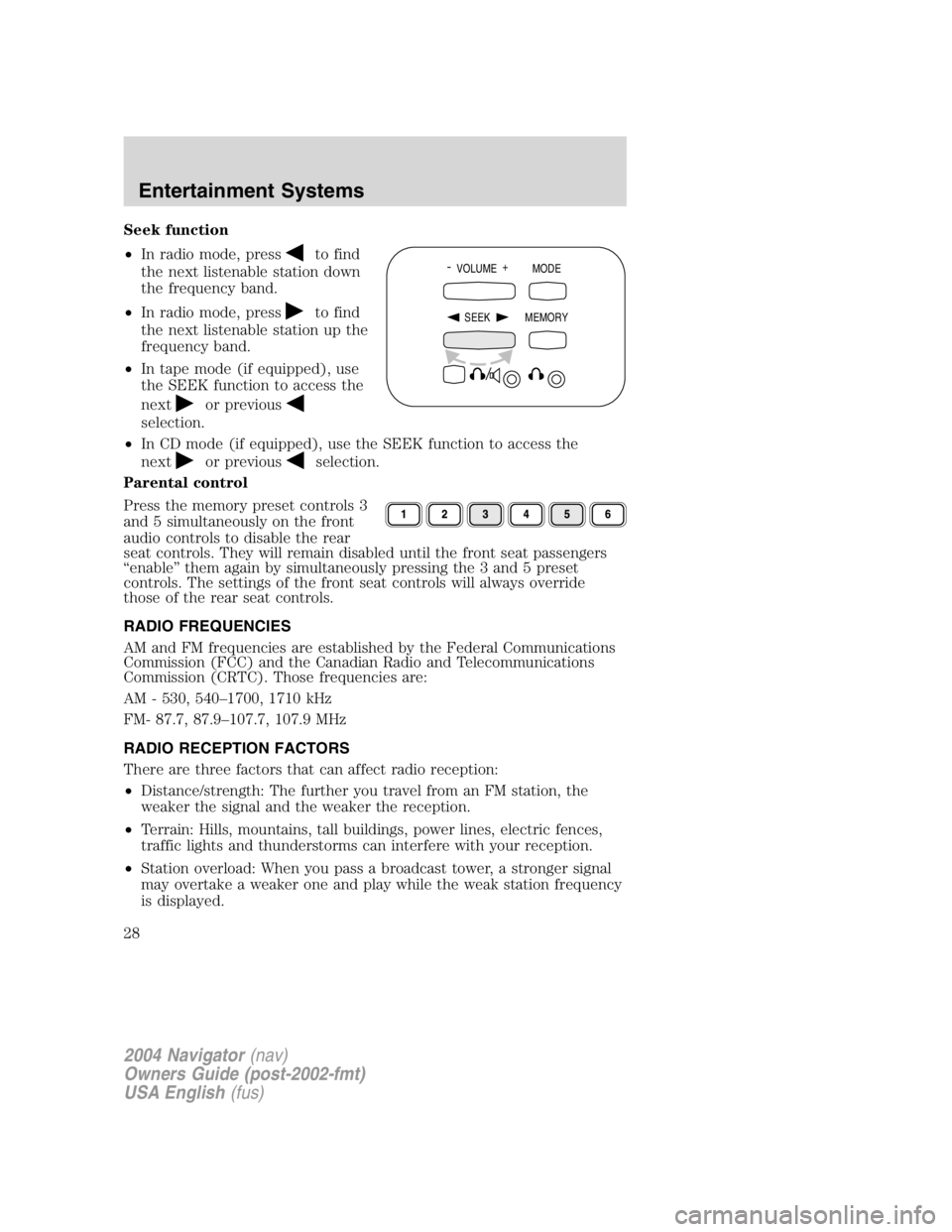
Seek function
• In radio mode, press to find
the next listenable station down
the frequency band.
• In radio mode, press to find
the next listenable station up the
frequency band.
• In tape mode (if equipped), use
the SEEK function to access the
next or previous
selection.
• In CD mode (if equipped), use the SEEK function to access the
next or previous selection.
Parental control
Press the memory preset controls 3
and 5 simultaneously on the front
audio controls to disable the rear
seat controls. They will remain disabled until the front seat passengers
“ enable ” them again by simultaneously pressing the 3 and 5 preset
controls. The settings of the front seat controls will always override
those of the rear seat controls.
RADIO FREQUENCIES
AM and FM frequencies are established by the Federal Communications
Commission (FCC) and the Canadian Radio and Telecommunications
Commission (CRTC). Those frequencies are:
AM - 530, 540 – 1700, 1710 kHz
FM- 87.7, 87.9 – 107.7, 107.9 MHz
RADIO RECEPTION FACTORS
There are three factors that can affect radio reception:
• Distance/strength: The further you travel from an FM station, the
weaker the signal and the weaker the reception.
• Terrain: Hills, mountains, tall buildings, power lines, electric fences,
traffic lights and thunderstorms can interfere with your reception.
• Station overload: When you pass a broadcast tower, a stronger signal
may overtake a weaker one and play while the weak station frequency
is displayed. -
VOLUME +
MODE
SEEK MEMORY
2004 Navigator (nav)
Owners Guide (post-2002-fmt)
USA English (fus)Entertainment Systems
28
Page 30 of 368
AUDIO SYSTEM WARRANTY AND SERVICE
Refer to the Warranty Guide for audio system warranty information. If
service is necessary, see your dealer or qualified technician.
Whenever a warning is received, the radio volume will be lowered
to a volume that will allow the tones to be heard. The radio
volume will return to the previous level after the warning goes
away.
REAR SEAT ENTERTAINMENT DVD SYSTEM (IF EQUIPPED)
Your vehicle may be equipped with a Rear Seat Entertainment DVD
System which allows you to watch DVDs, play music CDs and to plug in
and play video game systems. Please review this material to become
familiar with the system features and safety information.
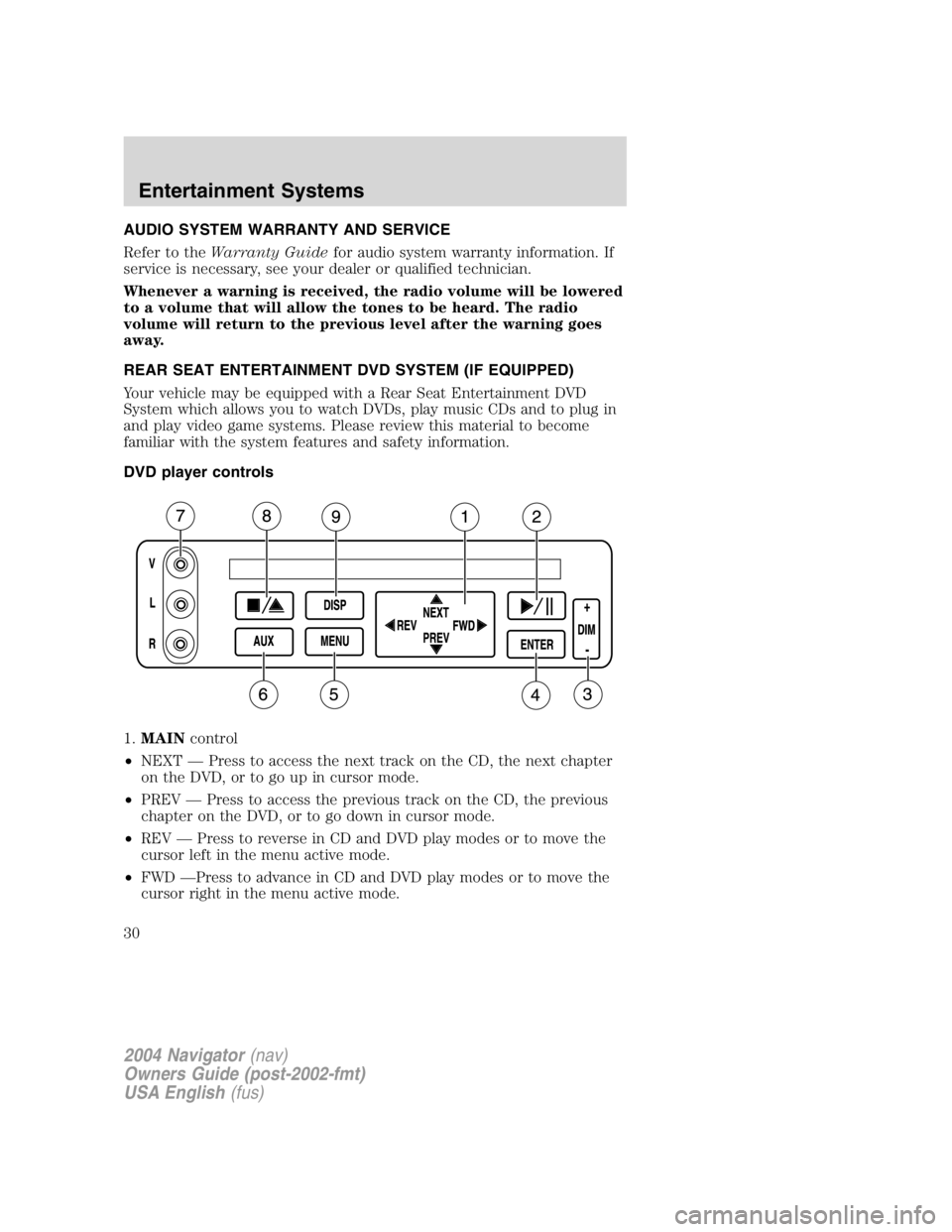
DVD player controls
1. MAIN control
• NEXT — Press to access the next track on the CD, the next chapter
on the DVD, or to go up in cursor mode.
• PREV — Press to access the previous track on the CD, the previous
chapter on the DVD, or to go down in cursor mode.
• REV — Press to reverse in CD and DVD play modes or to move the
cursor left in the menu active mode.
• FWD — Press to advance in CD and DVD play modes or to move the
cursor right in the menu active mode.
2004 Navigator (nav)
Owners Guide (post-2002-fmt)
USA English (fus)Entertainment Systems
30
Page 35 of 368
In stop mode, press to change to a different playing media (e.g. AM, FM,
CD...)
8. VOLUME control
Press to increase (+) or decrease (-) volume level.
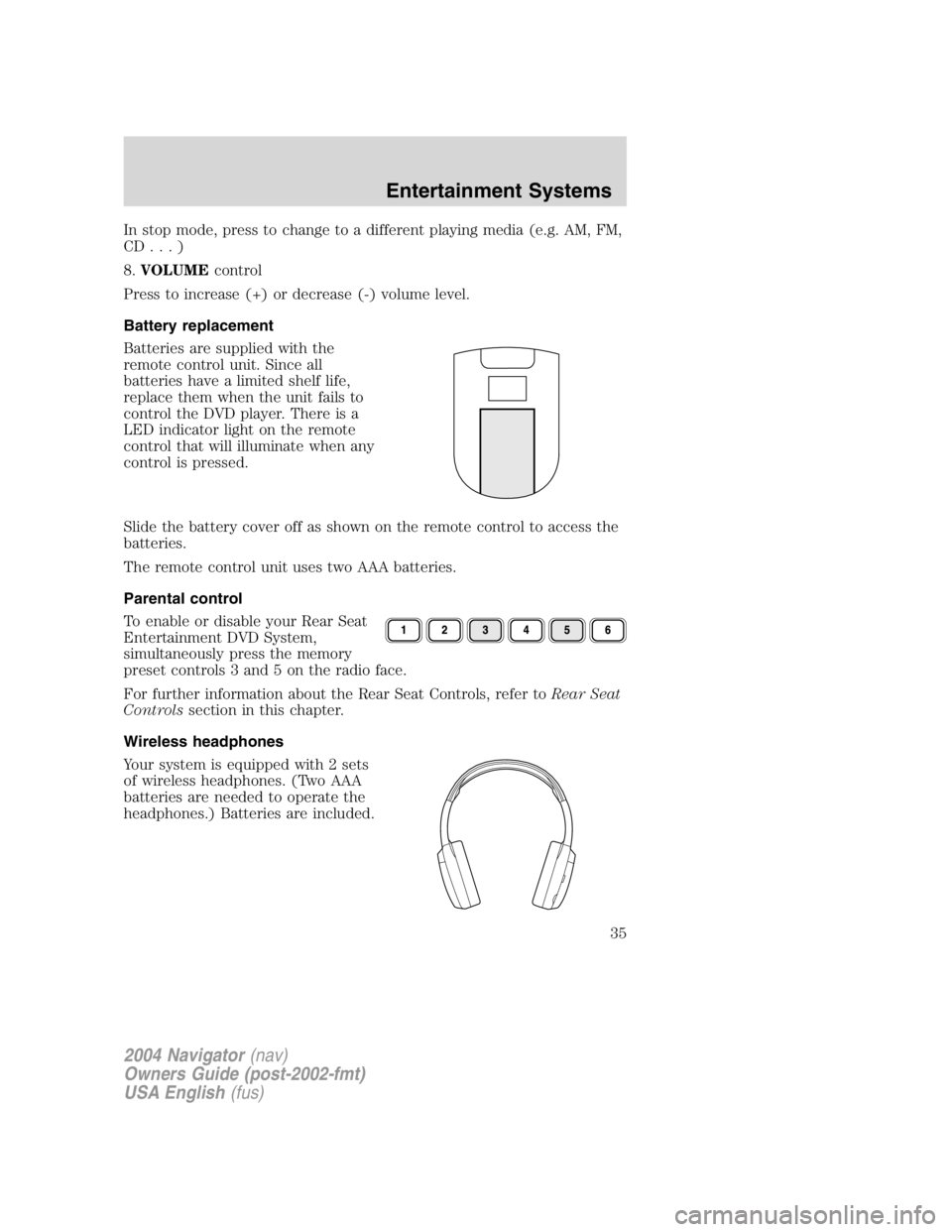
Battery replacement
Batteries are supplied with the
remote control unit. Since all
batteries have a limited shelf life,
replace them when the unit fails to
control the DVD player. There is a
LED indicator light on the remote
control that will illuminate when any
control is pressed.
Slide the battery cover off as shown on the remote control to access the
batteries.
The remote control unit uses two AAA batteries.
Parental control
To enable or disable your Rear Seat
Entertainment DVD System,
simultaneously press the memory
preset controls 3 and 5 on the radio face.
For further information about the Rear Seat Controls, refer to Rear Seat
Controls section in this chapter.
Wireless headphones
Your system is equipped with 2 sets
of wireless headphones. (Two AAA
batteries are needed to operate the
headphones.) Batteries are included.
2004 Navigator (nav)
Owners Guide (post-2002-fmt)
USA English (fus) Entertainment Systems
35
Page 36 of 368
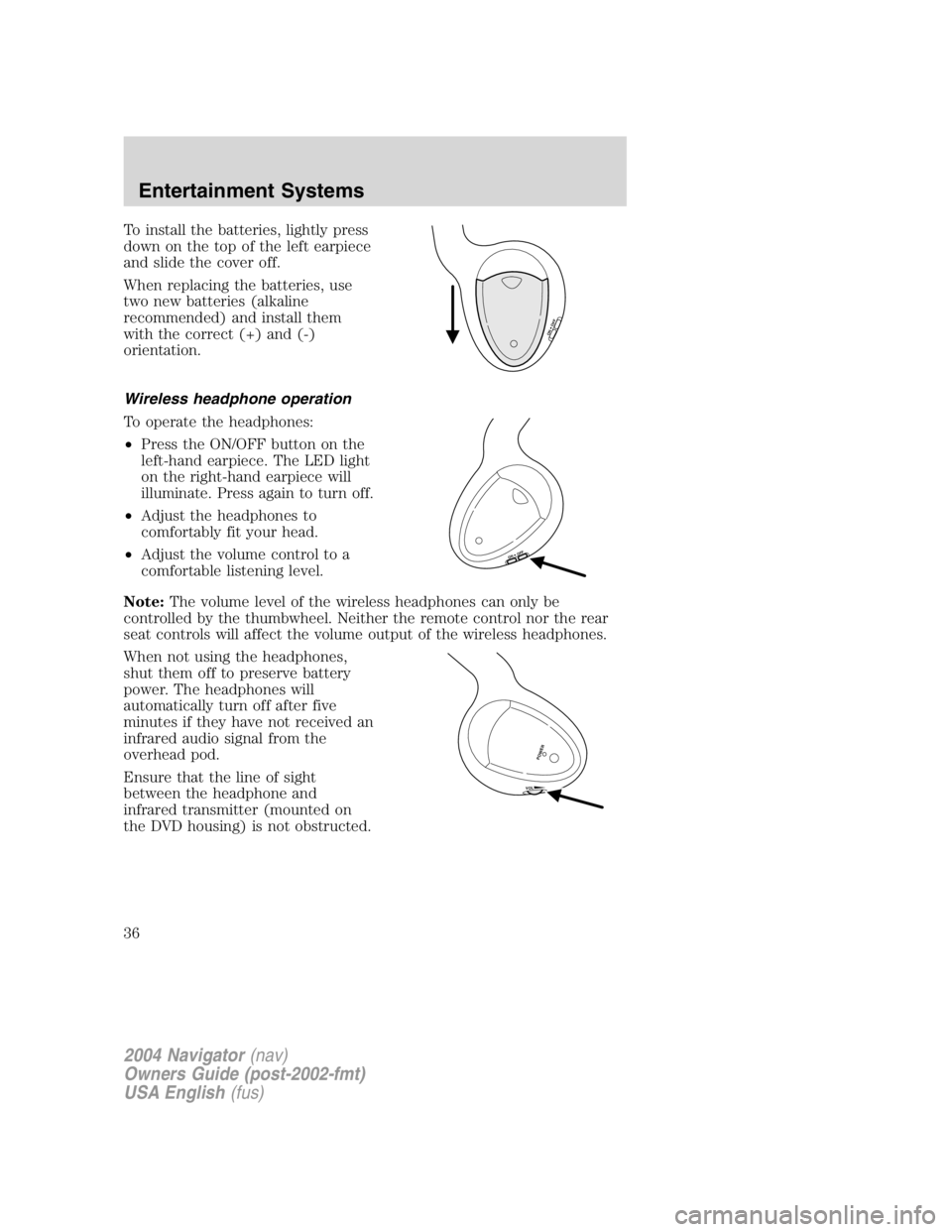
To install the batteries, lightly press
down on the top of the left earpiece
and slide the cover off.
When replacing the batteries, use
two new batteries (alkaline
recommended) and install them
with the correct (+) and (-)
orientation.
Wireless headphone operation
To operate the headphones:
• Press the ON/OFF button on the
left-hand earpiece. The LED light
on the right-hand earpiece will
illuminate. Press again to turn off.
• Adjust the headphones to
comfortably fit your head.
• Adjust the volume control to a
comfortable listening level.
Note: The volume level of the wireless headphones can only be
controlled by the thumbwheel. Neither the remote control nor the rear
seat controls will affect the volume output of the wireless headphones.
When not using the headphones,
shut them off to preserve battery
power. The headphones will
automatically turn off after five
minutes if they have not received an
infrared audio signal from the
overhead pod.
Ensure that the line of sight
between the headphone and
infrared transmitter (mounted on
the DVD housing) is not obstructed.
ON OFFON OFF
VO L
POWER2004 Navigator (nav)
Owners Guide (post-2002-fmt)
USA English (fus)Entertainment Systems
36
Page 37 of 368
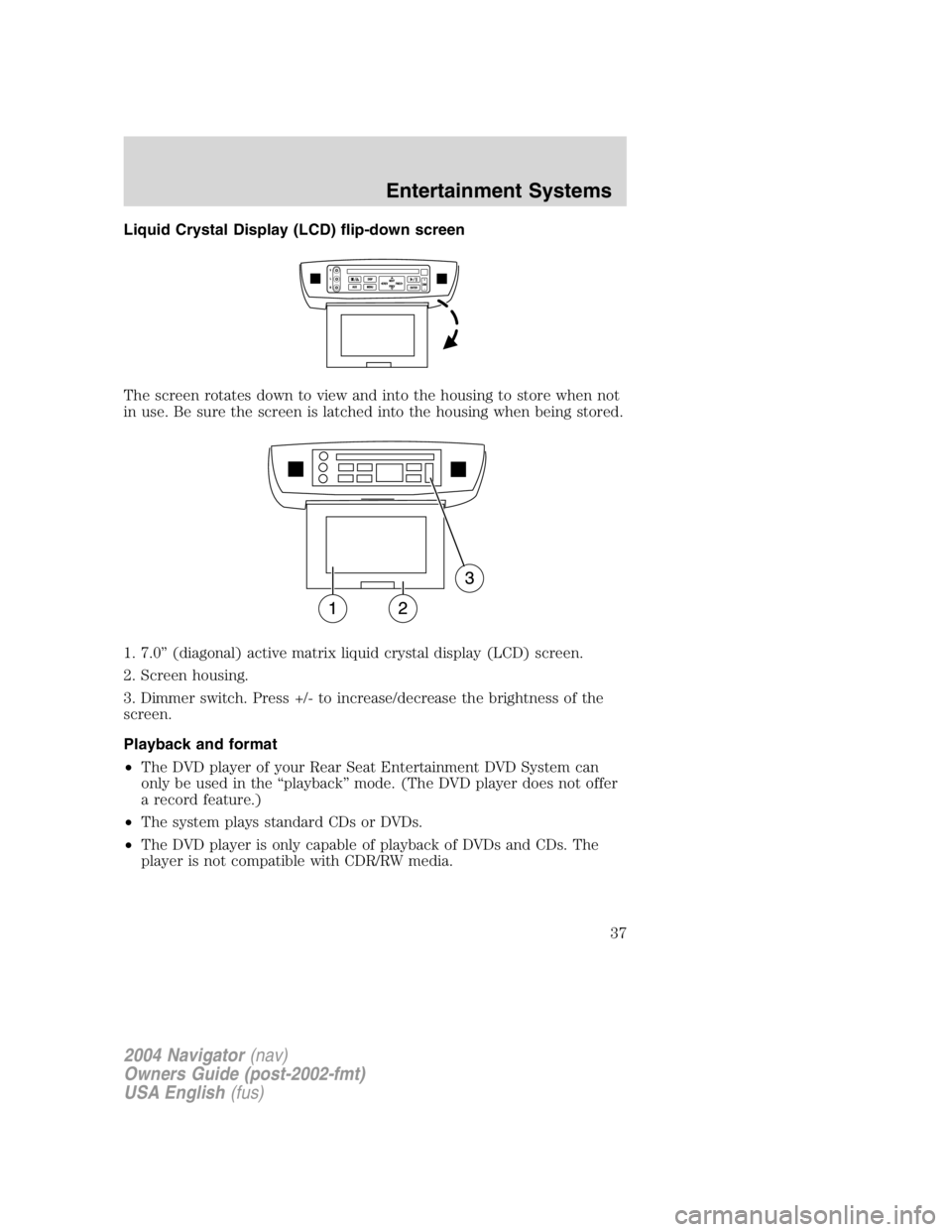
Liquid Crystal Display (LCD) flip-down screen
The screen rotates down to view and into the housing to store when not
in use. Be sure the screen is latched into the housing when being stored.
1. 7.0 ” (diagonal) active matrix liquid crystal display (LCD) screen.
2. Screen housing.
3. Dimmer switch. Press +/- to increase/decrease the brightness of the
screen.
Playback and format
• The DVD player of your Rear Seat Entertainment DVD System can
only be used in the “ playback ” mode. (The DVD player does not offer
a record feature.)
• The system plays standard CDs or DVDs.
• The DVD player is only capable of playback of DVDs and CDs. The
player is not compatible with CDR/RW media.
2004 Navigator (nav)
Owners Guide (post-2002-fmt)
USA English (fus) Entertainment Systems
37
Page 38 of 368
Rear Seat Entertainment DVD System protection circuits
High temperature sensor circuit
• Excessively high temperatures may cause damage to the DVD player.
• When the temperature of the DVD player becomes too hot, the high
temperature sensor circuit stops machine operation. DVD/CD HOT will
illuminate in the radio display.
• The DVD player will remain inactive until it cools to a normal
operating temperature. Length of time to cool will vary depending on
conditions.
General operating tips
• When the engine is not running, use the system sparingly. Otherwise,
it will run the battery down.
• When the ignition is turned to OFF, the Rear Seat Entertainment DVD
System is also turned OFF. When the ignition is turned ON, the
system will begin playback from the last selected media source when
the play control is pressed.
• To disable the DVD player, simultaneously press the 3 and 5 memory
presets on the radio face. To enable the DVD player again, press the 3
and 5 presets simultaneously.
• The DVD player is only capable of reading the bottom side of a disc.
When inserting a single sided disc, the label should be up. For a
multi-sided disc, the desired play side should be down when the disc
is inserted into the player.
• The DVD player is only capable of playback of DVDs and CDs. The
player is not compatible with CDR/RW media.
• DVDs are formatted by regions. This DVD system can only play region
1 DVDs (DVDs manufactured for U.S. and Canada).
This unit is designed to play commercially pressed 12 cm (4.75
in) audio compact discs and DVDs only. Due to technical
incompatibility, certain recordable and re-recordable compact
discs may not function correctly when used in Ford DVD/CD
players. Irregular shaped discs, discs with a scratch protection
film attached, and discs with homemade paper (adhesive) labels
should not be inserted into the player. The label may peel and
cause the disc to become jammed. It is recommended that
homemade discs be identified with permanent felt tip marker
rather than adhesive labels. Ball point pens may damage discs.
Please contact your dealer for further information.
2004 Navigator (nav)
Owners Guide (post-2002-fmt)
USA English (fus)Entertainment Systems
38
Page 40 of 368
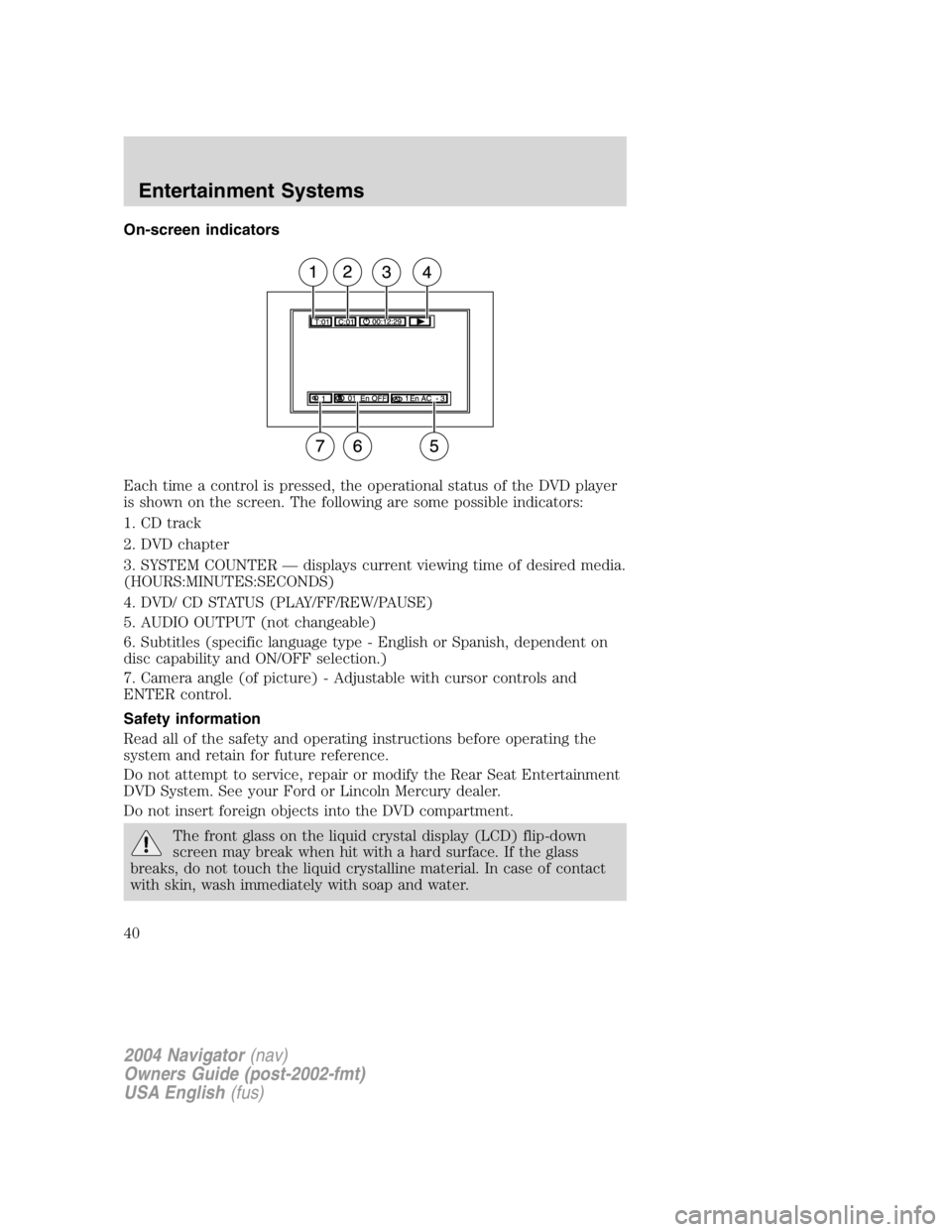
On-screen indicators
Each time a control is pressed, the operational status of the DVD player
is shown on the screen. The following are some possible indicators:
1. CD track
2. DVD chapter
3. SYSTEM COUNTER — displays current viewing time of desired media.
(HOURS:MINUTES:SECONDS)
4. DVD/ CD STATUS (PLAY/FF/REW/PAUSE)
5. AUDIO OUTPUT (not changeable)
6. Subtitles (specific language type - English or Spanish, dependent on
disc capability and ON/OFF selection.)
7. Camera angle (of picture) - Adjustable with cursor controls and
ENTER control.
Safety information
Read all of the safety and operating instructions before operating the
system and retain for future reference.
Do not attempt to service, repair or modify the Rear Seat Entertainment
DVD System. See your Ford or Lincoln Mercury dealer.
Do not insert foreign objects into the DVD compartment.
The front glass on the liquid crystal display (LCD) flip-down
screen may break when hit with a hard surface. If the glass
breaks, do not touch the liquid crystalline material. In case of contact
with skin, wash immediately with soap and water.
2004 Navigator (nav)
Owners Guide (post-2002-fmt)
USA English (fus)Entertainment Systems
40
Page 41 of 368

Do not expose the liquid crystal display (LCD) flip-down screen
to direct sunlight or intensive ultraviolet rays for extensive
periods of time. Ultraviolet rays deteriorate the liquid crystal.
Be sure to review User Manuals for video games and video game
equipment when used as auxiliary inputs for your Rear Seat
Entertainment DVD System.
Do not operate video games or video equipment if the power cords
and/or cables are broken, split or damaged. Carefully place cords and/or
cables where they will not be stepped on or interfere with the operation
of seats and/or compartments.
Disconnect video games and video equipment power cords and/or cables
when not in use.
Avoid touching auxiliary input jacks with your fingers. Do not blow on
them or allow them to get wet or dirty.
Do not clean any part of the DVD player with benzene, paint thinner or
any other solvent.
Whenever a warning is received, the radio volume will be lowered
to a volume that will allow the tones to be heard. The radio
volume will return to the previous level after the warning goes
away.
Federal Communication Commission (FCC) Compliance
Changes or modifications not approved by Ford Lincoln Mercury could
void user ’ s authority to operate the equipment. This equipment has been
tested and found to comply with the limits for a Class B digital device,
pursuant to Part 15 of the FCC Rules. These limits are designed to
provide reasonable protection against harmful interference in a
residential installation. This equipment generates, uses and can radiate
radio frequency energy and, if not installed and used in accordance with
the instructions, may cause harmful interference with radio
communications.
However, there is no guarantee that interference will not occur in a
particular installation. If this equipment does cause harmful interference
to radio or television reception, which can be determined by turning the
equipment off and on, the user is encouraged to consult the dealer or an
experienced radio/TV technician for help.
2004 Navigator (nav)
Owners Guide (post-2002-fmt)
USA English (fus) Entertainment Systems
41
Page 48 of 368
The voice activated command feature will not operate if a map DVD is
not inserted into the navigation DVD unit.
At any time, you may say these commands to change modes:
• Radio • Audio on
• AM • Audio off
• FM1 • Power off
• FM2 • CD Changer (if equipped)
• CD • DVD (if equipped)
• Power on
During normal radio operation, you may say:
• Seek up • Seek down
Disc operation commands you may say when using a rear seat DVD (if
equipped):
• Track up • Track down
• Previous track • Disc up
• Disc down • Next disc
• Previous disc
During CDDJ or in-dash CD play, you may say:
• Track up • Track down
• Previous track • Disc up
• Next disc • Disc down
• Previous disc
To change the screen display, you may say the following commands:
• Screen off • Screen day mode
• Day mode on • Screen night mode
• Night mode on • Screen auto mode
• Auto mode on
Commands that jump over screens:
• Current position • Current location
• Map
2004 Navigator (nav)
Owners Guide (post-2002-fmt)
USA English (fus)Entertainment Systems
48
Page 54 of 368
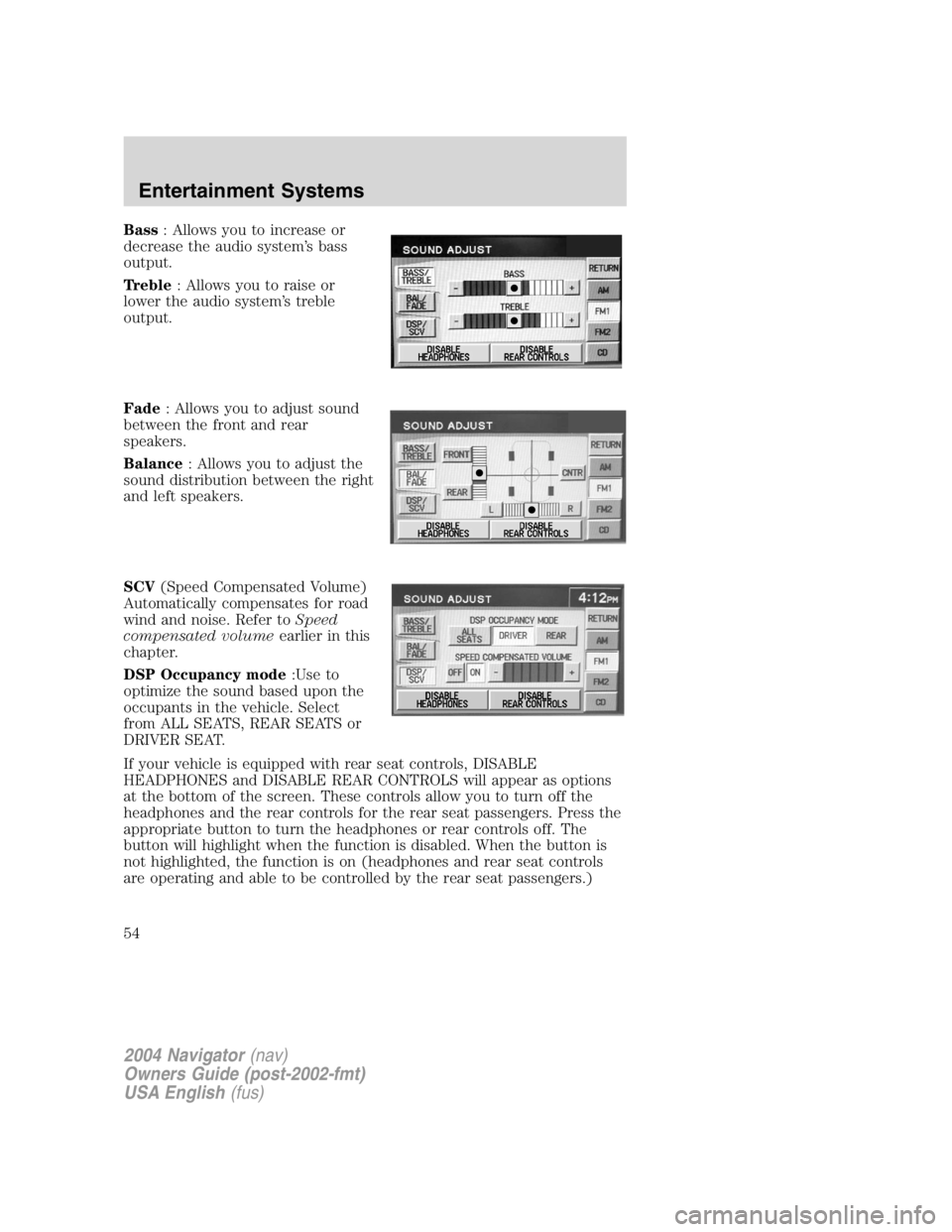
Bass : Allows you to increase or
decrease the audio system ’ s bass
output.
Treble : Allows you to raise or
lower the audio system ’ s treble
output.
Fade : Allows you to adjust sound
between the front and rear
speakers.
Balance : Allows you to adjust the
sound distribution between the right
and left speakers.
SCV (Speed Compensated Volume)
Automatically compensates for road
wind and noise. Refer to Speed
compensated volume earlier in this
chapter.
DSP Occupancy mode :Use to
optimize the sound based upon the
occupants in the vehicle. Select
from ALL SEATS, REAR SEATS or
DRIVER SEAT.
If your vehicle is equipped with rear seat controls, DISABLE
HEADPHONES and DISABLE REAR CONTROLS will appear as options
at the bottom of the screen. These controls allow you to turn off the
headphones and the rear controls for the rear seat passengers. Press the
appropriate button to turn the headphones or rear controls off. The
button will highlight when the function is disabled. When the button is
not highlighted, the function is on (headphones and rear seat controls
are operating and able to be controlled by the rear seat passengers.)
2004 Navigator (nav)
Owners Guide (post-2002-fmt)
USA English (fus)Entertainment Systems
54