jack LINCOLN NAVIGATOR 2008 Owners Manual
[x] Cancel search | Manufacturer: LINCOLN, Model Year: 2008, Model line: NAVIGATOR, Model: LINCOLN NAVIGATOR 2008Pages: 352, PDF Size: 3.01 MB
Page 1 of 352
Introduction 4
Instrument Cluster 12
Warning lights and chimes 12
Gauges 17
Entertainment Systems 20
AM/FM stereo with CDX6/MP3 20
Auxiliary input jack (Line in) 27
Rear seat controls 28
Satellite radio information 33
Family entertainment system 35
Navigation system 64
Climate Controls 65
Dual automatic temperature control 65
Rear window defroster 71
Lights 72
Headlamps 72
Turn signal control 75
Bulb replacement 77
Driver Controls 83
Windshield wiper/washer control 83
Steering wheel adjustment 84
Power windows 89
Mirrors 91
Speed control 96
Moon roof 101
Message center 106
Locks and Security 124
Keys 124
Locks 124
Table of Contents
1
2008 Navigator(nav)
Owners Guide (post-2002-fmt)
USA(fus)
Page 11 of 352
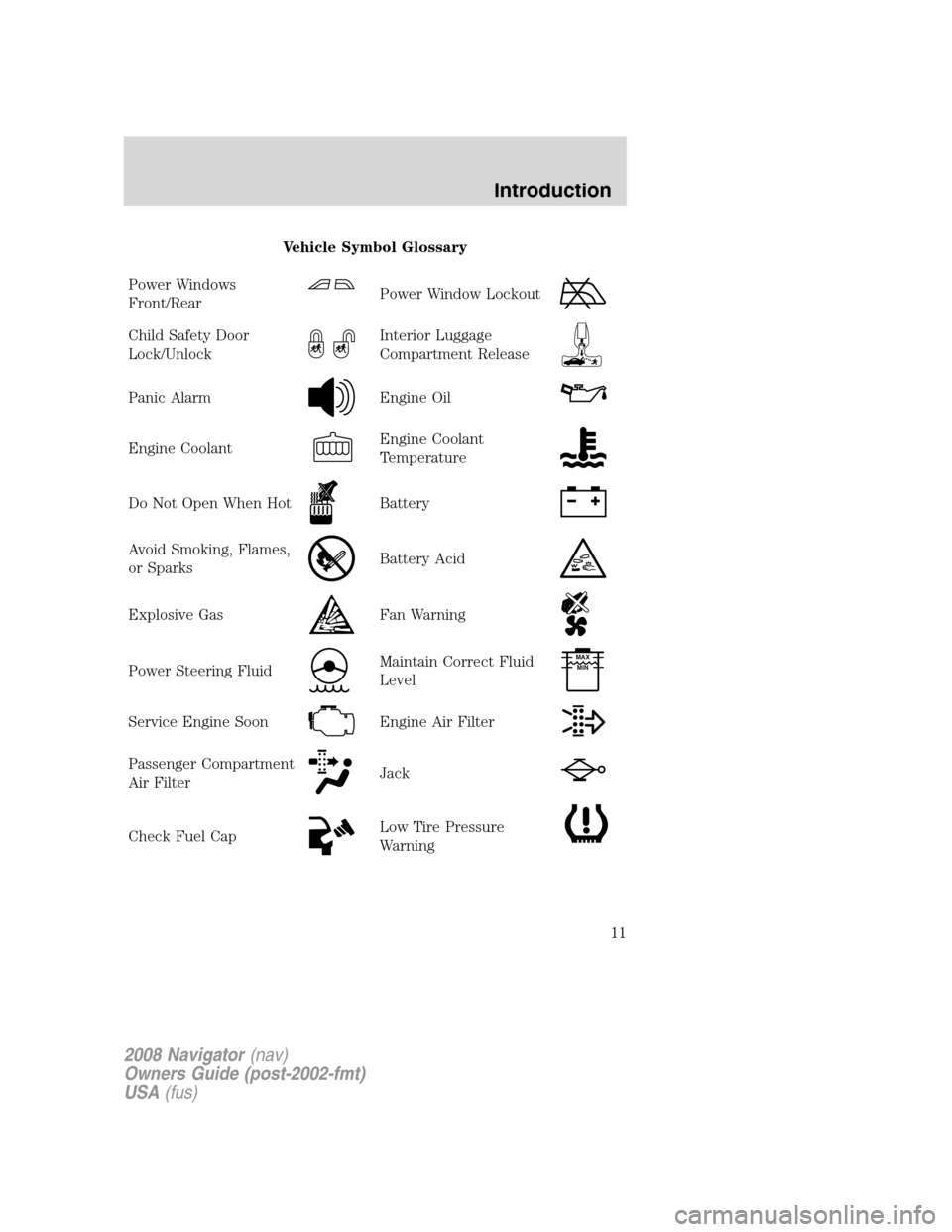
Vehicle Symbol Glossary
Power Windows
Front/Rear
Power Window Lockout
Child Safety Door
Lock/UnlockInterior Luggage
Compartment Release
Panic AlarmEngine Oil
Engine CoolantEngine Coolant
Temperature
Do Not Open When HotBattery
Avoid Smoking, Flames,
or SparksBattery Acid
Explosive GasFan Warning
Power Steering FluidMaintain Correct Fluid
LevelMAX
MIN
Service Engine SoonEngine Air Filter
Passenger Compartment
Air FilterJack
Check Fuel CapLow Tire Pressure
Warning
2008 Navigator(nav)
Owners Guide (post-2002-fmt)
USA(fus)
Introduction
11
Page 27 of 352
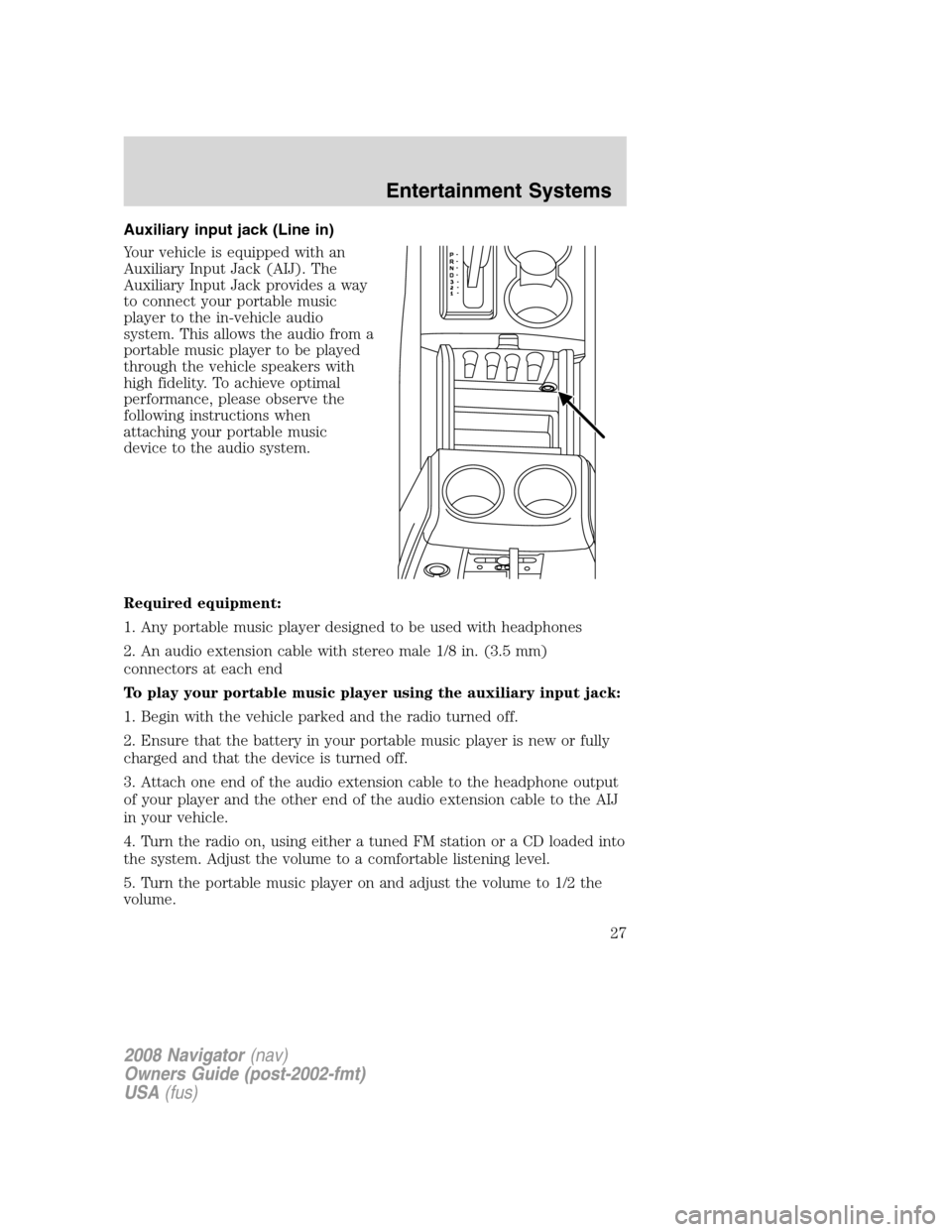
Auxiliary input jack (Line in)
Your vehicle is equipped with an
Auxiliary Input Jack (AIJ). The
Auxiliary Input Jack provides a way
to connect your portable music
player to the in-vehicle audio
system. This allows the audio from a
portable music player to be played
through the vehicle speakers with
high fidelity. To achieve optimal
performance, please observe the
following instructions when
attaching your portable music
device to the audio system.
Required equipment:
1. Any portable music player designed to be used with headphones
2. An audio extension cable with stereo male 1/8 in. (3.5 mm)
connectors at each end
To play your portable music player using the auxiliary input jack:
1. Begin with the vehicle parked and the radio turned off.
2. Ensure that the battery in your portable music player is new or fully
charged and that the device is turned off.
3. Attach one end of the audio extension cable to the headphone output
of your player and the other end of the audio extension cable to the AIJ
in your vehicle.
4. Turn the radio on, using either a tuned FM station or a CD loaded into
the system. Adjust the volume to a comfortable listening level.
5. Turn the portable music player on and adjust the volume to 1/2 the
volume.
2008 Navigator(nav)
Owners Guide (post-2002-fmt)
USA(fus)
Entertainment Systems
27
Page 28 of 352
6. Press AUX on the vehicle radio repeatedly until LINE IN appears in
the display.
You should hear audio from your portable music player although it may
be low.
7. Adjust the sound on your portable music player until it reaches the
level of the FM station or CD by switching back and forth between the
AUX and FM or CD controls.
Troubleshooting:
1. Do not connect the audio input jack to a line level output. Line level
outputs are intended for connection to a home stereo and are not
compatible with the AIJ. The AIJ will only work correctly with devices
that have a headphone output with a volume control.
2. Do not set the portable music player’s volume level higher than is
necessary to match the volume of the CD or FM radio in your audio
system as this will cause distortion and will reduce sound quality. Many
portable music players have different output levels, so not all players
should be set at the same levels. Some players will sound best at full
volume and others will need to be set at a lower volume.
3. If the music sounds distorted at lower listening levels, turn the
portable music player volume down. If the problems persists, replace or
recharge the batteries in the portable music player.
4. The portable music player must be controlled in the same way manner
when it is used with headphones as the AIJ does not provide control
(play, pause, etc.) over the attached portable music player.
5. For safety reasons, connecting or adjusting the settings on your
portable music player should not be attempted while the vehicle is
moving. Also, the portable music player should be stored in a secure
location, such as the center console or the glove box, when the vehicle is
in motion. The audio extension cable must be long enough to allow the
portable music player to be safely stored while the vehicle is in motion.
Rear seat radio controls (if equipped)
Your vehicle is equipped with rear seat radio controls. This feature allows
front and middle seat passengers to listen to different media sources
(radio, CD or DVD) simultaneously. (However, the front and middle-seat
passengers cannot listen to two different radio stations at the same
time.)
2008 Navigator(nav)
Owners Guide (post-2002-fmt)
USA(fus)
Entertainment Systems
28
Page 29 of 352
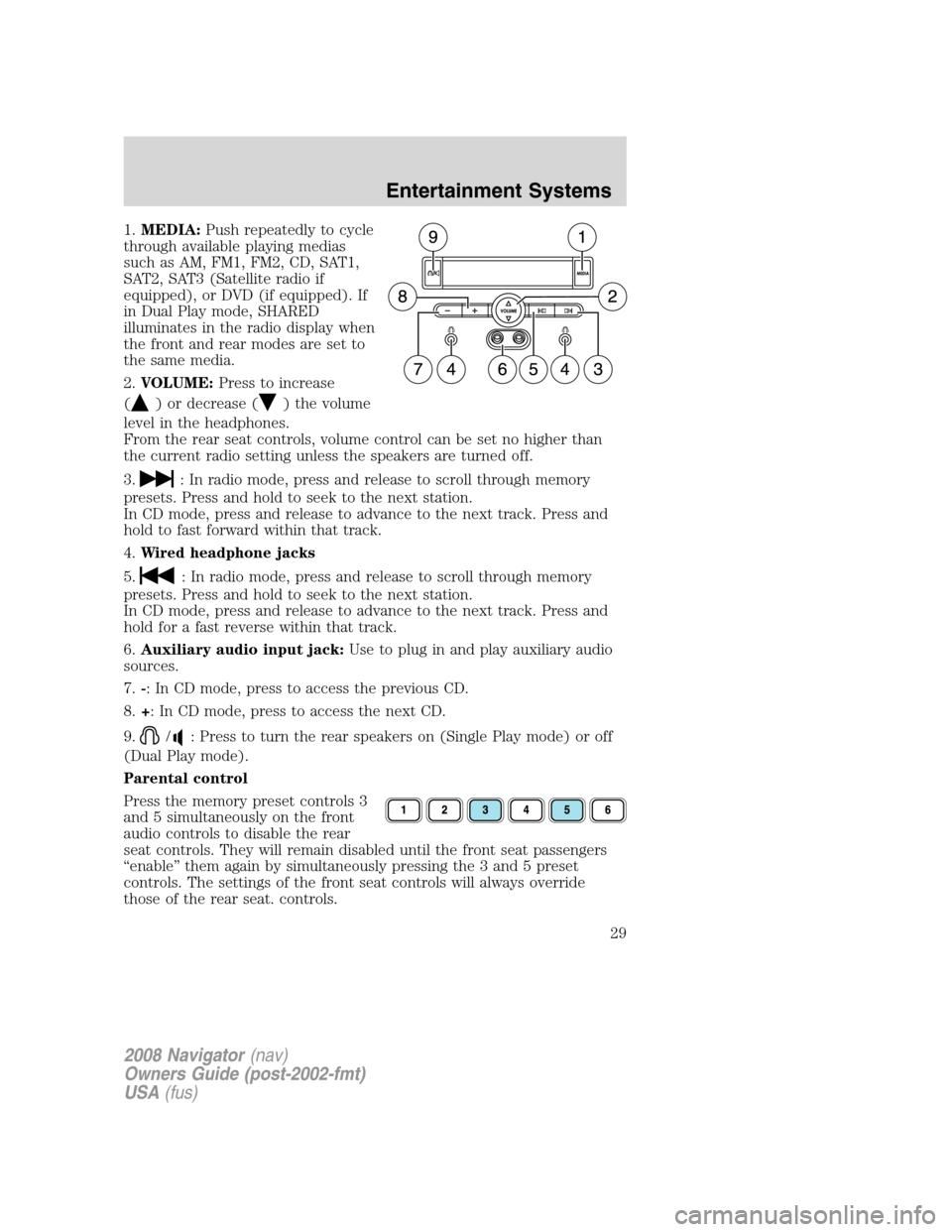
1.MEDIA:Push repeatedly to cycle
through available playing medias
such as AM, FM1, FM2, CD, SAT1,
SAT2, SAT3 (Satellite radio if
equipped), or DVD (if equipped). If
in Dual Play mode, SHARED
illuminates in the radio display when
the front and rear modes are set to
the same media.
2.VOLUME:Press to increase
(
) or decrease () the volume
level in the headphones.
From the rear seat controls, volume control can be set no higher than
the current radio setting unless the speakers are turned off.
3.
: In radio mode, press and release to scroll through memory
presets. Press and hold to seek to the next station.
In CD mode, press and release to advance to the next track. Press and
hold to fast forward within that track.
4.Wired headphone jacks
5.
: In radio mode, press and release to scroll through memory
presets. Press and hold to seek to the next station.
In CD mode, press and release to advance to the next track. Press and
hold for a fast reverse within that track.
6.Auxiliary audio input jack:Use to plug in and play auxiliary audio
sources.
7.-: In CD mode, press to access the previous CD.
8.+: In CD mode, press to access the next CD.
9.
/: Press to turn the rear speakers on (Single Play mode) or off
(Dual Play mode).
Parental control
Press the memory preset controls 3
and 5 simultaneously on the front
audio controls to disable the rear
seat controls. They will remain disabled until the front seat passengers
“enable” them again by simultaneously pressing the 3 and 5 preset
controls. The settings of the front seat controls will always override
those of the rear seat. controls.
2008 Navigator(nav)
Owners Guide (post-2002-fmt)
USA(fus)
Entertainment Systems
29
Page 30 of 352
When the rear seat controls are activated, rear seat passengers can use
the controls to change the playing media for all passengers (Single Play
mode). In this mode, all speakers will play audio from the same media
source for all passengers to hear.
To activate the rear seat radio controls:
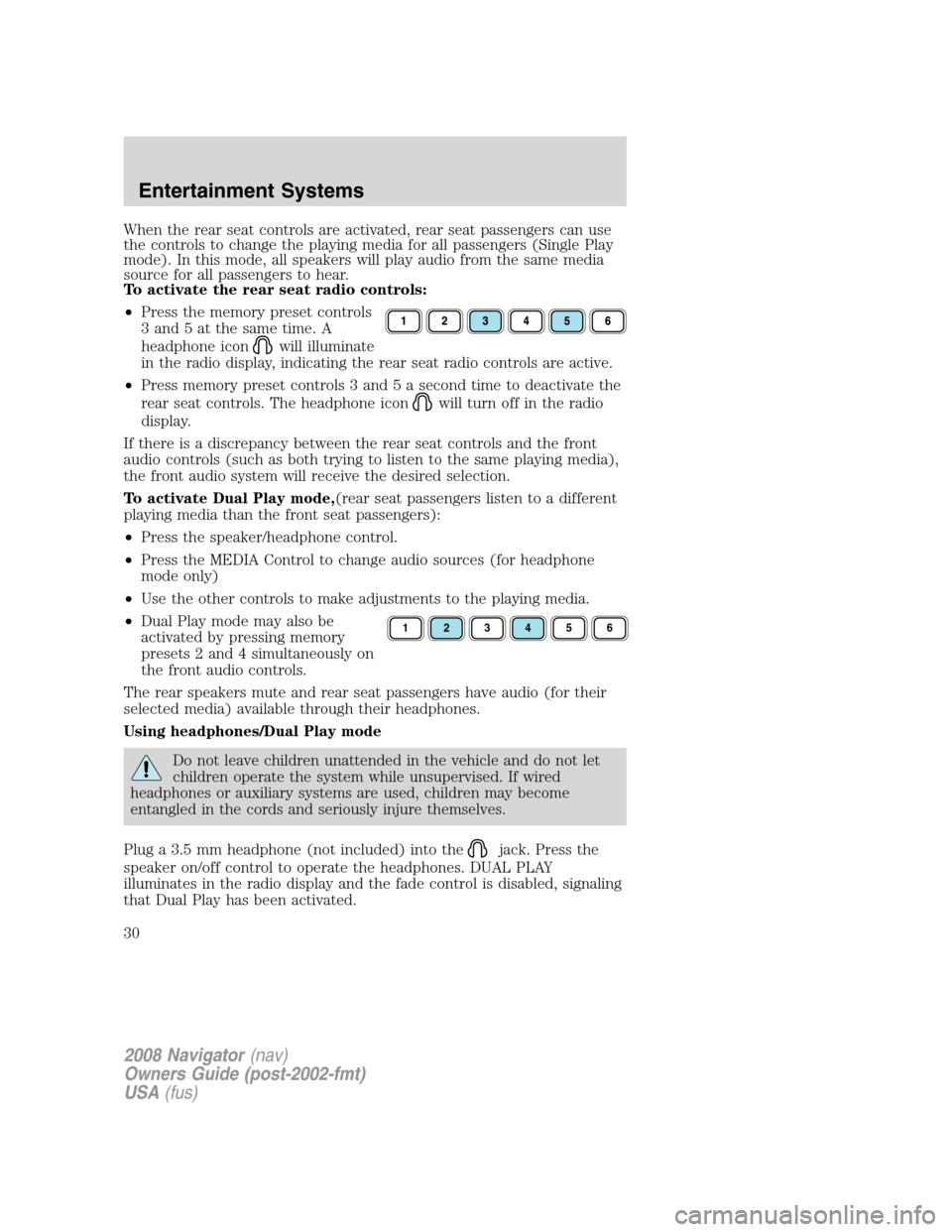
•Press the memory preset controls
3 and 5 at the same time. A
headphone icon
will illuminate
in the radio display, indicating the rear seat radio controls are active.
•Press memory preset controls 3 and 5 a second time to deactivate the
rear seat controls. The headphone icon
will turn off in the radio
display.
If there is a discrepancy between the rear seat controls and the front
audio controls (such as both trying to listen to the same playing media),
the front audio system will receive the desired selection.
To activate Dual Play mode,(rear seat passengers listen to a different
playing media than the front seat passengers):
•Press the speaker/headphone control.
•Press the MEDIA Control to change audio sources (for headphone
mode only)
•Use the other controls to make adjustments to the playing media.
•Dual Play mode may also be
activated by pressing memory
presets 2 and 4 simultaneously on
the front audio controls.
The rear speakers mute and rear seat passengers have audio (for their
selected media) available through their headphones.
Using headphones/Dual Play mode
Do not leave children unattended in the vehicle and do not let
children operate the system while unsupervised. If wired
headphones or auxiliary systems are used, children may become
entangled in the cords and seriously injure themselves.
Plug a 3.5 mm headphone (not included) into the
jack. Press the
speaker on/off control to operate the headphones. DUAL PLAY
illuminates in the radio display and the fade control is disabled, signaling
that Dual Play has been activated.
123456
2008 Navigator(nav)
Owners Guide (post-2002-fmt)
USA(fus)
Entertainment Systems
30
Page 38 of 352
To play an MP3 disc in the DVD system:
1. Ensure that the vehicle ignition is in the RUN or ACCESSORY
position.
2. Insert an MP3 disc into the
system, label-side up to turn on the
DVD system. It will load and
automatically begin to play. If there
is already a disc in the system, press
PLAY on the DVD player.
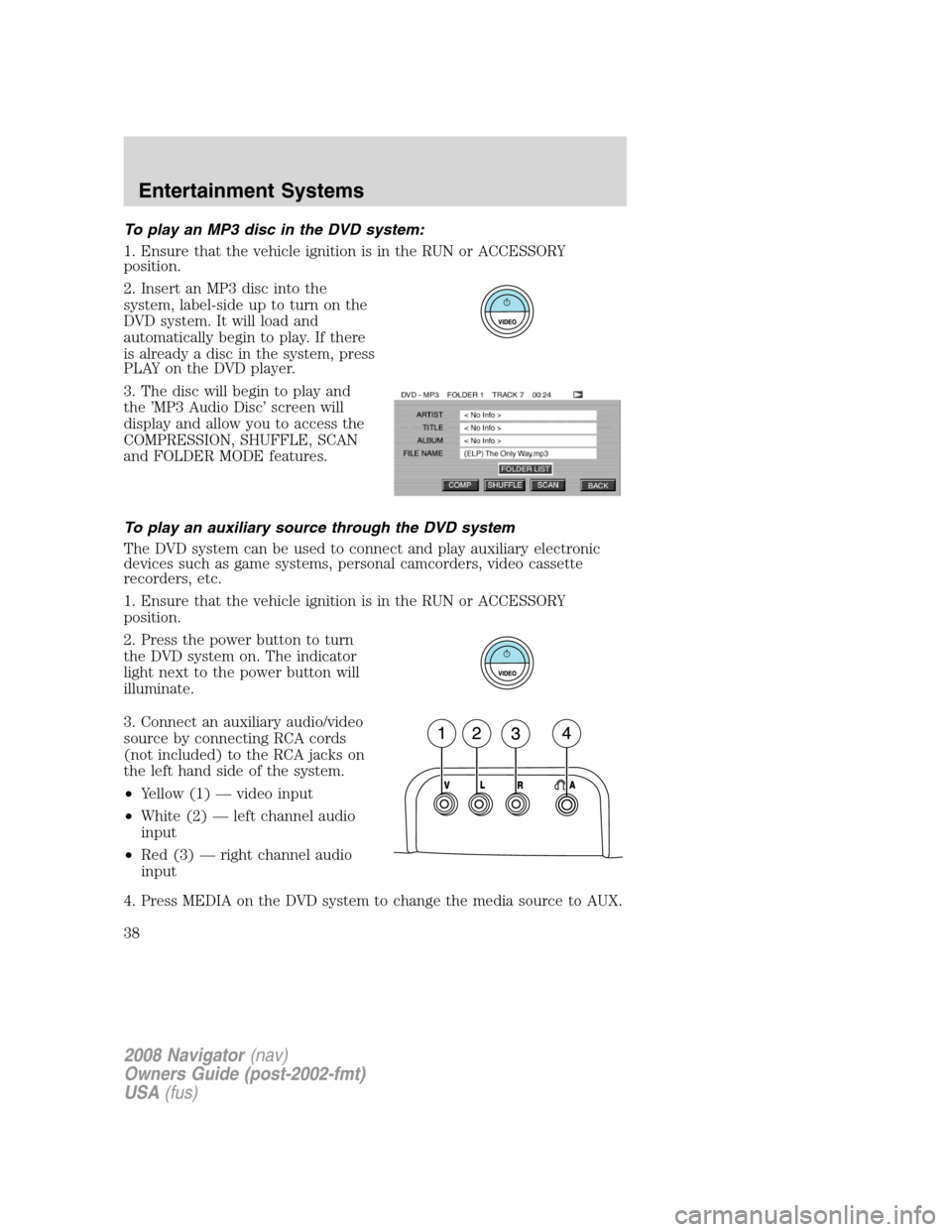
3. The disc will begin to play and
the ’MP3 Audio Disc’ screen will
display and allow you to access the
COMPRESSION, SHUFFLE, SCAN
and FOLDER MODE features.
To play an auxiliary source through the DVD system
The DVD system can be used to connect and play auxiliary electronic
devices such as game systems, personal camcorders, video cassette
recorders, etc.
1. Ensure that the vehicle ignition is in the RUN or ACCESSORY
position.
2. Press the power button to turn
the DVD system on. The indicator
light next to the power button will
illuminate.
3. Connect an auxiliary audio/video
source by connecting RCA cords
(not included) to the RCA jacks on
the left hand side of the system.
•Yellow (1) — video input
•White (2) — left channel audio
input
•Red (3) — right channel audio
input
4. Press MEDIA on the DVD system to change the media source to AUX.
2008 Navigator(nav)
Owners Guide (post-2002-fmt)
USA(fus)
Entertainment Systems
38
Page 40 of 352
1. Connect the wired headphones in to the headphone jacks on either
side of the DVD system. Each side is labeled
AorB. Headphones
plugged into jack A will listen to Channel A and headphones plugged into
jack B will listen to Channel B.
2. Adjust the volume levels using
the volume controls on the DVD
system.
To adjust display brightness:
To decrease/increase the brightness
level on the display screen, press
the brightness control on the DVD
system. A display will appear at the
bottom of the screen indicating the
brightness level. The brightness display will only appear when the menu
is not displayed.
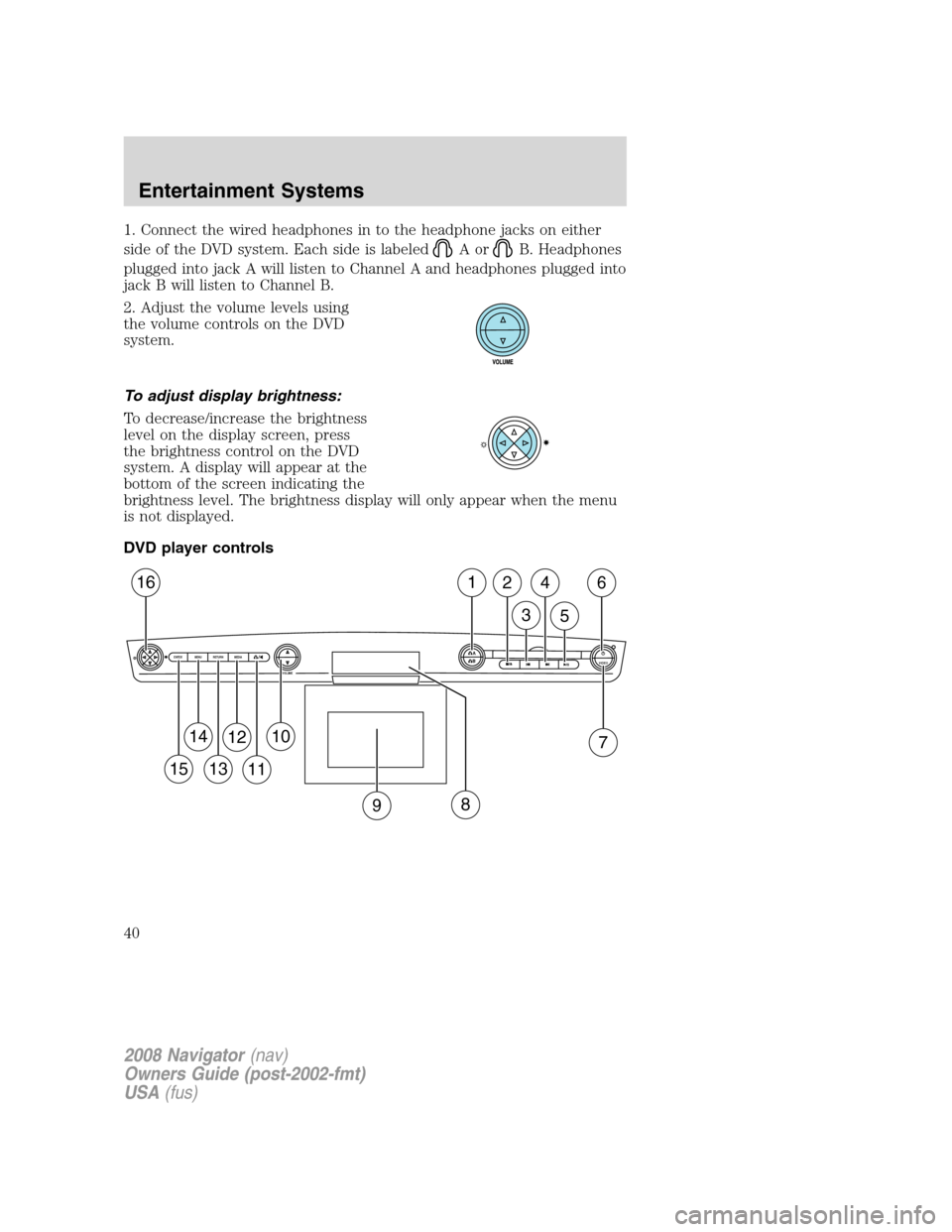
DVD player controls
A
BVIDEOVOLUME MEDIA RETURN MENU ENTER
1
7
2
3
4
5
6
9
10
11
12
13
14
15
16
8
2008 Navigator(nav)
Owners Guide (post-2002-fmt)
USA(fus)
Entertainment Systems
40
Page 50 of 352
Wired headphones
Do not leave children unattended in the vehicle and do not let
children operate the system while unsupervised. If wired
headphones or auxiliary systems are used, children may become
entangled in the cords and seriously injure themselves.
You may purchase wired headphones for your FES (Family
Entertainment System). Plug them into the 3.5 mm headphone jack(s)
located on the left and right sides of the system. (Channel A is located
on the left side and Channel B is located on the right side.) These
headphones will be active when in Dual Play mode.
To listen to the audio on wired headphones (not included), connect the
wired headphones into the headphone jacks on the sides of the DVD
system. The wired headphone jack for Channel A is located on the left
side of the FES and is labeled
A. Headphones plugged into this
headphone jack will hear audio from the audio source selected to be the
Channel A source. The wired headphone jack for Channel B is located on
the right side of the FES and is labeled
B. Headphones plugged into
this headphone jack will hear audio from the audio source selected to be
the Channel B source.
Adjust the headphone volume using
the volume control on the DVD
system.
Operation
Single play/Dual play
Your DVD and audio system work together with the infrared headphones
and wired headphones (not included) to allow the rear seat passengers
to listen to the radio (and other media sources) over the headphones.
This enables the front and rear seat passengers to listen to a variety of
sources a variety of ways.
Single Play:Single play consists of all occupants in the vehicle listening
to the same playing media over the front and rear speakers. When the
DVD system is on, and the same source is playing through the front and
rear speakers, SINGLE PLAY will appear in the front radio display.
2008 Navigator(nav)
Owners Guide (post-2002-fmt)
USA(fus)
Entertainment Systems
50
Page 58 of 352
2. Press and hold the reverse or
advance button to enter into slow
play mode. Once in slow play mode,
press and release the reverse or advance button repeatedly to cycle
through 1/4 and 1/2. These will display on the status bar on top of the
screen as the screens cycle through at this rate.
Frame by frame
1. With a DVD playing, press pause.
2. Press the right cursor button. The
DVD will advance one frame. Each
press of the right cursor button will
advance the DVD video by one
frame.
Headphone/auxiliary jacks
There are wired headphones (not included) and auxiliary jacks on the
left and right side of your DVD system. They can be used to plug in
wired headphones or to connect and play auxiliary electronic devices
such as game systems, personal camcorders, video cassette recorders,
etc.
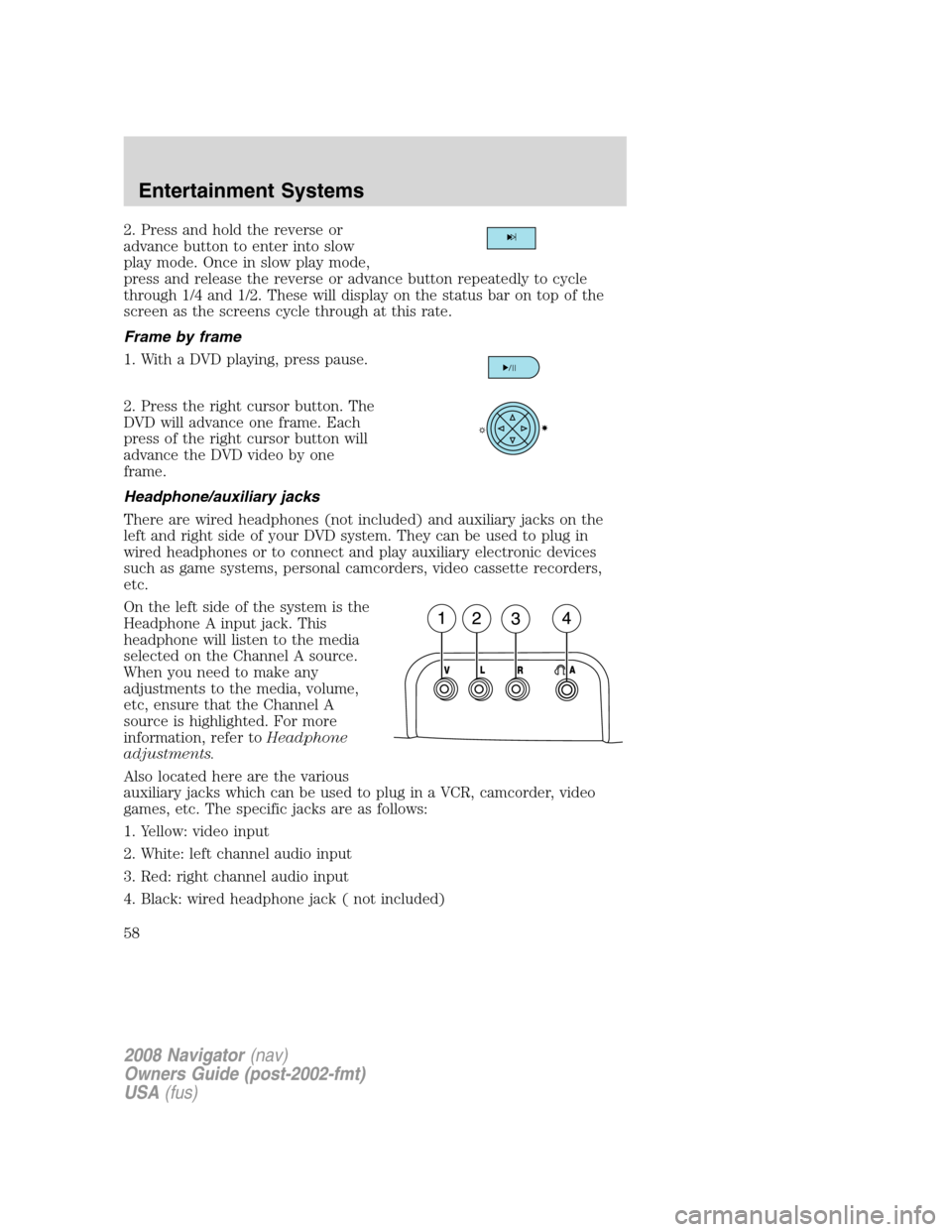
On the left side of the system is the
Headphone A input jack. This
headphone will listen to the media
selected on the Channel A source.
When you need to make any
adjustments to the media, volume,
etc, ensure that the Channel A
source is highlighted. For more
information, refer toHeadphone
adjustments.
Also located here are the various
auxiliary jacks which can be used to plug in a VCR, camcorder, video
games, etc. The specific jacks are as follows:
1. Yellow: video input
2. White: left channel audio input
3. Red: right channel audio input
4. Black: wired headphone jack ( not included)
2008 Navigator(nav)
Owners Guide (post-2002-fmt)
USA(fus)
Entertainment Systems
58