phone LINCOLN NAVIGATOR 2014 Owner's Manual
[x] Cancel search | Manufacturer: LINCOLN, Model Year: 2014, Model line: NAVIGATOR, Model: LINCOLN NAVIGATOR 2014Pages: 506, PDF Size: 5.72 MB
Page 351 of 506
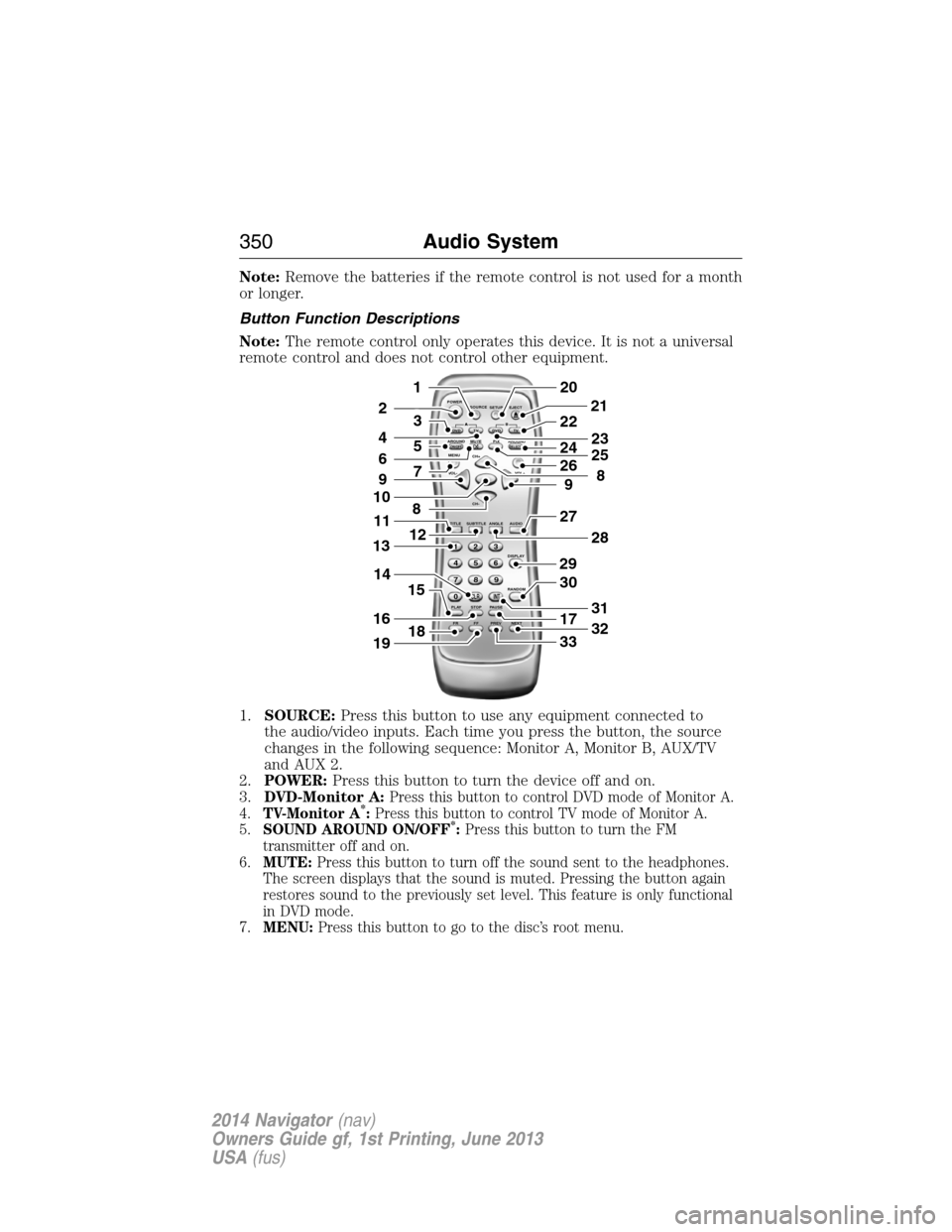
Note:Remove the batteries if the remote control is not used for a month
or longer.
Button Function Descriptions
Note:The remote control only operates this device. It is not a universal
remote control and does not control other equipment.
1.SOURCE:Press this button to use any equipment connected to
the audio/video inputs. Each time you press the button, the source
changes in the following sequence: Monitor A, Monitor B, AUX/TV
and AUX 2.
2.POWER:Press this button to turn the device off and on.
3.DVD-Monitor A:
Press this button to control DVD mode of Monitor A.
4.TV-Monitor A*:Press this button to control TV mode of Monitor A.
5.SOUND AROUND ON/OFF*:Press this button to turn the FM
transmitter off and on.
6.MUTE:Press this button to turn off the sound sent to the headphones.
The screen displays that the sound is muted. Pressing the button again
restores sound to the previously set level. This feature is only functional
in DVD mode.
7.MENU:Press this button to go to the disc’s root menu.
POWER
SOURCE
A
SOUND
AROUNDSOUND
AROUND MUTE
MENU REPEAT
CH+
CH-
TITLESUBTITLE ANGLE AUDIO
DISPLAY
RANDOM
PLAY
123
6 5 4
789
0
CLR INT
FR FF PREV NEXTSTOP PAUSE VOL- VOL+PIX A
D
VD
ON/OFFSELECT
TV DVD TVSETUP EJECTB
5
9
29
27
30
17
33
28
32
31
201
2
7
8
12
4
3
15
21
22
24
2625
8
23
6
9
10
16
13
18
11
14
19
350Audio System
2014 Navigator(nav)
Owners Guide gf, 1st Printing, June 2013
USA(fus)
Page 353 of 506
25.PIX:Press this button to access settings for BRIGHTNESS, CONTRAST,
SATURATION, HUE, SHARPNESS, IR HEADPHONE, and RESET. When
you find the desired setting, useCH +andCH -to change the setting.
The bar display automatically disappears if no changes are made within
six seconds, or if any button is pressed.
26.REPEAT:Press this button to switch the repeat mode by ALL, TITLE,
CHAPTER and cancel the repeat mode while playing DVD-video. Other
disc types such as VCD, CD, and SVCD only have two repeat modes
that you can select: TRACK and ALL.Note:Both repeat functions of
VCD and SVCD need the PBC status set to ON, when available.
27.AUDIO:Press this button if a disc has different language options. Press
this button repeatedly until you reach your desired option.
28.ANGLE:Press this button to view with a different camera angle. Press
this button repeatedly until you have reached your desired viewing
angle. This feature is only available on DVDs that support frames with
multiple angles.
29.DISPLAY:Press this button display information on the screen including
title, chapter or track, time elapsed and time remaining. You can also
press this button to turn off the display.
30.RANDOM:Press this button to play titles in a random order
31.INT:Press this button to play each audio file for 10 seconds as a review
or scan.
32.NEXT:When a disc has more than one chapter, track or file, press this
button to move to the next chapter, track or file. Press the button
briefly during play to select the next chapter for DVD-video or track
and file for media such as VCD, SVCD, MP3 and CD.
33.PREV:When a disc has more than one chapter, track or file, press this
button to move to the previous chapter, track or file. Press the button
briefly during play to select the next chapter for DVD-video or track
and file for media such as VCD, SVCD, MP3 and CD.
*If available
Turning the Device On and Off
1. Pivot the screen downward until you reach a comfortable viewing
angle.
2. PressPOWERon the lower-left corner of the front panel or on the
remote control. The controls illuminate when the system is in use.
3. When the device is on and is displaying a picture, pivot the screen to
change the viewing angle to optimize the picture quality.
4. Remember to turn the device off and pivot the LCD panel to the
locked position when not in use.
352Audio System
2014 Navigator(nav)
Owners Guide gf, 1st Printing, June 2013
USA(fus)
Page 360 of 506
Connecting an MP3 Device
Using a USB Cable
Plug the MP3 Dock Connector to USB cable into a high-power USB port
on your DVD-headrest module, and then connect the other end to the
player.
See the documentation that came with your device for more information.
Charging the MP3 Player Battery
After you turn the DVD-headrest module on, connect the device to the
USB port on your DVD-headrest module
Note:Not all devices are able to charge when connected to the USB
port.
Using an A/V Cable
1. Connect the device to the headphone port using an A/V cable.Note:
Use the A/V cable made specifically for the device. Other similar
RCA-type cables might not work.
2. Connect the video and audio connectors to the AV-IN ports on
your DVD-headrest module, matching the yellow, red and white
connectors to the appropriate jacks.
Troubleshooting
Symptom Possible cause
The device does not
power on.Your vehicle ignition is not on.
The remote control does not have batteries
installed.
The infrared sensor is
inoperative.The batteries in the remote control are not
working.
The remote sensor eye is blocked.
The infrared transmitter is blocking the sensor
eye of the component to be controlled
The disc does not play. You inserted the disc backward.
The disc is defective. Try another disc.
The disc is not compatible with the
entertainment system.
The device code and disc region code do not
match. This device is set to Region 1.
Audio System359
2014 Navigator(nav)
Owners Guide gf, 1st Printing, June 2013
USA(fus)
Page 361 of 506
Symptom Possible cause
The disc plays, but
then immediately
stops.The disc is dirty and needs cleaning.
Condensation has formed inside the device.
Allow the player to dry out.
There is no picture. The signal source is not connected.
The setting may be in the wrong status. Match
the monitor mode with the source correctly.
There is a distorted
picture.The disc may be dirty. Check the disc for
fingerprints and clean with a soft cloth, wiping
from center to edge.
Sometimes a small amount of picture
distortion may appear. This is not a
malfunction.
I cannot advance
through a movie.You cannot advance through the opening
credits and warning information that appears
at the beginning of movies because the disc
prohibits that action.
There is no sound, or
there is distorted
sound.You did not connect the DVD player properly.
You did not attach the cables securely into the
appropriate jacks.
If you are using the wireless headphones,
make sure you turn them on.
The headphone volume is too low.
Something may be blocking the signal between
the monitor and the headphones.
The device feels warm. If the device is in use for a long time, it does
become warm. This is normal.
The player does not
respond to all
commands during
playback.The disc prohibits some operations.
Refer to the instructions in the disc inlay.
360Audio System
2014 Navigator(nav)
Owners Guide gf, 1st Printing, June 2013
USA(fus)
Page 365 of 506
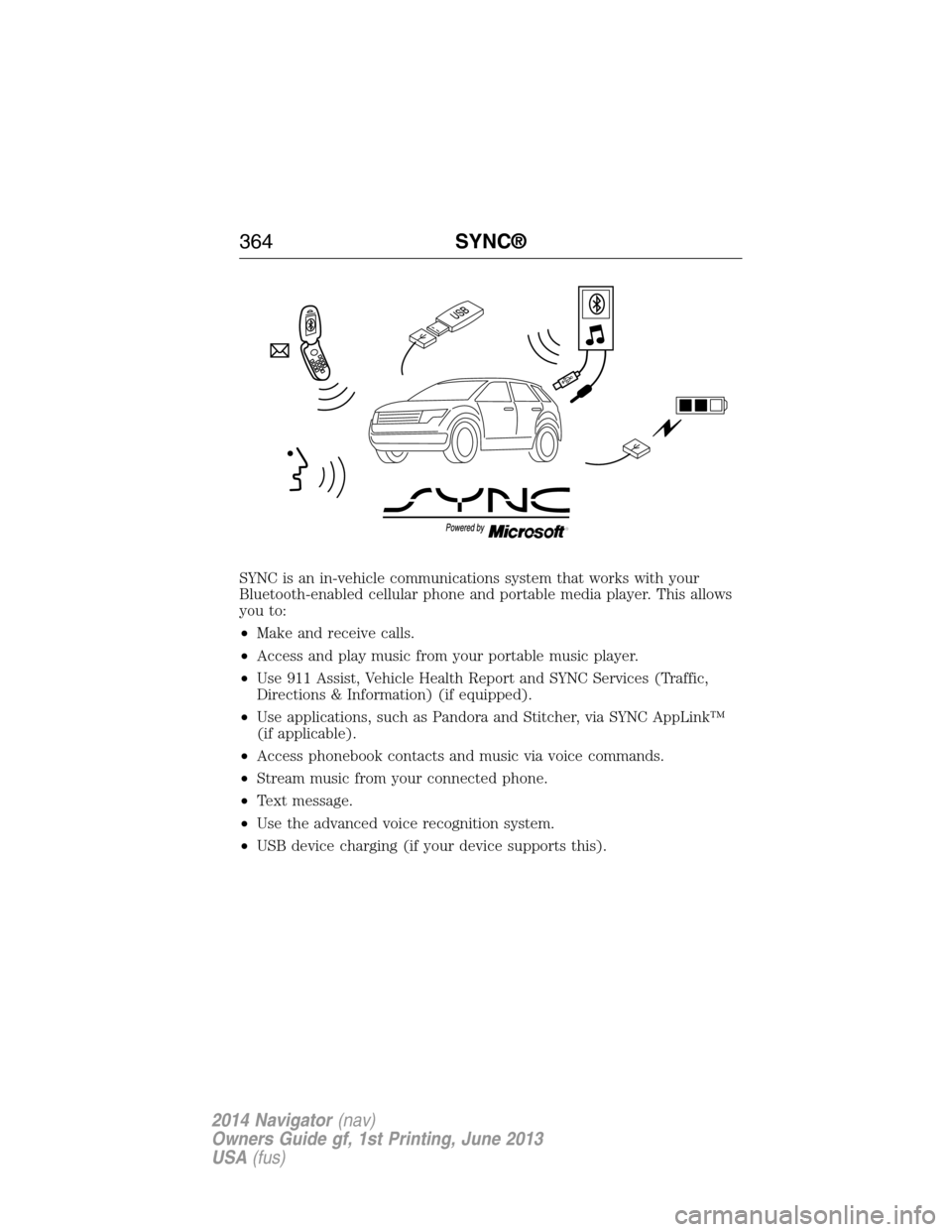
SYNC is an in-vehicle communications system that works with your
Bluetooth-enabled cellular phone and portable media player. This allows
you to:
•Make and receive calls.
•Access and play music from your portable music player.
•Use 911 Assist, Vehicle Health Report and SYNC Services (Traffic,
Directions & Information) (if equipped).
•Use applications, such as Pandora and Stitcher, via SYNC AppLink™
(if applicable).
•Access phonebook contacts and music via voice commands.
•Stream music from your connected phone.
•Text message.
•Use the advanced voice recognition system.
•USB device charging (if your device supports this).
364SYNC®
2014 Navigator(nav)
Owners Guide gf, 1st Printing, June 2013
USA(fus)
Page 367 of 506
When using SYNC:
•Do not operate playing devices if the power cords or cables are
broken, split or damaged. Place cords and cables out of the way,
so they do not interfere with the operation of pedals, seats,
compartments or safe driving abilities.
•Do not leave playing devices in your vehicle during extreme conditions
as it could cause them damage. See your device’s manual for further
information.
•Do not attempt to service or repair the system. See your authorized
dealer.
For your safety, some SYNC functions are speed-dependent. Their use is
limited to when your vehicle is traveling at speeds under 3 mph (5 km/h).
Make sure that you review your device’s manual before using it with
SYNC.
Privacy Information
When a cellular phone is connected to SYNC, the system creates a
profile within your vehicle that is linked to that cellular phone. This
profile is created in order to offer you more cellular features and to
operate more efficiently. Among other things, this profile may contain
data about your cellular phone book, text messages (read and unread),
and call history, including history of calls when your cell phone was not
connected to the system. In addition, if you connect a media device,
the system creates and retains an index of supported media content.
The system also records a short development log of approximately
10 minutes of all recent system activity. The log profile and other system
data may be used to improve the system and help diagnose any problems
that may occur.
The cellular profile, media device index, and development log remain in
the vehicle unless you delete them and are generally accessible only in
the vehicle when the cellular phone or media player is connected. If you
no longer plan to use the system or the vehicle, we recommend you
perform a Master Reset to erase all stored information.
366SYNC®
2014 Navigator(nav)
Owners Guide gf, 1st Printing, June 2013
USA(fus)
Page 368 of 506
System data cannot be accessed without special equipment and access
to the vehicle’s SYNC module. Ford Motor Company and Ford of Canada
do not access the system data for any purpose other than as described
absent consent, a court order, or where required by law enforcement,
other government authorities, or other third parties acting with lawful
authority. Other parties may seek to access the information
independently of Ford Motor Company and Ford of Canada. For further
privacy information, see the sections on 911 Assist, Vehicle Health
Report, and Traffic, Directions and Information.
USING VOICE RECOGNITION
This system helps you control many features using voice commands.
This allows you to keep your hands on the wheel and focus on what is in
front of you.
Initiating a Voice Session
Push the voice icon; a tone sounds and Listening appears in the
display. Say any of the following:
Say: If you want to:
“Phone” Make calls.
“USB” Access the device connected to your USB
port.
“Bluetooth Audio” Stream audio from your phone.
“Line in” Access the device connected to the auxiliary
input jack.
“Cancel” Cancel the requested action.
“SYNC” Return to the main menu.
“Voice settings” Adjust the level of voice interaction and
feedback.
“Vehicle Health Report” Run a vehicle health report.
*
“Services” Access the SYNC Services portal.*
“Mobile apps” Access mobile applications.*
“Help” Hear a list of voice commands available in the
current mode.
*If equipped, U.S. only.
SYNC®367
2014 Navigator(nav)
Owners Guide gf, 1st Printing, June 2013
USA(fus)
Page 369 of 506
System Interaction and Feedback
The system provides feedback through audible tones, prompts, questions
and spoken confirmations depending on the situation and the chosen
level of interaction (voice settings). You can customize the voice
recognition system to provide more or less instruction and feedback.
The default setting is to a higher level of interaction in order to help you
learn to use the system. You can change these settings at any time.
Adjusting the Interaction Level
Push the voice icon; when prompted, say “Voice settings”, then
any of the following:
When you say: The system:
“Interaction mode standard” Provides more detailed interaction and
guidance.
“Interaction mode advanced” Provides less audible interaction and
more tone prompts.
The system defaults to the standard interaction mode.
Confirmation prompts are short questions the system asks when it is not
sure of your request or when there are multiple possible responses to your
request. (For example, the system may ask “Phone, is that correct?”) If
turned off, the system simply makes a best guess as to what you requested
and you may still occasionally be asked to confirm settings.
“Confirmation prompts on”
“Confirmation prompts off”
The system creates candidate lists when it has the same confidence level
of several options based on your voice command. When turned on, you
may be prompted with as many as four possibilities for clarification.
For example, “Say 1 after the tone to call John Doe at home. Say 2 after
the tone to call Johnny Doe on mobile. Say 3 after the tone to call Jane
Doe at home.” Or, “Say 1 after the tone to play John Doe, Say 2 after the
tone to play Johnny Doe.”
“Phone candidate lists on”
“Phone candidate lists off”
“Media candidate lists on”
“Media candidate lists off”
368SYNC®
2014 Navigator(nav)
Owners Guide gf, 1st Printing, June 2013
USA(fus)
Page 370 of 506
Helpful Hints
•Make sure the interior of the vehicle is as quiet as possible. Wind
noise from open windows and road vibrations may prevent the system
from correctly recognizing spoken commands.
•After pressing the voice icon, wait until after the tone sounds and
Listening appears before saying a command. Any command spoken
prior to this does not register with the system.
•Speak naturally, without long pauses between words.
•At any time you can interrupt the system while it is speaking by
pressing the voice icon.
USING SYNC WITH YOUR PHONE
Hands-free calling is one of the main features of SYNC. While the system
supports a variety of features, many are dependent on your cellular
phone’s functionality. At a minimum, most cellular phones with Bluetooth
wireless technology support the following functions:
•Answering an incoming call
•Ending a call
•Using privacy mode
•Dialing a number
•Redialing
•Call waiting notification
•Caller ID.
Other features, such as text messaging using Bluetooth and automatic
phonebook download, are phone-dependent features. To check your
phone’s compatibility, see your phone’s user manual and visit
www.SYNCMyRide.com, www.SYNCMyRide.ca or www.syncmaroute.ca.
SYNC®369
2014 Navigator(nav)
Owners Guide gf, 1st Printing, June 2013
USA(fus)
Page 371 of 506
Pairing a Phone for the First Time
Note:SYNC can support downloading up to approximately 1000 entries
per Bluetooth-enabled cellular phone.
Note:Make sure the vehicle ignition and radio are turned on and the
transmission is in positionP.
Note:To scroll through the menus, press the up and down arrows on
your audio system.
Wirelessly pairing your phone with SYNC allows you to make and receive
hands-free calls.
1. Press the phone button; when the display indicates no phone is
paired, pressOK.
2. WhenFind SYNCappears in the display, pressOK.
3. Put your phone into Bluetooth discovery mode. See your phone’s
user guide if necessary.
4. When prompted on your phone’s display, enter the six-digit PIN
provided by SYNC in the radio display.
5. The display indicates when the pairing is successful.
Depending on your phone’s capability and your market, the system may
prompt you with questions such as setting the current phone as the
primary phone (the phone SYNC automatically tries to connect with
first upon vehicle start-up), downloading your phone book, etc.
Pairing Subsequent Phones
Note:To scroll through the menus, press the up and down arrows on
your audio system.
Note:Make sure the vehicle ignition and radio are turned on and that
the transmission is in positionP.
1. Press the phone button and scroll until System Settings is selected.
2. Press OK and scroll until Bluetooth Devices is selected and press OK.
3. Scroll until Add Bluetooth Device is selected and press OK.
4. When Find SYNC appears in the display, press OK.
5. Put your phone into Bluetooth discovery mode. See your phone’s
user guide if necessary.
6. When prompted on your phone’s display, enter the six-digit PIN
provided by SYNC in the radio display. The display indicates when
the pairing is successful.
7. The system then prompts with questions such as if you would like
to set the current phone as the primary phone (the phone SYNC
automatically tries to connect with first upon vehicle start-up),
download your phone book, etc.
370SYNC®
2014 Navigator(nav)
Owners Guide gf, 1st Printing, June 2013
USA(fus)