phone LINCOLN NAVIGATOR 2014 Repair Manual
[x] Cancel search | Manufacturer: LINCOLN, Model Year: 2014, Model line: NAVIGATOR, Model: LINCOLN NAVIGATOR 2014Pages: 506, PDF Size: 5.72 MB
Page 406 of 506
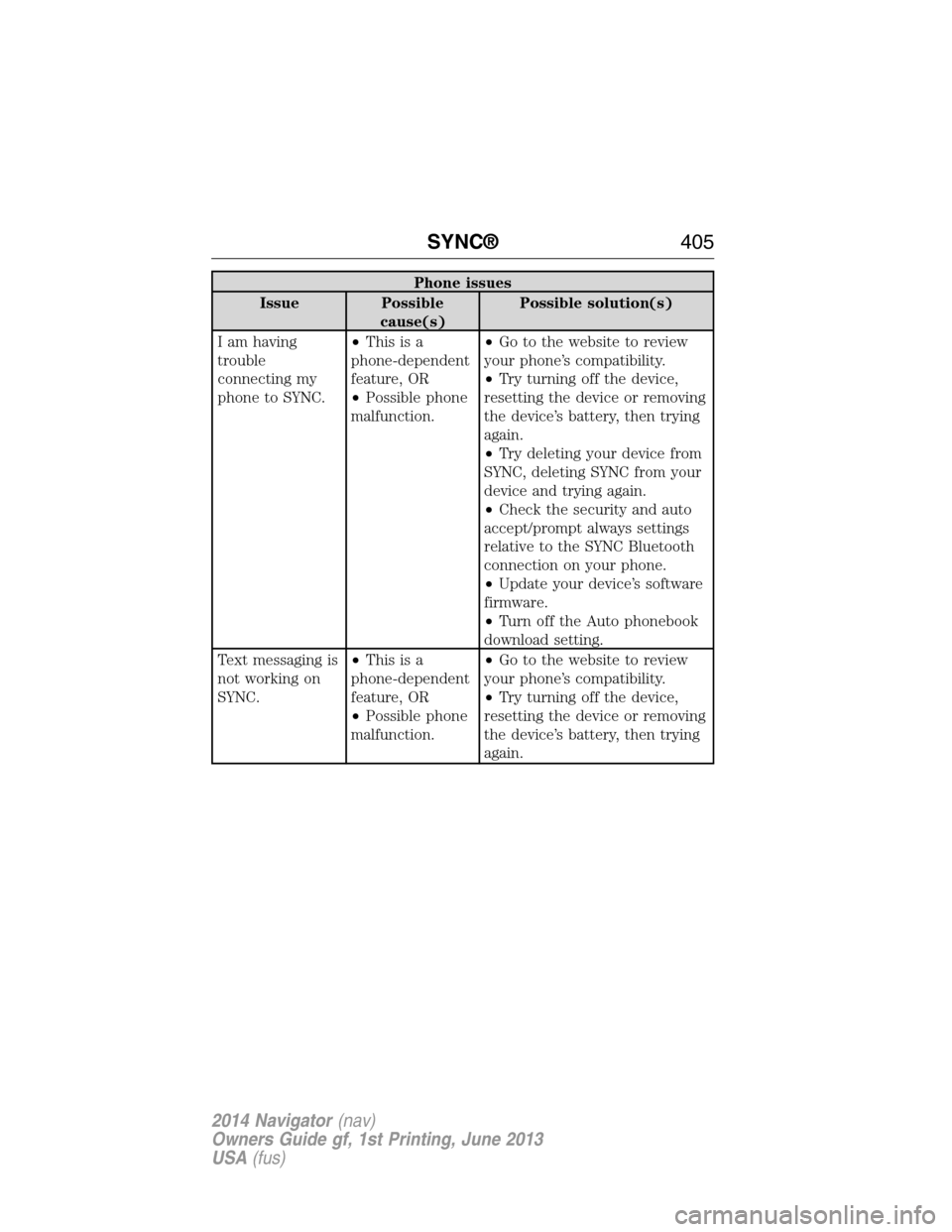
Phone issues
Issue Possible
cause(s)Possible solution(s)
I am having
trouble
connecting my
phone to SYNC.•Thisisa
phone-dependent
feature, OR
•Possible phone
malfunction.•Go to the website to review
your phone’s compatibility.
•Try turning off the device,
resetting the device or removing
the device’s battery, then trying
again.
•Try deleting your device from
SYNC, deleting SYNC from your
device and trying again.
•Check the security and auto
accept/prompt always settings
relative to the SYNC Bluetooth
connection on your phone.
•Update your device’s software
firmware.
•Turn off the Auto phonebook
download setting.
Text messaging is
not working on
SYNC.•Thisisa
phone-dependent
feature, OR
•Possible phone
malfunction.•Go to the website to review
your phone’s compatibility.
•Try turning off the device,
resetting the device or removing
the device’s battery, then trying
again.
SYNC®405
2014 Navigator(nav)
Owners Guide gf, 1st Printing, June 2013
USA(fus)
Page 407 of 506
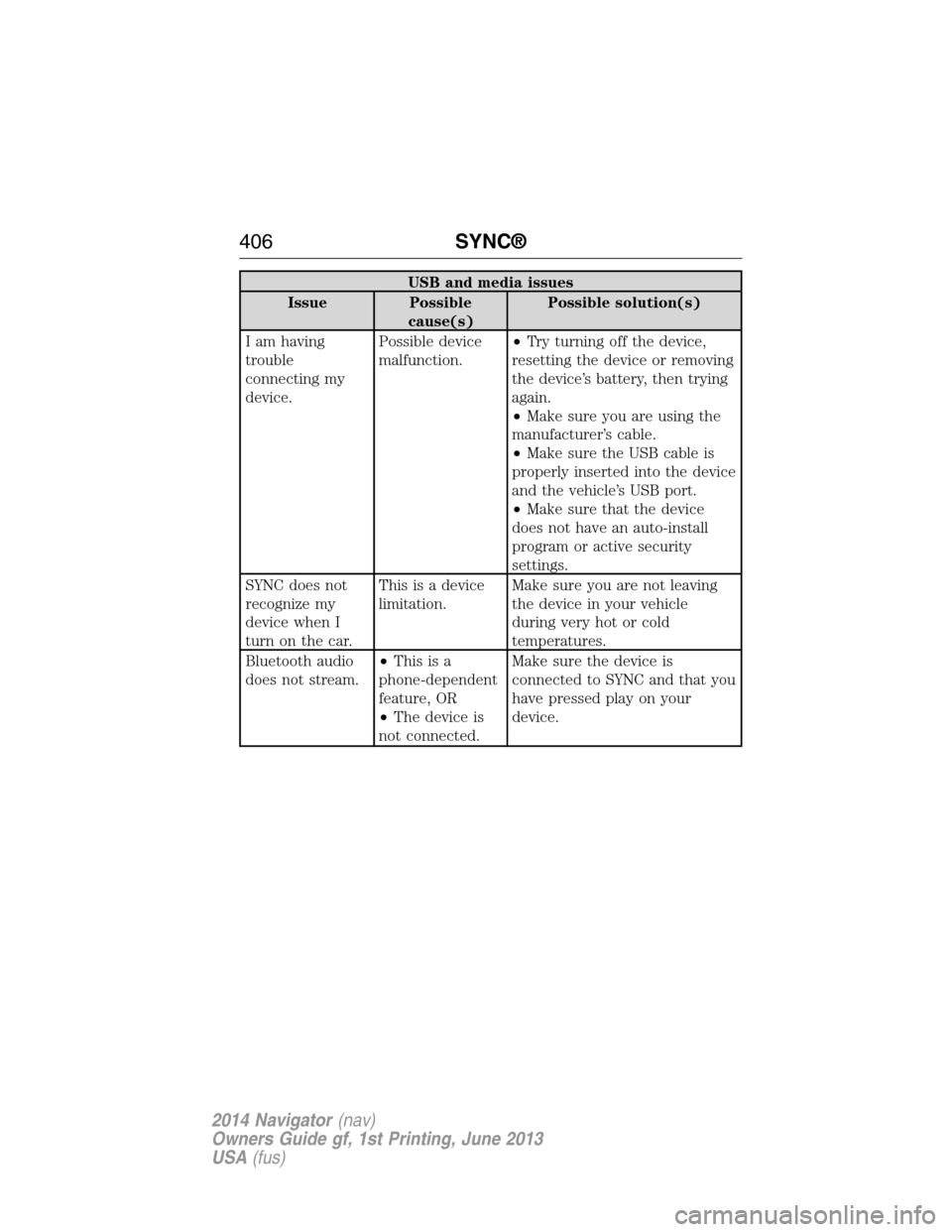
USB and media issues
Issue Possible
cause(s)Possible solution(s)
I am having
trouble
connecting my
device.Possible device
malfunction.•Try turning off the device,
resetting the device or removing
the device’s battery, then trying
again.
•Make sure you are using the
manufacturer’s cable.
•Make sure the USB cable is
properly inserted into the device
and the vehicle’s USB port.
•Make sure that the device
does not have an auto-install
program or active security
settings.
SYNC does not
recognize my
device when I
turn on the car.This is a device
limitation.Make sure you are not leaving
the device in your vehicle
during very hot or cold
temperatures.
Bluetooth audio
does not stream.•Thisisa
phone-dependent
feature, OR
•The device is
not connected.Make sure the device is
connected to SYNC and that you
have pressed play on your
device.
406SYNC®
2014 Navigator(nav)
Owners Guide gf, 1st Printing, June 2013
USA(fus)
Page 409 of 506
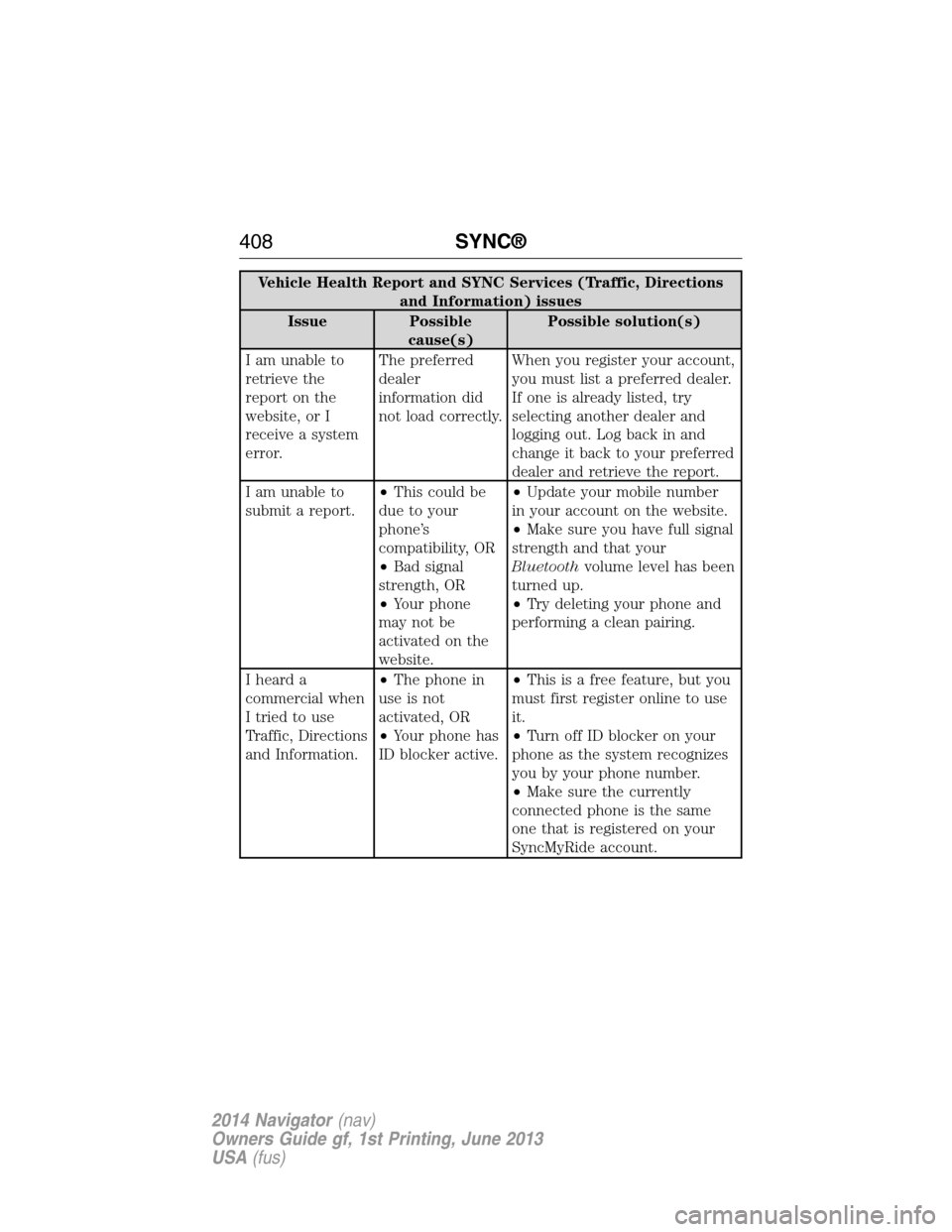
Vehicle Health Report and SYNC Services (Traffic, Directions
and Information) issues
Issue Possible
cause(s)Possible solution(s)
I am unable to
retrieve the
report on the
website, or I
receive a system
error.The preferred
dealer
information did
not load correctly.When you register your account,
you must list a preferred dealer.
If one is already listed, try
selecting another dealer and
logging out. Log back in and
change it back to your preferred
dealer and retrieve the report.
I am unable to
submit a report.•This could be
due to your
phone’s
compatibility, OR
•Bad signal
strength, OR
•Your phone
may not be
activated on the
website.•Update your mobile number
in your account on the website.
•Make sure you have full signal
strength and that your
Bluetoothvolume level has been
turned up.
•Try deleting your phone and
performing a clean pairing.
I heard a
commercial when
I tried to use
Traffic, Directions
and Information.•The phone in
use is not
activated, OR
•Your phone has
ID blocker active.•This is a free feature, but you
must first register online to use
it.
•Turn off ID blocker on your
phone as the system recognizes
you by your phone number.
•Make sure the currently
connected phone is the same
one that is registered on your
SyncMyRide account.
408SYNC®
2014 Navigator(nav)
Owners Guide gf, 1st Printing, June 2013
USA(fus)
Page 410 of 506
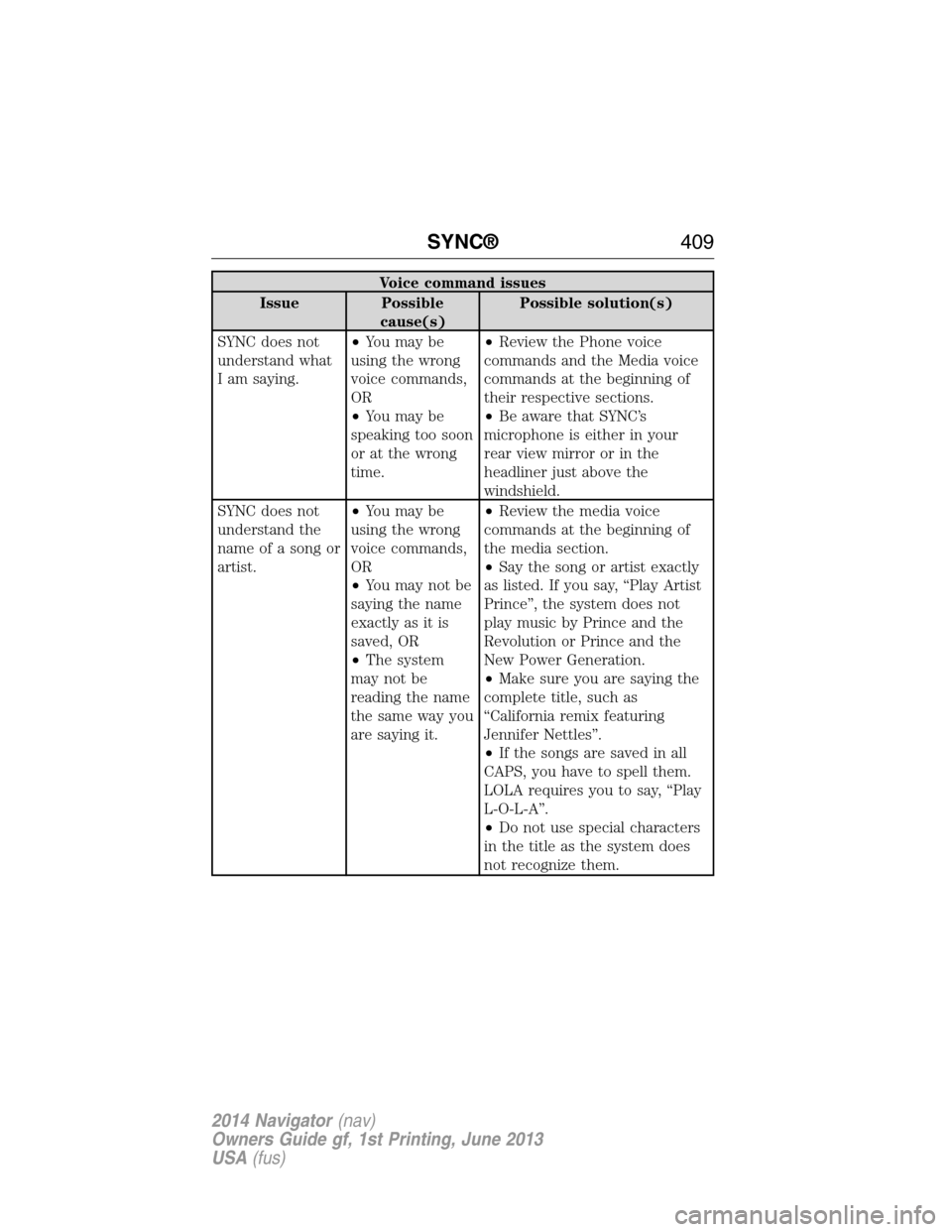
Voice command issues
Issue Possible
cause(s)Possible solution(s)
SYNC does not
understand what
I am saying.•You may be
using the wrong
voice commands,
OR
•You may be
speaking too soon
or at the wrong
time.•Review the Phone voice
commands and the Media voice
commands at the beginning of
their respective sections.
•Be aware that SYNC’s
microphone is either in your
rear view mirror or in the
headliner just above the
windshield.
SYNC does not
understand the
name of a song or
artist.•You may be
using the wrong
voice commands,
OR
•You may not be
saying the name
exactly as it is
saved, OR
•The system
may not be
reading the name
the same way you
are saying it.•Review the media voice
commands at the beginning of
the media section.
•Say the song or artist exactly
as listed. If you say, “Play Artist
Prince”, the system does not
play music by Prince and the
Revolution or Prince and the
New Power Generation.
•Make sure you are saying the
complete title, such as
“California remix featuring
Jennifer Nettles”.
•If the songs are saved in all
CAPS, you have to spell them.
LOLA requires you to say, “Play
L-O-L-A”.
•Do not use special characters
in the title as the system does
not recognize them.
SYNC®409
2014 Navigator(nav)
Owners Guide gf, 1st Printing, June 2013
USA(fus)
Page 411 of 506
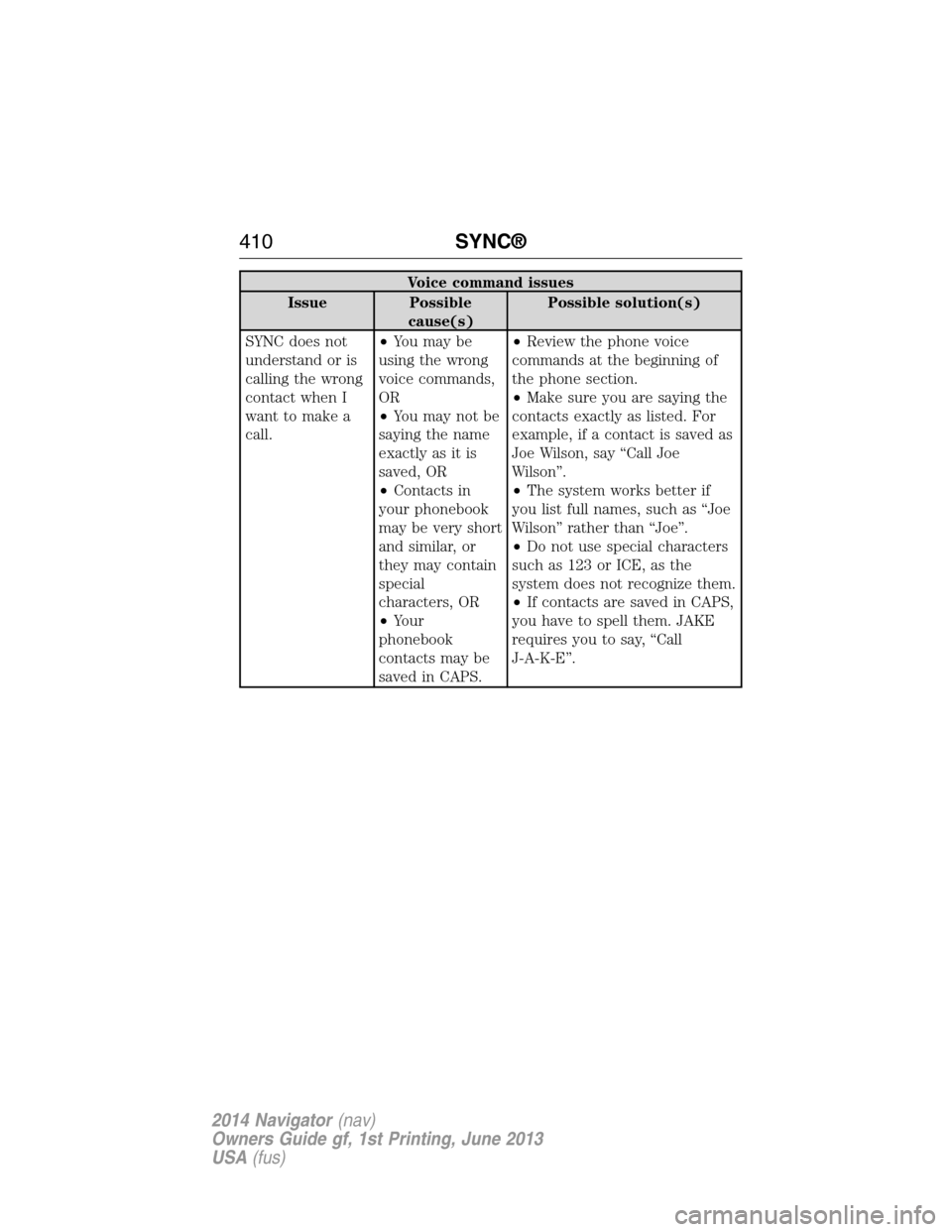
Voice command issues
Issue Possible
cause(s)Possible solution(s)
SYNC does not
understand or is
calling the wrong
contact when I
want to make a
call.•You may be
using the wrong
voice commands,
OR
•You may not be
saying the name
exactly as it is
saved, OR
•Contacts in
your phonebook
may be very short
and similar, or
they may contain
special
characters, OR
•Your
phonebook
contacts may be
saved in CAPS.•Review the phone voice
commands at the beginning of
the phone section.
•Make sure you are saying the
contacts exactly as listed. For
example, if a contact is saved as
Joe Wilson, say “Call Joe
Wilson”.
•The system works better if
you list full names, such as “Joe
Wilson” rather than “Joe”.
•Do not use special characters
such as 123 or ICE, as the
system does not recognize them.
•If contacts are saved in CAPS,
you have to spell them. JAKE
requires you to say, “Call
J-A-K-E”.
410SYNC®
2014 Navigator(nav)
Owners Guide gf, 1st Printing, June 2013
USA(fus)
Page 412 of 506
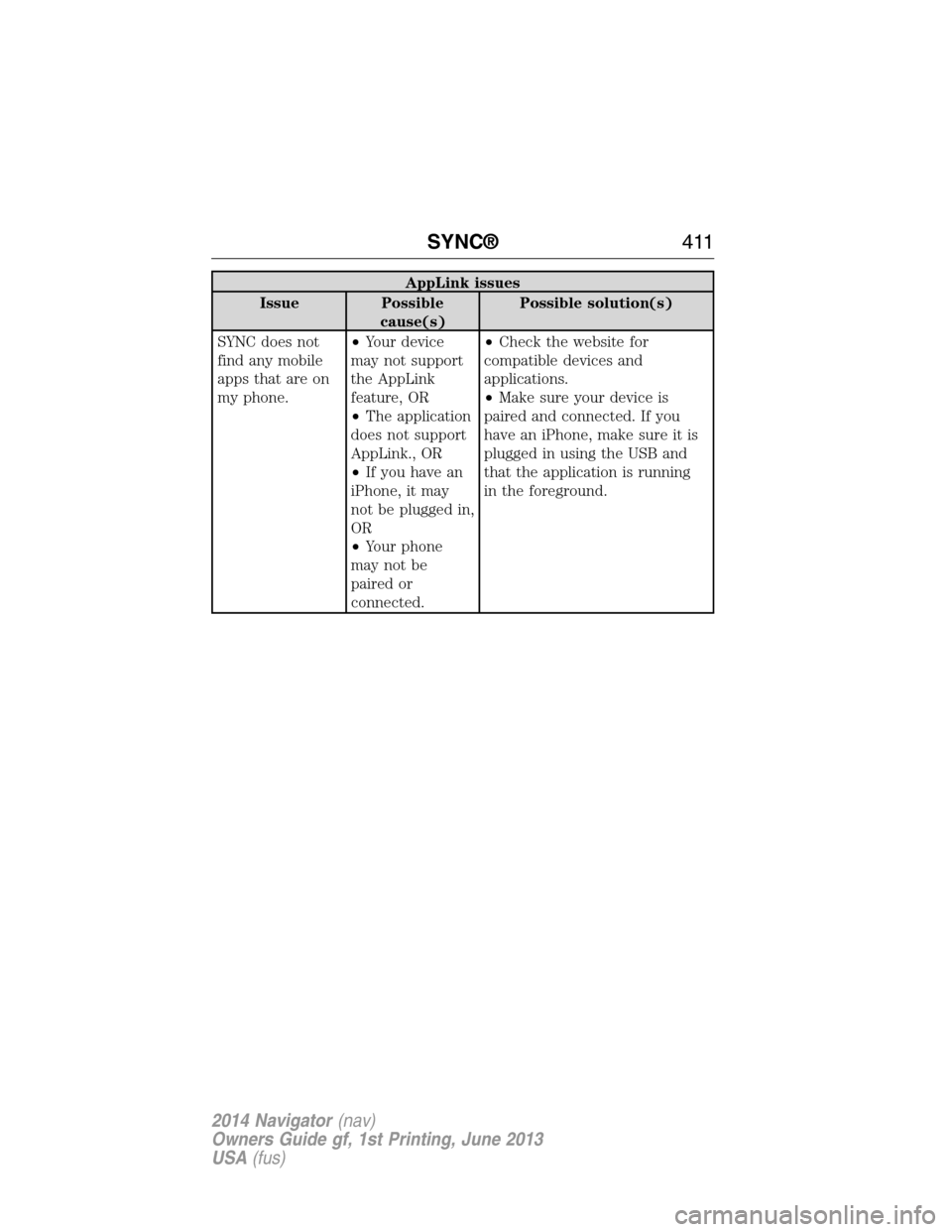
AppLink issues
Issue Possible
cause(s)Possible solution(s)
SYNC does not
find any mobile
apps that are on
my phone.•Your device
may not support
the AppLink
feature, OR
•The application
does not support
AppLink., OR
•If you have an
iPhone, it may
not be plugged in,
OR
•Your phone
may not be
paired or
connected.•Check the website for
compatible devices and
applications.
•Make sure your device is
paired and connected. If you
have an iPhone, make sure it is
plugged in using the USB and
that the application is running
in the foreground.
SYNC®411
2014 Navigator(nav)
Owners Guide gf, 1st Printing, June 2013
USA(fus)
Page 414 of 506
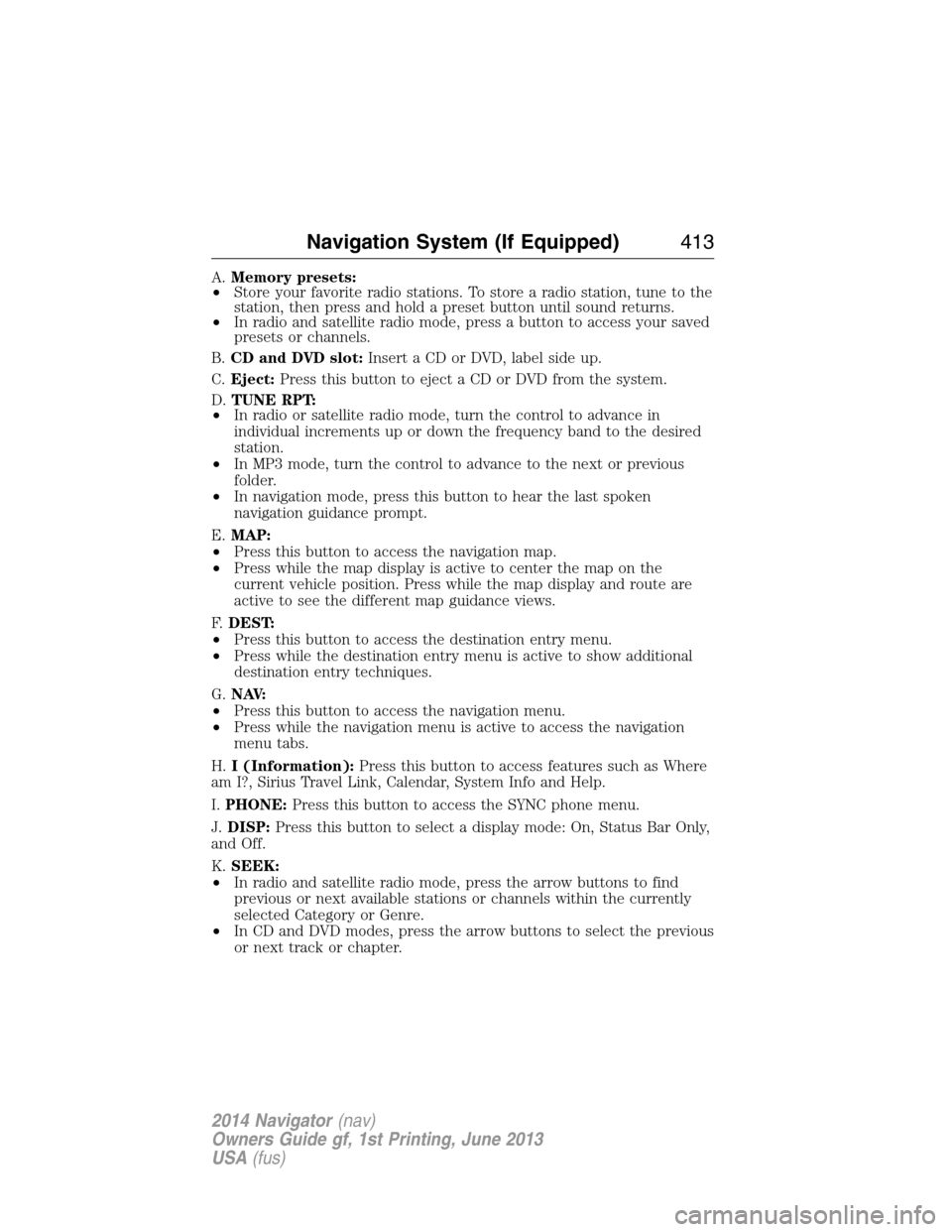
A.Memory presets:
•Store your favorite radio stations. To store a radio station, tune to the
station, then press and hold a preset button until sound returns.
•In radio and satellite radio mode, press a button to access your saved
presets or channels.
B.CD and DVD slot:Insert a CD or DVD, label side up.
C.Eject:Press this button to eject a CD or DVD from the system.
D.TUNE RPT:
•In radio or satellite radio mode, turn the control to advance in
individual increments up or down the frequency band to the desired
station.
•In MP3 mode, turn the control to advance to the next or previous
folder.
•In navigation mode, press this button to hear the last spoken
navigation guidance prompt.
E.MAP:
•Press this button to access the navigation map.
•Press while the map display is active to center the map on the
current vehicle position. Press while the map display and route are
active to see the different map guidance views.
F.DEST:
•Press this button to access the destination entry menu.
•Press while the destination entry menu is active to show additional
destination entry techniques.
G.N AV:
•Press this button to access the navigation menu.
•Press while the navigation menu is active to access the navigation
menu tabs.
H.I (Information):Press this button to access features such as Where
am I?, Sirius Travel Link, Calendar, System Info and Help.
I.PHONE:Press this button to access the SYNC phone menu.
J.DISP:Press this button to select a display mode: On, Status Bar Only,
and Off.
K.SEEK:
•In radio and satellite radio mode, press the arrow buttons to find
previous or next available stations or channels within the currently
selected Category or Genre.
•In CD and DVD modes, press the arrow buttons to select the previous
or next track or chapter.
Navigation System (If Equipped)413
2014 Navigator(nav)
Owners Guide gf, 1st Printing, June 2013
USA(fus)
Page 425 of 506
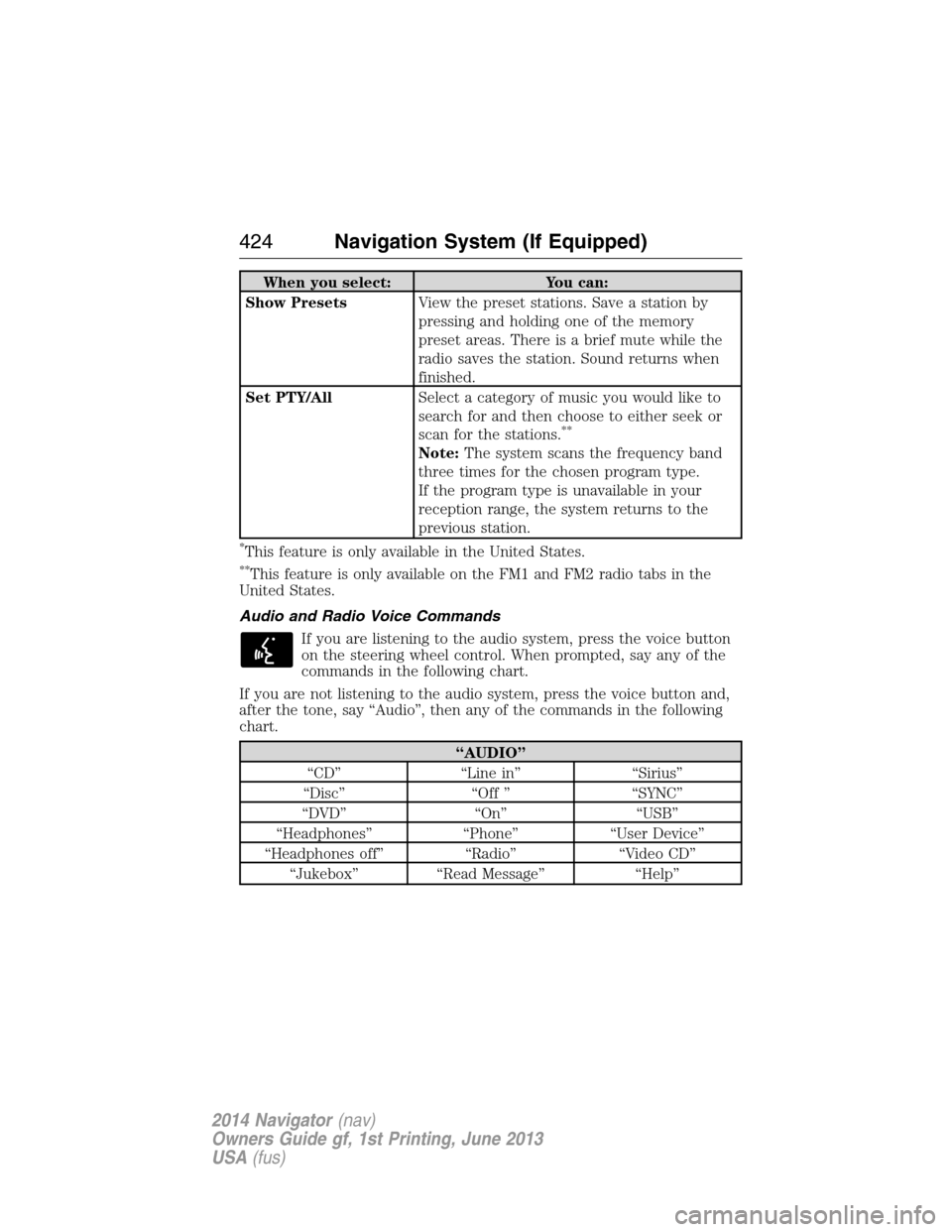
When you select: You can:
Show PresetsView the preset stations. Save a station by
pressing and holding one of the memory
preset areas. There is a brief mute while the
radio saves the station. Sound returns when
finished.
Set PTY/AllSelect a category of music you would like to
search for and then choose to either seek or
scan for the stations.
**
Note:The system scans the frequency band
three times for the chosen program type.
If the program type is unavailable in your
reception range, the system returns to the
previous station.
*This feature is only available in the United States.
**This feature is only available on the FM1 and FM2 radio tabs in the
United States.
Audio and Radio Voice Commands
If you are listening to the audio system, press the voice button
on the steering wheel control. When prompted, say any of the
commands in the following chart.
If you are not listening to the audio system, press the voice button and,
after the tone, say “Audio”, then any of the commands in the following
chart.
“AUDIO”
“CD” “Line in” “Sirius”
“Disc” “Off ” “SYNC”
“DVD” “On” “USB”
“Headphones” “Phone” “User Device”
“Headphones off” “Radio” “Video CD”
“Jukebox” “Read Message” “Help”
424Navigation System (If Equipped)
2014 Navigator(nav)
Owners Guide gf, 1st Printing, June 2013
USA(fus)
Page 448 of 506
System Information
Press the I (information) button, then select System
Information.
In this screen, you can view the following options:
•Phone number for your Customer Service Center
•Current system versions installed
•Current Sirius Radio ESN
•Sirius Travel Link ESN.
Note:Not all tab selections may be available in all markets. Check with
an authorized dealer for availability.
Help
The Help screen allows you to view basic information about controls and
driving restrictions as well as traffic legend information and basic voice
commands available in various modes.
If you select: You can:
Basic OperationView hard buttons on your navigation system.
Press the desired icon to view the button
description.
Driving RestrictionView the system’s driving restriction.
Traffic LegendView the color code for the Speed and Flow
of roads on the navigation system. You can
also select Traffic Incidents to help you
differentiate between viewed and unviewed
incidents.
Voice CommandsView a brief listing of possible voice
commands in a specific mode.
Navigation System (If Equipped)447
2014 Navigator(nav)
Owners Guide gf, 1st Printing, June 2013
USA(fus)
Page 451 of 506
Quick
Note:Items on this screen are selectable at any speed.
Find Nearest POISelect up to five different points of interest
(POI) favorites that you can search for while
your vehicle is moving. You can change these
categories at any time but the default categories
are:
•Gas Station
•AT M
•Restaurant
•Accommodations
•Parking Garage
When you select a category, the system displays
a list in order of distance from your vehicle’s
location. The Quick POI search range
automatically increases to a 50 mile (80 km)
radius if no point of interest is found within the
default 25 mile (40 km) radius.
You also have the option to select List All
Categories, which displays a list of all categories.
Previous DestinationTouch this button to select one of your previous
destinations.
Address BookTouch this button to set an entry in your address
book as your destination.
Standard
Note:Items on this screen are selectable only when your vehicle is
moving at speeds slower than 5 mph (8 km/h).
Address BookYou can store up to 25 entries, which you can
use as destinations, waypoints and areas to
avoid. You can sort the entries alphabetically,
by date or icon.
*
Previous
DestinationYou can store up to 20 recently used
destinations and waypoints. Duplicate entries
do not appear in the list. Adding a new entry
deletes the oldest one from the list.
*
Phone NumberTouch this button to search for a destination
using the phone number of a saved point of
interest or address book entry. Use the keypad
on the screen to enter the phone number.
450Navigation System (If Equipped)
2014 Navigator(nav)
Owners Guide gf, 1st Printing, June 2013
USA(fus)