reset LINCOLN NAVIGATOR 2014 Owner's Manual
[x] Cancel search | Manufacturer: LINCOLN, Model Year: 2014, Model line: NAVIGATOR, Model: LINCOLN NAVIGATOR 2014Pages: 506, PDF Size: 5.72 MB
Page 267 of 506
Note:Electrical or electronic accessories or components added to the
vehicle by the dealer or the owner may adversely affect battery
performance and durability.
Your vehicle is equipped with a Motorcraft® maintenance-free battery
which normally does not require additional water during its life of
service.
If you see any corrosion on the battery or terminals, remove the cables
from the terminals and clean with a wire brush. You can neutralize the
acid with a solution of baking soda and water.
It is recommended that the negative battery cable terminal be
disconnected from the battery if you plan to store your vehicle for an
extended period of time. This will minimize the discharge of your battery
during storage.
Because your vehicle’s engine is electronically controlled by a computer,
some control conditions are maintained by power from the battery. When
the battery is disconnected or a new battery is installed, the engine must
relearn its idle and fuel trim strategy for optimum driveability and
performance. To begin this process:
1. With the vehicle at a complete stop, set the parking brake.
2. Put the gearshift in P (Park), turn off all accessories and start the
engine.
3. Run the engine until it reaches normal operating temperature.
4. Allow the engine to idle for at least one minute.
5. Turn the A/C on and allow the engine to idle for at least one minute.
6. Drive the vehicle to complete the relearning process.
•The vehicle may need to be driven 10 miles (16 km) or more to
relearn the idle and fuel trim strategy.
•Note:If you do not allow the engine to relearn its idle trim, the idle
quality of your vehicle may be adversely affected until the idle trim is
eventually relearned.
If the battery has been disconnected or a new battery has been installed,
the clock and radio settings must be reset once the battery is reconnected.
266Maintenance
2014 Navigator(nav)
Owners Guide gf, 1st Printing, June 2013
USA(fus)
Page 287 of 506
Cooling system
•Protect against freezing temperatures.
•When removing vehicle from storage, check coolant fluid level.
Confirm there are no cooling system leaks, and fluid is at the
recommended level.
Battery
•Check and recharge as necessary. Keep connections clean.
•If storing your vehicle for more than 30 days without recharging the
battery, it may be advisable to disconnect the battery cables to ensure
battery charge is maintained for quick starting.
Note:If battery cables are disconnected, it will be necessary to reset
memory features.
Brakes
•Make sure brakes and parking brake are fully released.
Tires
•Maintain recommended air pressure.
Miscellaneous
•Make sure all linkages, cables, levers and pins under vehicle are
covered with grease to prevent rust.
•Move vehicles at least 25 feet (8 meters) every 15 days to lubricate
working parts and prevent corrosion.
Removing Vehicle from Storage
When your vehicle is ready to come out of storage, do the following:
•Wash your vehicle to remove any dirt or grease film build-up on
window surfaces.
•Check windshield wipers for any deterioration.
•Check under the hood for any foreign material that may have collected
during storage (mice/squirrel nests).
•Check the exhaust for any foreign material that may have collected
during storage.
•Check tire pressures and set tire inflation per the Tire Label.
•Check brake pedal operation. Drive the vehicle 15 feet (4.5 meters)
back and forth to remove rust build-up.
•Check fluid levels (including coolant, oil and gas) to make sure there
are no leaks and fluids are at recommended levels.
•If the battery was removed, clean the battery cable ends and inspect.
Contact your authorized dealer if you have any concerns or issues.
286Vehicle Care
2014 Navigator(nav)
Owners Guide gf, 1st Printing, June 2013
USA(fus)
Page 335 of 506
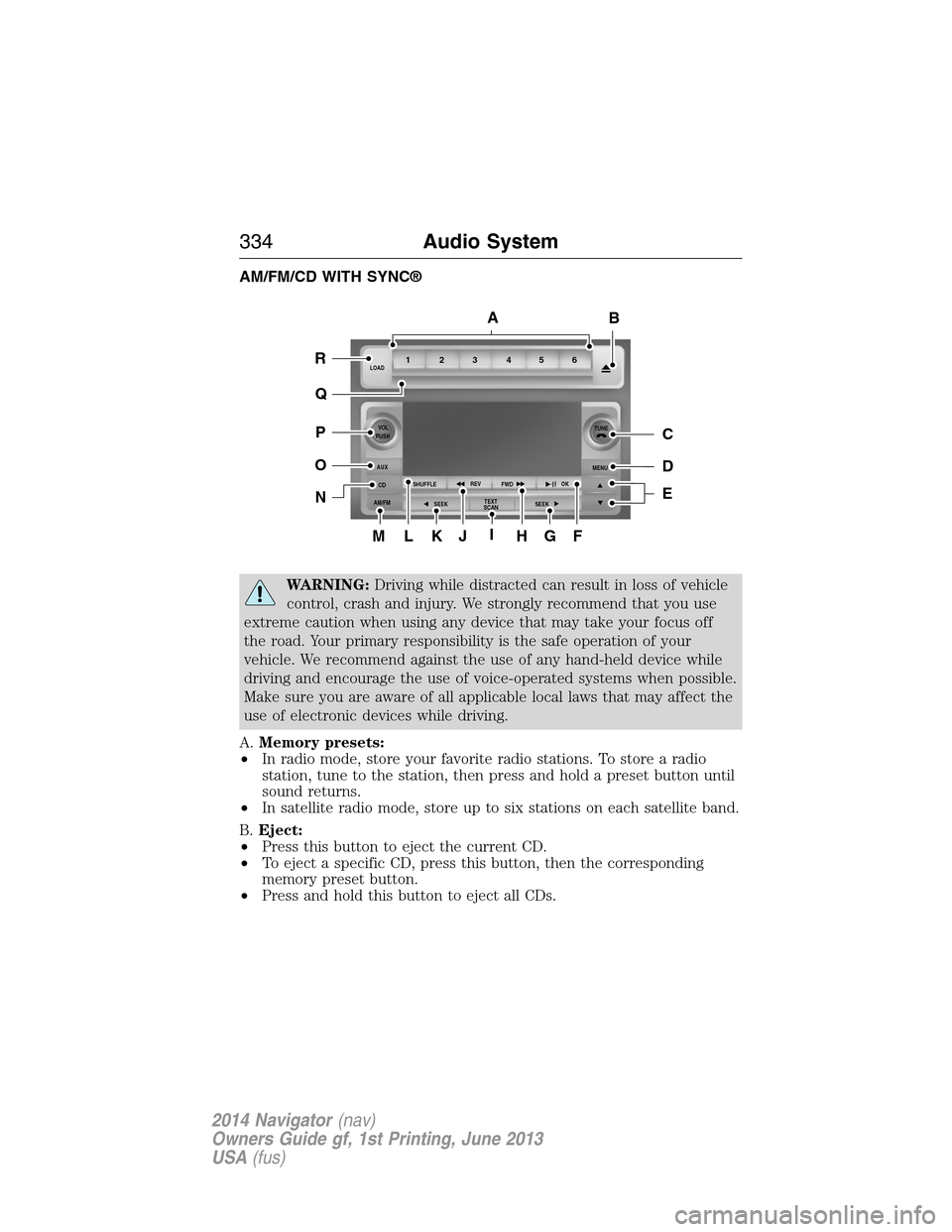
AM/FM/CD WITH SYNC®
WARNING:Driving while distracted can result in loss of vehicle
control, crash and injury. We strongly recommend that you use
extreme caution when using any device that may take your focus off
the road. Your primary responsibility is the safe operation of your
vehicle. We recommend against the use of any hand-held device while
driving and encourage the use of voice-operated systems when possible.
Make sure you are aware of all applicable local laws that may affect the
use of electronic devices while driving.
A.Memory presets:
•In radio mode, store your favorite radio stations. To store a radio
station, tune to the station, then press and hold a preset button until
sound returns.
•In satellite radio mode, store up to six stations on each satellite band.
B.Eject:
•Press this button to eject the current CD.
•To eject a specific CD, press this button, then the corresponding
memory preset button.
•Press and hold this button to eject all CDs.
ML
R
P
O
N
Q
KJIHGF
BA
C
D
E
1LOAD
VOL
PUSH
AUX
CD
AM/FMSHUFFLEREV
FWDOK
SEEKMENUTUNE
SEEKTEXT
SCAN23 456
334Audio System
2014 Navigator(nav)
Owners Guide gf, 1st Printing, June 2013
USA(fus)
Page 336 of 506
C.TUNE and Phone:
•In radio mode, turn the control to manually search the frequency
band.
•In MP3 mode, turn the control to go to the next or previous folder
(when folder mode is active).
•In satellite radio mode, press theSEEKbuttons to tune to the next
or previous channel.
•In category mode, turn the control to scroll through the list of
available satellite radio categories.
•In phone mode, press this button to access the phone features of the
SYNC system. See theSYNC®chapter for more information.
D.MENU:Press this button to access different audio system features.
You can also adjust settings for the family entertainment system if your
vehicle is equipped with this feature.
•If your vehicle is equipped with satellite radio, you can access
different menus by pressingOK.
•Set the time by pressingMENUuntilSET HOURSorSET
MINUTESappears and using the arrow buttons to adjust the time.
•Set the strongest stations on the radio frequency by pressingMENU
untilAUTOSETappears.AUTOSETdoes not override your original
presets.
•RBDSdisplays text transmitted by certain radio stations and
searches for music categories. To search for music categories, turn on
RBDS (by using theSEEKbuttons whenRBDS ON/OFFappears).
Press the up and down arrow buttons to scroll through categories,
then use theSEEKbuttons to begin the search.
•SPEEDVOL(speed compensated volume) allows you to adjust radio
volume to compensate for noise levels when vehicle speed increases.
•Track/Folderis only available on MP3 files when in CD mode. In
track mode, pressing theSEEKarrows allows you to scroll through
all the tracks on the disc. In folder mode, pressing theSEEKarrows
allows you to scroll through all the tracks within the selected folder.
Press theFOLDERbuttons to access other folders.
•COMPRESS(Compression) is only available in CD and MP3 modes.
Switching compression on brings the soft and loud passages together
for a more consistent listening level. Use theSEEKbuttons and up
and down arrow buttons to switch it on and off.
•Family entertainment options are also available, if your vehicle is
equipped with this feature.
E.Up and down arrow buttons:Press these buttons to make
selections inMENUmode.
Audio System335
2014 Navigator(nav)
Owners Guide gf, 1st Printing, June 2013
USA(fus)
Page 337 of 506
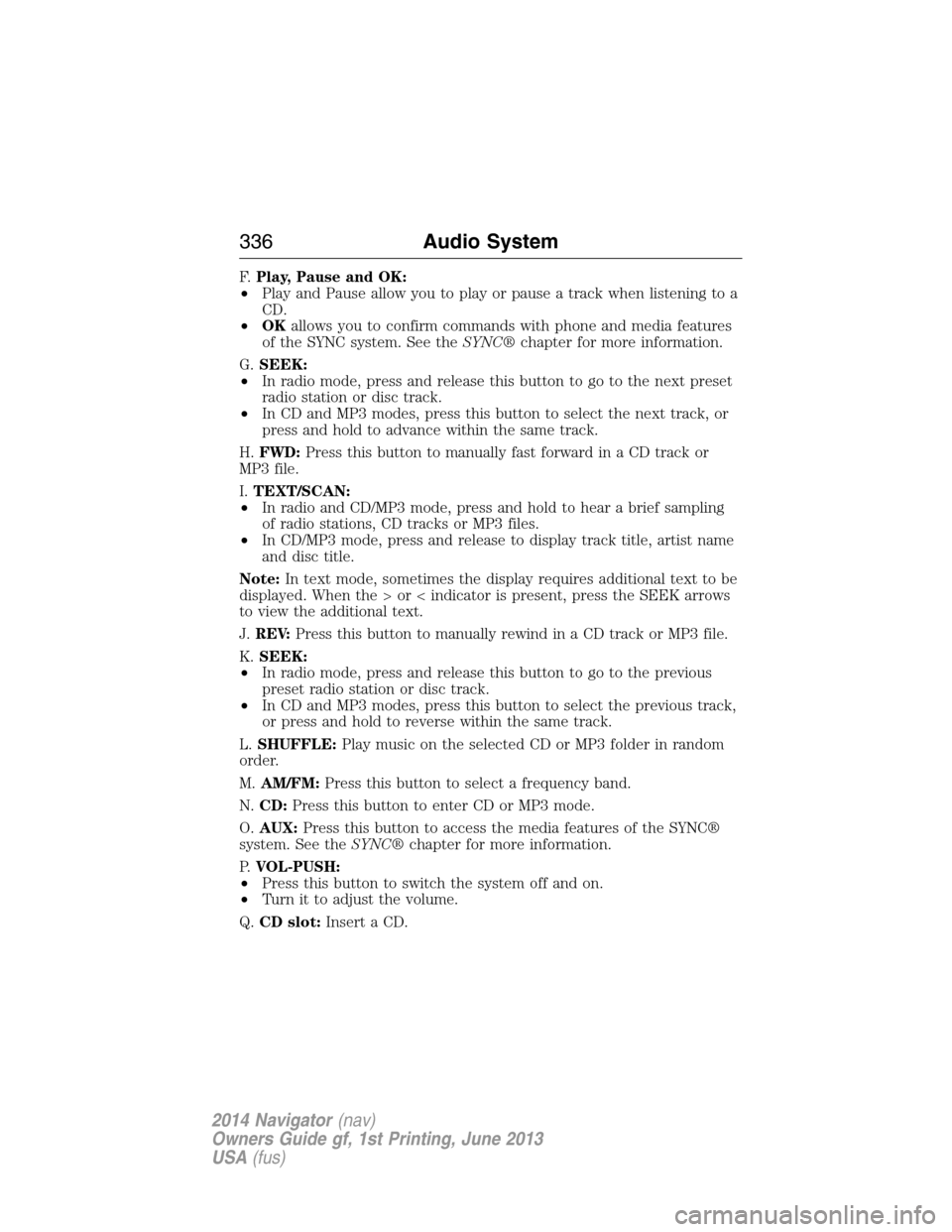
F.Play, Pause and OK:
•Play and Pause allow you to play or pause a track when listening to a
CD.
•OKallows you to confirm commands with phone and media features
of the SYNC system. See theSYNC®chapter for more information.
G.SEEK:
•In radio mode, press and release this button to go to the next preset
radio station or disc track.
•In CD and MP3 modes, press this button to select the next track, or
press and hold to advance within the same track.
H.FWD:Press this button to manually fast forward in a CD track or
MP3 file.
I.TEXT/SCAN:
•In radio and CD/MP3 mode, press and hold to hear a brief sampling
of radio stations, CD tracks or MP3 files.
•In CD/MP3 mode, press and release to display track title, artist name
and disc title.
Note:In text mode, sometimes the display requires additional text to be
displayed. When the > or < indicator is present, press the SEEK arrows
to view the additional text.
J.REV:Press this button to manually rewind in a CD track or MP3 file.
K.SEEK:
•In radio mode, press and release this button to go to the previous
preset radio station or disc track.
•In CD and MP3 modes, press this button to select the previous track,
or press and hold to reverse within the same track.
L.SHUFFLE:Play music on the selected CD or MP3 folder in random
order.
M.AM/FM:Press this button to select a frequency band.
N.CD:Press this button to enter CD or MP3 mode.
O.AUX:Press this button to access the media features of the SYNC®
system. See theSYNC®chapter for more information.
P.VOL-PUSH:
•Press this button to switch the system off and on.
•Turn it to adjust the volume.
Q.CD slot:Insert a CD.
336Audio System
2014 Navigator(nav)
Owners Guide gf, 1st Printing, June 2013
USA(fus)
Page 338 of 506
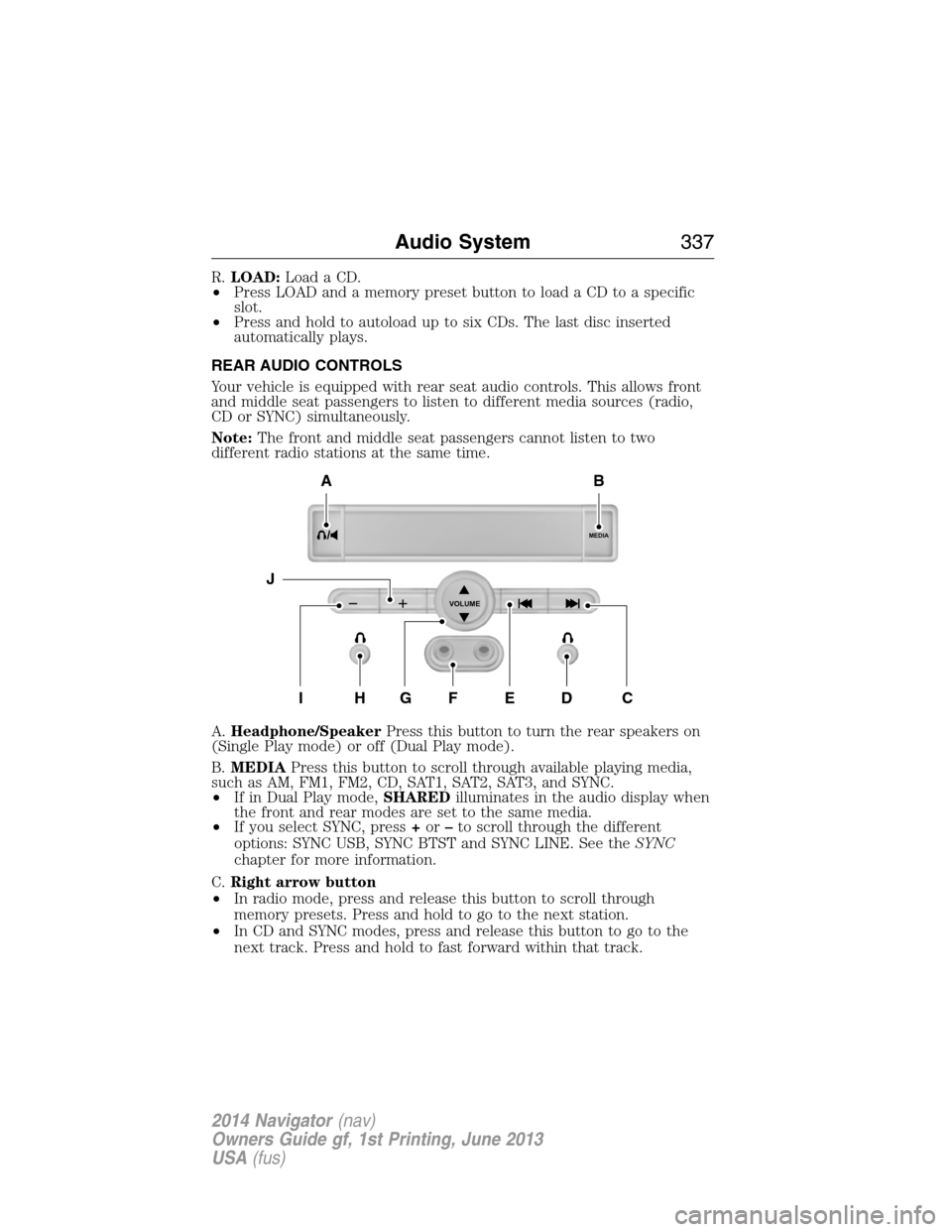
R.LOAD:Load a CD.
•Press LOAD and a memory preset button to load a CD to a specific
slot.
•Press and hold to autoload up to six CDs. The last disc inserted
automatically plays.
REAR AUDIO CONTROLS
Your vehicle is equipped with rear seat audio controls. This allows front
and middle seat passengers to listen to different media sources (radio,
CD or SYNC) simultaneously.
Note:The front and middle seat passengers cannot listen to two
different radio stations at the same time.
A.Headphone/SpeakerPress this button to turn the rear speakers on
(Single Play mode) or off (Dual Play mode).
B.MEDIAPress this button to scroll through available playing media,
such as AM, FM1, FM2, CD, SAT1, SAT2, SAT3, and SYNC.
•If in Dual Play mode,SHAREDilluminates in the audio display when
the front and rear modes are set to the same media.
•If you select SYNC, press+or–to scroll through the different
options: SYNC USB, SYNC BTST and SYNC LINE. See theSYNC
chapter for more information.
C.Right arrow button
•In radio mode, press and release this button to scroll through
memory presets. Press and hold to go to the next station.
•In CD and SYNC modes, press and release this button to go to the
next track. Press and hold to fast forward within that track.
MEDIA
VOLUME
B
HFGEDCI
A
J
Audio System337
2014 Navigator(nav)
Owners Guide gf, 1st Printing, June 2013
USA(fus)
Page 339 of 506
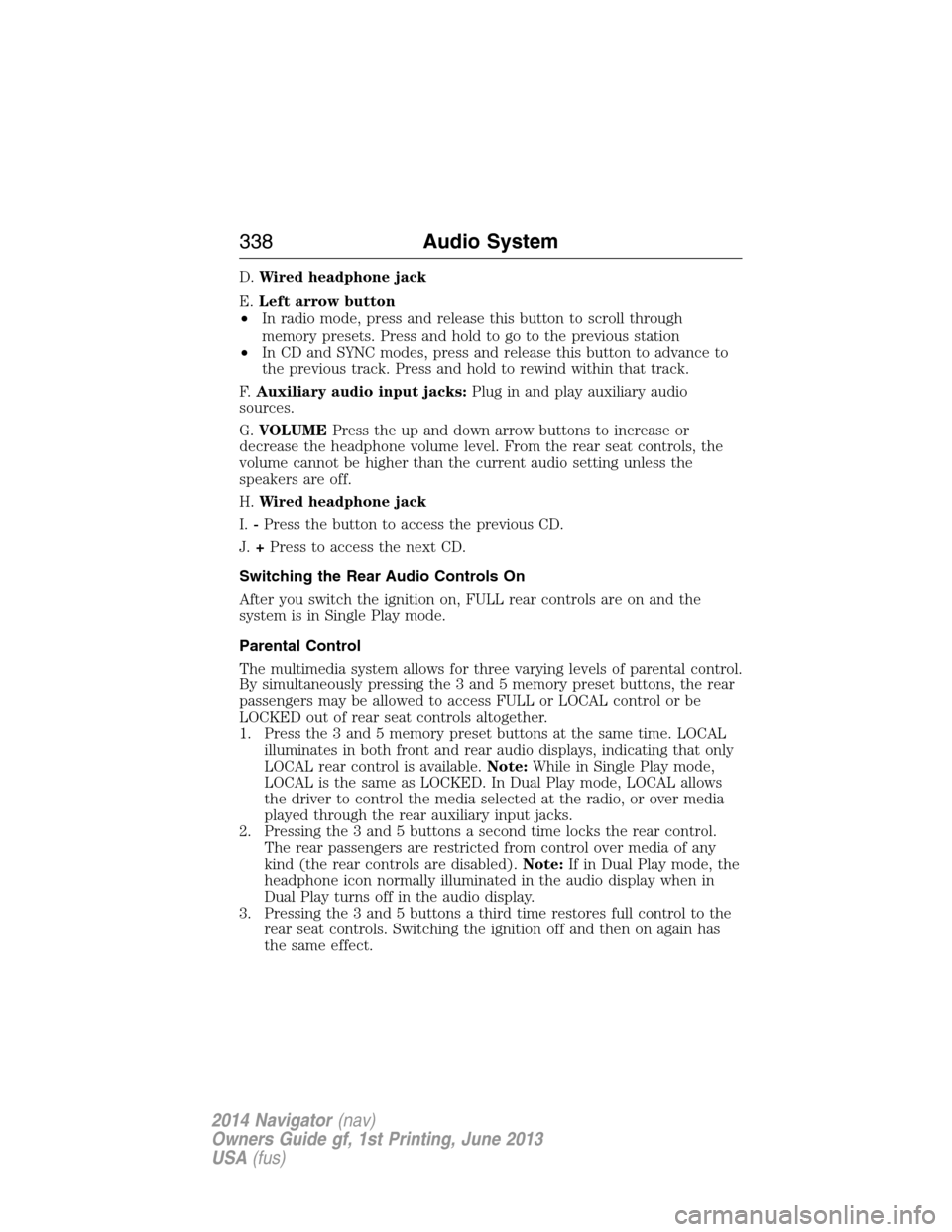
D.Wired headphone jack
E.Left arrow button
•In radio mode, press and release this button to scroll through
memory presets. Press and hold to go to the previous station
•In CD and SYNC modes, press and release this button to advance to
the previous track. Press and hold to rewind within that track.
F.Auxiliary audio input jacks:Plug in and play auxiliary audio
sources.
G.VOLUMEPress the up and down arrow buttons to increase or
decrease the headphone volume level. From the rear seat controls, the
volume cannot be higher than the current audio setting unless the
speakers are off.
H.Wired headphone jack
I.-Press the button to access the previous CD.
J.+Press to access the next CD.
Switching the Rear Audio Controls On
After you switch the ignition on, FULL rear controls are on and the
system is in Single Play mode.
Parental Control
The multimedia system allows for three varying levels of parental control.
By simultaneously pressing the 3 and 5 memory preset buttons, the rear
passengers may be allowed to access FULL or LOCAL control or be
LOCKED out of rear seat controls altogether.
1. Press the 3 and 5 memory preset buttons at the same time. LOCAL
illuminates in both front and rear audio displays, indicating that only
LOCAL rear control is available.Note:While in Single Play mode,
LOCAL is the same as LOCKED. In Dual Play mode, LOCAL allows
the driver to control the media selected at the radio, or over media
played through the rear auxiliary input jacks.
2. Pressing the 3 and 5 buttons a second time locks the rear control.
The rear passengers are restricted from control over media of any
kind (the rear controls are disabled).Note:If in Dual Play mode, the
headphone icon normally illuminated in the audio display when in
Dual Play turns off in the audio display.
3. Pressing the 3 and 5 buttons a third time restores full control to the
rear seat controls. Switching the ignition off and then on again has
the same effect.
338Audio System
2014 Navigator(nav)
Owners Guide gf, 1st Printing, June 2013
USA(fus)
Page 340 of 506
Switching Dual Play Mode On
You can switch Dual Play mode on by simultaneously pressing the 2 and
4 memory preset buttons on the audio or by doing the following:
1. Press the headphone/speaker control. The headphone icon
illuminates in both front and rear audio displays indicating the rear
seat speakers are off and the headphones are on.
2. Press MEDIA to change audio sources (as heard in the headphones
only).
3. Use the other controls to adjust the playing media.
Switching Off Dual Play Mode
Use any one of the following to switch off Dual Play mode:
•Press the 2 and 4 memory preset buttons simultaneously again.
•Press the 3 and 5 memory preset buttons simultaneously to LOCK
the rear seat controls.
•Press the headphone/speaker button again.
Using Dual Play Mode with Headphones
WARNING:Do not leave children unattended in your vehicle
and do not let children operate the system while unsupervised.
If wired headphones or auxiliary systems are used, children may
become entangled in the cords and seriously injure themselves.
Plug a 1/8–inch (3.5 millimeter) headphone (not included) into the
headphone jack. Press the speaker button, or the 2 and 4 memory preset
buttons simultaneously on the radio to switch on the headphones. DUAL
PLAY illuminates in the audio display, there is no sound from the rear
speakers and the fade control is inactive, signaling that Dual Play is on.
The front speakers remain on for the front passengers. Press the speaker
button, or the 2 and 4 memory preset buttons simultaneously on the
radio again to switch off the headphones and Dual Play mode. SINGLE
PLAY illuminates in the audio display; fade control is active and there is
sound from rear speakers, signaling that Single Play is on.
You need to switch the rear seat controls on to use any rear controls
(whether in Single Play or Dual Play mode). To use Dual Play, switch
on the rear seat controls; the headphone icon illuminates in the audio
display. SeeSwitching the rear audio controls onpreviously.
Audio System339
2014 Navigator(nav)
Owners Guide gf, 1st Printing, June 2013
USA(fus)
Page 342 of 506
Sirius satellite radio is a
subscription-based satellite radio
service that broadcasts a variety of
music, sports, news, weather, traffic
and entertainment programming.
Your factory-installed Sirius satellite
radio system includes hardware and
a limited subscription term which begins on the date of sale or lease of
your vehicle. See an authorized dealer for availability.
For more information on extended subscription terms (a service fee is
required), the online media player and a complete list of Sirius satellite
radio channels, and other features, please visit www.siriusxm.com in the
United States, www.sirius.ca in Canada, or call Sirius at 1–888–539–7474.
Satellite Radio Electronic Serial Number (ESN)
You need your ESN to activate, modify or track your satellite radio
account. When in satellite radio mode, you can view this number by
pressingSIRIUSand memory preset 1 at the same time. To access your
ESN, press the bottom left corner of the touchscreen, thenSIRIUS>
Options.
Troubleshooting
Radio display Condition Possible action
Acquiring Radio requires more
than two seconds to
produce audio for the
selected channel.No action required.
This message should
disappear shortly.
Sat Fault/SIRIUS
system failureThere is an internal
module or system
failure present.If this message does
not clear shortly, or
with an ignition key
cycle, your receiver
may have a fault.
See an authorized
dealer for service.
Invalid Channel The channel is no
longer available.Tune to another
channel or choose
another preset.
Audio System341
2014 Navigator(nav)
Owners Guide gf, 1st Printing, June 2013
USA(fus)
Page 353 of 506
25.PIX:Press this button to access settings for BRIGHTNESS, CONTRAST,
SATURATION, HUE, SHARPNESS, IR HEADPHONE, and RESET. When
you find the desired setting, useCH +andCH -to change the setting.
The bar display automatically disappears if no changes are made within
six seconds, or if any button is pressed.
26.REPEAT:Press this button to switch the repeat mode by ALL, TITLE,
CHAPTER and cancel the repeat mode while playing DVD-video. Other
disc types such as VCD, CD, and SVCD only have two repeat modes
that you can select: TRACK and ALL.Note:Both repeat functions of
VCD and SVCD need the PBC status set to ON, when available.
27.AUDIO:Press this button if a disc has different language options. Press
this button repeatedly until you reach your desired option.
28.ANGLE:Press this button to view with a different camera angle. Press
this button repeatedly until you have reached your desired viewing
angle. This feature is only available on DVDs that support frames with
multiple angles.
29.DISPLAY:Press this button display information on the screen including
title, chapter or track, time elapsed and time remaining. You can also
press this button to turn off the display.
30.RANDOM:Press this button to play titles in a random order
31.INT:Press this button to play each audio file for 10 seconds as a review
or scan.
32.NEXT:When a disc has more than one chapter, track or file, press this
button to move to the next chapter, track or file. Press the button
briefly during play to select the next chapter for DVD-video or track
and file for media such as VCD, SVCD, MP3 and CD.
33.PREV:When a disc has more than one chapter, track or file, press this
button to move to the previous chapter, track or file. Press the button
briefly during play to select the next chapter for DVD-video or track
and file for media such as VCD, SVCD, MP3 and CD.
*If available
Turning the Device On and Off
1. Pivot the screen downward until you reach a comfortable viewing
angle.
2. PressPOWERon the lower-left corner of the front panel or on the
remote control. The controls illuminate when the system is in use.
3. When the device is on and is displaying a picture, pivot the screen to
change the viewing angle to optimize the picture quality.
4. Remember to turn the device off and pivot the LCD panel to the
locked position when not in use.
352Audio System
2014 Navigator(nav)
Owners Guide gf, 1st Printing, June 2013
USA(fus)