reset LINCOLN NAVIGATOR 2014 Workshop Manual
[x] Cancel search | Manufacturer: LINCOLN, Model Year: 2014, Model line: NAVIGATOR, Model: LINCOLN NAVIGATOR 2014Pages: 506, PDF Size: 5.72 MB
Page 430 of 506
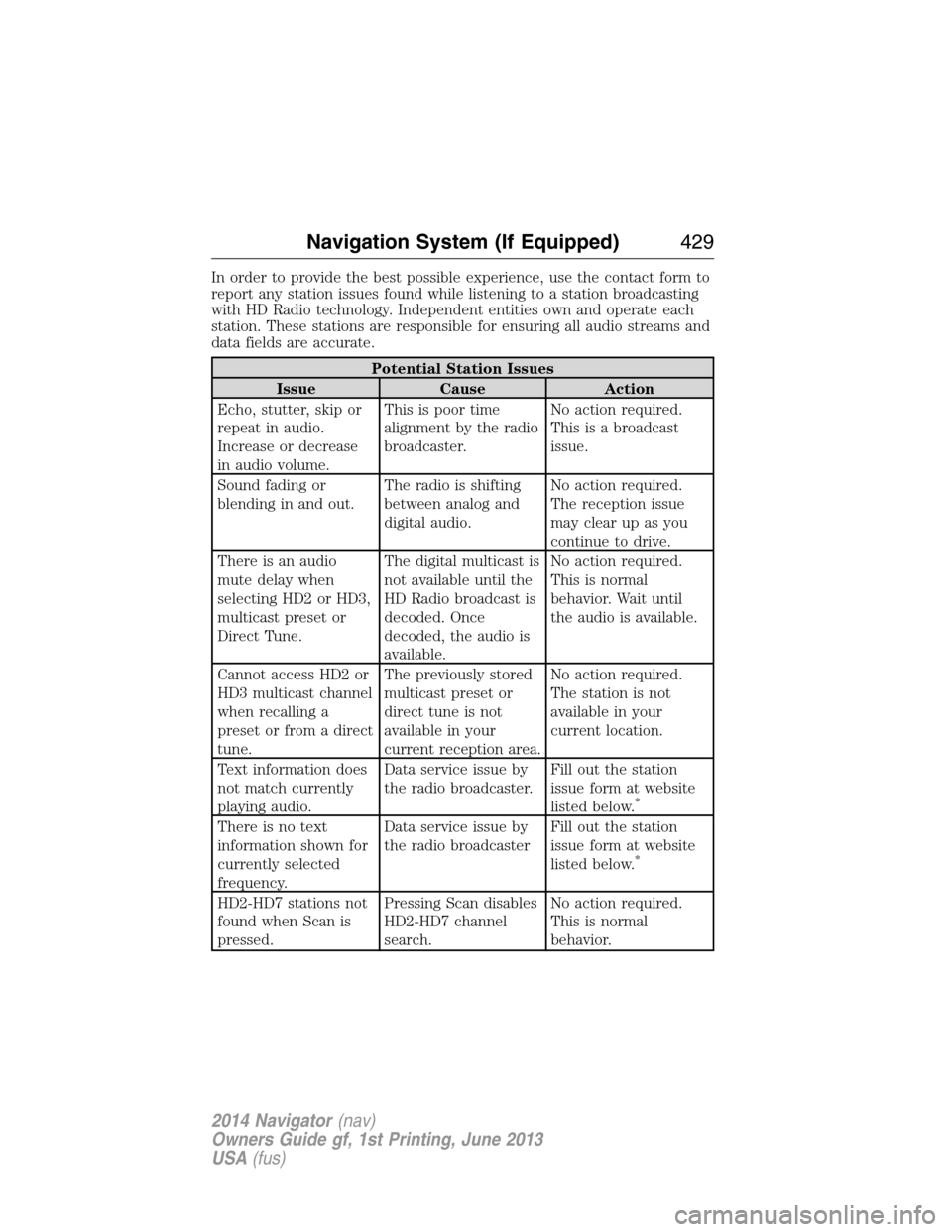
In order to provide the best possible experience, use the contact form to
report any station issues found while listening to a station broadcasting
with HD Radio technology. Independent entities own and operate each
station. These stations are responsible for ensuring all audio streams and
data fields are accurate.
Potential Station Issues
Issue Cause Action
Echo, stutter, skip or
repeat in audio.
Increase or decrease
in audio volume.This is poor time
alignment by the radio
broadcaster.No action required.
This is a broadcast
issue.
Sound fading or
blending in and out.The radio is shifting
between analog and
digital audio.No action required.
The reception issue
may clear up as you
continue to drive.
There is an audio
mute delay when
selecting HD2 or HD3,
multicast preset or
Direct Tune.The digital multicast is
not available until the
HD Radio broadcast is
decoded. Once
decoded, the audio is
available.No action required.
This is normal
behavior. Wait until
the audio is available.
Cannot access HD2 or
HD3 multicast channel
when recalling a
preset or from a direct
tune.The previously stored
multicast preset or
direct tune is not
available in your
current reception area.No action required.
The station is not
available in your
current location.
Text information does
not match currently
playing audio.Data service issue by
the radio broadcaster.Fill out the station
issue form at website
listed below.
*
There is no text
information shown for
currently selected
frequency.Data service issue by
the radio broadcasterFill out the station
issue form at website
listed below.
*
HD2-HD7 stations not
found when Scan is
pressed.Pressing Scan disables
HD2-HD7 channel
search.No action required.
This is normal
behavior.
Navigation System (If Equipped)429
2014 Navigator(nav)
Owners Guide gf, 1st Printing, June 2013
USA(fus)
Page 432 of 506
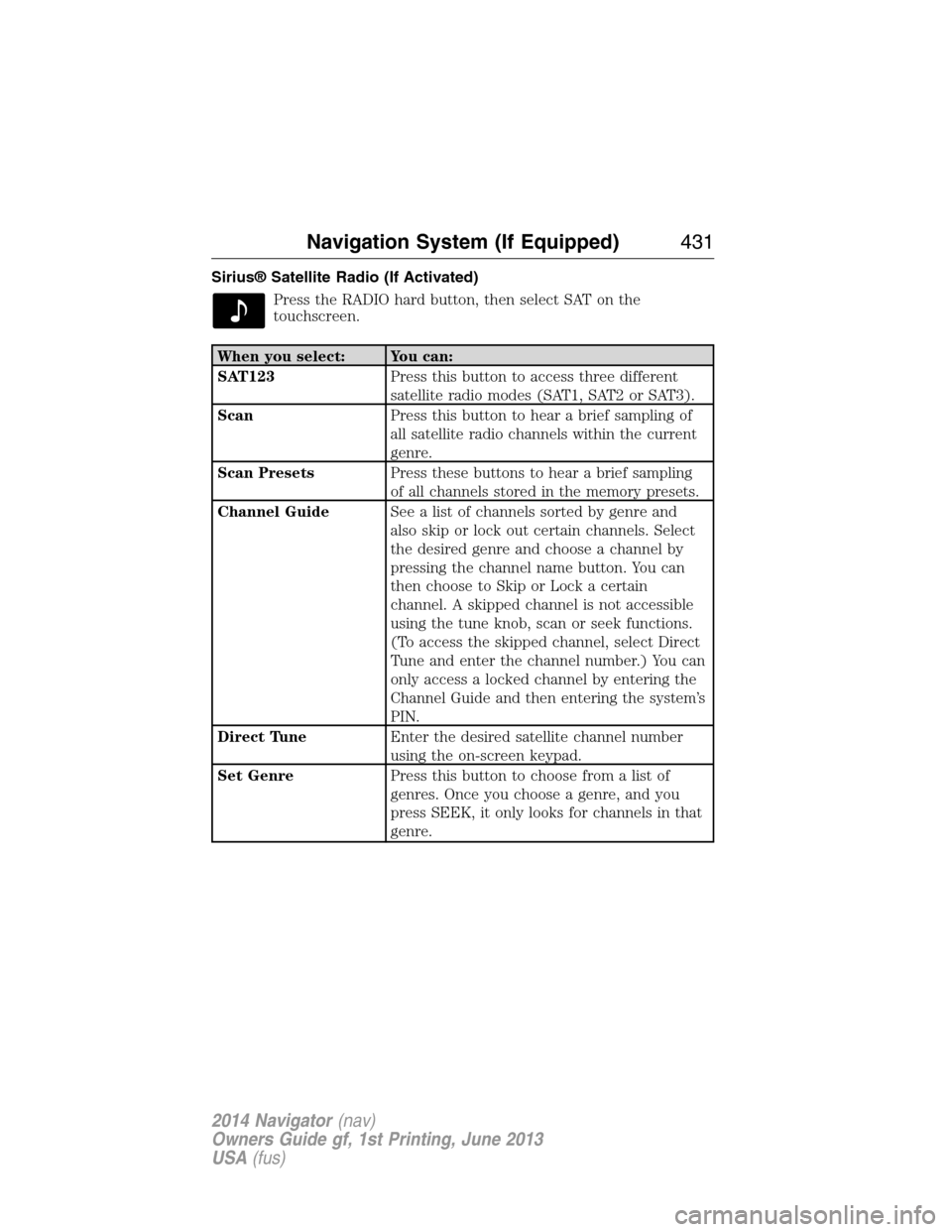
Sirius® Satellite Radio (If Activated)
Press the RADIO hard button, then select SAT on the
touchscreen.
When you select: You can:
SAT123Press this button to access three different
satellite radio modes (SAT1, SAT2 or SAT3).
ScanPress this button to hear a brief sampling of
all satellite radio channels within the current
genre.
Scan PresetsPress these buttons to hear a brief sampling
of all channels stored in the memory presets.
Channel GuideSee a list of channels sorted by genre and
also skip or lock out certain channels. Select
the desired genre and choose a channel by
pressing the channel name button. You can
then choose to Skip or Lock a certain
channel. A skipped channel is not accessible
using the tune knob, scan or seek functions.
(To access the skipped channel, select Direct
Tune and enter the channel number.) You can
only access a locked channel by entering the
Channel Guide and then entering the system’s
PIN.
Direct TuneEnter the desired satellite channel number
using the on-screen keypad.
Set GenrePress this button to choose from a list of
genres. Once you choose a genre, and you
press SEEK, it only looks for channels in that
genre.
Navigation System (If Equipped)431
2014 Navigator(nav)
Owners Guide gf, 1st Printing, June 2013
USA(fus)
Page 433 of 506
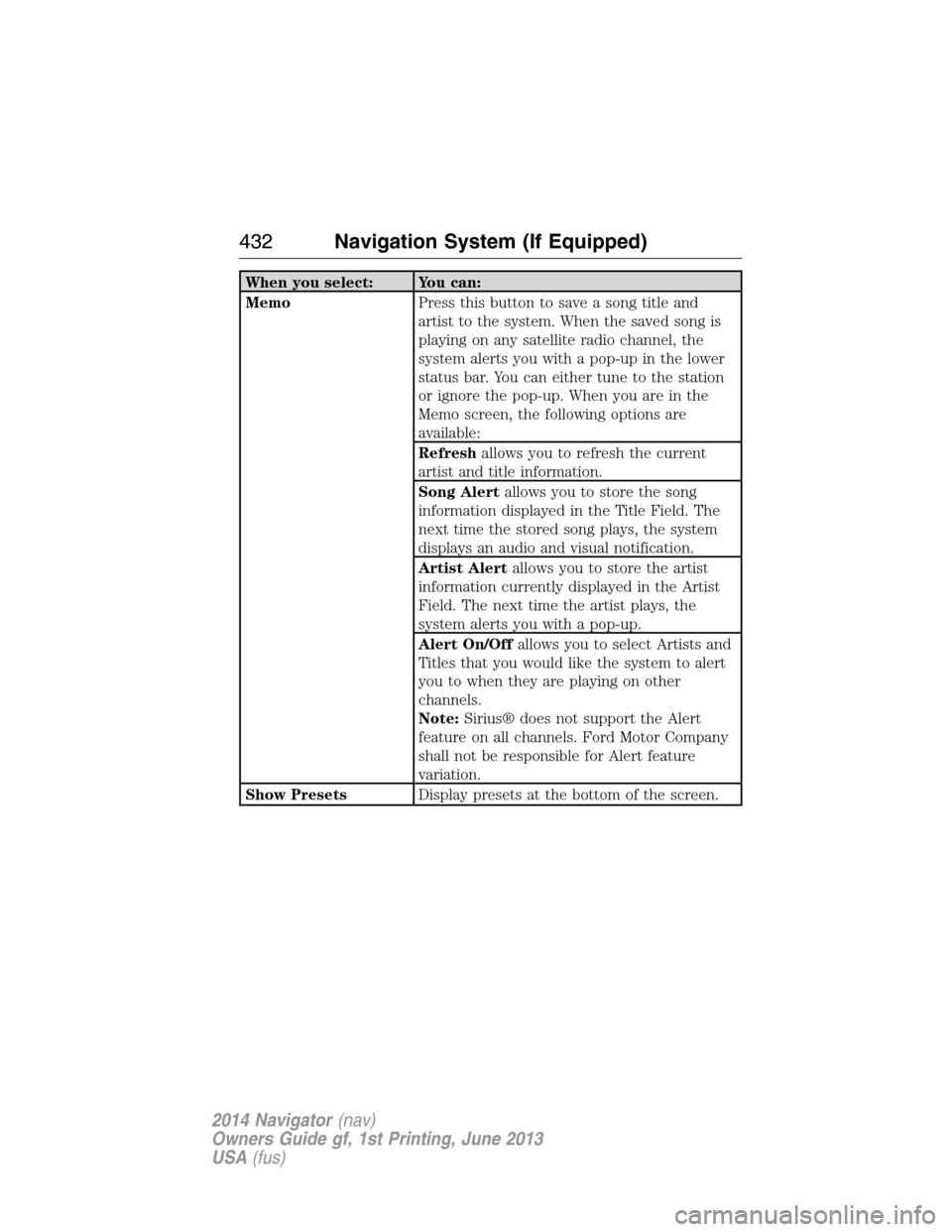
When you select: You can:
MemoPress this button to save a song title and
artist to the system. When the saved song is
playing on any satellite radio channel, the
system alerts you with a pop-up in the lower
status bar. You can either tune to the station
or ignore the pop-up. When you are in the
Memo screen, the following options are
available:
Refreshallows you to refresh the current
artist and title information.
Song Alertallows you to store the song
information displayed in the Title Field. The
next time the stored song plays, the system
displays an audio and visual notification.
Artist Alertallows you to store the artist
information currently displayed in the Artist
Field. The next time the artist plays, the
system alerts you with a pop-up.
Alert On/Offallows you to select Artists and
Titles that you would like the system to alert
you to when they are playing on other
channels.
Note:Sirius® does not support the Alert
feature on all channels. Ford Motor Company
shall not be responsible for Alert feature
variation.
Show PresetsDisplay presets at the bottom of the screen.
432Navigation System (If Equipped)
2014 Navigator(nav)
Owners Guide gf, 1st Printing, June 2013
USA(fus)
Page 434 of 506
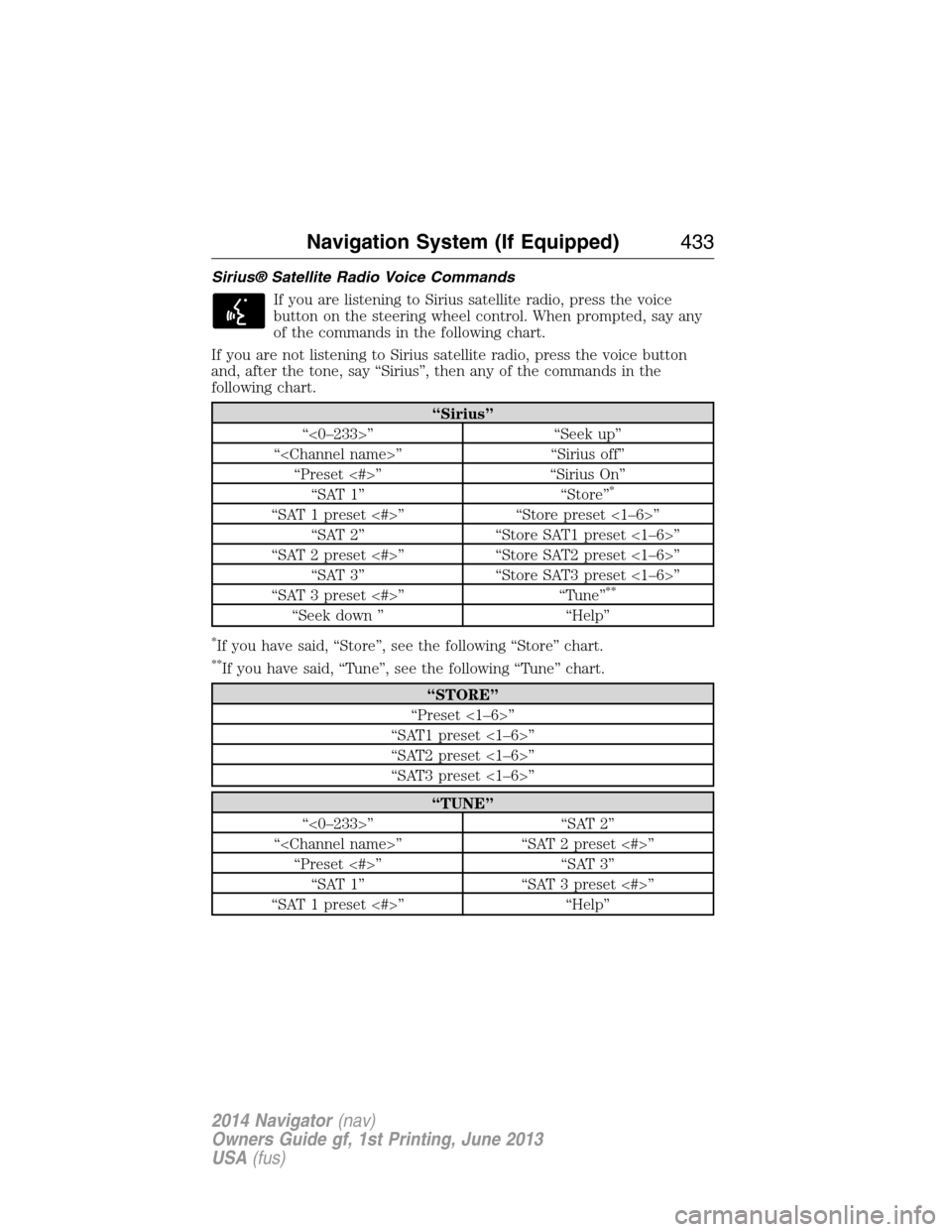
Sirius® Satellite Radio Voice Commands
If you are listening to Sirius satellite radio, press the voice
button on the steering wheel control. When prompted, say any
of the commands in the following chart.
If you are not listening to Sirius satellite radio, press the voice button
and, after the tone, say “Sirius”, then any of the commands in the
following chart.
“Sirius”
“<0–233>” “Seek up”
“
“Preset <#>” “Sirius On”
“SAT 1” “Store”
*
“SAT 1 preset <#>” “Store preset <1–6>”
“SAT 2” “Store SAT1 preset <1–6>”
“SAT 2 preset <#>” “Store SAT2 preset <1–6>”
“SAT 3” “Store SAT3 preset <1–6>”
“SAT 3 preset <#>” “Tune”
**
“Seek down ” “Help”
*If you have said, “Store”, see the following “Store” chart.
**If you have said, “Tune”, see the following “Tune” chart.
“STORE”
“Preset <1–6>”
“SAT1 preset <1–6>”
“SAT2 preset <1–6>”
“SAT3 preset <1–6>”
“TUNE”
“<0–233>” “SAT 2”
“
“Preset <#>” “SAT 3”
“SAT 1” “SAT 3 preset <#>”
“SAT 1 preset <#>” “Help”
Navigation System (If Equipped)433
2014 Navigator(nav)
Owners Guide gf, 1st Printing, June 2013
USA(fus)
Page 436 of 506
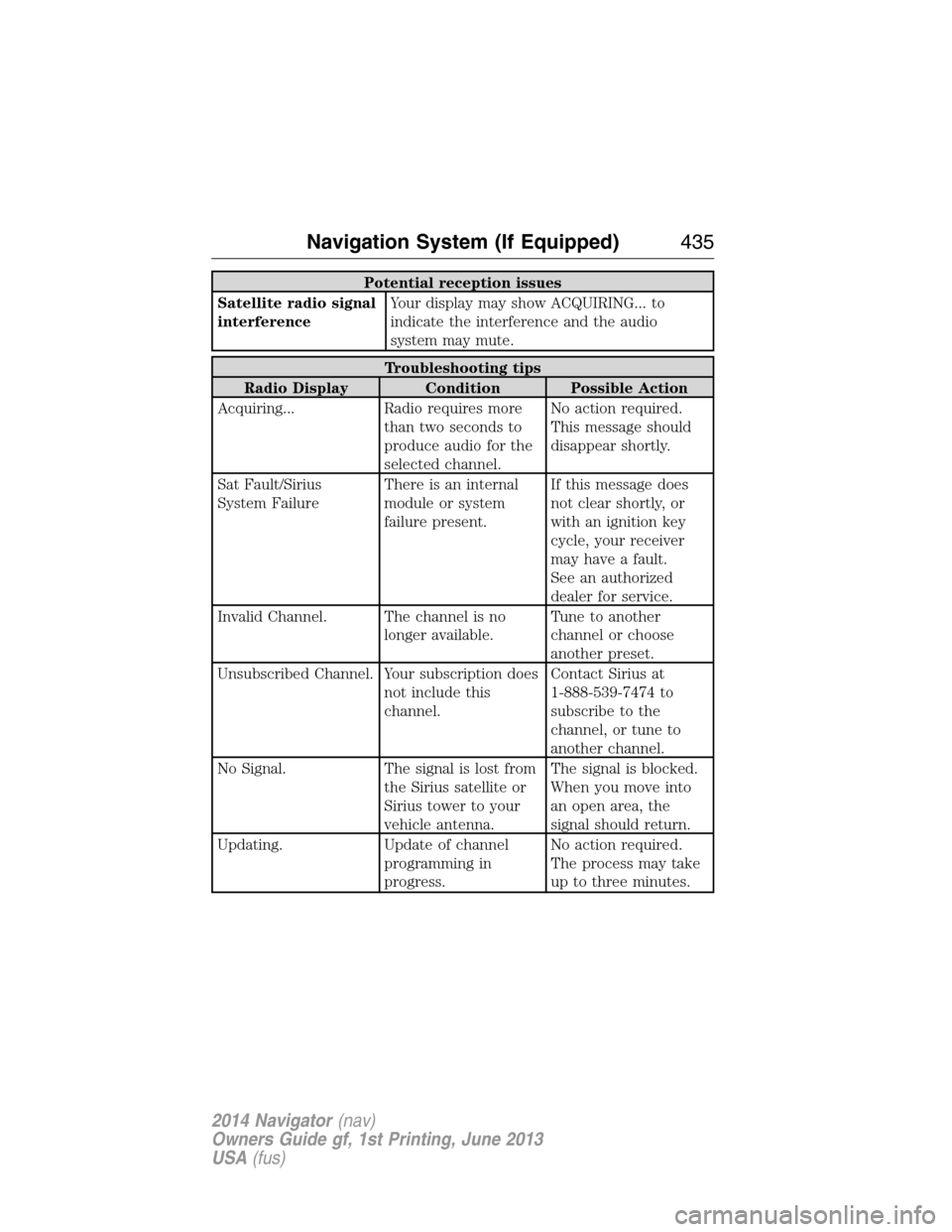
Potential reception issues
Satellite radio signal
interferenceYour display may show ACQUIRING... to
indicate the interference and the audio
system may mute.
Troubleshooting tips
Radio Display Condition Possible Action
Acquiring... Radio requires more
than two seconds to
produce audio for the
selected channel.No action required.
This message should
disappear shortly.
Sat Fault/Sirius
System FailureThere is an internal
module or system
failure present.If this message does
not clear shortly, or
with an ignition key
cycle, your receiver
may have a fault.
See an authorized
dealer for service.
Invalid Channel. The channel is no
longer available.Tune to another
channel or choose
another preset.
Unsubscribed Channel. Your subscription does
not include this
channel.Contact Sirius at
1-888-539-7474 to
subscribe to the
channel, or tune to
another channel.
No Signal. The signal is lost from
the Sirius satellite or
Sirius tower to your
vehicle antenna.The signal is blocked.
When you move into
an open area, the
signal should return.
Updating. Update of channel
programming in
progress.No action required.
The process may take
up to three minutes.
Navigation System (If Equipped)435
2014 Navigator(nav)
Owners Guide gf, 1st Printing, June 2013
USA(fus)
Page 450 of 506
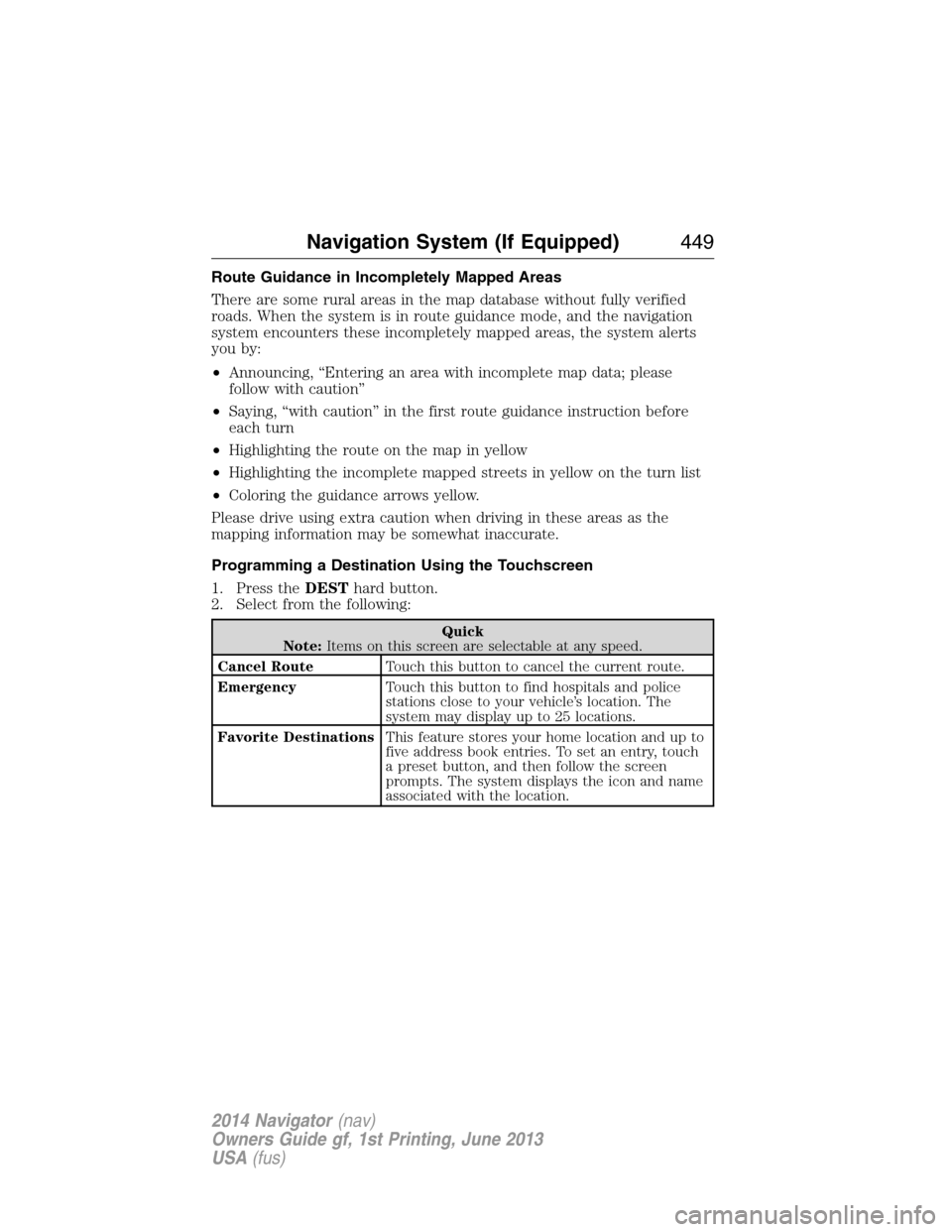
Route Guidance in Incompletely Mapped Areas
There are some rural areas in the map database without fully verified
roads. When the system is in route guidance mode, and the navigation
system encounters these incompletely mapped areas, the system alerts
you by:
•Announcing, “Entering an area with incomplete map data; please
follow with caution”
•Saying, “with caution” in the first route guidance instruction before
each turn
•Highlighting the route on the map in yellow
•Highlighting the incomplete mapped streets in yellow on the turn list
•Coloring the guidance arrows yellow.
Please drive using extra caution when driving in these areas as the
mapping information may be somewhat inaccurate.
Programming a Destination Using the Touchscreen
1. Press theDESThard button.
2. Select from the following:
Quick
Note:Items on this screen are selectable at any speed.
Cancel RouteTouch this button to cancel the current route.
EmergencyTouch this button to find hospitals and police
stations close to your vehicle’s location. The
system may display up to 25 locations.
Favorite DestinationsThis feature stores your home location and up to
five address book entries. To set an entry, touch
a preset button, and then follow the screen
prompts. The system displays the icon and name
associated with the location.
Navigation System (If Equipped)449
2014 Navigator(nav)
Owners Guide gf, 1st Printing, June 2013
USA(fus)
Page 462 of 506
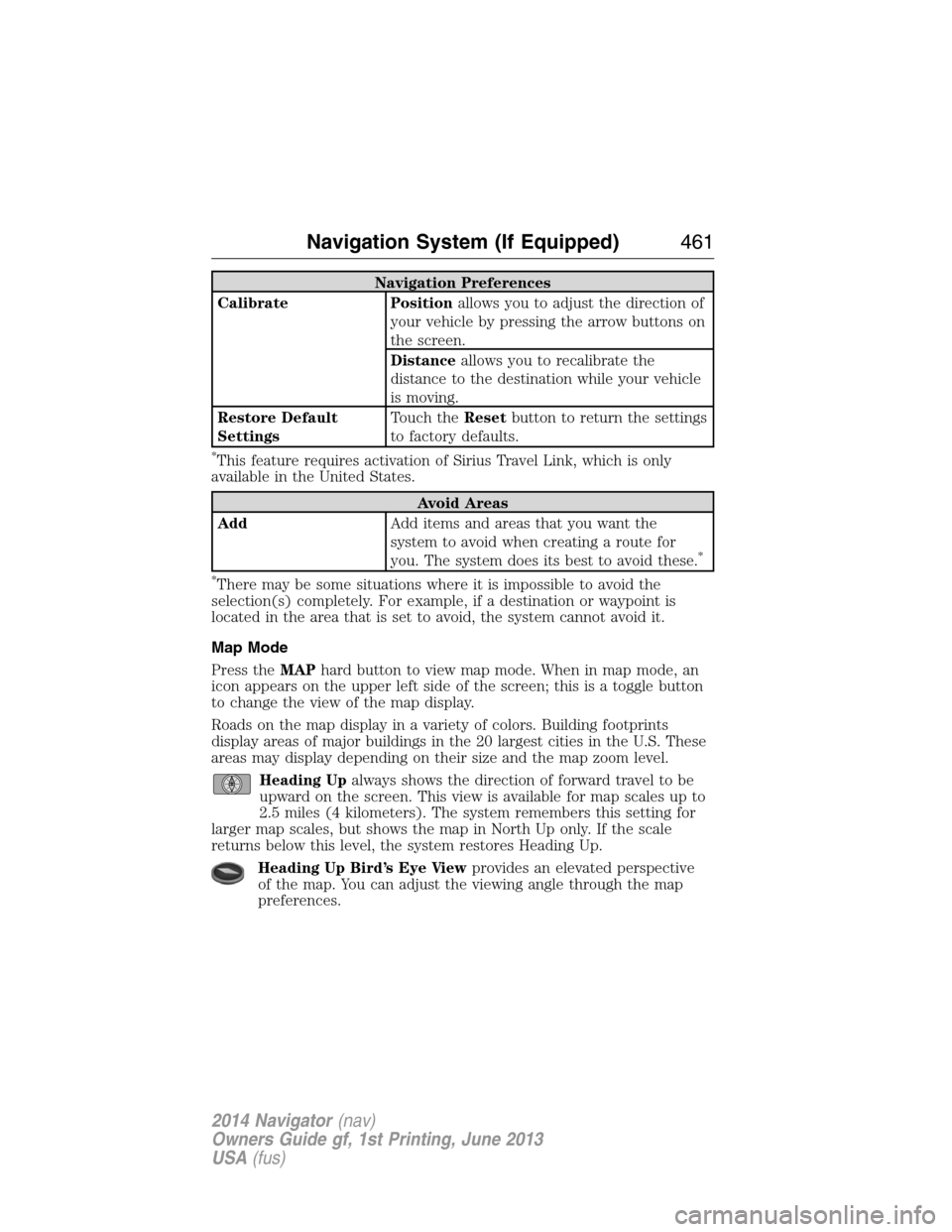
Navigation Preferences
Calibrate Positionallows you to adjust the direction of
your vehicle by pressing the arrow buttons on
the screen.
Distanceallows you to recalibrate the
distance to the destination while your vehicle
is moving.
Restore Default
SettingsTouch theResetbutton to return the settings
to factory defaults.
*This feature requires activation of Sirius Travel Link, which is only
available in the United States.
Avoid Areas
AddAdd items and areas that you want the
system to avoid when creating a route for
you. The system does its best to avoid these.
*
*
There may be some situations where it is impossible to avoid the
selection(s) completely. For example, if a destination or waypoint is
located in the area that is set to avoid, the system cannot avoid it.
Map Mode
Press theMAPhard button to view map mode. When in map mode, an
icon appears on the upper left side of the screen; this is a toggle button
to change the view of the map display.
Roads on the map display in a variety of colors. Building footprints
display areas of major buildings in the 20 largest cities in the U.S. These
areas may display depending on their size and the map zoom level.
Heading Upalways shows the direction of forward travel to be
upward on the screen. This view is available for map scales up to
2.5 miles (4 kilometers). The system remembers this setting for
larger map scales, but shows the map in North Up only. If the scale
returns below this level, the system restores Heading Up.
Heading Up Bird’s Eye Viewprovides an elevated perspective
of the map. You can adjust the viewing angle through the map
preferences.
Navigation System (If Equipped)461
2014 Navigator(nav)
Owners Guide gf, 1st Printing, June 2013
USA(fus)
Page 487 of 506
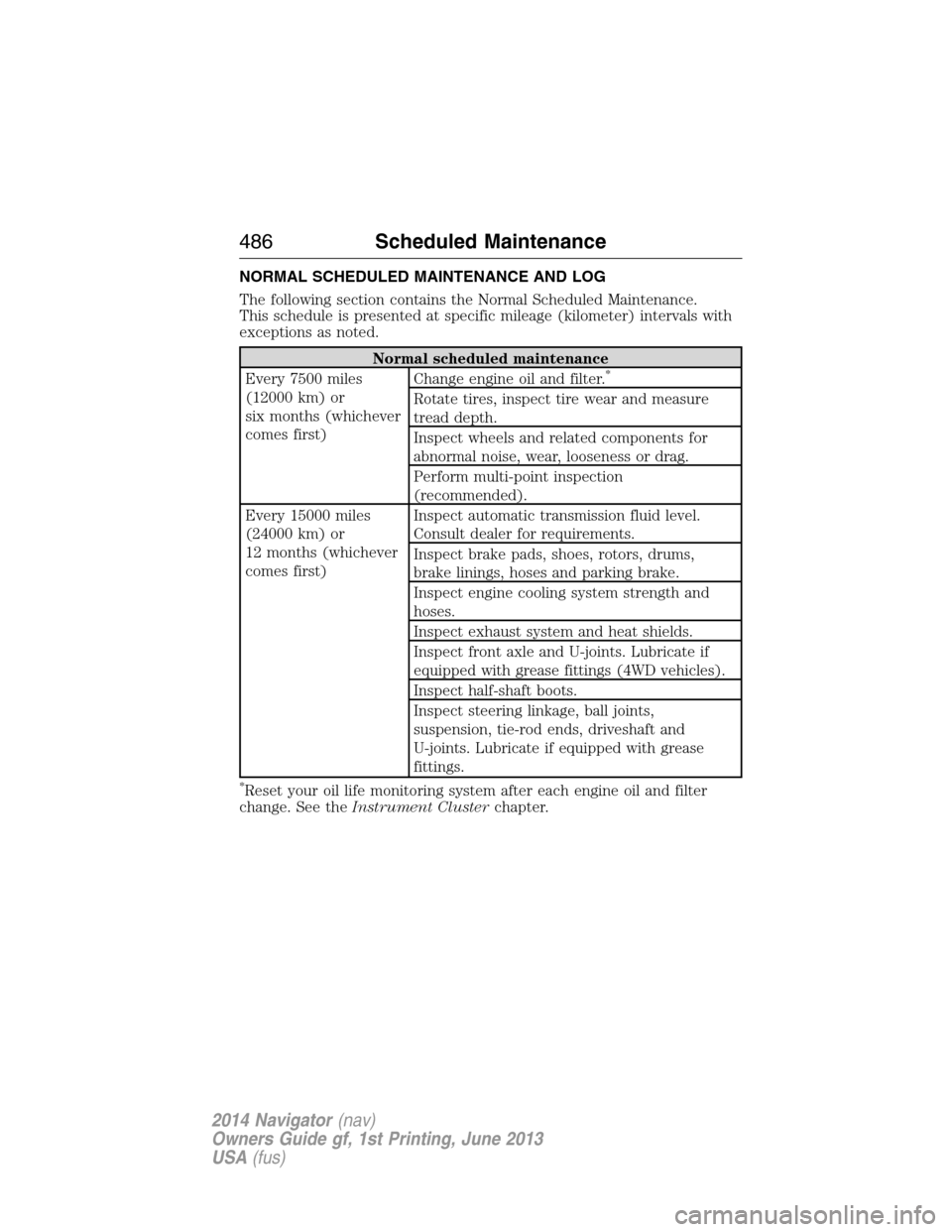
NORMAL SCHEDULED MAINTENANCE AND LOG
The following section contains the Normal Scheduled Maintenance.
This schedule is presented at specific mileage (kilometer) intervals with
exceptions as noted.
Normal scheduled maintenance
Every 7500 miles
(12000 km) or
six months (whichever
comes first)Change engine oil and filter.*
Rotate tires, inspect tire wear and measure
tread depth.
Inspect wheels and related components for
abnormal noise, wear, looseness or drag.
Perform multi-point inspection
(recommended).
Every 15000 miles
(24000 km) or
12 months (whichever
comes first)Inspect automatic transmission fluid level.
Consult dealer for requirements.
Inspect brake pads, shoes, rotors, drums,
brake linings, hoses and parking brake.
Inspect engine cooling system strength and
hoses.
Inspect exhaust system and heat shields.
Inspect front axle and U-joints. Lubricate if
equipped with grease fittings (4WD vehicles).
Inspect half-shaft boots.
Inspect steering linkage, ball joints,
suspension, tie-rod ends, driveshaft and
U-joints. Lubricate if equipped with grease
fittings.
*Reset your oil life monitoring system after each engine oil and filter
change. See theInstrument Clusterchapter.
486Scheduled Maintenance
2014 Navigator(nav)
Owners Guide gf, 1st Printing, June 2013
USA(fus)
Page 492 of 506
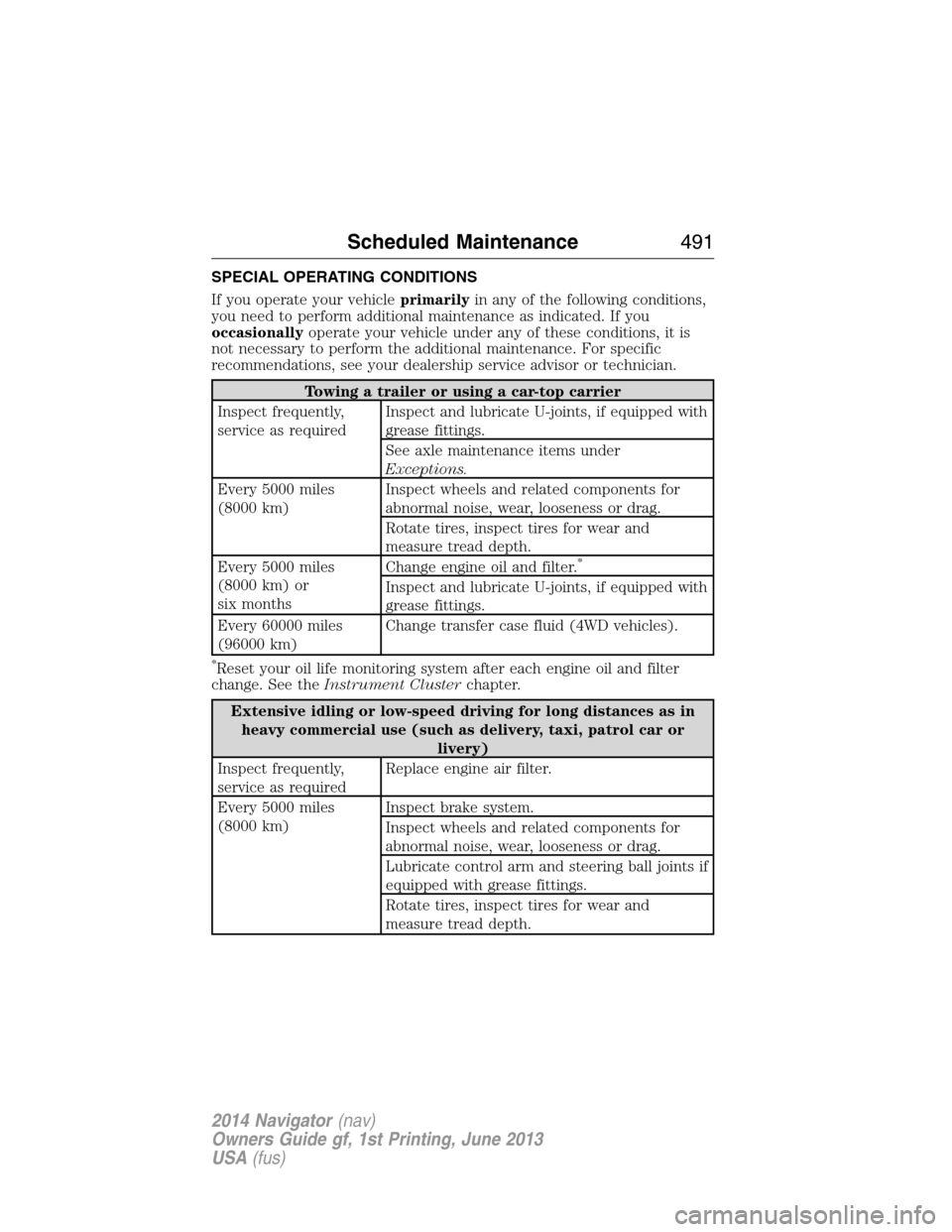
SPECIAL OPERATING CONDITIONS
If you operate your vehicleprimarilyin any of the following conditions,
you need to perform additional maintenance as indicated. If you
occasionallyoperate your vehicle under any of these conditions, it is
not necessary to perform the additional maintenance. For specific
recommendations, see your dealership service advisor or technician.
Towing a trailer or using a car-top carrier
Inspect frequently,
service as requiredInspect and lubricate U-joints, if equipped with
grease fittings.
See axle maintenance items under
Exceptions.
Every 5000 miles
(8000 km)Inspect wheels and related components for
abnormal noise, wear, looseness or drag.
Rotate tires, inspect tires for wear and
measure tread depth.
Every 5000 miles
(8000 km) or
six monthsChange engine oil and filter.
*
Inspect and lubricate U-joints, if equipped with
grease fittings.
Every 60000 miles
(96000 km)Change transfer case fluid (4WD vehicles).
*Reset your oil life monitoring system after each engine oil and filter
change. See theInstrument Clusterchapter.
Extensive idling or low-speed driving for long distances as in
heavy commercial use (such as delivery, taxi, patrol car or
livery)
Inspect frequently,
service as requiredReplace engine air filter.
Every 5000 miles
(8000 km)Inspect brake system.
Inspect wheels and related components for
abnormal noise, wear, looseness or drag.
Lubricate control arm and steering ball joints if
equipped with grease fittings.
Rotate tires, inspect tires for wear and
measure tread depth.
Scheduled Maintenance491
2014 Navigator(nav)
Owners Guide gf, 1st Printing, June 2013
USA(fus)
Page 493 of 506
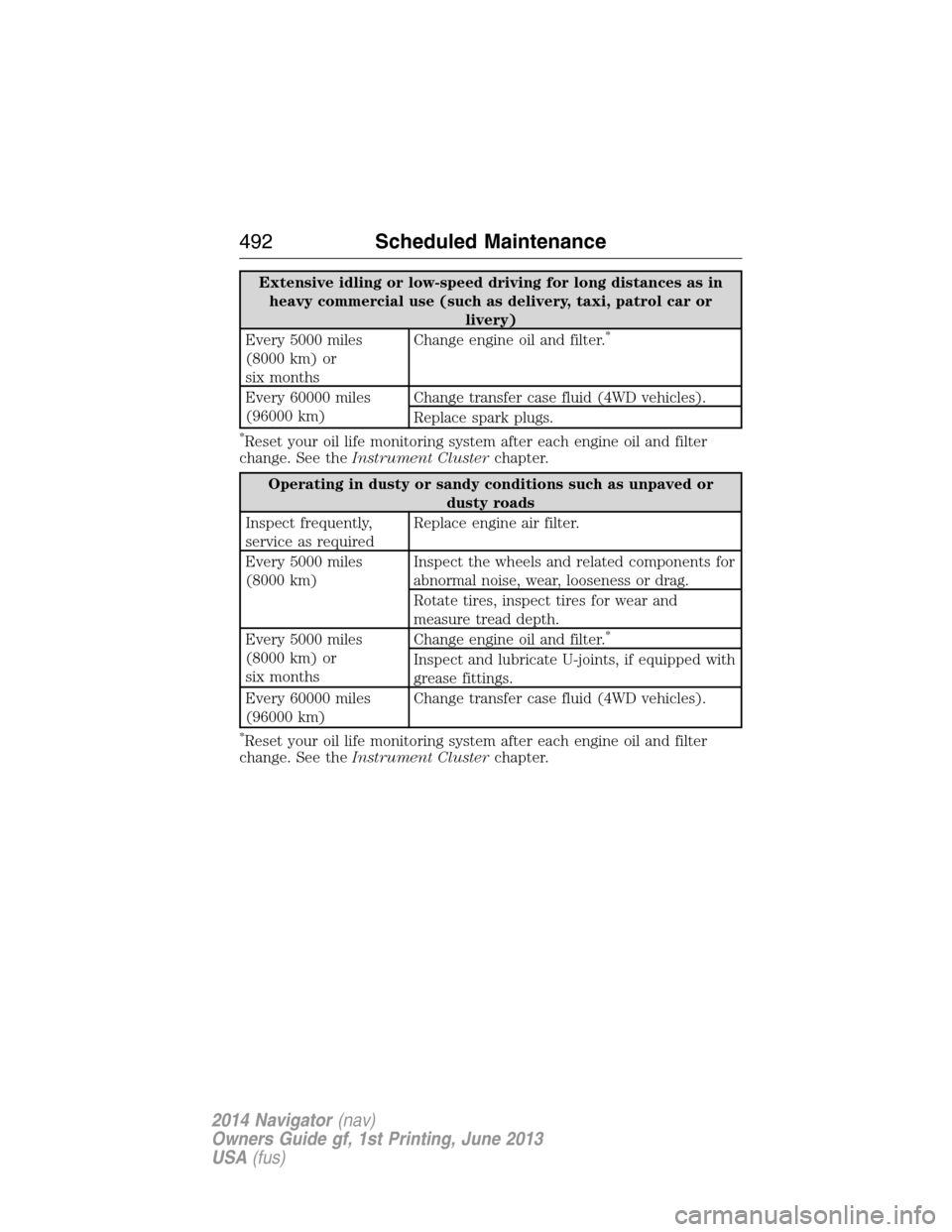
Extensive idling or low-speed driving for long distances as in
heavy commercial use (such as delivery, taxi, patrol car or
livery)
Every 5000 miles
(8000 km) or
six monthsChange engine oil and filter.
*
Every 60000 miles
(96000 km)Change transfer case fluid (4WD vehicles).
Replace spark plugs.
*Reset your oil life monitoring system after each engine oil and filter
change. See theInstrument Clusterchapter.
Operating in dusty or sandy conditions such as unpaved or
dusty roads
Inspect frequently,
service as requiredReplace engine air filter.
Every 5000 miles
(8000 km)Inspect the wheels and related components for
abnormal noise, wear, looseness or drag.
Rotate tires, inspect tires for wear and
measure tread depth.
Every 5000 miles
(8000 km) or
six monthsChange engine oil and filter.
*
Inspect and lubricate U-joints, if equipped with
grease fittings.
Every 60000 miles
(96000 km)Change transfer case fluid (4WD vehicles).
*Reset your oil life monitoring system after each engine oil and filter
change. See theInstrument Clusterchapter.
492Scheduled Maintenance
2014 Navigator(nav)
Owners Guide gf, 1st Printing, June 2013
USA(fus)