sat nav LINCOLN NAVIGATOR 2014 Owner's Manual
[x] Cancel search | Manufacturer: LINCOLN, Model Year: 2014, Model line: NAVIGATOR, Model: LINCOLN NAVIGATOR 2014Pages: 506, PDF Size: 5.72 MB
Page 342 of 506
Sirius satellite radio is a
subscription-based satellite radio
service that broadcasts a variety of
music, sports, news, weather, traffic
and entertainment programming.
Your factory-installed Sirius satellite
radio system includes hardware and
a limited subscription term which begins on the date of sale or lease of
your vehicle. See an authorized dealer for availability.
For more information on extended subscription terms (a service fee is
required), the online media player and a complete list of Sirius satellite
radio channels, and other features, please visit www.siriusxm.com in the
United States, www.sirius.ca in Canada, or call Sirius at 1–888–539–7474.
Satellite Radio Electronic Serial Number (ESN)
You need your ESN to activate, modify or track your satellite radio
account. When in satellite radio mode, you can view this number by
pressingSIRIUSand memory preset 1 at the same time. To access your
ESN, press the bottom left corner of the touchscreen, thenSIRIUS>
Options.
Troubleshooting
Radio display Condition Possible action
Acquiring Radio requires more
than two seconds to
produce audio for the
selected channel.No action required.
This message should
disappear shortly.
Sat Fault/SIRIUS
system failureThere is an internal
module or system
failure present.If this message does
not clear shortly, or
with an ignition key
cycle, your receiver
may have a fault.
See an authorized
dealer for service.
Invalid Channel The channel is no
longer available.Tune to another
channel or choose
another preset.
Audio System341
2014 Navigator(nav)
Owners Guide gf, 1st Printing, June 2013
USA(fus)
Page 343 of 506
Radio display Condition Possible action
Unsubscribed Channel Your subscription does
not include this
channel.Contact Sirius at
1–888–539–7474 to
subscribe to the
channel, or tune to
another channel.
No Signal The signal is lost from
the Sirius satellite or
Sirius tower to your
vehicle antenna.The signal is blocked.
When you move into
an open area, the
signal should return.
Updating Update of channel
programming in
progress.No action required.
The process may take
up to three minutes.
Call SIRIUS
1–888–539–7474Your satellite service is
no longer available.Call Sirius at
1–888–539–7474 to
resolve subscription
issues.
None Found. Check
Channel Guide.All the channels in the
selected category are
either skipped or
locked.Use the channel guide
to turn off the Lock or
Skip function on that
station.
Subscription Updated Sirius has updated the
channels available for
your vehicle.No action required.
AUXILIARY INPUT JACK
WARNING:Driving while distracted can result in loss of vehicle
control, crash and injury. We strongly recommend that you use
extreme caution when using any device that may take your focus off
the road. Your primary responsibility is the safe operation of your
vehicle. We recommend against the use of any hand-held device while
driving and encourage the use of voice-operated systems when possible.
Make sure you are aware of all applicable local laws that may affect the
use of electronic devices while driving.
342Audio System
2014 Navigator(nav)
Owners Guide gf, 1st Printing, June 2013
USA(fus)
Page 353 of 506
25.PIX:Press this button to access settings for BRIGHTNESS, CONTRAST,
SATURATION, HUE, SHARPNESS, IR HEADPHONE, and RESET. When
you find the desired setting, useCH +andCH -to change the setting.
The bar display automatically disappears if no changes are made within
six seconds, or if any button is pressed.
26.REPEAT:Press this button to switch the repeat mode by ALL, TITLE,
CHAPTER and cancel the repeat mode while playing DVD-video. Other
disc types such as VCD, CD, and SVCD only have two repeat modes
that you can select: TRACK and ALL.Note:Both repeat functions of
VCD and SVCD need the PBC status set to ON, when available.
27.AUDIO:Press this button if a disc has different language options. Press
this button repeatedly until you reach your desired option.
28.ANGLE:Press this button to view with a different camera angle. Press
this button repeatedly until you have reached your desired viewing
angle. This feature is only available on DVDs that support frames with
multiple angles.
29.DISPLAY:Press this button display information on the screen including
title, chapter or track, time elapsed and time remaining. You can also
press this button to turn off the display.
30.RANDOM:Press this button to play titles in a random order
31.INT:Press this button to play each audio file for 10 seconds as a review
or scan.
32.NEXT:When a disc has more than one chapter, track or file, press this
button to move to the next chapter, track or file. Press the button
briefly during play to select the next chapter for DVD-video or track
and file for media such as VCD, SVCD, MP3 and CD.
33.PREV:When a disc has more than one chapter, track or file, press this
button to move to the previous chapter, track or file. Press the button
briefly during play to select the next chapter for DVD-video or track
and file for media such as VCD, SVCD, MP3 and CD.
*If available
Turning the Device On and Off
1. Pivot the screen downward until you reach a comfortable viewing
angle.
2. PressPOWERon the lower-left corner of the front panel or on the
remote control. The controls illuminate when the system is in use.
3. When the device is on and is displaying a picture, pivot the screen to
change the viewing angle to optimize the picture quality.
4. Remember to turn the device off and pivot the LCD panel to the
locked position when not in use.
352Audio System
2014 Navigator(nav)
Owners Guide gf, 1st Printing, June 2013
USA(fus)
Page 356 of 506
The Speaker Setup menu has the following options:
•LT/RT
•Stereo
•V SURR
•OFF
The Dolby Digital Setup menu has the following options:
•Stereo
•L-Mono
•R-Mono
•Mix-Mono
Quality Setup
PressSETUPon the remote control, and then useCH +, CH -, VOL +
andVOL -to navigate the Setup Page. PressENTERto make a
selection, and thenVOL -to return to the submenu.
Video Quality Setup
PressSETUPon the remote control and then pressVOL +to navigate
to the Video Setup Page. PressENTERtwice to enter the submenu. Use
CH +, CH -, VOL +andVOL -to navigate the submenus. PressENTER
orVOL +to select an item, and thenVOL +andVOL -to see the
selection items. PressENTERto make a selection, and thenVOL -to
return to the submenu.
Video Quality
You can adjust the following features:
•SHARPNESSsoftens or sharpens the picture. You can select Low,
Med. or High.
•BRIGHTNESSbrightens or darkens the picture. The setting ranges
from -20 to +20.
•CONTRASTallows you to increase or decrease the picture contrast.
The setting ranges from -16 to +16.
•HUEallows you to increase or decrease the color hue. The setting
ranges from -9 to +9.
•SATURATIONallows you to increase or decrease the color intensity.
The setting ranges from -9 to +9.
How to Use the Device On-screen Display Menus
PressSETUPon the remote control, and then useCH +, CH -, VOL +
andVOL -to navigate the Setup Page. PressENTERto make a
selection, and thenVOL -to return to the submenu.
Audio
This allows the user to control the audio stream in the selected language
for playback automatically.
Audio System355
2014 Navigator(nav)
Owners Guide gf, 1st Printing, June 2013
USA(fus)
Page 361 of 506
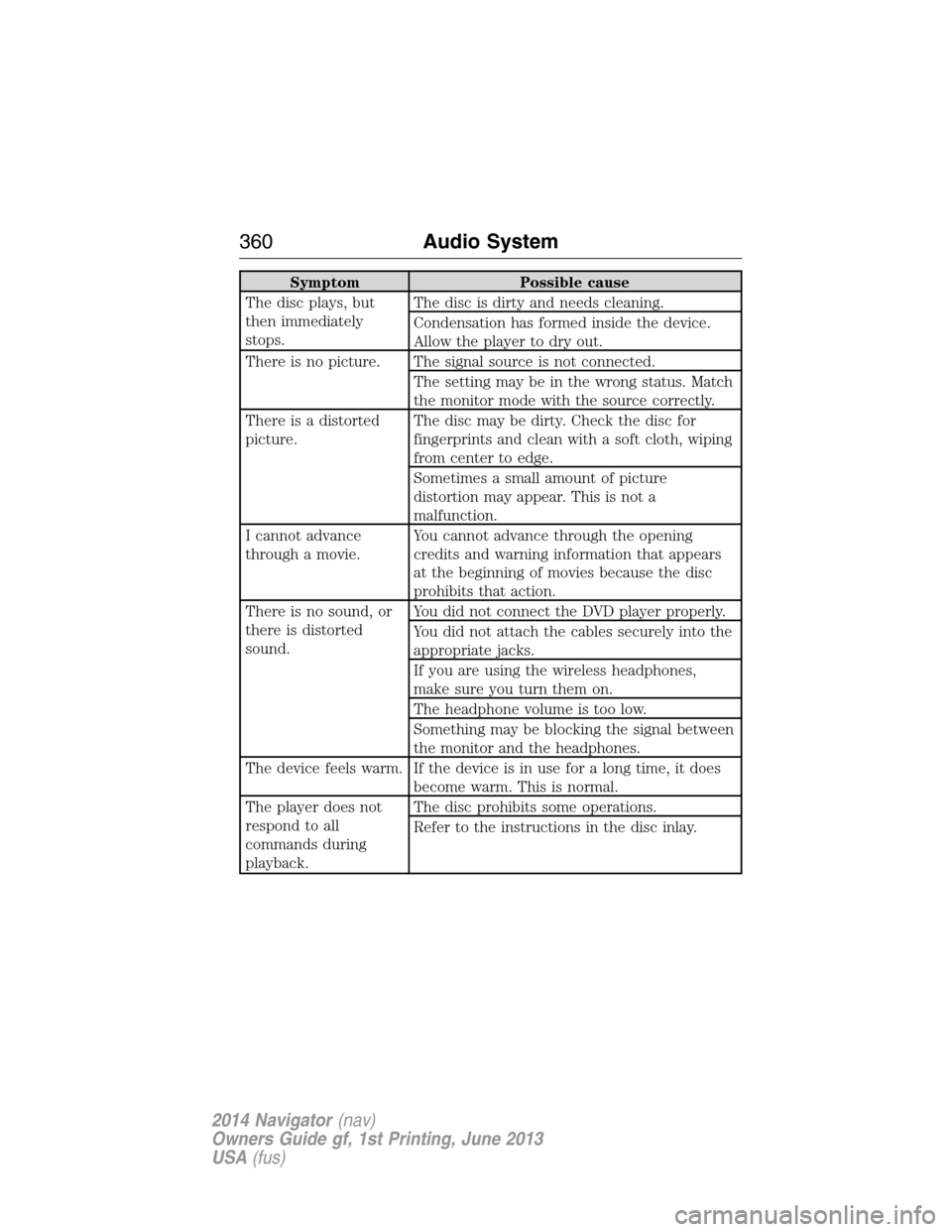
Symptom Possible cause
The disc plays, but
then immediately
stops.The disc is dirty and needs cleaning.
Condensation has formed inside the device.
Allow the player to dry out.
There is no picture. The signal source is not connected.
The setting may be in the wrong status. Match
the monitor mode with the source correctly.
There is a distorted
picture.The disc may be dirty. Check the disc for
fingerprints and clean with a soft cloth, wiping
from center to edge.
Sometimes a small amount of picture
distortion may appear. This is not a
malfunction.
I cannot advance
through a movie.You cannot advance through the opening
credits and warning information that appears
at the beginning of movies because the disc
prohibits that action.
There is no sound, or
there is distorted
sound.You did not connect the DVD player properly.
You did not attach the cables securely into the
appropriate jacks.
If you are using the wireless headphones,
make sure you turn them on.
The headphone volume is too low.
Something may be blocking the signal between
the monitor and the headphones.
The device feels warm. If the device is in use for a long time, it does
become warm. This is normal.
The player does not
respond to all
commands during
playback.The disc prohibits some operations.
Refer to the instructions in the disc inlay.
360Audio System
2014 Navigator(nav)
Owners Guide gf, 1st Printing, June 2013
USA(fus)
Page 366 of 506
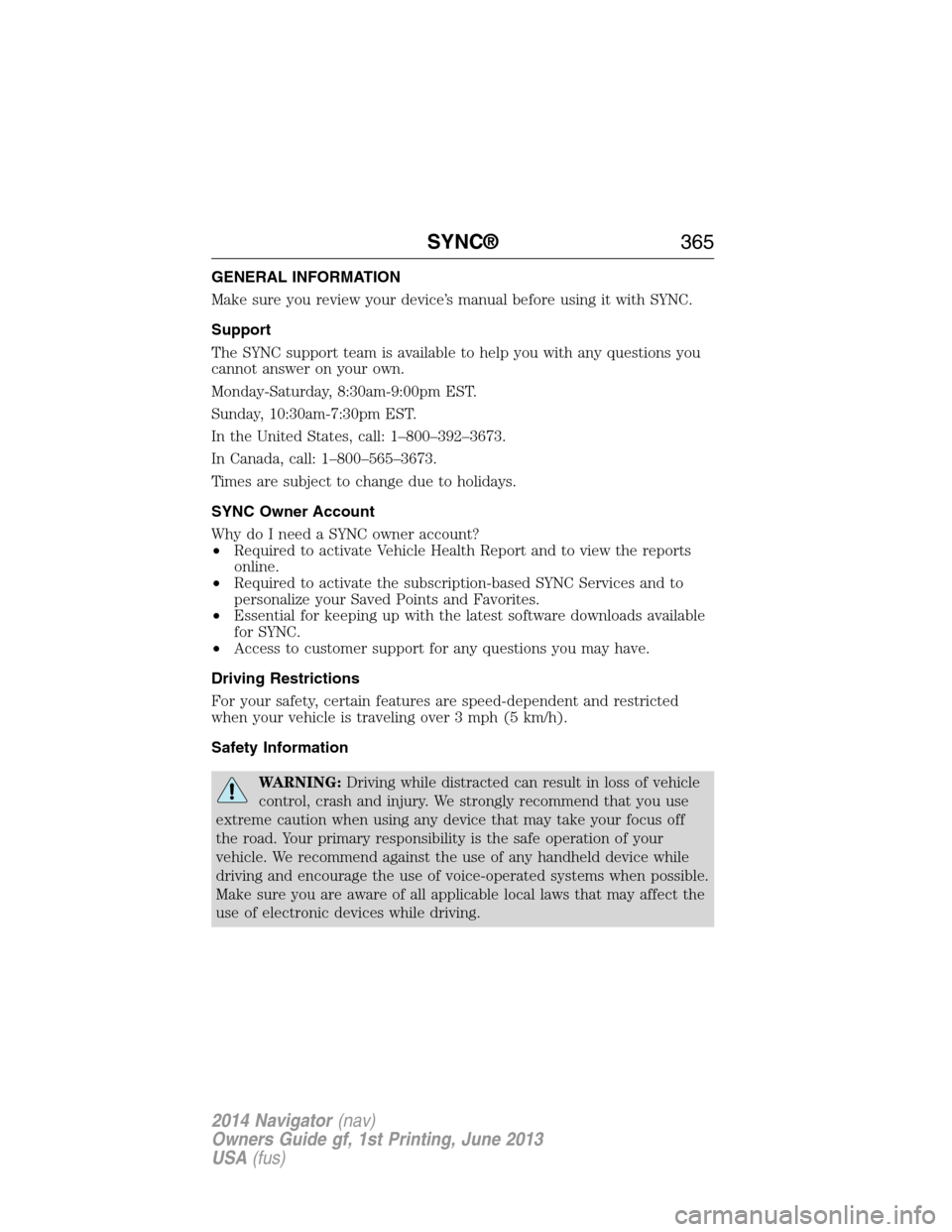
GENERAL INFORMATION
Make sure you review your device’s manual before using it with SYNC.
Support
The SYNC support team is available to help you with any questions you
cannot answer on your own.
Monday-Saturday, 8:30am-9:00pm EST.
Sunday, 10:30am-7:30pm EST.
In the United States, call: 1–800–392–3673.
In Canada, call: 1–800–565–3673.
Times are subject to change due to holidays.
SYNC Owner Account
Why do I need a SYNC owner account?
•Required to activate Vehicle Health Report and to view the reports
online.
•Required to activate the subscription-based SYNC Services and to
personalize your Saved Points and Favorites.
•Essential for keeping up with the latest software downloads available
for SYNC.
•Access to customer support for any questions you may have.
Driving Restrictions
For your safety, certain features are speed-dependent and restricted
when your vehicle is traveling over 3 mph (5 km/h).
Safety Information
WARNING:Driving while distracted can result in loss of vehicle
control, crash and injury. We strongly recommend that you use
extreme caution when using any device that may take your focus off
the road. Your primary responsibility is the safe operation of your
vehicle. We recommend against the use of any handheld device while
driving and encourage the use of voice-operated systems when possible.
Make sure you are aware of all applicable local laws that may affect the
use of electronic devices while driving.
SYNC®365
2014 Navigator(nav)
Owners Guide gf, 1st Printing, June 2013
USA(fus)
Page 374 of 506
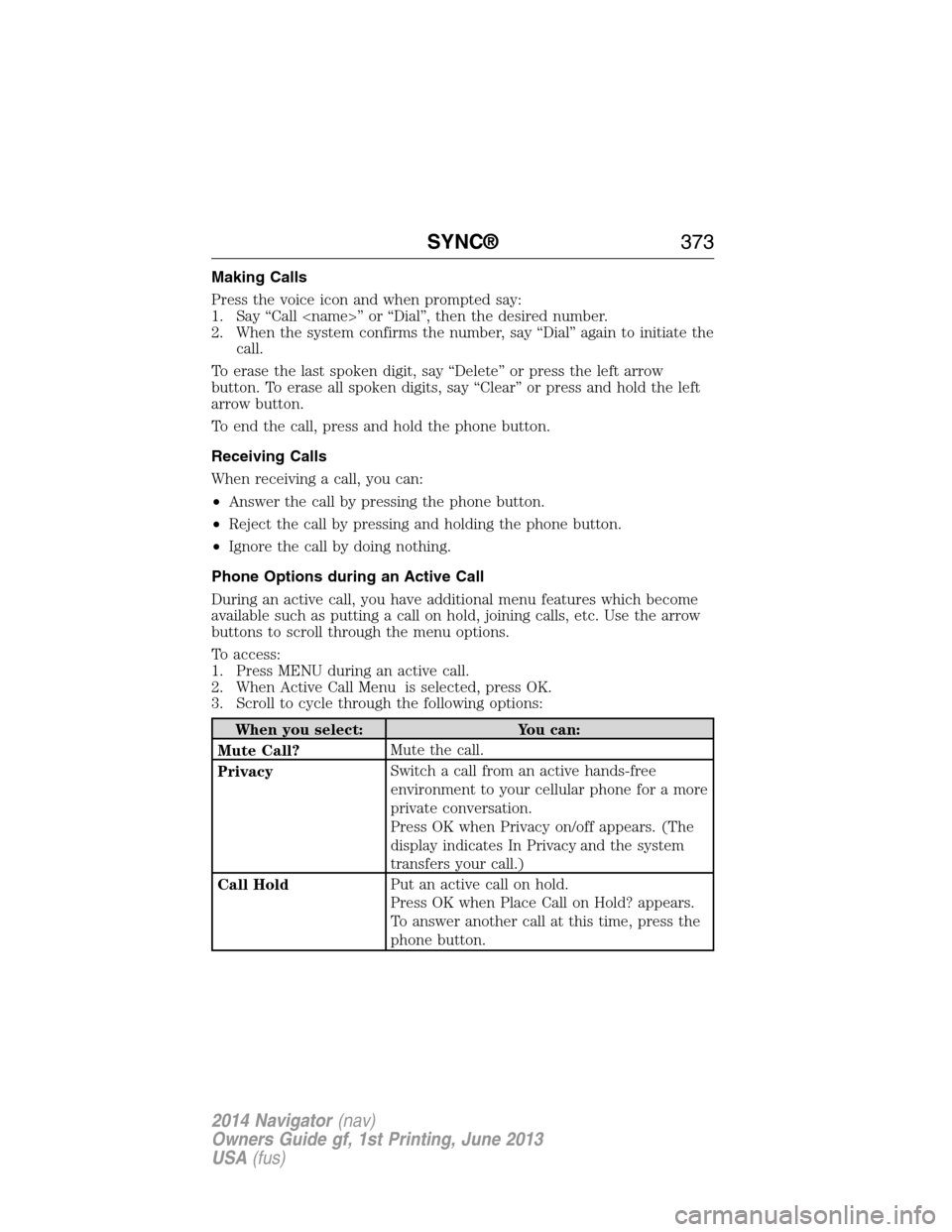
Making Calls
Press the voice icon and when prompted say:
1. Say “Call
2. When the system confirms the number, say “Dial” again to initiate the
call.
To erase the last spoken digit, say “Delete” or press the left arrow
button. To erase all spoken digits, say “Clear” or press and hold the left
arrow button.
To end the call, press and hold the phone button.
Receiving Calls
When receiving a call, you can:
•Answer the call by pressing the phone button.
•Reject the call by pressing and holding the phone button.
•Ignore the call by doing nothing.
Phone Options during an Active Call
During an active call, you have additional menu features which become
available such as putting a call on hold, joining calls, etc. Use the arrow
buttons to scroll through the menu options.
To access:
1. Press MENU during an active call.
2. When Active Call Menu is selected, press OK.
3. Scroll to cycle through the following options:
When you select: You can:
Mute Call?Mute the call.
PrivacySwitch a call from an active hands-free
environment to your cellular phone for a more
private conversation.
Press OK when Privacy on/off appears. (The
display indicates In Privacy and the system
transfers your call.)
Call HoldPut an active call on hold.
Press OK when Place Call on Hold? appears.
To answer another call at this time, press the
phone button.
SYNC®373
2014 Navigator(nav)
Owners Guide gf, 1st Printing, June 2013
USA(fus)
Page 413 of 506
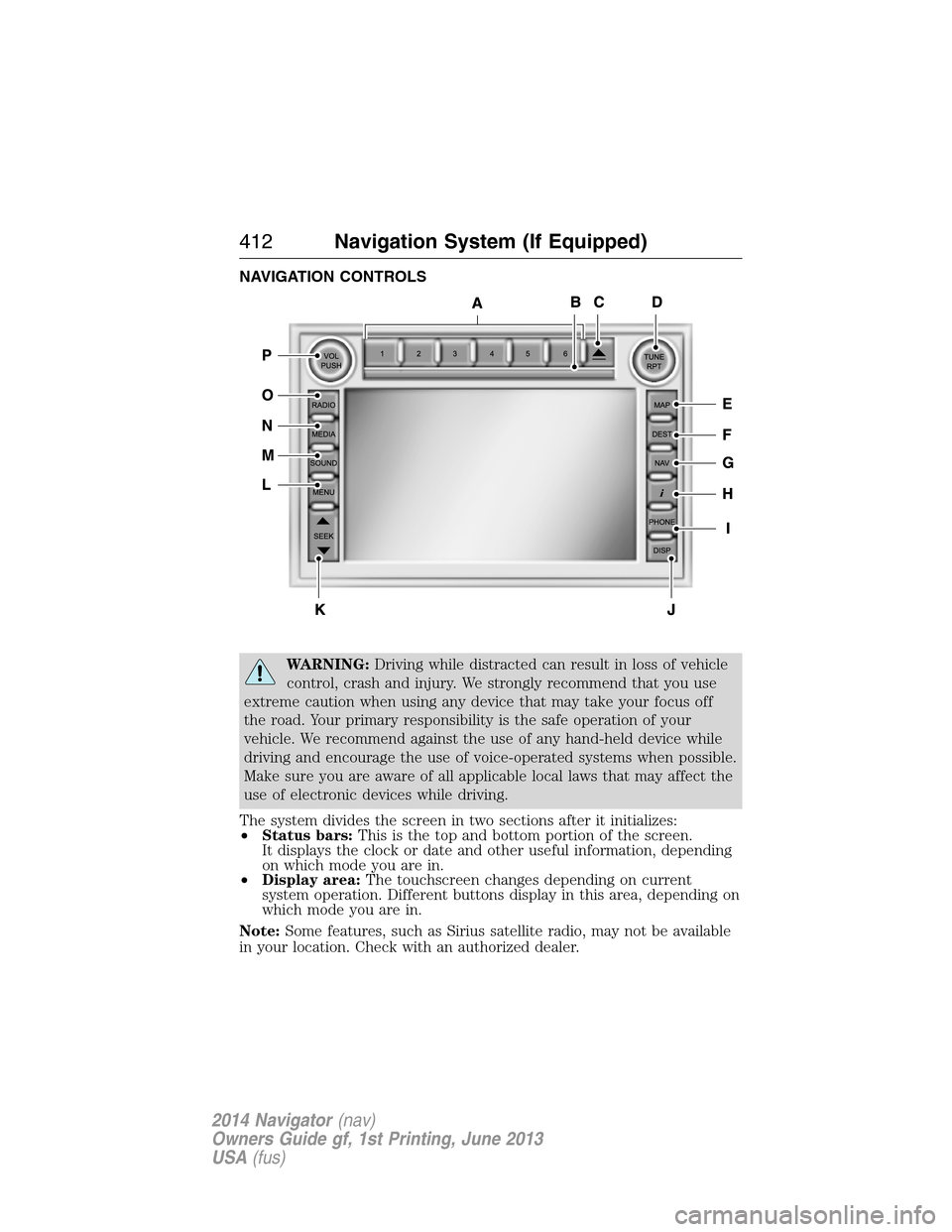
NAVIGATION CONTROLS
WARNING:Driving while distracted can result in loss of vehicle
control, crash and injury. We strongly recommend that you use
extreme caution when using any device that may take your focus off
the road. Your primary responsibility is the safe operation of your
vehicle. We recommend against the use of any hand-held device while
driving and encourage the use of voice-operated systems when possible.
Make sure you are aware of all applicable local laws that may affect the
use of electronic devices while driving.
The system divides the screen in two sections after it initializes:
•Status bars:This is the top and bottom portion of the screen.
It displays the clock or date and other useful information, depending
on which mode you are in.
•Display area:The touchscreen changes depending on current
system operation. Different buttons display in this area, depending on
which mode you are in.
Note:Some features, such as Sirius satellite radio, may not be available
in your location. Check with an authorized dealer.
412Navigation System (If Equipped)
2014 Navigator(nav)
Owners Guide gf, 1st Printing, June 2013
USA(fus)
Page 414 of 506
A.Memory presets:
•Store your favorite radio stations. To store a radio station, tune to the
station, then press and hold a preset button until sound returns.
•In radio and satellite radio mode, press a button to access your saved
presets or channels.
B.CD and DVD slot:Insert a CD or DVD, label side up.
C.Eject:Press this button to eject a CD or DVD from the system.
D.TUNE RPT:
•In radio or satellite radio mode, turn the control to advance in
individual increments up or down the frequency band to the desired
station.
•In MP3 mode, turn the control to advance to the next or previous
folder.
•In navigation mode, press this button to hear the last spoken
navigation guidance prompt.
E.MAP:
•Press this button to access the navigation map.
•Press while the map display is active to center the map on the
current vehicle position. Press while the map display and route are
active to see the different map guidance views.
F.DEST:
•Press this button to access the destination entry menu.
•Press while the destination entry menu is active to show additional
destination entry techniques.
G.N AV:
•Press this button to access the navigation menu.
•Press while the navigation menu is active to access the navigation
menu tabs.
H.I (Information):Press this button to access features such as Where
am I?, Sirius Travel Link, Calendar, System Info and Help.
I.PHONE:Press this button to access the SYNC phone menu.
J.DISP:Press this button to select a display mode: On, Status Bar Only,
and Off.
K.SEEK:
•In radio and satellite radio mode, press the arrow buttons to find
previous or next available stations or channels within the currently
selected Category or Genre.
•In CD and DVD modes, press the arrow buttons to select the previous
or next track or chapter.
Navigation System (If Equipped)413
2014 Navigator(nav)
Owners Guide gf, 1st Printing, June 2013
USA(fus)
Page 415 of 506
L.MENU:
•Press this button to access the system menu.
•Press while the system menu is active to access the menu tabs of
Display, Clock, Feedback Settings, System Settings and Valet Mode.
M.SOUND:
•Press this button to access the sound menu.
•Press while the sound menu is active to access the menu tabs of
Bass/Treble, Balance/Fade, SCV (Speed Compensated Volume), DSP
(Digital Signal Processing) and Visualizer.
N.MEDIA:
•Press this button to access the media menu.
•Press while the media menu is active to access the available sources
of CD/DVD, Jukebox and User Device.
O.RADIO:
•Press this button to access the radio menu.
•Press while the radio menu is active to access the available sources of
AM, FM1, FM2, SAT1, SAT2, and SAT3.
P.VOL:Press and hold this button to turn the system off and on. Turn
the control to adjust the volume.
Note:If a navigation route is active when the navigation system is off,
the system resumes the route when you turn the system on.
DISPLAY MODE
You can choose to turn your screen on or off and if you would like to
view the status bars on the top and bottom of the screen. Press DISP to
see the options.
Display Mode Voice Commands
The following voice commands are available in display mode.
If you are not in display mode, press the voice button on the
steering wheel. When prompted, say “Display mode” and then
any of the following commands.
Display mode voice commands
“Display on”
“Display off”
“Status bar”
“Brighter”
“Dimmer”
“Day”
414Navigation System (If Equipped)
2014 Navigator(nav)
Owners Guide gf, 1st Printing, June 2013
USA(fus)