buttons LINCOLN NAVIGATOR 2014 Owner's Guide
[x] Cancel search | Manufacturer: LINCOLN, Model Year: 2014, Model line: NAVIGATOR, Model: LINCOLN NAVIGATOR 2014Pages: 506, PDF Size: 5.72 MB
Page 462 of 506
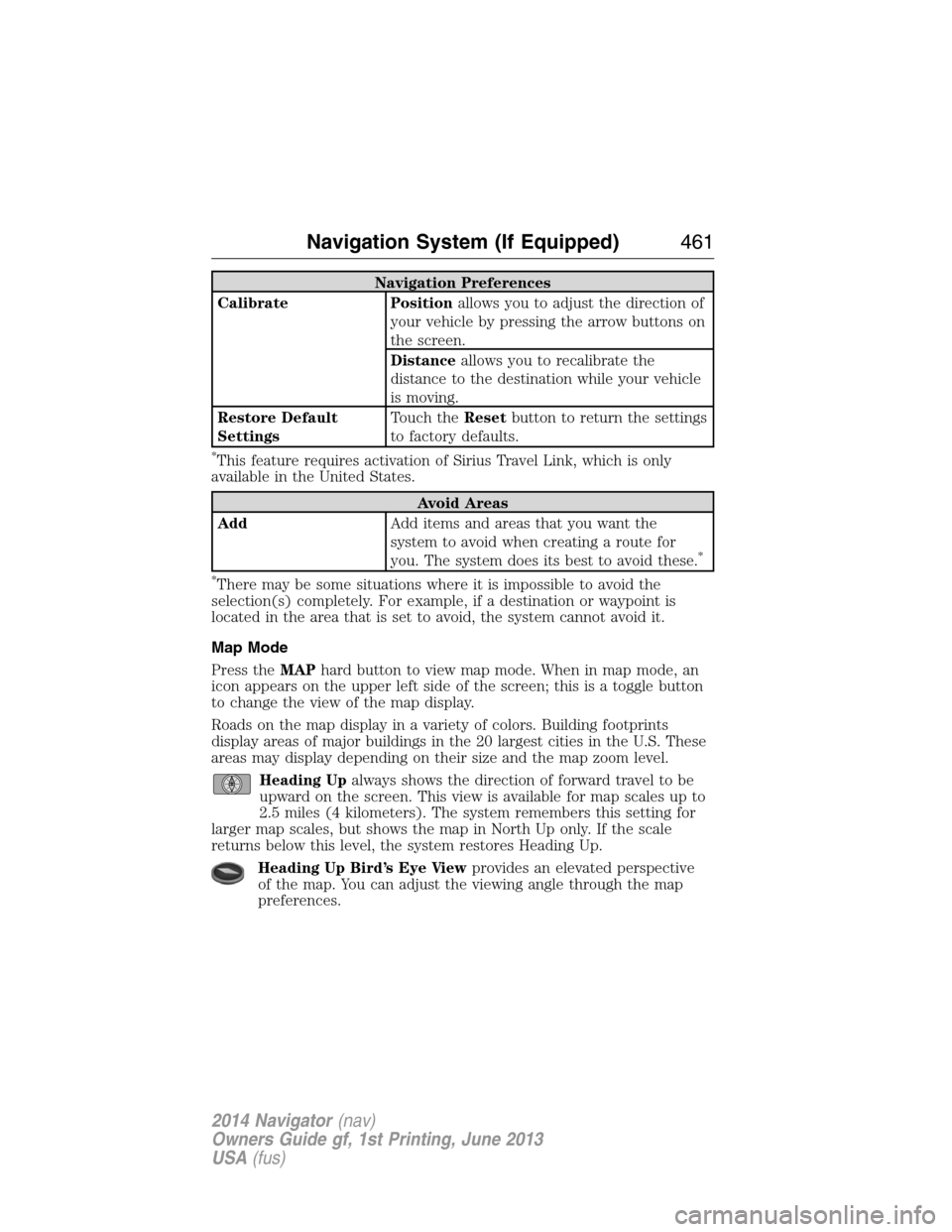
Navigation Preferences
Calibrate Positionallows you to adjust the direction of
your vehicle by pressing the arrow buttons on
the screen.
Distanceallows you to recalibrate the
distance to the destination while your vehicle
is moving.
Restore Default
SettingsTouch theResetbutton to return the settings
to factory defaults.
*This feature requires activation of Sirius Travel Link, which is only
available in the United States.
Avoid Areas
AddAdd items and areas that you want the
system to avoid when creating a route for
you. The system does its best to avoid these.
*
*
There may be some situations where it is impossible to avoid the
selection(s) completely. For example, if a destination or waypoint is
located in the area that is set to avoid, the system cannot avoid it.
Map Mode
Press theMAPhard button to view map mode. When in map mode, an
icon appears on the upper left side of the screen; this is a toggle button
to change the view of the map display.
Roads on the map display in a variety of colors. Building footprints
display areas of major buildings in the 20 largest cities in the U.S. These
areas may display depending on their size and the map zoom level.
Heading Upalways shows the direction of forward travel to be
upward on the screen. This view is available for map scales up to
2.5 miles (4 kilometers). The system remembers this setting for
larger map scales, but shows the map in North Up only. If the scale
returns below this level, the system restores Heading Up.
Heading Up Bird’s Eye Viewprovides an elevated perspective
of the map. You can adjust the viewing angle through the map
preferences.
Navigation System (If Equipped)461
2014 Navigator(nav)
Owners Guide gf, 1st Printing, June 2013
USA(fus)
Page 464 of 506
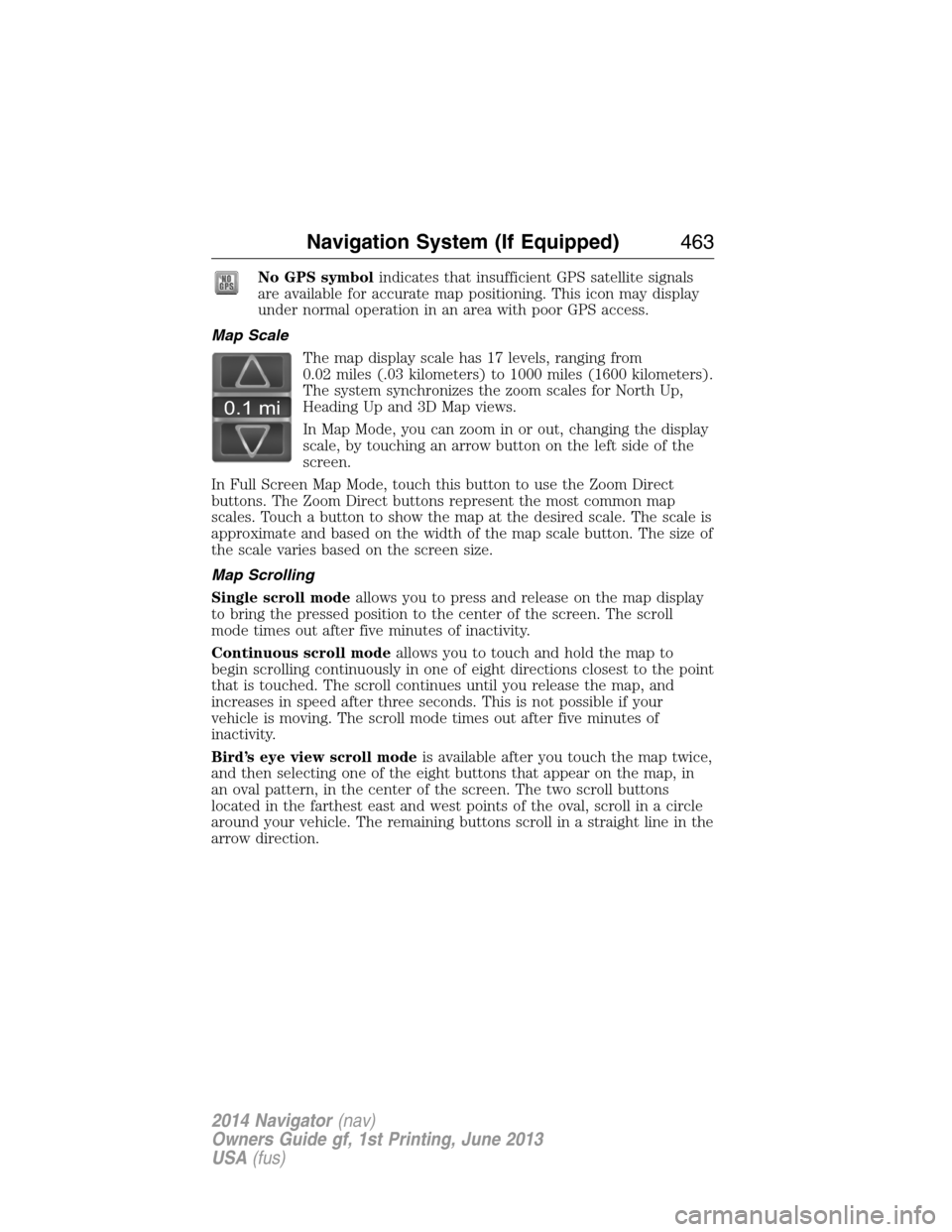
No GPS symbolindicates that insufficient GPS satellite signals
are available for accurate map positioning. This icon may display
under normal operation in an area with poor GPS access.
Map Scale
The map display scale has 17 levels, ranging from
0.02 miles (.03 kilometers) to 1000 miles (1600 kilometers).
The system synchronizes the zoom scales for North Up,
Heading Up and 3D Map views.
In Map Mode, you can zoom in or out, changing the display
scale, by touching an arrow button on the left side of the
screen.
In Full Screen Map Mode, touch this button to use the Zoom Direct
buttons. The Zoom Direct buttons represent the most common map
scales. Touch a button to show the map at the desired scale. The scale is
approximate and based on the width of the map scale button. The size of
the scale varies based on the screen size.
Map Scrolling
Single scroll modeallows you to press and release on the map display
to bring the pressed position to the center of the screen. The scroll
mode times out after five minutes of inactivity.
Continuous scroll modeallows you to touch and hold the map to
begin scrolling continuously in one of eight directions closest to the point
that is touched. The scroll continues until you release the map, and
increases in speed after three seconds. This is not possible if your
vehicle is moving. The scroll mode times out after five minutes of
inactivity.
Bird’s eye view scroll modeis available after you touch the map twice,
and then selecting one of the eight buttons that appear on the map, in
an oval pattern, in the center of the screen. The two scroll buttons
located in the farthest east and west points of the oval, scroll in a circle
around your vehicle. The remaining buttons scroll in a straight line in the
arrow direction.
0.1 mi
Navigation System (If Equipped)463
2014 Navigator(nav)
Owners Guide gf, 1st Printing, June 2013
USA(fus)
Page 465 of 506
Quick-touch Buttons
When in map mode, touch anywhere on the map display to access the
following options:
When you select: You can:
Set as DestSelect a scrolled location on the map as your
destination. You may scroll the map by
pressing your index finger on the map display.
When you reach the desired location, simply
let go and then press Set as Dest.
Set as WaypointSet the current location as a waypoint.
Save to Address
BookSave the current location to the address book.
POI Icons On/OffSelect point of interest icons to display on the
map. You can select up to three icons to
display on the map at the same time.
View TrafficAdjust the map display to the right scale.
This scale allows the entire route to be visible
in the screen.
View/Edit RouteAccess these features when a route is active:
Cancel route.
Edit route preferences.
Edit destination/waypoints.
View route.
Edit traffic preferences.
*
Edit turn list.
*This feature requires activation of Sirius Travel Link, which is only
available in the United States.
Navteq is the digital map provider for the navigation application. If you
find map data errors, you may report them directly to Navteq by going to
http://mapreporter.navteq.com. Navteq evaluates all reported map errors
and responds with the result of their investigation by e-mail.
464Navigation System (If Equipped)
2014 Navigator(nav)
Owners Guide gf, 1st Printing, June 2013
USA(fus)
Page 503 of 506
M
MAP DVD - Loading and
Unloading ..................................353
Map icons ..................................462
Map mode ..................................461
Map updates ..............................465
Master lighting switch ................89
Media Bluetooth menu options
(adding, connecting, deleting,
turning on/off) ..........................401
Message center .........................109
warning messages ...................115
Mirrors ...................................95, 98
programmable memory ............60
side view mirrors (power) .......95
signal ...................................96–97
Moon roof ..................................100
Motorcraft® parts .............278, 324
MyKey ..........................................62
N
Navigation end user license
agreement ..................................475
Navigation features ...................448
O
Octane rating ............................167
P
Pairing other phones ................370
Pairing your phone for the first
time ............................................370Parental MyKey programming ...62
Parking brake ............................191
Parts (see Motorcraft®
parts) .........................................324
Phone Bluetooth menu options
(adding, connecting, deleting,
turning on/off) ..........................381
Phone redial ..............................375
Playing a DVD in the system ...353
Playing music (by artist,
album, genre, playlist, tracks,
similar) ......................................398
POI categories ...........................456
Point of Interest (POI) .............456
Power deployable running
boards ........................................214
Power distribution box
(see Fuses) .......................247, 251
Power door locks ........................69
Power liftgate ..............................73
Power mirrors .............................95
Powerpoint ................................155
Power steering ..........................203
fluid, checking and adding ....264
fluid, refill capacity ................320
fluid, specifications .................320
Power Windows ...........................94
Privacy information ..................366
Putting a call on/off hold .........373
Q
Quick touch buttons .................464
502Index
2014 Navigator(nav)
Owners Guide gf, 1st Printing, June 2013
USA(fus)