mirror LINCOLN NAVIGATOR 2015 User Guide
[x] Cancel search | Manufacturer: LINCOLN, Model Year: 2015, Model line: NAVIGATOR, Model: LINCOLN NAVIGATOR 2015Pages: 475, PDF Size: 5.13 MB
Page 100 of 475
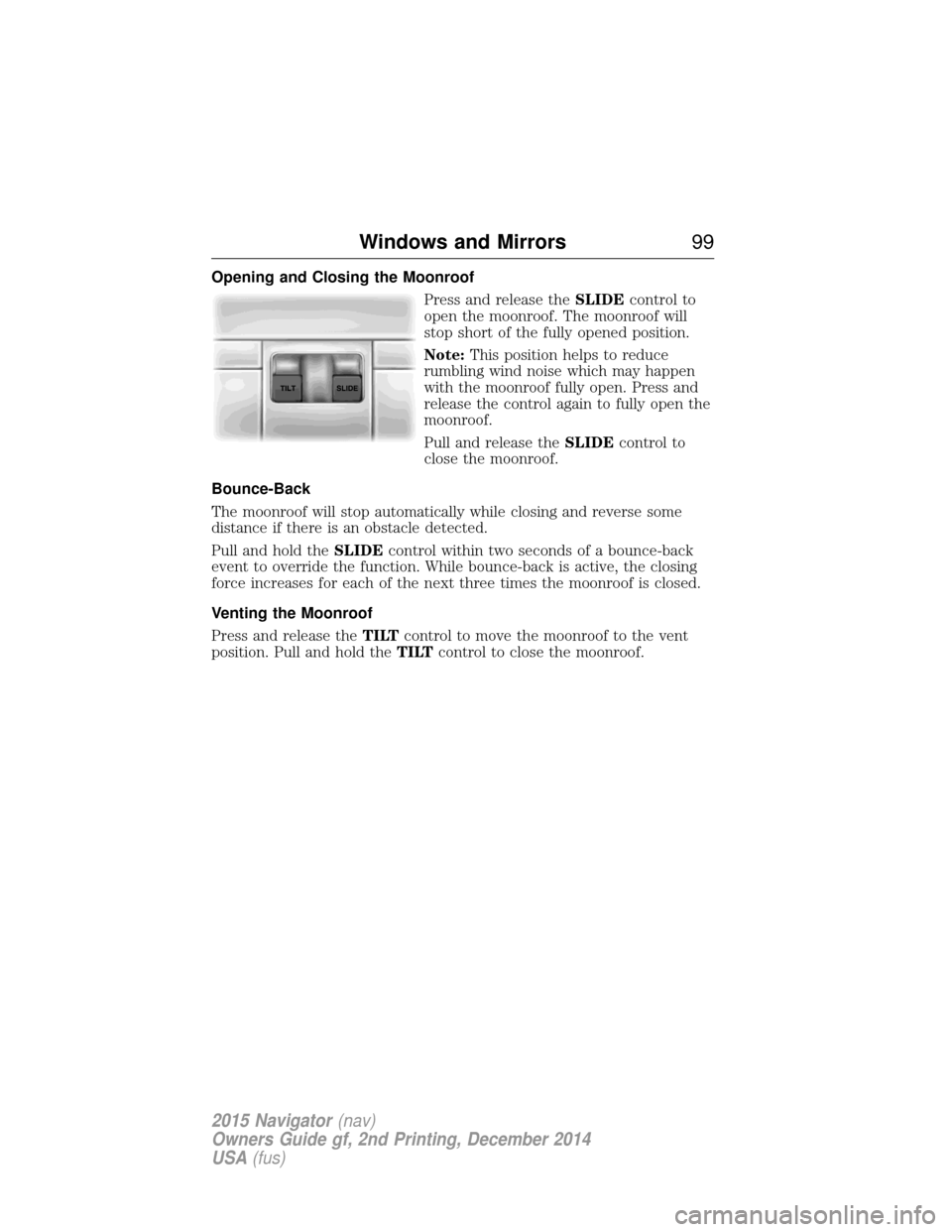
Opening and Closing the MoonroofPress and release theSLIDEcontrol to
open the moonroof. The moonroof will
stop short of the fully opened position.
Note: This position helps to reduce
rumbling wind noise which may happen
with the moonroof fully open. Press and
release the control again to fully open the
moonroof.
Pull and release the SLIDEcontrol to
close the moonroof.
Bounce-Back
The moonroof will stop automatically while closing and reverse some
distance if there is an obstacle detected.
Pull and hold the SLIDEcontrol within two seconds of a bounce-back
event to override the function. While bounce-back is active, the closing
force increases for each of the next three times the moonroof is closed.
Venting the Moonroof
Press and release the TILTcontrol to move the moonroof to the vent
position. Pull and hold the TILTcontrol to close the moonroof.
Windows and Mirrors 99
2015 Navigator(nav)
Owners Guide gf, 2nd Printing, December 2014
USA (fus)
Page 109 of 475
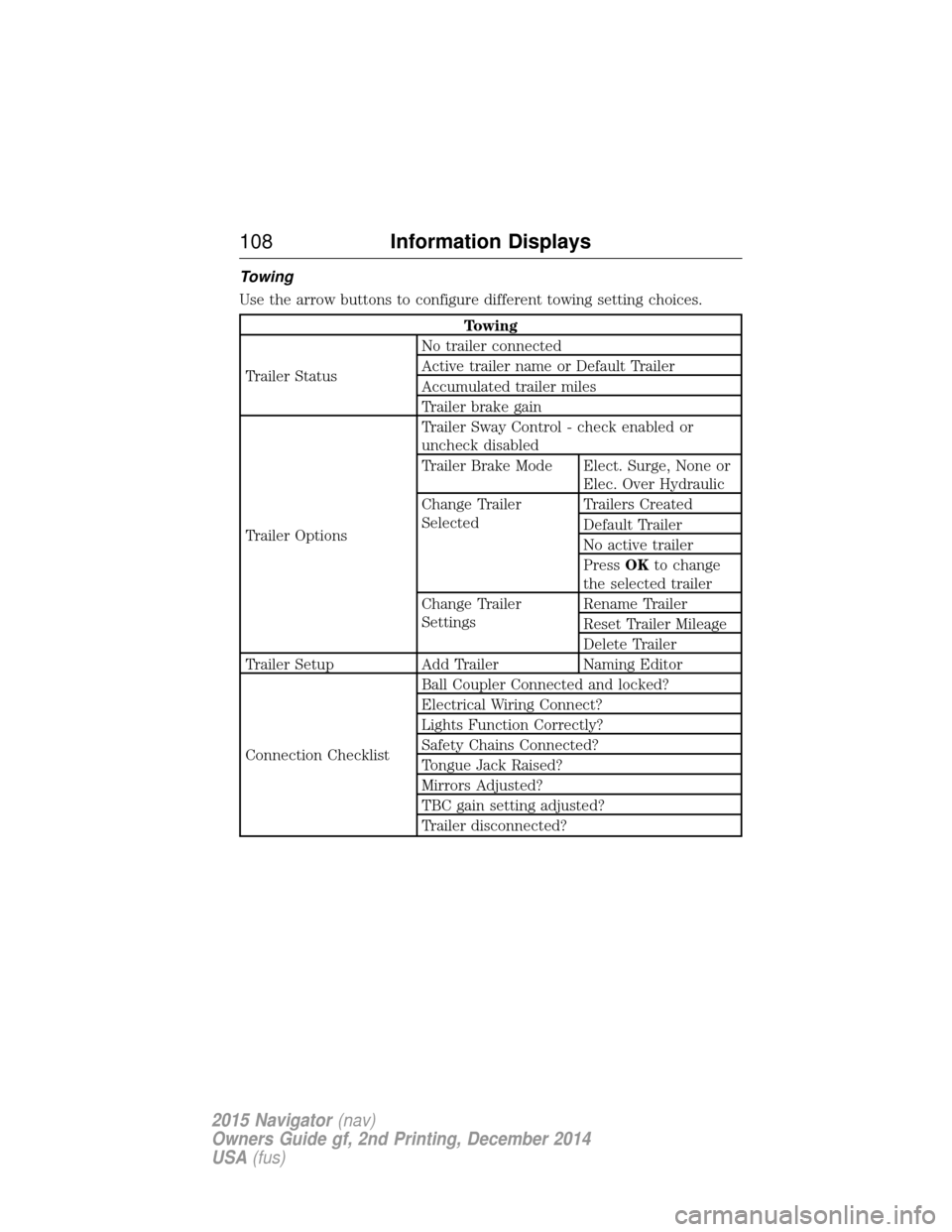
Towing
Use the arrow buttons to configure different towing setting choices.
Towing
Trailer Status No trailer connected
Active trailer name or Default Trailer
Accumulated trailer miles
Trailer brake gain
Trailer Options Trailer Sway Control - check enabled or
uncheck disabled
Trailer Brake Mode Elect. Surge, None or
Elec. Over Hydraulic
Change Trailer
Selected Trailers Created
Default Trailer
No active trailer
Press
OKto change
the selected trailer
Change Trailer
Settings Rename Trailer
Reset Trailer Mileage
Delete Trailer
Trailer Setup Add Trailer Naming Editor
Connection Checklist Ball Coupler Connected and locked?
Electrical Wiring Connect?
Lights Function Correctly?
Safety Chains Connected?
Tongue Jack Raised?
Mirrors Adjusted?
TBC gain setting adjusted?
Trailer disconnected?
108
Information Displays
2015 Navigator (nav)
Owners Guide gf, 2nd Printing, December 2014
USA (fus)
Page 124 of 475
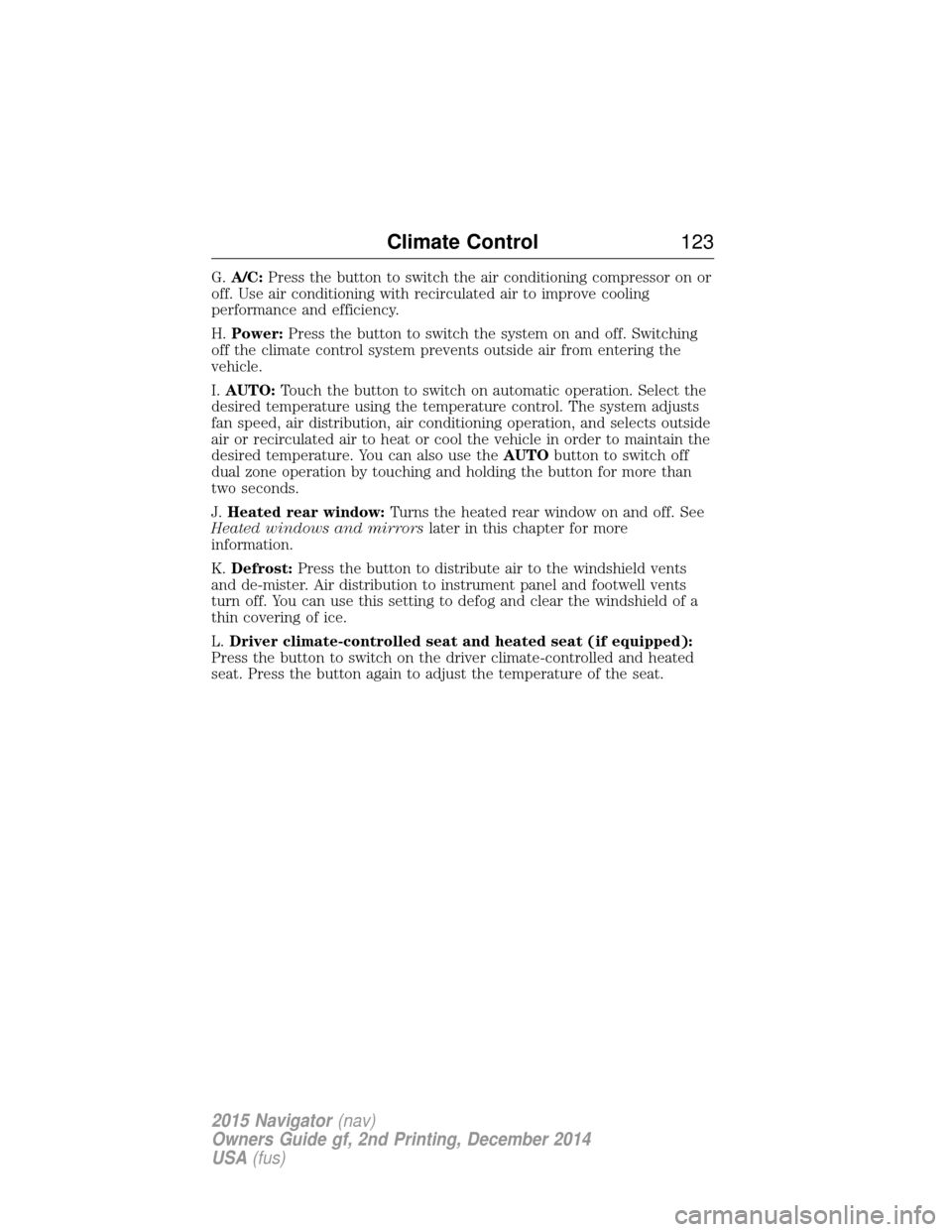
G.A/C: Press the button to switch the air conditioning compressor on or
off. Use air conditioning with recirculated air to improve cooling
performance and efficiency.
H. Power: Press the button to switch the system on and off. Switching
off the climate control system prevents outside air from entering the
vehicle.
I. AUTO: Touch the button to switch on automatic operation. Select the
desired temperature using the temperature control. The system adjusts
fan speed, air distribution, air conditioning operation, and selects outside
air or recirculated air to heat or cool the vehicle in order to maintain the
desired temperature. You can also use the AUTObutton to switch off
dual zone operation by touching and holding the button for more than
two seconds.
J. Heated rear window: Turns the heated rear window on and off. See
Heated windows and mirrors later in this chapter for more
information.
K. Defrost: Press the button to distribute air to the windshield vents
and de-mister. Air distribution to instrument panel and footwell vents
turn off. You can use this setting to defog and clear the windshield of a
thin covering of ice.
L. Driver climate-controlled seat and heated seat (if equipped):
Press the button to switch on the driver climate-controlled and heated
seat. Press the button again to adjust the temperature of the seat.
Climate Control 123
2015 Navigator(nav)
Owners Guide gf, 2nd Printing, December 2014
USA (fus)
Page 127 of 475
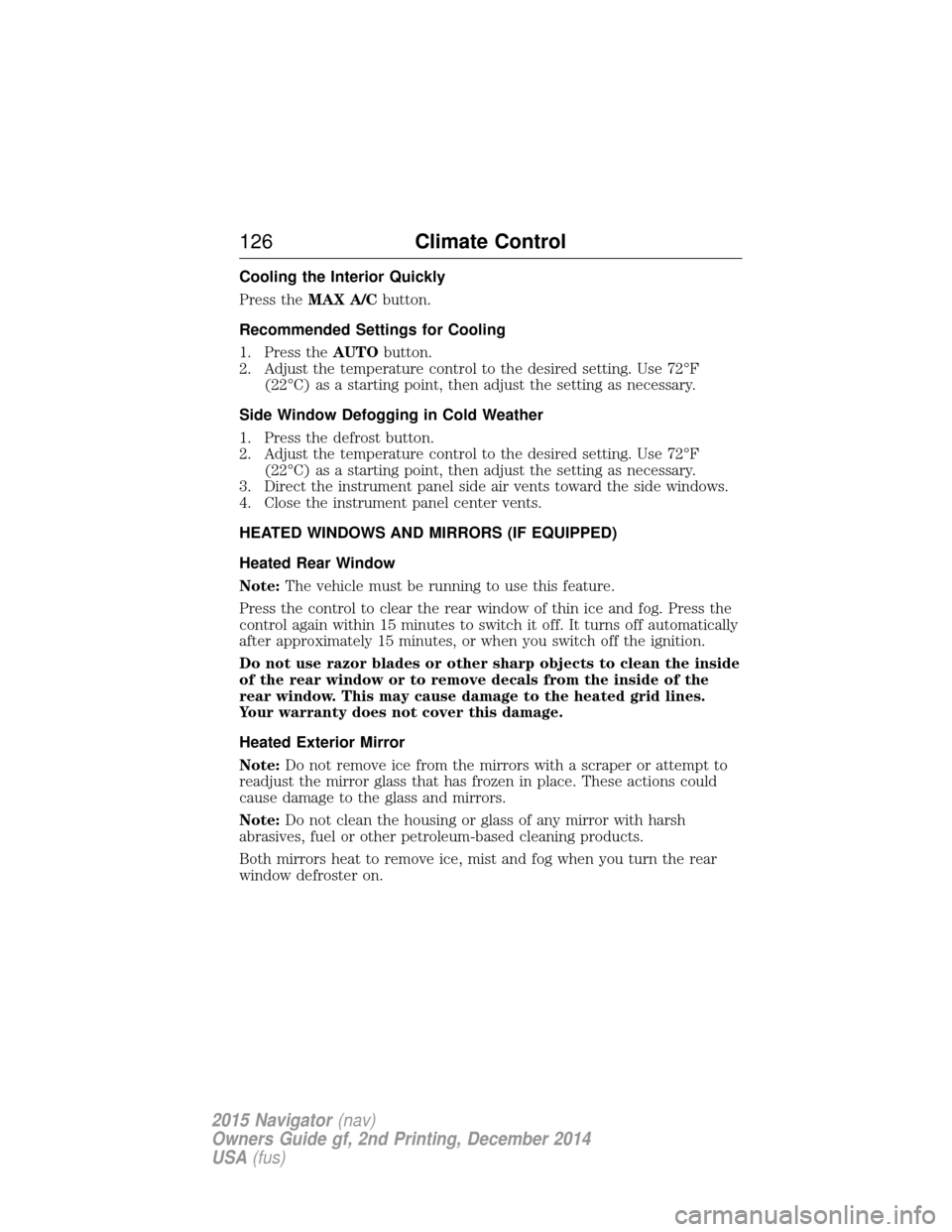
Cooling the Interior Quickly
Press theMAX A/C button.
Recommended Settings for Cooling
1. Press the AUTObutton.
2. Adjust the temperature control to the desired setting. Use 72°F (22°C) as a starting point, then adjust the setting as necessary.
Side Window Defogging in Cold Weather
1. Press the defrost button.
2. Adjust the temperature control to the desired setting. Use 72°F (22°C) as a starting point, then adjust the setting as necessary.
3. Direct the instrument panel side air vents toward the side windows.
4. Close the instrument panel center vents.
HEATED WINDOWS AND MIRRORS (IF EQUIPPED)
Heated Rear Window
Note: The vehicle must be running to use this feature.
Press the control to clear the rear window of thin ice and fog. Press the
control again within 15 minutes to switch it off. It turns off automatically
after approximately 15 minutes, or when you switch off the ignition.
Do not use razor blades or other sharp objects to clean the inside
of the rear window or to remove decals from the inside of the
rear window. This may cause damage to the heated grid lines.
Your warranty does not cover this damage.
Heated Exterior Mirror
Note: Do not remove ice from the mirrors with a scraper or attempt to
readjust the mirror glass that has frozen in place. These actions could
cause damage to the glass and mirrors.
Note: Do not clean the housing or glass of any mirror with harsh
abrasives, fuel or other petroleum-based cleaning products.
Both mirrors heat to remove ice, mist and fog when you turn the rear
window defroster on.
126 Climate Control
2015 Navigator(nav)
Owners Guide gf, 2nd Printing, December 2014
USA (fus)
Page 128 of 475
REMOTE START (IF EQUIPPED)
The remote start feature allows you to pre-condition the interior of your
vehicle. The climate control system works to achieve comfort according
to your previous settings.
Note:You cannot adjust the system during remote start operation.
Turn the ignition on to return the system to its previous settings. You
can now make adjustments normally, but you need to turn certain
vehicle-dependent features back on, such as:
• Heated seats.
• Cooled seats.
• Heated steering wheel.
• Heated mirrors.
• Heated rear window.
You can adjust the default remote start settings using the information
display controls. See the Information Displayschapter.
Automatic Settings
In hot weather, the system is set to 72°F (22°C). The cooled seats are
set to high (if available, and selected to AUTO in the information
display).
In moderate weather, the system either heats or cools (based on
previous settings). The rear defroster, heated mirrors and heated seats
do not automatically turn on.
In cold weather, the system is set to 72°F (22°C). The heated seats are
set to high (if available, and selected to AUTO in the information
display). The rear defroster and heated mirrors automatically turn on.
Climate Control 127
2015 Navigator(nav)
Owners Guide gf, 2nd Printing, December 2014
USA (fus)
Page 133 of 475
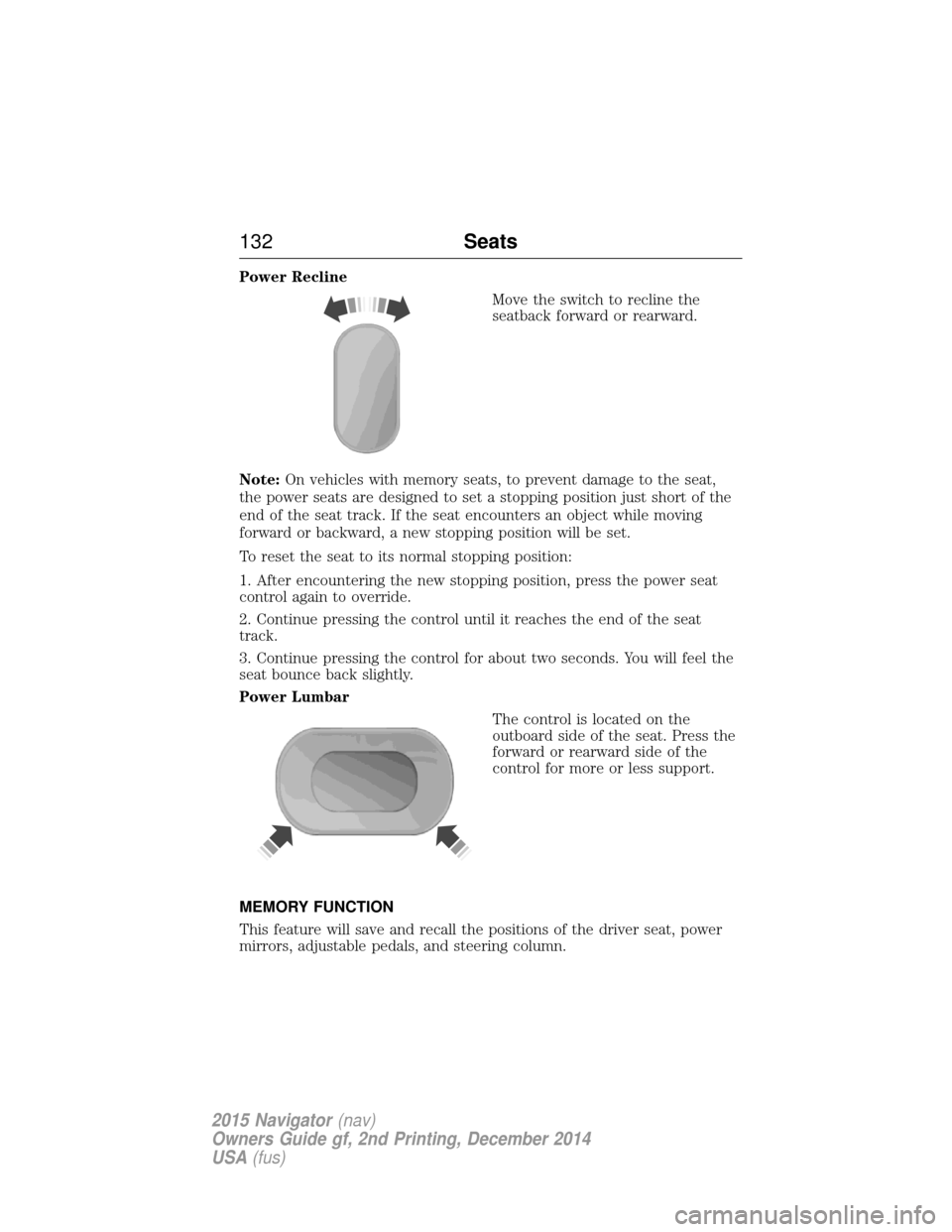
Power ReclineMove the switch to recline the
seatback forward or rearward.
Note: On vehicles with memory seats, to prevent damage to the seat,
the power seats are designed to set a stopping position just short of the
end of the seat track. If the seat encounters an object while moving
forward or backward, a new stopping position will be set.
To reset the seat to its normal stopping position:
1. After encountering the new stopping position, press the power seat
control again to override.
2. Continue pressing the control until it reaches the end of the seat
track.
3. Continue pressing the control for about two seconds. You will feel the
seat bounce back slightly.
Power Lumbar
The control is located on the
outboard side of the seat. Press the
forward or rearward side of the
control for more or less support.
MEMORY FUNCTION
This feature will save and recall the positions of the driver seat, power
mirrors, adjustable pedals, and steering column.
132 Seats
2015 Navigator(nav)
Owners Guide gf, 2nd Printing, December 2014
USA (fus)
Page 134 of 475
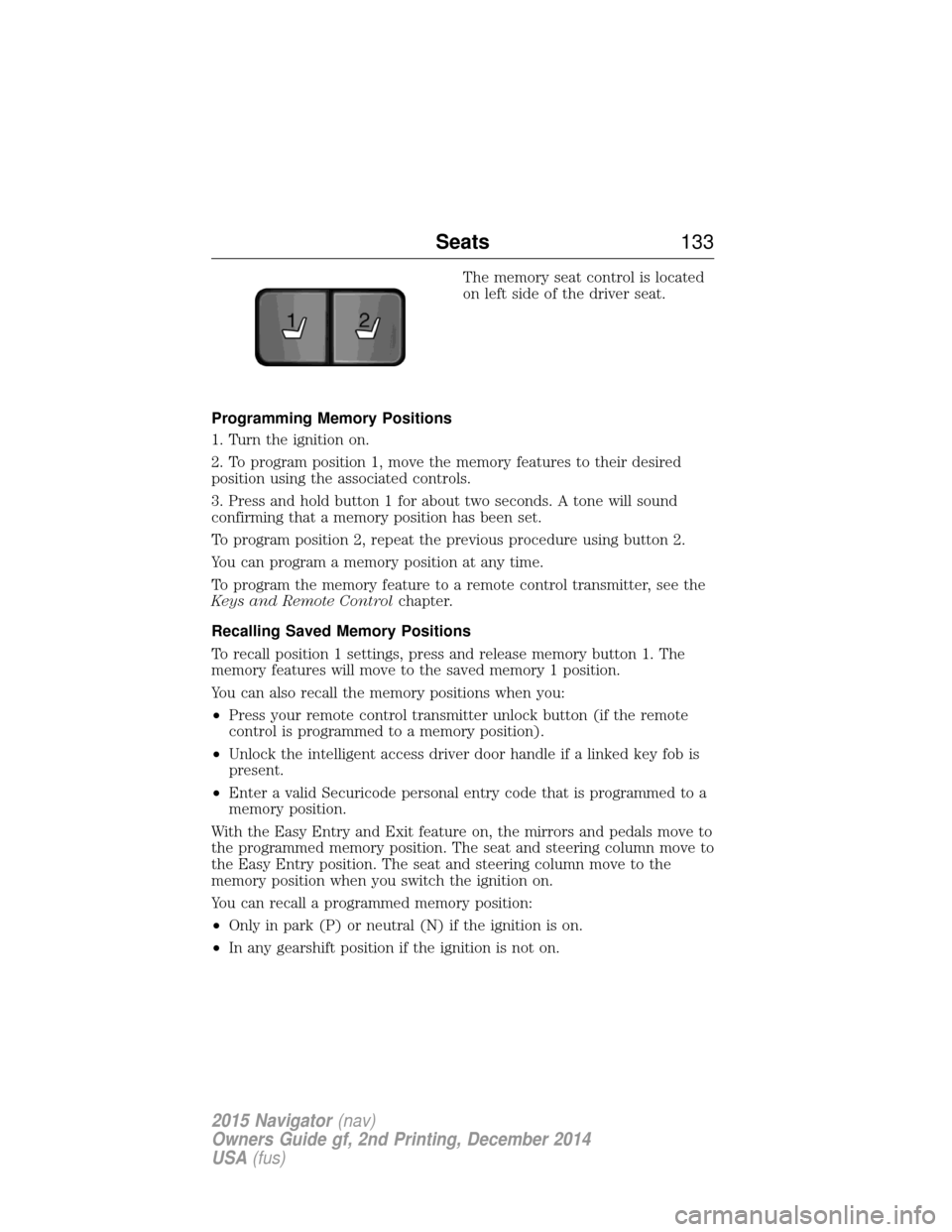
The memory seat control is located
on left side of the driver seat.
Programming Memory Positions
1. Turn the ignition on.
2. To program position 1, move the memory features to their desired
position using the associated controls.
3. Press and hold button 1 for about two seconds. A tone will sound
confirming that a memory position has been set.
To program position 2, repeat the previous procedure using button 2.
You can program a memory position at any time.
To program the memory feature to a remote control transmitter, see the
Keys and Remote Control chapter.
Recalling Saved Memory Positions
To recall position 1 settings, press and release memory button 1. The
memory features will move to the saved memory 1 position.
You can also recall the memory positions when you:
• Press your remote control transmitter unlock button (if the remote
control is programmed to a memory position).
• Unlock the intelligent access driver door handle if a linked key fob is
present.
• Enter a valid Securicode personal entry code that is programmed to a
memory position.
With the Easy Entry and Exit feature on, the mirrors and pedals move to
the programmed memory position. The seat and steering column move to
the Easy Entry position. The seat and steering column move to the
memory position when you switch the ignition on.
You can recall a programmed memory position:
• Only in park (P) or neutral (N) if the ignition is on.
• In any gearshift position if the ignition is not on.
21
Seats 133
2015 Navigator(nav)
Owners Guide gf, 2nd Printing, December 2014
USA (fus)
Page 199 of 475
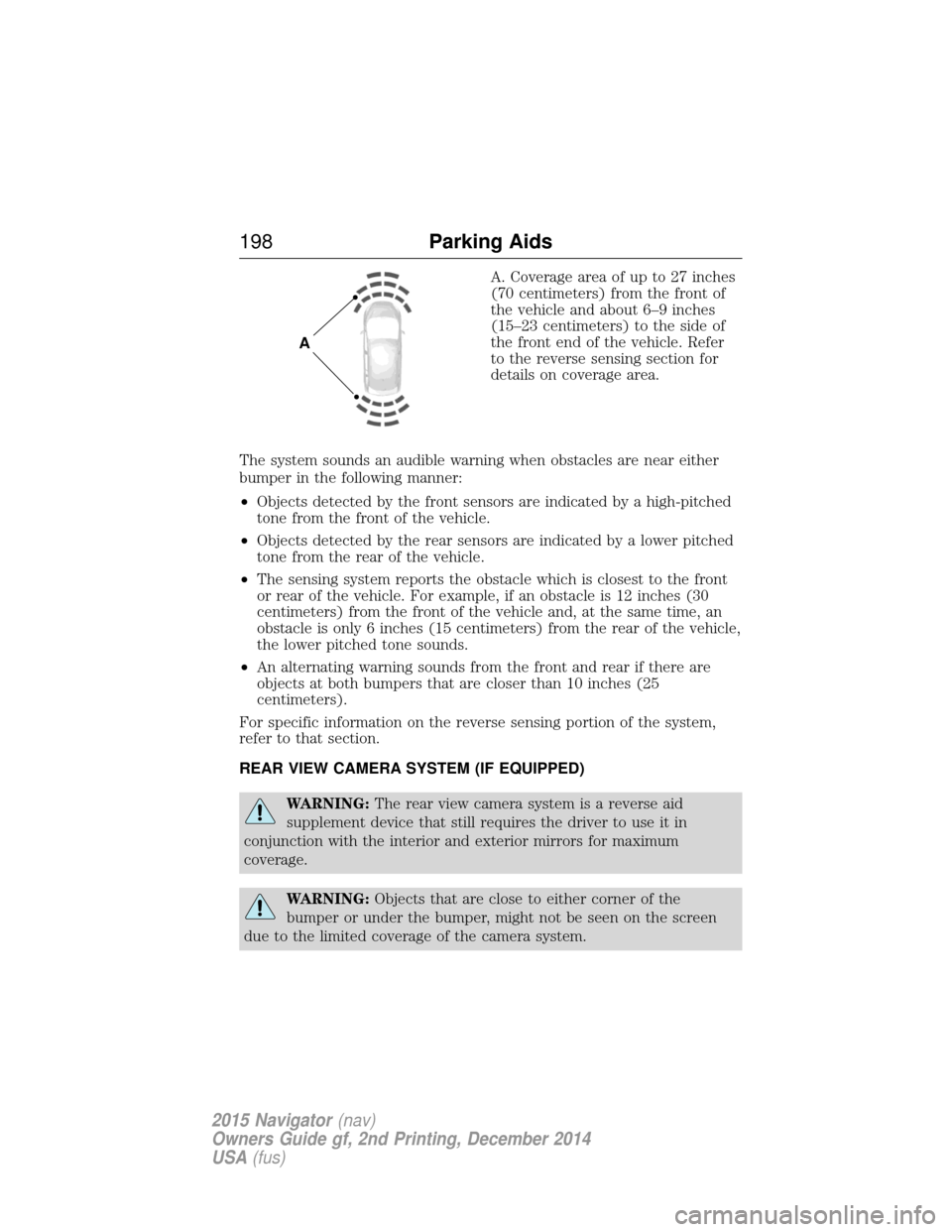
A. Coverage area of up to 27 inches
(70 centimeters) from the front of
the vehicle and about 6–9 inches
(15–23 centimeters) to the side of
the front end of the vehicle. Refer
to the reverse sensing section for
details on coverage area.
The system sounds an audible warning when obstacles are near either
bumper in the following manner:
• Objects detected by the front sensors are indicated by a high-pitched
tone from the front of the vehicle.
• Objects detected by the rear sensors are indicated by a lower pitched
tone from the rear of the vehicle.
• The sensing system reports the obstacle which is closest to the front
or rear of the vehicle. For example, if an obstacle is 12 inches (30
centimeters) from the front of the vehicle and, at the same time, an
obstacle is only 6 inches (15 centimeters) from the rear of the vehicle,
the lower pitched tone sounds.
• An alternating warning sounds from the front and rear if there are
objects at both bumpers that are closer than 10 inches (25
centimeters).
For specific information on the reverse sensing portion of the system,
refer to that section.
REAR VIEW CAMERA SYSTEM (IF EQUIPPED)
WARNING: The rear view camera system is a reverse aid
supplement device that still requires the driver to use it in
conjunction with the interior and exterior mirrors for maximum
coverage.
WARNING: Objects that are close to either corner of the
bumper or under the bumper, might not be seen on the screen
due to the limited coverage of the camera system.
A
198 Parking Aids
2015 Navigator(nav)
Owners Guide gf, 2nd Printing, December 2014
USA (fus)
Page 200 of 475
WARNING:Back up as slow as possible since higher speeds
might limit your reaction time to stop the vehicle.
WARNING: Use caution when using the rear video camera and
the liftgate is ajar. If the liftgate is ajar, the camera will be out of
position and the video image may be incorrect. All guidelines (if
enabled) have been removed when the liftgate is ajar.
WARNING: Use caution when turning camera features on or off
while in R (Reverse). Make sure the vehicle is not moving.
The rear view camera system provides a video image of the area behind
the vehicle. The image will be displayed in either the rear view mirror or
the display in the center of the instrument panel.
During operation, lines appear in the display which represent your
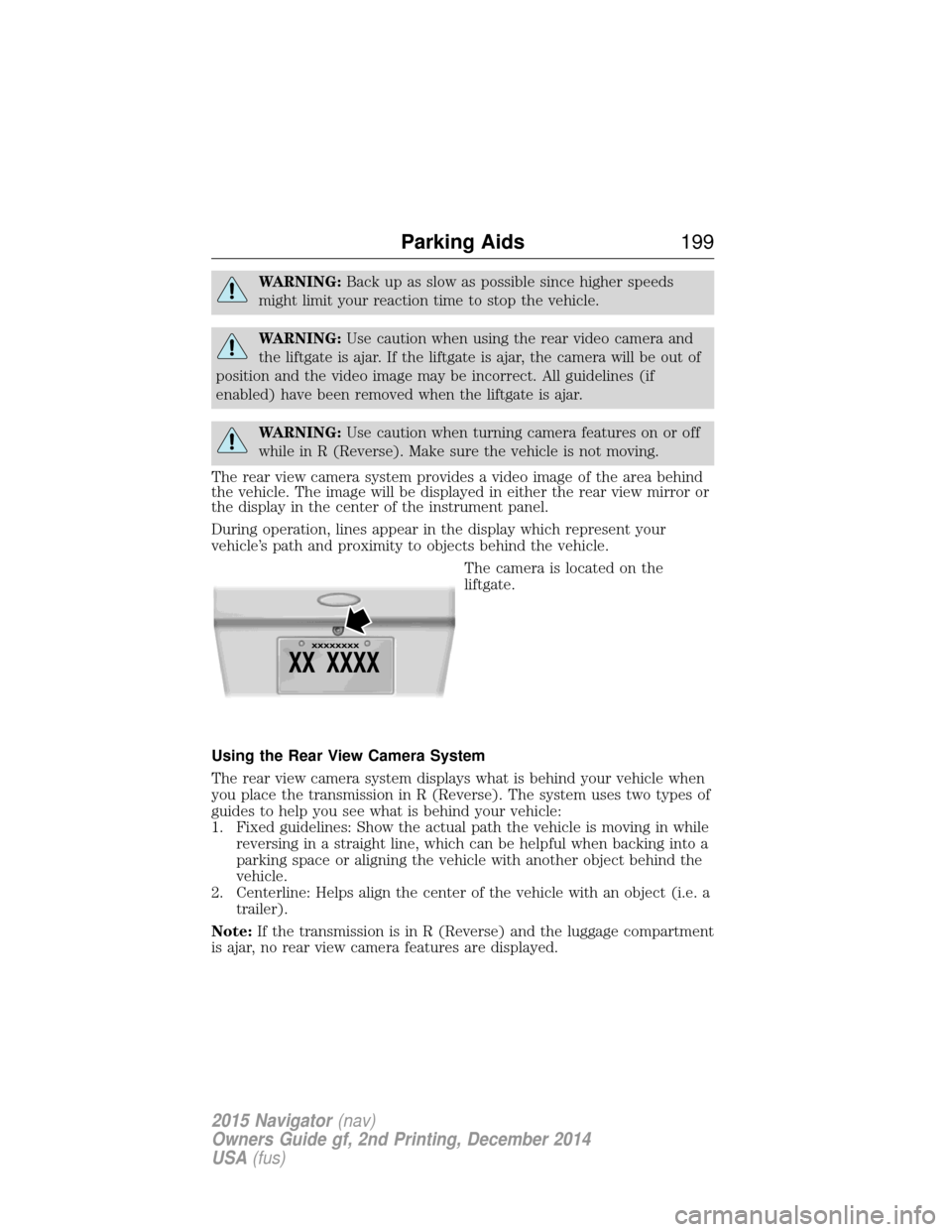
vehicle’s path and proximity to objects behind the vehicle. The camera is located on the
liftgate.
Using the Rear View Camera System
The rear view camera system displays what is behind your vehicle when
you place the transmission in R (Reverse). The system uses two types of
guides to help you see what is behind your vehicle:
1. Fixed guidelines: Show the actual path the vehicle is moving in while reversing in a straight line, which can be helpful when backing into a
parking space or aligning the vehicle with another object behind the
vehicle.
2. Centerline: Helps align the center of the vehicle with an object (i.e. a trailer).
Note: If the transmission is in R (Reverse) and the luggage compartment
is ajar, no rear view camera features are displayed.
Parking Aids 199
2015 Navigator(nav)
Owners Guide gf, 2nd Printing, December 2014
USA (fus)
Page 202 of 475
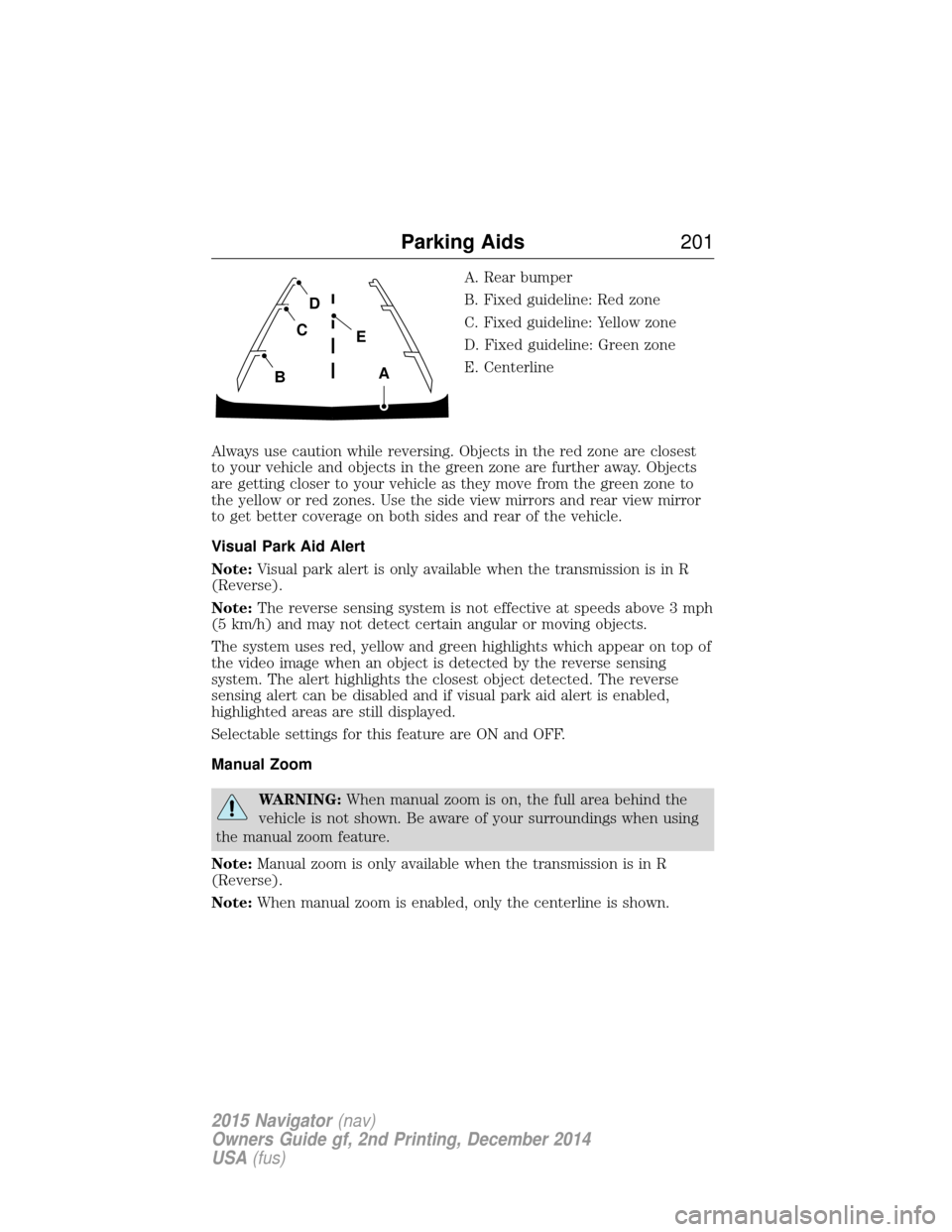
A. Rear bumper
B. Fixed guideline: Red zone
C. Fixed guideline: Yellow zone
D. Fixed guideline: Green zone
E. Centerline
Always use caution while reversing. Objects in the red zone are closest
to your vehicle and objects in the green zone are further away. Objects
are getting closer to your vehicle as they move from the green zone to
the yellow or red zones. Use the side view mirrors and rear view mirror
to get better coverage on both sides and rear of the vehicle.
Visual Park Aid Alert
Note: Visual park alert is only available when the transmission is in R
(Reverse).
Note: The reverse sensing system is not effective at speeds above 3 mph
(5 km/h) and may not detect certain angular or moving objects.
The system uses red, yellow and green highlights which appear on top of
the video image when an object is detected by the reverse sensing
system. The alert highlights the closest object detected. The reverse
sensing alert can be disabled and if visual park aid alert is enabled,
highlighted areas are still displayed.
Selectable settings for this feature are ON and OFF.
Manual Zoom
WARNING: When manual zoom is on, the full area behind the
vehicle is not shown. Be aware of your surroundings when using
the manual zoom feature.
Note: Manual zoom is only available when the transmission is in R
(Reverse).
Note: When manual zoom is enabled, only the centerline is shown.
A
E
D
C
B
Parking Aids 201
2015 Navigator(nav)
Owners Guide gf, 2nd Printing, December 2014
USA (fus)