turn signal LINCOLN NAVIGATOR 2015 User Guide
[x] Cancel search | Manufacturer: LINCOLN, Model Year: 2015, Model line: NAVIGATOR, Model: LINCOLN NAVIGATOR 2015Pages: 475, PDF Size: 5.13 MB
Page 228 of 475
ESSENTIAL TOWING CHECKS
Follow these guidelines for safe towing:
•Do not tow a trailer until you drive your vehicle at least 1000 miles
(1600 kilometers).
• Consult your local motor vehicle laws for towing a trailer.
• See the instructions included with towing accessories for the proper
installation and adjustment specifications.
• Service your vehicle more frequently if you tow a trailer. See your
scheduled maintenance information.
• If you use a rental trailer, follow the instructions the rental agency
gives you.
For load specification terms found on the tire label and Safety
Compliance label and for instructions on calculating your vehicle’s load,
refer to Load limit in theLoad Carrying chapter.
Remember to account for the trailer tongue weight as part of your
vehicle load when calculating the total vehicle weight.
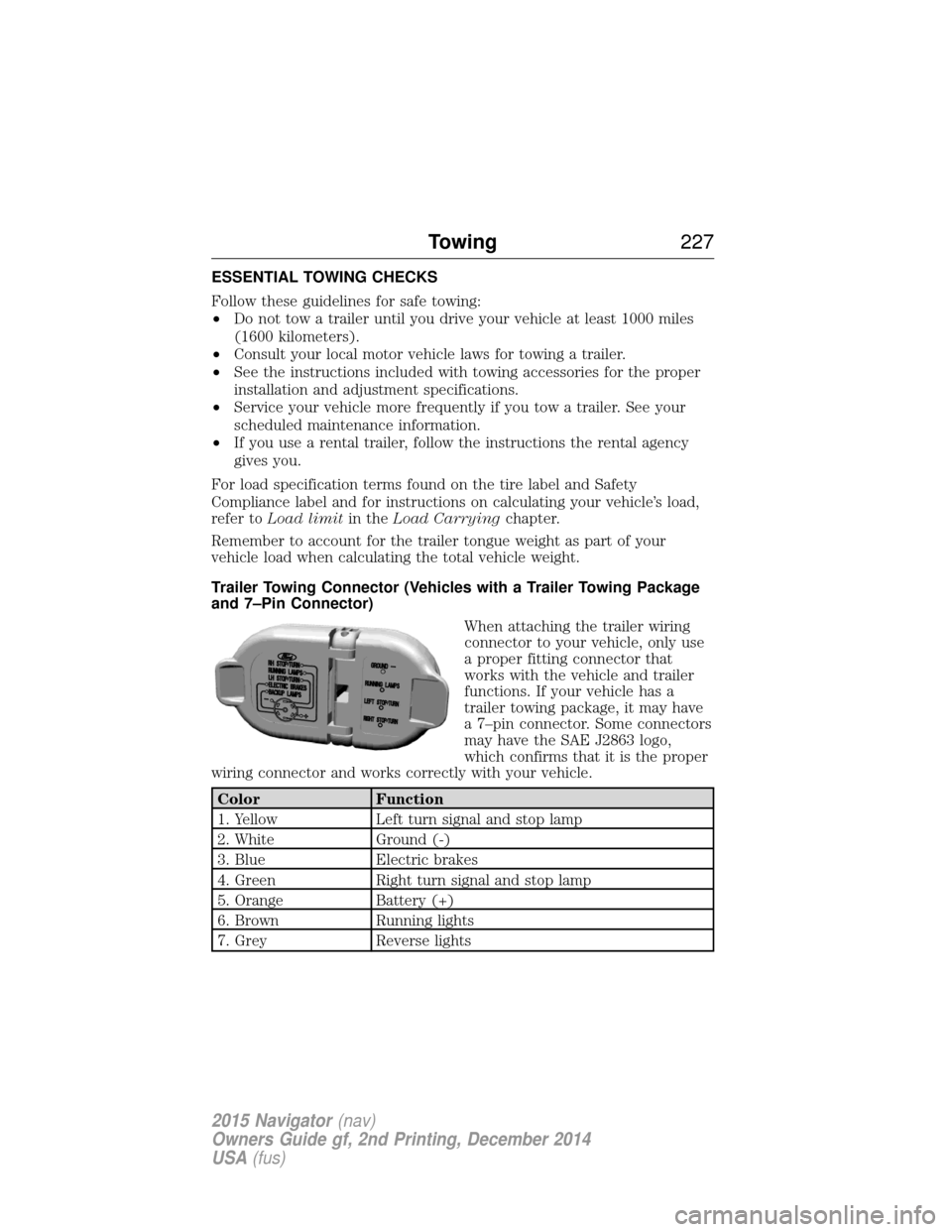
Trailer Towing Connector (Vehicles with a Trailer Towing Package
and 7–Pin Connector) When attaching the trailer wiring
connector to your vehicle, only use
a proper fitting connector that
works with the vehicle and trailer
functions. If your vehicle has a
trailer towing package, it may have
a 7–pin connector. Some connectors
may have the SAE J2863 logo,
which confirms that it is the proper
wiring connector and works correctly with your vehicle.
Color Function
1. Yellow Left turn signal and stop lamp
2. White Ground (-)
3. Blue Electric brakes
4. Green Right turn signal and stop lamp
5. Orange Battery (+)
6. Brown Running lights
7. Grey Reverse lights
Towing 227
2015 Navigator(nav)
Owners Guide gf, 2nd Printing, December 2014
USA (fus)
Page 233 of 475
Trailer Lamps
WARNING:Never connect any trailer lamp wiring to the
vehicle’s tail lamp wiring; this may damage the electrical system
resulting in a fire. Contact an authorized dealer as soon as possible for
assistance in proper trailer tow wiring installation. Additional electrical
equipment may be required.
Trailer lamps are required on most towed vehicles. Make sure all running
lights, brake lights, turn signals and hazard lights are working.
Before Towing a Trailer
Practice turning, stopping and backing up to get the feel of your
vehicle-trailer combination before starting on a trip. When turning, make
wider turns so the trailer wheels clear curbs and other obstacles.
When Towing a Trailer
• Do not drive faster than 70 mph (113 km/h) during the first 500 miles
(800 kilometers).
• Do not make full-throttle starts.
• Check your hitch, electrical connections and trailer wheel lug nuts
thoroughly after you have traveled 50 miles (80 kilometers).
• When stopped in congested or heavy traffic during hot weather, place
the gearshift in position Pto aid engine and transmission cooling and
to help air conditioning performance.
• Turn off the speed control with heavy loads or in hilly terrain. The
speed control may turn off automatically when you are towing on
long, steep grades.
• Shift to a lower gear when driving down a long or steep hill. Do not
apply the brakes continuously, as they may overheat and become less
effective.
• If your transmission is equipped with a Grade Assist or Tow/Haul
feature, use this feature when towing. This provides engine braking
and helps eliminate excessive transmission shifting for optimum fuel
economy and transmission cooling.
• If your vehicle is equipped with AdvanceTrac™ with RSC, this system
may turn on during typical cornering maneuvers with a heavily loaded
trailer. This is normal. Turning the corner at a slower speed while
towing may reduce this tendency.
232 Towing
2015 Navigator(nav)
Owners Guide gf, 2nd Printing, December 2014
USA (fus)
Page 244 of 475
HAZARD WARNING FLASHERSThe hazard flasher control is located on the instrument panel
by the radio. Use it when your vehicle is disabled and is
creating a safety hazard for other motorists.
•
Press the flasher control and all front and rear direction signals will flash.
• Press the flasher control again to turn them off.
Note:
With extended use, the flashers may run down your 12–volt battery.
FUEL SHUTOFF
WARNING: Failure to inspect and, if necessary, repair fuel leaks
after a collision may increase the risk of fire and serious injury.
Ford Motor Company recommends that the fuel system be inspected by
an authorized dealer after any collision.
In the event of a moderate to severe collision, this vehicle includes a fuel
pump shut-off feature that stops the flow of fuel to the engine. Not every
impact will cause a shut off.
Should your vehicle shut off after a collision, you may restart your
vehicle by doing the following:
1. Switch off the ignition.
2. Switch on the ignition.
3. Repeat Steps 1 and 2 to re-enable the fuel pump.
For vehicles equipped with a push button start system:
1. Press the START/STOP button to switch off the ignition.
2. Press the brake pedal and press the START/STOP button to start the
vehicle.
3. Remove your foot from the brake pedal and press the START/STOP
button to switch off the ignition.
4. You can either attempt to start the engine by pressing the brake pedal
and the START/STOP button, or switch on the ignition only by pressing
the START/STOP button without pressing the brake pedal. Both ways
re-enable the fuel system.
Note: When you try to restart your vehicle after a fuel shutoff, the
vehicle makes sure that various systems are safe to restart. Once your
vehicle determines that the systems are safe, then the vehicle will allow
you to restart.
Note: In the event that your vehicle does not restart after your third
attempt, contact an authorized dealer.
Roadside Emergencies 243
2015 Navigator(nav)
Owners Guide gf, 2nd Printing, December 2014
USA (fus)
Page 262 of 475
The fuses are coded as follows:
Fuse or relaylocation Fuse amp
rating Protected circuits
1 30A Driver window
2 15A Rear seat control, multimedia gateway module
3 30A Passenger window
4 10A Demand lamps
5 20A Amplifier
6 5A Rear electronic automatic temperature control
7 7.5A Power mirror, driver seat memory switch
8 — Not used
9 10A SYNC, power lift gate, electric finish panel, display
10 10A Run accessory relay
11 10A Passive entry/start module
12 15A Interior lighting, puddle lamps
13 15A Right turn and stop/turn signals
14 15A Left turn and stop/turn signals
15 15A Reverse lamp, center high mount stop lamp, EC mirror
16 10A Right front low beam
17 10A Left front low beam
18 10A Brake shift interlock/start button LED/keypad illumination, third
row power folding seat, passive
entry touch start
19 20A Subwoofer amplifier, THX amplifier
20 20A Lock/unlock relays
21 — Not used
22 20A Horn
Fuses 261
2015 Navigator(nav)
Owners Guide gf, 2nd Printing, December 2014
USA (fus)
Page 282 of 475
Replacing HID Headlamp Bulbs
The low/high beam headlamps on your vehicle use a “high intensity
discharge” source. These lamps operate at a high voltage. For bulb
replacement, see your authorized dealer.
Replacing Front Parking Lamp, Turn Signal, and Side Marker Bulbs
These lamps are designed with LED light sources. For replacement, see
your authorized dealer.
Replacing Tail, Stop, Turn Signal, and Backup Lamp Bulbs
These lamps are designed with LED light sources. For replacement, see
your authorized dealer.
Replacing Supplemental Tail Lamp Bulbs
These lamps are designed with LED light sources. For replacement, see
your authorized dealer.
Replacing License Plate Lamp Bulbs
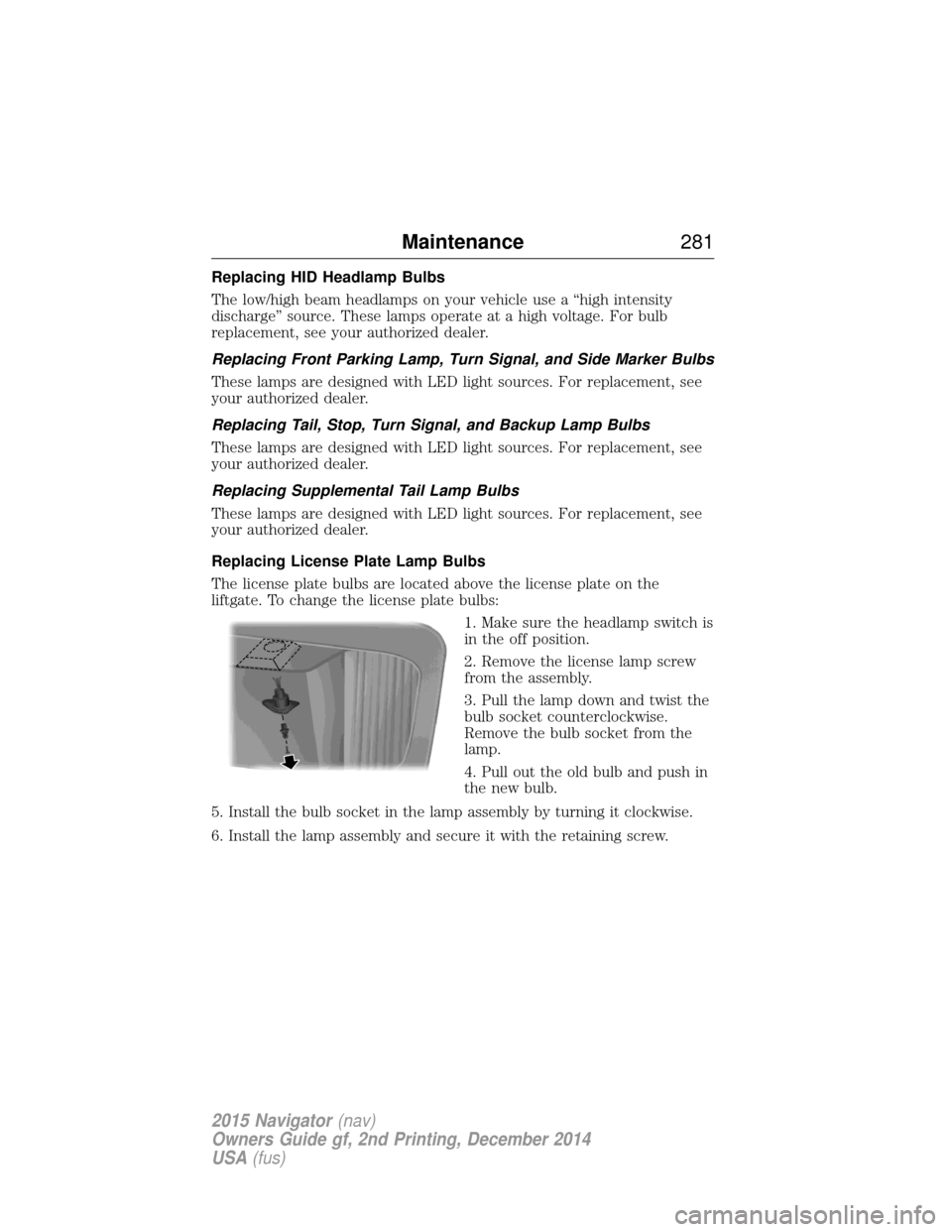
The license plate bulbs are located above the license plate on the
liftgate. To change the license plate bulbs:1. Make sure the headlamp switch is
in the off position.
2. Remove the license lamp screw
from the assembly.
3. Pull the lamp down and twist the
bulb socket counterclockwise.
Remove the bulb socket from the
lamp.
4. Pull out the old bulb and push in
the new bulb.
5. Install the bulb socket in the lamp assembly by turning it clockwise.
6. Install the lamp assembly and secure it with the retaining screw.
Maintenance 281
2015 Navigator(nav)
Owners Guide gf, 2nd Printing, December 2014
USA (fus)
Page 283 of 475
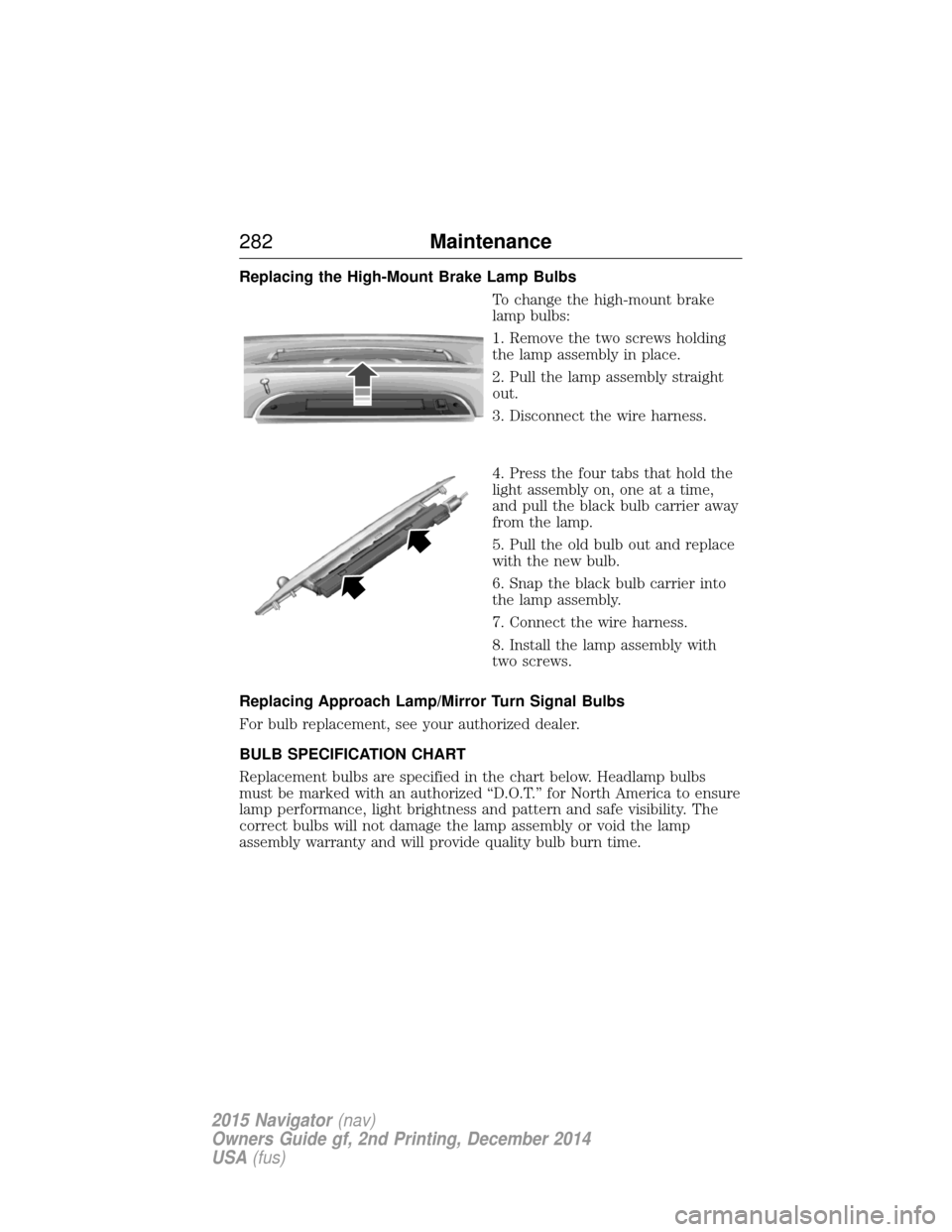
Replacing the High-Mount Brake Lamp BulbsTo change the high-mount brake
lamp bulbs:
1. Remove the two screws holding
the lamp assembly in place.
2. Pull the lamp assembly straight
out.
3. Disconnect the wire harness.
4. Press the four tabs that hold the
light assembly on, one at a time,
and pull the black bulb carrier away
from the lamp.
5. Pull the old bulb out and replace
with the new bulb.
6. Snap the black bulb carrier into
the lamp assembly.
7. Connect the wire harness.
8. Install the lamp assembly with
two screws.
Replacing Approach Lamp/Mirror Turn Signal Bulbs
For bulb replacement, see your authorized dealer.
BULB SPECIFICATION CHART
Replacement bulbs are specified in the chart below. Headlamp bulbs
must be marked with an authorized “D.O.T.” for North America to ensure
lamp performance, light brightness and pattern and safe visibility. The
correct bulbs will not damage the lamp assembly or void the lamp
assembly warranty and will provide quality bulb burn time.
282 Maintenance
2015 Navigator(nav)
Owners Guide gf, 2nd Printing, December 2014
USA (fus)
Page 346 of 475
HD RADIO™ INFORMATION (IF AVAILABLE)
Note:HD Radio broadcasts are not available in all markets.
HD Radio technology is the digital evolution of analog AM/FM radio. Your
system has a special receiver that allows it to receive digital broadcasts
(where available) in addition to the analog broadcasts, it already
receives. Digital broadcasts provide a better sound quality than analog
broadcasts with free, crystal-clear audio and no static or distortion. For
more information, and a guide to available stations and programming,
please visit www.hdradio.com.
When HD Radio is on and you tune to a station broadcasting HD Radio
technology, you may notice the HD Radio logo on your screen. When this
logo is available, you may also see Title and Artist fields on-screen.
The multicast indicator appears in FM mode (only) if the current station
is broadcasting multiple digital broadcasts. The highlighted numbers
signify available digital channels where new or different content is
available. HD1 signifies the main programming status and is available in
analog and digital broadcasts. Other multicast stations (HD2 through
HD7) are only available digitally.
When HD Radio broadcasts are active, you can access the following
functions:
When you select: You can:
Scan Hear a brief sampling of all available stations.
This feature still works when HD Radio
reception is on, although it does not scan for
HD2-HD7 channels. You may see the HD logo
appear if the station has a digital broadcast.
To save a multicast
station as a preset When the channel is active on-screen, press
and hold a memory preset slot until the sound
returns. There is a brief mute while the radio
saves the station. Sound returns when
finished. When recalling a HD2 or HD3
memory preset, there is a mute before the
digital audio plays, as the system must once
again acquire the digital signal.
As with any saved radio station, you cannot
access the saved station if your vehicle is
outside the station’s reception area.
Audio System
345
2015 Navigator(nav)
Owners Guide gf, 2nd Printing, December 2014
USA (fus)
Page 351 of 475
Radio displayCondition Possible action
Unsubscribed Channel Your subscription does not include this
channel.Contact Sirius at
1–888–539–7474 to
subscribe to the
channel, or tune to
another channel.
No Signal The signal is lost from
the Sirius satellite or
Sirius tower to your
vehicle antenna. The signal is blocked.
When you move into
an open area, the
signal should return.
Updating Update of channel
programming in
progress. No action required.
The process may take
up to three minutes.
Call SIRIUS
1–888–539–7474 Your satellite service is
no longer available.Call Sirius at
1–888–539–7474 to
resolve subscription
issues.
None Found. Check
Channel Guide. All the channels in the
selected category are
either skipped or
locked.Use the channel guide
to turn off the Lock or
Skip function on that
station.
Subscription Updated Sirius has updated the channels available for
your vehicle.No action required.
350
Audio System
2015 Navigator(nav)
Owners Guide gf, 2nd Printing, December 2014
USA (fus)
Page 369 of 475
more information, and a guide to available stations and programming,
please visit www.hdradio.com.
When HD Radio is on and you tune to a station broadcasting HD Radio
technology, you may notice the following indicators on your screen:HD) logo is grey when acquiring a digital station, and then
changes to orange when digital audio is playing. When this logo
is available, you may also see Title and Artist fields on-screen.
Multicast indicator appears in FM mode (only) if the current station is
broadcasting multiple digital broadcasts. The highlighted numbers signify
available digital channels where new or different content is available.
HD1 signifies the main programming status and is available in analog and
digital broadcasts. Other multicast stations (HD2 through HD7) are only
available digitally.
TA G allows you to save a song to download later when you are on an
acquired HD Radio station and the feature is on. To turn the feature on
and use it:
1. Press AMorFM >Options >TA G button > On.
2. When you hear a song you like, touch TAG.
3. The system automatically saves the song’s information and transfers it to your portable music player (if supported) when you connect it
to the system. The system automatically transfers the tag to your
player (if already connected) and a pop-up confirms the transfer.
4. When you access iTunes with your portable music player, the tags appear to you as a reminder. The system allows you to tag up to
approximately 100 songs. For a list of devices that support tagging,
see www.SYNCMyRide.com, www.SYNCMyRide.ca or
www.syncmaroute.ca.
When HD Radio broadcasts are active, you can access the following
functions:
• Scan allows you to hear a brief sampling of all available stations. This
feature still works when HD Radio reception is on, although it does
not scan for HD2-HD7 channels. You may see the HD logo appear if
the station has a digital broadcast.
• Memory presets allow you to save an active channel as a memory
preset. Touch and hold a memory preset slot until the sound returns.
There is a brief mute while the radio saves the station. Sound returns
when finished. When switching to an HD2 or HD3 memory preset, the
sound mutes before the digital audio plays, because the system has to
reacquire the digital signal.
• Note: As with any saved radio station, you cannot access the
saved station if your vehicle is outside the station’s reception area.
368 MyLincoln Touch™
2015 Navigator(nav)
Owners Guide gf, 2nd Printing, December 2014
USA (fus)
Page 373 of 475
Sirius Satellite Radio (If Activated)Press the lower left corner of the touchscreen, then select the
SIRIUStab.
Presets
Save a channel by pressing and holding one of the memory preset areas.
There is a brief mute while the radio saves the channel. Sound returns
when finished.
ALERT
Save the current song, artist, or team as a favorite. The system alerts
you when it plays again on any channel.
Replay
Replay audio on the current channel. You can replay approximately
45 minutes of audio as long as you have remained tuned to the current
station. Changing stations erases the previous audio.
While in replay mode:
• Press and release the seek buttons to hear the previous or next song.
• Press and hold the seek buttons to reverse or fast forward in the
current track.
• Press play or pause to play or pause the audio.
• Press Replay to return to live audio if you have been using the
feature to replay audio.
Scan
Touch this button to hear a brief sampling of channels.
Options
Sound Settings allows you to adjust settings for:
• Bass
• Midrange
• Treble
• Balance and Fade
• DSP (Digital Signal Processing)
• Occupancy Mode
• Speed Compensated Volume.
Note: Your vehicle may not have all these sound settings.
Set Category for Seek/Scan allows you to select a category of music
you would like to search for. You can then choose to either seek or scan
for the stations playing that category.
372 MyLincoln Touch™
2015 Navigator(nav)
Owners Guide gf, 2nd Printing, December 2014
USA (fus)