transmission LINCOLN NAVIGATOR 2018 Workshop Manual
[x] Cancel search | Manufacturer: LINCOLN, Model Year: 2018, Model line: NAVIGATOR, Model: LINCOLN NAVIGATOR 2018Pages: 649, PDF Size: 4.96 MB
Page 254 of 649
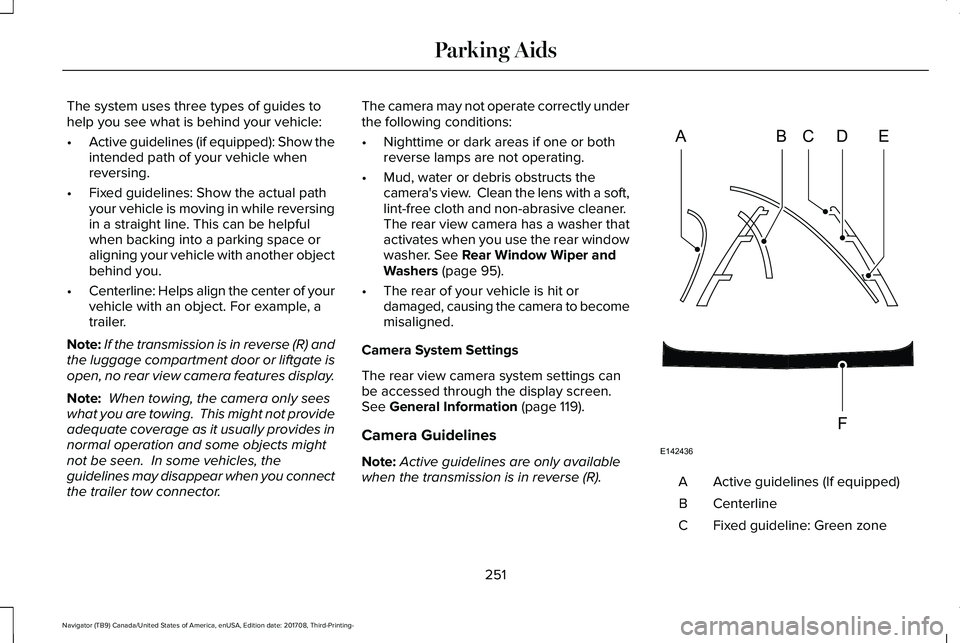
The system uses three types of guides tohelp you see what is behind your vehicle:
•Active guidelines (if equipped): Show theintended path of your vehicle whenreversing.
•Fixed guidelines: Show the actual pathyour vehicle is moving in while reversingin a straight line. This can be helpfulwhen backing into a parking space oraligning your vehicle with another objectbehind you.
•Centerline: Helps align the center of yourvehicle with an object. For example, atrailer.
Note:If the transmission is in reverse (R) andthe luggage compartment door or liftgate isopen, no rear view camera features display.
Note: When towing, the camera only seeswhat you are towing. This might not provideadequate coverage as it usually provides innormal operation and some objects mightnot be seen. In some vehicles, theguidelines may disappear when you connectthe trailer tow connector.
The camera may not operate correctly underthe following conditions:
•Nighttime or dark areas if one or bothreverse lamps are not operating.
•Mud, water or debris obstructs thecamera's view. Clean the lens with a soft,lint-free cloth and non-abrasive cleaner. The rear view camera has a washer thatactivates when you use the rear windowwasher. See Rear Window Wiper andWashers (page 95).
•The rear of your vehicle is hit ordamaged, causing the camera to becomemisaligned.
Camera System Settings
The rear view camera system settings canbe accessed through the display screen.See General Information (page 119).
Camera Guidelines
Note:Active guidelines are only availablewhen the transmission is in reverse (R).Active guidelines (If equipped)A
CenterlineB
Fixed guideline: Green zoneC
251
Navigator (TB9) Canada/United States of America, enUSA, Edition date: 201708, Third-Printing-
Parking AidsABCD
F
E
E142436
Page 255 of 649
Fixed guideline: Yellow zoneD
Fixed guideline: Red zoneE
Rear bumperF
Active guidelines are only shown with fixedguidelines. To use active guidelines, turnthe steering wheel to point the guidelinestoward an intended path. If you change thesteering wheel position while reversing, yourvehicle might deviate from the originalintended path.
The fixed and active guidelines fade in andout depending on the steering wheelposition. The active guidelines do notdisplay when the steering wheel position isstraight.
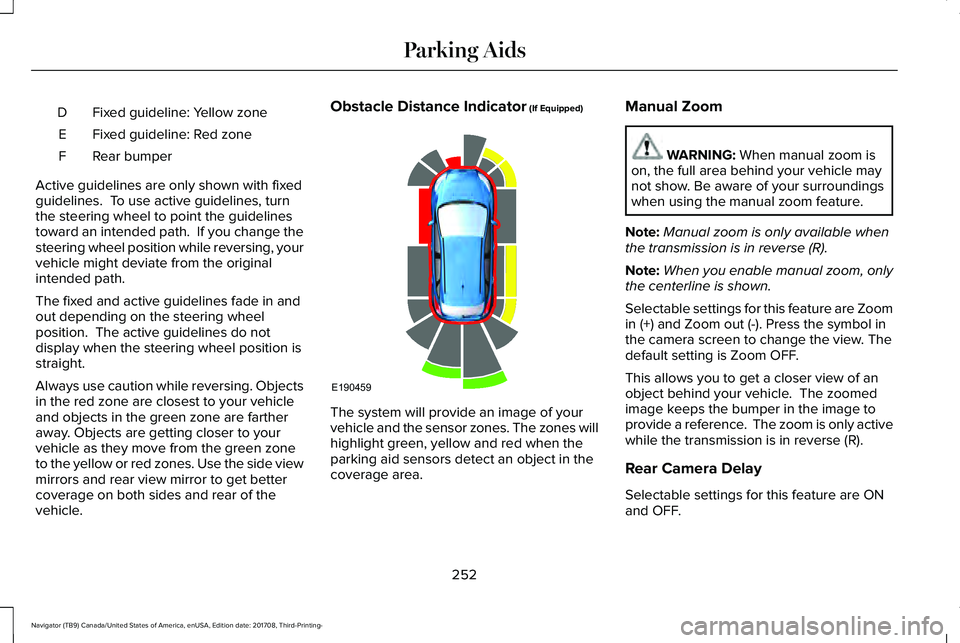
Always use caution while reversing. Objectsin the red zone are closest to your vehicleand objects in the green zone are fartheraway. Objects are getting closer to yourvehicle as they move from the green zoneto the yellow or red zones. Use the side viewmirrors and rear view mirror to get bettercoverage on both sides and rear of thevehicle.
Obstacle Distance Indicator (If Equipped)
The system will provide an image of yourvehicle and the sensor zones. The zones willhighlight green, yellow and red when theparking aid sensors detect an object in thecoverage area.
Manual Zoom
WARNING: When manual zoom ison, the full area behind your vehicle maynot show. Be aware of your surroundingswhen using the manual zoom feature.
Note:Manual zoom is only available whenthe transmission is in reverse (R).
Note:When you enable manual zoom, onlythe centerline is shown.
Selectable settings for this feature are Zoomin (+) and Zoom out (-). Press the symbol inthe camera screen to change the view. Thedefault setting is Zoom OFF.
This allows you to get a closer view of anobject behind your vehicle. The zoomedimage keeps the bumper in the image toprovide a reference. The zoom is only activewhile the transmission is in reverse (R).
Rear Camera Delay
Selectable settings for this feature are ONand OFF.
252
Navigator (TB9) Canada/United States of America, enUSA, Edition date: 201708, Third-Printing-
Parking AidsE190459
Page 256 of 649
The default setting for the rear camera delayis OFF.
When shifting the transmission out of reverse(R) and into any gear other than park (P), thecamera image remains in the display until:
•Your vehicle speed reachesapproximately 6 mph (10 km/h).
•You shift your vehicle into park (P).
360 DEGREE CAMERA (IF EQUIPPED)
WARNING: The 360 degree camerasystem still requires the driver to use it inconjunction with looking out of thewindows, and checking the interior andexterior mirrors for maximum coverage.
WARNING: Objects that are close toeither corner of the bumper or under thebumper, might not be seen on the screendue to the limited coverage of the camerasystem.
WARNING: Use caution when turningcamera features on or off when thetransmission is not in park (P). Make sureyour vehicle is not moving.
Note:The 360 degree camera system turnsoff when your vehicle is in motion at lowspeed, except when in reverse (R).
The 360 degree camera system consists offront, side and rear cameras. The system:
•Allows you to see what is directly in frontor behind your vehicle.
•Provides cross traffic view in front andbehind your vehicle.
•Allows you to see a top-down view of thearea outside your vehicle, including theblind spots.
•Provides visibility around your vehicle toyou in parking maneuvers such as:
•Centering in a parking space.
•Obstacles near vehicle.
•Parallel parking.
Camera Views
The front camera enable button islocated near the display screenand turns on the front camerawhen your vehicle is not in reverse (R).
When in park (P), neutral (N) or drive (D), onlyimages from the front cameras are displayed.Press the camera button to display the frontcamera image on the display screen.
When in reverse (R), only images from therear cameras are displayed. When you shiftinto reverse (R), the rear view camera imageautomatically shows on the display screen.
Advanced Camera Views (If Equipped)
Additional camera views may beavailable for vehicles with specificfeatures. Press the small cameraicon shown on the top left corner of thedisplay screen to open the camera viewmenu.
253
Navigator (TB9) Canada/United States of America, enUSA, Edition date: 201708, Third-Printing-
Parking AidsE205884 E233726
Page 257 of 649
The following camera views can be accessedin park (P), neutral (N) or drive (D) when youpress the camera button:
•Front 360 + Normal: Contains the normalfront camera view next to a 360 degreecamera view.
•Front Normal View: Provides an imageof what is directly in front of your vehicle.
•Front Split View: Provides an extendedview of what is in front of your vehicle.
The following camera views can be accessedwhen you shift into reverse (R):
•Rear 360 + Normal: Contains the normalrear camera view next to a 360 degreecamera view. Press the zoom (+) buttonto quickly access Rear Normal View fromthis screen.
•Rear Normal View: Provides an imageof what is directly behind your vehicle.
•Rear Split View: Provides an extendedview of what is behind your vehicle.
Keep Out Zone
The Keep Out Zone is represented by theyellow dotted lines running parallel to yourvehicle. It is designed to give you theindication on the ground of the fullyextended outside mirror position.
Front Camera
WARNING: The front camera systemstill requires the driver to use it inconjunction with looking out of yourvehicle.
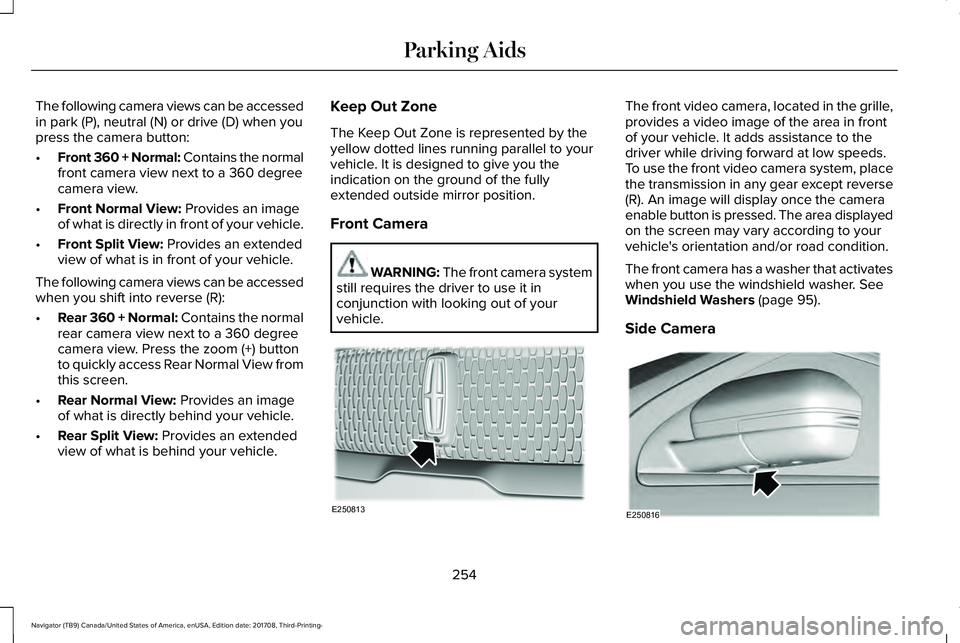
The front video camera, located in the grille,provides a video image of the area in frontof your vehicle. It adds assistance to thedriver while driving forward at low speeds.To use the front video camera system, placethe transmission in any gear except reverse(R). An image will display once the cameraenable button is pressed. The area displayedon the screen may vary according to yourvehicle's orientation and/or road condition.
The front camera has a washer that activateswhen you use the windshield washer. SeeWindshield Washers (page 95).
Side Camera
254
Navigator (TB9) Canada/United States of America, enUSA, Edition date: 201708, Third-Printing-
Parking AidsE250813 E250816
Page 275 of 649
BLIND SPOT INFORMATION
SYSTEM
WARNING: Do not use the blind spotinformation system as a replacement forusing the interior and exterior mirrors orlooking over your shoulder beforechanging lanes. The blind spot informationsystem is not a replacement for carefuldriving.
WARNING: The system may notoperate properly during severe weatherconditions, for example snow, ice, heavyrain and spray. Always drive with due careand attention. Failure to take care mayresult in a crash.
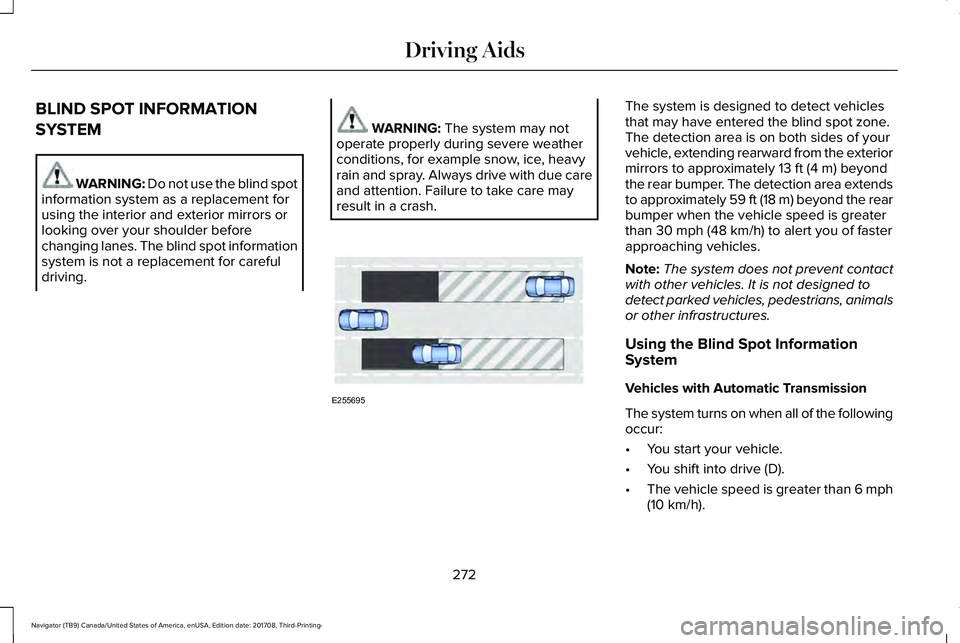
The system is designed to detect vehiclesthat may have entered the blind spot zone.The detection area is on both sides of yourvehicle, extending rearward from the exteriormirrors to approximately 13 ft (4 m) beyondthe rear bumper. The detection area extendsto approximately 59 ft (18 m) beyond the rearbumper when the vehicle speed is greaterthan 30 mph (48 km/h) to alert you of fasterapproaching vehicles.
Note:The system does not prevent contactwith other vehicles. It is not designed todetect parked vehicles, pedestrians, animalsor other infrastructures.
Using the Blind Spot InformationSystem
Vehicles with Automatic Transmission
The system turns on when all of the followingoccur:
•You start your vehicle.
•You shift into drive (D).
•The vehicle speed is greater than 6 mph(10 km/h).
272
Navigator (TB9) Canada/United States of America, enUSA, Edition date: 201708, Third-Printing-
Driving AidsE255695
Page 276 of 649
Note:The system does not operate in park(P) or reverse (R).
Vehicles with Manual Transmission
The system turns on when all of the followingoccur:
•You start your vehicle.
•The vehicle speed is greater than 6 mph(10 km/h).
Note:The system does not operate inreverse (R).
System Lights and Messages
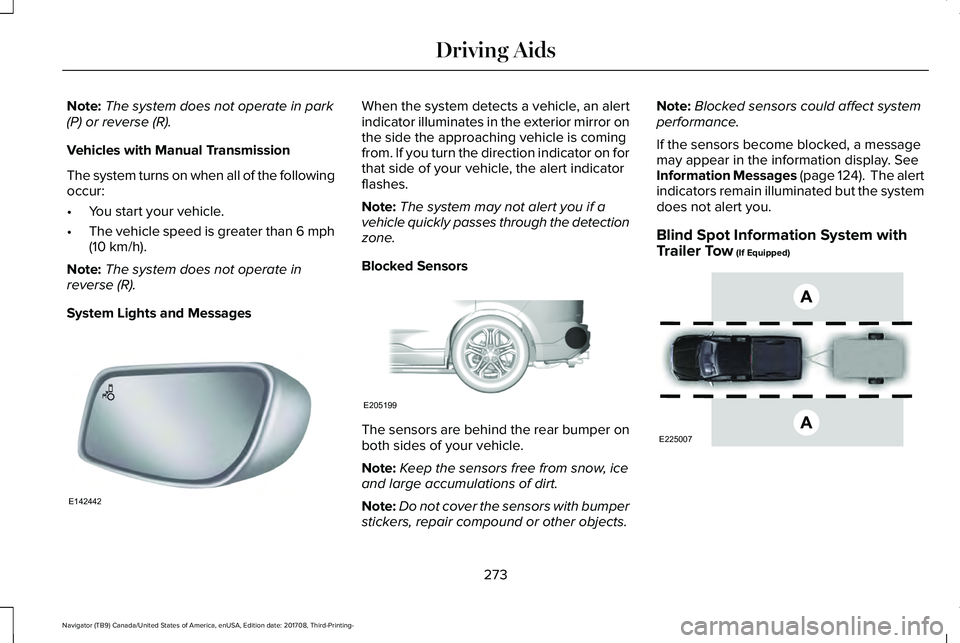
When the system detects a vehicle, an alertindicator illuminates in the exterior mirror onthe side the approaching vehicle is comingfrom. If you turn the direction indicator on forthat side of your vehicle, the alert indicatorflashes.
Note:The system may not alert you if avehicle quickly passes through the detectionzone.
Blocked Sensors
The sensors are behind the rear bumper onboth sides of your vehicle.
Note:Keep the sensors free from snow, iceand large accumulations of dirt.
Note:Do not cover the sensors with bumperstickers, repair compound or other objects.
Note:Blocked sensors could affect systemperformance.
If the sensors become blocked, a messagemay appear in the information display. SeeInformation Messages (page 124). The alertindicators remain illuminated but the systemdoes not alert you.
Blind Spot Information System withTrailer Tow (If Equipped)
273
Navigator (TB9) Canada/United States of America, enUSA, Edition date: 201708, Third-Printing-
Driving AidsE142442 E205199 E225007
Page 289 of 649
Changing the drive mode automaticallychanges the functionality of the followingsystems:
•Electronically power-assisted steeringsystem adjusts steering effort and feelbased on the mode you select. SeeSteering (page 280).
•Electronic stability control and tractioncontrol maintain your vehicle control inadverse conditions or high performancedriving. See Stability Control (page 233).
•Electronic throttle control enhances thepowertrain response to your inputs.
•Transmission controls optimize with shiftschedules tuned to each mode.
•Driveline settings optimize for eachmode.
Using the System
The system automatically tailors your vehicleconfiguration for each mode you select.
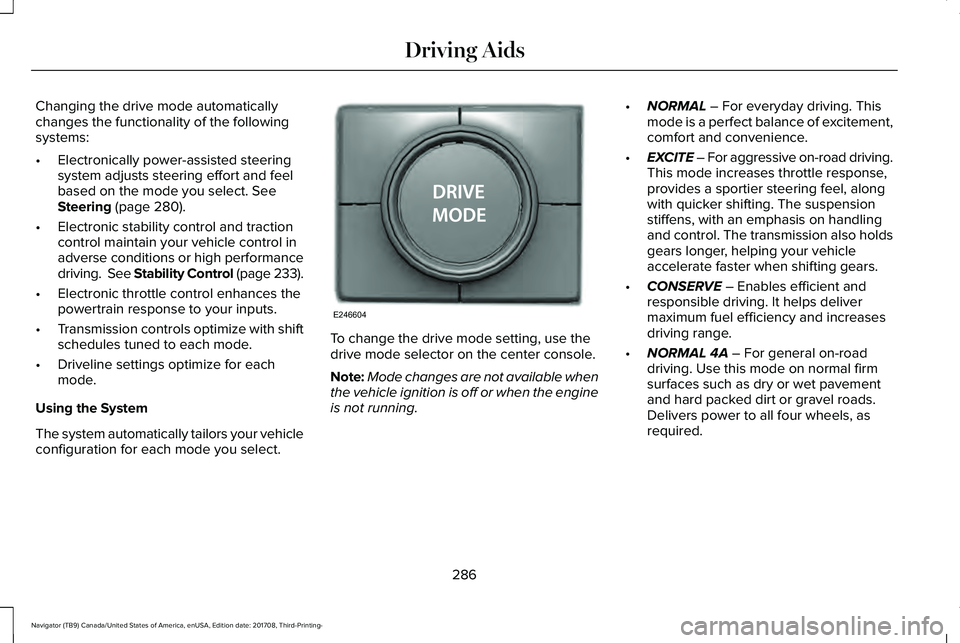
To change the drive mode setting, use thedrive mode selector on the center console.
Note:Mode changes are not available whenthe vehicle ignition is off or when the engineis not running.
•NORMAL – For everyday driving. Thismode is a perfect balance of excitement,comfort and convenience.
•EXCITE – For aggressive on-road driving.This mode increases throttle response,provides a sportier steering feel, alongwith quicker shifting. The suspensionstiffens, with an emphasis on handlingand control. The transmission also holdsgears longer, helping your vehicleaccelerate faster when shifting gears.
•CONSERVE – Enables efficient andresponsible driving. It helps delivermaximum fuel efficiency and increasesdriving range.
•NORMAL 4A – For general on-roaddriving. Use this mode on normal firmsurfaces such as dry or wet pavementand hard packed dirt or gravel roads.Delivers power to all four wheels, asrequired.
286
Navigator (TB9) Canada/United States of America, enUSA, Edition date: 201708, Third-Printing-
Driving AidsE246604
Page 301 of 649
TOWING A TRAILER
WARNING: Towing trailersbeyond the maximum recommendedgross trailer weight exceeds the limitof your vehicle and could result inengine damage, transmission damage,structural damage, loss of vehiclecontrol, vehicle rollover and personalinjury.
WARNING: Do not exceed theGVWR or the GAWR specified on thecertification label.
Note: See Recommended TowingWeights (page 310).
Your vehicle may have electrical items,such as fuses or relays, related totowing. See Fuses (page 342).
Your vehicle's load capacity designationis by weight, not by volume, so youcannot necessarily use all availablespace when loading a vehicle or trailer.
Towing a trailer places an extra load onyour vehicle's engine, transmission, axle,brakes, tires and suspension. Inspectthese components periodically during,and after, any towing operation.
Load Placement
To help minimize how trailer movementaffects your vehicle when driving:
•Load the heaviest items closest tothe trailer floor.
•Load the heaviest items centeredbetween the left and right side trailertires.
•Load the heaviest items above thetrailer axles or just slightly forwardtoward the trailer tongue. Do notallow the final trailer tongue weightto go above or below 10-15% of theloaded trailer weight.
•Select a ball mount with the correctrise or drop and load capacity. Whenboth the loaded vehicle and trailerare connected, the trailer frameshould be level, or slightly angleddown toward your vehicle, whenviewed from the side.
When driving with a trailer or payload, aslight takeoff vibration or shudder maybe present due to the increased payloadweight. Additional information regardingproper trailer loading and setting yourvehicle up for towing is located inanother chapter of this manual. SeeLoad Limit (page 293).
You can also find information in the RV& Trailer Towing Guide available at yourauthorized dealer, or online.
298
Navigator (TB9) Canada/United States of America, enUSA, Edition date: 201708, Third-Printing-
Towing
Page 316 of 649
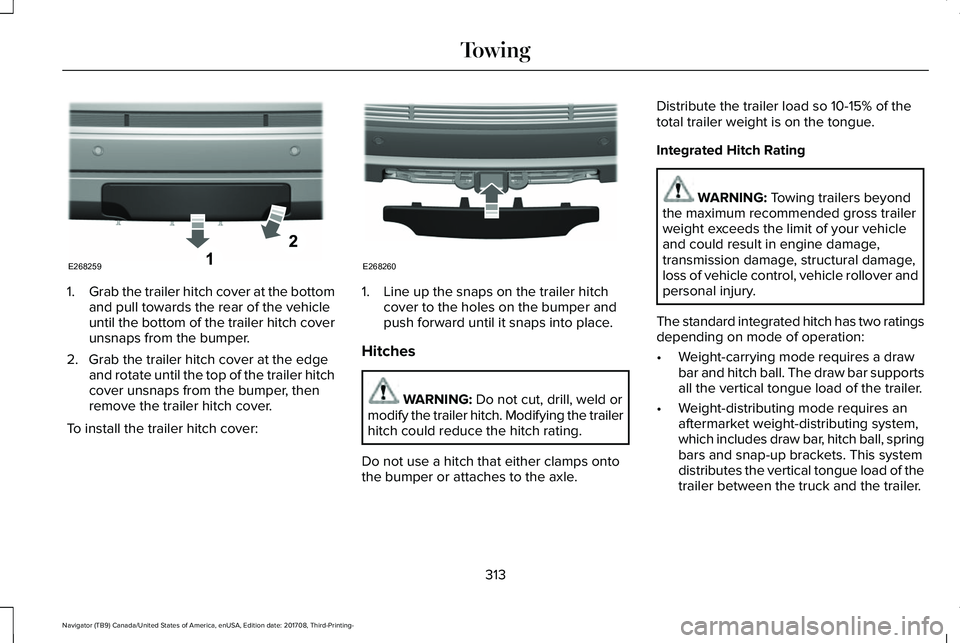
1.Grab the trailer hitch cover at the bottomand pull towards the rear of the vehicleuntil the bottom of the trailer hitch coverunsnaps from the bumper.
2. Grab the trailer hitch cover at the edgeand rotate until the top of the trailer hitchcover unsnaps from the bumper, thenremove the trailer hitch cover.
To install the trailer hitch cover:
1. Line up the snaps on the trailer hitchcover to the holes on the bumper andpush forward until it snaps into place.
Hitches
WARNING: Do not cut, drill, weld ormodify the trailer hitch. Modifying the trailerhitch could reduce the hitch rating.
Do not use a hitch that either clamps ontothe bumper or attaches to the axle.
Distribute the trailer load so 10-15% of thetotal trailer weight is on the tongue.
Integrated Hitch Rating
WARNING: Towing trailers beyondthe maximum recommended gross trailerweight exceeds the limit of your vehicleand could result in engine damage,transmission damage, structural damage,loss of vehicle control, vehicle rollover andpersonal injury.
The standard integrated hitch has two ratingsdepending on mode of operation:
•Weight-carrying mode requires a drawbar and hitch ball. The draw bar supportsall the vertical tongue load of the trailer.
•Weight-distributing mode requires anaftermarket weight-distributing system,which includes draw bar, hitch ball, springbars and snap-up brackets. This systemdistributes the vertical tongue load of thetrailer between the truck and the trailer.
313
Navigator (TB9) Canada/United States of America, enUSA, Edition date: 201708, Third-Printing-
TowingE268259 E268260
Page 317 of 649
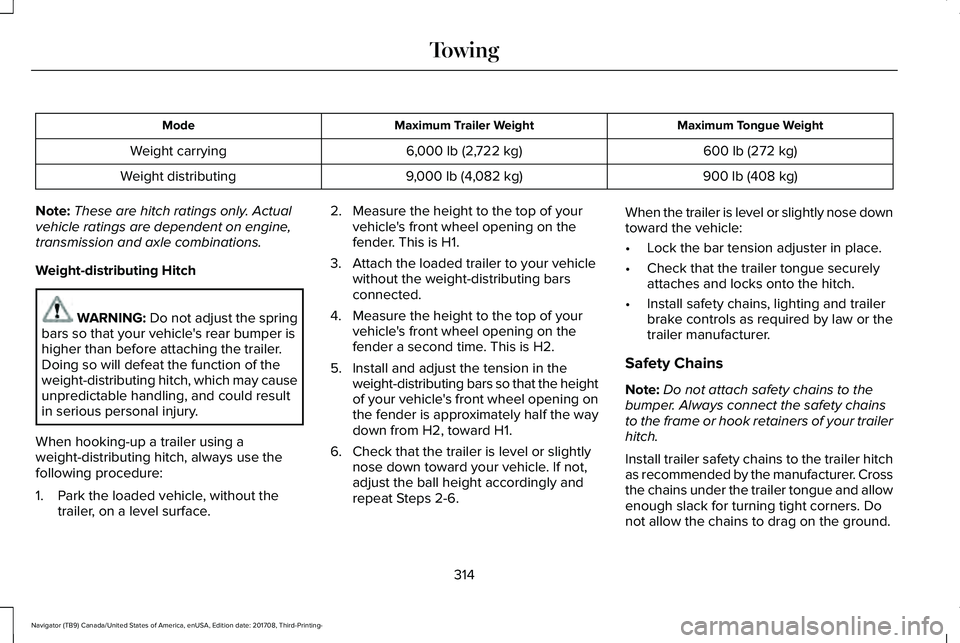
Maximum Tongue WeightMaximum Trailer WeightMode
600 lb (272 kg)6,000 lb (2,722 kg)Weight carrying
900 lb (408 kg)9,000 lb (4,082 kg)Weight distributing
Note:These are hitch ratings only. Actualvehicle ratings are dependent on engine,transmission and axle combinations.
Weight-distributing Hitch
WARNING: Do not adjust the springbars so that your vehicle's rear bumper ishigher than before attaching the trailer.Doing so will defeat the function of theweight-distributing hitch, which may causeunpredictable handling, and could resultin serious personal injury.
When hooking-up a trailer using aweight-distributing hitch, always use thefollowing procedure:
1. Park the loaded vehicle, without thetrailer, on a level surface.
2. Measure the height to the top of yourvehicle's front wheel opening on thefender. This is H1.
3. Attach the loaded trailer to your vehiclewithout the weight-distributing barsconnected.
4. Measure the height to the top of yourvehicle's front wheel opening on thefender a second time. This is H2.
5. Install and adjust the tension in theweight-distributing bars so that the heightof your vehicle's front wheel opening onthe fender is approximately half the waydown from H2, toward H1.
6. Check that the trailer is level or slightlynose down toward your vehicle. If not,adjust the ball height accordingly andrepeat Steps 2-6.
When the trailer is level or slightly nose downtoward the vehicle:
•Lock the bar tension adjuster in place.
•Check that the trailer tongue securelyattaches and locks onto the hitch.
•Install safety chains, lighting and trailerbrake controls as required by law or thetrailer manufacturer.
Safety Chains
Note:Do not attach safety chains to thebumper. Always connect the safety chainsto the frame or hook retainers of your trailerhitch.
Install trailer safety chains to the trailer hitchas recommended by the manufacturer. Crossthe chains under the trailer tongue and allowenough slack for turning tight corners. Donot allow the chains to drag on the ground.
314
Navigator (TB9) Canada/United States of America, enUSA, Edition date: 201708, Third-Printing-
Towing