steering LINCOLN NAVIGATOR 2019 Manual Online
[x] Cancel search | Manufacturer: LINCOLN, Model Year: 2019, Model line: NAVIGATOR, Model: LINCOLN NAVIGATOR 2019Pages: 645, PDF Size: 5.02 MB
Page 454 of 645
To make sure that 911 Assist works correctly:
•SYNC must be powered and workingproperly at the time of the incident andthroughout feature activation and use.
•The 911 Assist feature must be set onbefore the incident.
•You must pair and connect a Bluetoothenabled and compatible cell phone toSYNC.
•A connected Bluetooth enabled phonemust have the ability to make andmaintain an outgoing call at the time ofthe incident.
•A connected Bluetooth enabled phonemust have adequate network coverage,battery power and signal strength.
•The vehicle must have battery power andbe located in the U.S., Canada or in aterritory in which 911 is the emergencynumber.
In the Event of a Crash
Not all crashes will deploy an airbag oractivate the fuel pump shut-off (the triggersfor 911 Assist). If a connected cell phonesustains damage or loses its connection toSYNC during a crash, SYNC will search forand try to connect to a previously paired cellphone; SYNC will then attempt to call theemergency services.
Before making the call:
•SYNC provides a short window of time(about 10 seconds) to cancel the call. Ifyou fail to cancel the call, SYNC attemptsto dial 911.
•SYNC says the following, or a similarmessage: "SYNC will attempt to call 911,to cancel the call, press Cancel on yourscreen or press and hold the phonebutton on your steering wheel."
If you do not cancel the call, and SYNCmakes a successful call, a pre-recordedmessage plays for the 911 operator, and thenthe occupant(s) in your vehicle is able to talkwith the operator. Be prepared to provideyour name, phone number and locationimmediately, because not all 911 systems arecapable of receiving this informationelectronically.
911 Assist May Not Work If
•Your cellular phone or 911 Assisthardware sustains damage in a crash.
•The vehicle's battery or the SYNC systemhas no power.
•The phone(s) thrown from your vehicleare the ones paired and connected tothe system.
911 Assist Privacy Notice
When you switch on 911 Assist, it maydisclose to emergency services that yourvehicle has been in a crash involving thedeployment of an airbag or activation of thefuel pump shut-off. Certain versions orupdates to 911 Assist may also be capable
451
Navigator (TB9) Canada/United States of America, enUSA, Edition date: 201808, First-Printing
SYNC™ 3
Page 461 of 645
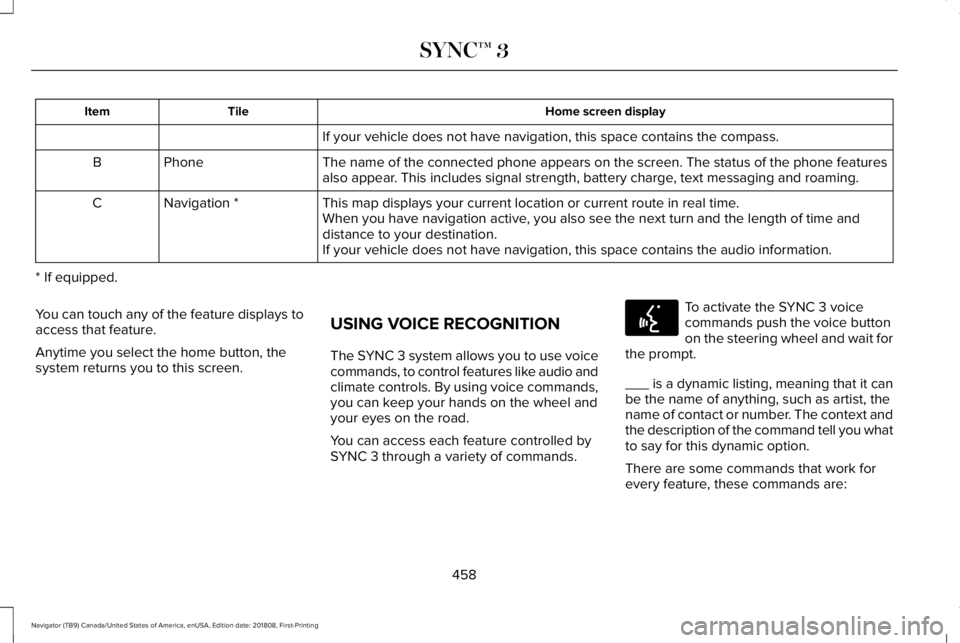
Home screen displayTileItem
If your vehicle does not have navigation, this space contains the compass.
The name of the connected phone appears on the screen. The status of the phone featuresalso appear. This includes signal strength, battery charge, text messaging and roaming.PhoneB
This map displays your current location or current route in real time.Navigation *CWhen you have navigation active, you also see the next turn and the length of time anddistance to your destination.If your vehicle does not have navigation, this space contains the audio information.
* If equipped.
You can touch any of the feature displays toaccess that feature.
Anytime you select the home button, thesystem returns you to this screen.
USING VOICE RECOGNITION
The SYNC 3 system allows you to use voicecommands, to control features like audio andclimate controls. By using voice commands,you can keep your hands on the wheel andyour eyes on the road.
You can access each feature controlled bySYNC 3 through a variety of commands.
To activate the SYNC 3 voicecommands push the voice buttonon the steering wheel and wait forthe prompt.
___ is a dynamic listing, meaning that it canbe the name of anything, such as artist, thename of contact or number. The context andthe description of the command tell you whatto say for this dynamic option.
There are some commands that work forevery feature, these commands are:
458
Navigator (TB9) Canada/United States of America, enUSA, Edition date: 201808, First-Printing
SYNC™ 3E142599
Page 489 of 645
Users with phones having voice services maysee a button to access the feature. Forexample, iPhone users see a Siri button. Apress and hold of the voice button on thesteering wheel also accesses this feature.
Making Calls
There are many ways to make calls from theSYNC 3 system, including using voicecommands. See Using Voice Recognition(page 458). You can use the touchscreen toplace calls as well.
486
Navigator (TB9) Canada/United States of America, enUSA, Edition date: 201808, First-Printing
SYNC™ 3
Page 490 of 645
To call a number in your contacts, select:
Action and DescriptionMenu Item
You can then select thename of the contact youwant to call. Any numbersstored for that contactdisplay along with anystored contact photos. Youcan then select the numberthat you want to call. Thesystem begins the call.
Contacts
To call a number from your recent calls,select:
Action and DescriptionMenu Item
You can then select an entrythat you want to call. Thesystem begins the call.
Recent CallList
To call a number that is not stored in yourphone, select:
Action and DescriptionMenu Item
Action and DescriptionMenu Item
Select the digits of thenumber you wish to call.PhoneKeypad
The system begins the call.Call
Pressing the backspace button deletes thelast digit you typed.
Receiving Calls
During an incoming call, an audible tonesounds. Caller information appears in thedisplay if it is available.
To accept the call, select:
Menu Item
Accept
Note:You can also accept the call bypressing the phone button on the steeringwheel.
To reject the call, select:
Menu Item
Reject
Note:You can also reject the call bypressing the phone button on the steeringwheel.
Ignore the call by doing nothing. SYNC 3logs it as a missed call.
During a Phone Call
During a phone call, the contacts name andnumber display on the screen along with thecall duration.
The phone status items are also visible:
•Signal Strength.
•Battery.
You can select any of the following duringan active phone call:
487
Navigator (TB9) Canada/United States of America, enUSA, Edition date: 201808, First-Printing
SYNC™ 3
Page 491 of 645
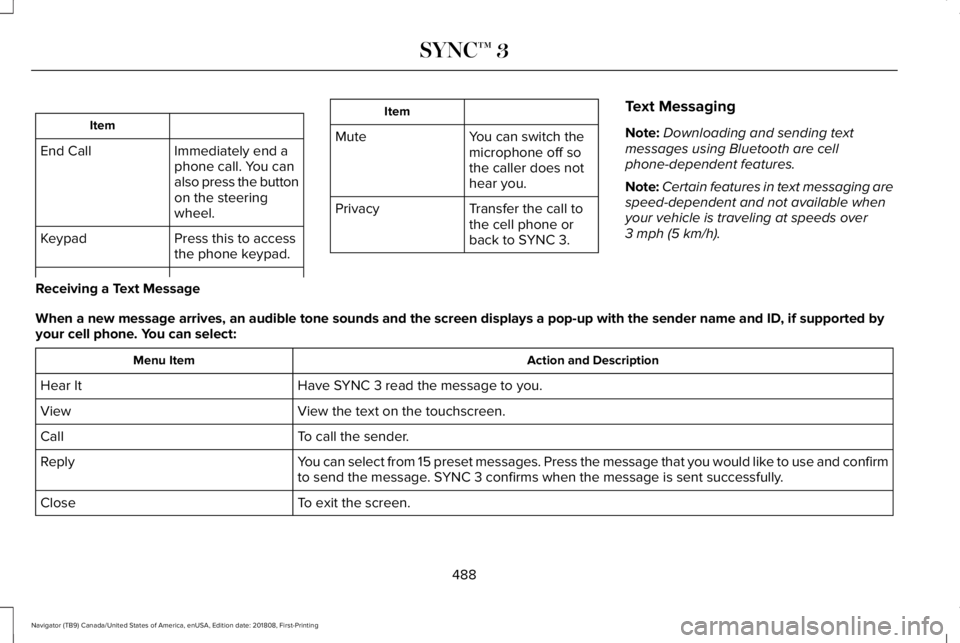
Item
Immediately end aphone call. You canalso press the buttonon the steeringwheel.
End Call
Press this to accessthe phone keypad.Keypad
Item
MuteYou can switch themicrophone off sothe caller does nothear you.
Transfer the call tothe cell phone orback to SYNC 3.
Privacy
Text Messaging
Note:Downloading and sending textmessages using Bluetooth are cellphone-dependent features.
Note:Certain features in text messaging arespeed-dependent and not available whenyour vehicle is traveling at speeds over3 mph (5 km/h).
Receiving a Text Message
When a new message arrives, an audible tone sounds and the screen displays a pop-up with the sender name and ID, if supported byyour cell phone. You can select:
Action and DescriptionMenu Item
Have SYNC 3 read the message to you.Hear It
View the text on the touchscreen.View
To call the sender.Call
You can select from 15 preset messages. Press the message that you would like to use and confirmto send the message. SYNC 3 confirms when the message is sent successfully.Reply
To exit the screen.Close
488
Navigator (TB9) Canada/United States of America, enUSA, Edition date: 201808, First-Printing
SYNC™ 3
Page 504 of 645
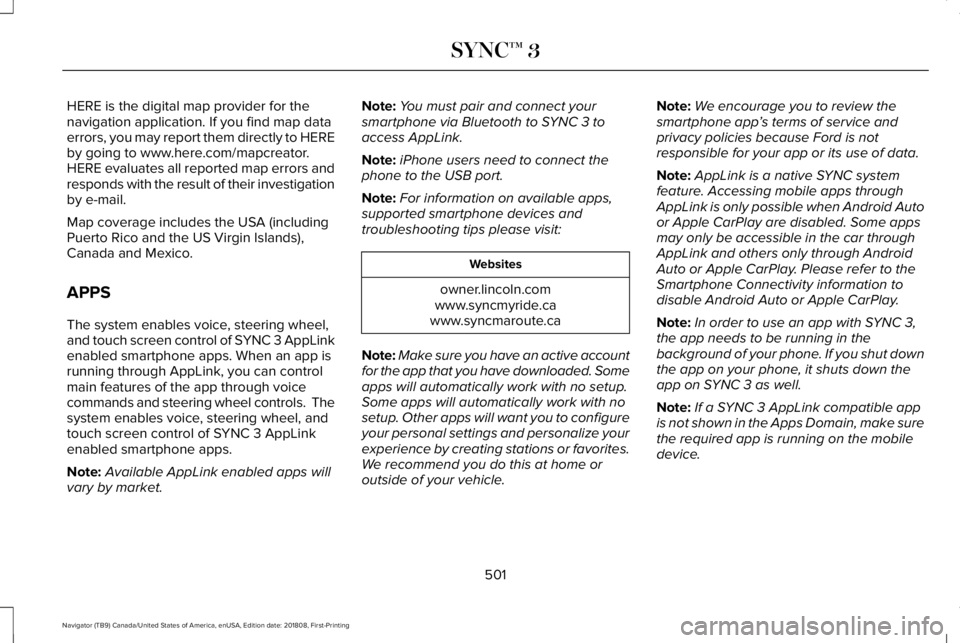
HERE is the digital map provider for thenavigation application. If you find map dataerrors, you may report them directly to HEREby going to www.here.com/mapcreator.HERE evaluates all reported map errors andresponds with the result of their investigationby e-mail.
Map coverage includes the USA (includingPuerto Rico and the US Virgin Islands),Canada and Mexico.
APPS
The system enables voice, steering wheel,and touch screen control of SYNC 3 AppLinkenabled smartphone apps. When an app isrunning through AppLink, you can controlmain features of the app through voicecommands and steering wheel controls. Thesystem enables voice, steering wheel, andtouch screen control of SYNC 3 AppLinkenabled smartphone apps.
Note:Available AppLink enabled apps willvary by market.
Note:You must pair and connect yoursmartphone via Bluetooth to SYNC 3 toaccess AppLink.
Note:iPhone users need to connect thephone to the USB port.
Note:For information on available apps,supported smartphone devices andtroubleshooting tips please visit:
Websites
owner.lincoln.comwww.syncmyride.cawww.syncmaroute.ca
Note:Make sure you have an active accountfor the app that you have downloaded. Someapps will automatically work with no setup.Some apps will automatically work with nosetup. Other apps will want you to configureyour personal settings and personalize yourexperience by creating stations or favorites.We recommend you do this at home oroutside of your vehicle.
Note:We encourage you to review thesmartphone app’s terms of service andprivacy policies because Ford is notresponsible for your app or its use of data.
Note:AppLink is a native SYNC systemfeature. Accessing mobile apps throughAppLink is only possible when Android Autoor Apple CarPlay are disabled. Some appsmay only be accessible in the car throughAppLink and others only through AndroidAuto or Apple CarPlay. Please refer to theSmartphone Connectivity information todisable Android Auto or Apple CarPlay.
Note:In order to use an app with SYNC 3,the app needs to be running in thebackground of your phone. If you shut downthe app on your phone, it shuts down theapp on SYNC 3 as well.
Note:If a SYNC 3 AppLink compatible appis not shown in the Apps Domain, make surethe required app is running on the mobiledevice.
501
Navigator (TB9) Canada/United States of America, enUSA, Edition date: 201808, First-Printing
SYNC™ 3
Page 554 of 645
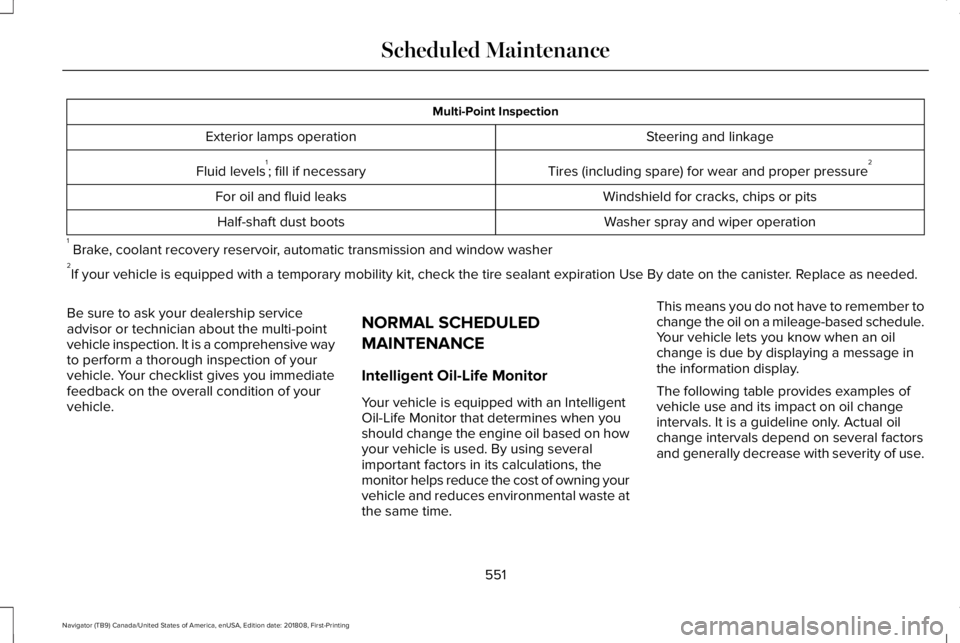
Multi-Point Inspection
Steering and linkageExterior lamps operation
Tires (including spare) for wear and proper pressure2Fluid levels1; fill if necessary
Windshield for cracks, chips or pitsFor oil and fluid leaks
Washer spray and wiper operationHalf-shaft dust boots
1 Brake, coolant recovery reservoir, automatic transmission and window washer2If your vehicle is equipped with a temporary mobility kit, check the tire sealant expiration Use By date on the canister. Replace as needed.
Be sure to ask your dealership serviceadvisor or technician about the multi-pointvehicle inspection. It is a comprehensive wayto perform a thorough inspection of yourvehicle. Your checklist gives you immediatefeedback on the overall condition of yourvehicle.
NORMAL SCHEDULED
MAINTENANCE
Intelligent Oil-Life Monitor
Your vehicle is equipped with an IntelligentOil-Life Monitor that determines when youshould change the engine oil based on howyour vehicle is used. By using severalimportant factors in its calculations, themonitor helps reduce the cost of owning yourvehicle and reduces environmental waste atthe same time.
This means you do not have to remember tochange the oil on a mileage-based schedule.Your vehicle lets you know when an oilchange is due by displaying a message inthe information display.
The following table provides examples ofvehicle use and its impact on oil changeintervals. It is a guideline only. Actual oilchange intervals depend on several factorsand generally decrease with severity of use.
551
Navigator (TB9) Canada/United States of America, enUSA, Edition date: 201808, First-Printing
Scheduled Maintenance
Page 556 of 645
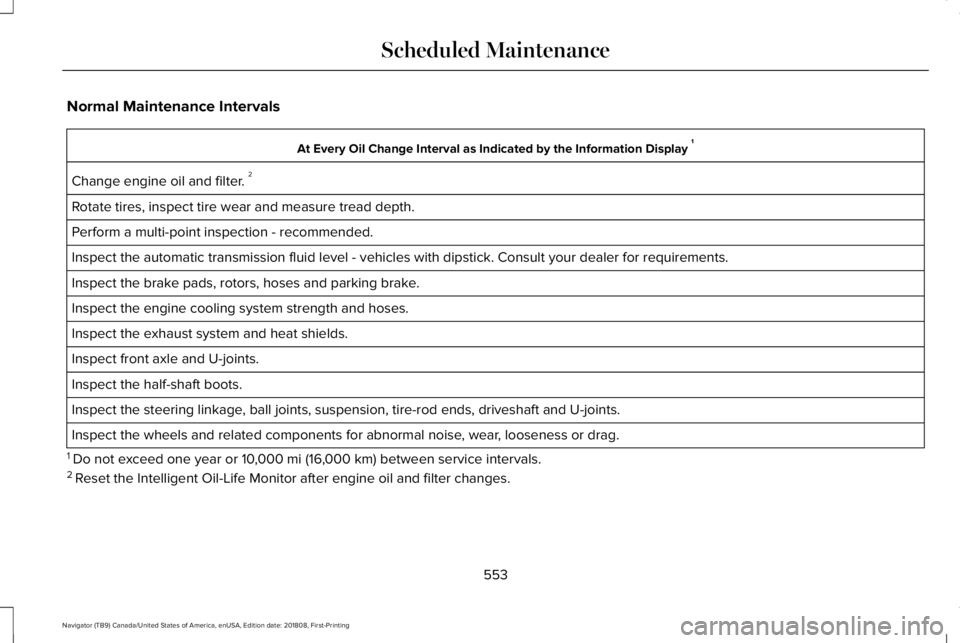
Normal Maintenance Intervals
At Every Oil Change Interval as Indicated by the Information Display 1
Change engine oil and filter. 2
Rotate tires, inspect tire wear and measure tread depth.
Perform a multi-point inspection - recommended.
Inspect the automatic transmission fluid level - vehicles with dipstick. Consult your dealer for requirements.
Inspect the brake pads, rotors, hoses and parking brake.
Inspect the engine cooling system strength and hoses.
Inspect the exhaust system and heat shields.
Inspect front axle and U-joints.
Inspect the half-shaft boots.
Inspect the steering linkage, ball joints, suspension, tire-rod ends, driveshaft and U-joints.
Inspect the wheels and related components for abnormal noise, wear, looseness or drag.
1 Do not exceed one year or 10,000 mi (16,000 km) between service intervals.2 Reset the Intelligent Oil-Life Monitor after engine oil and filter changes.
553
Navigator (TB9) Canada/United States of America, enUSA, Edition date: 201808, First-Printing
Scheduled Maintenance
Page 560 of 645
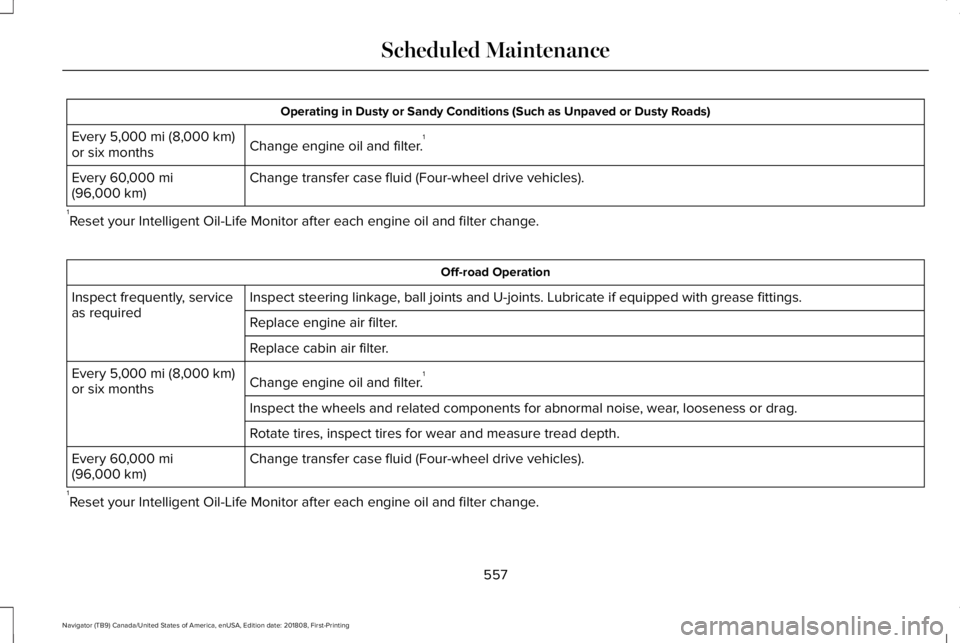
Operating in Dusty or Sandy Conditions (Such as Unpaved or Dusty Roads)
Change engine oil and filter.1Every 5,000 mi (8,000 km)or six months
Change transfer case fluid (Four-wheel drive vehicles).Every 60,000 mi(96,000 km)
1Reset your Intelligent Oil-Life Monitor after each engine oil and filter change.
Off-road Operation
Inspect steering linkage, ball joints and U-joints. Lubricate if equipped with grease fittings.Inspect frequently, serviceas requiredReplace engine air filter.
Replace cabin air filter.
Change engine oil and filter.1Every 5,000 mi (8,000 km)or six months
Inspect the wheels and related components for abnormal noise, wear, looseness or drag.
Rotate tires, inspect tires for wear and measure tread depth.
Change transfer case fluid (Four-wheel drive vehicles).Every 60,000 mi(96,000 km)
1Reset your Intelligent Oil-Life Monitor after each engine oil and filter change.
557
Navigator (TB9) Canada/United States of America, enUSA, Edition date: 201808, First-Printing
Scheduled Maintenance
Page 632 of 645
3
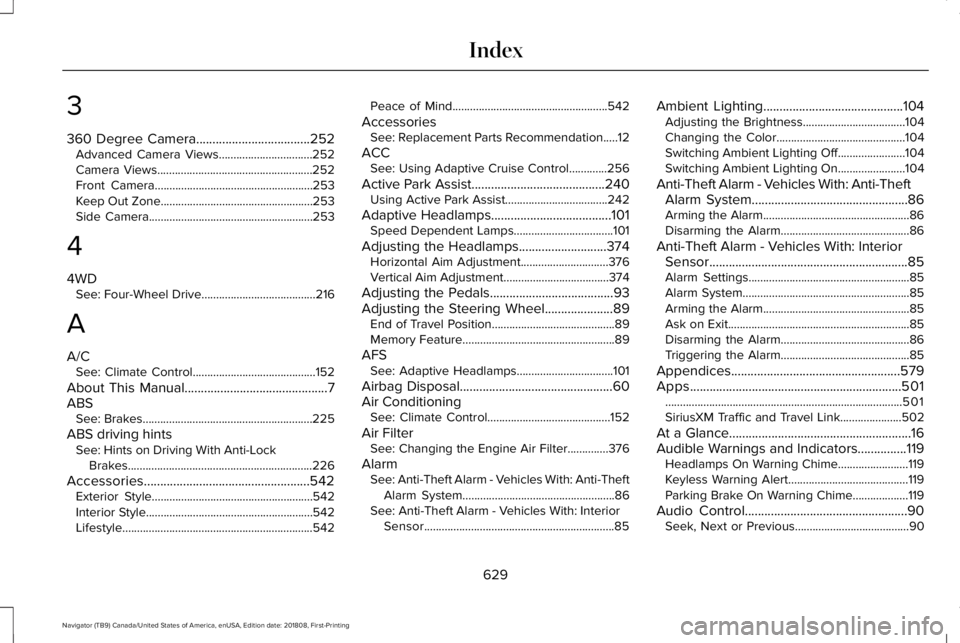
360 Degree Camera...................................252Advanced Camera Views................................252Camera Views.....................................................252Front Camera......................................................253Keep Out Zone....................................................253Side Camera........................................................253
4
4WDSee: Four-Wheel Drive.......................................216
A
A/CSee: Climate Control..........................................152
About This Manual............................................7ABSSee: Brakes..........................................................225
ABS driving hintsSee: Hints on Driving With Anti-LockBrakes...............................................................226
Accessories...................................................542Exterior Style.......................................................542Interior Style.........................................................542Lifestyle.................................................................542
Peace of Mind.....................................................542
AccessoriesSee: Replacement Parts Recommendation.....12
ACCSee: Using Adaptive Cruise Control.............256
Active Park Assist.........................................240Using Active Park Assist...................................242
Adaptive Headlamps.....................................101Speed Dependent Lamps..................................101
Adjusting the Headlamps...........................374Horizontal Aim Adjustment..............................376Vertical Aim Adjustment....................................374
Adjusting the Pedals......................................93Adjusting the Steering Wheel.....................89End of Travel Position..........................................89Memory Feature....................................................89
AFSSee: Adaptive Headlamps.................................101
Airbag Disposal...............................................60Air ConditioningSee: Climate Control..........................................152
Air FilterSee: Changing the Engine Air Filter..............376
AlarmSee: Anti-Theft Alarm - Vehicles With: Anti-TheftAlarm System....................................................86See: Anti-Theft Alarm - Vehicles With: InteriorSensor.................................................................85
Ambient Lighting...........................................104Adjusting the Brightness...................................104Changing the Color............................................104Switching Ambient Lighting Off.......................104Switching Ambient Lighting On.......................104
Anti-Theft Alarm - Vehicles With: Anti-TheftAlarm System................................................86Arming the Alarm..................................................86Disarming the Alarm............................................86
Anti-Theft Alarm - Vehicles With: InteriorSensor.............................................................85Alarm Settings.......................................................85Alarm System.........................................................85Arming the Alarm..................................................85Ask on Exit..............................................................85Disarming the Alarm............................................86Triggering the Alarm............................................85
Appendices....................................................579Apps.................................................................501.................................................................................501SiriusXM Traffic and Travel Link.....................502
At a Glance........................................................16Audible Warnings and Indicators...............119Headlamps On Warning Chime........................119Keyless Warning Alert.........................................119Parking Brake On Warning Chime...................119
Audio Control..................................................90Seek, Next or Previous.......................................90
629
Navigator (TB9) Canada/United States of America, enUSA, Edition date: 201808, First-Printing
Index