page 32 LINCOLN NAVIGATOR 2020 Owners Manual
[x] Cancel search | Manufacturer: LINCOLN, Model Year: 2020, Model line: NAVIGATOR, Model: LINCOLN NAVIGATOR 2020Pages: 622, PDF Size: 6.47 MB
Page 491 of 622
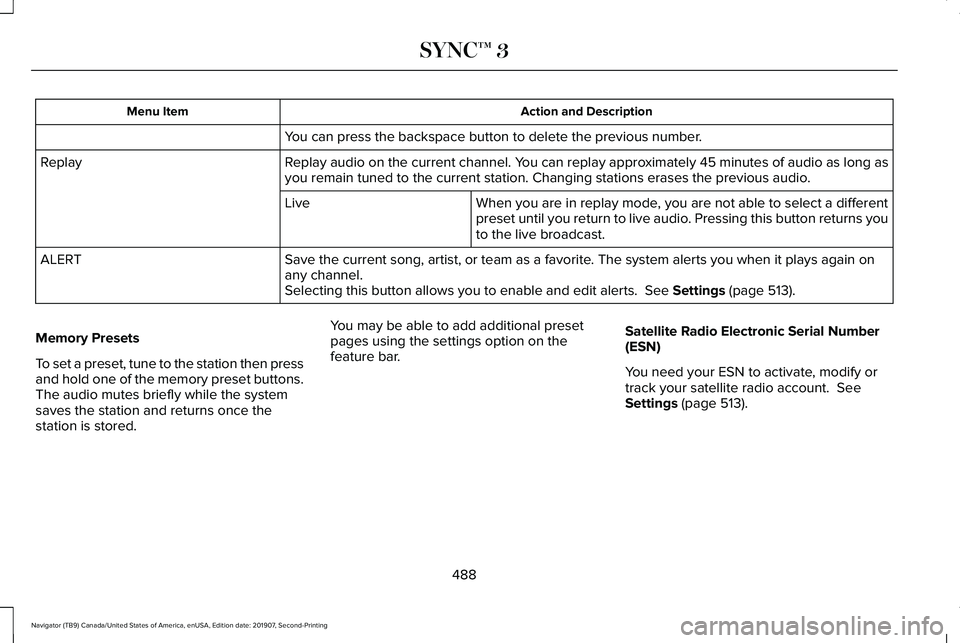
Action and Description
Menu Item
You can press the backspace button to delete the previous number.
Replay audio on the current channel. You can replay approximately 45 minutes of audio as long as
you remain tuned to the current station. Changing stations erases the pr\
evious audio.
Replay
When you are in replay mode, you are not able to select a different
preset until you return to live audio. Pressing this button returns you
to the live broadcast.
Live
Save the current song, artist, or team as a favorite. The system alerts you when it plays again on
any channel.
ALERT
Selecting this button allows you to enable and edit alerts. See Settings (page 513).
Memory Presets
To set a preset, tune to the station then press
and hold one of the memory preset buttons.
The audio mutes briefly while the system
saves the station and returns once the
station is stored. You may be able to add additional preset
pages using the settings option on the
feature bar.
Satellite Radio Electronic Serial Number
(ESN)
You need your ESN to activate, modify or
track your satellite radio account.
See
Settings (page 513).
488
Navigator (TB9) Canada/United States of America, enUSA, Edition date: 201907, Second-Printing SYNC™ 3
Page 493 of 622
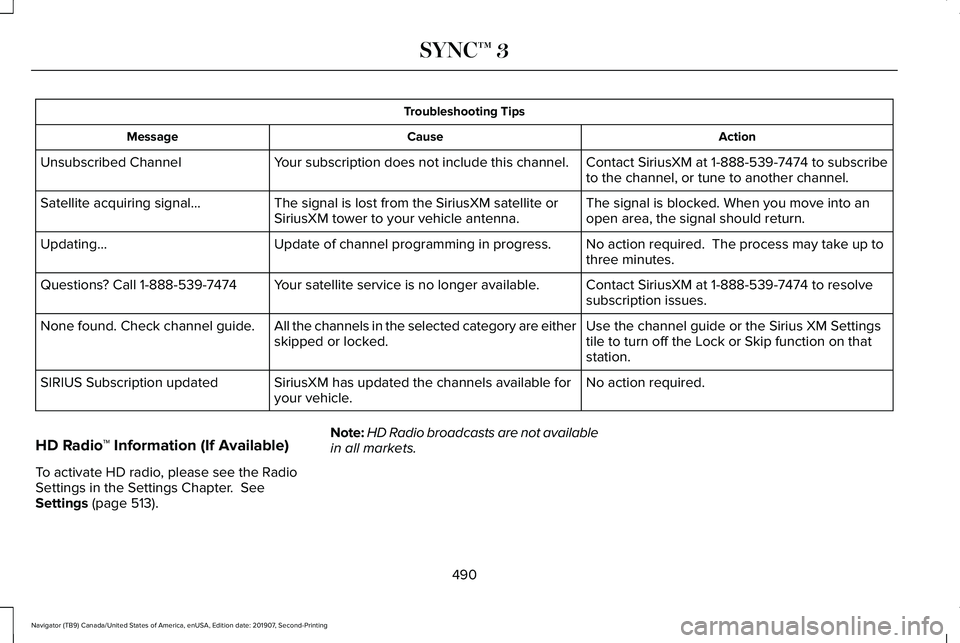
Troubleshooting Tips
Action
Cause
Message
Contact SiriusXM at 1-888-539-7474 to subscribe
to the channel, or tune to another channel.
Your subscription does not include this channel.
Unsubscribed Channel
The signal is blocked. When you move into an
open area, the signal should return.
The signal is lost from the SiriusXM satellite or
SiriusXM tower to your vehicle antenna.
Satellite acquiring signal…
No action required. The process may take up to
three minutes.
Update of channel programming in progress.
Updating…
Contact SiriusXM at 1-888-539-7474 to resolve
subscription issues.
Your satellite service is no longer available.
Questions? Call 1-888-539-7474
Use the channel guide or the Sirius XM Settings
tile to turn off the Lock or Skip function on that
station.
All the channels in the selected category are either
skipped or locked.
None found. Check channel guide.
No action required.
SiriusXM has updated the channels available for
your vehicle.
SIRIUS Subscription updated
HD Radio ™ Information (If Available)
To activate HD radio, please see the Radio
Settings in the Settings Chapter. See
Settings (page 513). Note:
HD Radio broadcasts are not available
in all markets.
490
Navigator (TB9) Canada/United States of America, enUSA, Edition date: 201907, Second-Printing SYNC™ 3
Page 500 of 622
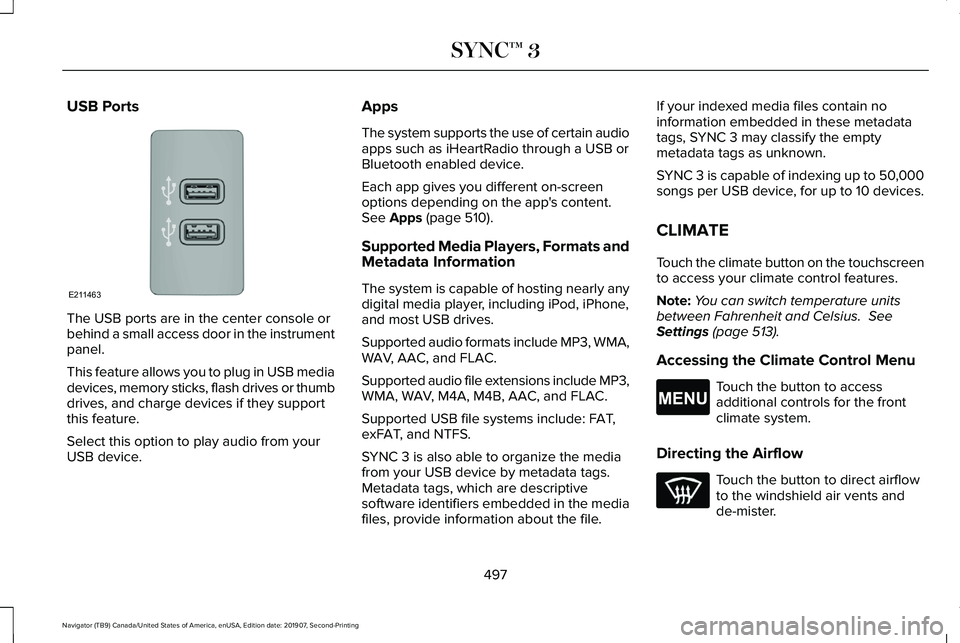
USB Ports
The USB ports are in the center console or
behind a small access door in the instrument
panel.
This feature allows you to plug in USB media
devices, memory sticks, flash drives or thumb
drives, and charge devices if they support
this feature.
Select this option to play audio from your
USB device. Apps
The system supports the use of certain audio
apps such as iHeartRadio through a USB or
Bluetooth enabled device.
Each app gives you different on-screen
options depending on the app's content.
See Apps (page 510).
Supported Media Players, Formats and
Metadata Information
The system is capable of hosting nearly any
digital media player, including iPod, iPhone,
and most USB drives.
Supported audio formats include MP3, WMA,
WAV, AAC, and FLAC.
Supported audio file extensions include MP3,
WMA, WAV, M4A, M4B, AAC, and FLAC.
Supported USB file systems include: FAT,
exFAT, and NTFS.
SYNC 3 is also able to organize the media
from your USB device by metadata tags.
Metadata tags, which are descriptive
software identifiers embedded in the media
files, provide information about the file. If your indexed media files contain no
information embedded in these metadata
tags, SYNC 3 may classify the empty
metadata tags as unknown.
SYNC 3 is capable of indexing up to 50,000
songs per USB device, for up to 10 devices.
CLIMATE
Touch the climate button on the touchscreen
to access your climate control features.
Note:
You can switch temperature units
between Fahrenheit and Celsius.
See
Settings (page 513).
Accessing the Climate Control Menu Touch the button to access
additional controls for the front
climate system.
Directing the Airflow Touch the button to direct airflow
to the windshield air vents and
de-mister.
497
Navigator (TB9) Canada/United States of America, enUSA, Edition date: 201907, Second-Printing SYNC™ 3E211463 E265038
Page 510 of 622
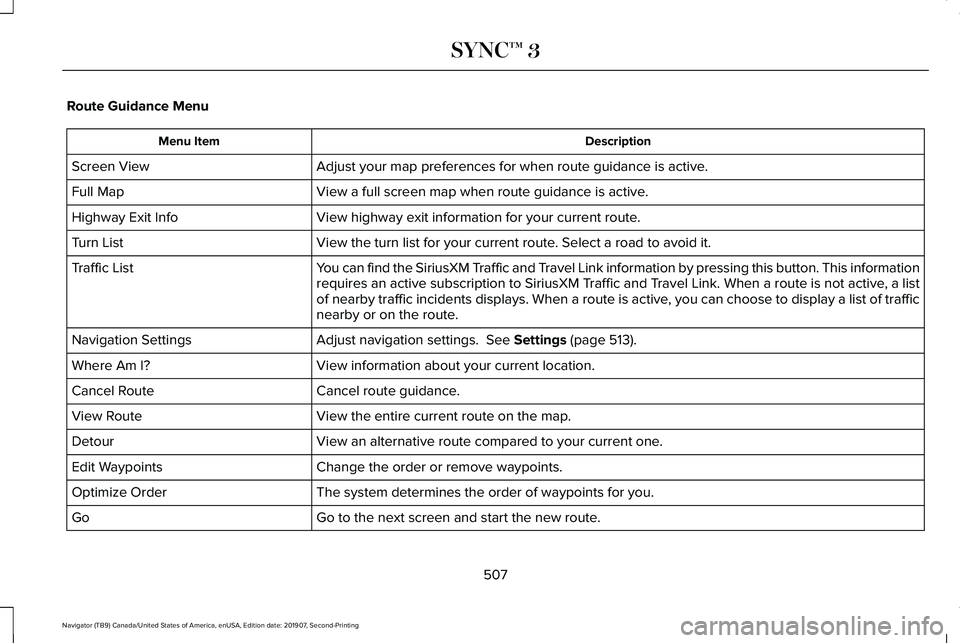
Route Guidance Menu
Description
Menu Item
Adjust your map preferences for when route guidance is active.
Screen View
View a full screen map when route guidance is active.
Full Map
View highway exit information for your current route.
Highway Exit Info
View the turn list for your current route. Select a road to avoid it.
Turn List
You can find the SiriusXM Traffic and Travel Link information by pressing this button. This information
requires an active subscription to SiriusXM Traffic and Travel Link. When a route is not active, a list
of nearby traffic incidents displays. When a route is active, you can choose to display a list of traffic
nearby or on the route.
Traffic List
Adjust navigation settings. See Settings (page 513).
Navigation Settings
View information about your current location.
Where Am I?
Cancel route guidance.
Cancel Route
View the entire current route on the map.
View Route
View an alternative route compared to your current one.
Detour
Change the order or remove waypoints.
Edit Waypoints
The system determines the order of waypoints for you.
Optimize Order
Go to the next screen and start the new route.
Go
507
Navigator (TB9) Canada/United States of America, enUSA, Edition date: 201907, Second-Printing SYNC™ 3
Page 513 of 622
The navigation system map data may contain
inaccurate or incomplete information due to
the passage of time, changing
circumstances, sources used and the nature
of collecting comprehensive geographic
data, any of which may lead to incorrect
results. Inaccurate speed limit information,
turn restrictions and other road attributes
may affect the determined route and
associated guidance
Annual navigation map updates are available
for purchase through your dealership.
Depending on your purchase agreement,
you might be eligible for free Map update.
You can choose to download the Map data
update onto a USB, order a USB, or use Wi-Fi
to deliver automatic updates. To update your
Map data over Wi-Fi, your vehicle must be
connected to a Wi-Fi access point. Map Data
files are large, so it is highly recommended
to perform the update when free Wi-Fi is
available otherwise high data rates may
apply. For USB updates, free map update
eligibility, and other details, contact dealers
at 1-866-462-8837 in the United States and
Canada or 01-800-557-5539 in Mexico or
visit our local website for more information.
APPS
The system allows you interact with select
mobile apps while keeping your eyes on the
road. Voice commands, your steering wheel
buttons, or a quick tap on your touchscreen
give you advanced control of compatible
mobile apps. You can also stream your
favorite music or podcasts, share your time
of arrival with friends, and keep connected
safely.
When you start an app through the system
for the first time, you could be asked to grant
certain permissions. You can review and
change the permissions that you have
granted at any time when your vehicle is not
moving. We recommend that you check your
data plan before using your apps through
the system. Using them could result in
additional charges. We also recommend that
you check the app provider's terms and
conditions and privacy policy before using
their app. Make sure that you have an active
account for apps that you want to use
through the system. Some apps will work
with no setup. Others require you to
configure some personal settings before you
can use them.
Note:
For more information about available
apps, visit catalog.ford.com.
Using Apps on an iOS Device Select the apps option on the
feature bar.
1. If your device is connected via USB, switch Apple CarPlay off. See Phone
(page 500).
2. Connect your device to a USB port or pair and connect using Bluetooth.
3. If prompted to enable CarPlay, select Disable
.
4. Start the apps on your device that you want to use through SYNC.
Note: If you close the apps on your device,
you will not be able to use them through the
system.
510
Navigator (TB9) Canada/United States of America, enUSA, Edition date: 201907, Second-Printing SYNC™ 3
Page 514 of 622
5. Select the app that you want to use on
the touchscreen.
Note: Connect your device to a USB port if
you want to use a navigation app. When
using a navigation app, keep your device
unlocked and the app open.
Using Apps on an Android Device Select the apps option on the
feature bar.
1. If your device is connected via USB, switch Android Auto off. See Phone
(page 500).
2. Pair your device. See
Phone (page 500).
3. Start the apps on your device that you want to use through SYNC.
Note: If you close the apps on your device,
you will not be able to use them through the
system.
4. Select
Find Mobile Apps.
Note: The system searches and connects to
compatible apps that are running on your
device. 5. Select the app that you want to use on
the touchscreen.
Note: Mobile Apps on your device use the
USB port to establish a connection with
SYNC. Some devices may lose the ability to
play music over USB when Mobile Apps are
enabled.
Using Mobile Navigation on an Android
Device
1. Connect your device to a USB port.
2. Switch Android Auto off.
See Phone
(page 500).
3. Switch on
Enable Mobile Apps via USB
in the Mobile Apps Settings tile.
4. Select the apps option on the feature bar.
5. Select the navigation app that you want to use on the touchscreen.
Note: When using a navigation app, keep
your device unlocked and the app open. SiriusXM Traffic and Travel Link
(If
Equipped) WARNING:
Driving while distracted
can result in loss of vehicle control, crash
and injury. We strongly recommend that
you use extreme caution when using any
device that may take your focus off the
road. Your primary responsibility is the safe
operation of your vehicle. We recommend
against the use of any hand-held device
while driving and encourage the use of
voice-operated systems when possible.
Make sure you are aware of all applicable
local laws that may affect the use of
electronic devices while driving.
Note: SiriusXM Traffic and Travel Link may
not be available in all markets.
Note: In order to use SiriusXM Traffic and
Travel Link, your vehicle must have
navigation.
Note: A paid subscription is required to
access and use these features. Go to
www.siriusxm.com/travellink for more
information.
511
Navigator (TB9) Canada/United States of America, enUSA, Edition date: 201907, Second-Printing SYNC™ 3
Page 518 of 622
SYNC™ 3 TROUBLESHOOTING
Voice Recognition
Possible Cause and Resolution
Symptom
The system does not understand what I am
saying. –
You are using the wrong voice commands.
•See Using Voice Recognition (page 474).
• For a complete list of voice commands, refer to our website.
– You are speaking too soon.
•Wait for the voice prompt before you speak.
515
Navigator (TB9) Canada/United States of America, enUSA, Edition date: 201907, Second-Printing SYNC™ 3
Page 519 of 622
Possible Cause and Resolution
Symptom
–Device limitation. Bluetooth does not support voice commands.
•Connect your device to a USB port.
• If you have an iOS device, press and hold the voice control button on the steering
wheel to use Siri to play specific tracks.
– You are using the wrong voice commands.
•See Using Voice Recognition (page 474).
• For a complete list of voice commands, refer to our website.
– You are not saying the name exactly as it appears on your device.
•Say the name of the track or artist exactly as it appears on your device\
. Spell out any
abbreviations in the name.
The song or artist name may have some special characters that are not be\
ing recognized
by the system.
– The name contains special characters, for example *, - or +.
•Rename the files on your device or use the touchscreen to select and play\
the track.
The system does not understand the name of
a track or artist.
–You are not saying the name exactly as it appears on your device.
•Say the first and last name of the contact exactly as it appears on your\
device. Spell
out any abbreviations in the name.
– The name contains special characters, for example *, - or +.
•Rename the contact on your device or use the touchscreen to select and ca\
ll the
contact.
The system does not understand the name of
a contact in the phonebook on my device and
calls the wrong contact.
516
Navigator (TB9) Canada/United States of America, enUSA, Edition date: 201907, Second-Printing SYNC™ 3
Page 522 of 622
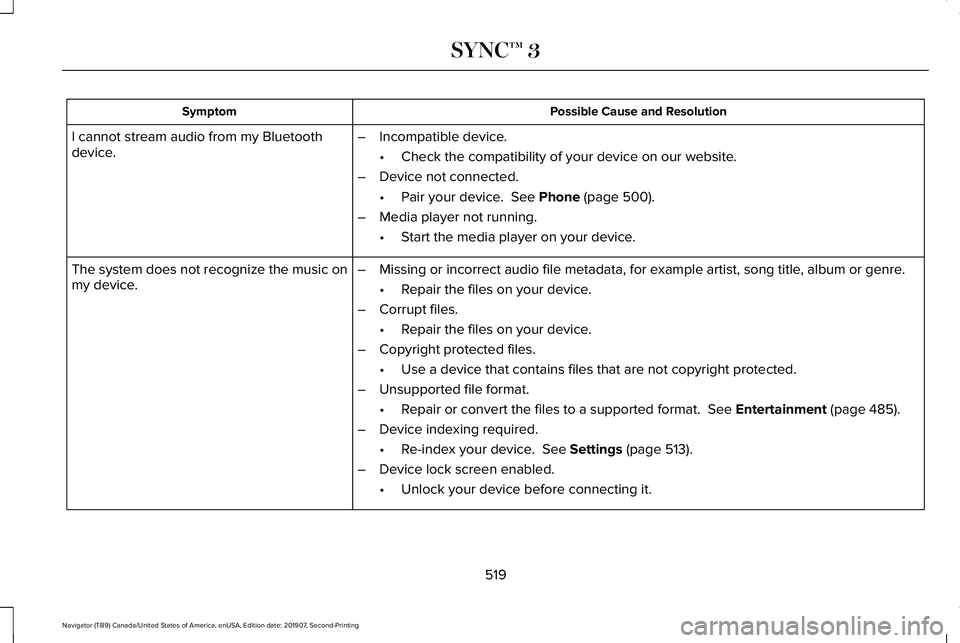
Possible Cause and Resolution
Symptom
I cannot stream audio from my Bluetooth
device. –
Incompatible device.
•Check the compatibility of your device on our website.
– Device not connected.
•Pair your device. See Phone (page 500).
– Media player not running.
•Start the media player on your device.
The system does not recognize the music on
my device. –
Missing or incorrect audio file metadata, for example artist, song title\
, album or genre.
•Repair the files on your device.
– Corrupt files.
•Repair the files on your device.
– Copyright protected files.
•Use a device that contains files that are not copyright protected.
– Unsupported file format.
•Repair or convert the files to a supported format.
See Entertainment (page 485).
– Device indexing required.
•Re-index your device.
See Settings (page 513).
– Device lock screen enabled.
•Unlock your device before connecting it.
519
Navigator (TB9) Canada/United States of America, enUSA, Edition date: 201907, Second-Printing SYNC™ 3
Page 525 of 622
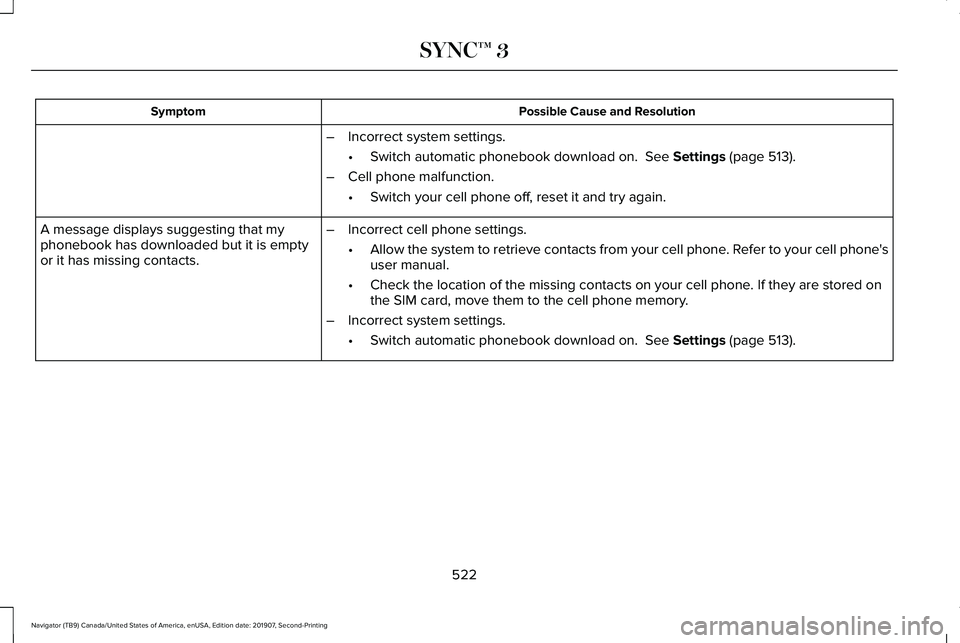
Possible Cause and Resolution
Symptom
–Incorrect system settings.
•Switch automatic phonebook download on. See Settings (page 513).
– Cell phone malfunction.
•Switch your cell phone off, reset it and try again.
– Incorrect cell phone settings.
•Allow the system to retrieve contacts from your cell phone. Refer to your cell phone's
user manual.
• Check the location of the missing contacts on your cell phone. If they are stored on
the SIM card, move them to the cell phone memory.
– Incorrect system settings.
•Switch automatic phonebook download on.
See Settings (page 513).
A message displays suggesting that my
phonebook has downloaded but it is empty
or it has missing contacts.
522
Navigator (TB9) Canada/United States of America, enUSA, Edition date: 201907, Second-Printing SYNC™ 3