lock LINCOLN NAVIGATOR 2021 Owner's Manual
[x] Cancel search | Manufacturer: LINCOLN, Model Year: 2021, Model line: NAVIGATOR, Model: LINCOLN NAVIGATOR 2021Pages: 639, PDF Size: 6.09 MB
Page 77 of 639
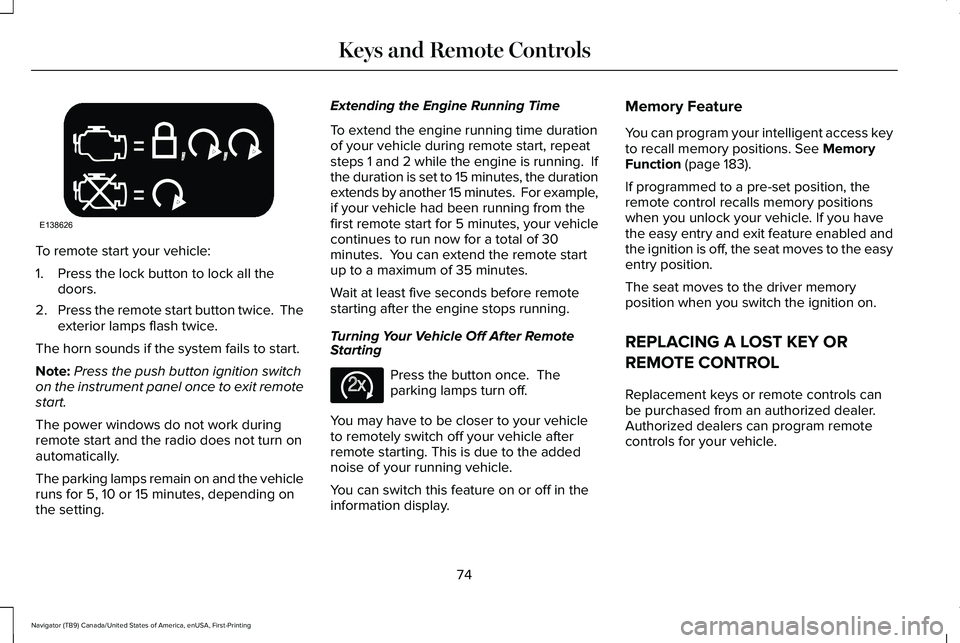
To remote start your vehicle:
1. Press the lock button to lock all the
doors.
2. Press the remote start button twice. The
exterior lamps flash twice.
The horn sounds if the system fails to start.
Note: Press the push button ignition switch
on the instrument panel once to exit remote
start.
The power windows do not work during
remote start and the radio does not turn on
automatically.
The parking lamps remain on and the vehicle
runs for 5, 10 or 15 minutes, depending on
the setting. Extending the Engine Running Time
To extend the engine running time duration
of your vehicle during remote start, repeat
steps 1 and 2 while the engine is running. If
the duration is set to 15 minutes, the duration
extends by another 15 minutes. For example,
if your vehicle had been running from the
first remote start for 5 minutes, your vehicle
continues to run now for a total of 30
minutes. You can extend the remote start
up to a maximum of 35 minutes.
Wait at least five seconds before remote
starting after the engine stops running.
Turning Your Vehicle Off After Remote
Starting
Press the button once. The
parking lamps turn off.
You may have to be closer to your vehicle
to remotely switch off your vehicle after
remote starting. This is due to the added
noise of your running vehicle.
You can switch this feature on or off in the
information display. Memory Feature
You can program your intelligent access key
to recall memory positions. See Memory
Function (page 183).
If programmed to a pre-set position, the
remote control recalls memory positions
when you unlock your vehicle. If you have
the easy entry and exit feature enabled and
the ignition is off, the seat moves to the easy
entry position.
The seat moves to the driver memory
position when you switch the ignition on.
REPLACING A LOST KEY OR
REMOTE CONTROL
Replacement keys or remote controls can
be purchased from an authorized dealer.
Authorized dealers can program remote
controls for your vehicle.
74
Navigator (TB9) Canada/United States of America, enUSA, First-Printing Keys and Remote ControlsE138626 E138625
Page 78 of 639
WHAT IS PHONE AS A KEY
Phone as a Key allows you to use your phone
in place of a passive key.
You can use your phone for the following
functions:
•
Remote locking and unlocking.
• Passive entry and exit.
• Passive start and drive the vehicle.
• Remote start.
• Memory function recall.
PHONE AS A KEY LIMITATIONS
Limitations can vary based on the make and
model of your phone, phone location and
physical obstructions.
The following items could impact Phone as
a Key performance or prevent functionality
in some cases:
• The typical operating range for Phone as
a Key is 131 ft (40 m). •
Your Bluetooth connection is not
enabled, is disrupted, or out of range.
• Your Phone as a Key is not active or
enabled on at least one phone.
• Your vehicle battery has depleted.
• Your phone battery has depleted.
• Interference from other devices using
radio frequencies or physical
obstructions.
• Your phone is too close to metal objects
or other electronic devices.
Note: Do not leave a duplicate coded key
in the vehicle. Always take your keys and
phone and lock all doors when leaving the
vehicle.
PROGRAMMING YOUR PHONE
To program your smartphone as Phone as a
Key:
1. Visit your device's app store to download
the Lincoln Way app. 2.
Create or sign-in to the Lincoln Way app
and add the vehicle identification number
to your account.
3. Once you add the vehicle identification number, follow the prompts in the Lincoln
Way app to complete the Sync Connect
Authorization process.
4. After the vehicle authorizes, you can setup Phone as a Key following the
prompts in the Lincoln Way app.
5. After Phone as a Key is setup, you can setup the Backup Start Passcode by
following the prompts on your
touchscreen.
Note: Keep your new Backup Start Passcode
with you in case of an emergency.
Resetting Phone as a Key
If the Phone as a Key belongs to your
account, you can delete it from your phone.
If not, reset Phone as a Key using the
following steps:
1. Press Settings on the touchscreen.
2. Press
General.
3. Press
Reset.
75
Navigator (TB9) Canada/United States of America, enUSA, First-Printing Phone as a Key
Page 79 of 639
4. Press Lincoln Way Connect Reset.
5. Press
Reset All.
6. Confirm you would like to continue with erasing all Phone as a Key, Backup Start
Passcodes.
7. Press
Continue.
8. Confirm you are aware you are de-authorizing all authorized users and
Lincoln Way Connect settings.
9. Press
Continue.
Note: Please wait while the vehicle resets
all the Phone as a Key, Backup Start
Passcodes, Lincoln Way Connect Settings
and de-authorize previously authorized
users.
USING THE VALET MODE
1. Press Settings on the touchscreen.
2. Press Valet Mode.
Note: Have your Backup Start Passcode
completely setup before using Valet Mode. Note:
Once the system detects a valid Phone
as a Key, the temporary passcode displays
in both the touchscreen and mobile app. If
the system does not detect a valid Phone as
a Key, it prompts you to enter your Backup
Start Passcode. Once validated, the
temporary passcode displays on the
touchscreen.
3. Enter the first five digits of the passcode
on the keyless entry keypad to unlock
your vehicle.
4. Enter the eight-digit passcode on the touchscreen to start and drive your
vehicle.
To disable Valet Mode, press Exit Valet Mode
on the touchscreen. Once the system detects
an authorized Phone as a Key, it disables. If
the system does not detect a valid Phone as
a Key, it prompts you to enter your Backup
Start Passcode. Once validated, Valet Mode
disables. USING THE BACKUP START
PASSCODE
If you are unable to start your vehicle with
Phone as a Key, follow the steps below:
1. Press the brake pedal and the ignition
button. If the system does not detect a
valid Phone as a Key, a message appears
and the system prompts you for your
Backup Start Passcode.
Note: Make sure you have Phone as a Key
active on at least one phone to use the
previously created Backup Start Passcode.
Note: If the Backup Start Passcode screen
does not appear, it is necessary to press the
ignition button again.
2. Use the touchscreen to enter your Backup Start Passcode.
3. After entering your Backup Start Passcode, you must press Enter within
30 seconds.
4. Once the system validates the Backup Start Passcode, a message alerts you to
start your vehicle.
76
Navigator (TB9) Canada/United States of America, enUSA, First-Printing Phone as a Key
Page 80 of 639
5. Press the brake pedal and the ignition
button within 20 seconds to start the
vehicle.
6. If your vehicle does not start, repeat steps 1-5.
System Lockout
The system locks after five attempts of trying
to enter a Backup Start Passcode, resetting
a current passcode or entering an incorrect
Valet Mode passcode.
Note: The system remains locked for five
minutes. After five minutes the system allows
codes to be entered again. PHONE AS A KEY –
TROUBLESHOOTING
Phone as a Key – Frequently Asked
Questions
How can I tell if my vehicle has Phone as a
Key?
The touchscreen shows the Phone as a
Key reset option if your vehicle has
Phone as a Key. If you have registered
your vehicle through the Lincoln Way
app, a control button appears on the
home screen of the Lincoln Way app. What happens if I cannot unlock the vehicle
with Phone as a Key?
Attempt to move your phone closer to
the vehicle. Check that the Lincoln Way
app is still running and that the Phone
as a Key control screen shows
connected. If the phone is connected,
attempt to press the remote unlock
button in the Lincoln Way app. If the
phone is not connected or the remote
unlock button does not work in the
Lincoln Way app, attempt to force close
and restart the app.
Why do I get a No Key Detected message
in the instrument cluster display when I am
using Phone as a Key and my phone is in
the car? Your phone ’s Bluetooth connection has
been disrupted or is not connected. Try
reconnecting your phone's Bluetooth
connection. Move the phone closer to
the center of the vehicle near the cup
holder or center console. Verify your
Phone as a Key is still active, enabled
and has not been revoked.
77
Navigator (TB9) Canada/United States of America, enUSA, First-Printing Phone as a Key
Page 85 of 639
Number of MyKeys
Indicates the number of MyKeys
programmed to your vehicle. Use this feature
to detect how many MyKeys you have for
your vehicle and determine when all MyKeys
have been deleted.
Number of Admin Keys
Indicates how many admin keys are
programmed to your vehicle. Use this feature
to determine how many admin keys you have
for your vehicle, and detect if an additional
MyKey has been programmed.
USING MYKEY WITH REMOTE
START SYSTEMS
MyKey is not compatible with non
Ford-approved, aftermarket remote start
systems. If you choose to install a remote
start system, see an authorized dealer for a
Ford-approved remote start system.
MYKEY – TROUBLESHOOTING Potential causes
Condition
· The key or transmitter used to start the vehicle does not have admin
privileges.
I cannot create a MyKey.
· Vehicles with keyless start: Make sure you place the transmitter into
the backup slot. See Passive Anti-Theft System (page 95).
· The key or transmitter used to start the vehicle is the only admin key.
There always has to be at least one admin key.
· SecuriLock passive anti-theft system is disabled or in unlimited mode.
· The key or transmitter used to start the vehicle does not have admin
privileges.
I cannot program the configurable settings.
82
Navigator (TB9) Canada/United States of America, enUSA, First-Printing MyKey™
Page 87 of 639
LOCKING AND UNLOCKING
You can use the power door lock control or
the remote control to lock and unlock your
vehicle.
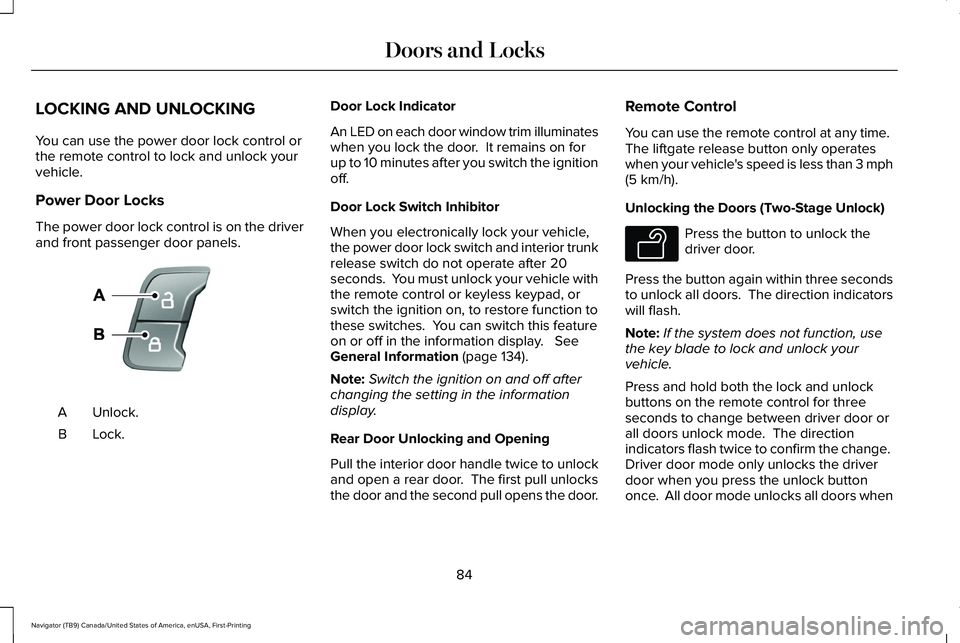
Power Door Locks
The power door lock control is on the driver
and front passenger door panels.
Unlock.
A
Lock.B Door Lock Indicator
An LED on each door window trim illuminates
when you lock the door. It remains on for
up to 10 minutes after you switch the ignition
off.
Door Lock Switch Inhibitor
When you electronically lock your vehicle,
the power door lock switch and interior trunk
release switch do not operate after 20
seconds. You must unlock your vehicle with
the remote control or keyless keypad, or
switch the ignition on, to restore function to
these switches. You can switch this feature
on or off in the information display. See
General Information (page 134).
Note: Switch the ignition on and off after
changing the setting in the information
display.
Rear Door Unlocking and Opening
Pull the interior door handle twice to unlock
and open a rear door. The first pull unlocks
the door and the second pull opens the door. Remote Control
You can use the remote control at any time.
The liftgate release button only operates
when your vehicle's speed is less than 3 mph
(5 km/h)
.
Unlocking the Doors (Two-Stage Unlock) Press the button to unlock the
driver door.
Press the button again within three seconds
to unlock all doors. The direction indicators
will flash.
Note: If the system does not function, use
the key blade to lock and unlock your
vehicle.
Press and hold both the lock and unlock
buttons on the remote control for three
seconds to change between driver door or
all doors unlock mode. The direction
indicators flash twice to confirm the change.
Driver door mode only unlocks the driver
door when you press the unlock button
once. All door mode unlocks all doors when
84
Navigator (TB9) Canada/United States of America, enUSA, First-Printing Doors and LocksE138628 E138629
Page 88 of 639
you press the unlock button once. The
unlocking mode applies to the remote
control, keyless entry keypad and intelligent
access. You can also change between the
unlocking modes using the information
display. See General Information (page 134).
Reprogramming the Unlocking Function
Note:
When you press the unlock button,
either all the doors are unlocked or only the
driver door is unlocked. Pressing the unlock
button again unlocks all the doors.
Press and hold the unlock and lock buttons
on the remote control simultaneously for at
least four seconds with the ignition off. The
direction indicators flash twice to confirm the
change.
To return to the original unlocking function,
repeat the process.
Locking the Doors Press the button to lock all doors.
The direction indicators will flash. Press the button again within three seconds
to confirm that all the doors are closed. The
door lock again, the horn sounds and the
direction indicators flash if all the doors and
the liftgate are closed.
Note:
If the system does not function, use
the key blade to lock and unlock your
vehicle.
Mislock
If any door or the liftgate is open, or if
the hood is open on vehicles with an
anti-theft alarm or remote start, the horn
sounds twice and the direction
indicators do not flash. You can switch
this feature on or off in the information
display. See General Information (page
134).
Opening the Liftgate Press twice within three seconds
to open the liftgate.Activating Intelligent Access
General Information
You can unlock and lock the vehicle without
taking the keys out of your pocket or purse
when your intelligent access key is within
3 ft (1 m)
of your vehicle. Intelligent access
uses a sensor on the back of the door handle
for unlocking and a separate sensor on the
face of each door handle for locking.
The system does not function if:
• Your vehicle battery has no charge.
• The key battery has no charge.
• The key frequencies are jammed.
Note: The system may not function if the key
is close to metal objects or electronic
devices, for example keys or a cell phone.
Note: If the system does not function, use
the key blade to lock and unlock your
vehicle.
See Remote Control (page 69).
85
Navigator (TB9) Canada/United States of America, enUSA, First-Printing Doors and LocksE138623 E267940
Page 89 of 639
Unlocking Using Intelligent Access
With your intelligent access key within 3 ft
(1 m) of your vehicle, touch the unlock sensor
on the back of the door handle for a brief
period and then pull on the door handle to
unlock, being careful to not touch the lock
sensor at the same time or pulling the door
handle too quickly. The intelligent access
system requires a brief delay to authenticate
your intelligent access key fob.
Locking Using Intelligent Access With your intelligent access key within
3 ft
(1 m) of your vehicle, touch the outer door
handle lock sensor for approximately one
second to lock, being careful to not touch
the unlock sensor on the back of the door
handle at the same time. After locking, you
can immediately pull on the door handle to
confirm locking occurred without
inadvertently unlocking. At the Luggage Compartment With your intelligent access key within
3 ft
(1 m) of your vehicle, press the exterior
release button.
86
Navigator (TB9) Canada/United States of America, enUSA, First-Printing Doors and LocksE248553 E248554 E247050
Page 90 of 639
Locking and Unlocking the Doors with
the Key Blade
A key cylinder is located under the driver
side door handle. You can use your key
blade to manually lock and unlock the driver
side door. See Remote Control (page 69).
Smart Unlocks for Intelligent Access
Keys
This helps to prevent you from locking your
key inside the passenger compartment or
rear cargo area.
When you electronically lock your vehicle
with any door open, the transmission is in
park (P) and the ignition is off, the system
searches for an intelligent access key inside
your vehicle after you close the last door. If
the system finds a key, all the doors
immediately unlock and the horn sounds
twice, indicating that a key is inside.
You can override the smart unlock feature
and intentionally lock the intelligent access
key inside your vehicle. To do this, lock your vehicle after you have
closed all the doors by:
•
Using the keyless entry keypad.
• Pressing the lock button on another
intelligent access key.
When you open one of the front doors and
lock your vehicle using the power door lock
control, all doors will lock then unlock if:
• The ignition is on.
• The ignition is off and the transmission
is not in park (P).
Autolock
(If Equipped)
Autolock locks all the doors when:
• All doors are closed.
• The ignition is on.
• You shift into any gear putting your
vehicle in motion.
• Your vehicle reaches a speed greater
than
12.4 mph (20 km/h). Autolock repeats when:
•
You open then close any door while the
ignition is on and your vehicle speed is
9 mph (15 km/h)
or lower.
• Your vehicle reaches a speed greater
than
12 mph (20 km/h).
Autounlock
Autounlock unlocks all the doors when:
• The ignition is on, all the doors are
closed, and your vehicle has been
moving at a speed greater than 12.4 mph
(20 km/h)
.
• Your vehicle comes to a stop and you
switch the ignition off, or to the accessory
position.
• You open the driver door within 10
minutes of switching the ignition off or to
accessory.
Note: The doors do not autounlock if you
electronically lock your vehicle after you
switch the ignition off and before you open
the driver door.
87
Navigator (TB9) Canada/United States of America, enUSA, First-Printing Doors and Locks
Page 91 of 639
Enabling or Disabling Autounlock
You can enable or disable the autounlock
feature in the information display or an
authorized dealer can do it for you. See
General Information (page 134).
Illuminated Entry
The interior lamps and some exterior lamps
illuminate when you unlock the doors with
the remote control.
The lamps turn off if:
• The ignition is on.
• You press the remote control lock button.
• 25 seconds have elapsed.
The lamps do not turn off if:
• You turn them on with the lamp control.
• Any door is open.
Illuminated Exit
The interior lamps and some exterior lamps
illuminate when all doors are closed and you
switch the ignition off. The lamps turn off if all the doors remain
closed and:
•
25 seconds have elapsed.
• You press the push button ignition
switch.
Approach Detection Illumination
When you approach your vehicle and a valid
key is detected, the exterior door handles
and some exterior lamps illuminate.
Battery Saver
If you leave the courtesy lamps, interior
lamps or headlamps on, the battery saver
shuts them off 10 minutes after you switch
the ignition off.
Battery Saver for Intelligent Access Keys
If you leave the ignition switched on, it shuts
off when it detects a certain amount of
battery drain, or after 30 minutes. KEYLESS ENTRY
SECURICODE™ KEYLESS ENTRY
KEYPAD
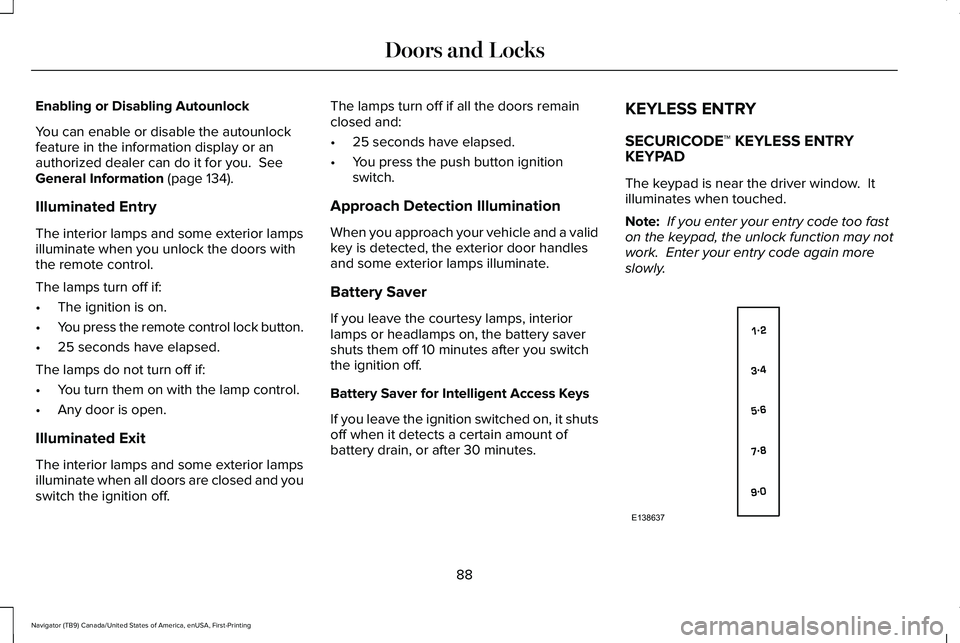
The keypad is near the driver window. It
illuminates when touched.
Note:
If you enter your entry code too fast
on the keypad, the unlock function may not
work. Enter your entry code again more
slowly. 88
Navigator (TB9) Canada/United States of America, enUSA, First-Printing Doors and LocksE138637