USB LINCOLN NAVIGATOR 2021 Owners Manual
[x] Cancel search | Manufacturer: LINCOLN, Model Year: 2021, Model line: NAVIGATOR, Model: LINCOLN NAVIGATOR 2021Pages: 639, PDF Size: 6.09 MB
Page 10 of 639
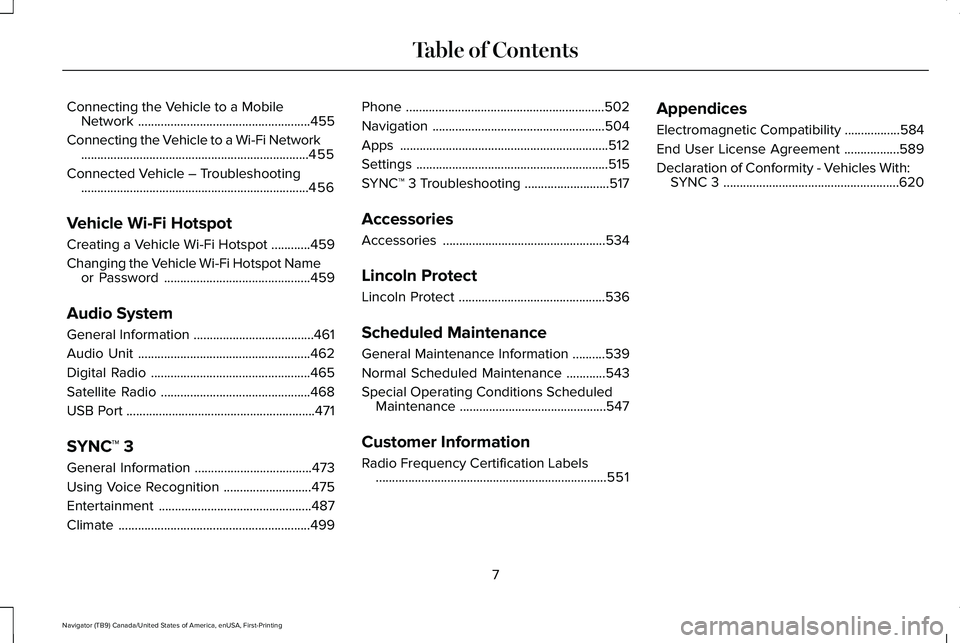
Connecting the Vehicle to a Mobile
Network .....................................................455
Connecting the Vehicle to a Wi-Fi Network ......................................................................
455
Connected Vehicle – Troubleshooting ......................................................................
456
Vehicle Wi-Fi Hotspot
Creating a Vehicle Wi-Fi Hotspot ............
459
Changing the Vehicle Wi-Fi Hotspot Name or Password .............................................
459
Audio System
General Information .....................................
461
Audio Unit .....................................................
462
Digital Radio .................................................
465
Satellite Radio ..............................................
468
USB Port ..........................................................
471
SYNC™ 3
General Information ....................................
473
Using Voice Recognition ...........................
475
Entertainment ...............................................
487
Climate ...........................................................
499Phone
.............................................................
502
Navigation .....................................................
504
Apps ................................................................
512
Settings ...........................................................
515
SYNC™ 3 Troubleshooting ..........................
517
Accessories
Accessories ..................................................
534
Lincoln Protect
Lincoln Protect .............................................
536
Scheduled Maintenance
General Maintenance Information ..........
539
Normal Scheduled Maintenance ............
543
Special Operating Conditions Scheduled Maintenance .............................................
547
Customer Information
Radio Frequency Certification Labels .......................................................................
551 Appendices
Electromagnetic Compatibility
.................
584
End User License Agreement .................
589
Declaration of Conformity - Vehicles With: SYNC 3 ......................................................
620
7
Navigator (TB9) Canada/United States of America, enUSA, First-Printing Table of Contents
Page 17 of 639
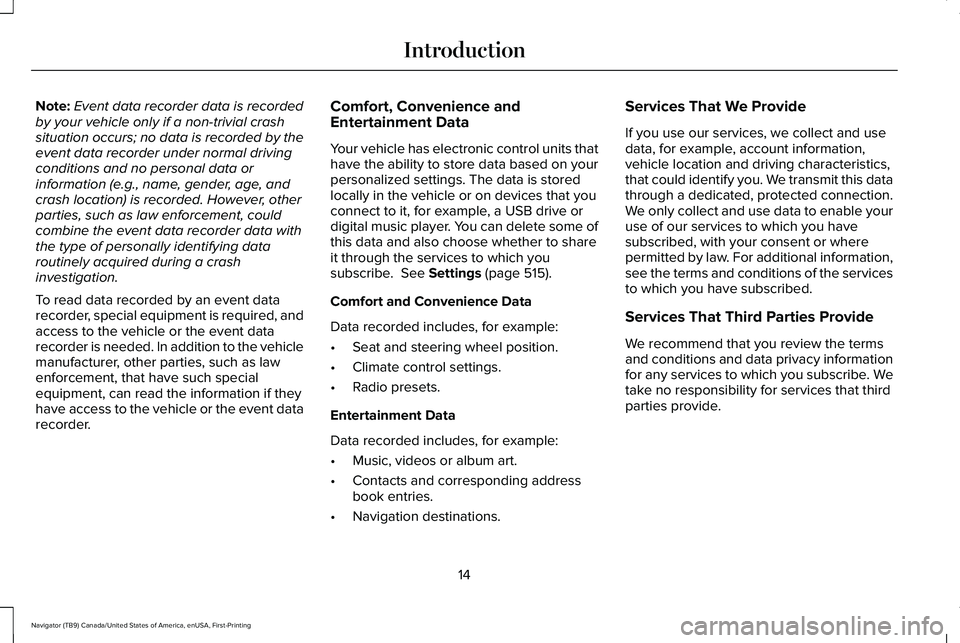
Note:
Event data recorder data is recorded
by your vehicle only if a non-trivial crash
situation occurs; no data is recorded by the
event data recorder under normal driving
conditions and no personal data or
information (e.g., name, gender, age, and
crash location) is recorded. However, other
parties, such as law enforcement, could
combine the event data recorder data with
the type of personally identifying data
routinely acquired during a crash
investigation.
To read data recorded by an event data
recorder, special equipment is required, and
access to the vehicle or the event data
recorder is needed. In addition to the vehicle
manufacturer, other parties, such as law
enforcement, that have such special
equipment, can read the information if they
have access to the vehicle or the event data
recorder. Comfort, Convenience and
Entertainment Data
Your vehicle has electronic control units that
have the ability to store data based on your
personalized settings. The data is stored
locally in the vehicle or on devices that you
connect to it, for example, a USB drive or
digital music player. You can delete some of
this data and also choose whether to share
it through the services to which you
subscribe. See Settings (page 515).
Comfort and Convenience Data
Data recorded includes, for example:
• Seat and steering wheel position.
• Climate control settings.
• Radio presets.
Entertainment Data
Data recorded includes, for example:
• Music, videos or album art.
• Contacts and corresponding address
book entries.
• Navigation destinations. Services That We Provide
If you use our services, we collect and use
data, for example, account information,
vehicle location and driving characteristics,
that could identify you. We transmit this data
through a dedicated, protected connection.
We only collect and use data to enable your
use of our services to which you have
subscribed, with your consent or where
permitted by law. For additional information,
see the terms and conditions of the services
to which you have subscribed.
Services That Third Parties Provide
We recommend that you review the terms
and conditions and data privacy information
for any services to which you subscribe. We
take no responsibility for services that third
parties provide.
14
Navigator (TB9) Canada/United States of America, enUSA, First-Printing Introduction
Page 208 of 639
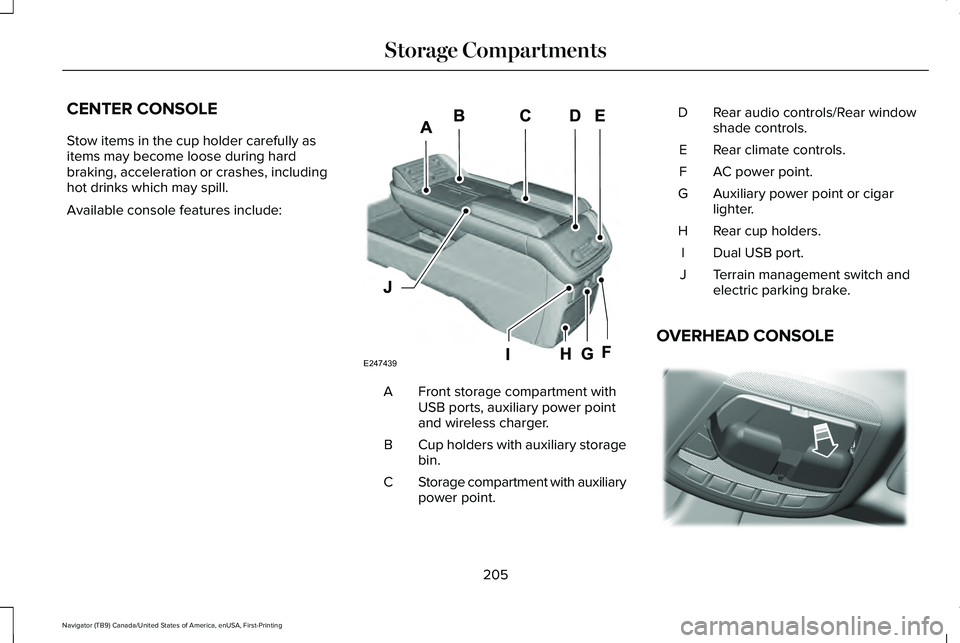
CENTER CONSOLE
Stow items in the cup holder carefully as
items may become loose during hard
braking, acceleration or crashes, including
hot drinks which may spill.
Available console features include:
Front storage compartment with
USB ports, auxiliary power point
and wireless charger.
A
Cup holders with auxiliary storage
bin.
B
Storage compartment with auxiliary
power point.
C Rear audio controls/Rear window
shade controls.
D
Rear climate controls.
E
AC power point.
F
Auxiliary power point or cigar
lighter.
G
Rear cup holders.
H
Dual USB port.
I
Terrain management switch and
electric parking brake.
J
OVERHEAD CONSOLE 205
Navigator (TB9) Canada/United States of America, enUSA, First-Printing Storage CompartmentsE247439 E332434
Page 370 of 639
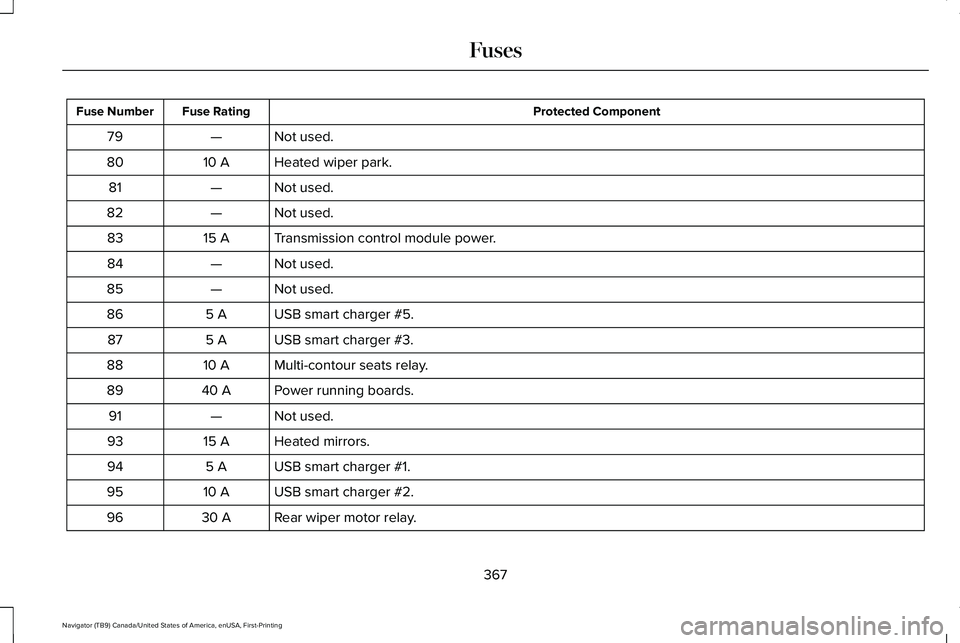
Protected Component
Fuse Rating
Fuse Number
Not used.
—
79
Heated wiper park.
10 A
80
Not used.
—
81
Not used.
—
82
Transmission control module power.
15 A
83
Not used.
—
84
Not used.
—
85
USB smart charger #5.
5 A
86
USB smart charger #3.
5 A
87
Multi-contour seats relay.
10 A
88
Power running boards.
40 A
89
Not used.
—
91
Heated mirrors.
15 A
93
USB smart charger #1.
5 A
94
USB smart charger #2.
10 A
95
Rear wiper motor relay.
30 A
96
367
Navigator (TB9) Canada/United States of America, enUSA, First-Printing Fuses
Page 467 of 639
Using Seek
Press and release the button to
select the next or previous stored
radio frequency station.
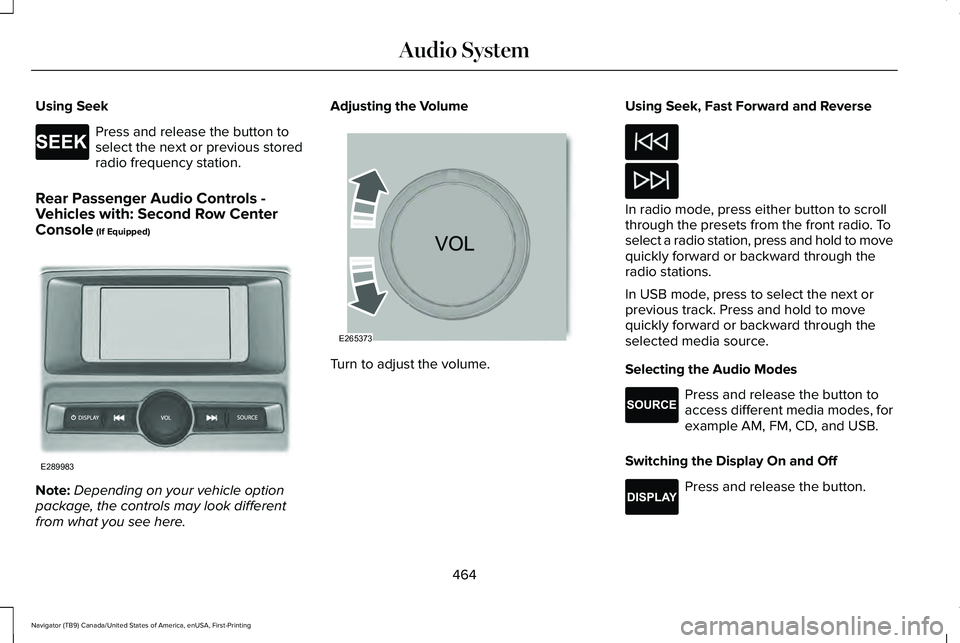
Rear Passenger Audio Controls -
Vehicles with: Second Row Center
Console (If Equipped) Note:
Depending on your vehicle option
package, the controls may look different
from what you see here. Adjusting the Volume
Turn to adjust the volume.Using Seek, Fast Forward and Reverse In radio mode, press either button to scroll
through the presets from the front radio. To
select a radio station, press and hold to move
quickly forward or backward through the
radio stations.
In USB mode, press to select the next or
previous track. Press and hold to move
quickly forward or backward through the
selected media source.
Selecting the Audio Modes
Press and release the button to
access different media modes, for
example AM, FM, CD, and USB.
Switching the Display On and Off Press and release the button.
464
Navigator (TB9) Canada/United States of America, enUSA, First-Printing Audio SystemE265273 E289983 E265373 E265276 E268786
Page 474 of 639
Action
Condition
Message
Use the channel guide to turn off the Lock or
Skip function on that station.
All the channels in the selected category are
either skipped or locked.
None found
Check Channel Guide
No action required.
SiriusXM has updated the channels available
for your vehicle.
Subscription Updated
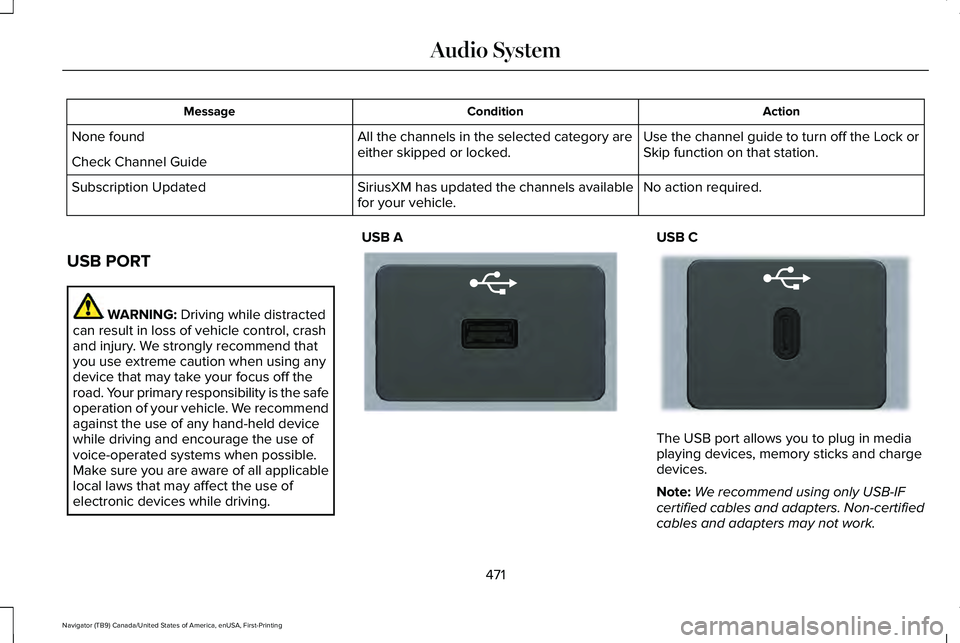
USB PORT WARNING: Driving while distracted
can result in loss of vehicle control, crash
and injury. We strongly recommend that
you use extreme caution when using any
device that may take your focus off the
road. Your primary responsibility is the safe
operation of your vehicle. We recommend
against the use of any hand-held device
while driving and encourage the use of
voice-operated systems when possible.
Make sure you are aware of all applicable
local laws that may affect the use of
electronic devices while driving. USB A USB C
The USB port allows you to plug in media
playing devices, memory sticks and charge
devices.
Note:
We recommend using only USB-IF
certified cables and adapters. Non-certified
cables and adapters may not work.
471
Navigator (TB9) Canada/United States of America, enUSA, First-Printing Audio SystemE201595 E301114
Page 475 of 639
Locating the USB Ports
The USB ports may be in the following
locations:
•
Inside the media bin.
• Inside the center console.
• On the lower instrument panel.
Note: The number and type of USB ports
may vary depending on your vehicle.
Note: Not all USB ports in your vehicle have
data transfer capabilities. See What Is the
Power Outlet (page 201).
472
Navigator (TB9) Canada/United States of America, enUSA, First-Printing Audio System
Page 477 of 639
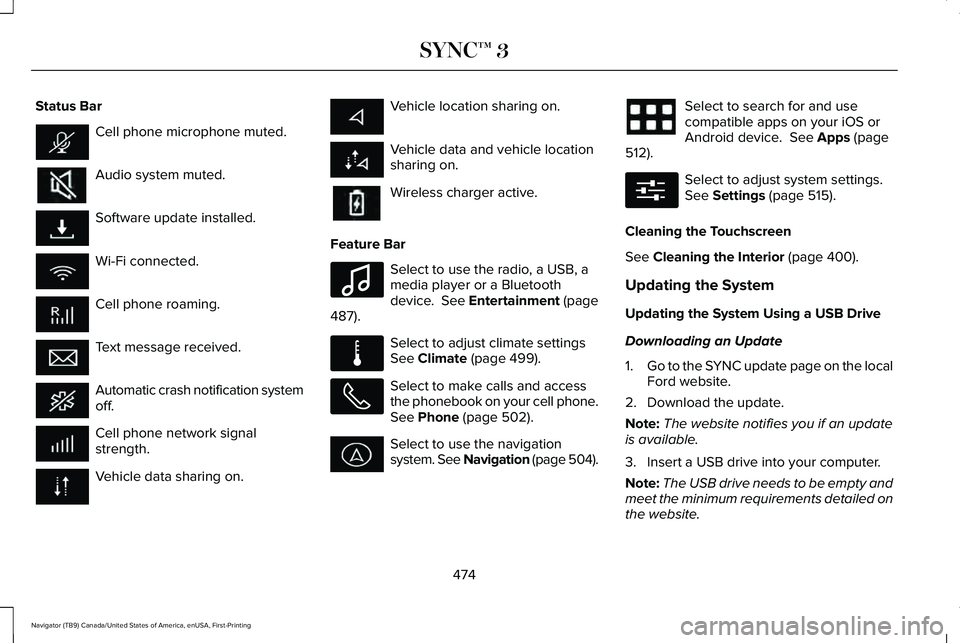
Status Bar
Cell phone microphone muted.
Audio system muted.
Software update installed.
Wi-Fi connected.
Cell phone roaming.
Text message received.
Automatic crash notification system
off.
Cell phone network signal
strength.
Vehicle data sharing on. Vehicle location sharing on.
Vehicle data and vehicle location
sharing on.
Wireless charger active.
Feature Bar Select to use the radio, a USB, a
media player or a Bluetooth
device. See Entertainment (page
487). Select to adjust climate settings
See
Climate (page 499).
Select to make calls and access
the phonebook on your cell phone.
See
Phone (page 502).
Select to use the navigation
system. See Navigation (page 504). Select to search for and use
compatible apps on your iOS or
Android device.
See Apps (page
512). Select to adjust system settings.
See
Settings (page 515).
Cleaning the Touchscreen
See
Cleaning the Interior (page 400).
Updating the System
Updating the System Using a USB Drive
Downloading an Update
1. Go to the SYNC update page on the local
Ford website.
2. Download the update.
Note: The website notifies you if an update
is available.
3. Insert a USB drive into your computer.
Note: The USB drive needs to be empty and
meet the minimum requirements detailed on
the website.
474
Navigator (TB9) Canada/United States of America, enUSA, First-Printing SYNC™ 3 E100027 E283811 E280315
Page 478 of 639
4. Follow the instructions provided to
download the update to the USB drive.
Installing an Update
Note: You can use the system when an
installation is in progress.
1. Disconnect all other USB devices from the USB ports.
2. Connect the USB drive with the update to a USB port.
Note: Installation starts automatically within
10 minutes.
Updating the System Using a Wi-Fi Network
Connection
Connecting to a Wi-Fi Network Select the settings option on the
feature bar.
1. Select Automatic Updates.
2. Select
System Wi-Fi.
3. Switch
System Wi-Fi on.
4. Select
Available Wi-Fi Networks.
5. Select an available Wi-Fi network. Note:
Enter the network password to
connect to a secure network.
Switching Automatic System Updates On Select the settings option on the
feature bar.
1. Select
Automatic Updates.
2. Switch
Automatic System Updates on.
The system is now set to check for and
receive system updates when it is connected
to a Wi-Fi network.
Note: You can use the system when a
download is in progress.
Note: If the system is disconnected from the
Wi-Fi network when a download is in
progress, the download continues the next
time the system is connected to a Wi-Fi
network.
Additional Information and Assistance
For additional information and assistance,
we recommend that you contact an
authorized dealer or refer to the local Ford
website. USING VOICE RECOGNITION
The SYNC 3 system allows you to use voice
commands, to control features like audio and
climate controls. By using voice commands,
you can keep your hands on the wheel and
your eyes on the road.
You can access each feature controlled by
SYNC 3 through a variety of commands.
To activate the SYNC 3 voice
commands push the voice button
on the steering wheel and wait for
the prompt.
___ is a dynamic listing, meaning that it can
be the name of anything, such as artist, the
name of contact or number. The context and
the description of the command tell you what
to say for this dynamic option.
There are some commands that work for
every feature, these commands are:
475
Navigator (TB9) Canada/United States of America, enUSA, First-Printing SYNC™ 3E280315 E280315 E142599
Page 480 of 639
Audio Voice Commands
___ is a dynamic listing, meaning that for
audio voice commands it can be the name
of a Sirius channel or a channel number, a
radio frequency number, or the name of an
artist, album, song or a genre.
To control the media features, press the voice button and when prompted, \
say: Description
Voice command
You can say the Sirius channel name or number such as "Sirius channel 16"\
.
1
Sirius Channel ___
You can also turn to a Sirius channel by saying the channel's name, such as "The Pulse".
Allows you to tune to a specific FM or AM frequency such as "FM 88.7" or "AM
1580".
AM ___
FM ___
Allows you to tune to a specific HD frequency such as “FM 88.7 HD 1” .
1
FM ___ HD ___
Allows you to listen to music on your Bluetooth connected device.
Bluetooth Audio
Allows you to listen to music on your USB connected device.
USB
For USB audio only, you can say the name of an artist, album, song or a genre
to listen to that selection. Your system must finish indexing before this option
is available. For example, you could say "Play artist The Beatles" or "Play song
Penny Lane".
Play Genre ___
Play Playlist ___
Play Artist ___
Play Album ___
Play Podcast ___
477
Navigator (TB9) Canada/United States of America, enUSA, First-Printing SYNC™ 3