instrument cluster LINCOLN NAVIGATOR 2022 User Guide
[x] Cancel search | Manufacturer: LINCOLN, Model Year: 2022, Model line: NAVIGATOR, Model: LINCOLN NAVIGATOR 2022Pages: 646, PDF Size: 7.29 MB
Page 149 of 646
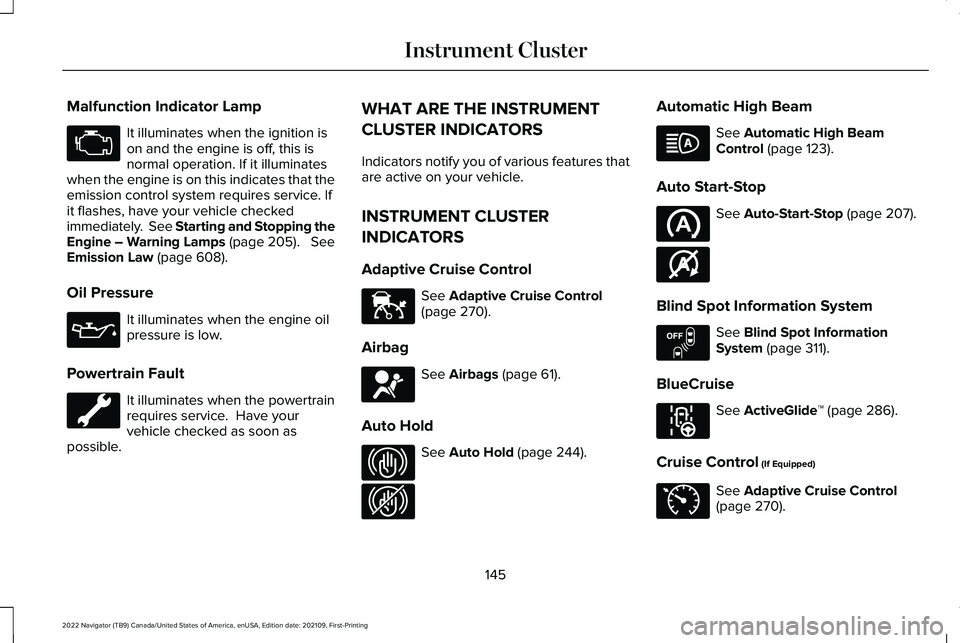
Malfunction Indicator Lamp
It illuminates when the ignition is
on and the engine is off, this is
normal operation. If it illuminates
when the engine is on this indicates that the
emission control system requires service. If
it flashes, have your vehicle checked
immediately. See Starting and Stopping the
Engine – Warning Lamps (page 205). See
Emission Law (page 608).
Oil Pressure It illuminates when the engine oil
pressure is low.
Powertrain Fault It illuminates when the powertrain
requires service. Have your
vehicle checked as soon as
possible. WHAT ARE THE INSTRUMENT
CLUSTER INDICATORS
Indicators notify you of various features that
are active on your vehicle.
INSTRUMENT CLUSTER
INDICATORS
Adaptive Cruise Control
See
Adaptive Cruise Control
(page 270).
Airbag See
Airbags (page 61).
Auto Hold See
Auto Hold (page 244).Automatic High Beam See
Automatic High Beam
Control (page 123).
Auto Start-Stop See
Auto-Start-Stop (page 207).
Blind Spot Information System See
Blind Spot Information
System (page 311).
BlueCruise See
ActiveGlide
™ (page 286).
Cruise Control
(If Equipped) See
Adaptive Cruise Control
(page 270).
145
2022 Navigator (TB9) Canada/United States of America, enUSA, Edition date: 202109, First-Printing Instrument Cluster E144524 E67017 E323448 E323449 E146361 E151262 E297977 E71340
Page 150 of 646
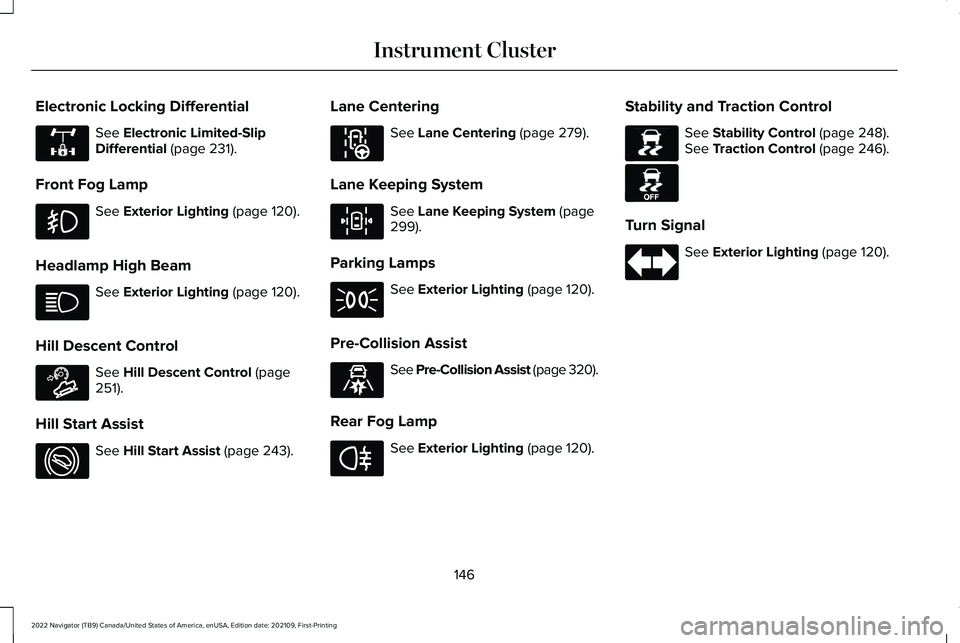
Electronic Locking Differential
See Electronic Limited-Slip
Differential (page 231).
Front Fog Lamp See
Exterior Lighting (page 120).
Headlamp High Beam See
Exterior Lighting (page 120).
Hill Descent Control See
Hill Descent Control (page
251).
Hill Start Assist See
Hill Start Assist (page 243).Lane Centering See
Lane Centering (page 279).
Lane Keeping System See
Lane Keeping System (page
299).
Parking Lamps See
Exterior Lighting (page 120).
Pre-Collision Assist See Pre-Collision Assist (page 320).
Rear Fog Lamp See
Exterior Lighting (page 120).Stability and Traction Control See
Stability Control (page 248).
See Traction Control (page 246).
Turn Signal See
Exterior Lighting (page 120).
146
2022 Navigator (TB9) Canada/United States of America, enUSA, Edition date: 202109, First-Printing Instrument ClusterE325779 E163171 E274708 E297977 E308131 E329466 E67040 E138639 E130458
Page 151 of 646
USING THE INSTRUMENT
CLUSTER DISPLAY CONTROLS
WARNING: Driving while distracted
can result in loss of vehicle control, crash
and injury. We strongly recommend that
you use extreme caution when using any
device that may take your focus off the
road. Your primary responsibility is the safe
operation of your vehicle. We recommend
against the use of any hand-held device
while driving and encourage the use of
voice-operated systems when possible.
Make sure you are aware of all applicable
local laws that may affect the use of
electronic devices while driving. Note:
Some options could appear slightly
different or not at all if the items are optional.
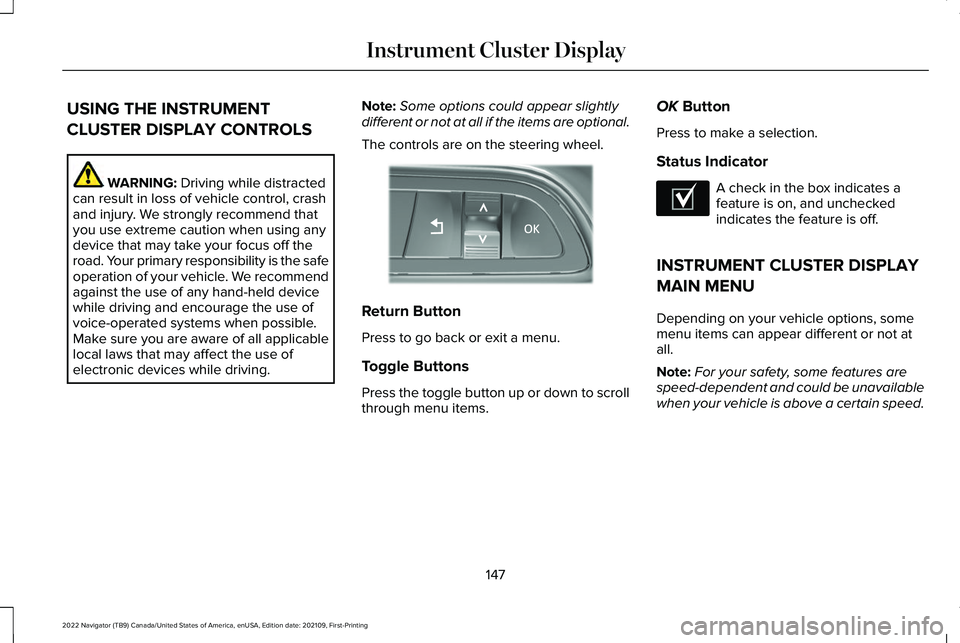
The controls are on the steering wheel. Return Button
Press to go back or exit a menu.
Toggle Buttons
Press the toggle button up or down to scroll
through menu items.OK
Button
Press to make a selection.
Status Indicator A check in the box indicates a
feature is on, and unchecked
indicates the feature is off.
INSTRUMENT CLUSTER DISPLAY
MAIN MENU
Depending on your vehicle options, some
menu items can appear different or not at
all.
Note: For your safety, some features are
speed-dependent and could be unavailable
when your vehicle is above a certain speed.
147
2022 Navigator (TB9) Canada/United States of America, enUSA, Edition date: 202109, First-Printing Instrument Cluster DisplayE357886 E204495
Page 152 of 646
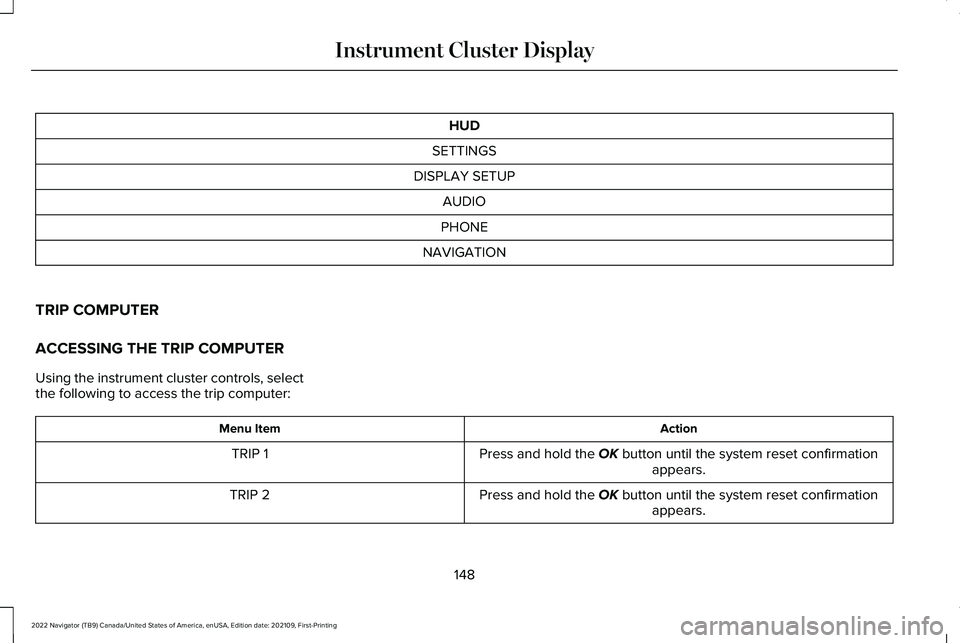
HUD
SETTINGS
DISPLAY SETUP AUDIO
PHONE
NAVIGATION
TRIP COMPUTER
ACCESSING THE TRIP COMPUTER
Using the instrument cluster controls, select
the following to access the trip computer: Action
Menu Item
Press and hold the OK button until the system reset confirmationappears.
TRIP 1
Press and hold the
OK button until the system reset confirmationappears.
TRIP 2
148
2022 Navigator (TB9) Canada/United States of America, enUSA, Edition date: 202109, First-Printing Instrument Cluster Display
Page 153 of 646
RESETTING THE INDIVIDUAL TRIP
VALUES
Using the instrument cluster controls, select
the following to reset individual trip values: Action
Menu Item
Press and hold the OK button until the system reset confirmationappears.
TRIP 1
Press and hold the
OK button until the system reset confirmationappears.
TRIP 2
CUSTOMIZING THE INSTRUMENT
CLUSTER DISPLAY
You can customize the gauge displays
through the following: Action
Menu Item
Press the
OK button.
Display
Press the
OK button. Choose a gauge display.
Gauges
149
2022 Navigator (TB9) Canada/United States of America, enUSA, Edition date: 202109, First-Printing Instrument Cluster Display
Page 155 of 646
WHAT IS THE HEAD UP DISPLAY
The system displays information on a display
screen in your field of vision, allowing you to
keep your eyes on the road. You can select
which information the system displays.
SWITCHING THE HEAD UP
DISPLAY ON AND OFF
Use the instrument cluster controls on the
steering wheel to navigate to the head up
display menu.
Action
Menu Item
Press the OK button.
HUD
Press the OK button.
HUD On
Note: The system remembers the last setting
when you start the engine.
HEAD UP DISPLAY SETTINGS
You can control the system's options through
the instrument cluster display by using the
HUD, OK and arrow buttons on your steering
wheel. See Using the Instrument Cluster
Display Controls (page 147). You can adjust the display according to your
height to make viewing the content easier.
You can also adjust what content displays
and the brightness of the content. The
system's options appear in the instrument
cluster while the updates happen in the head
up display.
Note:
If HUD On is unchecked, other options
of the system are hidden.
Note: The head up display menu
automatically closes after a certain period
of inactivity.
Note: The head up display image brightness
automatically adjusts to the brightness of
the ambient environment. You have the
ability to adjust the brightness further
according to your preference.
Note: In some instances, sunlight can cause
some reflections in and around the head up
display image.
151
2022 Navigator (TB9) Canada/United States of America, enUSA, Edition date: 202109, First-Printing Head Up Display
(If Equipped)
Page 158 of 646
HEAD UP DISPLAY – TROUBLESHOOTING
HEAD UP DISPLAY – INFORMATION MESSAGES
Action
Message
The system is malfunctioning or something is obstructing the display.Make sure that the head up display is free from obstruction. If the
message continues to appear, have your vehicle checked as soon as possible.
Head Up Display System Fault See Manual
Press the button on the steering wheel or center console. The head
up display menu appears in the instrument cluster display. Make sure
the blue frame is fully visible. Do not manually move the screen. This can cause damage not covered by your vehicle's warranty.
Head Up Display To Position Use the Information Display
154
2022 Navigator (TB9) Canada/United States of America, enUSA, Edition date: 202109, First-Printing Head Up Display (If Equipped)
Page 159 of 646
WHAT IS REMOTE START
The system allows you to remotely start your
vehicle and to adjust the interior temperature
according to the settings that you chose.
REMOTE START PRECAUTIONS
WARNING: Do not start the engine
in a closed garage or in other enclosed
areas. Exhaust fumes are toxic. Always
open the garage door before you start the
engine. Failure to follow this instruction
could result in personal injury or death.
REMOTE START LIMITATIONS
Remote start does not work under the
following conditions:
• The alarm horn is sounding.
• The hood is open.
• The transmission is not in park (P). •
The ignition is on.
• The battery voltage is below the
minimum operating voltage.
Note: Do not use remote start if your fuel
level is low.
Note: To use remote start with Lincoln Way
or Phone as a Key, enable the modem.
See
Connecting the Vehicle to a Wi-Fi Network
(page
482).
ENABLING REMOTE START
1. Using the instrument cluster display controls on the steering wheel, select
Settings
.
2. Select
Vehicle.
3. Select
Remote Start.
4. Switch
System on.
Note: To use remote start, make sure that
the modem is enabled.
See Enabling and
Disabling the Modem (page 482). REMOTELY STARTING AND
STOPPING THE VEHICLE
Remotely Starting the Vehicle Press the button on the remote
control.
Within three seconds, press the
button on the remote control.
Within three seconds, press the
button again.
Note: You can also use the Lincoln Way App
to start the vehicle.
Note: The direction indicators flash twice.
Note: The parking lamps turn on when the
vehicle is running.
Note: The horn sounds if the system fails to
start.
Note: All other vehicle systems remain off
when you have remotely started the vehicle.
Note: The vehicle remains secured when
you have remotely started the vehicle. A
valid key must be inside your vehicle to
switch the ignition on and drive your vehicle.
155
2022 Navigator (TB9) Canada/United States of America, enUSA, Edition date: 202109, First-Printing Remote StartE138623 E138625
Page 160 of 646
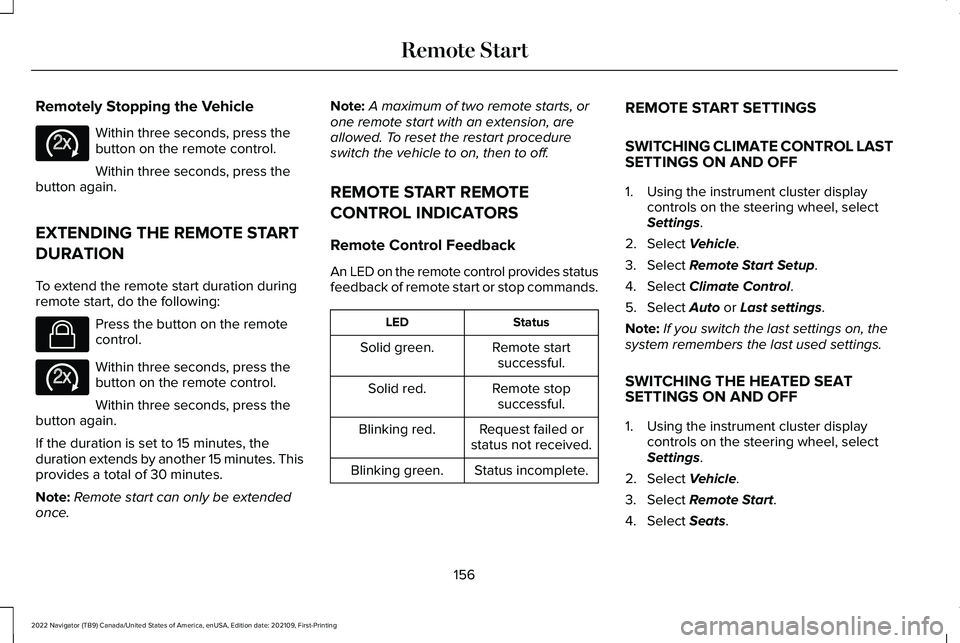
Remotely Stopping the Vehicle
Within three seconds, press the
button on the remote control.
Within three seconds, press the
button again.
EXTENDING THE REMOTE START
DURATION
To extend the remote start duration during
remote start, do the following: Press the button on the remote
control.
Within three seconds, press the
button on the remote control.
Within three seconds, press the
button again.
If the duration is set to 15 minutes, the
duration extends by another 15 minutes. This
provides a total of 30 minutes.
Note: Remote start can only be extended
once. Note:
A maximum of two remote starts, or
one remote start with an extension, are
allowed. To reset the restart procedure
switch the vehicle to on, then to off.
REMOTE START REMOTE
CONTROL INDICATORS
Remote Control Feedback
An LED on the remote control provides status
feedback of remote start or stop commands. Status
LED
Remote startsuccessful.
Solid green.
Remote stopsuccessful.
Solid red.
Request failed or
status not received.
Blinking red.
Status incomplete.
Blinking green. REMOTE START SETTINGS
SWITCHING CLIMATE CONTROL LAST
SETTINGS ON AND OFF
1. Using the instrument cluster display
controls on the steering wheel, select
Settings.
2. Select
Vehicle.
3. Select
Remote Start Setup.
4. Select
Climate Control.
5. Select
Auto or Last settings.
Note: If you switch the last settings on, the
system remembers the last used settings.
SWITCHING THE HEATED SEAT
SETTINGS ON AND OFF
1. Using the instrument cluster display controls on the steering wheel, select
Settings
.
2. Select
Vehicle.
3. Select
Remote Start.
4. Select
Seats.
156
2022 Navigator (TB9) Canada/United States of America, enUSA, Edition date: 202109, First-Printing Remote StartE138625 E138623 E138625
Page 161 of 646
5. Select Auto or Off.
Note: If you switch the heated seat settings
on, the heated seats turn on during cold
weather.
Note: You cannot adjust the heated seat
settings when you have remotely started the
engine.
SWITCHING THE HEATED STEERING
WHEEL SETTINGS ON AND OFF
1. Using the instrument cluster display controls on the steering wheel, select
Settings
.
2. Select
Vehicle.
3. Select
Remote Start.
4. Select
Seats and Wheel.
5. Select
Auto or Off.
Note: If you switch the heated steering wheel
settings on, the heated steering wheel turns
on during cold weather.
Note: You cannot adjust the heated steering
wheel settings when you have remotely
started the engine. SETTING THE REMOTE START
DURATION
You can set a duration for the engine to run.
Note:
Wait a few seconds before remotely
starting the engine after the engine stops
running.
1. Using the instrument cluster display controls on the steering wheel, select
Settings
.
2. Select
Vehicle.
3. Select
Remote Start.
4. Select
Duration.
157
2022 Navigator (TB9) Canada/United States of America, enUSA, Edition date: 202109, First-Printing Remote Start