steering wheel LINCOLN NAVIGATOR 2022 Service Manual
[x] Cancel search | Manufacturer: LINCOLN, Model Year: 2022, Model line: NAVIGATOR, Model: LINCOLN NAVIGATOR 2022Pages: 646, PDF Size: 7.29 MB
Page 291 of 646
WARNING: Obstructions to the driver
facing camera or infrared lighting could
prevent the system from properly
operating. Keep the camera and lighting
areas free from obstruction. Failure to
follow this instruction could result in the
loss of control of your vehicle, personal
injury or death. WARNING: Do not use the system if
any changes or modifications to the
steering wheel have been made. Any
changes or modifications to the steering
wheel could affect the functionality or
performance of the system. Failure to
follow this instruction could result in the
loss of control of your vehicle, personal
injury or death. WARNING: The system may not
function if the sensor is blocked. WARNING:
Pay close attention to
changing road conditions such as entering
or leaving a highway, on roads with
intersections or roundabouts, roads
without visible lanes of travel, roads that
are winding, slippery, unpaved, or steep
slopes. WARNING:
The system is not a crash
warning or avoidance system. WARNING: Large contrasts in outside
lighting can limit sensor performance. WARNING:
The system attempts to
keep your vehicle in the center of the lane
as well as maintain speed and gap control.
The system may not be able to perform
these tasks in all situations. Do not use the
system in complex or uncertain driving
conditions. Failure to follow this instruction
could result in the loss of control of your
vehicle, personal injury or death. WARNING:
Your vehicle could drift
out of the lane of travel. Always be
prepared to manually steer your vehicle.
Failure to follow this instruction could result
in the loss of control of your vehicle,
personal injury or death. WARNING:
The system will not
operate if the sensor cannot track the road
lane markings.
ACTIVEGLIDE™ REQUIREMENTS
ActiveGlide only activates when all of the
following occur:
• ActiveGlide is enabled in your information
and entertainment screen.
See
ActiveGlide ™ Settings (page 288).
• Adaptive cruise control is on.
• The system detects both lane markings.
• Your hands are on the steering wheel.
• Your eyes are on the road.
287
2022 Navigator (TB9) Canada/United States of America, enUSA, Edition date: 202109, First-Printing ActiveGlide™
(If Equipped)
Page 292 of 646
Note:
The system must meet certain location
requirements for the hands-free mode of
ActiveGlide to work.
Note: The system requires updated software
for hands-free mode. See Vehicle System
Updates (page 521).
ACTIVEGLIDE™ LIMITATIONS
Any of the following conditions could result
in ActiveGlide not operating correctly:
• You do not have your vehicle centered
in the lane.
• The lane is too narrow or too wide.
• The system does not detect at least one
lane marking or when lanes merge or
split.
• You have limited steering input.
• Using the system in areas under
construction.
• If you make any aftermarket modifications
to the steering system.
• When using a spare tire. The driver-facing camera may not operate
correctly due to any of the following:
•
If you have a pre-existing eye condition,
such as an eye misalignment, or have
had eye surgery.
• You cover your facial features by a mask,
hat or other items.
• The lighting conditions change
significantly.
• You are not in the field of view of the
camera.
• You position or tilt yourself to one side.
• You are moving around extensively.
• You are wearing glasses or sunglasses
that are too dark or reflective.
Note: The system has limited steering
assistance and may not be sufficient for all
driving situations.
Note: In exceptional conditions, such as
inclement weather or direct sunlight, the
system could deviate from the center line.
Note: The information provided by the
navigation map data could be inaccurate or
out of date. ACTIVEGLIDE™ SETTINGS
Enabling ActiveGlide
1. Press
Driver Assistance.
2. Press
Cruise Control.
3. Press
Adaptive Cruise Control.
4. Press
Lane Centering with Hands-Free.
Enabling Activation Prompts
1. Press
Driver Assistance.
2. Press
Cruise Control.
3. Press
Adaptive Cruise Control.
4. Press
Lane Centering with Hands-Free.
5. Press
Activation Prompts.
SWITCHING ACTIVEGLIDE™ ON
AND OFF
Switching ActiveGlide On
The controls are on the steering wheel.
288
2022 Navigator (TB9) Canada/United States of America, enUSA, Edition date: 202109, First-Printing ActiveGlide™
(If Equipped)
Page 293 of 646
Using Activation Prompts
When the prompt appears, press
the button to switch ActiveGlide
on.
The indicator appears in the instrument
cluster. When the system is on, the color of
the indicator changes to indicate the system
status.
Note: You must enable activation prompts
in the touchscreen.
Using Steering Wheel Controls Using the adaptive cruise control
and lateral support buttons, ensure
both systems are active.
ActiveGlide activates.
Switching ActiveGlide Off Press either the lateral support or
adaptive cruise control button
when system is active or in
standby mode.
ActiveGlide turns off through each
ignition cycle. ACTIVEGLIDE™ ALERTS
When ActiveGlide is providing hands-on
driving or transitioning to hands-on driving
from hands-free driving and detects no
steering activity for a certain period of time,
the system alerts you with a message in the
instrument cluster to put your hands on the
steering wheel. After the first alert, the
system alerts you with a message in the
instrument cluster and an audible warning.
When ActiveGlide is providing hands-on or
hands-free driving and detects you are not
looking at the road for a certain period of
time, the system alerts you to return your
eyes to the road. Depending on where you
are looking, the alert can be a message in
the instrument cluster and an audible
warning.
If you do not react to the warnings,
ActiveGlide cancels, quickly activates and
releases the brakes, and slows your vehicle
down to low speeds while maintaining
steering control.
If your vehicle slows down and you resume
control, a message appears to prompt you
to press the accelerator pedal to allow the
system to resume.
Note:
If the system detects repeated
inactivity, it disables until the next key cycle.
ACTIVEGLIDE™ AUTOMATIC
CANCELLATION
When an external condition cancels
ActiveGlide, for example, no lane markings
available, a tone sounds and a message
appears in the instrument cluster. If your vehicle starts to slow down,
you must take control of steering
and press and release the button
to reactivate ActiveGlide.
System cancellation can also occur if:
• The lane becomes too narrow.
• The system cannot detect valid lane
markings.
289
2022 Navigator (TB9) Canada/United States of America, enUSA, Edition date: 202109, First-Printing ActiveGlide™ (If Equipped)E144529 E308131 E144529 E308131 E144529 E308130
Page 294 of 646
•
Lane markings cross.
• Your eyes are not on the road or your
hands are not the steering wheel.
If you have your hands on the steering wheel
and your eyes are on the road when the
feature is active and a cancellation occurs,
the system sounds a tone and displays a
cancelled graphic in the instrument cluster.
If you are not paying attention to the road or
your hands are not on the steering wheel
and a cancellation occurs, the system
displays a message and a tone sounds until
you resume control. If you do not resume
control in time, ActiveGlide quickly activates
and releases the brakes, and slows your
vehicle down to low speeds while
maintaining steering control. If your vehicle
slows down and you resume control, a
message appears to prompt you to press the
accelerator pedal to allow the system to
resume.
Note: The system disables until the next key
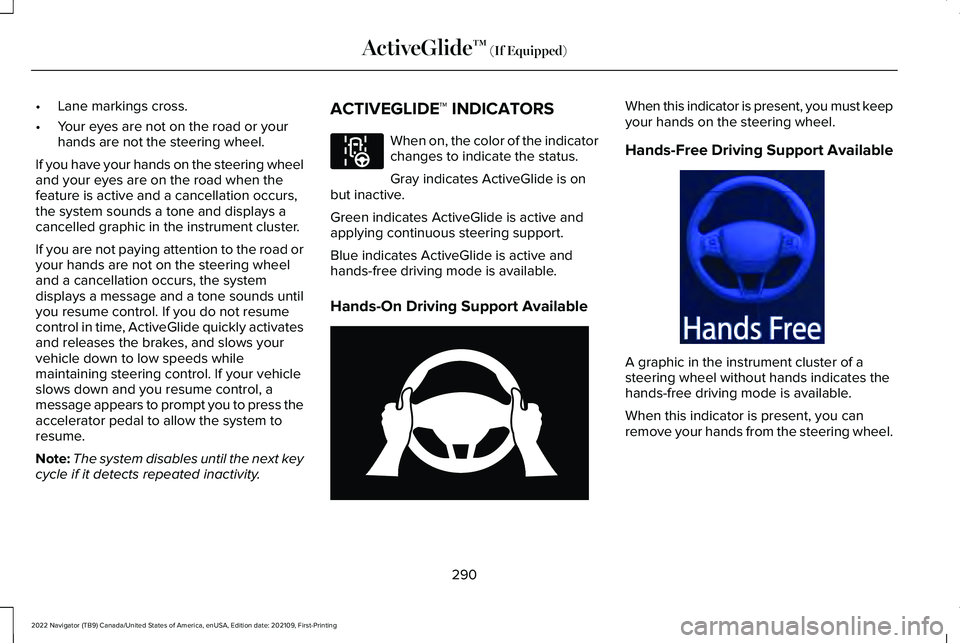
cycle if it detects repeated inactivity. ACTIVEGLIDE™ INDICATORS When on, the color of the indicator
changes to indicate the status.
Gray indicates ActiveGlide is on
but inactive.
Green indicates ActiveGlide is active and
applying continuous steering support.
Blue indicates ActiveGlide is active and
hands-free driving mode is available.
Hands-On Driving Support Available When this indicator is present, you must keep
your hands on the steering wheel.
Hands-Free Driving Support Available
A graphic in the instrument cluster of a
steering wheel without hands indicates the
hands-free driving mode is available.
When this indicator is present, you can
remove your hands from the steering wheel.
290
2022 Navigator (TB9) Canada/United States of America, enUSA, Edition date: 202109, First-Printing ActiveGlide™ (If Equipped)E297977 E333236 E333232
Page 295 of 646
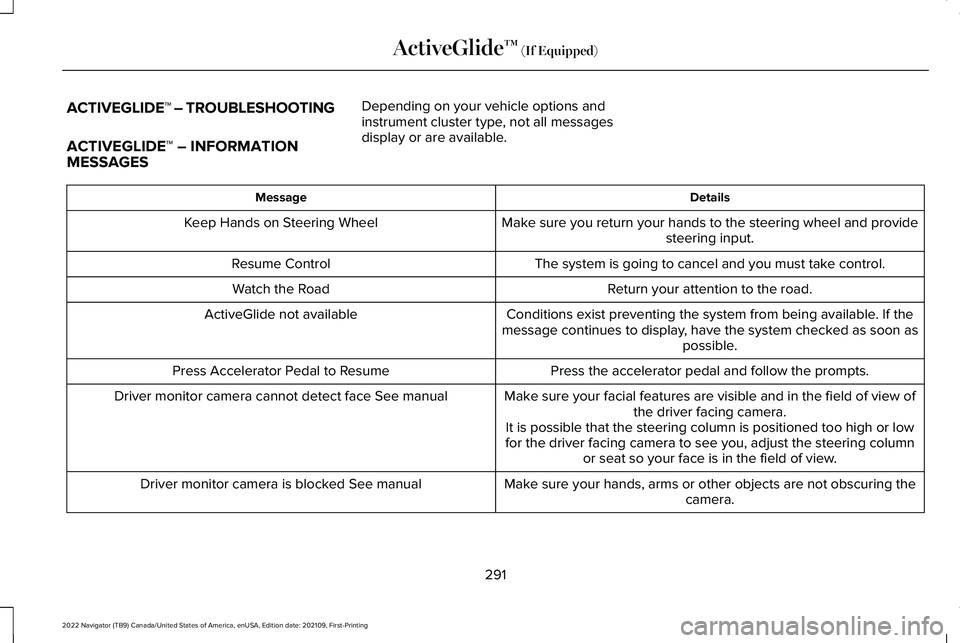
ACTIVEGLIDE™ – TROUBLESHOOTING
ACTIVEGLIDE™ – INFORMATION
MESSAGES
Depending on your vehicle options and
instrument cluster type, not all messages
display or are available. Details
Message
Make sure you return your hands to the steering wheel and providesteering input.
Keep Hands on Steering Wheel
The system is going to cancel and you must take control.
Resume Control
Return your attention to the road.
Watch the Road
Conditions exist preventing the system from being available. If the
message continues to display, have the system checked as soon as possible.
ActiveGlide not available
Press the accelerator pedal and follow the prompts.
Press Accelerator Pedal to Resume
Make sure your facial features are visible and in the field of view ofthe driver facing camera.
Driver monitor camera cannot detect face See manual
It is possible that the steering column is positioned too high or low
for the driver facing camera to see you, adjust the steering column or seat so your face is in the field of view.
Make sure your hands, arms or other objects are not obscuring the camera.
Driver monitor camera is blocked See manual
291
2022 Navigator (TB9) Canada/United States of America, enUSA, Edition date: 202109, First-Printing ActiveGlide™ (If Equipped)
Page 296 of 646
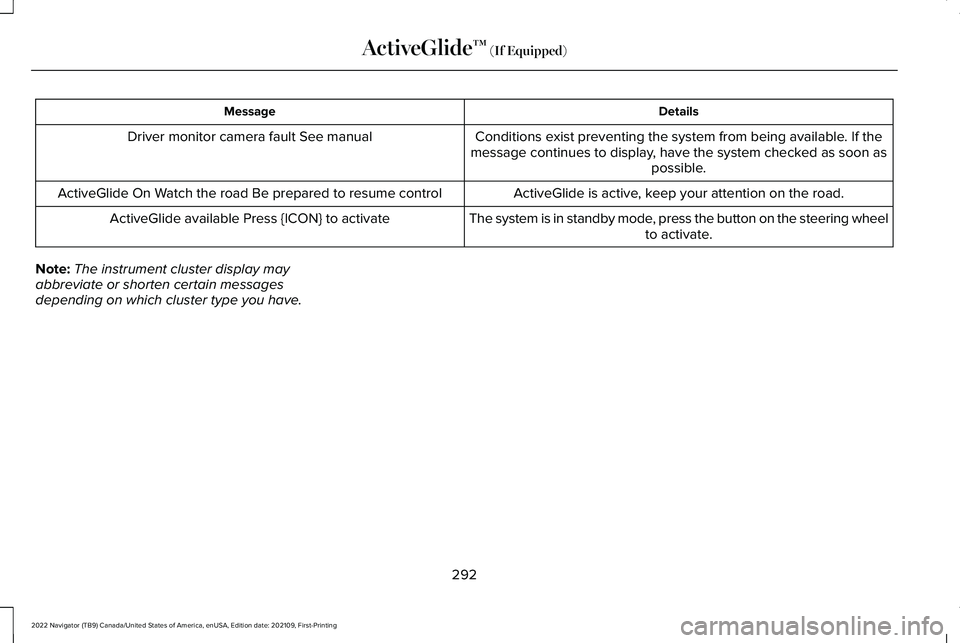
Details
Message
Conditions exist preventing the system from being available. If the
message continues to display, have the system checked as soon as possible.
Driver monitor camera fault See manual
ActiveGlide is active, keep your attention on the road.
ActiveGlide On Watch the road Be prepared to resume control
The system is in standby mode, press the button on the steering wheelto activate.
ActiveGlide available Press {ICON} to activate
Note: The instrument cluster display may
abbreviate or shorten certain messages
depending on which cluster type you have.
292
2022 Navigator (TB9) Canada/United States of America, enUSA, Edition date: 202109, First-Printing ActiveGlide™ (If Equipped)
Page 297 of 646
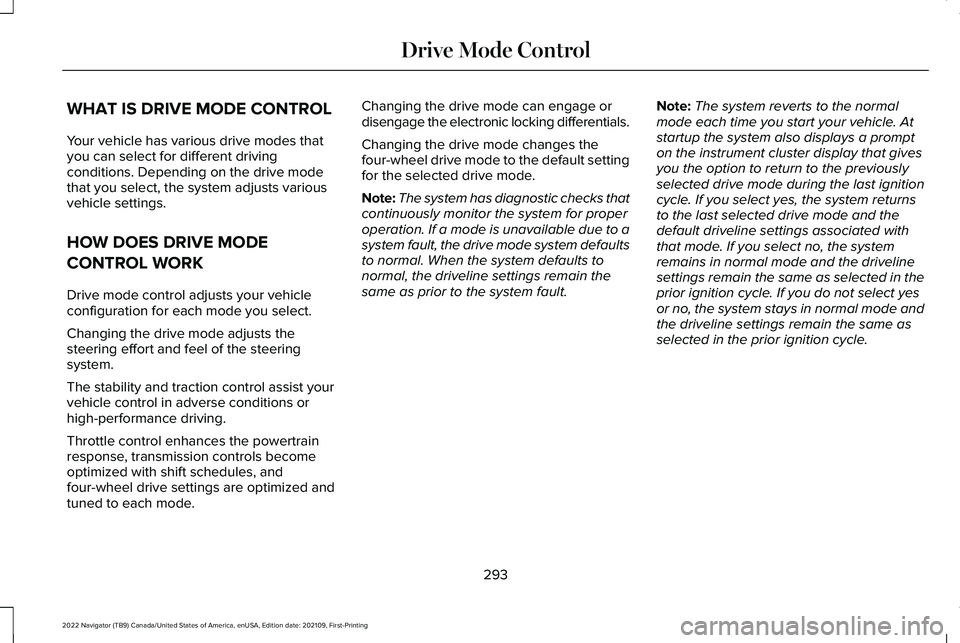
WHAT IS DRIVE MODE CONTROL
Your vehicle has various drive modes that
you can select for different driving
conditions. Depending on the drive mode
that you select, the system adjusts various
vehicle settings.
HOW DOES DRIVE MODE
CONTROL WORK
Drive mode control adjusts your vehicle
configuration for each mode you select.
Changing the drive mode adjusts the
steering effort and feel of the steering
system.
The stability and traction control assist your
vehicle control in adverse conditions or
high-performance driving.
Throttle control enhances the powertrain
response, transmission controls become
optimized with shift schedules, and
four-wheel drive settings are optimized and
tuned to each mode.
Changing the drive mode can engage or
disengage the electronic locking differentials.
Changing the drive mode changes the
four-wheel drive mode to the default setting
for the selected drive mode.
Note:
The system has diagnostic checks that
continuously monitor the system for proper
operation. If a mode is unavailable due to a
system fault, the drive mode system defaults
to normal. When the system defaults to
normal, the driveline settings remain the
same as prior to the system fault. Note:
The system reverts to the normal
mode each time you start your vehicle. At
startup the system also displays a prompt
on the instrument cluster display that gives
you the option to return to the previously
selected drive mode during the last ignition
cycle. If you select yes, the system returns
to the last selected drive mode and the
default driveline settings associated with
that mode. If you select no, the system
remains in normal mode and the driveline
settings remain the same as selected in the
prior ignition cycle. If you do not select yes
or no, the system stays in normal mode and
the driveline settings remain the same as
selected in the prior ignition cycle.
293
2022 Navigator (TB9) Canada/United States of America, enUSA, Edition date: 202109, First-Printing Drive Mode Control
Page 299 of 646
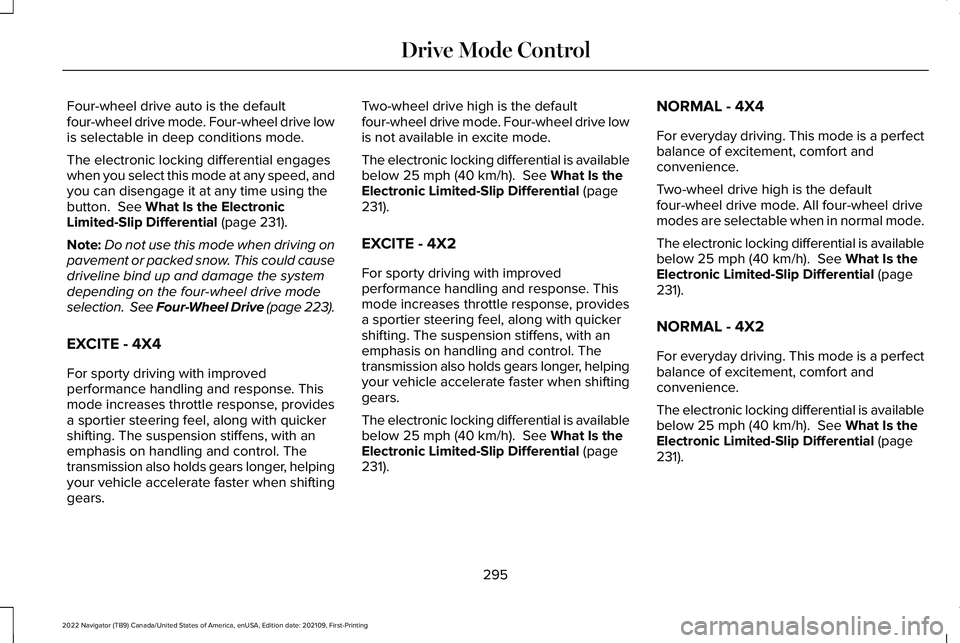
Four-wheel drive auto is the default
four-wheel drive mode. Four-wheel drive low
is selectable in deep conditions mode.
The electronic locking differential engages
when you select this mode at any speed, and
you can disengage it at any time using the
button. See What Is the Electronic
Limited-Slip Differential (page 231).
Note: Do not use this mode when driving on
pavement or packed snow. This could cause
driveline bind up and damage the system
depending on the four-wheel drive mode
selection. See Four-Wheel Drive (page 223).
EXCITE - 4X4
For sporty driving with improved
performance handling and response. This
mode increases throttle response, provides
a sportier steering feel, along with quicker
shifting. The suspension stiffens, with an
emphasis on handling and control. The
transmission also holds gears longer, helping
your vehicle accelerate faster when shifting
gears. Two-wheel drive high is the default
four-wheel drive mode. Four-wheel drive low
is not available in excite mode.
The electronic locking differential is available
below
25 mph (40 km/h). See What Is the
Electronic Limited-Slip Differential (page
231).
EXCITE - 4X2
For sporty driving with improved
performance handling and response. This
mode increases throttle response, provides
a sportier steering feel, along with quicker
shifting. The suspension stiffens, with an
emphasis on handling and control. The
transmission also holds gears longer, helping
your vehicle accelerate faster when shifting
gears.
The electronic locking differential is available
below
25 mph (40 km/h). See What Is the
Electronic Limited-Slip Differential (page
231). NORMAL - 4X4
For everyday driving. This mode is a perfect
balance of excitement, comfort and
convenience.
Two-wheel drive high is the default
four-wheel drive mode. All four-wheel drive
modes are selectable when in normal mode.
The electronic locking differential is available
below
25 mph (40 km/h). See What Is the
Electronic Limited-Slip Differential (page
231).
NORMAL - 4X2
For everyday driving. This mode is a perfect
balance of excitement, comfort and
convenience.
The electronic locking differential is available
below
25 mph (40 km/h). See What Is the
Electronic Limited-Slip Differential (page
231).
295
2022 Navigator (TB9) Canada/United States of America, enUSA, Edition date: 202109, First-Printing Drive Mode Control
Page 303 of 646
WHAT IS THE LANE KEEPING
SYSTEM
The lane keeping system alerts you by
providing temporary steering assistance or
steering wheel vibration when it detects an
unintended lane departure.
HOW DOES THE LANE KEEPING
SYSTEM WORK
The lane keeping system uses a forward
looking camera mounted on the windshield
to monitor vehicle movement within the
travel lane.
When the camera detects a drift out of the
travel lane, the lane keeping system alerts
the driver by vibrating the steering wheel, or
aids the driver by providing a small steering
input to move the vehicle back into the travel
lane.
The driver can select one of three modes:
•
Alert (If Equipped)
• Aid
• Alert + Aid
LANE KEEPING SYSTEM
PRECAUTIONS WARNING: You are responsible for
controlling your vehicle at all times. The
system is designed to be an aid and does
not relieve you of your responsibility to
drive with due care and attention. Failure
to follow this instruction could result in the
loss of control of your vehicle, personal
injury or death. WARNING:
The system will not
operate if the sensor cannot track the road
lane markings. WARNING:
The sensor may
incorrectly track lane markings as other
structures or objects. This can result in a
false or missed warning. WARNING:
In cold and severe
weather conditions the system may not
function. Rain, snow and spray can all limit
sensor performance. WARNING:
The system may not
operate properly if the sensor is blocked.
Keep the windshield free from obstruction. WARNING:
If damage occurs in the
immediate area surrounding the sensor,
have your vehicle checked as soon as
possible. WARNING:
The system may not
correctly operate if your vehicle is fitted
with a suspension kit not approved by us. WARNING: Large contrasts in outside
lighting can limit sensor performance.
299
2022 Navigator (TB9) Canada/United States of America, enUSA, Edition date: 202109, First-Printing Lane Keeping System
Page 304 of 646
LANE KEEPING SYSTEM
LIMITATIONS
The lane keeping system only operates when
the vehicle speed is greater than 40 mph
(64 km/h).
The system works when the camera can
detect at least one lane marking.
Note: When you select Aid or Alert and Aid
mode and the system detects no steering
activity for a short period of time, the system
alerts you to put your hands on the steering
wheel. The system may detect a light grip or
touch on the steering wheel as hands-off
driving.
The lane keeping system may not correctly
operate in any of the following conditions:
• The lane keeping system does not detect
at least one lane marking.
• You switch the turn signal on.
• You apply direct steering, accelerate fast
or brake hard.
• The vehicle speed is less than
40 mph
(64 km/h). •
The anti-lock brake, stability control or
traction control system activates.
• The lane is too narrow.
• Something is obscuring the camera or it
is unable to detect the lane markings due
to environment, traffic or vehicle
conditions.
• Entering or exiting a tight curve when
driving at high speeds.
The lane keeping system may not correct
lane positioning in any of the following
conditions:
• High winds.
• Uneven road surfaces.
• Heavy or uneven loads.
• Incorrect tire pressure.
SWITCHING THE LANE KEEPING
SYSTEM ON AND OFF To activate the lane keeping
system, press the button on the
steering wheel.To deactivate the lane keeping system, press
the button again.
Note:
When switching the system on or off
a message appears in the information and
entertainment display to show the status.
Note: The system stores the on or off setting
until manually changed, unless it detects a
MyKey™. If the system detects a MyKey™, it
defaults to the last setting for that MyKey™.
Note: If the system detects a MyKey™,
pressing the button does not affect the on
or off status of the system. You can only
change the mode and intensity settings.
SWITCHING THE LANE KEEPING
SYSTEM MODE
The lane keeping system has different
settings that you can view or adjust using
the information display.
The system stores the last known selection
for each of these settings. You do not need
to readjust your settings each time you
switch on the system.
300
2022 Navigator (TB9) Canada/United States of America, enUSA, Edition date: 202109, First-Printing Lane Keeping SystemE334922