light LINCOLN NAVIGATOR 2023 Workshop Manual
[x] Cancel search | Manufacturer: LINCOLN, Model Year: 2023, Model line: NAVIGATOR, Model: LINCOLN NAVIGATOR 2023Pages: 660, PDF Size: 14.04 MB
Page 276 of 660
Note:Keep the front of your vehicle free ofdirt, metal badges or objects. Vehicle frontprotectors, aftermarket lights, additionalpaint or plastic coatings could also degradesensor performance.
A message displays if something obstructsthe camera or the sensor. When somethingblocks the sensor, the system cannot detecta vehicle ahead and does not function. SeeAdaptive Cruise Control – InformationMessages (page 284).
The radar sensor has a limited field of view.It may not detect vehicles at all or detect avehicle later than expected in somesituations. The lead vehicle image does notilluminate if the system does not detect avehicle in front of you.
272
2023 Navigator (TB9) Canada/United States of America, enUSA, Edition date: 202207, DOMAdaptive Cruise Control
Page 277 of 660
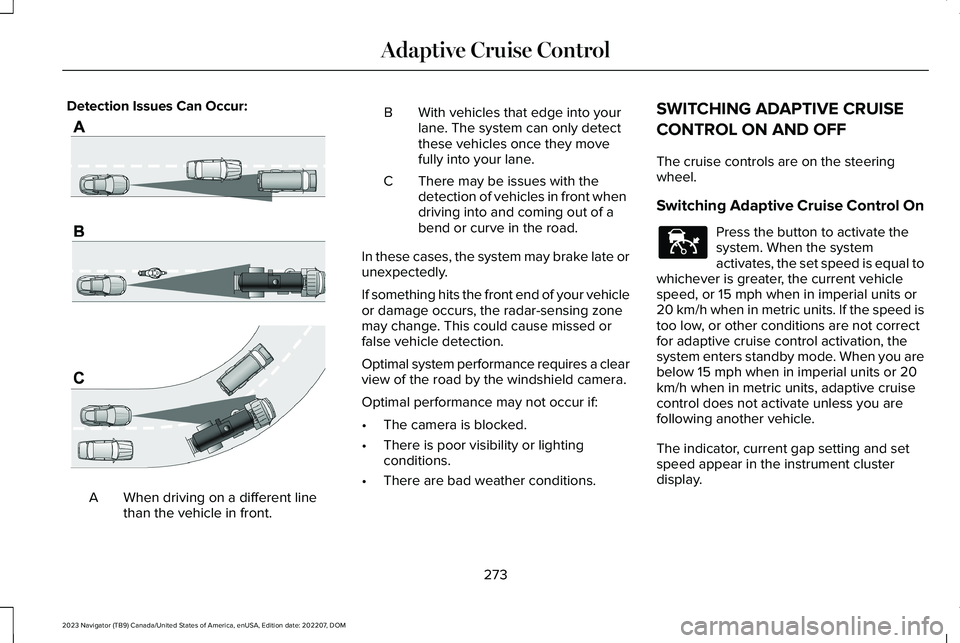
Detection Issues Can Occur:
When driving on a different linethan the vehicle in front.A
BWith vehicles that edge into yourlane. The system can only detectthese vehicles once they movefully into your lane.
There may be issues with thedetection of vehicles in front whendriving into and coming out of abend or curve in the road.
C
In these cases, the system may brake late orunexpectedly.
If something hits the front end of your vehicleor damage occurs, the radar-sensing zonemay change. This could cause missed orfalse vehicle detection.
Optimal system performance requires a clearview of the road by the windshield camera.
Optimal performance may not occur if:
•The camera is blocked.
•There is poor visibility or lightingconditions.
•There are bad weather conditions.
SWITCHING ADAPTIVE CRUISE
CONTROL ON AND OFF
The cruise controls are on the steeringwheel.
Switching Adaptive Cruise Control On
Press the button to activate thesystem. When the systemactivates, the set speed is equal towhichever is greater, the current vehiclespeed, or 15 mph when in imperial units or20 km/h when in metric units. If the speed istoo low, or other conditions are not correctfor adaptive cruise control activation, thesystem enters standby mode. When you arebelow 15 mph when in imperial units or 20km/h when in metric units, adaptive cruisecontrol does not activate unless you arefollowing another vehicle.
The indicator, current gap setting and setspeed appear in the instrument clusterdisplay.
273
2023 Navigator (TB9) Canada/United States of America, enUSA, Edition date: 202207, DOMAdaptive Cruise ControlE71621 E144529
Page 279 of 660
A vehicle image illuminates if there is avehicle detected in front of you.
Note:When adaptive cruise control is active,the speedometer can vary slightly from theset speed displayed in the instrument clusterdisplay.
Setting the Adaptive Cruise Speedfrom a Complete Stop
Press the SET+ or SET- buttonswhile keeping the brake pedal fullydepressed.
The set speed adjusts to 20 km/h when inmetric units or 15 mph when in imperial units.
The indicator, current gap setting and setspeed appear in the instrument clusterdisplay.
Note:The system activates from a completestop only when it detects a lead vehicle inclose proximity.
Manually Changing the Set Speed
Press the button to increase theset speed in small increments.Press and hold the button toincrease the set speed in large increments.Release the button when the set speed isequal to the desired speed.
Press the button to decrease theset speed in small increments.Press and hold the button todecrease the set speed in large increments.Release the button when the set speed isequal to the desired speed.
You can also press the accelerator or brakepedal until you reach the speed you prefer.Press either button to select the currentspeed as the set speed.
The system could apply the brakes to slowthe vehicle to the new set speed. The setspeed continuously displays in theinstrument cluster display when the systemis active.
SETTING THE ADAPTIVE CRUISE
CONTROL GAP
You can decrease or increase the distancebetween your vehicle and the vehicle in frontby pressing the gap control.
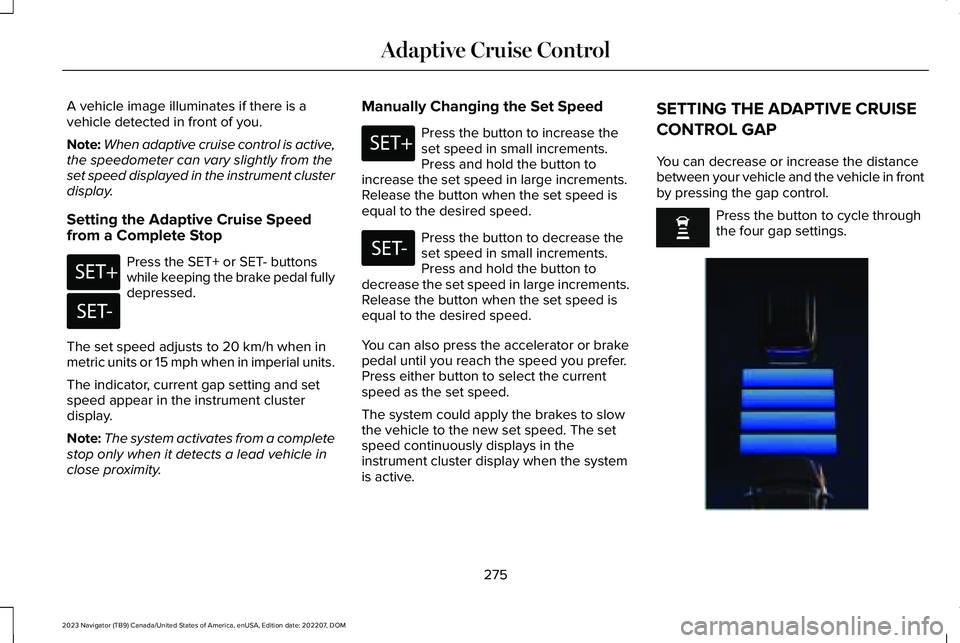
Press the button to cycle throughthe four gap settings.
275
2023 Navigator (TB9) Canada/United States of America, enUSA, Edition date: 202207, DOMAdaptive Cruise ControlE246884 E246885 E246884 E246885 E354843
Page 284 of 660
Note:If the system does not detect validlane line markings, the system will remain instandby until valid line markings areavailable.
LANE CENTERING LIMITATIONS
Adaptive cruise control limitations apply tolane centering unless stated otherwise orcontradicted by a lane centering limitation.See Adaptive Cruise Control Limitations(page 271).
Lane centering may not correctly operate inany of the following conditions:
•The lane width is too narrow or wide.
•The curve in the road is too small.
•The system does not detect the minimumrequired lane markings or when lanesmerge or split.
•When the required steering effort tomaintain lane center exceeds the lanecentering system limit.
•When driving in areas that are underconstruction or when road work is inprogress.
•If the front windshield camera and/or thefront radar are blocked.
•When using a spare tire.
•Inclement weather conditions including,but not limited to, high wind, heavy rain,and fog.
•Driving into direct sunlight.
•When modification to the steering systemhas been made, including alterations tothe steering wheel.
•When towing a trailer.
See Lane Centering Precautions (page 279).
Note:The system steering assistance islimited and may not have sufficient effort forall driving situations and/or conditions, suchas driving through tight curves or drivingthrough curves at high speeds.
Note:In exceptional conditions, the systemmay deviate from the lane center.
SWITCHING LANE CENTERING ONAND OFF
Keep your hands on the steering wheel atall times.
The controls are on the steering wheel.
Press the button.
The indicator appears in the instrumentcluster display. When the system is on, thecolor of the indicator changes to indicate thesystem status.
You can override the system at any time bysteering your vehicle.
Note:The correct requirements must be metbefore you can switch the system on. SeeLane Centering Requirements (page 279).
Enabling and Disabling Lane Centering
1.Press Features on the touchscreen.
2.Press Driver Assistance.
3.Press Cruise Control.
4.Press Lane Centering Assist.
LANE CENTERING ALERTS
You must keep your hands on the steeringwheel at all times.
280
2023 Navigator (TB9) Canada/United States of America, enUSA, Edition date: 202207, DOMAdaptive Cruise ControlE308131
Page 285 of 660
When the system is active and detects nosteering activity for a period of time, thesystem alerts you to put your hands on thesteering wheel. If you do not reactappropriately to the warnings the adaptivecruise control with lane centering systemcancels and slows your vehicle down to idlespeeds while maintaining steering control.See Lane Centering Automatic Cancellation(page 281).
The system also alerts you if your vehiclecrosses lane line markings without detectedsteering activity.
Note:The system could detect a light gripor light touch on the steering wheel ashands-off driving.
LANE CENTERING AUTOMATICCANCELLATION
When an external condition cancels thesystem, and your hands are on the steeringwheel, a tone sounds and a messageappears in the instrument cluster display.
When an external condition cancels thesystem, and your hands are not on thesteering wheel, the system immediatelyalerts you to take control of the vehicle. Ifthis alert is ignored, the system slows thevehicle while maintaining steering assistancewhen lane markings are available. When nolane markings are available, the vehiclecomes to a stop.
If your vehicle starts to slow downafter system cancellation, you musttake full control of the vehicle. Tore-enable adaptive cruise control with lanecentering after cancellation, press andrelease the resume button.
Automatic cancellation can also occur if:
•The lane becomes too wide or narrow.
•The system cannot detect valid lanemarkings.
•Lane markings cross over one another.
•The curve of the road is too sharp.
Note:If your vehicle slows down due to yourinactivity twice within a key cycle, the systemdisables. To reset the system, when thevehicle is stationary, return the gear selectorto park (P) and turn the vehicle off. Then,restart the vehicle with your foot on thebrake pedal.
LANE CENTERING MANUALCANCELLATION
When you perform the following actions,adaptive cruise control with lane centeringwill cancel:
•The brake pedal is pressed.
•Adaptive cruise control button isswitched off on the steering wheel.
The lane centering system is momentarilysuppressed when either of the followingactions are performed:
•Turn signal indicator is latched or tapped.
•You steer the vehicle out of lane.
281
2023 Navigator (TB9) Canada/United States of America, enUSA, Edition date: 202207, DOMAdaptive Cruise ControlE308130
Page 290 of 660
WHAT IS ACTIVEGLIDE™
Lincoln ActiveGlide Driver-Assist Technology
ActiveGlide keeps your vehicle centered inthe lane and offers a hands-free drivingmode in certain situations when usingadaptive cruise control.
HOW DOES ACTIVEGLIDE™ WORK
ActiveGlide uses cameras to monitor yourvehicle position within a lane and appliessteering support to keep your vehiclecentered in the lane.
Using the cameras and location information,ActiveGlide allows you to remove your handsfrom the steering wheel and offers ahands-free driving mode in certain areas.
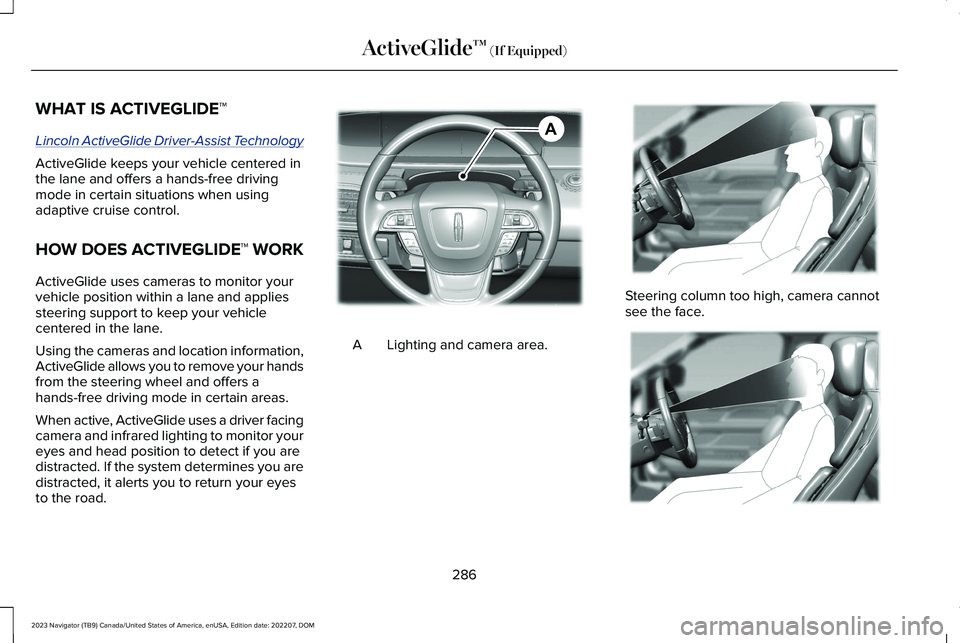
When active, ActiveGlide uses a driver facingcamera and infrared lighting to monitor youreyes and head position to detect if you aredistracted. If the system determines you aredistracted, it alerts you to return your eyesto the road.
Lighting and camera area.A
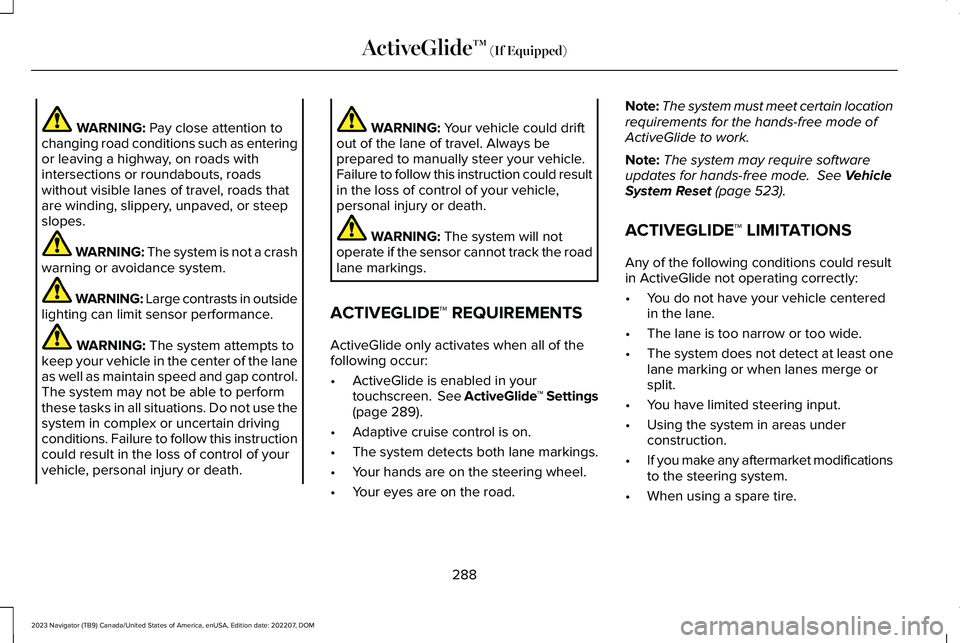
Steering column too high, camera cannotsee the face.
286
2023 Navigator (TB9) Canada/United States of America, enUSA, Edition date: 202207, DOMActiveGlide™ (If Equipped)AE351152 E381702 E381703
Page 291 of 660
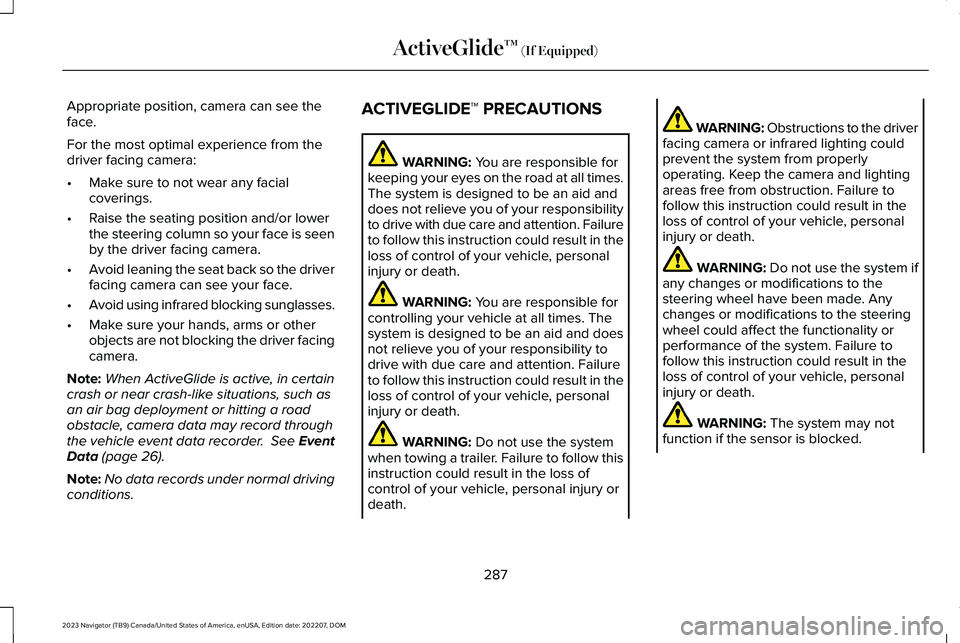
Appropriate position, camera can see theface.
For the most optimal experience from thedriver facing camera:
•Make sure to not wear any facialcoverings.
•Raise the seating position and/or lowerthe steering column so your face is seenby the driver facing camera.
•Avoid leaning the seat back so the driverfacing camera can see your face.
•Avoid using infrared blocking sunglasses.
•Make sure your hands, arms or otherobjects are not blocking the driver facingcamera.
Note:When ActiveGlide is active, in certaincrash or near crash-like situations, such asan air bag deployment or hitting a roadobstacle, camera data may record throughthe vehicle event data recorder. See EventData (page 26).
Note:No data records under normal drivingconditions.
ACTIVEGLIDE™ PRECAUTIONS
WARNING: You are responsible forkeeping your eyes on the road at all times.The system is designed to be an aid anddoes not relieve you of your responsibilityto drive with due care and attention. Failureto follow this instruction could result in theloss of control of your vehicle, personalinjury or death.
WARNING: You are responsible forcontrolling your vehicle at all times. Thesystem is designed to be an aid and doesnot relieve you of your responsibility todrive with due care and attention. Failureto follow this instruction could result in theloss of control of your vehicle, personalinjury or death.
WARNING: Do not use the systemwhen towing a trailer. Failure to follow thisinstruction could result in the loss ofcontrol of your vehicle, personal injury ordeath.
WARNING: Obstructions to the driverfacing camera or infrared lighting couldprevent the system from properlyoperating. Keep the camera and lightingareas free from obstruction. Failure tofollow this instruction could result in theloss of control of your vehicle, personalinjury or death.
WARNING: Do not use the system ifany changes or modifications to thesteering wheel have been made. Anychanges or modifications to the steeringwheel could affect the functionality orperformance of the system. Failure tofollow this instruction could result in theloss of control of your vehicle, personalinjury or death.
WARNING: The system may notfunction if the sensor is blocked.
287
2023 Navigator (TB9) Canada/United States of America, enUSA, Edition date: 202207, DOMActiveGlide™ (If Equipped)
Page 292 of 660
WARNING: Pay close attention tochanging road conditions such as enteringor leaving a highway, on roads withintersections or roundabouts, roadswithout visible lanes of travel, roads thatare winding, slippery, unpaved, or steepslopes.
WARNING: The system is not a crashwarning or avoidance system.
WARNING: Large contrasts in outsidelighting can limit sensor performance.
WARNING: The system attempts tokeep your vehicle in the center of the laneas well as maintain speed and gap control.The system may not be able to performthese tasks in all situations. Do not use thesystem in complex or uncertain drivingconditions. Failure to follow this instructioncould result in the loss of control of yourvehicle, personal injury or death.
WARNING: Your vehicle could driftout of the lane of travel. Always beprepared to manually steer your vehicle.Failure to follow this instruction could resultin the loss of control of your vehicle,personal injury or death.
WARNING: The system will notoperate if the sensor cannot track the roadlane markings.
ACTIVEGLIDE™ REQUIREMENTS
ActiveGlide only activates when all of thefollowing occur:
•ActiveGlide is enabled in yourtouchscreen. See ActiveGlide™ Settings(page 289).
•Adaptive cruise control is on.
•The system detects both lane markings.
•Your hands are on the steering wheel.
•Your eyes are on the road.
Note:The system must meet certain locationrequirements for the hands-free mode ofActiveGlide to work.
Note:The system may require softwareupdates for hands-free mode. See VehicleSystem Reset (page 523).
ACTIVEGLIDE™ LIMITATIONS
Any of the following conditions could resultin ActiveGlide not operating correctly:
•You do not have your vehicle centeredin the lane.
•The lane is too narrow or too wide.
•The system does not detect at least onelane marking or when lanes merge orsplit.
•You have limited steering input.
•Using the system in areas underconstruction.
•If you make any aftermarket modificationsto the steering system.
•When using a spare tire.
288
2023 Navigator (TB9) Canada/United States of America, enUSA, Edition date: 202207, DOMActiveGlide™ (If Equipped)
Page 293 of 660
The driver-facing camera may not operatecorrectly due to any of the following:
•If you have a pre-existing eye condition,such as an eye misalignment, or havehad eye surgery.
•You cover your facial features by a mask,hat or other items.
•The lighting conditions changesignificantly.
•You are not in the field of view of thecamera.
•You position or tilt yourself to one side.
•You are moving around extensively.
•You are wearing glasses or sunglassesthat are too dark or reflective.
Note:The system has limited steeringassistance and may not be sufficient for alldriving situations.
Note:In exceptional conditions, such asinclement weather or direct sunlight, thesystem could deviate from the center line.
Note:The information provided by thenavigation map data could be inaccurate orout of date.
ACTIVEGLIDE™ SETTINGS
Enabling ActiveGlide
1.Press Features on the touchscreen.
2.Press Driver Assistance.
3.Press Cruise Control.
4.Press Adaptive Cruise Control.
5.Press Lane Centering with Hands-Free.
Enabling Activation Prompts
1.Press Features on the touchscreen.
2.Press Driver Assistance.
3.Press Cruise Control.
4.Press Adaptive Cruise Control.
5.Press Activation Prompts.
SWITCHING ACTIVEGLIDE™ ON
AND OFF
Switching ActiveGlide On
The controls are on the steering wheel.
Using Activation Prompts
When the prompt appears, pressthe button to switch ActiveGlideon.
The indicator appears in the instrumentcluster. When the system is on, the color ofthe indicator changes to indicate the systemstatus.
Note:You must enable activation promptsin the touchscreen.
Using Steering Wheel Controls
Using the adaptive cruise controland lateral support buttons, makesure both systems are active.ActiveGlide activates.
Switching ActiveGlide Off
Press either the lateral support oradaptive cruise control buttonwhen system is active or instandby mode.
ActiveGlide turns off through eachignition cycle.
289
2023 Navigator (TB9) Canada/United States of America, enUSA, Edition date: 202207, DOMActiveGlide™ (If Equipped)E144529 E308131 E144529 E308131 E144529
Page 304 of 660
WHAT IS THE LANE KEEPING
SYSTEM
Lincoln Co-Pilot 360 and 360+
The lane keeping system alerts you byproviding temporary steering assistance orsteering wheel vibration when it detects anunintended lane departure.
HOW DOES THE LANE KEEPING
SYSTEM WORK
The lane keeping system uses a forwardlooking camera mounted on the windshieldto monitor vehicle movement within thetravel lane.
When the camera detects a drift out of thetravel lane, the lane keeping system alertsthe driver by vibrating the steering wheel, oraids the driver by providing a small steeringinput to move the vehicle back into the travellane.
The driver can select one of three modes:
•Alert (If Equipped)
•Aid
•Alert + Aid
LANE KEEPING SYSTEM
PRECAUTIONS
WARNING: You are responsible forcontrolling your vehicle at all times. Thesystem is designed to be an aid and doesnot relieve you of your responsibility todrive with due care and attention. Failureto follow this instruction could result in theloss of control of your vehicle, personalinjury or death.
WARNING: The system will notoperate if the sensor cannot track the roadlane markings.
WARNING: The sensor mayincorrectly track lane markings as otherstructures or objects. This can result in afalse or missed warning.
WARNING: In cold and severeweather conditions the system may notfunction. Rain, snow and spray can all limitsensor performance.
WARNING: The system may notoperate properly if the sensor is blocked.Keep the windshield free from obstruction.
WARNING: If damage occurs in theimmediate area surrounding the sensor,have your vehicle checked as soon aspossible.
WARNING: The system may notcorrectly operate if your vehicle is fittedwith a suspension kit not approved by us.
WARNING: Large contrasts in outsidelighting can limit sensor performance.
300
2023 Navigator (TB9) Canada/United States of America, enUSA, Edition date: 202207, DOMLane Keeping System