ignition MASERATI GHIBLI 2019 Workshop Manual
[x] Cancel search | Manufacturer: MASERATI, Model Year: 2019, Model line: GHIBLI, Model: MASERATI GHIBLI 2019Pages: 384, PDF Size: 13.33 MB
Page 158 of 384
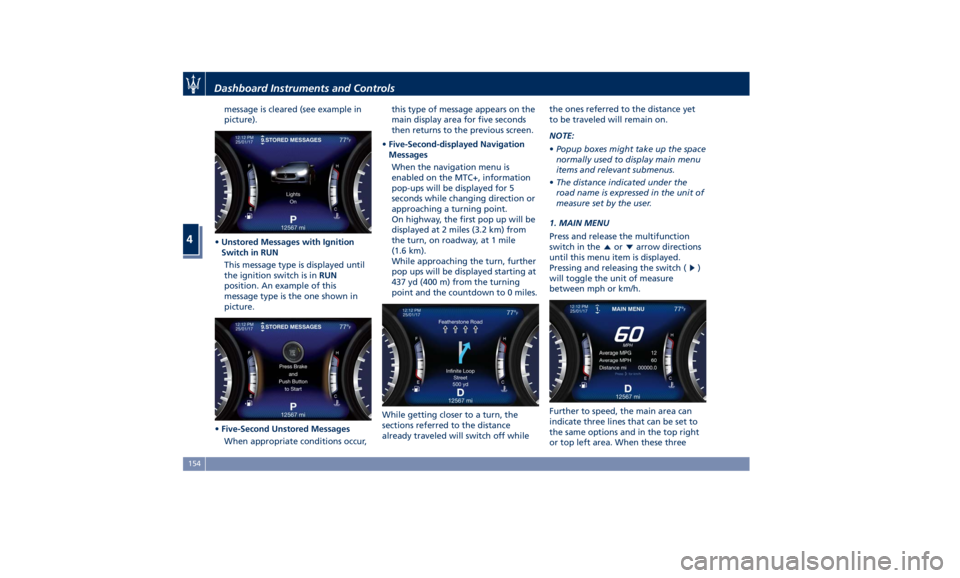
message is cleared (see example in
picture).
• Unstored Messages with Ignition
Switch in RUN
This message type is displayed until
the ignition switch is in RUN
position. An example of this
message type is the one shown in
picture.
• Five-Second Unstored Messages
When appropriate conditions occur, this type of message appears on the
main display area for five seconds
then returns to the previous screen.
• Five-Second-displayed Navigation
Messages
When the navigation menu is
enabled on the MTC+, information
pop-ups will be displayed for 5
seconds while changing direction or
approaching a turning point.
On highway, the first pop up will be
displayed at 2 miles (3.2 km) from
the turn, on roadway, at 1 mile
(1.6 km).
While approaching the turn, further
pop ups will be displayed starting at
437 yd (400 m) from the turning
point and the countdown to 0 miles.
While getting closer to a turn, the
sections referred to the distance
already traveled will switch off while the ones referred to the distance yet
to be traveled will remain on.
NOTE:
• Popup boxes might take up the space
normally used to display main menu
items and relevant submenus.
• The distance indicated under the
road name is expressed in the unit of
measure set by the user.
1. MAIN MENU
Press and release the multifunction
switch in the
or arrow directions
until this menu item is displayed.
Pressing and releasing the switch (
)
will toggle the unit of measure
between mph or km/h.
Further to speed, the main area can
indicate three lines that can be set to
the same options and in the top right
or top left area. When these threeDashboard Instruments and Controls
4
154
Page 162 of 384
• “Distance ” traveled in miles or km.
Shows the total covered distance
since the last reset.
• “Average ” consumption in MPG (US),
MPG (UK) or l/100km.
Shows the average fuel
consumption since the last reset.
• “Average ” speed in MPH or km/h.
Shows the average speed since the
last reset.
• “Elapsed Time ”
Shows the total time of travel since
the last reset in “hours:minutes:
seconds.” Elapsed Time will
increment when the ignition switch
is in the RUN or START position.
Press the multifunction switch (
) for
1 second and release to reset “Trip A”
or “Trip B”.
“Trip B” is reset after each key on/key
off cycle.
Press and release the
button to
return to the main menu.
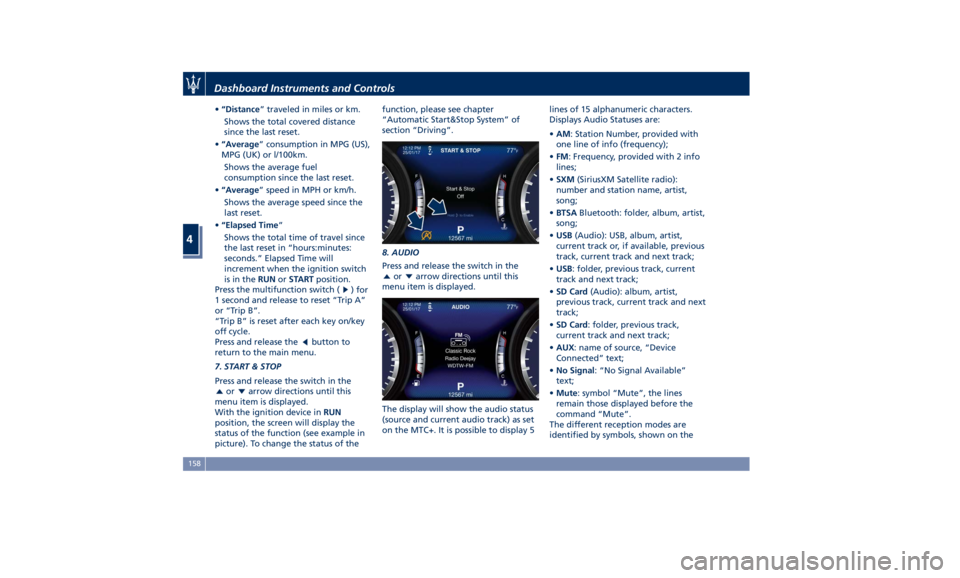
7. START & STOP
Press and release the switch in the
or arrow directions until this
menu item is displayed.
With the ignition device in RUN
position, the screen will display the
status of the function (see example in
picture). To change the status of the function, please see chapter
“Automatic Start&Stop System” of
section “Driving”.
8. AUDIO
Press and release the switch in the
or arrow directions until this
menu item is displayed.
The display will show the audio status
(source and current audio track) as set
on the MTC+. It is possible to display 5 lines of 15 alphanumeric characters.
Displays Audio Statuses are:
• AM : Station Number, provided with
one line of info (frequency);
• FM : Frequency, provided with 2 info
lines;
• SXM (SiriusXM Satellite radio):
number and station name, artist,
song;
• BTSA Bluetooth: folder, album, artist,
song;
• USB (Audio): USB, album, artist,
current track or, if available, previous
track, current track and next track;
• USB : folder, previous track, current
track and next track;
• SD Card (Audio): album, artist,
previous track, current track and next
track;
• SD Card : folder, previous track,
current track and next track;
• AUX : name of source, “Device
Connected” text;
• No Signal : “No Signal Available”
text;
• Mute : symbol “Mute”, the lines
remain those displayed before the
command “Mute”.
The different reception modes are
identified by symbols, shown on theDashboard Instruments and Controls
4
158
Page 164 of 384
10. VEHICLE SETTINGS
With ignition switch in RUN position
and vehicle stopped, press and release
the switch in the or arrow
directions until this menu item is
displayed.
Press and release the switch (
)to
access the submenus.
Scroll with the switch in the
or
arrow directions to view the
selectable items:
• Speed Warning
• Electric Parking Brake
• Screen Setup
NOTE:
In order to modify the status of electric
parking brake, please see chapter
“Parking Brake” in section “Driving”.
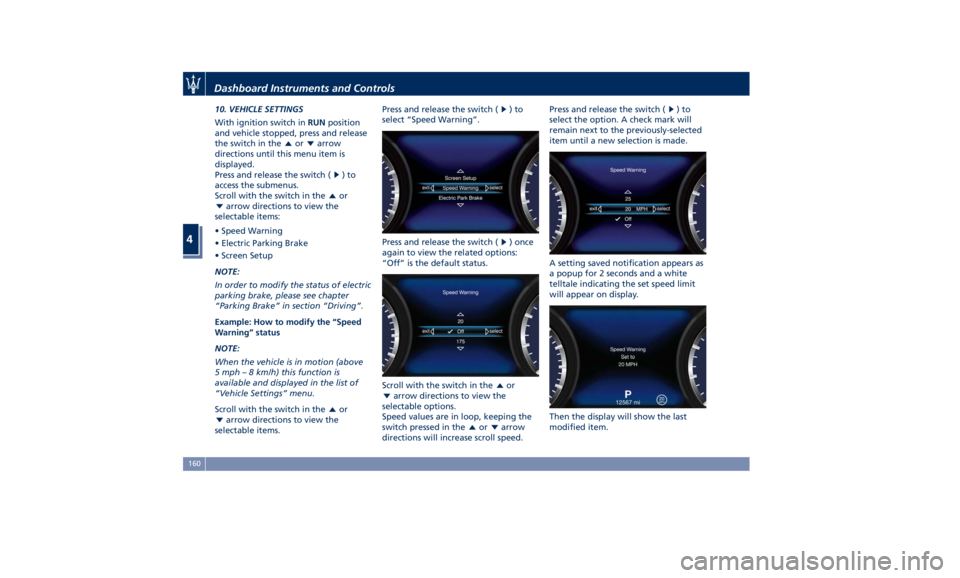
Example: How to modify the “Speed
Warning” status
NOTE:
When the vehicle is in motion (above
5 mph – 8 km/h) this function is
available and displayed in the list of
“Vehicle Settings” menu.
Scroll with the switch in the
or
arrow directions to view the
selectable items. Press and release the switch (
)to
select “Speed Warning”.
Press and release the switch (
) once
again to view the related options:
“Off” is the default status.
Scroll with the switch in the
or
arrow directions to view the
selectable options.
Speed values are in loop, keeping the
switch pressed in the
or arrow
directions will increase scroll speed. Press and release the switch ( )to
select the option. A check mark will
remain next to the previously-selected
item until a new selection is made.
A setting saved notification appears as
a popup for 2 seconds and a white
telltale indicating the set speed limit
will appear on display.
Then the display will show the last
modified item.Dashboard Instruments and Controls
4
160
Page 167 of 384
of changing units remains in any case
active.
If the “Main Menu Navigation” is set
to “On”, navigation information will
be displayed in the main area of the
display only if a destination has been
set on the navigator of the MTC+. If
function is set to "Off", the navigation
information will not be displayed.
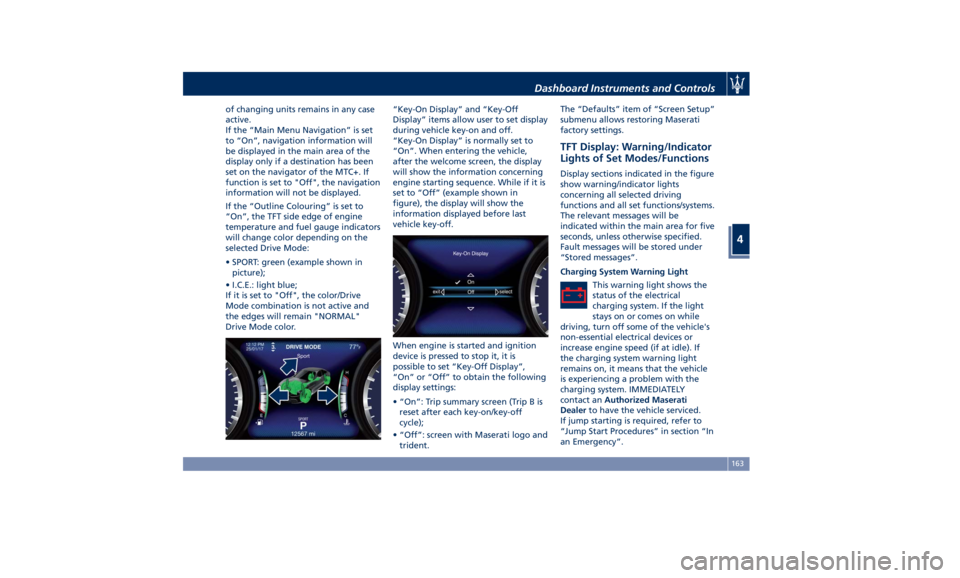
If the “Outline Colouring” is set to
“On”, the TFT side edge of engine
temperature and fuel gauge indicators
will change color depending on the
selected Drive Mode:
• SPORT: green (example shown in
picture);
• I.C.E.: light blue;
If it is set to "Off", the color/Drive
Mode combination is not active and
the edges will remain "NORMAL"
Drive Mode color. “Key-On Display” and “Key-Off
Display” items allow user to set display
during vehicle key-on and off.
“Key-On Display” is normally set to
“On”. When entering the vehicle,
after the welcome screen, the display
will show the information concerning
engine starting sequence. While if it is
set to “Off” (example shown in
figure), the display will show the
information displayed before last
vehicle key-off.
When engine is started and ignition
device is pressed to stop it, it is
possible to set “Key-Off Display”,
“On” or “Off” to obtain the following
display settings:
• “On”: Trip summary screen (Trip B is
reset after each key-on/key-off
cycle);
• “Off”: screen with Maserati logo and
trident. The “Defaults” item of “Screen Setup”
submenu allows restoring Maserati
factory settings.
TFT Display: Warning/Indicator
Lights of Set Modes/Functions Display sections indicated in the figure
show warning/indicator lights
concerning all selected driving
functions and all set functions/systems.
The relevant messages will be
indicated within the main area for five
seconds, unless otherwise specified.
Fault messages will be stored under
“Stored messages”.
Charging System Warning Light
This warning light shows the
status of the electrical
charging system. If the light
stays on or comes on while
driving, turn off some of the vehicle's
non-essential electrical devices or
increase engine speed (if at idle). If
the charging system warning light
remains on, it means that the vehicle
is experiencing a problem with the
charging system. IMMEDIATELY
contact an Authorized Maserati
Dealer to have the vehicle serviced.
If jump starting is required, refer to
“Jump Start Procedures” in section “In
an Emergency”.Dashboard Instruments and Controls
4
163
Page 168 of 384
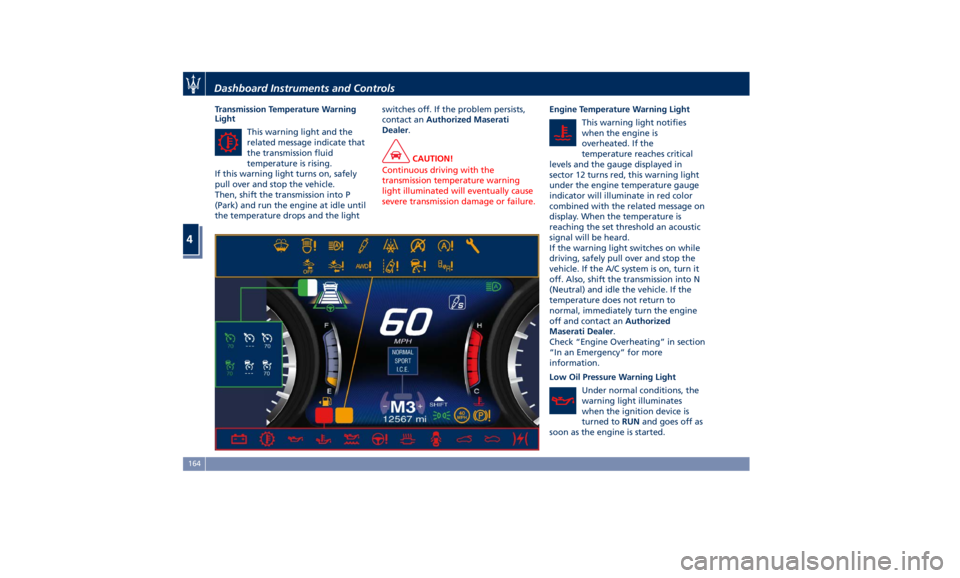
Transmission Temperature Warning
Light
This warning light and the
related message indicate that
the transmission fluid
temperature is rising.
If this warning light turns on, safely
pull over and stop the vehicle.
Then, shift the transmission into P
(Park) and run the engine at idle until
the temperature drops and the light switches off. If the problem persists,
contact an Authorized Maserati
Dealer .
CAUTION!
Continuous driving with the
transmission temperature warning
light illuminated will eventually cause
severe transmission damage or failure. Engine Temperature Warning Light
This
warning light
notifies
when the engine is
overheated. If the
temperature reaches critical
levels and the gauge displayed in
sector 12 turns red, this warning light
under the engine temperature gauge
indicator will illuminate in red color
combined with the related message on
display. When the temperature is
reaching the set threshold an acoustic
signal will be heard.
If the warning light switches on while
driving, safely pull over and stop the
vehicle. If the A/C system is on, turn it
off. Also, shift the transmission into N
(Neutral) and idle the vehicle. If the
temperature does not return to
normal, immediately turn the engine
off and contact an Authorized
Maserati Dealer .
Check “Engine Overheating” in section
“In an Emergency” for more
information.
Low Oil Pressure Warning Light
Under normal conditions, the
warning light illuminates
when the ignition device is
turned to RUN and goes off as
soon as the engine is started.Dashboard Instruments and Controls
4
164
Page 171 of 384
“Automatic Transmission” in section
“Driving”) drive carefully and slow
down as the grip of the tires may be
significantly reduced.
The indicator light flashes for 5
seconds and switches off when the
temperature reaches 43°F (6°C) or
higher.
Electric Parking Brake Failure Warning
Light
This warning light and related
message illuminate when
there is an EPB system failure.
The failure could also
completely or partially block the
vehicle because the parking brake
could remain on even after it has been
automatically or manually disengaged
though its controls.
If it is still possible to use the vehicle
(parking brake not engaged) drive to
the nearest Authorized Maserati
Dealer and remember to performing
each operation/command that the
electric parking brake is not
functioning.
Start&Stop Disable Indicator
This indicator illuminates
when Start&Stop is turned off
through the main menu item
“Start&Stop”, via the controls
located on the right side of the steering wheel, or through the button
on the central console or through the
relevant soft-key of the MTC+. See
chapter “Automatic Start&Stop
System” of section “Driving” for
further information.
Start&Stop Failure Warning Light
This warning light illuminates
when there is a failure in the
Start&Stop system. Switch the
engine on or off using the
normal procedure with the ignition
device START/STOP and have the
vehicle checked at an Authorized
Maserati Dealer .
Scheduled Maintenance (Service)
Indicator
This indicator illuminates and
a message flashes on the
display for approximately 5
seconds after an acoustic
signal to indicate that the next
scheduled maintenance is due or is
already overdue.
Unless reset, the message will
continue to display each time you
cycle the ignition to the RUN position.
To turn off the message temporarily,
press and release the
button on the
steering wheel. To reset the service
indicator system, please visit an
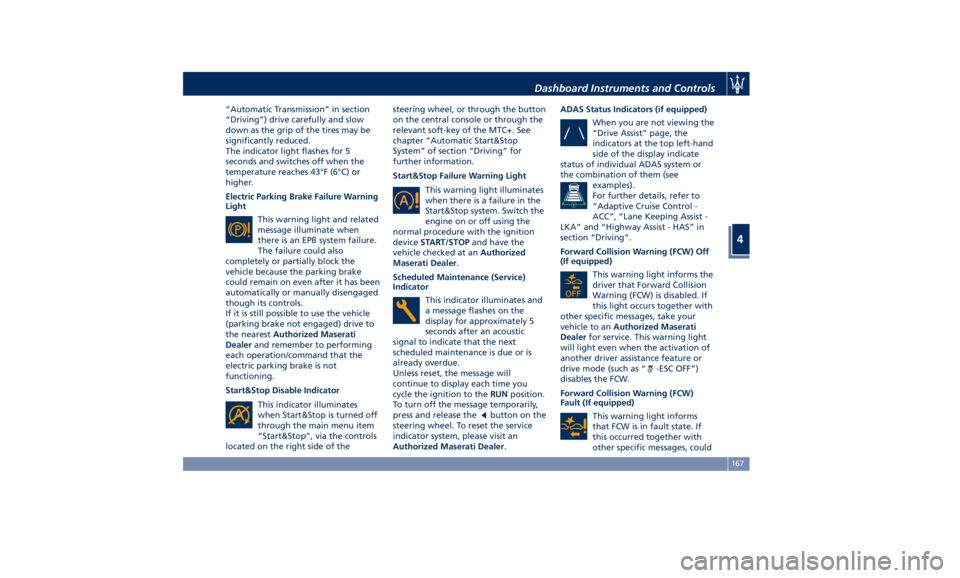
Authorized Maserati Dealer . ADAS Status Indicators (if equipped)
When you are not viewing the
“Drive Assist” page, the
indicators at the top left-hand
side of the display indicate
status of individual ADAS system or
the combination of them (see
examples).
For further details, refer to
“Adaptive Cruise Control -
ACC”, “Lane Keeping Assist -
LKA” and “Highway Assist - HAS” in
section “Driving”.
Forward Collision Warning (FCW) Off
(If equipped)
This warning light informs the
driver that Forward Collision
Warning (FCW) is disabled. If
this light occurs together with
other specific messages, take your
vehicle to an Authorized Maserati
Dealer for service. This warning light
will light even when the activation of
another driver assistance feature or
drive mode (such as “
-ESC OFF”)
disables the FCW.
Forward Collision Warning (FCW)
Fault (If equipped)
This warning light informs
that FCW is in fault state. If
this occurred together with
other specific messages, couldDashboard Instruments and Controls
4
167
Page 175 of 384
Tune/Scroll Control
By working this knob in “Radio” or
“Media” mode, user can go through
the radio stations or scroll the tracks
inside connected external devices and
confirm the selection by pressing enter
button.
In any other mode of the MTC+, use
this knob to scroll the list of available
options or to manage the cursor
movement in the lower bar of the
main menus. Then press enter button
to confirm the function or setting
highlighted on MTC+ display.
Browse button
After selecting a function, using the
tune/scroll knob or softkeys on MTC+
display, press this button to see the
detail of the items/options of the
selected function. This button is also
used as shortcut to display the phone
book, when the “Phone” menu is selected, or the favorites when the
“Nav (Navigation)” menu is selected.
Back button
Press this button to go back to
previous menu or previous screen.
Press this button to shift the
navigation one level backwards on
MTC+ screen. If it is pressed and held
for at least 2 seconds, it brings the
cursor back in the lower bar of the
main menus.
Enter Button
To confirm the function or setting
highlighted on MTC+ display.
When in “Radio” mode and the
ignition switch in RUN position, you
can save your preset stations.
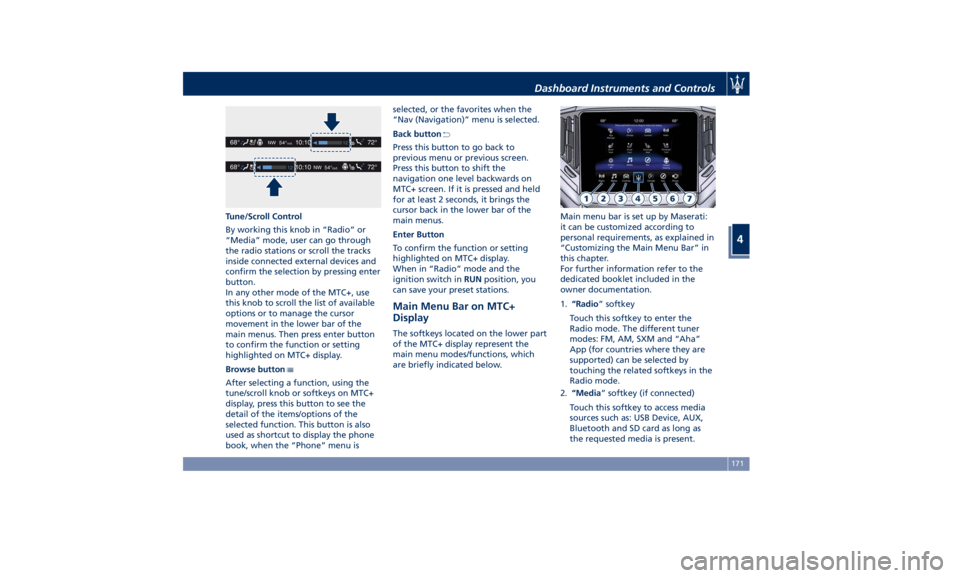
Main Menu Bar on MTC+
Display The softkeys located on the lower part
of the MTC+ display represent the
main menu modes/functions, which
are briefly indicated below. Main menu bar is set up by Maserati:
it can be customized according to
personal requirements, as explained in
“Customizing the Main Menu Bar” in
this chapter.
For further information refer to the
dedicated booklet included in the
owner documentation.
1. “Radio ” softkey
Touch this softkey to enter the
Radio mode. The different tuner
modes: FM, AM, SXM and “Aha”
App (for countries where they are
supported) can be selected by
touching the related softkeys in the
Radio mode.
2. “Media ” softkey (if connected)
Touch this softkey to access media
sources such as: USB Device, AUX,
Bluetooth and SD card as long as
the requested media is present.Dashboard Instruments and Controls
4
171
Page 183 of 384
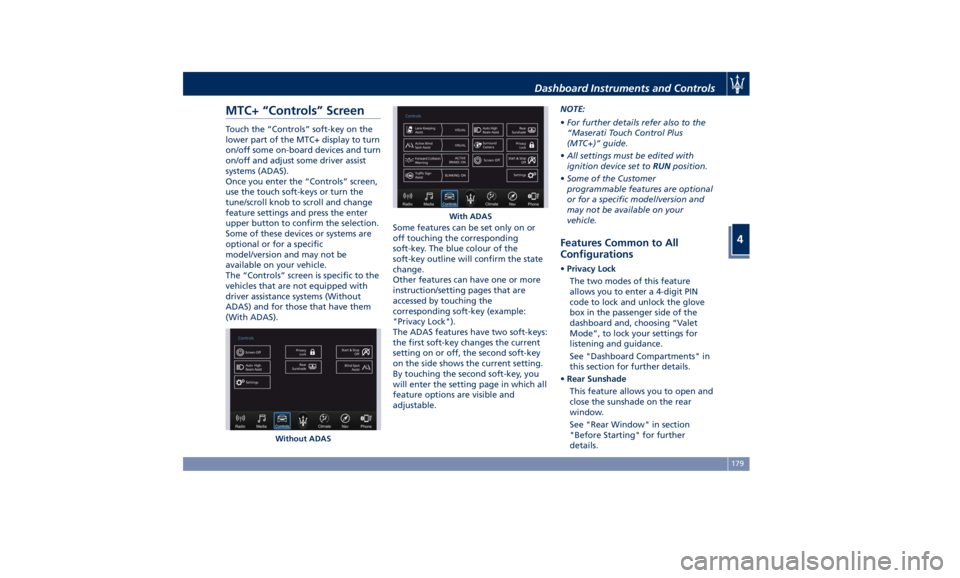
MTC+ “Controls” Screen Touch the “Controls” soft-key on the
lower part of the MTC+ display to turn
on/off some on-board devices and turn
on/off and adjust some driver assist
systems (ADAS).
Once you enter the “Controls” screen,
use the touch soft-keys or turn the
tune/scroll knob to scroll and change
feature settings and press the enter
upper button to confirm the selection.
Some of these devices or systems are
optional or for a specific
model/version and may not be
available on your vehicle.
The “Controls” screen is specific to the
vehicles that are not equipped with
driver assistance systems (Without
ADAS) and for those that have them
(With ADAS). Some features can be set only on or
off touching the corresponding
soft-key. The blue colour of the
soft-key outline will confirm the state
change.
Other features can have one or more
instruction/setting pages that are
accessed by touching the
corresponding soft-key (example:
"Privacy Lock").
The ADAS features have two soft-keys:
the first soft-key changes the current
setting on or off, the second soft-key
on the side shows the current setting.
By touching the second soft-key, you
will enter the setting page in which all
feature options are visible and
adjustable. NOTE:
• For further details refer also to the
“Maserati Touch Control Plus
(MTC+)” guide.
• All settings must be edited with
ignition device set to RUN position.
• Some of the Customer
programmable features are optional
or for a specific model/version and
may not be available on your
vehicle.
Features Common to All
Configurations • Privacy Lock
The two modes of this feature
allows you to enter a 4-digit PIN
code to lock and unlock the glove
box in the passenger side of the
dashboard and, choosing “Valet
Mode”, to lock your settings for
listening and guidance.
See "Dashboard Compartments" in
this section for further details.
• Rear Sunshade
This feature allows you to open and
close the sunshade on the rear
window.
See "Rear Window" in section
"Before Starting" for further
details.Without ADAS With ADASDashboard Instruments and Controls
4
179
Page 187 of 384
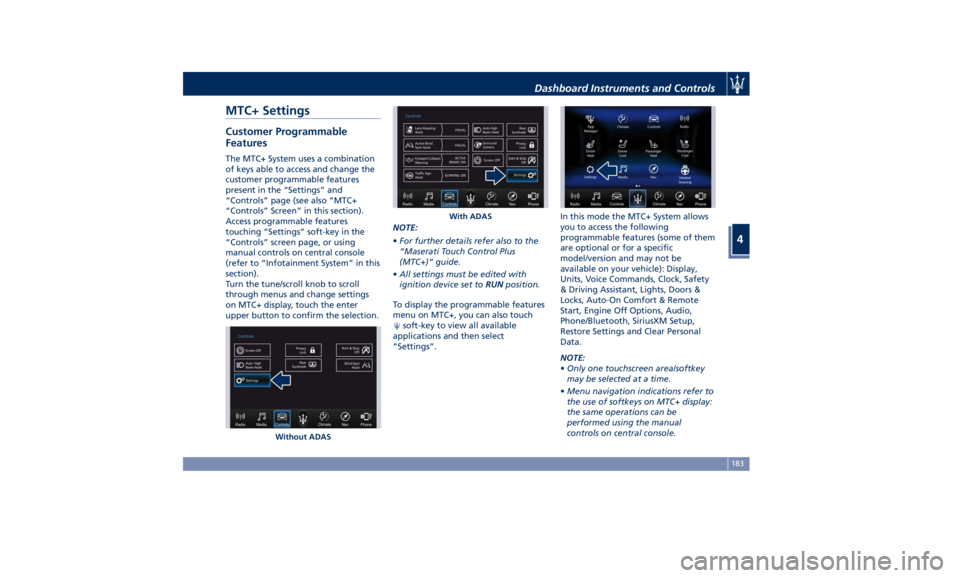
MTC+ Settings Customer Programmable
Features The MTC+ System uses a combination
of keys able to access and change the
customer programmable features
present in the “Settings” and
“Controls” page (see also “MTC+
“Controls” Screen” in this section).
Access programmable features
touching “Settings” soft-key in the
“Controls” screen page, or using
manual controls on central console
(refer to “Infotainment System” in this
section).
Turn the tune/scroll knob to scroll
through menus and change settings
on MTC+ display, touch the enter
upper button to confirm the selection. NOTE:
• For further details refer also to the
“Maserati Touch Control Plus
(MTC+)” guide.
• All settings must be edited with
ignition device set to RUN position.
To display the programmable features
menu on MTC+, you can also touch
soft-key to view all available
applications and then select
“Settings”. In this mode the MTC+ System allows
you to access the following
programmable features (some of them
are optional or for a specific
model/version and may not be
available on your vehicle): Display,
Units, Voice Commands, Clock, Safety
& Driving Assistant, Lights, Doors &
Locks, Auto-On Comfort & Remote
Start, Engine Off Options, Audio,
Phone/Bluetooth, SiriusXM Setup,
Restore Settings and Clear Personal
Data.
NOTE:
• Only one touchscreen area/softkey
may be selected at a time.
• Menu navigation indications refer to
the use of softkeys on MTC+ display:
the same operations can be
performed using the manual
controls on central console.Without ADAS With ADASDashboard Instruments and Controls
4
183
Page 191 of 384
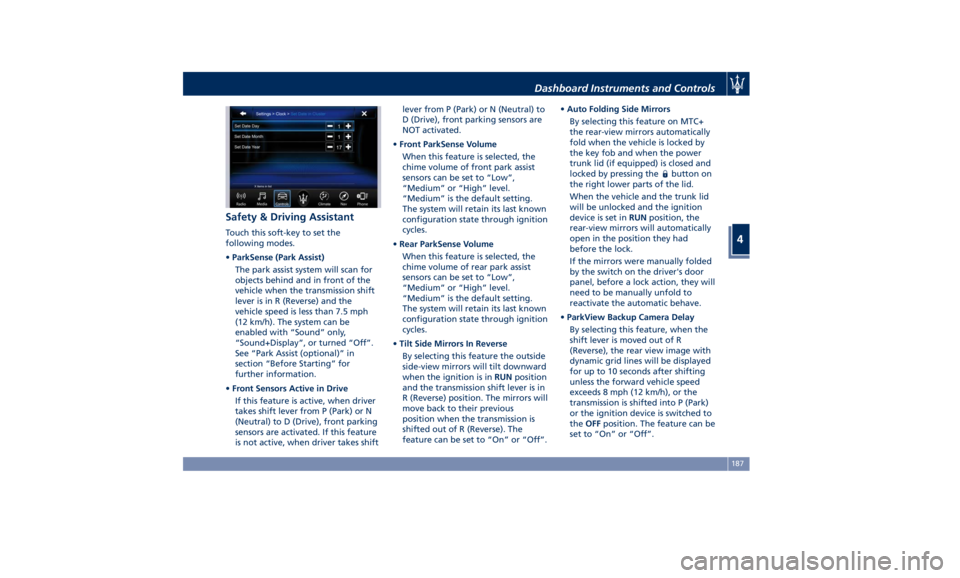
Safety & Driving Assistant Touch this soft-key to set the
following modes.
• ParkSense (Park Assist)
The park assist system will scan for
objects behind and in front of the
vehicle when the transmission shift
lever is in R (Reverse) and the
vehicle speed is less than 7.5 mph
(12 km/h). The system can be
enabled with “Sound” only,
“Sound+Display”, or turned “Off”.
See “Park Assist (optional)” in
section “Before Starting” for
further information.
• Front Sensors Active in Drive
If this feature is active, when driver
takes shift lever from P (Park) or N
(Neutral) to D (Drive), front parking
sensors are activated. If this feature
is not active, when driver takes shift lever from P (Park) or N (Neutral) to
D (Drive), front parking sensors are
NOT activated.
• Front ParkSense Volume
When this feature is selected, the
chime volume of front park assist
sensors can be set to “Low”,
“Medium” or “High” level.
“Medium” is the default setting.
The system will retain its last known
configuration state through ignition
cycles.
• Rear ParkSense Volume
When this feature is selected, the
chime volume of rear park assist
sensors can be set to “Low”,
“Medium” or “High” level.
“Medium” is the default setting.
The system will retain its last known
configuration state through ignition
cycles.
• Tilt Side Mirrors In Reverse
By selecting this feature the outside
side-view mirrors will tilt downward
when the ignition is in RUN position
and the transmission shift lever is in
R (Reverse) position. The mirrors will
move back to their previous
position when the transmission is
shifted out of R (Reverse). The
feature can be set to “On” or “Off”. • Auto Folding Side Mirrors
By selecting this feature on MTC+
the rear-view mirrors automatically
fold when the vehicle is locked by
the key fob and when the power
trunk lid (if equipped) is closed and
locked by pressing the
button on
the right lower parts of the lid.
When the vehicle and the trunk lid
will be unlocked and the ignition
device is set in RUN position, the
rear-view mirrors will automatically
open in the position they had
before the lock.
If the mirrors were manually folded
by the switch on the driver's door
panel, before a lock action, they will
need to be manually unfold to
reactivate the automatic behave.
• ParkView Backup Camera Delay
By selecting this feature, when the
shift lever is moved out of R
(Reverse), the rear view image with
dynamic grid lines will be displayed
for up to 10 seconds after shifting
unless the forward vehicle speed
exceeds 8 mph (12 km/h), or the
transmission is shifted into P (Park)
or the ignition device is switched to
the OFF position. The feature can be
set to “On” or “Off”.Dashboard Instruments and Controls
4
187