vehicle settings MAZDA MODEL 6 2017 (in English) User Guide
[x] Cancel search | Manufacturer: MAZDA, Model Year: 2017, Model line: MODEL 6, Model: MAZDA MODEL 6 2017Pages: 578, PDF Size: 54.72 MB
Page 321 of 578
5–27
Interior Features
Audio System
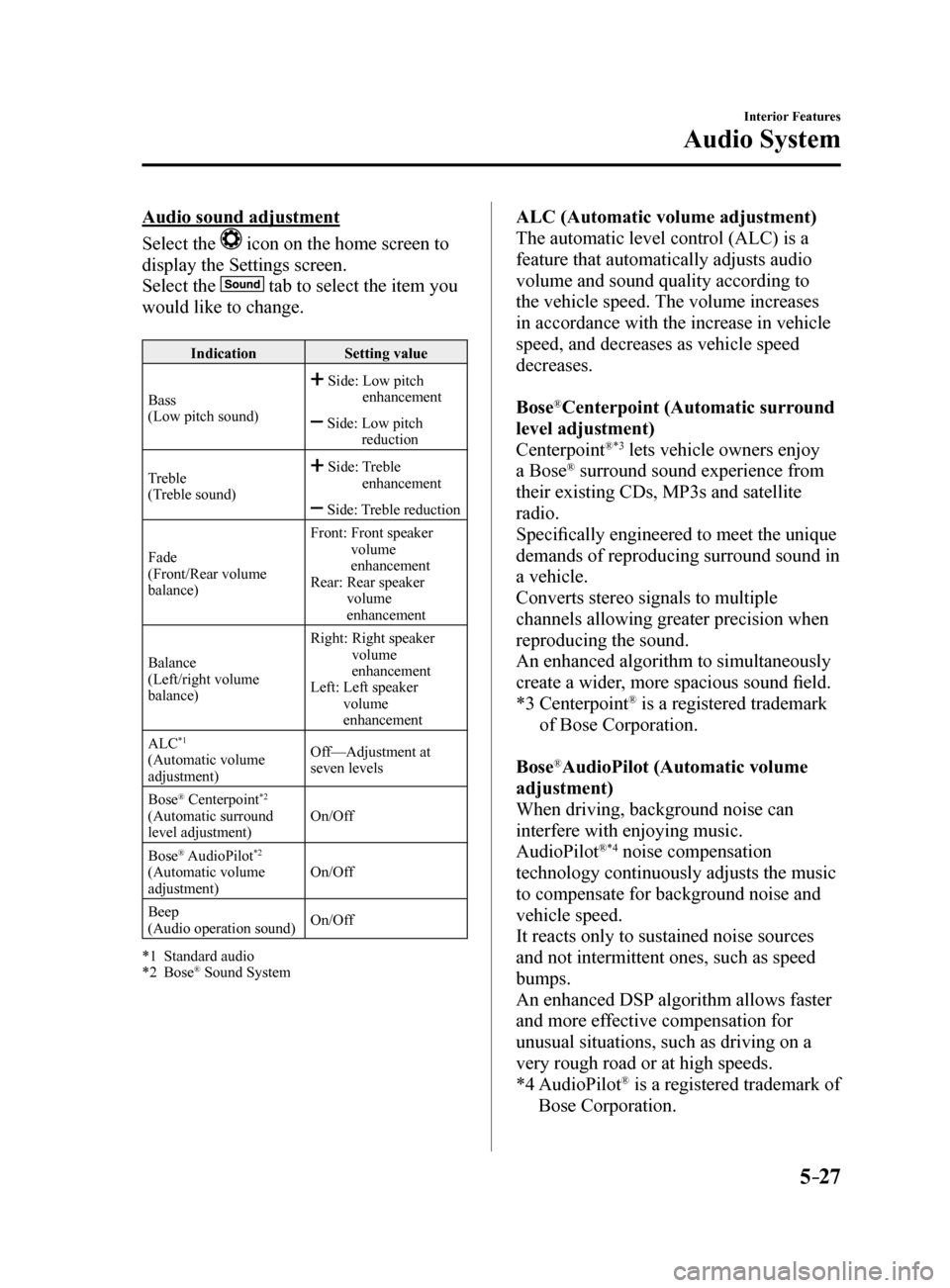
Audio sound adjustment
Select the
icon on the home screen to
display the Settings screen.
Select the
tab to select the item you
would like to change.
Indication Setting value
Bass
(Low pitch sound)
Side: Low pitch
enhancement
Side: Low pitch
reduction
Treble
(Treble sound)
Side: Treble
enhancement
Side: Treble reduction
Fade
(Front/Rear volume
balance) Front:
Front speaker
volume
enhancement
Rear: Rear speaker
volume
enhancement
Balance
(Left/right volume
balance) Right:
Right speaker
volume
enhancement
Left: Left speaker
volume
enhancement
ALC
*1
(Automatic volume
adjustment) Off—Adjustment at
seven levels
Bose
® Centerpoint*2
(Automatic surround
level adjustment) On/Off
Bose
® AudioPilot*2
(Automatic volume
adjustment) On/Off
Beep
(Audio operation sound) On/Off
*1 Standard audio
*2 Bose
® Sound System
ALC (Automatic volume adjustment)
The automatic level control (ALC) is a
feature that automatically adjusts audio
volume and sound quality according to
the vehicle speed. The volume increases
in accordance with the increase in vehicle
speed, and decreases as vehicle speed
decreases.
Bose
®Centerpoint (Automatic surround
level adjustment)
Centerpoint
®*3 lets vehicle owners enjoy
a Bose® surround sound experience from
their existing CDs, MP3s and satellite
radio.
Specifically engineered to meet the unique
demands of reproducing surround sound in
a vehicle.
Converts stereo signals to multiple
channels allowing greater precision when
reproducing the sound.
An enhanced algorithm to simultaneously
create a wider, more spacious sound field.
*3 Centerpoint
® is a registered trademark
of Bose Corporation.
Bose
®AudioPilot (Automatic volume
adjustment)
When driving, background noise can
interfere with enjoying music.
AudioPilot
®*4 noise compensation
technology continuously adjusts the music
to compensate for background noise and
vehicle speed.
It reacts only to sustained noise sources
and not intermittent ones, such as speed
bumps.
An enhanced DSP algorithm allows faster
and more effective compensation for
unusual situations, such as driving on a
very rough road or at high speeds.
*4 AudioPilot
® is a registered trademark of
Bose Corporation.
Mazda6_8FH2-EA-16F_Edition2.indb 272016/07/07 13:45:36
Page 332 of 578
5–38
Interior Features
Audio System
IconFunction
Plays a CD. When selected again, playback is temporarily stopped.
Advances to the beginning of the next song.
Long-press to fast forward. It stops when you remove your hand from the \
icon or the
commander knob.
Displays sound settings to adjust audio quality level.
Refer to Volume/Display/Sound Controls on page 5-26.
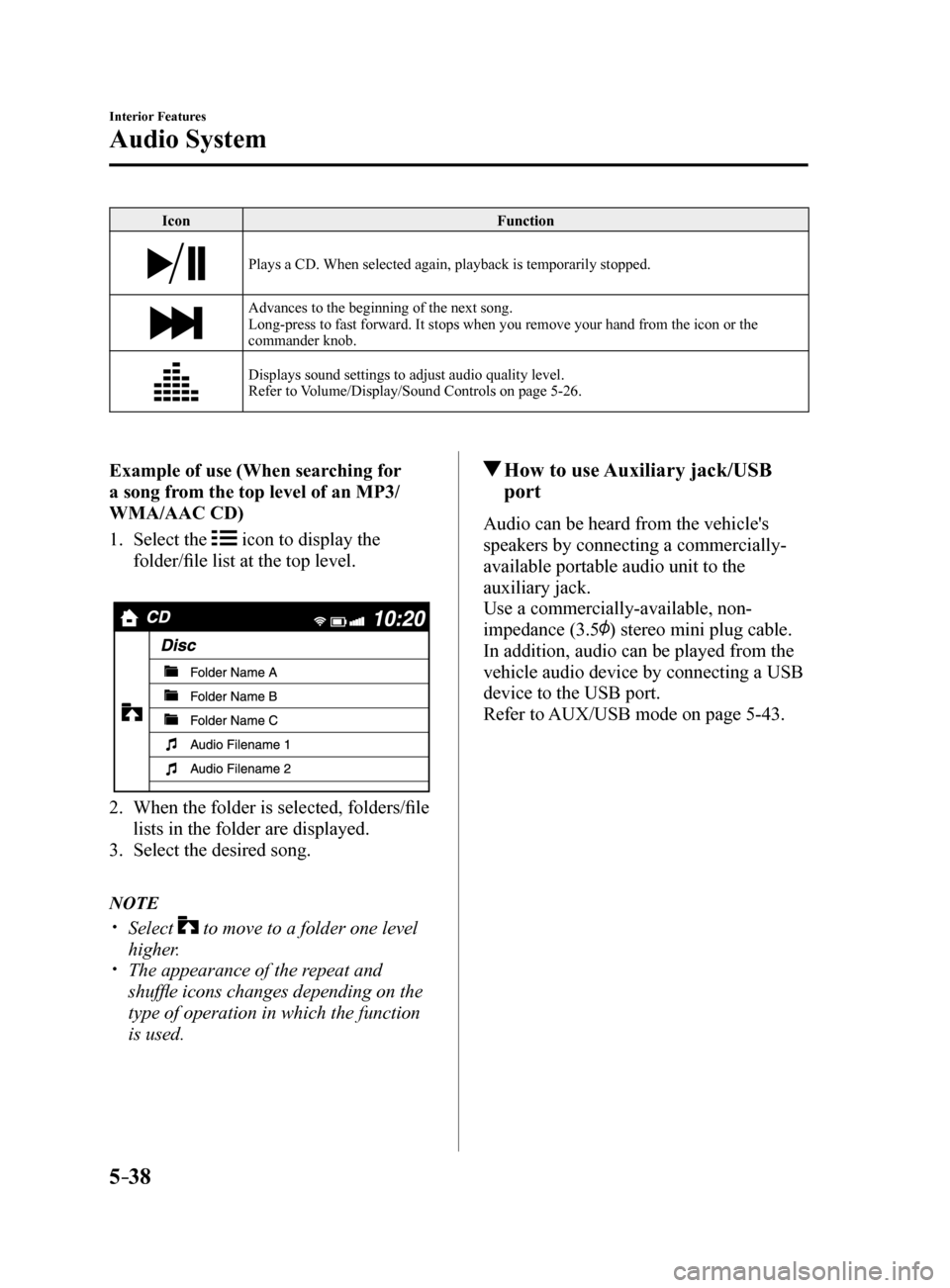
Example of use (When searching for
a song from the top level of an MP3/
WMA/AAC CD)
1. Select the
icon to display the
folder/file list at the top level.
2. When the folder is selected, folders/file
lists in the folder are displayed.
3. Select the desired song.
NOTE
Select to move to a folder one level
higher.
The appearance of the repeat and
shuffle icons changes depending on the
type of operation in which the function
is used.
How to use Auxiliary jack/USB
port
Audio can be heard from the vehicle's
speakers by connecting a commercially-
available portable audio unit to the
auxiliary jack.
Use a commercially-available, non-
impedance (3.5
) stereo mini plug cable.
In addition, audio can be played from the
vehicle audio device by connecting a USB
device to the USB port.
Refer to AUX/USB mode on page 5-43.
Mazda6_8FH2-EA-16F_Edition2.indb 382016/07/07 13:45:43
Page 333 of 578
5–39
Interior Features
Audio System
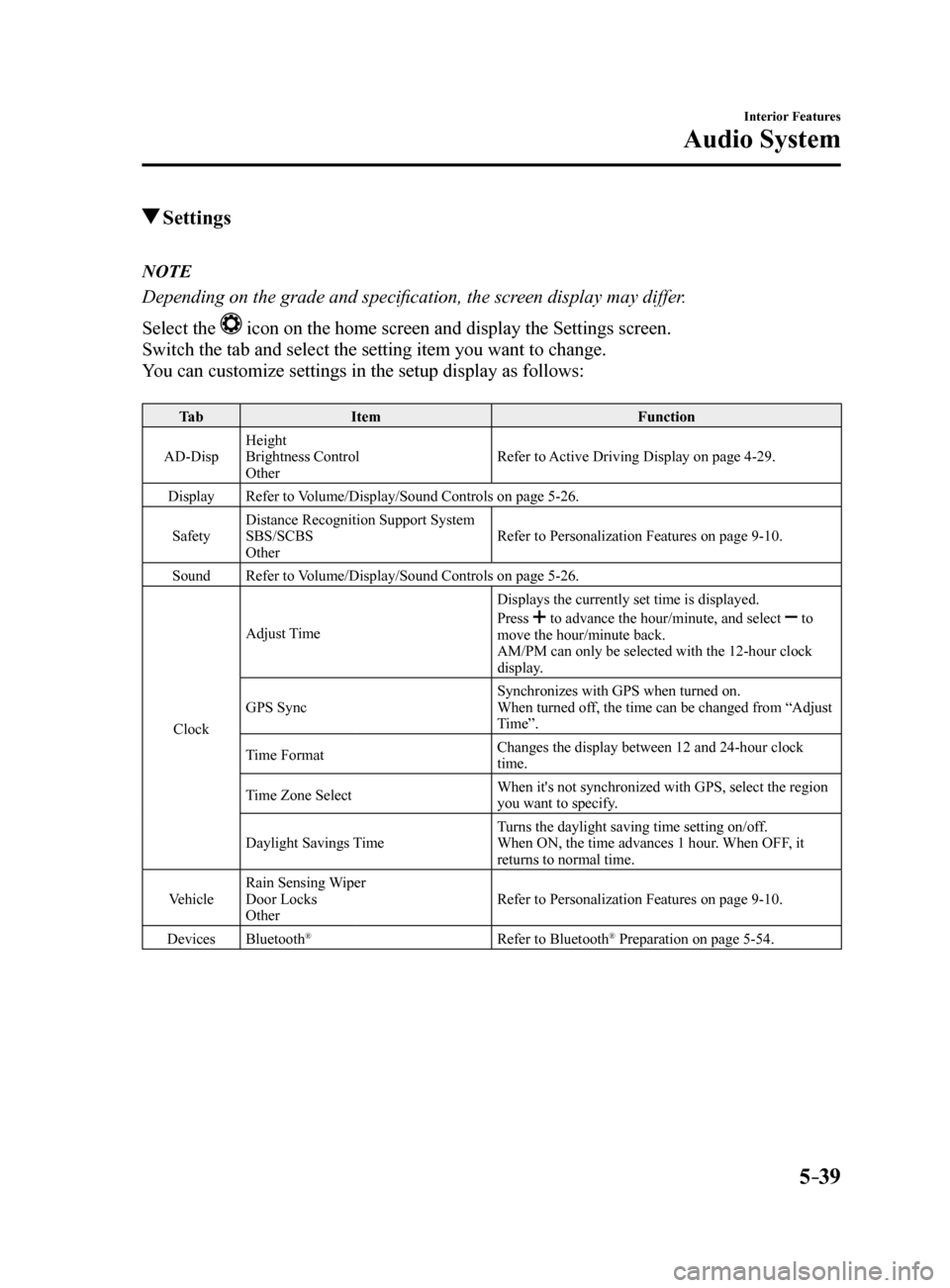
Settings
NOTE
Depending on the grade and specification, the screen display may differ.
Select the
icon on the home screen and display the Settings screen.
Switch the tab and select the setting item you want to change.
You can customize settings in the setup display as follows:
Ta b Item Function
AD-Disp Height
Brightness Control
Other Refer to Active Driving Display on page 4-29.
Display Refer to Volume/Display/Sound Controls on page 5-26.
Safety Distance Recognition Support System
SBS/SCBS
Other Refer to Personalization Features on page 9-10.
Sound Refer to Volume/Display/Sound Controls on page 5-26.
Clock Adjust Time
Displays the currently set time is displayed.
Press
to advance the hour/minute, and select to
move the hour/minute back.
AM/PM can only be selected with the 12-hour clock
display.
GPS Sync Synchronizes with GPS when turned on.
When turned off, the time can be changed from “Adjust
Time”.
Time Format Changes the display between 12 and 24-hour clock
time.
Time Zone Select When it's not synchronized with GPS, select the region
you want to specify.
Daylight Savings Time Turns the daylight saving time setting on/off.
When ON, the time advances 1 hour. When OFF, it
returns to normal time.
Vehicle Rain Sensing Wiper
Door Locks
Other Refer to Personalization Features on page 9-10.
Devices Bluetooth
®Refer to Bluetooth® Preparation on page 5-54.
Mazda6_8FH2-EA-16F_Edition2.indb 392016/07/07 13:45:43
Page 335 of 578
5–41
Interior Features
Audio System
Applications
NOTE
Depending on the grade and specification,
the screen display may differ.
Select the
icon on the home screen to
display the Applications screen. The
following information can be verified.
Top screen ItemFunction
HD Radio™ Traffic
Map —
—
Fuel Economy
Monitor
Fuel
Consumption
Control
Status
(Vehicles
with
i-ELOOP)
Settings
Refer to Fuel
Economy
Monitor on
page 4-83.
Vehicle
Status
Monitor
Maintenance
Scheduled
Maintenance
Tire Rotation
Oil Change Refer to
Maintenance
Monitor on
page 6-18.
Warning
Guidance Warnings
currently
active can be
verified. Refer to If
a Warning
Light Turns
On or
Flashes on
page 7-22.
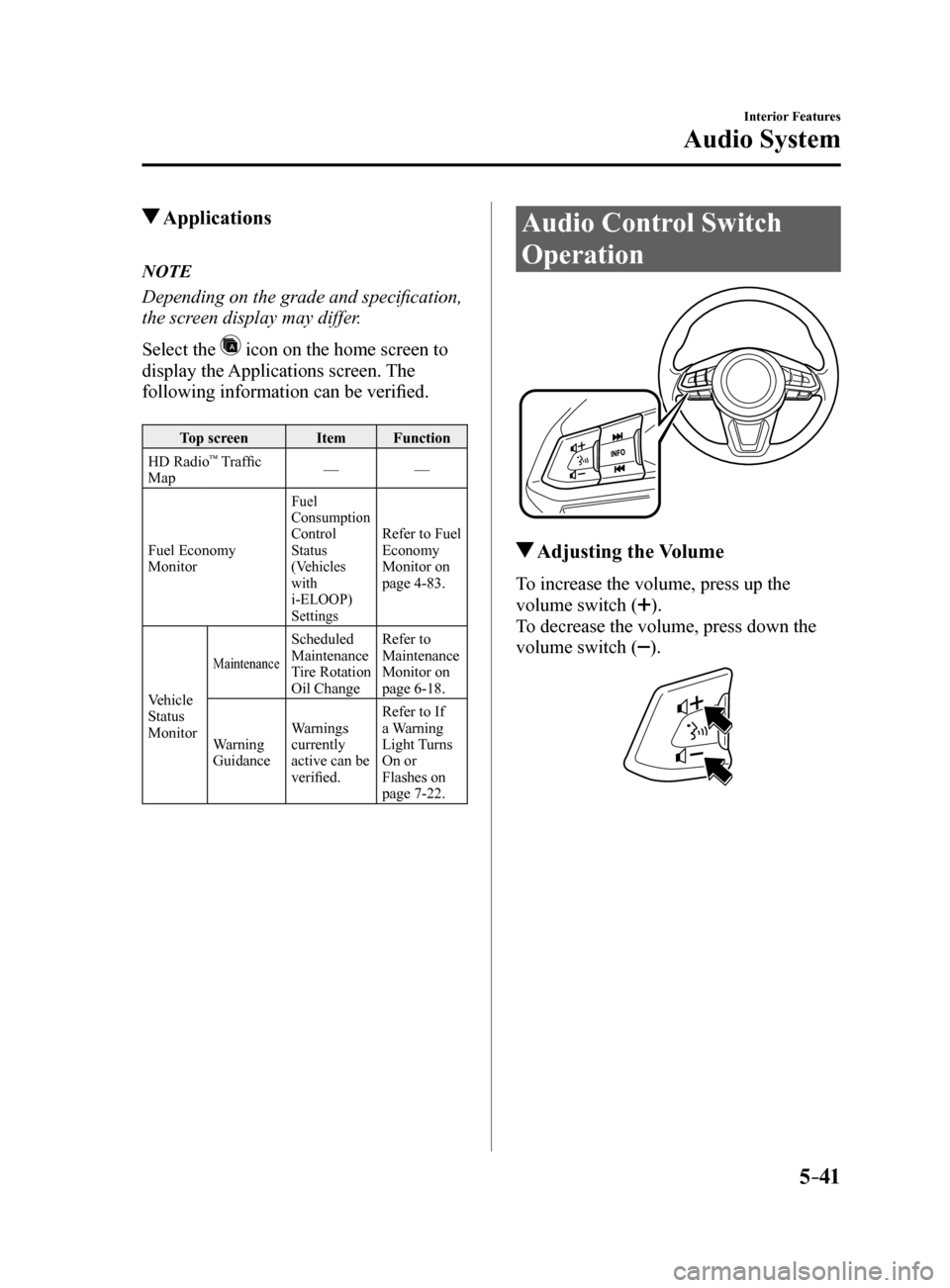
Audio Control Switch
Operation
Adjusting the Volume
To increase the volume, press up the
volume switch (
).
To decrease the volume, press down the
volume switch (
).
Mazda6_8FH2-EA-16F_Edition2.indb 412016/07/07 13:45:44
Page 348 of 578
5–54
Interior Features
Bluetooth®
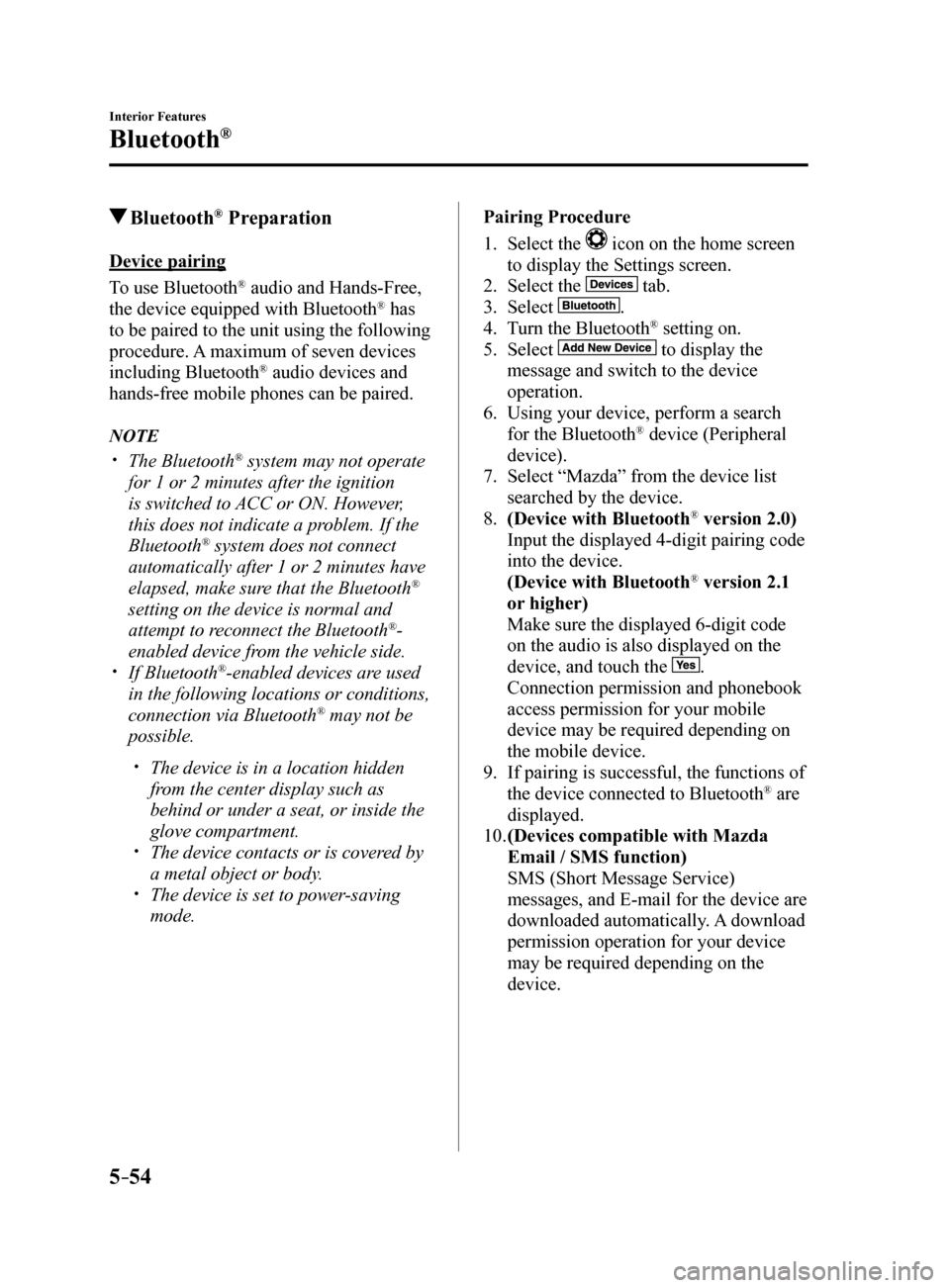
Bluetooth® Preparation
Device pairing
To use Bluetooth
® audio and Hands-Free,
the device equipped with Bluetooth® has
to be paired to the unit using the following
procedure. A maximum of seven devices
including Bluetooth
® audio devices and
hands-free mobile phones can be paired.
NOTE
The Bluetooth® system may not operate
for 1 or 2 minutes after the ignition
is switched to ACC or ON. However,
this does not indicate a problem. If the
Bluetooth
® system does not connect
automatically after 1 or 2 minutes have
elapsed, make sure that the Bluetooth
®
setting on the device is normal and
attempt to reconnect the Bluetooth
®-
enabled device from the vehicle side.
If Bluetooth®-enabled devices are used
in the following locations or conditions,
connection via Bluetooth
® may not be
possible.
The device is in a location hidden
from the center display such as
behind or under a seat, or inside the
glove compartment.
The device contacts or is covered by
a metal object or body.
The device is set to power-saving
mode. Pairing Procedure
1.
Select the
icon on the home screen
to display the Settings screen.
2. Select the
tab.
3. Select
.
4. Turn the Bluetooth® setting on.
5. Select
to display the
message and switch to the device
operation.
6. Using your device, perform a search
for the Bluetooth
® device (Peripheral
device).
7. Select “Mazda” from the device list
searched by the device.
8. (Device with Bluetooth
® version 2.0)
Input the displayed 4-digit pairing code
into the device.
(Device with Bluetooth
® version 2.1
or higher)
Make sure the displayed 6-digit code
on the audio is also displayed on the
device, and touch the
.
Connection permission and phonebook
access permission for your mobile
device may be required depending on
the mobile device.
9. If pairing is successful, the functions of
the device connected to Bluetooth
® are
displayed.
10. (Devices compatible with Mazda
Email / SMS function)
SMS (Short Message Service)
messages, and E-mail for the device are
downloaded automatically. A download
permission operation for your device
may be required depending on the
device.
Mazda6_8FH2-EA-16F_Edition2.indb 542016/07/07 13:45:49
Page 349 of 578
5–55
Interior Features
Bluetooth®
NOTE
When Call history and messages are
downloaded automatically, each automatic
download setting must be on.
Refer to Communication Settings on page
5-68.
After a device is registered, the system
automatically identifies the device. By
activating Bluetooth
® Hands-Free again, or
by activating Bluetooth® Hands-Free first
after switching the ignition from OFF to
ACC, the device connection condition is
indicated in the center display.
IMPORTANT note about pairing and
automatic reconnection:
If pairing is redone on the same
mobile phone device, first clear
“Mazda” displayed on the Bluetooth
®
setting screen of the mobile device.
When the OS of the device is updated,
the pairing information may be deleted.
If this happens, reprogram the pairing
information to the Bluetooth
® unit. Before you pair your device, make sure
that Bluetooth® is “ON”, both on your
phone and on the vehicle.
Device selection
If several devices have been paired, the
Bluetooth
® unit links the device last
paired. If you would like to link a different
paired device, it is necessary to change the
link. The order of device priority after the
link has been changed is maintained even
when the ignition is switched off.
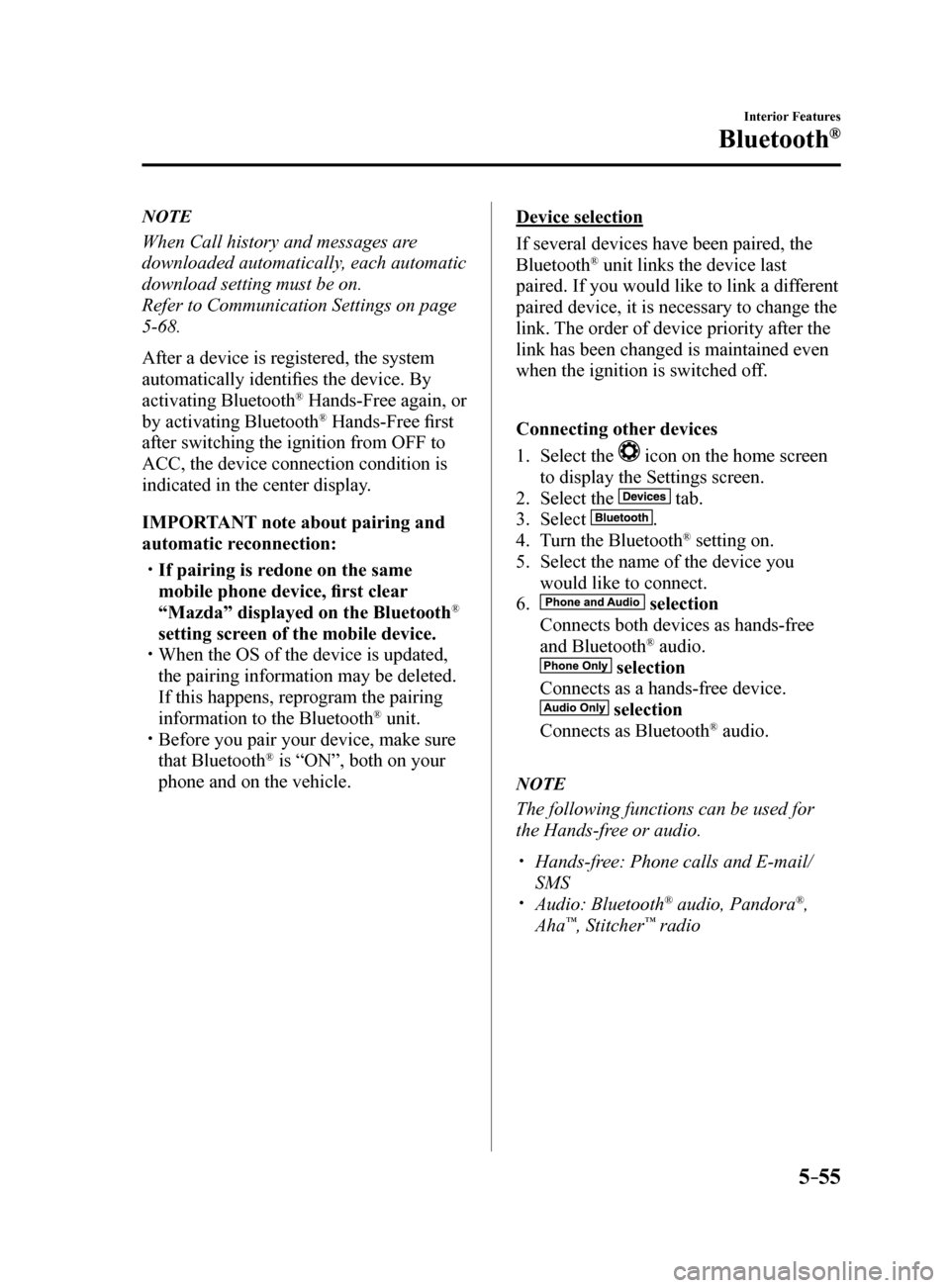
Connecting other devices
1. Select the
icon on the home screen
to display the Settings screen.
2. Select the
tab.
3. Select
.
4. Turn the Bluetooth® setting on.
5. Select the name of the device you
would like to connect.
6.
selection
Connects both devices as hands-free
and Bluetooth
® audio.
selection
Connects as a hands-free device.
selection
Connects as Bluetooth® audio.
NOTE
The following functions can be used for
the Hands-free or audio.
Hands-free: Phone calls and E-mail/
SMS
Audio: Bluetooth® audio, Pandora®,
Aha™, Stitcher™ radio
Mazda6_8FH2-EA-16F_Edition2.indb 552016/07/07 13:45:49
Page 350 of 578
5–56
Interior Features
Bluetooth®
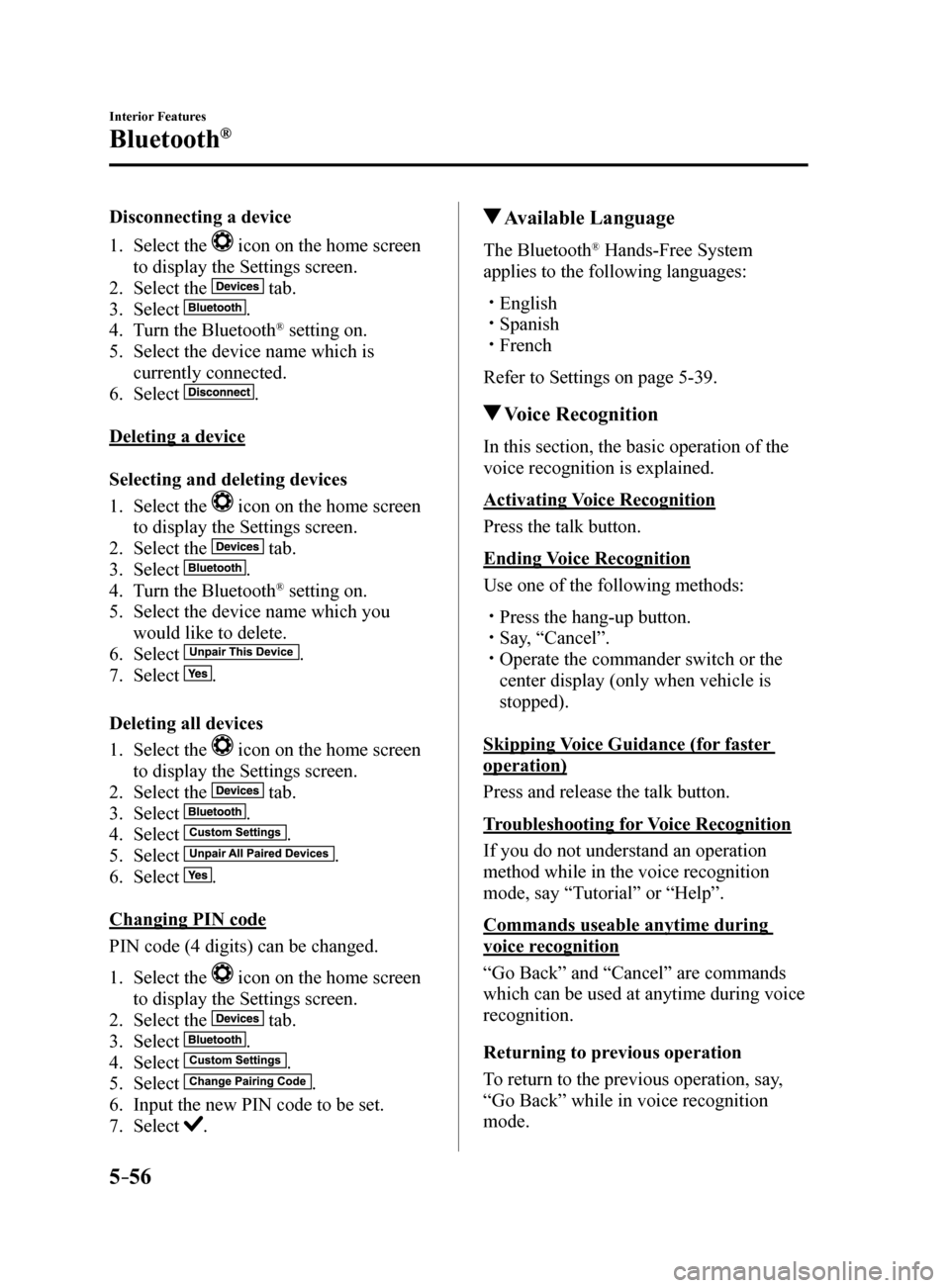
Disconnecting a device
1. Select the
icon on the home screen
to display the Settings screen.
2. Select the
tab.
3. Select
.
4. Turn the Bluetooth® setting on.
5. Select the device name which is
currently connected.
6. Select
.
Deleting a device
Selecting and deleting devices
1. Select the
icon on the home screen
to display the Settings screen.
2. Select the
tab.
3. Select
.
4. Turn the Bluetooth® setting on.
5. Select the device name which you
would like to delete.
6. Select
.
7. Select
.
Deleting all devices
1. Select the
icon on the home screen
to display the Settings screen.
2. Select the
tab.
3. Select
.
4. Select
.
5. Select
.
6. Select
.
Changing PIN code
PIN code (4 digits) can be changed.
1. Select the
icon on the home screen
to display the Settings screen.
2. Select the
tab.
3. Select
.
4. Select
.
5. Select
.
6. Input the new PIN code to be set.
7. Select
.
Available Language
The Bluetooth® Hands-Free System
applies to the following languages:
English Spanish French
Refer to Settings on page 5-39.
Voice Recognition
In this section, the basic operation of the
voice recognition is explained.
Activating Voice Recognition
Press the talk button.
Ending Voice Recognition
Use one of the following methods:
Press the hang-up button. Say, “Cancel”. Operate the commander switch or the
center display (only when vehicle is
stopped).
Skipping Voice Guidance (for faster
operation)
Press and release the talk button.
Troubleshooting for Voice Recognition
If you do not understand an operation
method while in the voice recognition
mode, say “Tutorial” or “Help”.
Commands useable anytime during
voice recognition
“Go Back” and “Cancel” are commands
which can be used at anytime during voice
recognition.
Returning to previous operation
To return to the previous operation, say,
“Go Back” while in voice recognition
mode.
Mazda6_8FH2-EA-16F_Edition2.indb 562016/07/07 13:45:50
Page 356 of 578
5–62
Interior Features
Bluetooth®
Telephone Number Input
NOTE
Practice this while parked until you are
confident you can do it while driving in a
non-taxing road situation. If you are not
completely comfortable, make all calls
from a safe parking position, and only
start driving when you can devote your full
attention to driving.
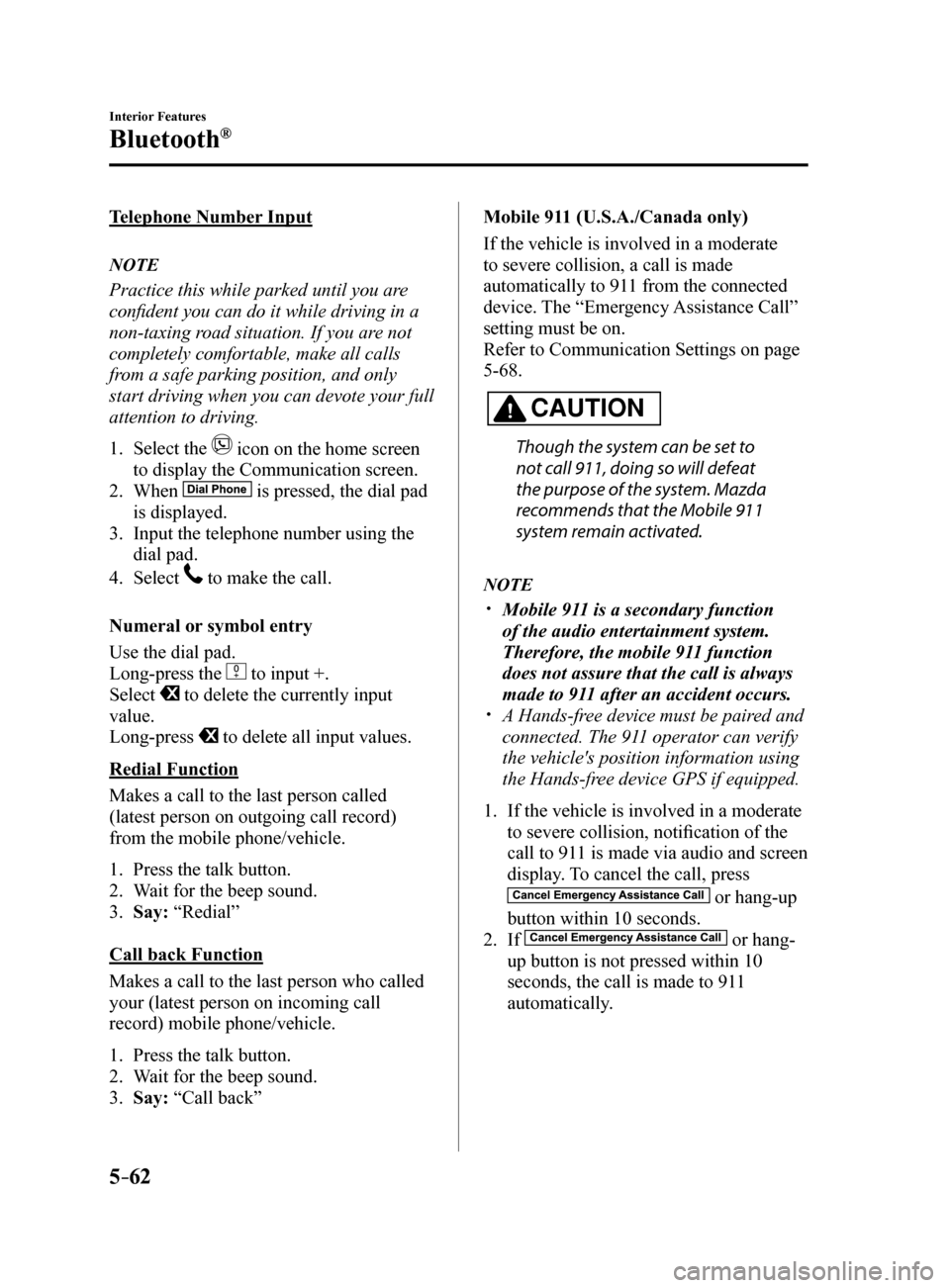
1. Select the
icon on the home screen
to display the Communication screen.
2. When
is pressed, the dial pad
is displayed.
3. Input the telephone number using the
dial pad.
4. Select
to make the call.
Numeral or symbol entry
Use the dial pad.
Long-press the
to input +.
Select
to delete the currently input
value.
Long-press
to delete all input values.
Redial Function
Makes a call to the last person called
(latest person on outgoing call record)
from the mobile phone/vehicle.
1. Press the talk button.
2. Wait for the beep sound.
3. Say: “Redial”
Call back Function
Makes a call to the last person who called
your (latest person on incoming call
record) mobile phone/vehicle.
1. Press the talk button.
2. Wait for the beep sound.
3. Say: “Call back” Mobile 911 (U.S.A./Canada only)
If the vehicle is involved in a moderate
to severe collision, a call is made
automatically to 911 from the connected
device. The “Emergency Assistance Call”
setting must be on.
Refer to Communication Settings on page
5-68.
CAUTION
Though the system can be set to
not call 911, doing so will defeat
the purpose of the system. Mazda
recommends that the Mobile 911
system remain activated.
NOTE
Mobile 911 is a secondary function
of the audio entertainment system.
Therefore, the mobile 911 function
does not assure that the call is always
made to 911 after an accident occurs.
A Hands-free device must be paired and
connected. The 911 operator can verify
the vehicle's position information using
the Hands-free device GPS if equipped.
1. If the vehicle is involved in a moderate
to severe collision, notification of the
call to 911 is made via audio and screen
display. To cancel the call, press
or hang-up
button within 10 seconds.
2. If
or hang-
up button is not pressed within 10
seconds, the call is made to 911
automatically.
Mazda6_8FH2-EA-16F_Edition2.indb 622016/07/07 13:45:53
Page 365 of 578

5–71
Interior Features
Bluetooth®
Playback
To listen to a Bluetooth
® audio device over the vehicle's speaker system, switch the mode to
Bluetooth® audio mode. (Refer to “Switching to Bluetooth® audio mode”)
After switching to the Bluetooth® audio mode, the following icons are displayed in the
lower part of the display. Icons which can be used differ depending on the version of the
Bluetooth
® audio device which you are currently using.
Icon Function
Displays the Entertainment menu. Use to switch to a different audio source.
(AVRCP Ver. 1.4 only)
Displays the top level folder/file list.
Select the folder which you want to select.
The files in the selected folder are displayed.
Select the file you want to play.
(AVRCP Ver. 1.3 or higher)
Replays the song currently being played repeatedly.
When selected again, the songs in the folder are played repeatedly.
Select it again to cancel.
Icons change when the song is repeated or the folder is repeated.
(AVRCP Ver. 1.3 or higher)
Plays songs in the folder in random order.
When selected again, the songs on the device are played in random order.
Select it again to cancel.
Icons change during folder shuffle or device shuffle.
Scans the titles in a folder and plays the beginning of each song to aid in finding a desired
song.
When selected again, the beginning of each song on the device is played.\
When selected again, the operation is canceled and the song currently be\
ing played
continues.
Returns to the beginning of the previous song.
Long-press to fast reverse. It stops when you remove your hand from the \
icon or the
commander knob.
Plays the Bluetooth® audio. When selected again, playback is temporarily stopped.
Advances to the beginning of the next song.
Long-press to fast forward. It stops when you remove your hand from the \
icon or the
commander knob.
Displays sound settings to adjust audio quality level.
Refer to Volume/Display/Sound Controls on page 5-26.
Mazda6_8FH2-EA-16F_Edition2.indb 712016/07/07 13:45:58
Page 371 of 578
5–77
Interior Features
Bluetooth®
IconFunction
Fast-forwards for 30 seconds.
Displays sound settings to adjust audio quality level.
Refer to Volume/Display/Sound Controls on page 5-26.
*2 Some stations may use alternate variations of Like and Dislike, based\
on station type or provider.
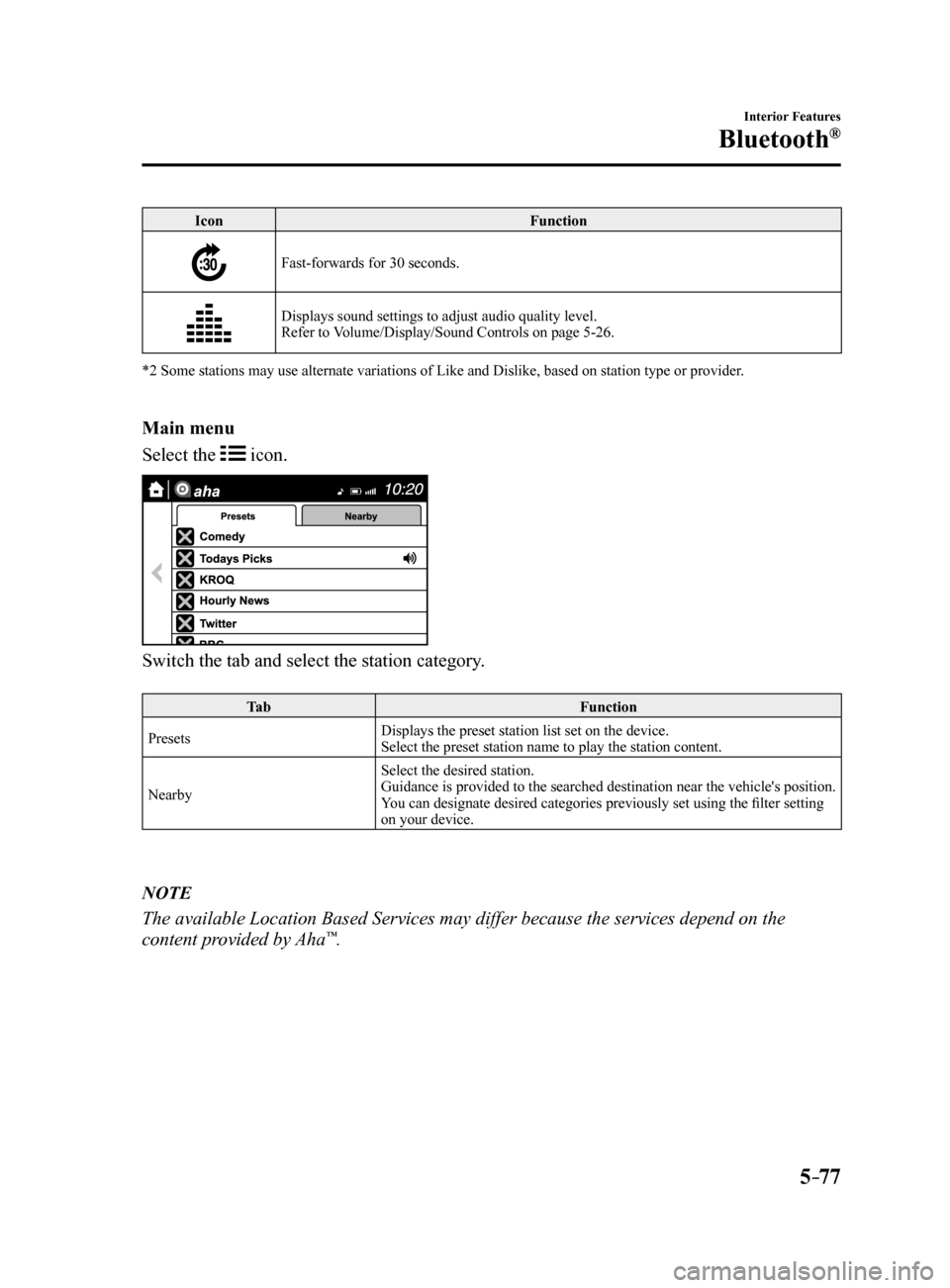
Main menu
Select the
icon.
Switch the tab and select the station category.
Ta b Function
Presets Displays the preset station list set on the device.
Select the preset station name to play the station content.
Nearby Select the desired station.
Guidance is provided to the searched destination near the vehicle's position.
You can designate desired categories previously set using the filter setting
on your device.
NOTE
The available Location Based Services may differ because the services de\
pend on the
content provided by Aha™.
Mazda6_8FH2-EA-16F_Edition2.indb 772016/07/07 13:46:01