ad blue MAZDA MODEL CX-5 2018 Owners Manual (in English)
[x] Cancel search | Manufacturer: MAZDA, Model Year: 2018, Model line: MODEL CX-5, Model: MAZDA MODEL CX-5 2018Pages: 628, PDF Size: 82.38 MB
Page 158 of 628

▼Engine Coolant Temperature Gauge
Displays the engine coolant temperature.
The blue gauge indicates that the engine
coolant temperature is low, and the red
gauge indicates that the engine coolant
temperature is high and overheating.
CAUTION
If the high engine coolant temperature
warning light (red) turns on, there is a
possibility of overheating. Park the vehicle
in a safe place immediately and take
appropriate measures. If the vehicle
continues to be driven, it could cause
damage to the engine.
Refer to Overheating on page 7-18.
NOTE
•The temperature unit (Centigrade/
Fahrenheit) of the engine coolant gauge
display changes in conjunction with the
temperature unit of the outside
temperature display.
Refer to Personalization Features on
page 9-9.
•During normal driving, the engine
coolant temperature stabilizes at 100 °C
(210 °F) or less, and the gauge indicates
a range lower than 100 °C (210 °F).
▼ Fuel Gauge
The fuel gauge shows approximately how
much fuel is remaining in the tank when
the ignition is switched ON. We
recommend keeping the tank over 1/4 full.
Full
1/4 Full
Empty
If the fuel level is low, () and () turn an
amber color. Refuel as soon as possible.
Refer to Taking Action on page 7-33 .
NOTE
•After refueling, it may require some time
for the indicator to st abilize. In addition,
the indicator may deviate while driving
on a slope or curve since the fuel moves
in the tank.
•The display indicating a quarter or less
remaining fuel has more segments to
show the remaining fu el level in greater
detail.
•The direction of the arrow () indicates
that the fuel-filler lid is on the left side
of the vehicle.
When Driving
Instrument Cluster and Display
4-22
CX-5_8GN5-EA-17J_Edition1 2017-8-18 12:58:27
Page 170 of 628
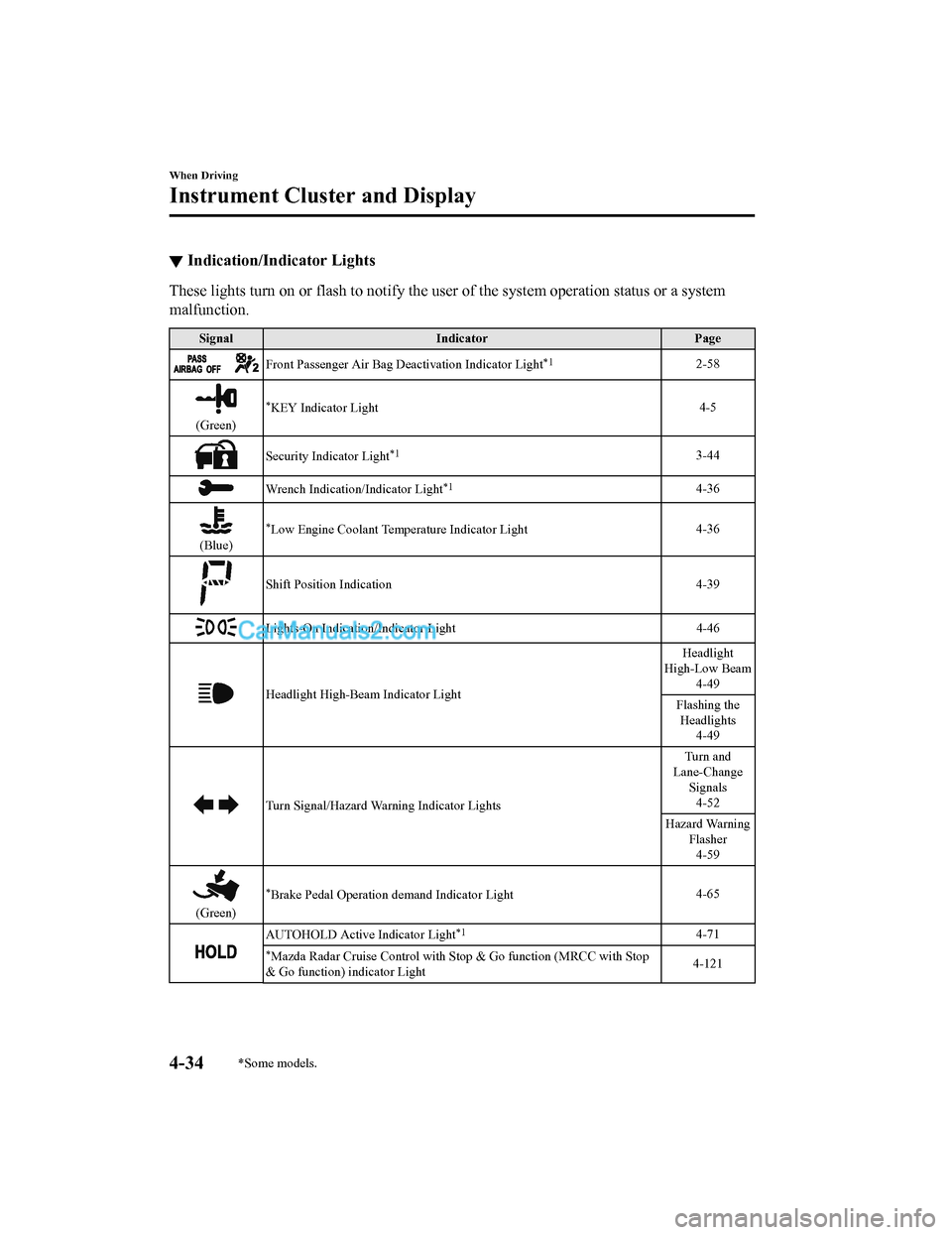
▼Indication/Indicator Lights
These lights turn on or flash to notify the user of the system
operation status or a system
malfunction.
Signal Indicator Page
Front Passenger Air Bag Deactivation Indicator Light*12-58
(Green)
*KEY Indicator Light 4-5
Security Indicator Light*13-44
Wrench Indication/Indicator Light*14-36
(Blue)
*Low Engine Coolant Temperature Indicator Light4-36
Shift Position Indication
4-39
Lights-On Indication/Indicator Light 4-46
Headlight High-Beam Indicator LightHeadlight
High-Low Beam 4-49
Flashing the Headlights 4-49
Turn Signal/Hazard Warning Indicator Lights Turn and
Lane-Change Signals4-52
Hazard Warning Flasher4-59
(Green)
*Brake Pedal Operation demand Indicator Light 4-65
AUTOHOLD Active Indicator Light*14-71
*Mazda Radar Cruise Control with Stop & Go func
tion (MRCC with Stop
& Go function) indicator Light 4-121
When Driving
Instrument Cluster and Display
4-34*Some models.
CX-5_8GN5-EA-17J_Edition1
2017-8-18 12:58:27
Page 172 of 628
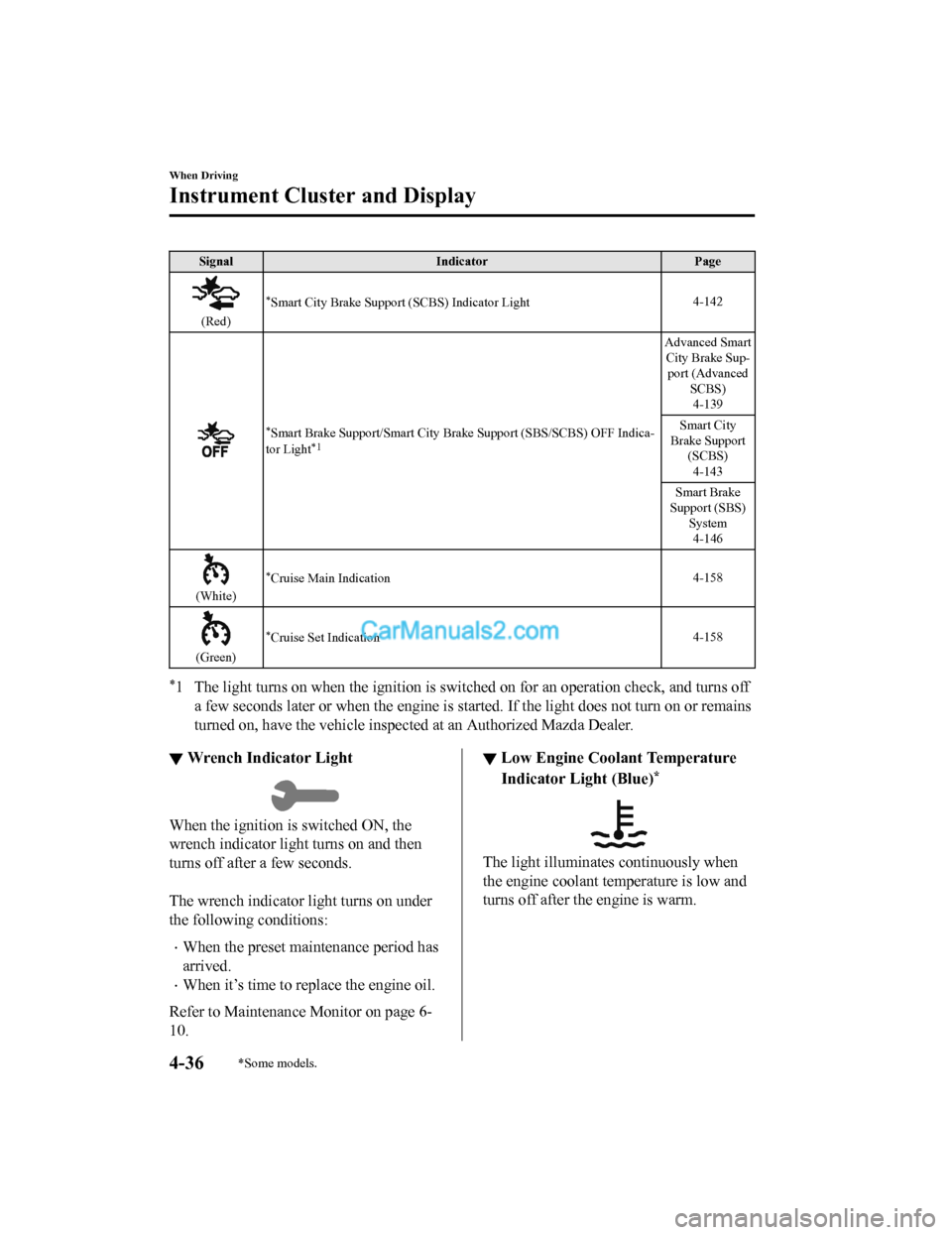
SignalIndicator Page
(Red)
*Smart City Brake Support (SCBS) Indicator Light 4-142
*Smart Brake Support/Sma
rt City Brake Support (SBS/SCBS) OFF Ind ica-
tor Light*1
Advanced Smart City Brake Sup- port (Advanced SCBS)4-139
Smart City
Brake Support (SCBS)
4-143
Smart Brake
Support (SBS) System4-146
(White)
*Cruise Main Indication 4-158
(Green)
*Cruise Set Indication4-158
*1 The light turns on when the ignition is switched on for an ope
ration check, and turns off
a few seconds later or when the e ngine is started. If the light does not turn on or remains
turned on, have the ve hicle inspected at an Authorized Mazda De aler.
▼Wrench Indicator Light
When the ignition is switched ON, the
wrench indicator light turns on and then
turns off after a few seconds.
The wrench indicator light turns on under
the following conditions:
•When the preset maintenance period has
arrived.
•When it’s time to rep
lace the engine oil.
Refer to Maintenance Monitor on page 6-
10.
▼ Low Engine Coolant Temperature
Indicator Light (Blue)*
The light illuminates continuously when
the engine coolant temperature is low and
turns off after the engine is warm.
When Driving
Instrument Cluster and Display
4-36*Some models.
CX-5_8GN5-EA-17J_Edition1
2017-8-18 12:58:27
Page 311 of 628
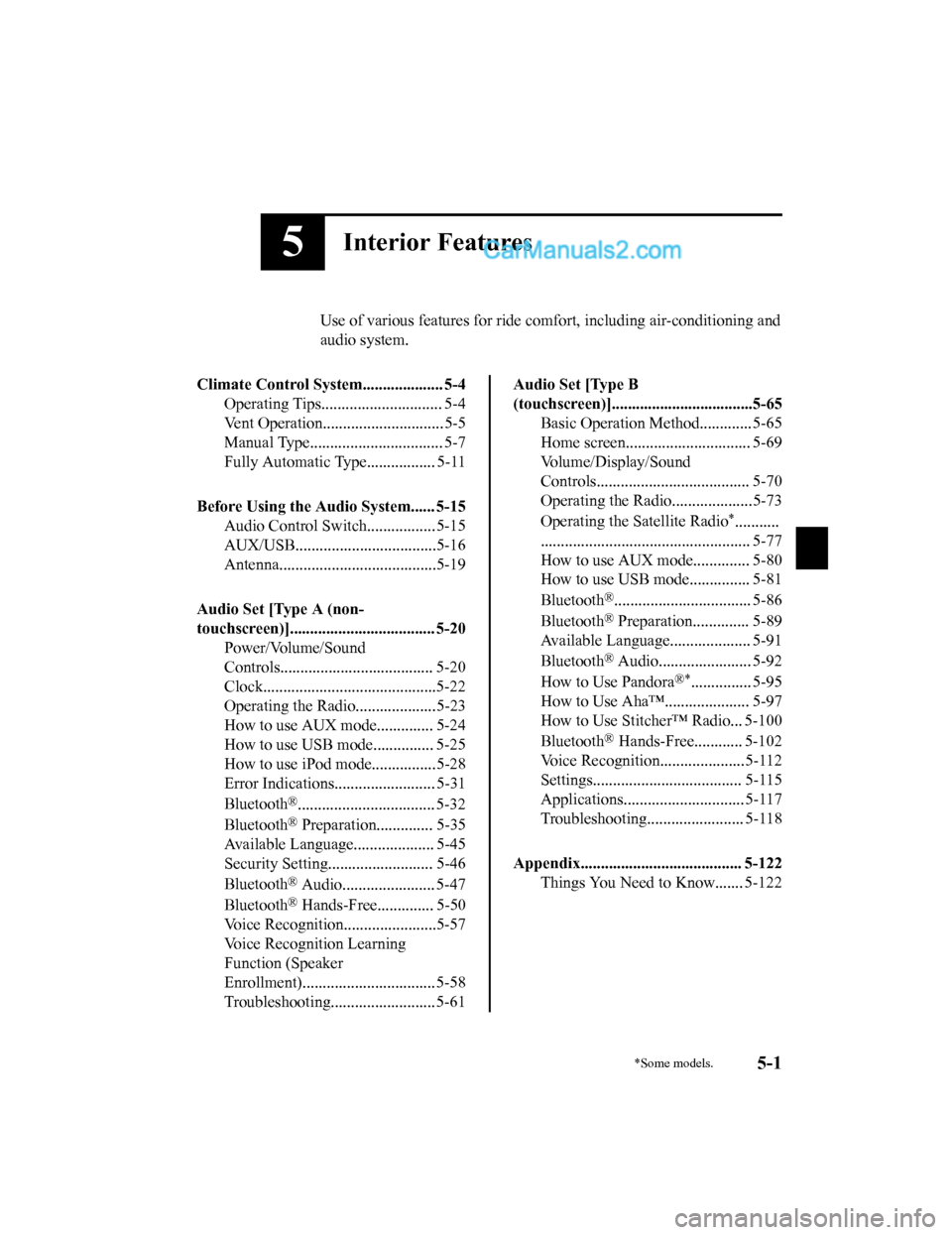
5Interior Features
Use of various features for ride comfort, including air-conditioning and
audio system.
Climate Control System.................... 5-4 Operating Tips.............................. 5-4
Vent Operation.............................. 5-5
Manual Type................................. 5-7
Fully Automatic Type................. 5-11
Before Using the Audio System...... 5-15 Audio Control Swit ch................. 5-15
AUX/USB...................................5-16
Antenna.......................................5-19
Audio Set [Type A (non-
touchscreen)].................................... 5-20 Power/Volume/Sound
Controls...................................... 5-20
Clock...........................................5-22
Operating the Radio....................5-23
How to use AUX m ode.............. 5-24
How to use USB mode ............... 5-25
How to use iPod mode................5-28
Error Indications......................... 5-31
Bluetooth
®.................................. 5-32
Bluetooth
® Preparation.............. 5-35
Available Language.. .................. 5-45
Security Setting..... ..................... 5-46
Bluetooth
® Audio....................... 5-47
Bluetooth
® Hands-Free.............. 5-50
Voice Recognition.................. .....5-57
Voice Recognition Learning
Function (Speaker
Enrollment)................................. 5-58
Troubleshooting.......................... 5-61
Audio Set [Type B
(touchscreen)]...................................5-65 Basic Operation Method............. 5-65
Home screen............................... 5-69
Volume/Display/Sound
Controls...................................... 5-70
Operating the Radio....................5-73
Operating the Satellite Radio
*...........
.................................................... 5-77
How to use AUX m ode.............. 5-80
How to use USB mode ............... 5-81
Bluetooth
®.................................. 5-86
Bluetooth
® Preparation.............. 5-89
Available Language.. .................. 5-91
Bluetooth
® Audio....................... 5-92
How to Use Pandora
®*............... 5-95
How to Use Aha™..................... 5-97
How to Use Stitcher™ Radio... 5-100
Bluetooth
® Hands-Free............ 5-102
Voice Recognition.................. ...5-112
Settings..................................... 5-115
Applications.............................. 5-117
Troubleshooting........................ 5-118
Appendix........................................ 5-122 Things You Need to Know....... 5-122
*Some models.5-1
CX-5_8GN5-EA-17J_Edition1 2017-8-18 12:58:27
Page 325 of 628
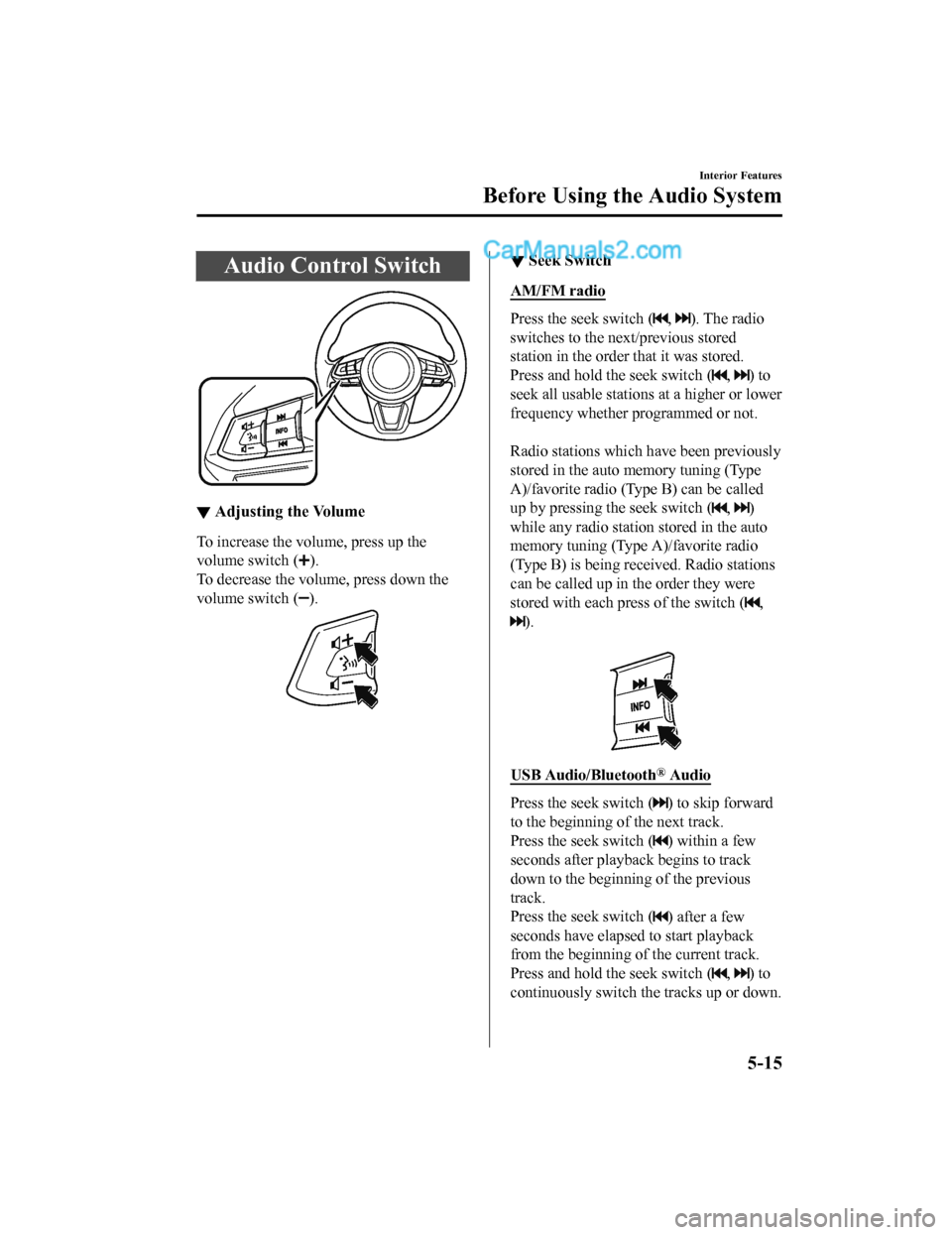
Audio Control Switch
▼Adjusting the Volume
To increase the volume, press up the
volume switch (
).
To decrease the volume, press down the
volume switch (
).
▼ Seek Switch
AM/FM radio
Press the seek switch (, ). The radio
switches to the next/previous stored
station in the order that it was stored.
Press and hold the seek switch (
, ) to
seek all usable stations at a higher or lower
frequency whether programmed or not.
Radio stations which have been previously
stored in the auto memory tuning (Type
A)/favorite radio (Type B) can be called
up by pressing the seek switch (
, )
while any radio stati on stored in the auto
memory tuning (Type A)/favorite radio
(Type B) is being received. Radio stations
can be called up in the order they were
stored with each press of the switch (
,
).
USB Audio/Bluetooth® Audio
Press the seek switch () to skip forward
to the beginning of the next track.
Press the seek switch (
) within a few
seconds after playback begins to track
down to the beginning of the previous
track.
Press the seek switch (
) after a few
seconds have elapsed to start playback
from the beginning of the current track.
Press and hold the seek switch (
, ) to
continuously switch the tracks up or down.
Interior Features
Before Using the Audio System
5-15
CX-5_8GN5-EA-17J_Edition1 2017-8-18 12:58:27
Page 331 of 628
NOTE
If not operated for several seconds, the
display returns to the previous display. To
reset bass, treble, fade, and balance, press
the menu button (
) for 2 seconds.
The unit will beep and “CLEAR” will be
displayed.
ALC (Automatic volume adjustment)
The automatic leve l control (ALC)
changes the audio volume automatically
according to the vehicle speed. The faster
the vehicle speed, the higher the volume
increases. ALC has ALC OFF and ALC
LEVEL 1 to 7 modes. At ALC LEVEL 7,
the amount that the volume can increase is
at the maximum. Select the mode
according to the driving conditions.
BEEP (Audio operation sound)
The setting for the operation sound when
pressing and holding a button can be
changed. The initial setting is ON. Set to
OFF to mute the operation sound.
BT SETUP mode
Music and other audio such as voice data
recorded on portable audio devices and
mobile phones available on the market
which are equipped with the Bluetooth
®
transmission function can be listened to
via wireless transmission over the
vehicle's speakers. Using the BT SETUP
mode, these devices can be programmed
to the Bluetooth
® unit or changed (page
5-35).
12Hr
24Hr (12 Hr/24 Hr time
adjustment)
Rotating the audio control dial switches
the display between 12 and 24-hour clock
time (page 5-22).
Interior Features
Audio Set [Type A (non-touchscreen)]
5-21
CX-5_8GN5-EA-17J_Edition1 2017-8-18 12:58:27
Page 342 of 628
Bluetooth®
▼Introduction
Bluetooth® Hands-Free outline
When a Bluetooth® device (mobile phone) is connected to the vehicle's Bluetooth® unit, a call
can be made or received by pressing the talk button, pick-up bu tton, or hang-up button on the
audio remote control switch. For example, even if a device (mobile phone) is in your coat pocket,
a call can be made without taking the device (mobile phone) out and operating it directly.
Bluetooth® audio outline
When a portable audio unit equipped with the Bluetooth® communication func tion is paired to
the vehicle, you can listen to music stored on the paired portable audio device from the vehicle's
speakers. It is not necessary to connect the portable audio dev ice to the vehicle's external input
terminal. After progra mming, operate the veh icle audio control panel to play/stop the audio.
NOTE
•For your safety, a device can be paired only when the vehicle is parked. If the vehicle starts to
move, the pairing procedure will end. Park the vehicle in a safe place before pairing.
•The communication range of a Bluetooth® equipped device is about 10 meters (32 ft) or less.
•Basic audio operation is available using voice commands even if Bluetooth® is not
connected.
CAUTION
Some Bluetooth® mobile devices are not compatible wi th the vehicle. Consult an Authorized
Mazda Dealer, Mazda's call center or Web support center for information regarding
Bluetooth
® mobile device compatibility:
U.S.A.
Phone: 800-430-0153
Web: www.mazdausa.com/mazdaconnect
Canada
Phone: 800-430-0153
Web: www.mazdahandsfree.ca
Applicable Bluetooth
® specification (Recommended)
Ver. 2.0
Interior Features
Audio Set [Type A (non-touchscreen)]
5-32
CX-5_8GN5-EA-17J_Edition1 2017-8-18 12:58:27
Page 345 of 628
Bluetooth® Preparation
▼Bluetooth® Hands-Free Preparation
Pairing code setting
The 4-digit pairing code setting for
registration of your cell phone (pairing)
can be set beforehand.
NOTE
The initial setting value is “0000”.
1. Press the pick-up
button or talk button
with a short press.
2. Say: [Beep] “Setup”
3. Prompt: “Select one of the following:
Pairing options, confirmation prompts,
language, passcode, select phone or
select music player.”
4. Say: [Beep] “Pairing options”
5. Prompt: “Select one of the following:
Pair, Edit, Delete, L ist, or Set Pairing
Code.”
6. Say: [Beep] “Set pairing code”
7. Prompt: “Your current pairing code is
XXXX. Do you want to change it to a
different pairing code?”
8. Say: [Beep] “Yes”
9. Prompt: “Please say a 4-digit pairing
code.”
10. Say: [Beep] “YYYY”
11. Prompt: “YYYY is this correct?”
12. Say: [Beep] “Yes” or “No”
13. If “Yes”, go to Step 14. If “No”, the procedure returns to Step 9.
14. Prompt: “Your new pairing code is
YYYY. Use this pairing code when
pairing devices to the Hands free
system. Do you want to pair a device
now?”
15. Say: [Beep] “Yes” or “No”
16. If “Yes”, the syste m switches to the
device registration mode. If “No”, the
system returns to standby status.
▼ Device pairing (Bluetooth®
Hands-Free)
To use Bluetooth® Hands-Free, the device
equipped with Bluetooth
® has to be paired
to the Bluetooth
® unit using the following
procedure.
A maximum of seven devices including
hands-free mobile phones and Bluetooth
®
audio devices can be paired to one vehicle.
NOTE
If a Bluetooth® device has already been
paired to the vehicle as a Bluetooth
®
audio device, it does not need to be paired
again when using the device as a
hands-free mobile phone. Conversely, it
does not need to be paired again as a
Bluetooth
® audio device if it has already
been paired as a hands-free mobile phone.
1. Activate the Bluetooth
® application of
the device.
NOTE
For the operation of the device, refer
to its instruction manual.
2. Press the pick-up button or talk button
with a short press.
3. Say: [Beep] “Setup”
4. Prompt: “Select one of the following:
Pairing options, confirmation prompts,
language, passcode, select phone or
select music player.”
5. Say: [Beep] “Pairing options”
6. Prompt: “Select one of the following:
Pair, Edit, Delete, List, or Set Pairing
Code.”
7. Say: [Beep] “Pair”
Interior Features
Audio Set [Type A (non-touchscreen)]
5-35
CX-5_8GN5-EA-17J_Edition1 2017-8-18 12:58:27
Page 346 of 628
8.Prompt: “Start the pairing process on
your Bluetooth
® device. Your pairing
code is 0000 (XXXX). Input this on
your Bluetooth
® device when
prompted on the device. See device
manual for instructions.”
9. Using the device, perform a search for
the Bluetooth
® device (Peripheral
device).
NOTE
For the operation of the device, refer
to its instruction manual.
10. Select “Mazda” from the device list
searched by the device.
11. Input the 4-digit pairing code to the
device.
12. Prompt: “Please say the name of the
device after the beep.”
13. Say: [Beep] “XXXX - - -” (Say a
“device tag”, an arbitrary name for the
device.) Example: “Stan's device.”
NOTE
Say a paired “device tag” within 10
seconds.
If more than two devices are to be
paired, they cannot be paired with the
same or similar “device tag”.
14. Prompt: “XXXXXX - - - (Ex. “Stan's
device”) (Device tag). Is this correct?”
15. Say: [Beep] “Yes”
16. Prompt: “Pairing complete”
After a device is registered, the system
automatically identifies the device. By
activating Bluetooth
® Hands-Free again,
or by activating Bluetooth
® Hands-Free
first after switching t he ignition from OFF
to ACC, the system reads out a voice
guidance, “XXXXXX - - - (Ex. “Stan's
device”) (Device tag) is connected”.
NOTE
•When the pairing is completed, the
symbol is displayed.
•Some Bluetooth® audio devices need a
certain amount of time before the
symbol is displayed.
•Device registration can also be done by
operating the audio unit.
•Depending on the device, the
registration status may be lost after a
certain period of time. If this occurs,
repeat the entire process from Step 1.
Registered device read-out
Bluetooth® Hands-Free can read-out the
devices registered to its system.
NOTE
Do this function only when parked. It is
too distracting to attempt while driving
and you may make too many errors to be
effective.
1. Press the pick-up button or talk button with a short press.
2. Say: [Beep] “Setup”
3. Prompt: “Select one of the following:
Pairing options, confirmation prompts,
language, passcode, select phone or
select music player.”
4. Say: [Beep] “Pairing options”
5. Prompt: “Select one of the following:
Pair, Edit, Delete, L ist, or Set Pairing
Code”
6. Say: [Beep] “List”
Interior Features
Audio Set [Type A (non-touchscreen)]
5-36
CX-5_8GN5-EA-17J_Edition1 2017-8-18 12:58:27
Page 347 of 628
7.Prompt: “XXXXX..., XXXXX...,
XXXXX... (Ex. Device A, device B,
device C)” (The voice guidance reads
out the device tags registered to the
hands-free system.)
Press the talk butto n with a short press
during the read-out at the desired
device, and then say one of the
following voice commands to execute
it.
•“Select phone”: Selects device
(Mobile phone) when the talk button
is short-pressed.
•“Select music player”: Selects
device (Music player) when the talk
button is short-pressed.
•“Edit”: Edits device when the talk
button is short-pressed.
•“Continue”: Continues the list
readout.
•“Delete”: Deletes the registered
device when the talk button is
short-pressed.
•“Previous”: Returns to the previous
device in read-out when the talk
button is short-pressed.
8. Prompt: “End of list, would you like
to start from the beginning?”
9. Say: [Beep] “No”
10. Prompt: “Returning to main menu.”
▼Device selection (Bluetooth®
Hands-Free)
If several devices have been paired, the
Bluetooth
® unit links the device last
paired. If you would like to link a different
paired device, it is necessary to change the
link. The order of device priority after the
link has been changed is maintained even
when the ignition is switched off.
(Hands-free phone)
1. Press the pick-up button or talk button with a short press.
2. Say: [Beep] “Setup”
3. Prompt: “Select one of the following:
Pairing options, confirmation prompts,
language, passcode, select phone or
select music player.”
4. Say: [Beep] “Select phone”
5. Prompt: “Please say the name of the
device you would like to select.
Available devices are XXXXX... (Ex.
device A), XXXXX... (Ex. device B),
XXXXX... (Ex. device C). Which
device please?”
6. Say: [Beep] “XXXXX... (Ex. Device
B)”
7. Prompt: “XXXXX... (Ex. Device B).
Is this correct?”
8. Say: [Beep] “Yes” or “No”
9. If “Yes”, go to Ste p 10. If “No”, the
procedure returns to Step 5.
10. Prompt: “XXXXX... (Ex. Device B)
selected.”
Interior Features
Audio Set [Type A (non-touchscreen)]
5-37
CX-5_8GN5-EA-17J_Edition1 2017-8-18 12:58:27