steering MAZDA MODEL MX-30 EV 2022 Workshop Manual
[x] Cancel search | Manufacturer: MAZDA, Model Year: 2022, Model line: MODEL MX-30 EV, Model: MAZDA MODEL MX-30 EV 2022Pages: 547, PDF Size: 79.35 MB
Page 295 of 547

Consult an Authorized Mazda Dealer
for repair, painting , or replacement
of the front/rear camera, front
bumper, liftgate and door mirrors.
Heed the following cautions to
assure that the 360°View Monitor
operates normally.
Do not modify the vehicle
suspensions or lower/raise the
vehicle body, or both.
Always use tires of the
specified
type and size for the front and rear
wheels. Consult an Authorized
Mazda Dealer for tire replacement.
When the display is cold, images
may leave trails or the screen might
be darker than usual, making it
di fficult to check the vehicle
surroundings. Always confirm the
safety at the front and around the
vehicle visually when driving.
The method for parking/stopping
the vehicle using the 360°View
Monitor
differs depending on the
road circumstances/conditions and
the vehicle conditions. When and
how much you turn the steering
wheel will differ depending on the
situation, therefore always check the
vehicle surroundings directly with
your eyes while using the system.
Also, before using the system, always
make sure that the vehicle can be
parked/stopped in the parking/
stopping space.
NOTE
If there are water droplets, snow, or
mud on the camera lens, wipe it off
using a soft cloth. If the camera lens
is especially dirty, wash it o ff with
mild detergent.
If the camera lens is touched or there
is any dirt on it, it could a ffect the
screen image. Wipe the lens using a
soft cloth.
If the area where the camera is
installed, such as the front bumper,
liftgate or door mirrors, has been
damaged in a vehicle accident, the
camera (position, installation angle)
may have shifted. Always consult an
Authorized Mazda Dealer to have
the vehicle inspected.
If the camera is subjected to
excessive changes in temperature
such as by pouring hot water on the
camera during cold weather, the
360°View Monitor may not operate
normally.
If the vehicle is driven during cold
temperatures and the camera
temperature decreases, the top view
and the side view may become
u n c l ea r. H o we ve r, t h i s d o e s n o t
indicate a problem. If the vehicle is
stopped for a while and the camera
temperature increases, the top view
and the side view will return to the
normal condition.
If the lead-acid battery voltage is
low, the screen might be temporarily diffi cult to view, however, this does
not indicate a problem.
The 360°View Monitor has
limitations. Objects under the
bumper or near both ends of the
bumper cannot be displayed.
Obstructions above the upper image
range of the camera are not
displayed.
Under the following conditions, the
screen might be di fficult to view,
however this does not indicate a
problem.
The temperature near the lens is
high/low.
When Driving
i-ACTIVSENSE
4-146
MX -30_8JD4-EA -21G_Edition2_new 2021-5-18 14:38:07
Page 305 of 547
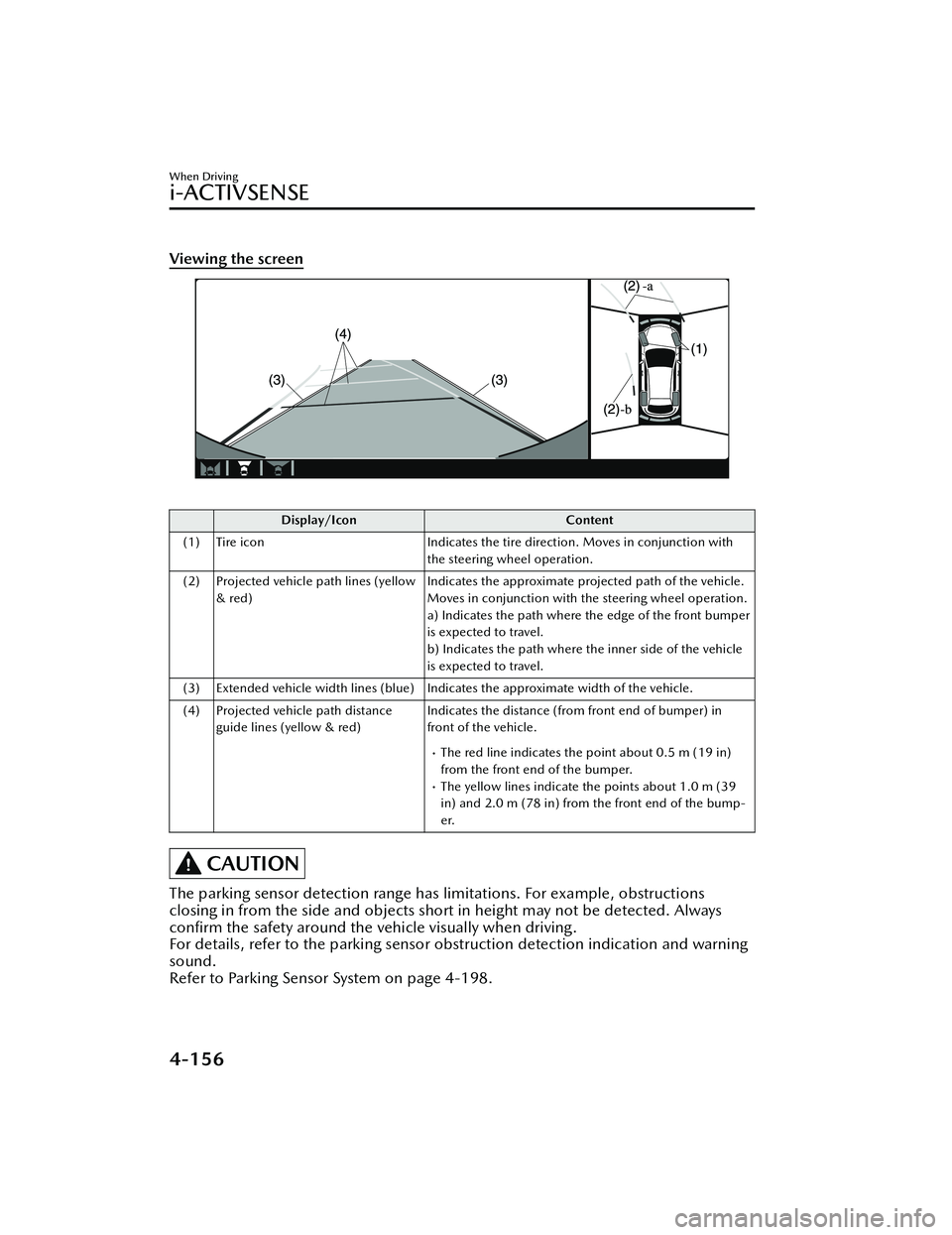
Viewing the screen
Display/IconContent
(1) Tire icon Indicates the tire direction. Moves in conjunction with
the steering wheel operation.
(2) Projected vehicle path lines (yellow & red) Indicates the approximate projected path of the vehicle.
Moves in conjunction with the steering wheel operation.
a) Indicates the path where the edge of the front bumper
is expected to travel.
b) Indicates the path where the inner side of the vehicle
is expected to travel.
(3) Extended vehicle width lines (blue) Indicates the approximate width of the vehicle.
(4) Projected vehicle path distance guide lines (yellow & red) Indicates the distance (from front end of bumper) in
front of the vehicle.
The red line indicates the point about 0.5 m (19 in)
from the front end of the bumper.
The yellow lines indicate the points about 1.0 m (39
in) and 2.0 m (78 in) from the front end of the bump-
er.
CAUTION
The parking sensor detection range has limitations. For example, obstructions
closing in from the side and objects shor
t in height may not be detected. Always
con firm the safety around the vehicle visually when driving.
For details, refer to the parking sensor obstruction detection indication and warning
sound.
Refer to Parking Sensor System on page 4-198.
When Driving
i-ACTIVSENSE
4-156
MX -30_8JD4-EA -21G_Edition2_new 2021-5-18 14:38:07
Page 306 of 547
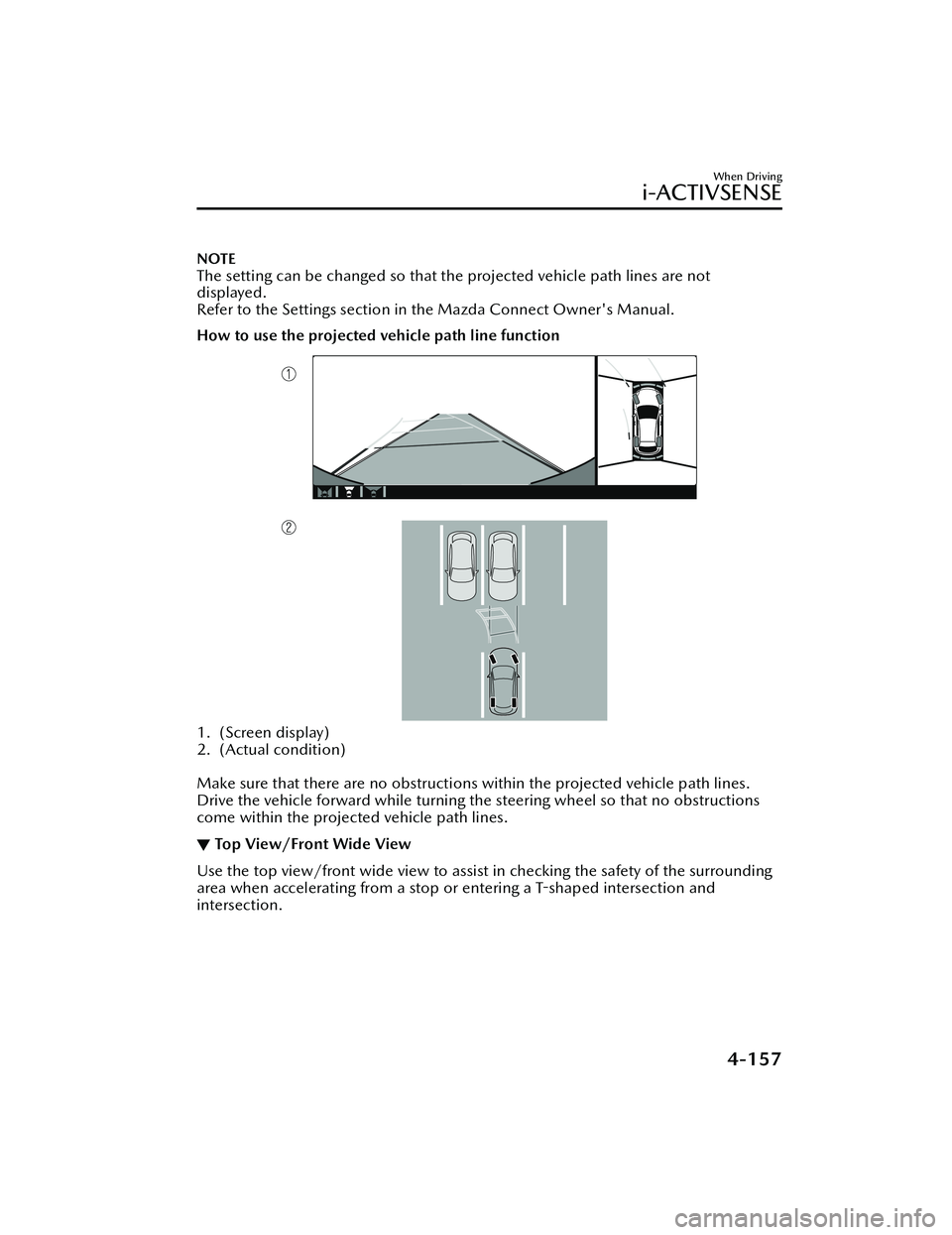
NOTE
The setting can be changed so that the projected vehicle path lines are not
displayed.
Refer to the Settings section in the Mazda Connect Owner's Manual.
How to use the projected vehicle path line function
1. (Screen display)
2. (Actual condition)
Make sure that there are no obstructions within the projected vehicle path lines.
Drive the vehicle forward while turning the steering wheel so that no obstructions
come within the projected vehicle path lines.
▼Top View/Front Wide View
Use the top view/front wide view to assist in checking the safety of the surrounding
area when accelerating from a stop or entering a T
-shaped intersection and
intersection.
When Driving
i-ACTIVSENSE
4-157
MX -30_8JD4-EA -21G_Edition2_new 2021-5-18 14:38:07
Page 309 of 547

Display range
1. Target object
Viewing the screen
Display/IconContent
(1) Projected vehicle path lines (yellow) Indicates the approximate projected path of the vehicle. Moves in conjunction with the steering wheel operation.
The projected vehicle path lines (yellow) indicate the
path the inner side of the vehicle is expected to travel.
(2) Vehicle parallel guide lines (blue) Indicates the approximate vehicle width including the door mirrors.
When Driving
i-ACTIVSENSE
4-160
MX-30_8JD4-EA -21G_Edition2_new 2021-5-18 14:38:07
Page 310 of 547

Display/IconContent
(3) Vehicle front end guide lines (blue) Indicates the point about 0.25 m (9.84 in) from the front edge of the vehicle (front edge of the bumper).
NOTE
The setting can be changed so that the projected vehicle path lines are not
displayed.
Refer to the Settings section in the Mazda Connect Owner's Manual.
How to use the projected vehicle path line function
1. (Screen display)
2. (Actual condition)
Make sure that there are no obstructions within the projected vehicle path lines.
Turn the steering wheel so that the projected vehicle path lines travel inside of the
obstruction (A), and drive the vehicle forward until it passes the obstruction.
If the projected vehicle path lines are on an obstruction (B) or outside of the
obstruction (C), the vehicle may contact the obstruction when turning the vehicle
sharply.
When Driving
i-ACTIVSENSE
4-161
MX -30_8JD4-EA -21G_Edition2_new 2021-5-18 14:38:07
Page 311 of 547
CAUTION
The parking sensor detection range has limitations. For example, obstructions
closing in from the side and objects short in height may not be detected. Always
con firm the safety around the vehicle visually when driving.
For details, refer to the parking sens or obstruction detection indication and
warning sound.
Refer to Parking Sensor System on page 4-198.
Do not turn the steering wheel any mo re until the vehicle has passed the
obstruction, even if the obstruction is no t visible on the side view image. If the
steering wheel is turned even more, the ve hicle may contact the obstruction if it is
turned sharply.
NOTE
Because there might be a diff erence between the image displayed on the screen
and the actual conditions, always check th e safety of the surrounding area using
the mirrors and directly with your eyes when driving.
Even though the object displayed on the screen, such as a road curb or a division
line of a parking space, and the vehicle parallel guide lines appear parallel, they
may not actually be parallel.
▼ Top View/Rear View
Use the top view/rear view to assist in checking the safety of the surrounding area
when accelerating from a stop, parking, or stopping the vehicle.
When Driving
i-ACTIVSENSE
4-162
MX
-30_8JD4-EA -21G_Edition2_new 2021-5-18 14:38:07
Page 313 of 547
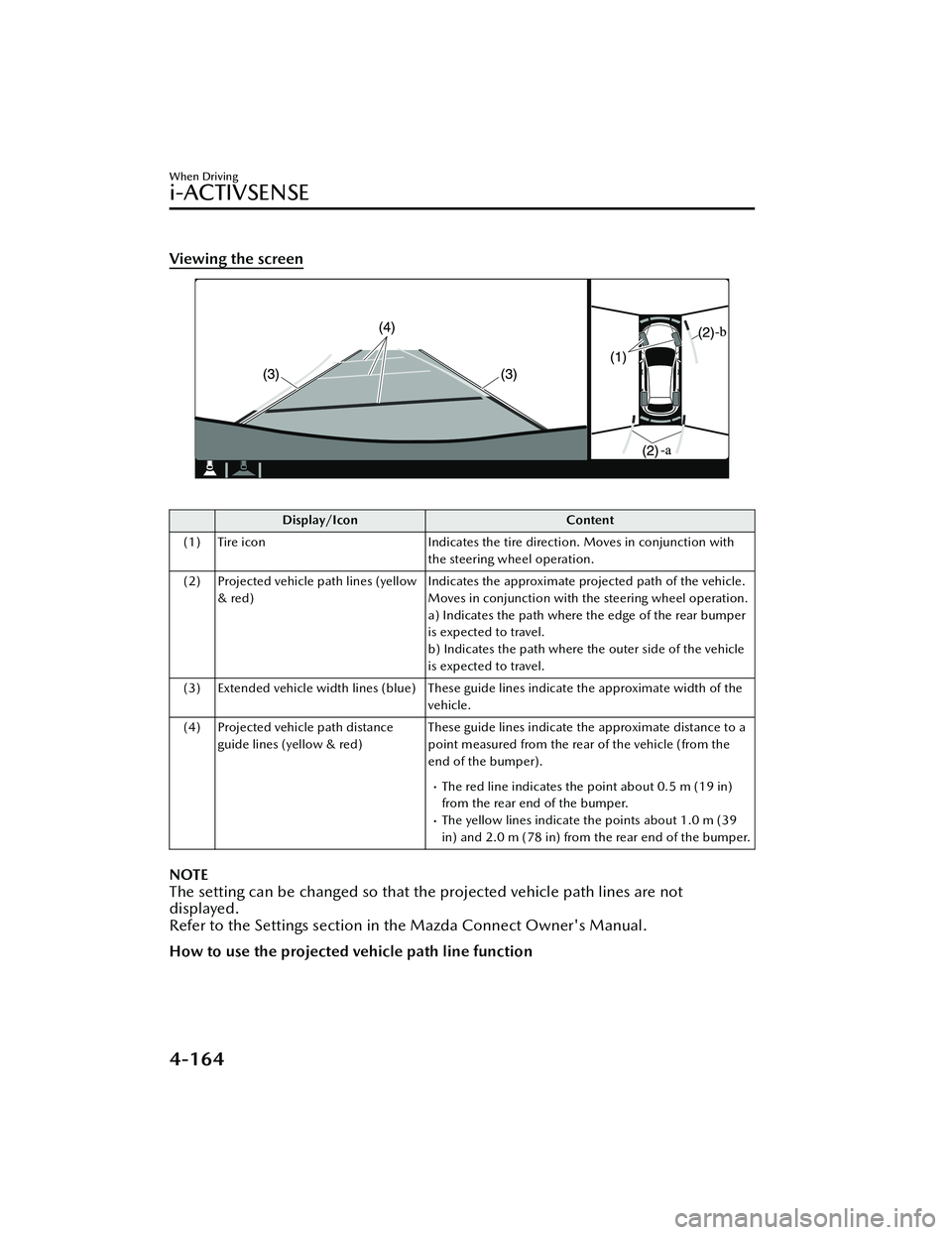
Viewing the screen
Display/IconContent
(1) Tire icon Indicates the tire direction. Moves in conjunction with
the steering wheel operation.
(2) Projected vehicle path lines (yellow & red) Indicates the approximate projected path of the vehicle.
Moves in conjunction with the steering wheel operation.
a) Indicates the path where the edge of the rear bumper
is expected to travel.
b) Indicates the path where the outer side of the vehicle
is expected to travel.
(3) Extended vehicle width lines (blue) These guide lines indicate the approximate width of the vehicle.
(4) Projected vehicle path distance guide lines (yellow & red) These guide lines indicate the approximate distance to a
point measured from the rear of the vehicle (from the
end of the bumper).
The red line indicates the point about 0.5 m (19 in)
from the rear end of the bumper.
The yellow lines indicate the points about 1.0 m (39
in) and 2.0 m (78 in) from the rear end of the bumper.
NOTE
The setting can be changed so that th
e projected vehicle path lines are not
displayed.
Refer to the Settings section in the Mazda Connect Owner's Manual.
How to use the projected vehicle path line function
When Driving
i-ACTIVSENSE
4-164
MX -30_8JD4-EA -21G_Edition2_new 2021-5-18 14:38:07
Page 314 of 547
CAUTION
The front of the vehicle swings out wide when turning the steering wheel while
reversing. Maintain su fficient distance between the vehicle and an obstruction.
The parking sensor detection range has limitations. For example, obstructions
closing in from the side and objects short in height may not be detected. Always
con firm the safety around the vehicle visually when driving.
For details, refer to the parking sensor obstruction detection indication and
warning sound.
Refer to Parking Sensor System on page 4-198.
NOTE
Because there might be a di fference between the image displayed on the screen,
such as indicated in the following , and the actual conditions when parking, always
check the safety at the rear of the vehicle and the surrounding area directly with
your eyes.
Even though the back end of the parking space (or garage) displayed on the
screen and distance guide lines appear parallel, they may not actually be
parallel.
When parking in a space with a division line on only one side of the parking
space, even though the division line and the vehicle width guide line appear
parallel, they may not actually be parallel.
The following shows an example of vehicle parking with the steering wheel turned
to the left while backing up the vehicle. When backing into a parking space from
the opposite direction, the steering operation is reversed.
When Driving
i-ACTIVSENSE
4-165
MX -30_8JD4-EA -21G_Edition2_new 2021-5-18 14:38:07
Page 315 of 547
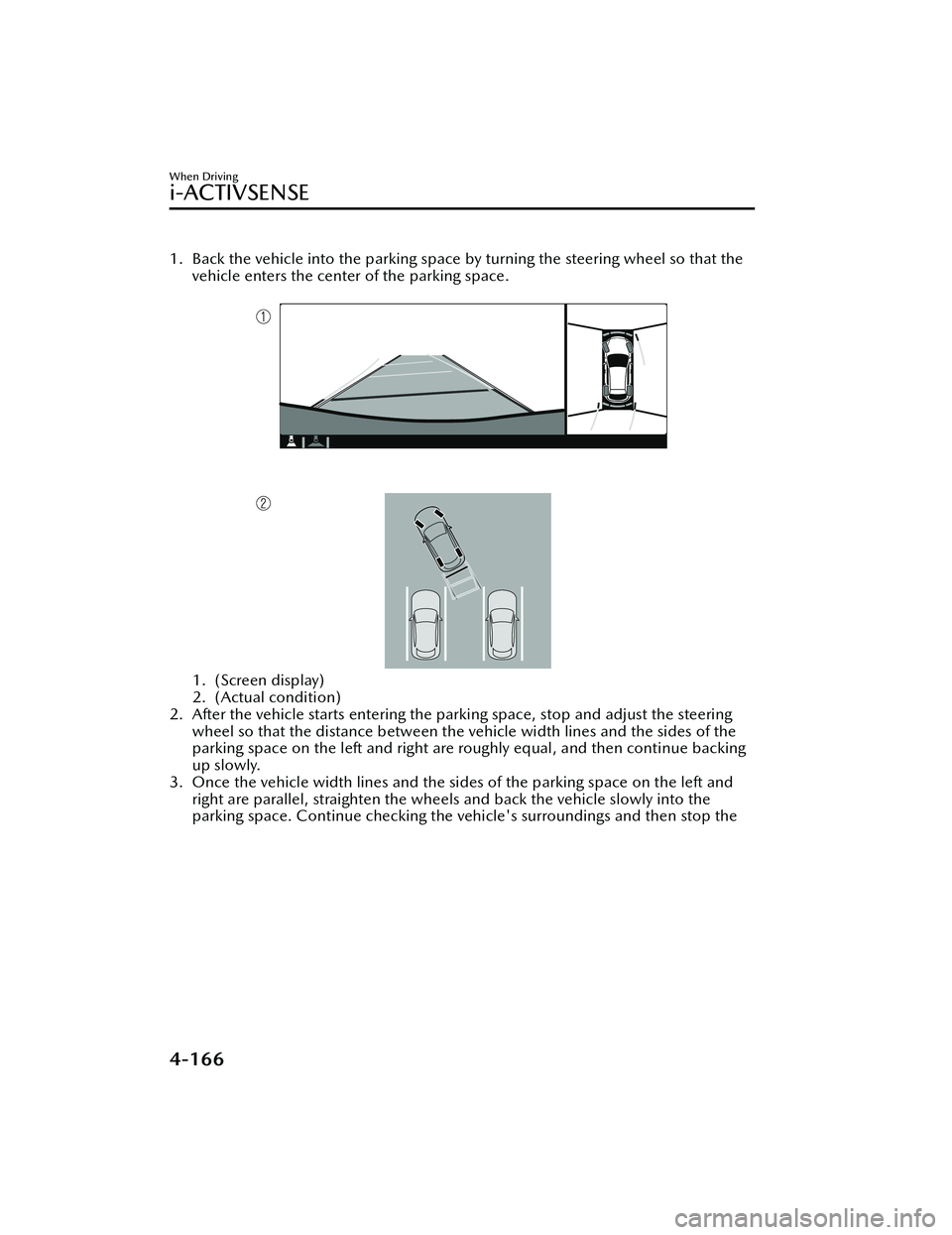
1. Back the vehicle into the parking space by turning the steering wheel so that the
vehicle enters the center of the parking space.
1. (Screen display)
2. (Actual condition)
2. After the vehicle starts entering the pa rking space, stop and adjust the steering
wheel so that the distance between the vehicle width lines and the sides of the
parking space on the left and right are roughly equal, and then continue backing
up slowly.
3. Once the vehicle width lines and the sides of the parking space on the left and
right are parallel, straighten the wheels and back the vehicle slowly into the
parking space. Continue checking the vehicle's surroundings and then stop the
When Driving
i-ACTIVSENSE
4-166
MX -30_8JD4-EA -21G_Edition2_new 2021-5-18 14:38:07
Page 325 of 547

Cruise Control
▼Cruise Control
With cruise control, you can set and
automatically maintain any speed of
more than about 30 km/h (19 mph).
WARNING
Do not use the cruise control under
the following conditions:
Using the cruise control under the
following conditions is dangerous and
could result in loss of vehicle control.
Hilly terrain
Steep inclines
Heavy or unsteady tra ffic
Slippery or winding roads
Similar restrictions that require
inconsistent speed
The vehicle speed may exceed the
set speed during sudden acceleration
or on steep down slopes.
In this case, depress the brake pedal
to adjust the vehicle speed.
▼ Cruise Control Switch
1. CANCEL switch
2. RES switch
3. Cruise switch
NOTE
If your Mazda has the following
steering switch, your Mazda is
equipped with the Mazda Radar
Cruise Control with Stop & Go
function (MRCC with Stop & Go
function) system.
Refer to Mazda Rada
r Cruise Control
with Stop & Go function (MRCC with
Stop & Go function) on page 4-111.
If the Mazda Radar Cruise Control with
Stop & Go function (MRCC with Stop
& Go function) is set to inoperable
using the personalization feature, the
system switches to the cruise control
function. In this case, the MRCC
functions as the cruise switch. In
addition, if the power switch is
switched OFF with the headway
control disabled using the
personalization features, the headway
control is enabled when the power
switch is switched ON the next time.
▼ Cruise Standby Indication
(White)/Cruise Set Indication
(Green)
Cruise standby Indication (White)
The indication turns on (white) when
the cruise control system is activated.
When Driving
Cruise Control
4-176
MX
-30_8JD4-EA -21G_Edition2_new 2021-5-18 14:38:07