warning MERCEDES-BENZ A-CLASS HATCHBACK 2018 Owners Manual
[x] Cancel search | Manufacturer: MERCEDES-BENZ, Model Year: 2018, Model line: A-CLASS HATCHBACK, Model: MERCEDES-BENZ A-CLASS HATCHBACK 2018Pages: 609, PDF Size: 10.73 MB
Page 251 of 609
Instrument display
overview &
WARNING Risk of accident due toan
instrument display malfunction
If th e Instrument Display has failed or mal‐
functioned, you may not recognise function
re strictions applying tosaf etyre leva nt sys‐
te ms.
The operating saf ety of your vehicle may be
impaired. #
Drive on carefull y.#
Have theve hicle checked immediately
at a qualified specialist workshop. If
th e operating saf ety of your vehicle is
impaired, park theve hicle safely as soon as pos‐
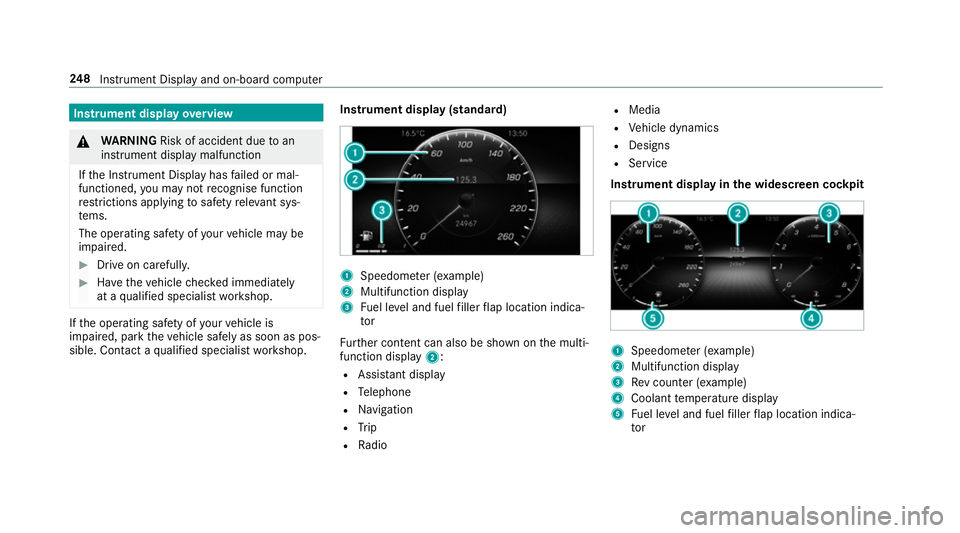
sible. Contact a qualified specialist workshop. Instrument display (standard) 1
Speedome ter (e xamp le)
2 Multifunction display
3 Fuel le vel and fuel filler flap location indica‐
tor
Fu rther content can also be shown on the multi‐
function display 2:
R Assis tant displ ay
R Telephone
R Navigation
R Trip
R Radio R
Media
R Vehicle dynamics
R Designs
R Service
Instrument display in the widescreen cockpit 1
Speedome ter (e xamp le)
2 Multifunction display
3 Rev counter (e xample)
4 Coolant temp erature display
5 Fuel le vel and fuel filler flap location indica‐
tor 248
Instrument Display and on-board computer
Page 252 of 609
%
In addition tothe multifunction display 2,
fur ther conte nt can also be shown on dis‐
pl ay s1 and 3(→page 252).
The segments in speedome ter1 indica tethe
sy stem status forth efo llowing:
R Cruise control (→ page196)
R Speed limiter(→ page 197)
R Active Dis tance Assi stDISTRONIC
(→ page 200)
* NO
TEEngine dama gedue toexc essively
high engine speeds The engine will be damaged if
you drive with
th e engine in theov errevving range. #
Do not drive wi th the engine in theove r‐
re vving range. The fuel supply is inter
rupted toprotect the
engine when there d mark on there v counter
(o ve rrev ving range) is reached.
Ve hicles with widescreen cock pit:during nor‐
mal operating conditions, the coolant temp era‐
ture display may rise to120 °C. &
WARNING Danger of bu rns when open‐
ing the bonn et
If yo u open the engine bonn etwhen the
engine has overheated or during a fire inthe
engine compartment, you could come into
contact with hot gases or other escaping
operating fluids. #
Before opening the bonn et, allow the
engine tocool down. #
Intheeve nt of a fire inthe engine com‐
partment, keep the engine bonn et
closed and call thefire service. Overview of
the but tons on thest eering
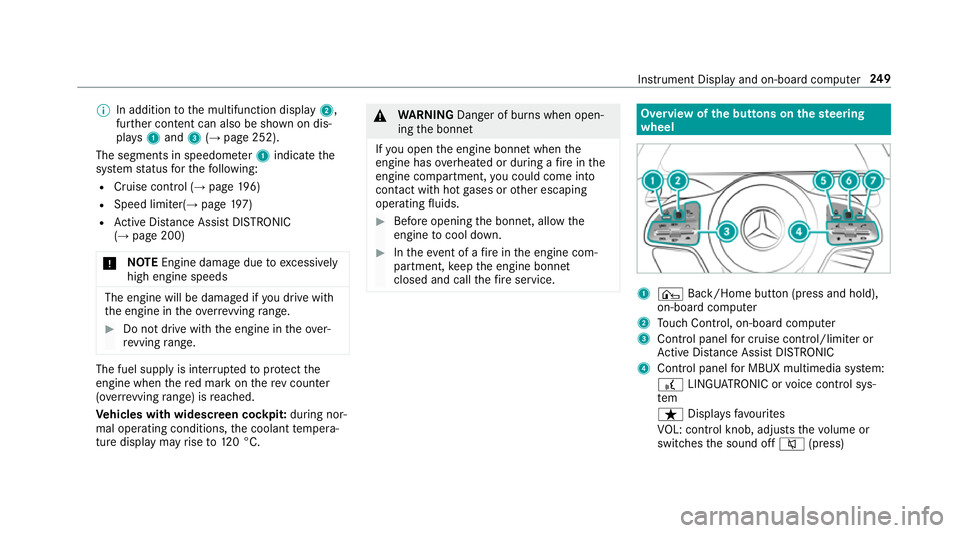
wheel 1
¤ Back/Home button (press and hold),
on-board computer
2 Touch Control, on-board co mputer
3 Control panel for cruise control/limiter or
Ac tive Dis tance Assi stDISTRONIC
4 Control panel for MBUX multimedia sy stem:
£ LINGU ATRO NIC or voice control sys‐
tem
ß Displaysfa vo urites
VO L: control knob, adjusts thevo lume or
switches the sound off 8(press) Instrument Display and on-board computer
249
Page 253 of 609
6
Makes/accepts a call
~ Rejects/ends a call
5 ò Calls up the home screen
6 Touch Control multimedia sy stem
7 % Back button (press and hold) Operating
the on-boa rdcompu ter &
WARNING Risk of di stra ction from infor‐
mation sy stems and communications
equipment
If yo u operate information and communica‐
tion equipment integ rated in theve hicle
when driving, you will be distracted from the
traf fic situation. This could also cause youto
lose control of theve hicle. #
Only operate this equipment when the
traf fic situation permits. #
Ifyo u cannot be sure of this, stop the
ve hicle whilst paying attention toroad
and traf fic conditions and ope rate the
equipment with theve hicle stationar y. Obser
vethe legal requ irements forth e count ry
in which you are cur rently driving when operat‐
ing the on-board computer.
% The on-board computer displa ysappear on
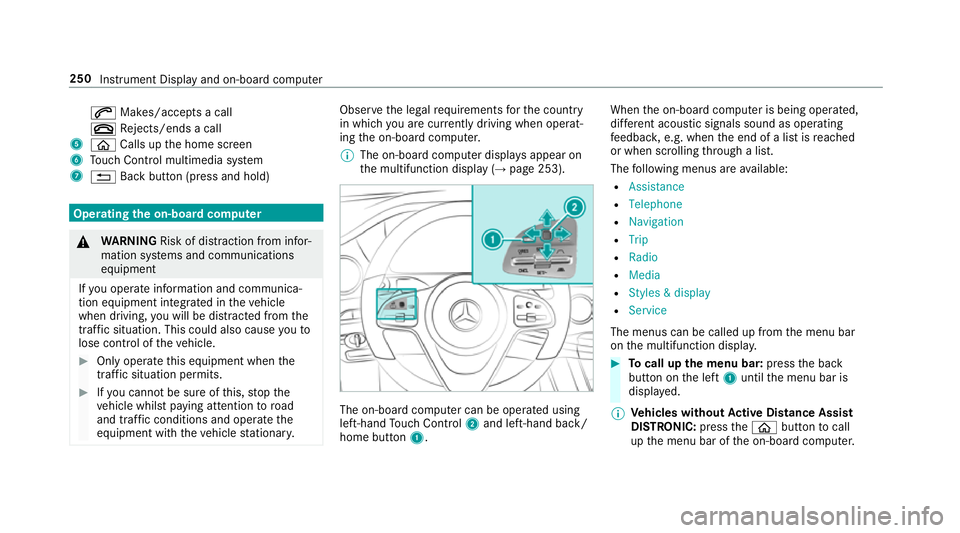
th e multifunction display (→ page 253). The on-board computer can be operated using
left-hand Touch Control 2and left-hand back/
home but ton1. When
the on-board computer is being operated,
dif fere nt acoustic signals sound as operating
fe edbac k,e.g. when the end of a list is reached
or when sc rolling thro ugh a list.
The following menus are available:
R Assistance
R Telephone
R Navigation
R Trip
R Radio
R Media
R Styles & display
R Service
The menus can be called up from the menu bar
on the multifunction displa y. #
Tocall up the menu bar: pressthe back
button on the left 1until the menu bar is
displa yed.
% Ve
hicles without Active Di stance Assist
DISTRO NIC:press theò button tocall
up the menu bar of the on-board computer. 250
Instrument Display and on-board computer
Page 257 of 609
#
Turn brightness control 1up or down.
The lighting of the instrument display and in
th e control elements of theve hicle interior is
adjus ted. Menus and submenus
Fu
nctions on the service menu of the on-
board compu terOn-board computer:
, Service #
Toselect the function: swipe upwards or
down wards on the left-hand Touch Control. #
Press the left-hand Touch Control.
Fu nctions on theService menu:
R Message memory (→ page 498)
R AdBlue :Ad blue ®
ra nge and fill le vel
R Tyres:
- Restart the tyre pressure loss warning
sy stem (→ page 467) -
Check the tyre pressure with the tyre
pressure monitoring sy stem
(→ page 461)
- Restart the tyre pressure monitoring sys‐
te m (→ page 462)
R ASSYST PLUS : calls upthe service due date
(→ page 419)
R Coolant: coolant temp erature display
R Engine oil level: engine oil le vel
R Consumption info: fuel life cycle consump‐
tion Calling up
the assistant display On-board computer:
, Assistance
The following displa ysare available on the assis‐
ta nt displ aymenu:
R Assis tant displ ay
R Attention le vel (→ page 231)
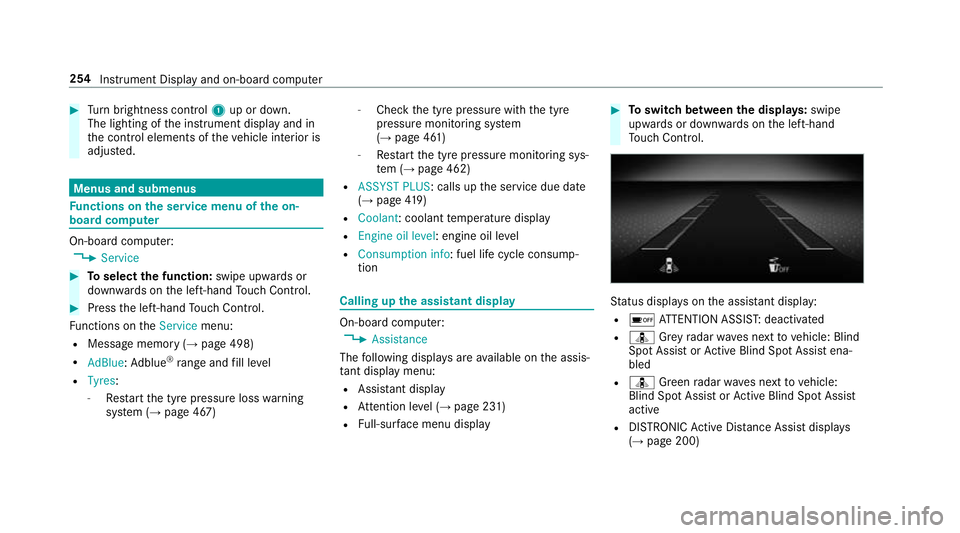
R Full-sur face menu displ ay #
Toswitch between the displa ys:swipe
upwards or down wards on the left-hand
To uch Control. St
atus displa yson the assis tant displ ay:
R é ATTENTION ASSIS T:deactivated
R ¸ Grey radar waves next tovehicle: Blind
Spot Assist or Active Blind Spot Assi stena‐
bled
R ¸ Green radar waves next tovehicle:
Blind Spot Assist or Active Blind Spot Assi st
active
R DISTRO NICActive Dis tance Assi stdispla ys
( → page 200) 254
Instrument Display and on-board computer
Page 261 of 609
#
Toselect a radio station: swipe upwards or
down wards on the left-hand Touch Control.
Selecting the frequency range or memory
preset #
Press the left-hand Touch Control. #
Swipe upwards or down wards on the left-
hand Touch Control. #
Press the left-hand Touch Control. Media playba
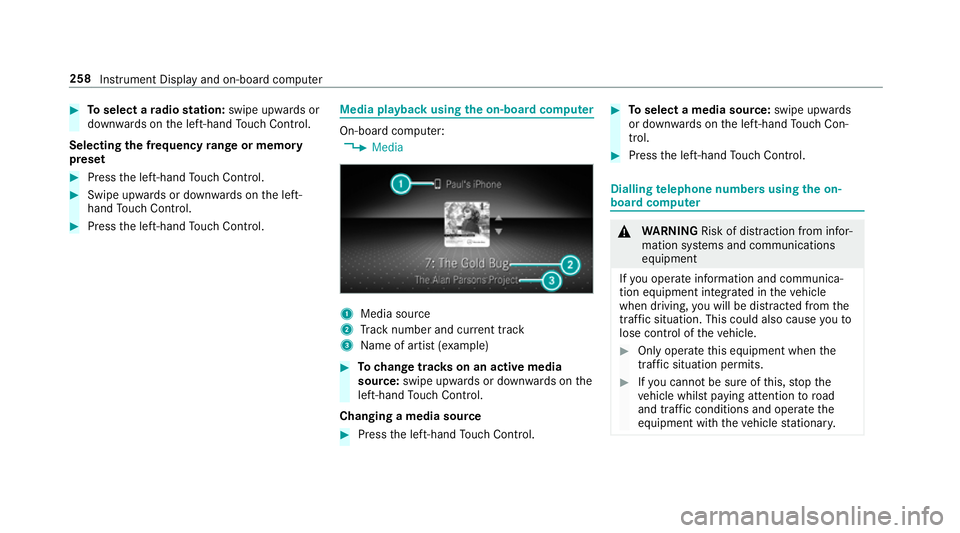
ckusing the on-boa rdcompu ter On-board computer:
, Media 1
Media source
2 Track number and cur rent track
3 Name of artist (e xamp le) #
Tochange trac kson an active media
source: swipe upwards or down wards on the
left-hand Touch Control.
Changing a media source #
Press the left-hand Touch Control. #
Toselect a media source: swipe upwards
or down wards on the left-hand Touch Con‐
trol. #
Press the left-hand Touch Control. Dialling
telephone numbers using the on-
board compu ter &
WARNING Risk of di stra ction from infor‐
mation sy stems and communications
equipment
If yo u operate information and communica‐
tion equipment integ rated in theve hicle
when driving, you will be distracted from the
traf fic situation. This could also cause youto
lose control of theve hicle. #
Only operate this equipment when the
traf fic situation permits. #
Ifyo u cannot be sure of this, stop the
ve hicle whilst paying attention toroad
and traf fic conditions and ope rate the
equipment with theve hicle stationar y. 258
Instrument Display and on-board computer
Page 263 of 609
Selecting what
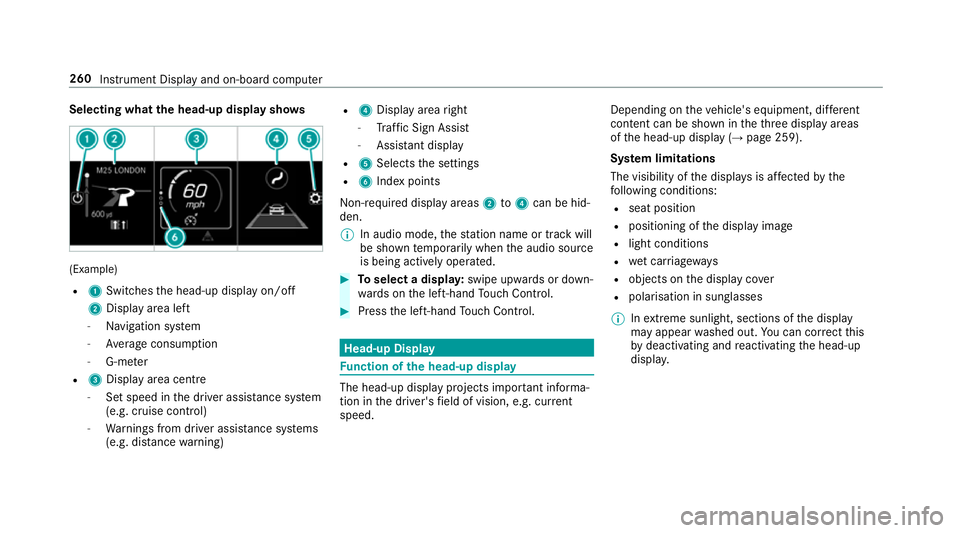
the head-up display sho ws(Example)
R 1 Switches the head-up display on/off
2 Display area left
- Navigation sy stem
- Average consum ption
- G-me ter
R 3 Displ ayarea centre
- Set speed in the driver assis tance sy stem
(e.g. cruise control)
- Warnings from driver assis tance sy stems
(e.g. dis tance warning) R
4 Display area right
- Traf fic Sign Assi st
- Assi stant display
R 5 Selects the settings
R 6 Index points
Non- requ ired display areas 2to4 can be hid‐
den.
% In audio mode, thest ation name or track will
be shown temp orarily when the audio source
is being actively operated. #
Toselect a displa y:swipe upwards or down‐
wa rds on the left-hand Touch Control. #
Press the left-hand Touch Control. Head-up Display
Fu
nction of the head-up display The head-up display projects impor
tant informa‐
tion in the driver's field of vision, e.g. cur rent
speed. Depending on
theve hicle's equipment, dif fere nt
content can be shown in theth re e display areas
of the head-up display (→ page 259).
Sy stem limitations
The visibility of the displa ysis af fected bythe
fo llowing conditions:
R seat position
R positioning of the display image
R light conditions
R wet car riag ewa ys
R objects on the display co ver
R polarisation in sunglasses
% Inextreme sunlight, sections of the display
may appear washed out. You can co rrect this
by deactivating and reactivating the head-up
displa y. 260
Instrument Display and on-board computer
Page 264 of 609
Note
s on operating saf ety &
WARNING Risk of di stra ction from infor‐
mation sy stems and communications
equipment
If yo u operate information and communica‐
tion equipment integ rated in theve hicle
when driving, you will be distracted from the
traf fic situation. This could also cause youto
lose control of theve hicle. #
Only operate this equipment when the
traf fic situation permits. #
Ifyo u cannot be sure of this, stop the
ve hicle whilst paying attention toroad
and traf fic conditions and ope rate the
equipment with theve hicle stationar y. &
WARNING Risk of di stra ction from oper‐
ating mobile communication equipment
while theve hicle is in motion
If yo u operate mobile communication equip‐
ment when driving, you will be distracted from
the tra ffic situation. This could also
cause youto lose control of theve hicle. #
Only operate this equipment when the
ve hicle is stationar y. Fo
ryo ur ow n sa fety, al ways obser vethefo llow‐
ing points when operating mobile communica‐
tions equipment and especially your voice con‐
trol sy stem:
R Obser vethe legal requ irements forth e coun‐
try in which you are driving.
R While driving, on ly operate mobile communi‐
cations equipment and your voice control
sy stem when the tra ffic conditions permit it.
Yo u may otherwise be distracted from the
traf fic conditions and cause an accident,
inju ring yourself and others.
R Ifyo u use thevo ice control sy stem in an
emer gency your voice can change and your
te lephone call, e.g. an emer gency call, can
th ereby be unnecessarily dela yed.
R Familiarise yourself with thevo ice control
sy stem functions before starting the journe y. Operation
Overview of operating
the multifunction
st eering wheel LINGU
ATRO NIC is operational appr oximately
th irty seconds af terth e ignition is switched on. LINGU
ATRO NIC 261
Page 283 of 609
Overview and operation
Overview of
the MBUX multimedia sy stem &
WARNING Risk of di stra ction from infor‐
mation sy stems and communications
equipment
If yo u operate information and communica‐
tion equipment integ rated in theve hicle
when driving, you will be distracted from the
traf fic situation. This could also cause youto
lose control of theve hicle. #
Only operate this equipment when the
traf fic situation permits. #
Ifyo u cannot be sure of this, stop the
ve hicle whilst paying attention toroad
and traf fic conditions and ope rate the
equipment with theve hicle stationar y. Yo
u must obse rveth e legal requirements forthe
country in whi chyou are cur rently driving when
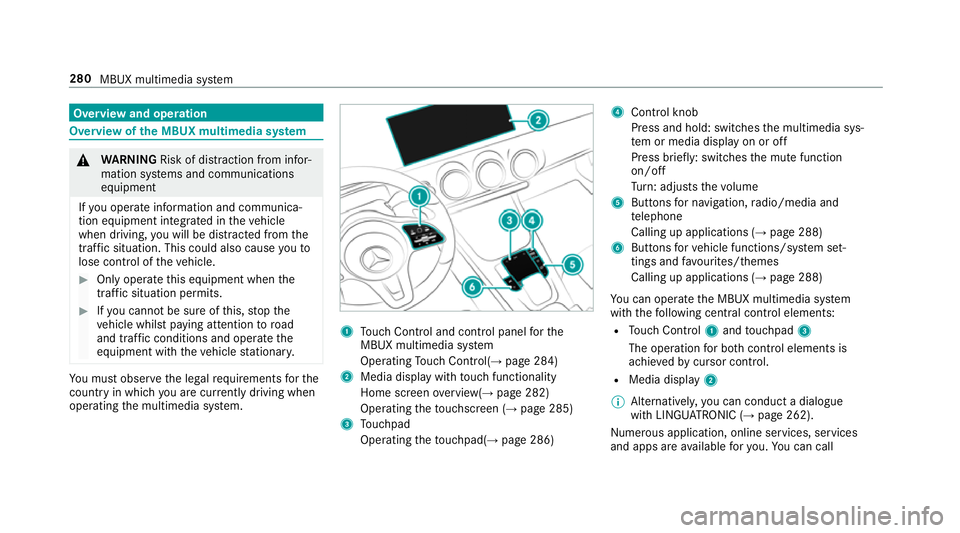
operating the multimedia sy stem. 1
Touch Control and cont rol panel forthe
MBUX multimedia sy stem
Operating Touch Control(→ page 284)
2 Media displ aywith touch functionality
Home sc reen ove rview(→ page 282)
Operating theto uchsc reen (→ page 285)
3 Touchpad
Operating theto uchpad( →page 286) 4
Control knob
Press and hold: swit ches the multimedia sys‐
te m or media display on or off
Press brief ly: switches the mute function
on/off
Tu rn: adjusts thevo lume
5 Buttons for navigation, radio/media and
te lephone
Calling up applications (→ page 288)
6 Buttons forve hicle functions/sy stem set‐
tings and favo urites/ themes
Calling up applications (→ page 288)
Yo u can operate the MBUX multimedia sy stem
with thefo llowing central control elements:
R Touch Control 1and touchpad 3
The operation for bo thcontrol elements is
achie vedby cursor control.
R Media displ ay2
% Alternati vely, you can conduct a dialogue
with LINGU ATRO NIC (→ page 262).
Numerous application, online services, services
and apps are available foryo u. You can call 280
MBUX multimedia sy stem
Page 292 of 609
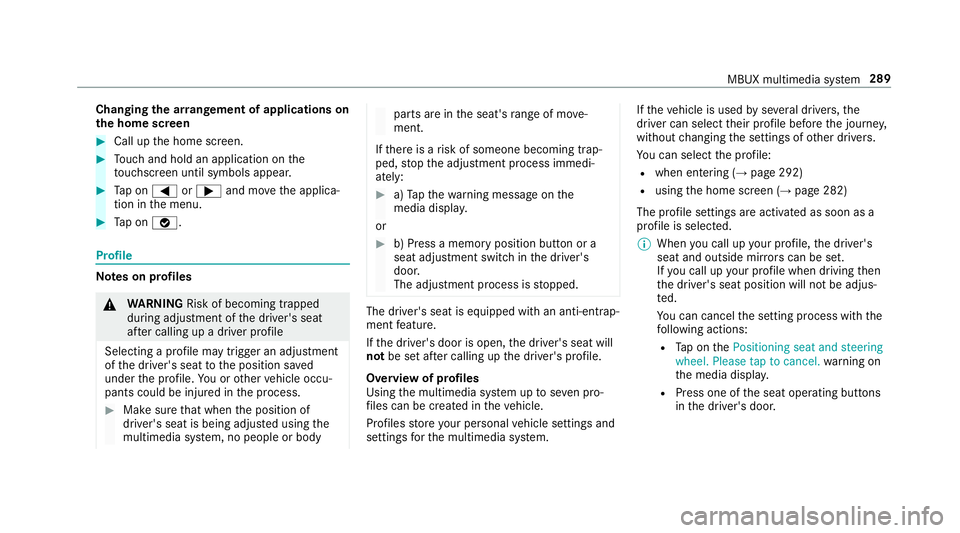
Changing
the ar rangement of applications on
th e home screen #
Call up the home screen. #
Touch and hold an application on the
to uchsc reen until symbols appear. #
Tap on = or; and mo vethe applica‐
tion in the menu. #
Tap on ø. Profile
Note
s on profiles &
WARNING Risk of becoming trapped
du ring adjustment of the driver's seat
af te r calling up a driver profile
Selecting a profile may trigger an adju stment
of the driver's seat tothe position sa ved
under the profile. You or other vehicle occu‐
pants could be injured in the process. #
Make sure that when the position of
driver's seat is being adjus ted using the
multimedia sy stem, no people or body parts are in
the seat's range of mo ve‐
ment.
If th ere is a risk of someone becoming trap‐
ped, stop the adjustment process immedi‐
ately: #
a)Tapth ewa rning message on the
media displa y.
or #
b) Press a memory position button or a
seat adjustment switch in the driver's
door.
The adjustment process is stopped. The driver's seat is equipped with an anti-entrap‐
ment feature.
If th e driver's door is open, the driver's seat will
not be set af ter calling up the driver's profile.
Overview of profiles
Using the multimedia sy stem up toseven pro‐
fi les can be created in theve hicle.
Profiles store your personal vehicle settings and
settings forth e multimedia sy stem. If
th eve hicle is used byseveral drivers, the
driver can select their profile before the journe y,
without changing the settings of other drivers.
Yo u can select the profile:
R when entering (→ page 292)
R using the home screen (→ page 282)
The profile settings are activated as soon as a
profile is selected.
% When you call up your profile, the driver's
seat and outside mir rors can be set.
If yo u call up your profile when driving then
th e driver's seat position will not be adjus‐
te d.
Yo u can cancel the setting process with the
fo llowing actions:
R Tap on thePositioning seat and steering
wheel. Please tap to cancel. warning on
th e media displa y.
R Press one of the seat operating buttons
in the driver's door. MBUX multimedia sy
stem 289
Page 294 of 609
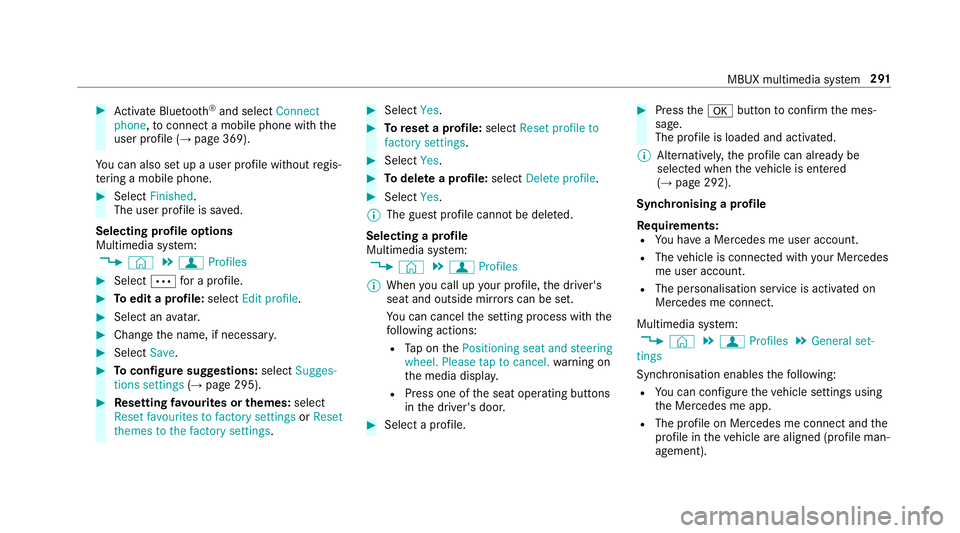
#
Activate Blu etoo th®
and select Connect
phone, toconnect a mobile phone wi th the
user profile (→ page 369).
Yo u can also set up a user profile without regis‐
te ring a mobile phone. #
Select Finished.
The user profile is sa ved.
Selecting profile options
Multimedia sy stem:
, © .
f Profiles #
Select Äfor a profile. #
Toedit a profile: selectEdit profile . #
Select an avatar. #
Chan gethe name, if necessar y.#
Select Save. #
Toconfigure suggestions: selectSugges-
tions settings (→page 295). #
Resetting favo urites or themes: select
Reset favourites to factory settings orReset
themes to the factory settings . #
Select Yes. #
Toreset a profile: selectReset profile to
factory settings. #
Select Yes. #
Todel ete a profile: selectDelete profile . #
Select Yes.
% The guest profile cannot be dele ted.
Selecting a profile
Multimedia sy stem:
, © .
f Profiles
% When you call up your profile, the driver's
seat and outside mir rors can be set.
Yo u can cancel the setting process with the
fo llowing actions:
R Tap on thePositioning seat and steering
wheel. Please tap to cancel. warning on
th e media displa y.
R Press one of the seat operating buttons
in the driver's door. #
Select a profile. #
Press thea button toconfirm the mes‐
sage.
The profile is loaded and activated.
% Alternatively, the profile can already be
selected when theve hicle is entered
(→ page 292).
Synchronising a profile
Re quirements:
R You ha vea Mercedes me user account.
R The vehicle is connected with your Mercedes
me user account.
R The personalisation service is activated on
Mercedes me connect.
Multimedia sy stem:
, © .
f Profiles .
General set-
tings
Synchronisation enables thefo llowing:
R You can configure theve hicle settings using
th e Mercedes me app.
R The profile on Mercedes me connect and the
profile in theve hicle are aligned (profile man‐
agement). MBUX multimedia sy
stem 291